Author: Security – Computerworld

A must-try Android email upgrade

Ahem: I have two separate confessions to make, both equally embarrassing.

Confession #1 is that I love email. I’m totally not kidding, either. It’s about as uncool of a thing as possible to adore, I realize — I mean, everyone hates their inbox, right?

For me, though, email is a brilliant communication system. It’s a refreshingly versatile and direct way to reach both anyone and everyone, whether we’re talkin’ individual messages for personal and professional purposes or full-fledged publications like the titillating tech newsletters I send through my ever-evolving knowledge-sharing collective, The Intelligence.

So, yeah: I frickin’ love email. Sue me.

Confession #2 may seem counterintuitive on the surface, given that gut-spilling humiliation I just put myself through. But I promise, it actually makes sense: I, the guy who endlessly writes about email and built an entire livelihood around the idea of email as a communication channel, also….hate email.

Surely you’ve both adored and abhorred something at the same time, right? Email can be wonderful, and I rely on it daily in so many ways. But man, it can also be an endless migraine-maker because of the way other people insist on invading my inbox with eternal demands on my time. (If you’re someone who has ever emailed me, I swear, this isn’t about you. I still love you. I just hate email. Sometimes.)

The biggest challenge with email — whether you love it, hate it, or a mix of the two, like me — is finding a way to focus on the stuff that matters while tuning out the noise. And while we’ve got no shortage of tweaks and tools for taming the jungle of your inbox, the real problem, especially on the phone front, is figuring out how to turn email notifications into something that isn’t a uselessly distracting all-day drone.

It’s the exact type of nerdy problem I love to tackle, and today, I’ve got an inspired new solution for you to put to use.

[Why stop with emails? Take your entire Android notification game to soaring new heights with my free Android Notification Power-Pack — six powerful enhancements for any Android device.]]

A new approach to Android email notifications

All right, so, first things first: By default, most Android email apps tend to take one of three approaches with email notifications:

  1. They bombard you with alerts for every stupid email you receive, thereby causing you to be constantly distracted and/or to tune the alerts out entirely.
  2. They hit you over the head with alerts for every email they deem to be “important” or “high-priority,” which similarly bleeps and bloops and interrupts you for all sorts of messages that don’t actually require your immediate attention.
  3. They don’t notify you at all, thereby allowing important and at times timely stuff to slip through the cracks and remain unnoticed until you happen to open up your inbox.

None of these paths, suffice it to say, is optimal. So what if there were a better way — a way you, the non-artificially intelligent human who actually understands which emails need to notify you and which do not, could intelligently control your Android email notifications and proactively decide which exact emails alert you?

My friend, prepare to have your mind blown.

This tip is actually a two-parter: First, I’ll show you a simple way to categorically create alerts for emails that meet specific conditions while turning off all the other ruckus. And second, I’ll show you how to apply that same formula on the fly to specific limited email threads so you can flag individual conversations for ongoing alerting, even if they don’t meet your general notification-generating conditions.

Whew! That sounds like a lot, I know. And there’s a fair amount to this. But I promise: It’s actually quite easy. And once you get this set up this once, it’ll then Just Work™ from that point forward — with barely any ongoing effort required.

Ready?

Step 1: Disable the default Android email alerts

Before we can improve your Android email notifications, we need to get rid of the underwhelming ones that exist by default.

We’re gonna use Gmail as the example for all of this, since that’s the default email app on Android and the one most Android-appreciating animals rely on. But if you’re using Outlook or any other Android email app, you should be able to set up something similar by finding the equivalent steps and actions within that environment.

For Gmail, our first step is gonna be to disable all the standard existing email notifications — ’cause unless you actually want to be notified for every single email that arrives in your inbox all day long (or even every email that Gmail determines might be “important” to you), those notifications probably aren’t serving you well.

So do this:

  • Open up the Gmail app on your phone.
  • Tap the three-line menu icon in the app’s upper-left corner and then select “Settings.” (You might have to scroll down a bit within the menu before you see it.)
  • Tap the name of the Gmail address you want to adjust for these purposes.
  • Tap “Notifications” and make sure “All” is selected in the pop-up that appears.

Cool? Cool.

Now, back in the main settings menu for your Gmail account:

  • Tap “Manage labels.”
  • For any label you see with “Last 30 days” beneath it, tap its line and uncheck the box next to “Label notifications” — so that it looks like this:
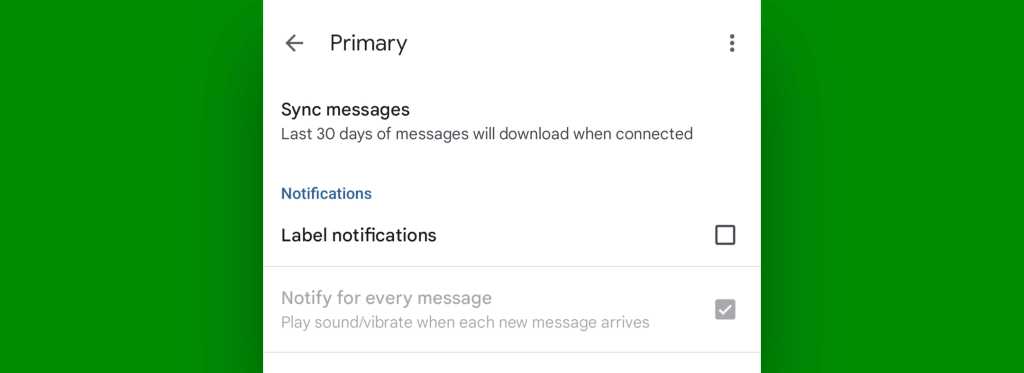
Android email notifications - Gmail
Turning off your default Android Gmail notifications is the first step to a more enlightened approach.

JR Raphael, IDG

Again, be sure to repeat that for every label in the list with “Last 30 days” beneath it so that none of those labels will create notifications for you from this moment forward.

And now we’re ready to tell Gmail which emails you actually do want to be notified about.

Step 2: Set up your new Android email trigger

For this next step, you’re gonna need to access Gmail on a computer. For reasons I cannot fathom, Google still doesn’t make it possible to create and edit labels or filters on Android here in the year 2025 —  when so many people are using mobile devices so much of the time! — and this means you’ve gotta get to the desktop Gmail website to make it happen.

Once you’re there, click the gear-shaped icon in the site’s upper-right corner, then click “See all settings” in the panel that pops up.

Then:

  • Click the “Labels” tab at the top of the screen.
  • Click the “Create new label” button, in the “Labels” area of the page.
  • Type Notify in the field for the label’s name and click the “Create” button to save it.
Gmail new label
This new Gmail label is the key to smarter Android email notifications. (Just wait!)

JR Raphael, IDG

Easy, right? Now we’ve got the Gmail label that’ll cause an email to notify you, and we’re ready to go back to the Gmail app on your Android device to set it up accordingly.

In Gmail on Android, head into that same settings section we were looking at a minute ago — by tapping the three-line menu icon in the app’s upper-left corner, selecting “Settings,” then selecting your Gmail address — and once more, tap “Manage labels” in the menu that pops up.

Find and tap the new “Notify” label we created. (If you aren’t seeing it yet, you may need to back all the way out of the app’s settings then go back in anew to force it to refresh.)

Then:

  • Tap “Sync messages” and choose “Last 30 days.”
  • Tap the checkbox next to “Label notifications” to activate it.
  • Tap the checkbox next to “Notify for every message” to activate it.
Android email notifications - Gmail label
We want emails associated with our “Notify” label to create a notification, each and every time.

JR Raphael, IDG

And with that, m’dearie, your foundation is set. And now we’re ready to create your auto-notifying formula and also learn the steps for flagging a specific email conversation for ongoing notifications as you go.

Step 3: Create your always-notify playbook

We’ll start with the auto-notifying formula — the parameters you want to create for which types of emails should always notify you, no matter what.

They might be emails from a specific sender — like your boss, an especially important client, or your illicit pet koala who periodically emails you hilarious marsupial jokes. They might be emails that come to a specific address, like a high-priority company account you’re tasked with monitoring. Or they might be emails that contain a specific phrase, like “site down” or “hilarious marsupial joke.”

Whatever the case may be, we’ve gotta go back to the Gmail desktop website on a computer once more to do the one-time initial setup around this — as, again, Google for reasons unknown won’t let you create Gmail filters from a phone.

So from the Gmail desktop website:

  • Click the search box at the top of the screen, then click the three-line control panel icon that pops up at the right of the box.
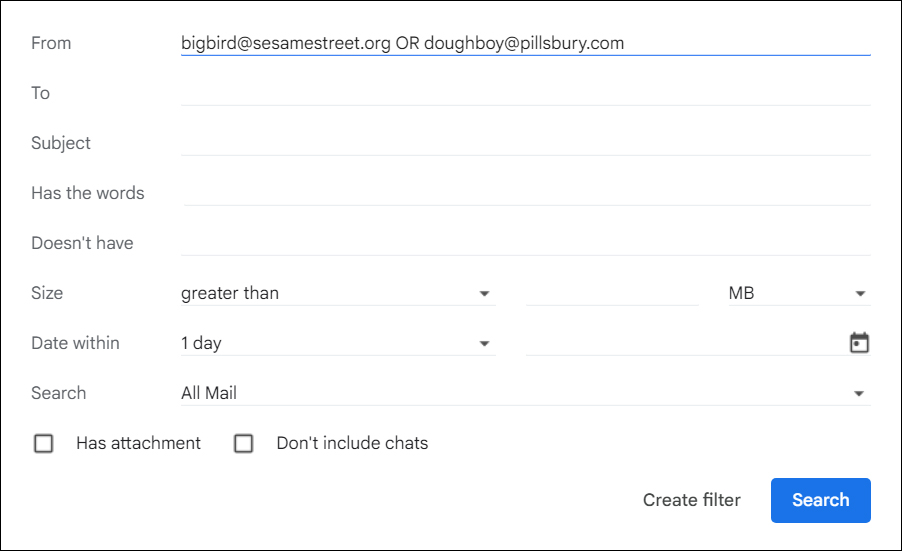
  • In the pop-up that appears beneath it, type in whatever conditions you want for the emails that’ll notify you — focusing on the “From,” “To,” “Subject,” and “Has the words” fields.
Gmail filter (1)
The “From,” “To,” and “Subject” fields are the most important pieces of this puzzle.

JR Raphael, IDG

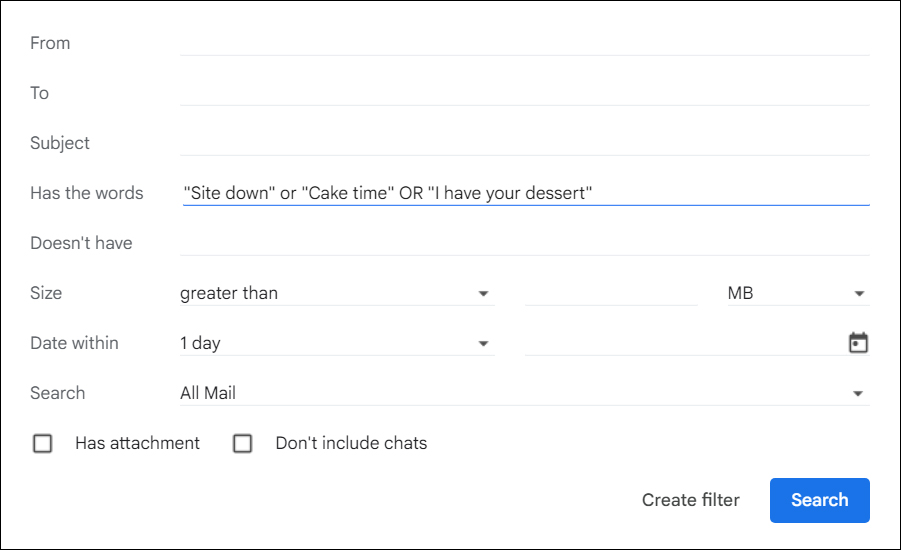
You can use quotation marks and the word OR to separate multiple terms, if you want to include more than one possibility within a single rule, but you’ll want to stick to just one field per rule — so only the “From” field or only the “Subject” field, for instance. You can then go back and repeat this process to create separate rules for other fields, if you want.
Gmail filter (2)
You can use quotation marks and the word OR to separate multiple terms within a single field.

JR Raphael, IDG

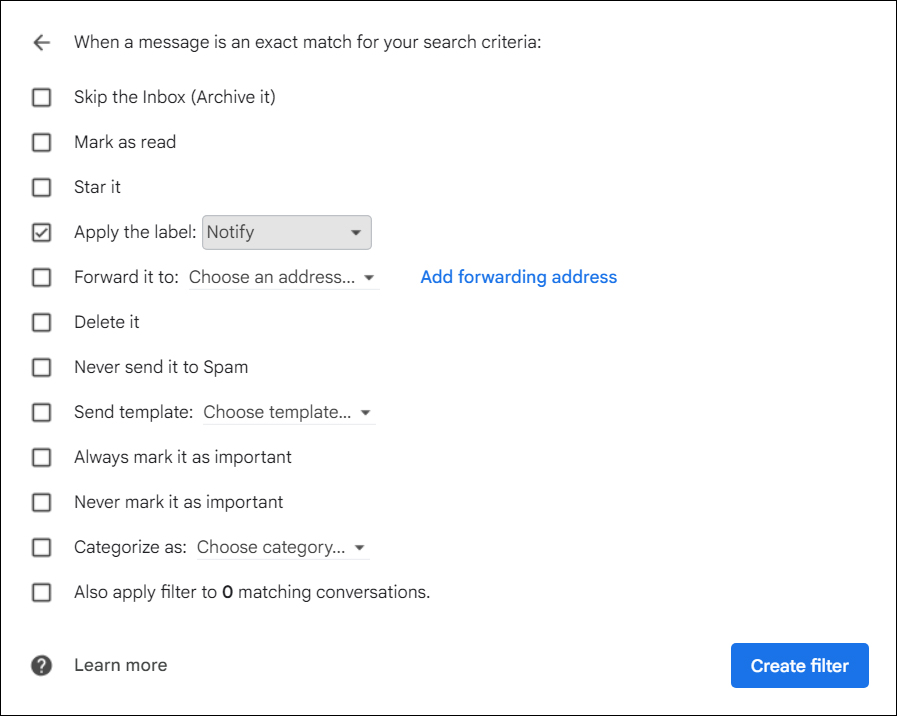
Once you’ve got things set, click “Create filter” at the bottom, then check the box next to “Apply the label” and select that “Notify” label we made a moment ago.
Gmail filter (3)
Adding on our special “Notify” label is the secret sauce that makes this all work.

JR Raphael, IDG

Click the blue “Create filter” button, and that’s it: Your rule is set. And any incoming emails that meet the conditions you specified will always notify you on Android, while all other emails will stay quiet.

Now, for the final piece of this puzzle…

Step 4: Prepare for on-the-fly alert enabling

The automated Android email notifying rules are great for making sure your phone alerts you to emails that you know in advance are gonna be important — based on who’s sending ’em or what they’re about.

But what about when you randomly run into a conversation you want to monitor that doesn’t meet those conditions — say, a specific email thread with a potential business partner or realtor (or even a koala realtor who happens to be a potential business partner) that you really want to watch for replies around right now?

With the system we’ve created, adding any such email on the fly into your alert system is easy.

The way you’ll do it varies slightly depending on whether you’re sending the email from a desktop computer or from Android.

From a computer:

  • Start a new email like you always do in Gmail.
  • Click the three-dot menu icon in the lower-right area of the compose box. (You can do this before or after you’ve written the email. It doesn’t matter!)
  • Hover over “Label” in the menu that comes up, then find and click the “Notify” label we made a little while ago.
Gmail apply label
The Gmail website makes it especially easy to add a label as you’re writing a new email.

JR Raphael, IDG

That’s all: You can now just send your email normally, and it’ll have the “Notify” label applied from the get-go — meaning any new replies coming into it will trigger your Gmail Android alert and create a notification on your phone.

If you want to add an existing email thread into your notification mechanism, meanwhile, you’ll just click the label-shaped icon above it (or click the three-dot menu icon above it, if you don’t see a label icon, and select “Label as” from the menu that pops up) — or use the L keyboard shortcut, provided you’ve got Gmail’s keyboard shortcuts activated — and select our spiffy new “Notify” label.

From Android:

The Gmail Android app doesn’t make it quite as simple to add a label onto a new email on the fly, while you’re actually writing it. So in that scenario, when you want to have any replies to a specific email thread notify you, you’ll need to first send the email and then head into your Gmail Sent folder (located within the app’s three-line main menu) to add the label onto it right after.

Just open the email from there, then tap the three-dot menu icon above it and select “Change labels.” Find and select “Notify,” and boom: You’re good to go.

With any email you’ve received or you’re replying to, it’s even easier: Tap that same three-dot icon in the upper-right corner while viewing the email, then select “Change labels” and tap “Notify.”

And with that, give yourself a well-earned pat on the back. You, my koala-obsessed companion, just gave your Android email a magnificent upgrade. You won’t be bothered by needless notifications ever again, and you’ll always know when something important hits your inbox.

That’s an enlightened way to handle email notifications on Android. That, you might even say, is what one could call Android intelligence.

Treat yourself to even more advanced Android notification wizardry with my Android notification power-pack — a free gift when you sign up for my weekly Android Intelligence newsletter!

A must-try Android email upgrade

Ahem: I have two separate confessions to make, both equally embarrassing.

Confession #1 is that I love email. I’m totally not kidding, either. It’s about as uncool of a thing as possible to adore, I realize — I mean, everyone hates their inbox, right?

For me, though, email is a brilliant communication system. It’s a refreshingly versatile and direct way to reach both anyone and everyone, whether we’re talkin’ individual messages for personal and professional purposes or full-fledged publications like the titillating tech newsletters I send through my ever-evolving knowledge-sharing collective, The Intelligence.

So, yeah: I frickin’ love email. Sue me.

Confession #2 may seem counterintuitive on the surface, given that gut-spilling humiliation I just put myself through. But I promise, it actually makes sense: I, the guy who endlessly writes about email and built an entire livelihood around the idea of email as a communication channel, also….hate email.

Surely you’ve both adored and abhorred something at the same time, right? Email can be wonderful, and I rely on it daily in so many ways. But man, it can also be an endless migraine-maker because of the way other people insist on invading my inbox with eternal demands on my time. (If you’re someone who has ever emailed me, I swear, this isn’t about you. I still love you. I just hate email. Sometimes.)

The biggest challenge with email — whether you love it, hate it, or a mix of the two, like me — is finding a way to focus on the stuff that matters while tuning out the noise. And while we’ve got no shortage of tweaks and tools for taming the jungle of your inbox, the real problem, especially on the phone front, is figuring out how to turn email notifications into something that isn’t a uselessly distracting all-day drone.

It’s the exact type of nerdy problem I love to tackle, and today, I’ve got an inspired new solution for you to put to use.

[Why stop with emails? Take your entire Android notification game to soaring new heights with my free Android Notification Power-Pack — six powerful enhancements for any Android device.]]

A new approach to Android email notifications

All right, so, first things first: By default, most Android email apps tend to take one of three approaches with email notifications:

  1. They bombard you with alerts for every stupid email you receive, thereby causing you to be constantly distracted and/or to tune the alerts out entirely.
  2. They hit you over the head with alerts for every email they deem to be “important” or “high-priority,” which similarly bleeps and bloops and interrupts you for all sorts of messages that don’t actually require your immediate attention.
  3. They don’t notify you at all, thereby allowing important and at times timely stuff to slip through the cracks and remain unnoticed until you happen to open up your inbox.

None of these paths, suffice it to say, is optimal. So what if there were a better way — a way you, the non-artificially intelligent human who actually understands which emails need to notify you and which do not, could intelligently control your Android email notifications and proactively decide which exact emails alert you?

My friend, prepare to have your mind blown.

This tip is actually a two-parter: First, I’ll show you a simple way to categorically create alerts for emails that meet specific conditions while turning off all the other ruckus. And second, I’ll show you how to apply that same formula on the fly to specific limited email threads so you can flag individual conversations for ongoing alerting, even if they don’t meet your general notification-generating conditions.

Whew! That sounds like a lot, I know. And there’s a fair amount to this. But I promise: It’s actually quite easy. And once you get this set up this once, it’ll then Just Work™ from that point forward — with barely any ongoing effort required.

Ready?

Step 1: Disable the default Android email alerts

Before we can improve your Android email notifications, we need to get rid of the underwhelming ones that exist by default.

We’re gonna use Gmail as the example for all of this, since that’s the default email app on Android and the one most Android-appreciating animals rely on. But if you’re using Outlook or any other Android email app, you should be able to set up something similar by finding the equivalent steps and actions within that environment.

For Gmail, our first step is gonna be to disable all the standard existing email notifications — ’cause unless you actually want to be notified for every single email that arrives in your inbox all day long (or even every email that Gmail determines might be “important” to you), those notifications probably aren’t serving you well.

So do this:

  • Open up the Gmail app on your phone.
  • Tap the three-line menu icon in the app’s upper-left corner and then select “Settings.” (You might have to scroll down a bit within the menu before you see it.)
  • Tap the name of the Gmail address you want to adjust for these purposes.
  • Tap “Notifications” and make sure “All” is selected in the pop-up that appears.

Cool? Cool.

Now, back in the main settings menu for your Gmail account:

  • Tap “Manage labels.”
  • For any label you see with “Last 30 days” beneath it, tap its line and uncheck the box next to “Label notifications” — so that it looks like this:
Android email notifications - Gmail
Turning off your default Android Gmail notifications is the first step to a more enlightened approach.

JR Raphael, IDG

Again, be sure to repeat that for every label in the list with “Last 30 days” beneath it so that none of those labels will create notifications for you from this moment forward.

And now we’re ready to tell Gmail which emails you actually do want to be notified about.

Step 2: Set up your new Android email trigger

For this next step, you’re gonna need to access Gmail on a computer. For reasons I cannot fathom, Google still doesn’t make it possible to create and edit labels or filters on Android here in the year 2025 —  when so many people are using mobile devices so much of the time! — and this means you’ve gotta get to the desktop Gmail website to make it happen.

Once you’re there, click the gear-shaped icon in the site’s upper-right corner, then click “See all settings” in the panel that pops up.

Then:

  • Click the “Labels” tab at the top of the screen.
  • Click the “Create new label” button, in the “Labels” area of the page.
  • Type Notify in the field for the label’s name and click the “Create” button to save it.
Gmail new label
This new Gmail label is the key to smarter Android email notifications. (Just wait!)

JR Raphael, IDG

Easy, right? Now we’ve got the Gmail label that’ll cause an email to notify you, and we’re ready to go back to the Gmail app on your Android device to set it up accordingly.

In Gmail on Android, head into that same settings section we were looking at a minute ago — by tapping the three-line menu icon in the app’s upper-left corner, selecting “Settings,” then selecting your Gmail address — and once more, tap “Manage labels” in the menu that pops up.

Find and tap the new “Notify” label we created. (If you aren’t seeing it yet, you may need to back all the way out of the app’s settings then go back in anew to force it to refresh.)

Then:

  • Tap “Sync messages” and choose “Last 30 days.”
  • Tap the checkbox next to “Label notifications” to activate it.
  • Tap the checkbox next to “Notify for every message” to activate it.
Android email notifications - Gmail label
We want emails associated with our “Notify” label to create a notification, each and every time.

JR Raphael, IDG

And with that, m’dearie, your foundation is set. And now we’re ready to create your auto-notifying formula and also learn the steps for flagging a specific email conversation for ongoing notifications as you go.

Step 3: Create your always-notify playbook

We’ll start with the auto-notifying formula — the parameters you want to create for which types of emails should always notify you, no matter what.

They might be emails from a specific sender — like your boss, an especially important client, or your illicit pet koala who periodically emails you hilarious marsupial jokes. They might be emails that come to a specific address, like a high-priority company account you’re tasked with monitoring. Or they might be emails that contain a specific phrase, like “site down” or “hilarious marsupial joke.”

Whatever the case may be, we’ve gotta go back to the Gmail desktop website on a computer once more to do the one-time initial setup around this — as, again, Google for reasons unknown won’t let you create Gmail filters from a phone.

So from the Gmail desktop website:

  • Click the search box at the top of the screen, then click the three-line control panel icon that pops up at the right of the box.
  • In the pop-up that appears beneath it, type in whatever conditions you want for the emails that’ll notify you — focusing on the “From,” “To,” “Subject,” and “Has the words” fields.
Gmail filter (1)
The “From,” “To,” and “Subject” fields are the most important pieces of this puzzle.

JR Raphael, IDG

You can use quotation marks and the word OR to separate multiple terms, if you want to include more than one possibility within a single rule, but you’ll want to stick to just one field per rule — so only the “From” field or only the “Subject” field, for instance. You can then go back and repeat this process to create separate rules for other fields, if you want.

Gmail filter (2)
You can use quotation marks and the word OR to separate multiple terms within a single field.

JR Raphael, IDG

Once you’ve got things set, click “Create filter” at the bottom, then check the box next to “Apply the label” and select that “Notify” label we made a moment ago.

Gmail filter (3)
Adding on our special “Notify” label is the secret sauce that makes this all work.

JR Raphael, IDG

Click the blue “Create filter” button, and that’s it: Your rule is set. And any incoming emails that meet the conditions you specified will always notify you on Android, while all other emails will stay quiet.

Now, for the final piece of this puzzle…

Step 4: Prepare for on-the-fly alert enabling

The automated Android email notifying rules are great for making sure your phone alerts you to emails that you know in advance are gonna be important — based on who’s sending ’em or what they’re about.

But what about when you randomly run into a conversation you want to monitor that doesn’t meet those conditions — say, a specific email thread with a potential business partner or realtor (or even a koala realtor who happens to be a potential business partner) that you really want to watch for replies around right now?

With the system we’ve created, adding any such email on the fly into your alert system is easy.

The way you’ll do it varies slightly depending on whether you’re sending the email from a desktop computer or from Android.

From a computer:

  • Start a new email like you always do in Gmail.
  • Click the three-dot menu icon in the lower-right area of the compose box. (You can do this before or after you’ve written the email. It doesn’t matter!)
  • Hover over “Label” in the menu that comes up, then find and click the “Notify” label we made a little while ago.
Gmail apply label
The Gmail website makes it especially easy to add a label as you’re writing a new email.

JR Raphael, IDG

That’s all: You can now just send your email normally, and it’ll have the “Notify” label applied from the get-go — meaning any new replies coming into it will trigger your Gmail Android alert and create a notification on your phone.

If you want to add an existing email thread into your notification mechanism, meanwhile, you’ll just click the label-shaped icon above it (or click the three-dot menu icon above it, if you don’t see a label icon, and select “Label as” from the menu that pops up) — or use the L keyboard shortcut, provided you’ve got Gmail’s keyboard shortcuts activated — and select our spiffy new “Notify” label.

From Android:

The Gmail Android app doesn’t make it quite as simple to add a label onto a new email on the fly, while you’re actually writing it. So in that scenario, when you want to have any replies to a specific email thread notify you, you’ll need to first send the email and then head into your Gmail Sent folder (located within the app’s three-line main menu) to add the label onto it right after.

Just open the email from there, then tap the three-dot menu icon above it and select “Change labels.” Find and select “Notify,” and boom: You’re good to go.

With any email you’ve received or you’re replying to, it’s even easier: Tap that same three-dot icon in the upper-right corner while viewing the email, then select “Change labels” and tap “Notify.”

And with that, give yourself a well-earned pat on the back. You, my koala-obsessed companion, just gave your Android email a magnificent upgrade. You won’t be bothered by needless notifications ever again, and you’ll always know when something important hits your inbox.

That’s an enlightened way to handle email notifications on Android. That, you might even say, is what one could call Android intelligence.

Treat yourself to even more advanced Android notification wizardry with my Android notification power-pack — a free gift when you sign up for my weekly Android Intelligence newsletter!
Reported cuts at NIST imperil semiconductor reshoring plans in the US

Proposed cuts at a key US government agency will likely mean the demise of CHIPS Act funding, which could effectively end the program and undermine efforts to reshore semiconductor manufacturing and research to the US.

Axios and Bloomberg on Tuesday reported that the National Institute of Standards and Technology (NIST) plans to cut 497 jobs this week. NIST, a non-regulatory agency within the US Department of Commerce (DoC), helps drive innovation and industrial competitiveness and oversees the CHIPS for America program.

Robert Maire, president of consulting firm Semiconductor Advisors, wrote in a blog post that the plan to cut NIST staff isn’t “bluff or negotiation tactic.” Instead, the layoffs signal a complete shift in direction under US President Donald J. Trump, he said.

“Trump made it clear over the last few days that he will institute 25% tariffs on imported semiconductor devices, so [it’s] obvious that strategy is shifting from incentivizing US chip production to penalizing imports instead,” Maire said. “This also lowers the likelihood of TSMC taking over Intel manufacturing, as giving top US chip production to Taiwan contradicts the new strategy.”

The Trump Administration, Maire said, hasn’t fully considered the impact of the cuts, since “100%” of AI chips, most Intel chips, all AMD chips, TSMC customers’ chips, and more than 80% of memory chips are imported — with the majority of them outside the US.

“Obviously chip manufacturing companies will slow spending on programs they previously thought they were getting CHIPS Act funding for, if not cancel those projects outright,” Maire said. “If I were running a chip company, I would not count on CHIPS Act funding — even if I had a signed contract, as its clearly not worth the paper it’s written on if NIST is eviscerated.”

Industry analysts have agreed in the past that tariffs on imports will act as a penalty on the industry, while the CHIPS Act — hallmark legislation passed three years ago under then-President Joseph R. Biden Jr. — acts an incentive.

Jack Gold, principal analyst with tech industry research firm J. Gold Associates, has called Trump’s plan to enact tariffs on oversea chip makers is simply “wrong.” Funds already granted under the CHIPS Act should be safe if transferred, but with NIST staff cuts, the program could stall without oversight, he said.

“Ending it would be a mistake,” Gold said, arguing that incentives work better than tariffs for bringing chip manufacturing back to the US. If funding is pulled, companies like Intel might halt their projects, as they likely can’t replace the lost funding, he added.

“I don’t know how the companies (Intel and others) would replace the funding if it gets pulled,” Gold said. “In fact, I think it’s unlikely and the chip guys would just shutter whatever they are building, at least for the near term.”

The issue goes beyond CHIPS funding, Gold added, saying program cuts will hurt local communities expecting new facilities that would create jobs, pay taxes, and boost the economy. Areas such as Ohio, where projects were planned, “will miss out,” he said. And, local politicians in states expecing the grant monies, including New York, Ohio, Texas, and Arizona, are likely unhappy, he said.

“As for why Trump and company would do this, I think it’s just a short sighted view of, ‘Let’s cut all spending, without regard for what that spending ultimately means.’ As I said, you can’t accomplish bringing back manufacturing to the US simply by penalizing with tariffs. It won’t work,” Gold said. “Besides, it takes three to four years to build out a new fab, so imagine that amount of tariffs going into our products. What doesn’t have a chip in it these days? We will all be paying more for things.”

The CHIPS Act was passed overwhelmingly in 2022 by both houses of Congress to address computer chip supply chain shortages that surfaced during the COVID-19 pandemic. The legislation provided the Commerce Department with $52.7 billion for a suite of programs to “revitalize” the US position in semiconductor research, development, and manufacturing.

To date, the DoC has allocated, but not dispensed, about $32 billion in funding among chipmakers, including Intel, Samsung, Micron, TSMC, and Texas Instruments, all of whom have unveiled plans for a number of new US chip fabrication plants. In return, those chip designers and makers have pledged about $300 billion in current and future projects in the US, according to the White House under Biden.

The CHIPS Act has spurred $450 billion in private investment across 28 states, creating 58,000 jobs, according to the Semiconductory Industry Association. 

With the CHIPS Act spurring them on, the likes of Qualcomm, in partnership with GlobalFoundries, also said it would invest $4.2 billion to double chip production in its Malta, NY, facility.

Despite widespread bipartisan backing, some members of Congress expressed concerns about certain provisions, such as the level of government subsidies or the potential for the bill to benefit only a few large tech companies. Still, the majority of both Democrats and Republicans recognized the strategic importance of boosting semiconductor production on US soil.

In addition to Trump’s opposition, House Speaker Mike Johnson said in 2024 that Republicans would likely repeal the CHIPS Act. Johnson, who voted against the measure, later walked his comments back, saying he would like to “streamline” it, according to The Associated Press.

Atlassian refocuses Trello on individual task management

Atlassian’s Trello project management tool has received a facelift with features designed to organize meetings and ideas in a cohesive manner.

The new features include an inbox, a planner, and a mix of add-ons and generative AI (genAI) tools to help customers summarize emails, organize meetings, and quickly sort through the barrage of pop-ups appearing in the software.

“In the past, Trello had kind of veered in the direction of project management because you were planning — and helping people plan — bigger and more complex projects. Now we are redirecting the focus on an individual task management,” said Gaurav Kataria, head of product for Trello at Atlassian.

With the update, Trello focused on simplicity, ease of use, and helping individual users be more productive, Kataria said. The company highlighted two specific features: Inbox and Planner, which are currently in beta. The AI-based inbox, for instance, serves to collect and summarize key action points and organizes to-do lists collected from a variety of collaborative and productivity apps. Planner serves to coordinate scheduling and tasks.

The new features are built atop current features that include to-do lists and cards, which help users organize and complete projects. 

This represents a big shift for Trello, as the current feature set “has been pretty much the same for the last 14 years,” Kataria said.

A built-in large-language model (LLM) parses messages and can summarize key action items and dates, which are then organized as a to-do list in the Inbox. Users can read those summaries in the inbox, then use the Planner feature to organize meetings in the calendar.

For example, knowledge workers are often drowning in emails, Slack messages, Microsoft Team messages and notifications that come from applications that might include Salesforce and Workday. 

“The most common use cases — just forward everything on to one single to-do list and have the AI summarize it. By far, this is the killer use case,” Kataria said.

There are many ways to forward a message to Trello’s inbox. For example, a user can forward a meeting reminder email on Google to Trello, which then adds it. A Slack message about a meeting can be tagged and saved to the Inbox. Apple’s Siri can also be used to send notes or reminders to the inbox.

The new features will become generally available in six weeks to paid users. They will not be available to freemium users. 

Atlassian is also known for Jira, its enterprise product management tool. Companies can import data from Jira into Trello and vice versa. 

“A lot of teams have graduated from Trello to Jira for project management needs, but use Trello for individual productivity. That’s where there’s a clear separation between Trello and Jira. But at the same time, they…nicely integrate with each other,” Kataria said.

Trello’s structural approach and interface make it easy to manage work and serves as a major on-ramp to other Atlassian products, said Wayne Kurtzman, research vice president  of social, communities and collaboration at IDC.

“Making Trello a personal work hub shows promise, as long as features and interface evolve with their technical audience,” Kurtzman said.  

In addition to other vendors in the collaborative work management segment, challenges could come from unexpected places as competitors focus on workflow automation.

“Atlassian has to balance the expectations of their Trello base with the desire to onboard them to Jira,” Kurtzman said. “If done with care, making Trello a personal product with team abilities could accomplish this.”

New European AI weather model to improve forecasts

The European Center for Medium-Range Weather Forecasts (ECMWF) has made its new AI model, the Artificial Intelligence Forecasting System (AIFS), available to everyone free of charge. Medium-range weather forecasts are those that predict weather conditions for three to 15 days into the future.

AIFS can provide detailed forecasts for wind, temperature and precipitation and, according to the Center, and should perform up to 20% better than today’s modern physics-based models. The model will also be faster and consume a thousand times less energy.

Traditional physics-based weather forecasts are made by solving physical equations, but these are only a simplification of the dynamics of the atmosphere. AI-driven models have an advantage because they can find more complex relationships and dynamic patterns directly from the data.

Is Apple almost ready for foldable iPhones?

Is your gadget fat and foldy? You might have a better choice next year as Apple treads its long-traveled path of not doing things first, but doing them better. That’s right, a folding iPhone is now scheduled for 2026. 

Folding devices are becoming increasingly popular. Even the Appleholic has spent time fondling a friend’s Samsung Fold, and I’m impressed by the size of the display and the dual use the device delivers in its folded and unfolded states.

While it is the thinnest folding device you can get right now, it’s pretty thick — even the 6.3-in. (folded) Galaxy Z Fold 6 comes in at just under a half inch thick when folded, and weighs 8 ounces. In contrast the 6.3-in. iPhone 16 Pro is 0.3 inches thin and weighs 7 ounces, while the 6.9-in. Pro Max is just as thin and weighs 8 ounces. The benefit is that you get a 7.6-in. screen when you unfold the Fold. That’s a lot of extra display, so long as the crease doesn’t get too obvious after use. Can Apple do it better?

Perhaps. Apple has been exploring folding phones for at least 10 years, filing its first relevant patents in or before 2014.

Not first, but best

Bloomberg’s Mark Gurman tells us Apple plans to introduce an iPhone Fold in 2026. That report follows a similar claim from the Wall Street Journal, which also posited introduction of a 19-in. folding iPad. The Information last year claimed prototyping of the device had already begun. And analyst Ming-Chi Kuo reckons Apple is building a device with a humongous near 8-in. display and an eSIM. Other speculation claims the display will be only slightly larger than Samsung’s, while noted display analyst Ross Young suggests it will be larger.

The weight of all this accumulated speculation comes on top of the anticipated introduction of a much thinner iPhone Air later this year. Widely seen as a testing ground for new tech, that product is expected to be a significantly thinner iPhone, with the slim frame enabled by two key Apple technologies which also make foldables possible.

  • Apple Silicon: The company’s chips are high-performing, battery-sipping, low heat powerhouses capable of being squeezed into smaller devices such as iPhone 16e, or being maxxed out for larger systems, such as the M4 series chips in desktop Macs. 
  • Apple’s modem: Apple has designed its own 5G modem. In line with Apple’s broader silicon development, this should be optimized for use on Apple’s systems, meaning you can expect better battery life when networking. We recently learned Apple is also bringing Wi-Fi and Bluetooth chips in-house, which means that by next year we could see one integrated component handle all these tasks.

Together, these two improvements mean Apple should be able to create thinner iPhones at no sacrifice in performance or energy consumption. Together, they suggest the company will be able to deliver an ultra-thin iPhone Air this year, followed by a similarly thin iPhone Fold next year. 

If it folds, will it flip?

Apple Silicon is once again the wind beneath Apple’s wings in this design.

The processors Apple makes are suitable for a wide array of deployments and most certainly enable the company’s product designers to imagine whole new product families. How much processor do you need to drive an autonomous home help robot, after all? To what extent can autonomous Apple home devices exploit technologies Apple developed when it was driving toward developing a car? Kuo has previously claimed Apple is working on domestic robots, but it really doesn’t matter whether that is true — what is true is that ownership of a world leading processor architecture means Apple can look at putting its software in all kinds of things.

Returning to the iPhone, it means we can anticipate a folding device with the kind of performance we expect from any iPhone and a battery life similar to the 23 hours video playback we’re told to expect from the latest Fold. (The iPhone 16 Pro promises 27 hours video.)

Gurman also tells us Apple has been sweating to create a fold mechanism that isn’t visible when unfolded and does not deteriorate in normal use. If Apple has achieved that, then it can rightfully claim to have bought something better to market. That is not to say that Samsung, with its own competitive moat built around ownership of the means of production, isn’t already on the same track.

Finally, of course, once you figure out how to make a high quality iPhone that folds, you’ve probably also figured out how to make one that flips. On which, I imagine, we’ll hear more later down the line.

You can follow me on social media! Join me on BlueSky,  LinkedIn, Mastodon, and MeWe. 

AWS exec highlights key skills for success in the evolving AI-driven job market

According to the World Economic Forum’s recent Future of Jobs Report, 39% of workers’ existing skillsets will become outdated by 2030 due to economic uncertainty, the rise of generative AI (genAI) and rapid technological change.

Skillsets related to genAI, networks and cybersecurity, and technological literacy are now among the fastest growing and highest in-demand skills sought by employers.

Seventy-three percent of employers prioritize hiring AI-skilled talent, yet three-quarters of them struggle to find the right candidates, according to one study commissioned by Amazon Web Services (AWS). It found that employers are willing to pay more for IT workers with genAI skills — on average, 47% more — and pay benefits extend across departments. Employers said that they would be willing to pay workers with AI skills a premium in sales and marketing (43% higher salary); finance (42% more); business operations (41% more); legal, regulatory, and compliance (37% more); and human resources (35% more).

AWS has more than 600 online courses — many of them free — through which workers can become more familiar and certified in the uses of genAI technology and tools. And, not surprisingly, Amazon is dealing with many of the same issues, including worker fear of the unknown and concerns about what jobs will remain in the wake of genAI’s advances.

The pace at which new courses are being devoured by technologists and business-side workers alike is unpreceded, according to Jenny Troutman, director of product and services for AWS training and certification. Among all AWS Certifications, the beta exam for AWS Certified AI Practitioner drew the largest number of participants — 20 times the number of participants than the historical average for new beta courses. For the AWS Certified Machine Learning Engineer Associate, the company saw a tripling of the number of beta participants compared to the past average.

While AWS has been expanding its courses to help workers gain expertise and certification in genAI, it’s also been forced to address internal concerns and anxiety around the technology’s impact on jobs.

Troutman said that as the technology and business marketplace quickly evolves, the traits that make a worker valuable are also changing. The need to understand how to use genAI, as well as the need for critical soft skills, is no longer a nice-to-have. It’s a need-to-have.

Troutman spoke with Computerworld about what skills are most needed by job seekers and the currently employed who want to keep their jobs or advance their careers.

What do you see changing in terms of the type of skills and workers AWS itself is seeking? “We’re looking at the same things our customers are talking about, which is, how do we get our workforce upskilled on just what AI is to begin with, and then how to use it in their day-to-day jobs.

“We have our own internal efforts that are similar to the training we provide customers. We’ve been running multiple internal campaigns on getting people to take the training, build the skills and get, at least — depending on their role — the certified AI practitioner certification, which is one we launched last year. It’s meant for everyone to demonstrate fluency in AI and some basic understanding of AI and generative AI concepts, how you can benefit from them, and knowledge on the tools we provided.

“We are driving change management-type efforts to get people comfortable using the tools that are provided, so anything from AWS Q Developer to get our developers’ productivity improved and free up time for two things: One, get more out there so we can build faster for customers, but also to get people [doing] higher quality code moving faster and just more productive in their day-to-day work.

“We also have [business intelligence-type] tools internally where people are learning how to use AI. Another one is Amazon Q for Business — our business intelligence tool that looks across internal information, and you can use it to make yourself more productive.

“So, we have been working on helping people understand what tools are out there, how they can use them, and then how they can think differently about what they can accomplish in their work over a period of time. And we incorporate that into our annual planning.”

What are you seeing in terms of accepting this kind of job change from employees? Are you getting any pushback? “Yeah. Frankly, we see all the same things as we see externally. We see people who are super excited and jump on it and are figuring out new ways of using the technology rapidly and then you see people who are skeptical, who are going to say, ‘Hey, it’s not ready for me to use, yet. It’s not really going to affect me and [will] take longer to come along.’

“What we’re finding is people that are in that place are starting to get nervous and realizing that people are serious [about this]. I think we’re probably further ahead than a lot of users, because we build the technology ourselves, and so we need to be demonstrating that we’re using it. So people are already realizing, ‘If I’m not figuring out how to use it, I’m going to be in trouble, and it’s going to be a risk for my career.’

“So, while there are still people who are slow to adopt it, I would say there’s less of them and we’re moving past the message of, ‘It’s not ready for me, or it’s not relevant for me.’ It’s more of an, ‘Oh, how I’m getting nervous, and I need to start figuring out how to do it, but I’m so busy that it feels like a lot to have to learn it.’”

What are the skills requirements that are changing? “A big one is prompt engineering. It’s a term that puts people off if they’re not technical. I think because you think of engineering as being technical, but really, it’s sort of the term that we’re using for how you get the output you need from a generative AI tool. It doesn’t really matter your role. You need to understand how to write good prompts really be able to get the best benefit from the technology.

“Learning how to write good prompts is a skill in and of itself, and it’s a new skill that most people don’t have. So that is one where we focus a lot. Once you get the basics and understand what AI and generative AI is, then you need to learn prompt engineering, and there’s a course on how to write good prompts. Then the second thing to learn is just thinking differently. It’s really around the soft skills of being creative, trying new things, thinking critically.

“So, if you try something out and it doesn’t give you the result you wanted at first, being able to figure out why, and keep adapting your approach. And during that time, be collaborating with others to understand how other people are using the technology, which will help you think differently and come up with new ideas.

“We’re in such early stages. While the technology itself been around a long time, widespread use hasn’t been here for very long. It’s really about the art of the possible and thinking differently about how to accomplish day-to-day things. I would say that is the biggest barrier, right now.

“And so, getting exposure to what other people are doing and being curious, reaching out and finding out is a skill in and of itself. We call it, ‘learn and be curious.’ It’s a leadership principle of ours at Amazon. But in general, it’s that curiosity of really being able to find out what other people are doing and then use that, not only to replicate it, but also to come up with new ideas yourself.”

What skills do you see are becoming outdated? “It’s things that are…repetitive. An example is an entry-level software developer, where they’re mostly coding all the time. That pure practice of coding is going to become less and less relevant. It’s going to be developers who are able to spend more time on thinking differently about what they’re building, about how to create better applications, about better designs and architectures, which is a higher-level skill. And, they’re going to have to take on a role more around the quality of code — the quality checking role — making sure that the code is doing what you want.

“And so it’s those kind of more mid-tier and senior developers that are going to be where the demand is, and entry-level kind of coding is going to be a less relevant skill. So, we’re really encouraging people that are more junior developers to get mentors and learn how to think bigger and move beyond pure coding to getting into design and new application development.”

Is generative AI really creating quality code? “Yes. If you use it correctly and it’s dependent on the use case. So, there are use cases that it is phenomenal at it, and there are use cases where there’s still some work for it to get there. But it will get there. It’s getting better by the day.

“The advances that are happening in the technology are happening so fast that things like Java migrations — that are more standardized — those [use cases] are incredible. The speed of acceleration and the quality of the work are tremendous. When you’re talking about building something completely new from the beginning, then it takes someone who really understands how to do successful prompting, and they have more QA. But it’s getting there. It’s getting better and better.”

How do you see software developer jobs changing? Are some entry-level jobs simply going away? “I don’t think so. I think we will need fewer people at those levels, or those at those levels will just become more advanced. Because what will happen is they won’t need to spend as much time on coding. It will force them to learn new things so to either quickly adapt and focus time more on the actual problems that they’re solving with their applications, or learn new skills and start to expand beyond core products, core software development — like core coding. They’ll also be moving into specialty areas, like security areas, where we definitely need more people. And they are adjacent, so they can kind of branch into building skills in those areas.”

What new jobs are you seeing in the market that are being created by this shift? “I see a lot of people being able to be more productive in their current jobs. I see a lot of expansion of roles, like machine learning engineers, big data specialists. We’re needing more and more of those roles. They’re not necessarily new roles, but they’re roles where people tend to be highly skilled. We don’t have a lot of them, and now we need a lot more of them.

“It’s not clear yet what brand new roles we’re going to have or need. I think we haven’t figured it out yet, but what we are finding is that people in their current roles are operating in different ways and able to do a lot more [through genAI]. It’s great, because you can be more creative and more innovative and get a lot more done. But it also can be scary for people because of how much more is this all going to change, and how fast and how many people are we going to need to do the work?

“Are we just going to keep getting more productive, or is there a point where we don’t need as many people? And I think that’s a big…interesting question, because I think it’s similar to when the internet came up. People could get stuff done so fast, and it was like, ‘Yikes! We’re not going to need nearly [as many workers] now.’ But we certainly haven’t seen the workforce shrink. So I don’t think we will now, either. But it’s hard to predict where we’re going to go.”

Businesses are now hiring tech talent across various departments, like finance, sales, marketing — and even business-side workers are becoming IT savvy. Are you seeing a rise in the business technologist? And what does that mean? “I don’t know if I’d call them business technologists, but yes, there’s a rise in business people trying to understand AI and what it means for them, and we’ve actually seen that with the launch of our AWS Certified AI Practitioner [course]. The demand for it has outpaced any previous certification we’ve had by a factor of 9x from the beta launch of it. And it’s been because of demand from both business people and technical people who are really just trying to figure out what is it all about and how can they use it in their day-to-day lives and jobs.

“That’s what we’re seeing — that recognition that these new technologies that are coming out…and they’re kind of the future, and people have to figure out what this technology can do for them and their job, no matter what their job is.

“We participated in a study…around wages associated with AI skills, and what we found was just an incredible uplift in wage premiums for people in any role that have AI skills, or those who can demonstrate AI skills, including like above 30% wage premiums, even for people in HR, marketing, finance, stuff like that. And so, because of those roles, having such a high premium placed on having AI skills, people are realizing across the board that they need an understanding of the technology and a literacy around AI to be successful, no matter their role.”

What are the AI-related skills companies are seeking right now, and will those also change in the future? “Yes. So the big ones are around machine learning engineers. We also came out with an associate-level technical certification for machine learning engineers last year, because that one is a big high-growth area, as well as data specialists. So, people who know how to architect the data environments and who know how to structure the data all the way through to people who know how to use it, like business analysts to effectively leverage [business intelligence] tools. And, then also software engineers who understand AI and who can build applications that leverage the AI underlying the application. Those are some of the highest growth technical roles. And who knows for how long?

“I imagine those are going to be critical roles for quite a for quite a while, but I’m sure there’s going to be all kinds of new ones that come up in the next couple years that we can’t even imagine.”

What are the steps workers and job seekers can take to gain in-demand tech skills that can future-proof their careers? “I would say two things: One, I would start setting aside a time to do some kind of structured learning online. We offer that on AWS Skill Builder. Start taking some of the foundational courses. There’s all kinds of free training out there: What is AI? What is generative AI? There’s even a generative AI essentials course on there where you can just get the foundational concepts. I would start learning that now.

“And two, I would find what tools you either have access to at your company that are generative AI or go outside and start with Q Developer or other Q [courses], depending on your role, or even Q for Business, and start using the tools out there. Just play with them, understand what they can do. There’s a great course around understanding the art of the possible for generative AI out on AWS Skill Builder.

“It starts to give you a sense of how to think differently — what are people doing with it? Then just start playing with it and see what you can do. That curiosity, I think, is going to be the most critical skill or trait to keeping up with what’s going on out there with AI. It’s about having the curiosity to go out and play around and learn and just start using it in, even in personal stuff. You know, use it to craft a strongly worded email when you’re frustrated with something that happened with your kids at school or to write your Christmas letter, or whatever it is that you even do in your personal life that takes time play around with it.

“See what it can do, and you’ll start to realize, both in your personal and professional life, how much there is that you can do with it.”

How to use Gemini AI to write (and rewrite) in Google Docs and Gmail

Whether you’re a professional writer or someone who dreads having to compose documents or emails for your job, the potential of AI assistance for your writing tasks is appealing. Powered by Gemini, Google’s generative AI platform, the Help Me Write tool in Google Docs and Gmail can write long passages of text that are reasonably readable.

It generates written text based on prompts (instructions) that you give it, which can give you a significant head start on any writing tasks. But its results come with caveats that may include factual errors, redundancy, and too-generic prose. And it’s never a good idea to use private or proprietary data when working with any generative AI tool.

This guide covers how to use Help Me Write in both Google Docs and Gmail to generate and rewrite text, and how to overcome some of the tool’s shortcomings.

Who can use Help Me Write?

If you have a Google Workspace account, the Gemini AI tools that include Help Me Write are available as part of your subscription. If you have a Google personal account, you can subscribe to Google One AI Premium to have access to these tools. Or, for no cost, you can sign up for access to Google Workspace Labs with your Google account to be permitted to try out Help Me Write and other experimental tools.

Use Help Me Write to generate text in Docs and Gmail

Working with Help Me Write is very similar in Google Docs and Gmail.

In Docs: To start using Help Me Write in Google Docs, either start a new document or load a document that already has text on it. Along the right of the document page is a vertical toolbar with a pencil icon on it.

If you start a new, blank document, you’ll also see a “Help me write” button with the same pencil icon at the top of the new document.

blank document in google docs with help me write button at top and right side

The “Help me write” buttons (at right side and top of the document) in Google Docs.

Howard Wen / Foundry

Click either version of this pencil icon. The “Help me write” panel will open over your document. Inside the panel, you’ll see several examples of prompts that scroll through, such as “Create a brand marketing manager resume” or “A thank you letter for my job interview.” These are meant to give you ideas as to how to write your own prompts.

help me write prompt window in docs showing suggested prompts

Help Me Write provides suggestions for prompts you can ask it.

Howard Wen / Foundry

In Gmail: To launch Help Me Write in Gmail, start a new email and click the “Help me write” button (the same pencil icon as in Docs) on the toolbar along the bottom of the compose window. A text entry bar will appear at the bottom of the compose window. This is the Help Me Write tool. Just as in Docs, you’ll see examples of prompts scroll through, such as “A thank you letter for my job interview.”

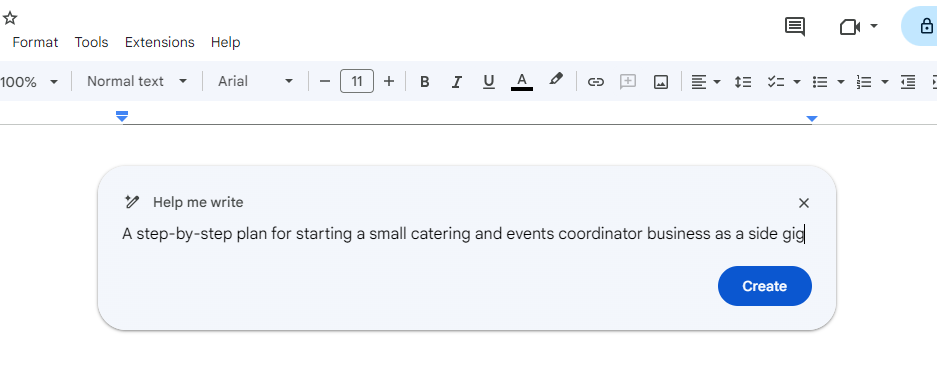
In either app: Type in a prompt. In Google Docs, we entered, “A step-by-step plan for starting a small catering and events coordinator business as a side gig” to prompt a planning document.

typing a prompt in the help me write panel in google docs

Typing in a prompt for Help Me Write in Docs.

Howard Wen / Foundry

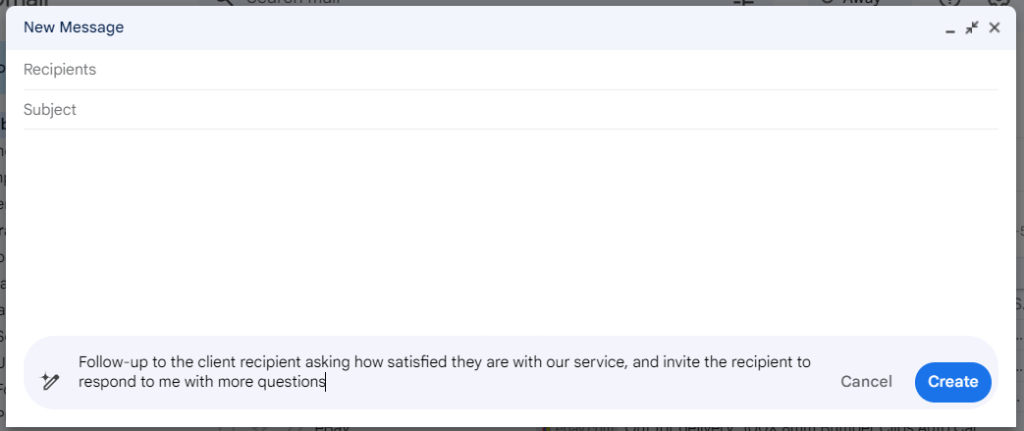
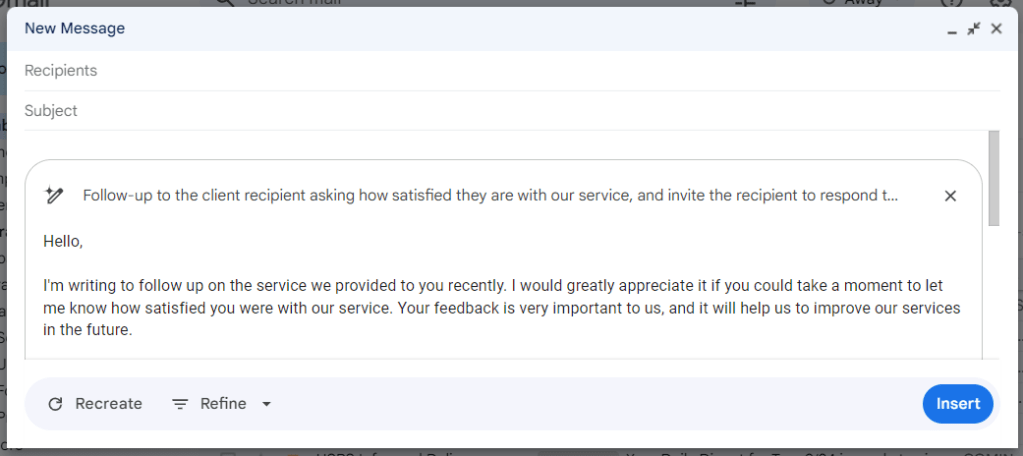
And in Gmail, we entered, “Follow-up to the client recipient asking how satisfied they are with our service, and invite the recipient to respond to me with more questions.”

typing a prompt in the help me write pane in gmail

Typing a Help Me Write prompt in Gmail.

Howard Wen / Foundry

In either app: After you type in your prompt, click Create. Help Me Write will show a “generating” animation as it processes your prompt. This may take several seconds; it depends on how complex the wording of your prompt request is. Then another panel will open displaying the text it generated, which might be sentences or whole paragraphs.

Next you’ll be able to refine the results in various ways, depending on whether you’re in Docs or Gmail.

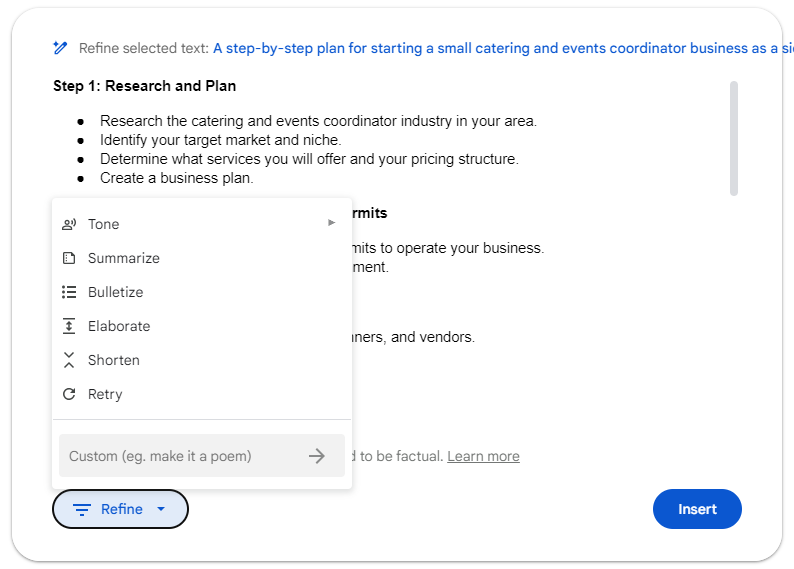
In Docs: Below the results, you can click Refine. This action opens a dropdown menu that lets you select from the following options to alter the generated text:

  • Tone: Clicking this opens two more options: Formal and Casual. Help Me Write will rewrite the generated text with wording at a higher academic reading level, or with a looser, more informal style, respectively.
  • Summarize: Help Me Write will generate a summary of the text based on key points in it.
  • Bulletize: If you write a prompt asking Help Me Write to generate step-by-step instructions, as we did in our example, it’s likely to create text formatted in a bulleted list. Otherwise, you can select this option to have Help Me Write reformat the text into bullet points.
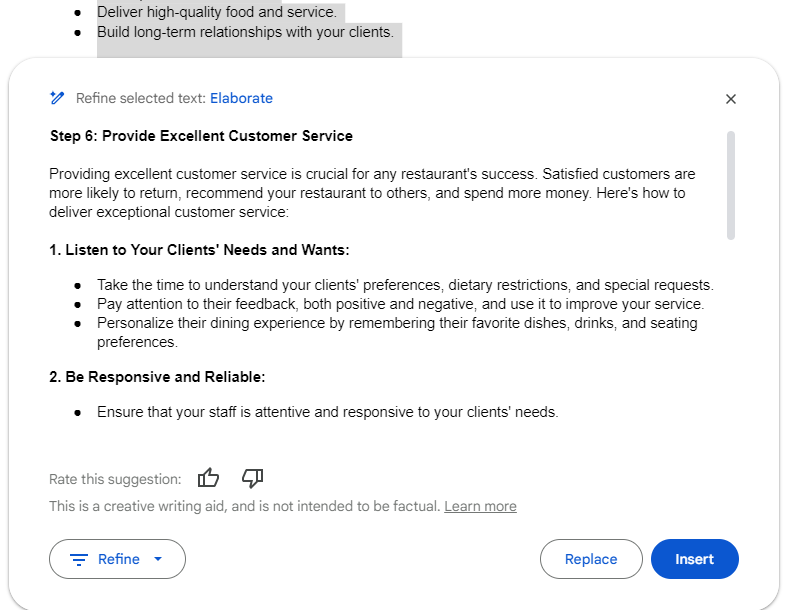
  • Elaborate: Help Me Write will generate additional text. But be aware that this may produce redundant wording if your prompt is short or lacks specific descriptions.
  • Shorten: Help Me Write rewrites the generated text with fewer words.
  • Retry: If you’re not satisfied with the text that Help Me Write generated, clicking this will instruct it to try again using your prompt.
  • Custom: Type in a few words to prompt Help Me Write to refine the text in a way that’s not described above — for example, “shorten to 200 words” or “rewrite as paragraphs” — and click the right arrow.
menu showing options for refining AI-generated text in google docs

You can refine the generated text before inserting it.

Howard Wen / Foundry

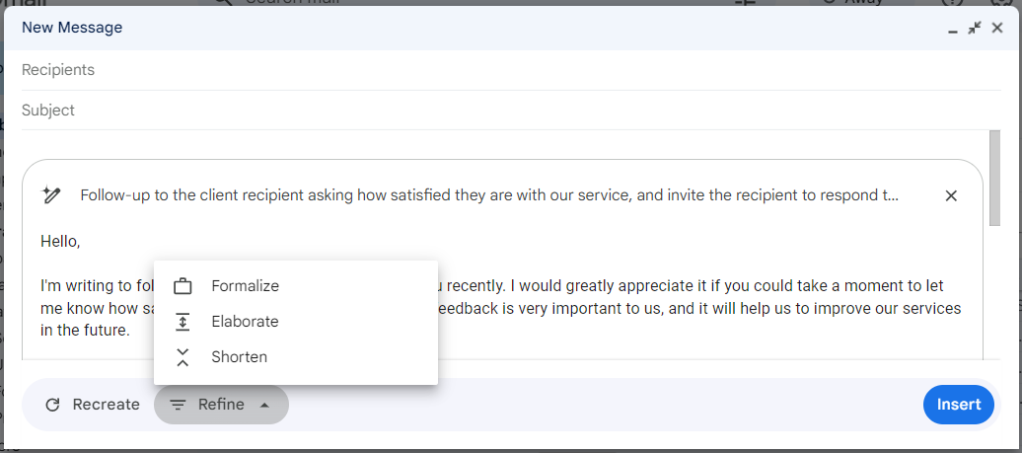
In Gmail: Below the resulting text generated by your prompt to Help Me Write, you can click Recreate or Refine.

  • Recreate: If you’re not satisfied with the text that Help Me Write generated, clicking this will instruct Help Me Write to generate new results from your prompt.
  • Refine: Clicking this opens a menu offering the same Formalize, Elaborate, and Shorten options described above.
menu showing options for refining AI-generated text in gmail

Gmail offers some of the same options for refining generated text that Docs does.

Howard Wen / Foundry

In either app: If you select one of the refining options above, Help Me Write will generate one or more results. You can scroll through them to consider and compare them with the original passage of text that was generated by Help Me Write.

Optionally, you can click the thumbs up or thumbs down icon to rate the quality of the text that Help Me Write generated. Presumably, your rating helps to improve future results.

When you’re happy with the text that Help Me Write generated for you (the original or a refined version), click Insert to add it to your document or email draft. After you insert the generated text, it becomes regular text in the document or email that you can edit as you see fit.

Use Help Me Write to rewrite text in Docs and Gmail

You can use Help Me Write to rewrite text in a document or email draft, whether the text was originally written by you or generated by Help Me Write.

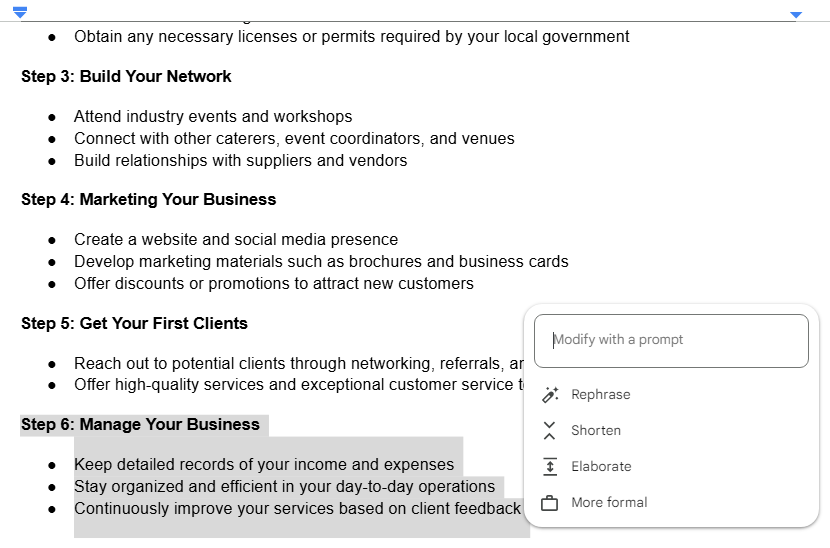
In Docs: Highlight the text (phrases, sentences, or paragraphs) that you want Help Me Write to rework, then click the Help me write pencil icon that appears floating over the selected text. A menu opens with Rephrase, Shorten, Elaborate, and More formal options, plus an area where you can type in your own modification prompt.

text selected in google docs with pop-up menu showing help me write rewrite options

In Docs, you can have Help Me Write revise selected text in various ways.

Howard Wen / Foundry

After Help Me Write generates new text based on your selected refinement, you can click Replace to overwrite the passages of text that you highlighted in the document with the refined text, or click Insert to insert it right below your highlighted passages of text.

results after help me write was instructed to elaborate on selected text in google docs

Help Me Write elaborates on the selected text in Docs.

Howard Wen / Foundry

In Gmail: You can use Help Me Write to rewrite your entire email draft — but unlike in Docs, you cannot have it rewrite individual phrases, sentences, or paragraphs.

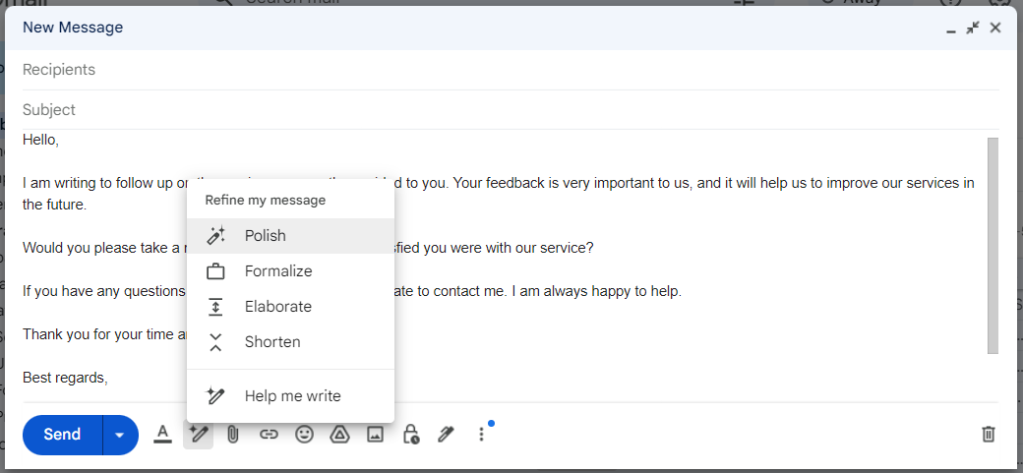
Open the email draft. Click the Help me write pencil icon on the toolbar. On the menu that opens, you can select Polish, Formalize, Elaborate, or Shorten. Polish is an additional feature here that is meant for making a very rough draft email that you wrote sound more professional, by improving the grammar and sentence structure of your writing.

email draft in gmail with pop-up menu showing help me write rewrite options

Help Me Write offers a polish option in Gmail for improving the grammar and sentence structure of an email draft.

Howard Wen / Foundry

After Help Me Write generates a new draft, you can start over, refine it further, or insert it into your email.

What about the Gemini sidebar?

All the Google Workspace apps now have a Gemini sidebar that pops open on the right when you click the Ask Gemini button –the nova star icon that’s right next to your user profile icon at the upper-right corner. In either Docs or Gmail, you can use this sidebar to type in a prompt instructing Gemini AI to generate text. But the resulting text is displayed in the sidebar, which is more difficult to see and work with than using Help Me Write in the body of the document or email.

While the Gemini sidebar does have several excellent uses (which we’ll cover in an upcoming story), it’s not the best interface for generating large amounts of text. In general, it works better to use the main Help Me Write interface for writing and rewriting tasks in both Docs and Gmail.

Use Help Me Write in the Gmail mobile app

Help Me Write is also available in the Gmail mobile app (for Android and iOS), which is handy for composing and refining messages on the go.

When you start a new email, swipe toward the right over the text cursor or tap the pencil icon on the toolbar along the top of the screen. Either action will open the “Help me write” panel, where you can enter a prompt to generate text for your email draft.

srcset="https://b2b-contenthub.com/wp-content/uploads/2025/02/google-help-me-write-10-gmail-mobile-app.png?quality=50&strip=all 720w, https://b2b-contenthub.com/wp-content/uploads/2025/02/google-help-me-write-10-gmail-mobile-app.png?resize=135%2C300&quality=50&strip=all 135w, https://b2b-contenthub.com/wp-content/uploads/2025/02/google-help-me-write-10-gmail-mobile-app.png?resize=461%2C1024&quality=50&strip=all 461w, https://b2b-contenthub.com/wp-content/uploads/2025/02/google-help-me-write-10-gmail-mobile-app.png?resize=691%2C1536&quality=50&strip=all 691w, https://b2b-contenthub.com/wp-content/uploads/2025/02/google-help-me-write-10-gmail-mobile-app.png?resize=314%2C697&quality=50&strip=all 314w, https://b2b-contenthub.com/wp-content/uploads/2025/02/google-help-me-write-10-gmail-mobile-app.png?resize=76%2C168&quality=50&strip=all 76w, https://b2b-contenthub.com/wp-content/uploads/2025/02/google-help-me-write-10-gmail-mobile-app.png?resize=38%2C84&quality=50&strip=all 38w, https://b2b-contenthub.com/wp-content/uploads/2025/02/google-help-me-write-10-gmail-mobile-app.png?resize=216%2C480&quality=50&strip=all 216w, https://b2b-contenthub.com/wp-content/uploads/2025/02/google-help-me-write-10-gmail-mobile-app.png?resize=162%2C360&quality=50&strip=all 162w, https://b2b-contenthub.com/wp-content/uploads/2025/02/google-help-me-write-10-gmail-mobile-app.png?resize=113%2C250&quality=50&strip=all 113w" width="461" height="1024" sizes="(max-width: 461px) 100vw, 461px">

Help Me Write is available in the Gmail mobile app.

Howard Wen / Foundry

You can also refine the text that Help Me Write generated, or rewrite text that you originally wrote. Tap the pencil icon on the toolbar along the top. This action will open a “Refine my draft” panel along the bottom; it will present the same refinement choices as the ones in the Gmail web app. Tap Polish, Formalize, Elaborate, or Shorten to perform these actions on your email draft.

Keep these caveats in mind and finesse the results

While Help Me Write can give you a head start on your business writing, it’s important to review and edit its output. Here are some shortcomings to look out for in its results:

Generic content: A lot of the passages that Help Me Write generates provide very basic information. Even if you phrase your prompts very specifically, the results may still sound canned.

gmail draft with boring lifeless text generated by help me write

Help Me Write often delivers generic prose.

Howard Wen / Foundry

Redundant content: Help Me Write may generate text that basically says the same thing as text it generated before. This can happen when you have it generate several paragraphs and then instruct it to elaborate on a specific sentence or paragraph. The additional text Help Me Write generates may read similarly to other passages that it’s already generated for you.

Factual errors: If you prompt Help Me Write to write about subjects that are based on factual information (such as current business analyses or trends) or of a technical nature, you should scrutinize its results. You should conduct further research, searching the web for reliable resources to confirm what Help Me Write has generated.

In addition to fact-checking, you should perform general editing on all the passages that Help Me Write generates. This includes reading through everything, then adding, rearranging, removing, and rewriting text as you feel is necessary. Practicing the craft of editing on the text generated by Help Me Write will help you shape your document or email into a final draft that’s informative and appealing for other people to read.

A useful collaboration tool

Although you can have Help Me Write generate documents or emails from scratch, it can serve you better if you approach it as a writing assistant. For example, you can prompt Help Me Write to assemble a rough outline for a business proposal or marketing plan that you then flesh out with your own writing.

It can also be useful for collaboration — as a brainstorming tool, for instance. Try collaborating with your co-workers on a shared document, where each person prompts Help Me Write to generate ideas for all to build on.

In fact, your interaction with Help Me Write is itself a form of collaboration. You prompt Help Me Write to generate text, its results may in turn give you ideas for how to approach a topic, and you keep working with the AI to refine those results in your final draft — thus, Help Me Write becomes your collaborator.

AI writing is simply the latest tool in the always-evolving working relationship between people and technology. As long as you understand its rules and limitations, Help Me Write can be a valuable aid to kickstart your writing process or refine what you’ve already written.

See more Google Workspace tips and tutorials.

This story was originally published in June 2023 and updated in February 2025.

The ‘Protoclone’ robot has synthetic muscles — and moves like a human

Polish company Clone Robotics has unveiled Protoclone, a human-like robot equipped with synthetic muscles and a polymer skeleton consisting of 206 bones.

The YouTube clip below shows Protoclone using its synthetic muscles to move.

Protoclone has a 500-watt electric pump as its heart and four cameras for eyes. In addition, the robot has 320 pressure-sensitive sensors and 70 inertial sensors, according to Ars Technica.

In the future, this kind of robot could eventually help around the household — for example, by cooking, washing dishes and doing laundry.

Apple looks to inject $500B into US economy

Apple plans to inject billions of dollars into the US economy, spending $500 billion in the US over the next four years and promising expansion, new manufacturing facilities, and big investments in advanced manufacturing and R&D.

The announcement follows last week’s meeting between Apple CEO Tim Cook, and US President Donald J. Trump. “We are bullish on the future of American innovation, and we’re proud to build on our long-standing U.S. investments with this $500 billion commitment to our country’s future,” Cook said. “We’ll keep working with people and companies across this country to help write an extraordinary new chapter in the history of American innovation.”

In a comment on Truth Social, Trump said the investment reflected Apple’s “faith in what we are doing, without which, they wouldn’t be investing ten cents. Thank you Tim Cook and Apple.”

It remains to be seen whether Apple’s investments will be enough to mitigate the administration’s decision to impose tariffs on Chinese goods. “They don’t want to be in the tariffs,” Trump said after meeting with Cook last week.

Apple announced a similar range of investments during the last term of the president, which did help protect iPhones against tariffs at that time.

What Apple is promising

It helps that Apple is one of America’s biggest taxpayers, having paid $75 billion in US taxes in the past five years. While some of those tax dollars should perhaps have been levied elsewhere, (as the EU insisted about Apple’s Irish tax breaks), the deeply nationalistic US administration most certainly wants that money paid at home.

Apple says its investment billions will be spent on a range of different things:

  • The company will double its Advanced Manufacturing Fund
  • It will build a new advanced manufacturing facility in Texas, where it will product Apple Intelligence servers.
  • It intends to launch a manufacturing academy in Michigan.
  • And it will invest more in R&D, including additional spending on silicon and AI development.

The $500-billion promise also includes its work with suppliers across the US, direct Apple hires, AI investments including data centers, and Apple TV+ productions in 20 states. The company currently claims to support more than 2.9 million jobs in the US.

What happens in Texas?

The factory in Houston, TX seems likely to attract the biggest focus. Apple’s big idea is to begin making Apple Intelligence servers there later this year, opening a 250,000-square-foot-server manufacturing center in which it promises thousands of jobs. 

What’s interesting about that promise is that it implies Apple intends to make a very large number of these servers and it means several things: that Apple will extend the services it offers via Private Cloud Compute; it intends wide international deployment of these servers; and (speculatively) it will offer these private cloud services as a business in its own right. An iOS developer might want to use space in the private cloud to provide AI services, for example.

None of these educated guesses could turn out correct, but a factory with thousands of employees is going to be producing something in very significant quantities. Apple will also expand data center capacity in North Carolina, Iowa, Oregon, Arizona, and Nevada.

Advanced Manufacturing Fund

Apple’s Advanced Manufacturing Fund has made some key investments in support of third-party innovation as it is applied to Apple products in the past — think about Corning Glass, for example. The latest promise includes a massive $10 billion investment in skills development at Apple’s planned academy in Detroit, MI and billions in support of TSMC’s Fab 21 plant in Arizona.

And with a view to Industry 3.0, the Apple Manufacturing Academy will consult with small and mid-sized companies on implementing AI and smart manufacturing techniques. It will provide free in-person and online courses, with a skills development curriculum that teaches workers skills like project management and manufacturing process optimization.

In the national interest

What is interesting is the extent to which Apple today can make significant investments in the US that were perhaps less possible during the first Trump Presidency.

Today’s Apple is significantly less umbilically connected to China, for example. It is putting in place a distributed manufacturing and supply chain and has been working hard with key suppliers such as TSMC to bring at least some production to the US. That will include processor production in Arizona. Apple will never be able to base all its manufacturing in the US, but the promise of tens of thousands of additional jobs does mean something. 

It is also highly significant that much of Apple’s promises relate to artificial intelligence — including skills, manufacturing, and R&D. That matters because AI development is quite clearly in the US national interest, and Apple’s multi-billion dollar investment in the field will make a significant difference to US tech power.

You can follow me on social media! Join me on BlueSky,  LinkedIn, Mastodon, and MeWe.