Your freedom and privacy are at risk as the UK government continues its dangerous attempt to drive a great hole into data security, despite the vast weight of warnings that doing so will make all of us far less safe.
In almost complete secrecy and without any mandate to do so, the UK has been demanding that Apple install a back door into encrypted data. We recently heard from the US that it had backed off in this attempt.
This may not be true, warns the Financial Times, citing recent court filings from the top-secret Investigatory Powers Tribunal (IPT) court in which Apple is opposing the UK demands. If that is indeed true, it will no doubt be seen in the US as fundamental dishonesty on the part of the current UK administration.
Whose side are you on?
The report also confirms that the UK wanted access to much more data than we thought — far more than the information protected by the Advanced Data Protection feature that Apple withdrew from offering in the UK as it grappled with the government’s overreach.
According to the Financial Times, the UK is demanding access to all grades of iCloud storage, and these demands extend globally: “The obligations… are not limited to the UK or users of the service in the UK; they apply globally in respect of the relevant data categories of all iCloud users,” the IPT filing states.
This hypothetically gives British law enforcement the right to access the data of Apple customers anywhere in the world, including the US. It means that UK intelligence agents will be able to get people’s data, emails, and passwords with little protection, transparency, or oversight, and that this authoritarian overreach extends to users no matter where they are from.
There has been no real public debate around any of this.
The back door everyone is searching for
The UK is attempting to take this action against everybody’s interests in near-total secrecy, wielding a law it invented precisely to give it the power to do so. That law gives the UK Home Office the power to demand that Apple and others create dangerous back doors into encrypted data. Apple is appealing against the demand, but the case is not expected to reach court until next year.
While that process continues, the understanding is that Apple may already have been forced to meet these demands, which basically means the UK has fired a starting pistol for an international hacker’s race to find and exploit that door.
If Apple has been forced to take steps to comply with the law, then nation-states worldwide will be searching for that vulnerability, with highly resourced armies of hackers already searching for the UK-mandated dangerous data insecurity. It is only a matter of time until these designer vulnerabilities are identified, exploited, and abused.
The UK’s actions will also give carte blanche to other repressive regimes to make similar demands. A recent Apple transparency report confirmed the extent to which the UK embraces surveillance, showing the nation to make more data requests per head of population than nearly every other nation.
But while it engages in this deluded act of digital hara-kiri, the nation is also imperiling data protection for users from every other nation by demanding dangerous back doors through data encryption that impact every nation. These back doors will make everyone less secure, to the detriment of both individual liberty and international economy.
Step by step, the UK is becoming a less attractive place to do any form of digital business, and given the extent to which the current administration seems unable to listen to criticism of its decisions, it makes sense to think the UK is deliberately working to undermine the digital economy its feeble GDP growth relies upon. The repeated pattern of digital self-harm is so extensive that it must be deliberate, as it would take an effort of will to be so belligerently stupid.
Ah, the cloud. It sounds so light, so fluffy, so worry-free — doesn’t it?
Here in the real world, though, cloud services aren’t always so simple. With Google Drive, specifically, whether you’re storing and managing multimedia assets or dealing with documents and spreadsheets, there’s a decent chance you’ll run into some manner of murkiness along the way.
Drive does lots of things well, but it certainly has its share of, shall we say, quirks. I’ve heard it all over the years — and now, I’ve put together a collection of some of the most common Drive challenges I’ve encountered along with some fast ‘n’ simple solutions to overcome ’em.
Read through these fixes, hang onto any that seem relevant for future reference, and get ready to watch your cloud-related worries float away.
Google Drive problem #1: Difficult downloads
For something that’s primarily a storage service, you’d think the basic act of, y’know, transferring files with Drive would be effortless. Unfortunately, though, Drive is somewhat notorious for making downloads a massive pain in the patootie — at least, when more than one file is involved.
When you select multiple files on the Drive website and then try to download ’em all simultaneously, the site begins to package the files into a compressed zip archive — and then, all too often, takes an eternity to finish that process and start your actual download. It’s a frequently frustrating experience and the last thing you want to deal with when you’re just trying to save some stuff and move on.
There’s not much you can do about the process itself, but you can avoid the website entirely and transfer files in a simpler, faster, and more reliable manner. You’ve got a few different options, all of which put the Drive website method to shame.
First, if you’re using ChromeOS, the function you need is built right into your Chromebook: Just open up the system Files app, find the Google Drive section in the left-hand menu, and drag and drop any folders or files between there and your local storage.
loading="lazy" width="400px">
The ChromeOS Files app has native Drive integration for easy file transfers.
JR Raphael / Foundry
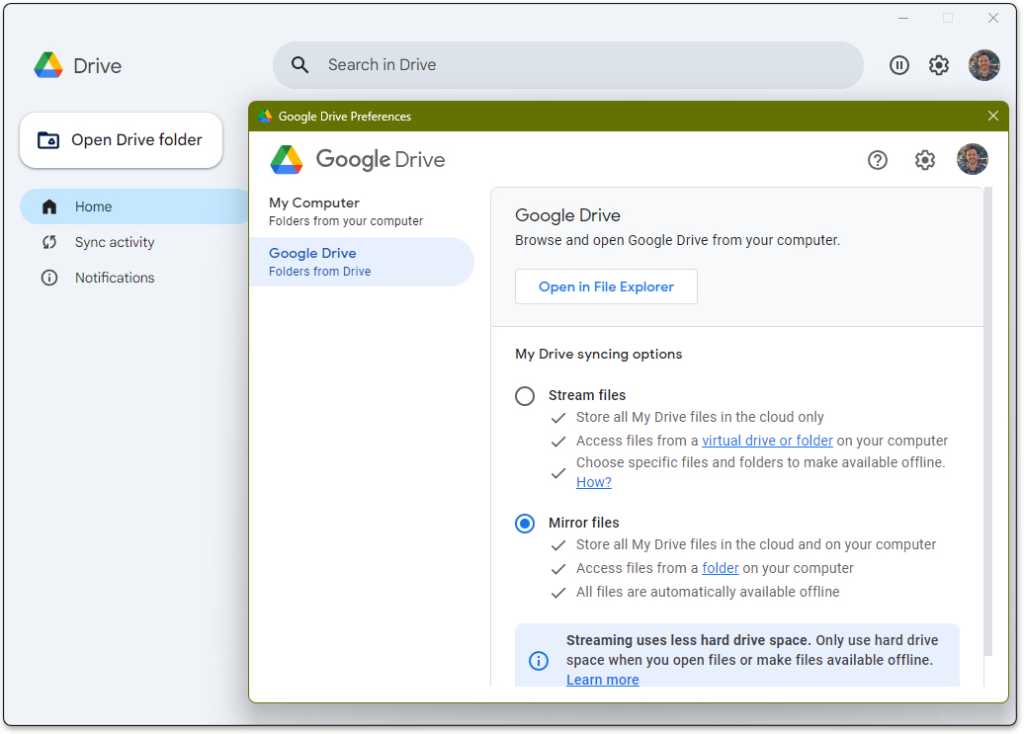
On a Windows or Mac computer, grab Google’s official Google Drive desktop program. You can then choose either to mirror your entire Drive storage on the local device — meaning anything in Drive is always synced and available directly on the computer’s own storage, and any changes or additions made on the computer will instantly be reflected in Drive as well — or to “stream” files, as Google describes it, and make every file from Drive accessible on the computer but only actually synced and downloaded when you actively open it.
Google’s official Drive desktop app has two easy options for moving files back and forth between Drive and a Windows or Mac computer.
JR Raphael / Foundry
Either way, you’ll end up with a folder on your computer that basically becomes a place to see and access everything in your Google Drive storage. Anything you save to it or drag to it will automatically get uploaded to Drive, and the local folder and the Drive folder will always be identical in what they show (whether the files are fully downloaded and available locally, with mirroring, or simply available on demand via the streaming approach).
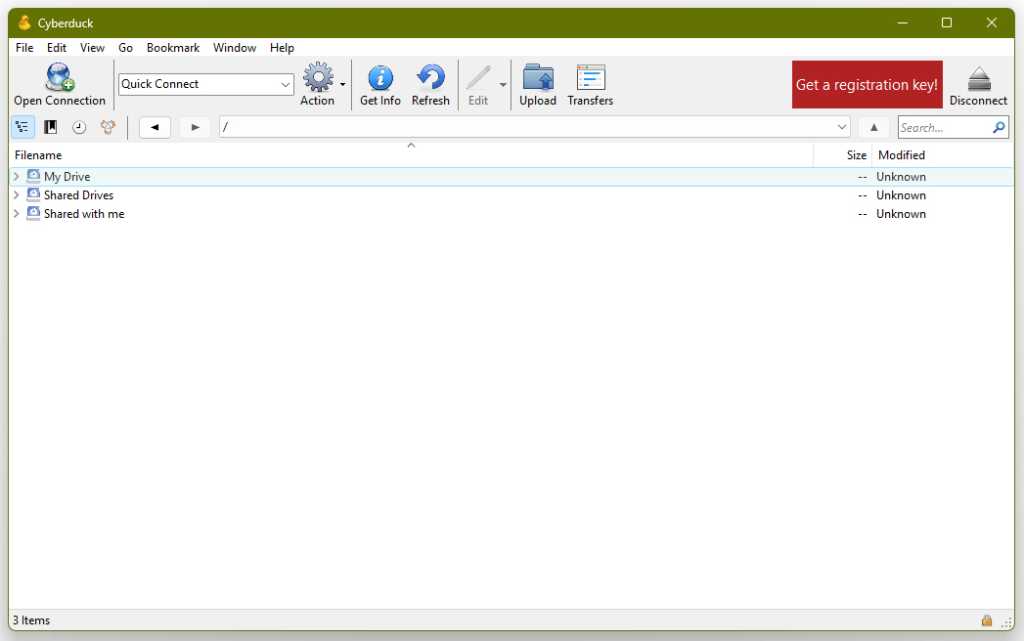
And finally, if you want to get really geeky, you can actually use an FTP program to sign into your Drive account and then drag and drop things directly between it and your computer without any annoying interfaces or unnecessary time-wasters. If that sounds too complicated or confusing for you, then it’s probably not something you need. But if you use FTP in other parts of your life and find the possibility alluring, the specific program you’ll want to grab to make it happen is a free and open-source FTP client called Cyberduck. It’s available for both Windows and Mac (and there’s really no need for it on ChromeOS, since the same basic capability is built directly into the system file manager on that platform).
Once you’ve installed the program, click the Open Connection button, select “Google Drive” from the dropdown menu at the top of the connection box, then click Connect. A page will pop up in your browser prompting you to allow the app access to your Drive storage, after which you’ll be given a special code that you’ll need to copy and paste back into a prompt that’ll be waiting for you in the app.
After you’ve done that, you’ll have a file-system-like view of your Drive storage right in front of you — and you can drag and drop anything from your computer into it or anything from it into a local computer folder.
Cyberduck lets you access your entire Drive storage via FTP on your computer.
JR Raphael / Foundry
As an extra-geeky bonus, Cyberduck can do the same thing with Dropbox and OneDrive as well, in case you have any need to connect to either of those services.
Google Drive problem #2: Office awfulness
I don’t know about you, but I tend to get a whole lot of Word files sent my way. And since I long ago sent Microsoft’s Office apps a-packin’ and switched over to Google Docs for all of my own writing, I usually end up dragging those files into the Drive website to open ’em and do whatever’s needed within my preferred environment.
For years, Drive relied on a Chrome-connected system called Office Compatibility Mode to make that possible. It’s a stripped-down interface where you can view and perform basic edits on Office files but where most advanced word processing features — including commenting — are missing in action. And quite honestly, it’s kind of irritating to use.
There’s actually a much better option, though — one you’d probably never know existed if you’ve been using Drive for long enough to have that Compatibility Mode system in place. So here it is: Since mid-2019, Drive has supported native Microsoft Office file editing within the standard, fully featured Google Docs interface and without any conversions or stripped-down setups required.
If you’re still seeing that old Compatibility Mode when dragging Office files into the Drive website, all you’ve gotta do is remove the Office Editing extension from your browser — by opening its Chrome Web Store page and clicking the Remove from Chrome button (which will be present if the extension is installed) — and then refresh the Drive website, if you already had it open.
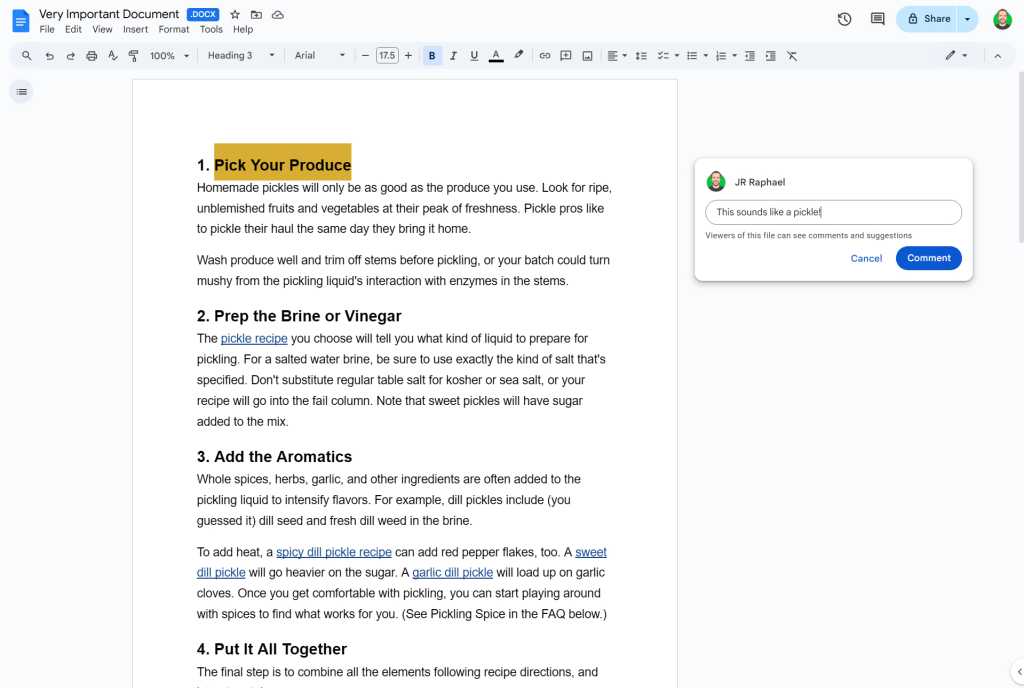
The next time you drag an Office file into the site, Drive will automatically open it in an editor that looks and works exactly like the regular Docs editor, only with a blue “.DOCX” chip next to the file’s name to let you know you’re using the Word format. (Just note that somewhat confusingly, you need to drag the file into the Drive website, not upload to the Docs website, for this to work.)
Working with Office files in Drive is a delight — once you get everything set up correctly.
JR Raphael / Foundry
The file will remain in its original format throughout any edits you make. If you need to export it to send it back to someone after editing, you can always download or share it from Drive or directly from the Docs editing interface. (And while we’re been talking about documents specifically here, by the way, all of this same stuff applies to Excel and PowerPoint files as well.)
Just one last thing to check: Drive has an option within its settings (which you can find by clicking the gear-shaped icon in the Drive site’s upper-right corner and then selecting — yep, you guessed it — “Settings”) that’ll automatically convert all uploaded documents into the Docs editing format. That typically isn’t enabled by default, but if you want to make sure any Word files remain in the Word format, as described above, you might want to take a quick peek and confirm that that option is indeed deactivated on your account.
Google Drive problem #3: Conversion challenges
Speaking of file formats, have you ever found yourself staring at a file in your Drive and wishing you had a way to turn it into some other type of file? Whether it’s a document you need to transform into a PDF, a PNG you need to morph into a JPG, or a WAV you want saved as an MP3, moving from one manner of file to another is a delicate and often difficult dance.
It doesn’t have to be, though. First of all, if the conversion you need revolves around any manner of standard text file — PDF, RTF, DOCX, TXT, or even HTML or EPUB — you can actually handle your transformation directly within Docs. Just open the file into Docs (either by double-clicking it within Drive, if it already has the Docs icon next to it and is set to open there by default, or by right-clicking it and then selecting “Open with” followed by “Google Docs” if not).
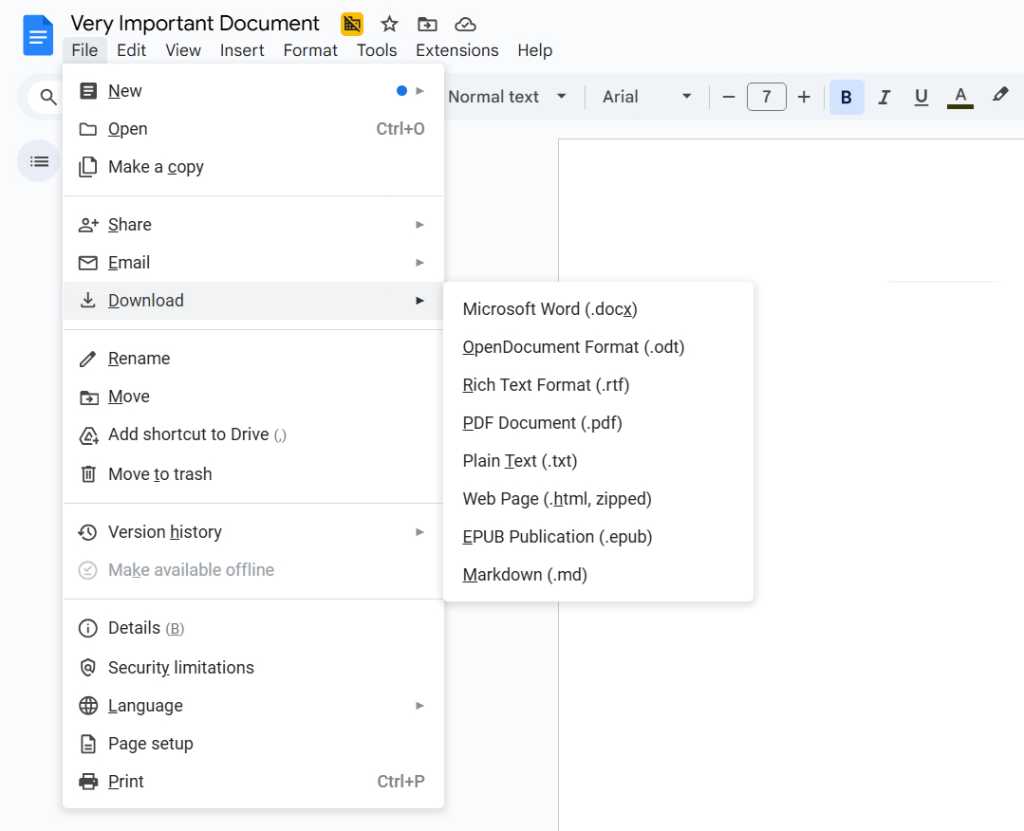
From there, if the file is a PDF, it’ll automatically get converted into a plain-text document on the spot. If it’s any other type of file, you can click “File” followed by “Download” to find options for saving it into an alternate format.
You can convert documents into lots of other file types directly within the Google Docs editor.
JR Raphael / Foundry
But what if you’re dealing with something beyond a basic text file? The answer there lies within an ultra-handy Google Drive add-on called CloudConvert. Open up the add-on’s page within the Google Workspace Marketplace, click the button to install it, and follow the steps to add it into your account.
You’ll see some warnings about the level of access you’ll be granting the service, but don’t fret: First of all, CloudConvert will have access only to the Drive files that you explicitly send to it or create with it, not to your entire Drive storage — and second, the company’s privacy policy makes it clear that it never reads or collects data from uploaded files or does anything shady with your info. (The company makes its money by selling subscriptions, but unless you anticipate doing more than 10 file conversions a day, you won’t have to pay to use it.)
After you’ve got that added, you can right-click on any file within Drive and then select “Open with” followed by “CloudConvert” to select a new format and begin a conversion. The resulting file will be saved back into your Drive storage as soon as it’s finished.
Google Drive problem #4: Short-term sharing struggles
Sharing is caring, but when it comes to sensitive files, you might not always want everything you share to remain eternally available to its recipient. And traditionally, that means it’s up to you to remember to go back a few days or weeks later and revisit a file’s sharing status.
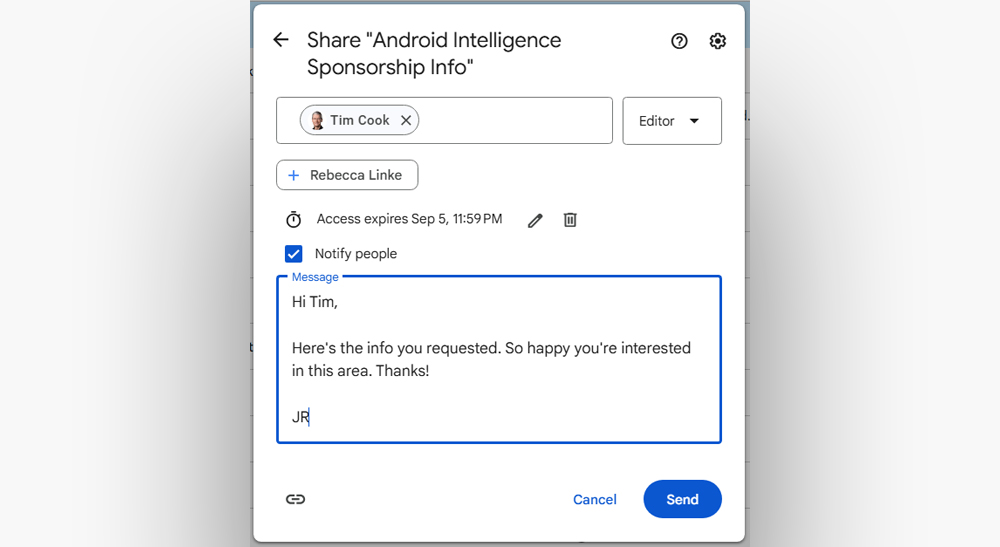
If you’re in a paid Google Workspace arrangement, though — through your company or organization — there’s now a better way. First, right-click on a file and select the “Share” option on the Drive website (or use the Ctrl-Alt-A [or Cmd-Alt-A, on a Mac] keyboard shortcut to get to that same area). Then, type in the name or email address of the person with whom you want to share and click the box next to that — the one that probably says “Editor” by default.
There, you should see an option to “Add expiration.” Click that, and you can then set a specific date and time at which the person’s access will automatically expire. Hoorah!
File sharing, with built-in expiration — hey, we’ll take it.
JR Raphael / Foundry
You can select any date within the span of one year. The person you’re sharing with could always save the file themselves — outside of Drive — or capture screenshots, of course, but you’ll be able to rest easy knowing your actual direct share and the direct access in your storage won’t stick around forever.
Google Drive problem #5: Mobile syncing
The Drive syncing systems we talked about a minute ago are great on the desktop front — but when you’re using Drive from your phone, you’re much more limited in options.
Sure, you can use the Drive app’s built-in “Make available offline” function — which you can find by tapping the three-dot menu icon alongside any individual file — if you need to keep specific Drive files accessible on your device even when you aren’t online. If you want to actually sync entire folders in either direction, though, or have any files available for use outside of Drive itself, the official app won’t be of any help.
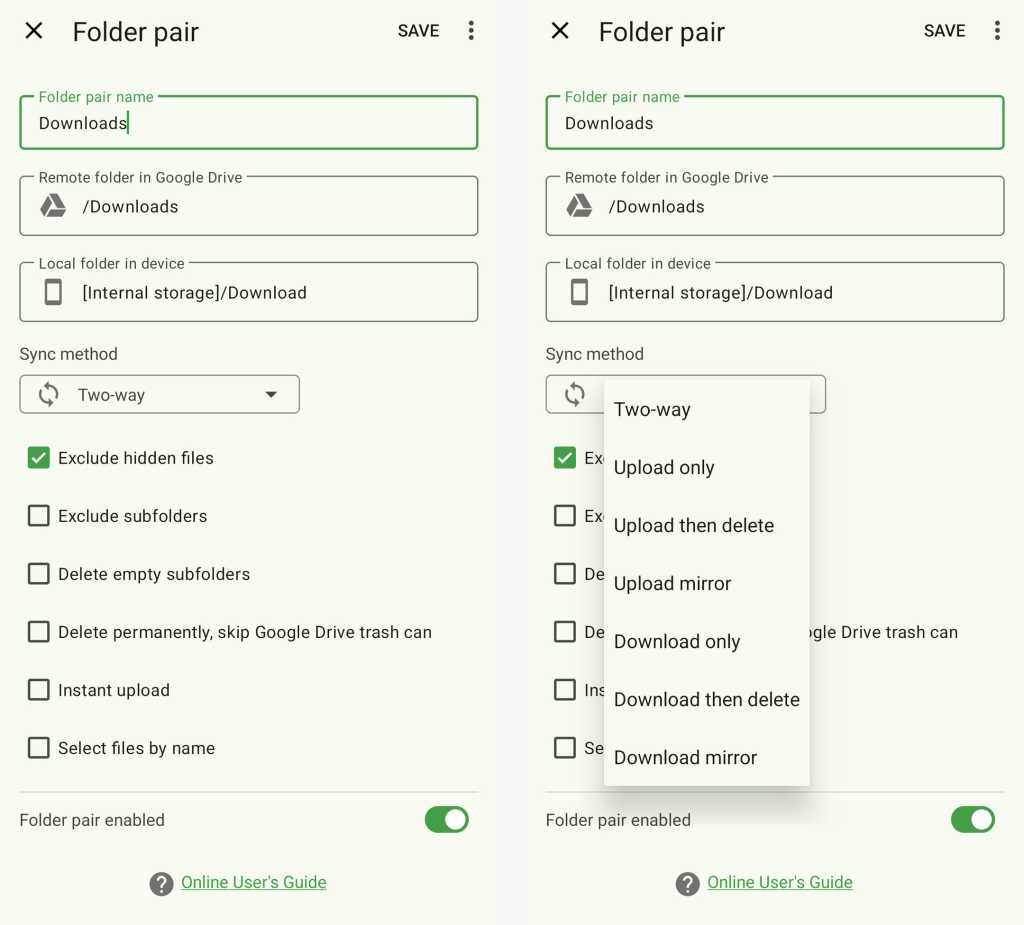
On Android, an app called Autosync for Google Drive will fill that void. It’s among my picks for the best Android file transfer tools around, in fact, and for good reason: The app makes it as easy as can be to create pairs of folders that are continuously synced between your Drive storage and your phone — in both directions, in just one direction, or even in an upload-and-then-delete sort of arrangement. You just pick out the local folder and the Drive folder you want to use, select the appropriate parameters, and then sit back and let the app do its work silently in the background over time.
Autosync lets you keep folders synced between Drive and your Android device.
JR Raphael / Foundry
Autosync is free to use for a single folder pairing and with files that are 10MB or smaller. You can remove those restrictions and unlock other advanced features with a one-time $5 in-app payment.
Google Drive problem #6: Suggestion overload
Drive’s “Home” view — that welcome page that recently started showing up by default when you first open the site, with allegedly intelligent suggestions for which specific files and folders you might want to access — is supposed to make it faster for you to find what you need. If it feels more like an annoying intrusion than a helpful resource for you, though, take note: You can pretty easily avoid it.
It’ll take you all of 10 seconds to do: Click the gear-shaped icon in the upper-right corner of the Drive website, select “Settings,” then change the option for “Start page” from “Home” to “My Drive.”
And that’s it: The next time you open up the Drive website, you’ll go straight to the standard view of all of your folders and files — no saucy suggestions showing up and stealing your time first.
Google Drive problem #7: Density difficulty
Looking at a long list of files and finding yourself miffed by the fact that you can’t see more stuff at once? Drive’s default desktop view isn’t exactly space-efficient — but, well, you guessed it: There’s a fast ‘n’ simple fix.
First, change the file view from the “grid” option to the far more info-dense “list” setup by clicking the icon that looks like three horizontal lines in the Drive website’s upper-right corner — right next to the icon that looks like four small boxes in a grid. (You can also hit Alt-V and then L, if you’d rather go the keyboard shortcut route.) In the mobile app, you’ll tap a single icon with three horizontal lines in that same area, provided you’re still in the default grid view.
If you want to see even more files yet, on the web, you can click the gear-shaped icon in Drive’s upper-right corner and select “Settings” — then change the option for “Density” from “Comfortable” to “Compact.” That’ll eliminate a bunch of the white space built into Drive by default and let you see much more info at a time on whatever size screen you’re using.
Google Drive problem #8: The buried file blues
We all have those perpetually important files — documents, images, and other resource-like items we pull up all the time. And always having to search for said VIP files to find ’em isn’t exactly fun or productive.
Drive doesn’t have any way to pin files to the top of a list, but it does have some helpful tools for treating certain items as high priority and making ’em especially easy to find and access. First, you can star any file (or even an entire folder) by hovering your mouse over its line and clicking the star outline that appears along its rightmost edge, on the Drive website — or by using the Ctrl-Alt-S (or Cmd-Alt-S, on a Mac) keyboard shortcut. In the Drive mobile app, you’ll tap the three-dot menu icon alongside the item and then select the “Add to starred” option in the menu that pops up.
However you go about doing it, that action will cause the item in question to appear in a special starred section that you can then get to by clicking the “Starred” option in the main left-of-screen menu or by bookmarking this direct link for the desktop — or by tapping the “Starred” tab within the main bottom-of-screen menu in the Drive mobile app.
You can also create your own custom shortcuts for files or folders so that they effectively appear in multiple places — if, say, you have an important item that’s buried a few folders deep in your Drive and want it to be more easily accessible. By creating a shortcut for it, you could make it available from the main “My Drive” list while technically still leaving it in its properly organized home. Just right-click on any file or folder and select “Organize” and then “Add shortcut” to get started with that from a computer — or use the Ctrl-Alt-R (or Cmd-Alt-R, on a Mac) keyboard shortcut. You can tap that three-dot menu icon next to any item to find the same option on mobile.
If you’re using Android, you can also add a direct shortcut to any file or folder right onto your phone’s home screen for one-touch access without even having to open the app. Tap the three-dot menu icon alongside the item you want, then scroll down and look for the “Add to Home screen” option to give it a whirl.
Whew — that pesky ol’ cloud is sure starting to feel a heck of lot lighter, isn’t it?
This article was originally published in December 2020 and most recently updated in August 2025.
French President Emmanuel Macron has told his ministers that the EU should consider targeting the US digital sector. The statement comes after Donald Trump threatened new tariffs in response to European technology regulation and digital taxes, Politico reports.
Trump has long criticized the EU’s digital regulations, the Digital Services Act and the Digital Markets Act, and recently claimed that they discriminate against US companies.
Macron said the EU should not rule out retaliation and pointed to its trade deficit with the US in services, even though the EU has surpluses in goods trade — for example in cars and pharmaceuticals.
Macron has previously said he was not satisfied with the EU-US trade deal and that Europe was not “feared enough” to negotiate a better agreement.
He is expected to raise the issue with German Chancellor Friedrich Merz at an upcoming meeting.
Figures published by Google last week minimizing the energy and water consumption of individual queries answered by its AI services are still not giving us the full picture of AI energy use, according to an article in MIT Technology Review on Thursday. The writer went on to raise further questions about AI’s resource consumption that enterprise IT leaders will need to consider in their budget and ROI calculations.
Google’s estimate for the water and electricity consumption — five drops and a quarter of a watt-hour — of a single text query to its AI services “doesn’t reflect all queries and it leaves out cases that likely use much more energy,” such as images or videos, the article’s author Casey Crownhart wrote. Crownhart co-authored a much deeper dive into AI’s energy footprint for Technology Review in May.
And Google’s estimate is just the median value — half the text queries it handles use less energy, and half more: “We don’t know anything about how much energy these more complicated queries demand or what the distribution of the range is,” Crownhart wrote.
By choosing to publish just the consumption of a single query, Google minimized the impact of its AI. “We don’t know how many queries Gemini is seeing, so we don’t know the product’s total energy impact,” she wrote.
Rival AI operator OpenAI does share total traffic figures, saying that it sees 2.5 billion queries to ChatGPT every day, while Google has only said that Gemini has 450 million monthly active users. And that number only describes a fraction of Google’s AI impact, as it also uses the technology to provide AI summaries in web searches, and to help draft or summarize emails and texts, Crownhart noted, concluding, “So even if you’re trying to think about your own personal energy demand, it’s increasingly difficult to tally up.”
The impact for IT
But it’s not just personal: Enterprises too are paying for these AI services and, indirectly, the cost of their energy and water consumption.
As the cost of these inputs rises, IT departments must make budget projections based on the anticipated number and nature of AI queries: Text? Video? Complex or simple analysis? If CIOs are trying to project those costs for 2026, they will have to make some difficult guesses about new capabilities and new players too.
CIOs may have to consider the direct cost of those inputs too, as they explore the possibility of bringing cloud computing back in house. Setting aside the question of whether they can obtain the needed components, such as volume deliveries of NVIDIA chips, this move would force them to directly deal with energy and water challenges — not just the cost but, depending on where they chose to build, their availability too.
“If you, as a CIO, are not speaking with your operations and facilities teams around forecasting power requirements versus power availability, start immediately,” said Matt Kimball, VP/principal analyst for Moor Insights & Strategy. “Having lived in the IT world, I am well aware of how separate these organizations can be, where power is just a line item on a budget and nothing more. Talk to the team that’s managing power, cooling and datacenter infrastructure — from the rack out — to better understand how to use these resources most efficiently.”
It’s not just computing capacity that contributes to the cost of AI: IT needs to reexamine existing storage operations too, Kimball said.
“I would take a long look at my storage infrastructure and how to better optimize on and off prem. The infrastructure populating most enterprise datacenters is out of date and underutilized. Moving to servers that have the latest, densely populated CPUs is a first start,” he said. “Moving on-prem storage from spinning media to all flash has a higher up-front cost, but is far more energy efficient and performant. It’s easy to buy into the NVIDIA B300 or AMD MI355X craze. Or the Dell, HPE, or Lenovo AI factories. But is this much horsepower required for your AI and accelerated computing needs? Or are, say, RTX6000 PRO GPUs good enough? They are far more affordable and about 40% of the power consumption compared with a B300.”
A different perspective comes from Simon Ninan, SVP of business strategy at Hitachi Vantara, a company that sells many of these services, as the scale of these data centers is forcing IT to reconsider all previous assumptions about power usage. “AI’s energy demands are rendering traditional air cooling insufficient,” he said. “We’re seeing an increasing shift to liquid cooling for AI data centers, but a massive investment is also needed in innovations that cater to environmental boundaries.”
A new version of LibreOffice, a popular open-source alternative to Microsoft Office, won’t run on 32-bit PCs, or support the Windows 7 or 8 operating systems.
The Document Foundation earlier this month released version 25.8 of the free productivity suite, which was downloaded 642,564 times in its first week, according to a blog entry on the organization’s website.
Most Windows software comes in 32-bit and 64-bit versions, and most software vendors offer support for both for backward compatibility.
LibreOffice, which includes apps for word processing, spreadsheets, presentations, vector graphics creation, and more, is popular among Linux users and is included in many Linux distributions. A version is also available for macOS.
The base desktop software is free of AI tools and targeted for customers who want an alternative to Office without the frills. A cloud-based paid version of LibreOffice is available at Collabora Online.
But more AI tools are coming to LibreOffice desktop in the form of extensions. Earlier this month, StableDiffusion released an AI image generator for the software. Chatbots and automated writing extensions are also now available for LibreOffice.
The number of LibreOffice adopters remains modest, but some individuals and organizations are giving it a look as cloud and AI security concerns mount around the market-leading office suites, Microsoft 365 and Google Workspace. Denmark’s Ministry of Digitalization recently announced that it would move half of its employees to LibreOffice from Microsoft 365 this summer, with plans to cut off the Microsoft suite completely by year end.
The next version of LibreOffice is expected to be 26.2, which will be released next year.
With stressful migrations from Windows 10 to Windows 11 still ongoing in many organizations, Microsoft has thrown system administrators a small but helpful lifeline.
Although it announced the new service last November at Ignite 2024, Microsoft only released Windows Backup for Organizations this week. The somewhat misleading name masks its real purpose: making it easier to migrate or restore system settings between machines joined to Entra ID (formerly Azure Active Directory) as part of Microsoft 365.
In short, this is not a utility for backing up data files, folders, installed applications or for executing disaster recovery. Instead, what’s being backed up to the cloud is a user’s Windows settings and a list of their Microsoft Store apps, so that they can be restored to a new machine.
The settings include things like display setup, accessibility, peripheral parameters, language, and power configuration.
The feature is being pitched as helpful for admins migrating users from one OS version to another — specifically Windows 10 to 11 — or when setting up a new machine for an existing user from scratch using the “out-of-box experience (OOBE)” process.
In fact, admins can already do this using tools such as Microsoft User State Migration Tool (USMT). The downside of this is that it is IT-driven, manual and sometimes complex. Someone must be on hand to create and run PowerShell scripts that automate and orchestrate different executables.
In contrast, once enabled and configured as part of Intune mobile device management (MDM) or Entra ID Group Policy, all that’s required for Windows Backup for Organizations to work is for the user to sign in with their Microsoft Entra ID account. No tools or software routines needed — users simply log in and Microsoft’s cloud should do the rest.
Alternatively, a backup can be manually triggered by a user by opening the Windows Backup app and selecting ‘Back up’, Microsoft said.
“For large-scale upgrades and device continuity, Windows Backup for Organizations helps reduce migration overhead, minimize user disruption, and strengthen device resilience against incidents,” Microsoft program manager Miranda Leschke wrote in the blog post announcing the tool’s availability.
Windows 11 restore only
An important caveat is that while Windows Backup for Organizations will back up the settings of devices running Windows 10 version 22H2 or Windows 11 version 22H2 or later, the restore function only works for Windows 11 version 22H2 or later. Anyone staying on Windows 10 won’t be able to restore settings — and Leschke helpfully reminded users that, “With Windows 10 support ending on October 14, 2025,” the new tool could help “ease your transition to Windows 11.”
One other pre-requisite for using Windows Backup for Organizations is that the August 2025 Windows security update be applied. While systems will normally be Entra-joined, on-premises domains can also access the feature if they are hybrid joined (that is, if Active Directory is bridged to Entra ID).
According to Microsoft, “the Restore setting is rolling out gradually, so check back in about a week if you don’t see it in your Intune tenant. Once enabled, backups run automatically every eight days, saving user settings and preferences to the organization’s tenant data store.”
However, with the October 2025 end-of-support deadline for Windows 10 approaching, IT managers grappling with the Windows 10 to 11 transition will have bigger headaches on their plates than migrating settings.
In today’s multi-device, work-from-anywhere world, unified endpoint management (UEM) is crucial for efficiency and security, providing a “single pane of glass” for managing mobile, desktop, and cloud environments. Microsoft Intune is a leading example of a UEM product that has continuously expanded to meet IT’s evolving needs.
What is Microsoft Intune?
Microsoft Intune is a suite of management tools that are the core of Microsoft’s UEM strategy as well as part of Microsoft 365’s broader technology stack. The company’s goal is to simplify managing mobile devices and applications, PCs, and other devices — and to reduce complexity and cost for IT teams.
For example, Intune’s mobile device management (MDM) capabilities are built to allow IT administrators to enforce security policies, remotely wipe devices, and manage configurations across heterogeneous platforms. Its mobile application management (MAM) features are designed to help businesses manage applications on both corporate and personal devices — enabling deployment, updates, and retirement of applications — and to protect corporate data within apps, preventing data leaks without disrupting user experience. (Download our 2025 UEM vendor comparison chart for a comprehensive list of capabilities in Intune and its main competitors.)
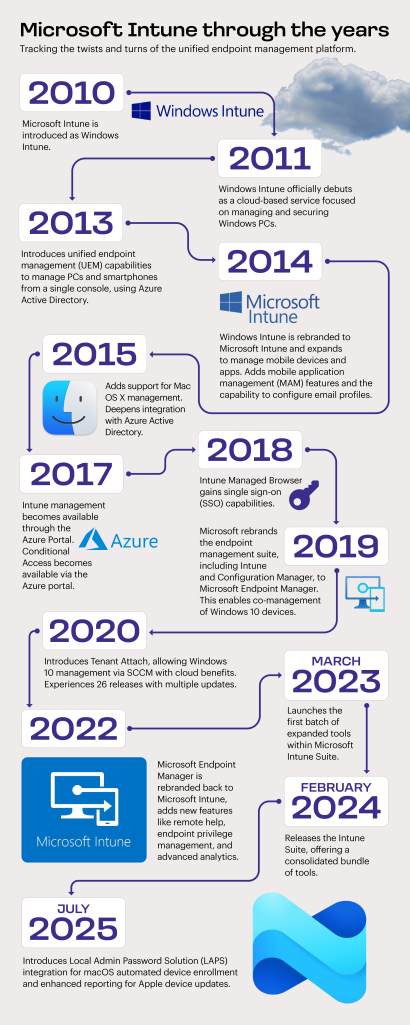
If you’re having a hard time keeping track of Microsoft’s UEM strategy, you’re not alone. What began as Windows Intune in 2010 evolved — and survived an identity crisis — to land where it is today as arguably the leader in the UEM market.
To address the emerging enterprise mobility management (EMM) needs of businesses, Microsoft launched its Intune cloud service in 2010 and added numerous mobile management features in subsequent years. In 2019, Microsoft decided to combine its Intune UEM platform with its longstanding Configuration Manager (ConfigMgr) on-premises management platform, enabling users to access both through a single interface and rebranding the combined service as Microsoft Endpoint Manager. A few years later, in 2022, the service was rebranded back to Microsoft Intune, and the next year Microsoft released the Intune Suite, which consolidated its endpoint management and security solutions to streamline protection for both cloud and on-premises endpoints.
The timeline below shows the many self-imposed twists and turns of Microsoft Intune.
How Windows Intune became Microsoft Intune, then became Microsoft Endpoint Manager, and then became Microoft Intune again.
Foundry
Why Intune is a UEM leader
Microsoft’s UEM strategy revolves around simplifying management with a cloud-first approach and reducing complexity and cost for IT teams by leveraging AI and automation to enhance endpoint security, improve end-user experience, and simplify operations. This jibes with Gartner’s forecast for the UEM market. The research firm predicts that by 2029, more than 50% of organizations will adopt autonomous endpoint management (AEM) capabilities within advanced endpoint management and digital employee experience (DEX).
Driven by corporate mobile device programs, hardware management has been shifting away from a Windows-dominant world to one that is increasingly diverse and includes iOS, Android, and macOS devices. As more worker tasks are carried out on mobile devices, the momentum behind UEM, and its capability to manage all user-facing devices from a single console, continues to grow.
While it’s a competitive market, Microsoft is widely recognized by experts and analysts such as IDC and Gartner as a leader in the UEM sector. According to IDC’s 2024 MarketScape for Worldwide UEM Software report, Microsoft is a leader in the category. The research firm notes that an important trend in UEM is the need account for “unmanaged” devices, specifically through mobile application management (MAM) features that secure corporate data and apps without full device enrollment.
Intune’s integration with other Microsoft services is an advantage it has over competitors. For example, it’s designed to work seamlessly with Azure Active Directory.
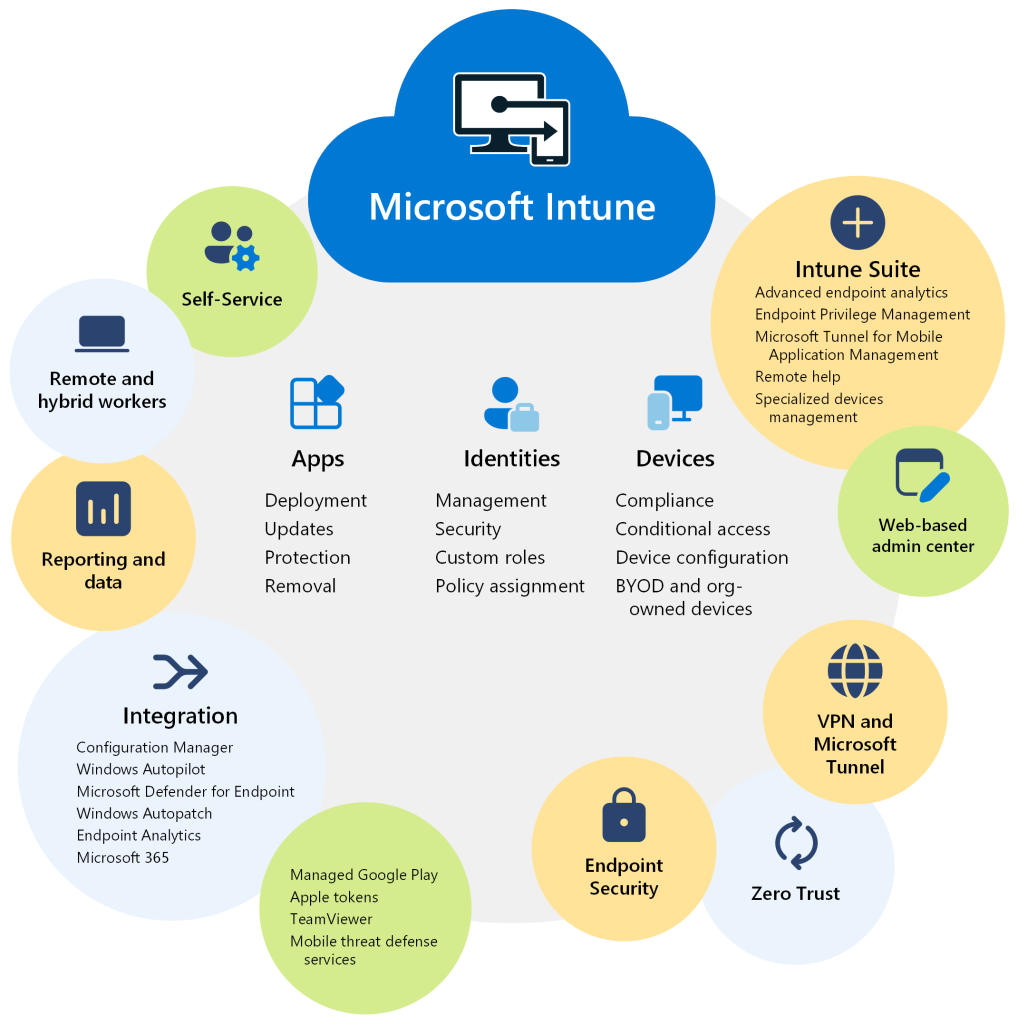
Microsoft Intune is designed to allow you to manage your organization’s devices and supports Android, Android Open Source Project (AOSP), iOS/iPadOS, Linux Ubuntu Desktop, macOS, ChromeOS, and Windows client devices.
Microsoft
How to get Microsoft Intune and what you’ll pay for it
Microsoft Intune is a standalone product, but it is also included with certain Microsoft 365 plans. While Basic Mobility and Security is part of the Microsoft 365 plans, it’s a separate, free feature set and is not a full version of Intune. The following versions of Microsoft 365 include the complete version of Intune:
Microsoft 365 Business Premium
Microsoft 365 Firstline 3
Microsoft 365 Enterprise E3
Microsoft 365 Enterprise E5
Microsoft 365 Education A1
Microsoft 365 Education A3
Microsoft 365 Education A5
Enterprise Mobility & Security E3
Enterprise Mobility & Security E5
As a subscription service, Microsoft charges companies on a per user/per month basis in three tiers, which can also be purchased as standalone licenses or in bundles with other Microsoft products. The most common pricing is based on a per-user, per-month model with an annual commitment and breaks down as follows:
Microsoft Intune Plan 1: This core plan includes essential endpoint and application management features. It costs $8 per user per month.
Microsoft Intune Plan 2: This is an add-on to Plan 1, providing advanced capabilities. It costs $4 per user per month.
Microsoft Intune Suite: Bundles all features from Plan 1 and Plan 2, along with additional advanced security and management solutions. It costs $10 per user per month as an add-on to Plan 1.
Additional information on Intune pricing
Add-ons: Advanced features such as Remote Help, Endpoint Privilege Management, and Endpoint Analytics can also be purchased as individual add-ons.
Free Trial: Microsoft offers a 30-day free trial with 100 user licenses, allowing organizations to test the service before committing to a purchase.
Device-only licenses: There are also device-only subscriptions available for specific use cases like kiosks or shared devices that are not tied to a particular user.
Looking ahead: Intune in development
What’s next for Intune? According to Microsoft, these features are currently in development for Intune and will likely be available in 2025:
Microsoft Intune Suite: A new dashboard for endpoint privilege management (EPM) is in design and will provide insights into user status and file elevation trends. EPM will also support Azure Virtual Desktop single-session virtual machines.
App management: Intune app protection policies for Apple’s iOS/iPadOS will allow blocking data sync from policy-managed app data to app widgets, enhancing data protection, according to Microsoft.
Device management: New Microsoft Graph permissions for API calls to device management endpoints will require updates to tools and scripts should be available in August. Remote wipe actions will support multiple administrative approvals. Intune Device control policy will support devices managed by Microsoft Defender for Endpoint.
Monitoring and troubleshooting: Improved declarative Apple software update reports will offer near real-time details on update failures, pending updates, and installation status.
Significant Intune notices
Updates to the latest Intune App SDK and App Wrapping Tool for iOS will be required to support iOS/iPadOS 26 and ensure continued app protection policy enforcement. Apps will need to be registered with Microsoft Entra.
Intune will move to support iOS/iPadOS 17 and later, and Android 10 and later for user-based management methods, with Microsoft expected to drop support for older OS versions.
Updates are coming for strong mapping for SCEP and PKCS certificates to address elevation of privilege vulnerabilities.
New standalone settings for blocking screen capture, Genmojis, and Writing tools in Apple Intelligence will be introduced.
This article was originally launched in September 2018 and most recently updated in August 2025.
Apple is seeing rapid growth in enterprise markets, and in the wake of the Crowdstrike disaster and Microsoft’s forced Windows 11 upgrades, there’s no good reason for that trend to end. It’s no wonder its platforms have become such a big target for organized crime — meaning constant security vigilance is necessary for every user as the scale of attacks intensifies.
That doesn’t mean Apple’s products are insecure; they’re not. But no platform is completely secure, and as more enterprise data is held on those platforms it becomes increasingly essential to ensure you have the correct security stance in place.
How much is too much?
Apple’s highly-skilled security teams are the first line of platform defense to protect system integrity, and they know how constant the attempts against its platforms have become. We don’t know how constant, but only this week we’ve heard of two relatively serious security warnings, including the seventh zero-day attack this year.
CrowdStrike (remember it?) recently warned of a spike in exploits targeting Macs on the part of a bunch of cybercriminals known as Cookie Spider. These attacks use malware infested advertising to trick people into visiting fraudulent help websites where they are fooled into executing malicious commands that steal their data.
The second, perhaps more disturbing, zero-day exploit is one that has been actively exploited in “extremely sophisticated” attacks against “specific targeted individuals.” That strongly suggests it to have been used in a sophisticated spyware campaign. Known as CVE-2025-43300, it enables attackers to compromise Apple device security just by getting the user to open a malicious image file. How severe is this exploit? Very. The Cybersecurity and Infrastructure Security Agency (CISA) has given this vulnerability a severity rating of 8.8 out of 10.
One reason the latter attack exploits malicious images is because Apple has made it much harder to use more conventional link-based attacks. These barriers are far from being complete — Apple has now patched a total of seven zero-day attacks this year — and it’s only August.
In discussing this, Adam Boynton, senior security strategy manager at Jamf, suggested the zero-day attack might have been used by one of the surveillance mercenaries. “While Apple has not confirmed whether this specific flaw was linked to spyware, similar vulnerabilities in ImageIO and WebKit have previously been used in Pegasus campaigns,” he said.
Surveillance-as-a-service
Pegasus is just one of a hungry horde of amoral, zero-day spyware attacks to be sold for profit by surveillance-as-a-service firms, many of which seem to emanate from Israel.
“This is a zero-click exploit that requires no user interaction, and can be triggered simply by processing a maliciously crafted image file, which could be delivered through various channels including messages, emails, or web content,” according to Qualys security research manager Mayuresh Dani.
Developing such attacks is very costly, which suggests the level of resources being thrown into breaking Apple device security. (It’s worth noting that these are the kinds of resources that would also be used to identify and exploit any security backdoors put in place at an operating system level in the event authoritarian surveillance-loving governments get their way.)
That cost certainly doesn’t seem to be a massive turn-off to the highly sophisticated and well-resourced companies profiting from the delivery of digital chaos. Many of these firms, such as NSO Group, have faced international sanctions and lawsuits, which doesn’t seem to have stopped them at all. Meanwhile, many of the exploits they create are sold to repressive governments that use them against journalists, dissidents, political rivals and others. Beyond that, older, patched exploits have reportedly been traded on the dark web, meaning these dangerous attacks can proliferate.
The danger of such attacks should be top of mind for any prominent business executive, as enterprises can be targets, too — particularly as corporate execs jet around the world. Travelers should now carry burner phones with only limited access to important corporate (or personal) data.
Don’t be paranoid, but be aware
The growing sophistication and frequency of attacks reflect Apple’s growing ecosystem but underline the obvious need to maintain a robust security posture. That includes keeping all your devices updated with the latest security patches and ensuring that all the systems you do use are running — or capable of running — the latest security updates.
While Apple is evolving, attackers are evolving in tandem. Are all your systems updated with the latest security patches?
US Federal Trade Commission (FTC) Chairman Andrew N Ferguson warned more than a dozen major technology companies Thursday that censoring US citizens or weakening data security protections at the behest of foreign governments could violate US law.
Ferguson sent formal letters to 13 tech giants — including Amazon, Apple, Google, Meta, and Microsoft — reminding them of their legal obligations to protect American consumers’ privacy and data security despite mounting pressure from overseas regulators, the FTC said in a statement.
“I am concerned that these actions by foreign powers to impose censorship and weaken end-to-end encryption will erode Americans’ freedoms and subject them to myriad harms, such as surveillance by foreign governments and an increased risk of identity theft and fraud,” Ferguson wrote in the letters, the statement added.
The warning shot marks a more confrontational stance toward foreign regulatory influence over American technology services.
Companies receiving the letters included Akamai, Alphabet, Amazon, Apple, Cloudflare, Discord, GoDaddy, Meta, Microsoft, Signal, Snap, Slack, and X, according to the agency.
Ferguson invited the firms to schedule meetings with his office by August 28 to discuss how they will honor their privacy commitments to US consumers while facing competing global regulatory demands.
For enterprise technology buyers, the FTC’s warning creates new questions about vendor reliability and data protection commitments. Organizations that rely on cloud services, collaboration platforms, and security tools from the targeted companies now face uncertainty about whether their providers will maintain consistent global security standards.
European laws driving compliance concerns
Ferguson specifically cited three foreign regulations that he said could pressure tech companies to compromise American users’ rights: the EU’s Digital Services Act, the UK’s Online Safety Act, and the UK’s Investigatory Powers Act.
The DSA, which applies to platforms with more than 45 million monthly EU users, requires companies to remove “illegal” and “harmful” content or face fines of up to 6% of global revenue. The UK’s Online Safety Act establishes similar content moderation requirements for platforms serving British users.
More concerning to US officials is the UK’s Investigatory Powers Act, which “can require companies to weaken their encryption measures to enable UK law enforcement to access data stored by users,” the FTC said.
Earlier this year, the British Home Office secretly ordered Apple to create backdoors in its encrypted cloud services under the Investigatory Powers Act. Apple, however, has ceased offering its Advanced Data Protection feature in Britain rather than comply with the demand.
For enterprise customers, the regulatory fragmentation creates complex compliance challenges.
Legal threat to non-compliance
Ferguson warned that companies could face FTC enforcement action if they weaken security promises to comply with foreign demands. Under the FTC Act, companies that promise consumers encrypted communications but then adopt weaker security measures could be found guilty of deceptive practices, he said.
“If a company promises consumers that it encrypts or secures online communications but then adopts weaker security in response to demands from a foreign government, such an action could be considered a deceptive practice under the FTC Act,” the agency said in the statement.
The FTC has brought dozens of cases over the past two decades against companies that failed to keep promises about consumer data protection, the agency noted.
Encryption controversy escalates tensions
The FTC’s intervention comes amid growing tensions between US officials and foreign governments over encryption policies. Director of National Intelligence Tulsi Gabbard recently called foreign demands for encryption backdoors a “clear and egregious violation of Americans’ privacy and civil liberties.”
The standoff highlights broader concerns about the extraterritorial reach of European and British regulations. Critics argue that foreign laws increasingly dictate global technology policies, potentially undermining American digital competitiveness and innovation.
While law enforcement agencies argue they need access to encrypted communications for investigations, privacy advocates and tech companies contend that backdoors inevitably weaken security for all users.
Gabbard has warned that foreign encryption demands would “open up a serious vulnerability for cyber exploitation by adversarial actors,” reflecting growing concerns within the Trump administration about foreign regulatory overreach.
Industry implications
Ferguson’s warning could embolden other US agencies to push back against what the administration views as inappropriate foreign regulatory overreach. Apple has already demonstrated this approach by withdrawing its Advanced Data Protection feature from the UK market rather than comply with encryption backdoor demands.
The intervention reflects broader concerns about regulatory fragmentation in global technology markets. Organizations operating across multiple jurisdictions must navigate conflicting requirements while maintaining consistent security standards, creating complex compliance challenges for both vendors and their enterprise customers. Google, Microsoft, Amazon, Apple, and Meta did not immediately respond to requests for comment.
One of the top enterprise IT complaints is that a serious lack of documentation — especially for legacy systems’ homegrown code — makes operations much more complex and riskier than they need be.
What’s rarely discussed are the reasons why there’s such a severe documentation shortage. The sad truth is that the blame mostly lies with IT managers — particularly those in charge back when the coding happened and the documentation didn’t. (Before you judge your predecessors’ predecessors too harshly, how often do you insist that current coding efforts under your authority have comprehensive and accurate documentation?)
The documentation problem starts with a simple fact: Developers hate documenting their work — and they hate it for multiple reasons.
First, it is the antithesis of fun. Coders often enjoy the creative elements of coding, but once they’re done, they want to move on to the next project. Focusing on the last one for a long time to document every aspect and explain every rationale is an annoying chore. Given a choice to avoid doing it, they will do so with alacrity.
Secondly, there’s the self-preservation aspect. Developers know if there is no actionable documentation, managers will be hesitant to fire or lay off that person because they might need them later. And speaking of needing them later, if a coder has left the company, they’re well lined up for a profitable consulting gig to solve the problem. Doing the detailed documentation work makes that little gig less likely.
In case you haven’t yet noticed, this age-old documentation issue shares a key trait with generative AI (genAI) testing issues — an impressive level of lack of self-awareness among senior managers about how they present these issues to their people.
Those CEOs might have just as easily said, “As soon as we can prove that these genAI systems work, we will lay off thousands of our technical team members. (Turns to those technical team members) Please test these systems. It will be your job to determine if they work reliably enough for me to lay off all of you. We will trust your reports.”
IT managers are in many ways doing the same thing when they ask programmers to create detailed and complete documentation for all of their code. Fortunately for the developers, those managers rarely make that request — and they certainly don’t insist on it — for a few reasons.
As much as coders want to move on to the next project, their managers often want that even more. Because once an app or coding tweaks are done and approved by the line-of-business manager who wanted it, IT types want to move to the next 19,000 items on their to-do list.
They don’t want a programmer to spend a day or more documenting details about the now-completed project. And therein lies the mental disconnect. That IT manager will allow and encourage that coder to move on and skip meaningful documentation. And yet that manager will scream about the lack of documentation for legacy code written 18 years ago.
Connect the dots, people: that lack of documentation is because the person who held their position 18 years ago did the exact same thing they just did.
How can this problem be fixed? There are a few options.
First, you have to realize there are actually three distinct problems that overlap: Problem One involves code created a long time ago where the original coder is no longer available; Problem two, involves code created more recently, with the original coder absolutely available; and Problem three involves code your people are writing right now.
As an aside, we should ask whether genAI coding assistants could help. If the problem with coders was solely related to, “It’s boring. I don’t want to do it,” then AI tools could make a big difference.
But we do have that programmer self-preservation factor. It’s not just that they don’t want to create the documentation — they don’t want the documentation created by anyone.
To be sure, IT managers would be fine with AI creating the documentation if possible, because it negates their big concern; they want the coder to move onto the next project.
But applying genAI after-the-fact, where the algorithm tries to guess a coder’s intent with each line, is likely to cause more problems than it resolves. The only way would be for the AI agent to work with the coder every step of the way to understand the full coding process.
In a vacuum, this could solve the issue. But remember — a coder’s financial objective is to stick around and not document themself out of job. Cooperation might be less than enthusiastic.
This brings us to genAI. Could today’s AI agents do a better job of figuring out what is causing a problem in legacy code and figure out how to fix it? And if that were possible, would that reduce the need for documentation?
Adam Resnick, a research manager at IDC, said the documentation issue is a constant concern for enterprise IT. “Poor documentation can make legacy systems harder to modernize, and makes onboarding, security audits, bug resolution, and maintenance more challenging,” he said.
Resnick sees the problem as being an issue of IT priorities: “Enterprises place a high priority on delivery of new features or urgent bugs under tight deadlines, and developers are incentivized towards these goals. Devs get raises and get promoted based on output, not documentation.”
But coder resistance has a lot of psychology behind it.
“Documentation is considered by many devs to be tedious and unnecessary. It takes a lot of time to document well, and devs who feel that they are writing good code often feel that anyone should be able to look over their code, and understand it without a lot of trouble,” Resnick said. “I’m not saying that developers are justified about the ‘unnecessary’ argument, but if they consider documentation tedious, then to them it is tedious. Very few ambitious developers place documentation high on their list of what they’d like to spend more time doing.”
But the problem gets worse the older the code is.
“Documentation is almost always behind, as systems evolve quickly. It is time consuming to update legacy documentation, which is often outdated by many cycles. Enterprises are unlikely to devote the amount of resources needed to catch up,” Resnick said. “Developers are under pressure to deliver new features and fix bugs, [and] are not incentivized or motivated to spend a high percentage of their time on documentation.”
Like almost everything else in IT, throwing money at the problem can actually work. “Incentivize developers to document,” Resnick said. “Tie fat bonuses to documentation and you’ll get more documentation.”