Lifelogging is an unfashionable word. But its central idea — using computers as prosthetic memory to remember everything — is appealing.
The idea is 80 years old. In a 1945 Atlantic article, Vannevar Bush proposed a memory machine called a Memex. Bush was an American engineer, inventor, and science administrator who led the US Office of Scientific Research and Development during World War II, helped develop analog computers, and founded Raytheon.
Bush wanted everyone to have a personal desk-sized machine designed to use microfilm to store huge amounts of books, articles, and notes. The Memex would let users add new information by taking pictures and storing them on microfilm, then searching and jumping between related items using a special keyboard, like choosing paths through a branching network, instead of relying on alphabetical or numerical order.
Easy, right? Just two problems: Getting information in and out. Over the decades, ambitious nerds tried to make lifelogging happen.
In the 1980s, a Canadian inventor and University of Toronto professor named Steve Mann built wearable computers and sensors that fed data onto hard drives — video, audio, and other data, sometimes sensing hand positions and environmental information using cameras, microphones, antennas, and other sensors.
In 2000, Gordon Bell became the most influential voice in lifelogging. Bell was a computer designer known for his work at Digital Equipment Corporation (DEC), where he led the development of the PDP and VAX computer architectures.
In the last two decades of his career, Bell worked at Microsoft and in 1998 launched “MyLifeBits” to capture digital versions of “a lifetime’s worth of articles, books, cards, CDs, letters, memos, papers, photos, presentations, home movies, lectures, voice recordings, phone calls, IM transcripts, television, and radio.” He wore two cameras around his neck, which took pictures constantly and automatically. To use his prosthetic memory system, he had to rely on custom-built software.
When I interviewed Bell in 2016, he had given up on lifelogging. There was too much data to capture, he told me, thanks to smartphones. In the future, he said, a revolution in AI will organize that data. Until then, the dream was impractical.
Well, we’ve had the LLM-based genAI revolution —and now lifelogging is possible.
The best lifelogging tool you’ve never heard of
In the past 25 years, data capture apps like Evernote, launched as a note-taking app in 2008 and eventually transformed into an all-purpose tool, emerged. By 2019, it had a quarter of a billion users. Evernote still exists, but with a smaller staff and now owned by Italian software company Bending Spoons, which added AI tools.
The trouble with Evernote is its complexity. Beyond lifelogging, it’s evolved into a productivity suite. Evernote is focused on collaboration and workflow — you can comment on notes, share and co-edit with others (even without an account), and request access or track shared notes. There’s a robust mobile and desktop experience, customizable navbars, and deep template support — including gallery browsing, one-click access, and custom thumbnails. The new AI features include semantic and smarter search, automatic summarization, and content transcription for audio, video, and image files. (The cost is $12.99 per month for personal, and $17.99 a month for pro.)
A more appealing option is the MyMind app. It’s a desktop app, mobile app, browser extension, and cloud service launched in 2021. (It costs $7.99 per month for basic and $12.99 for a more advanced version, and you can use it for free with a cap of 100 stored items.)
MyMind is a clutter-free bookmarking and knowledge-capture app without folders or manual content organization.There are no templates, manual customizations, or collaboration tools. Instead, MyMind recognizes and formats the content type elegantly. For example, songs, movies, books, and recipes are displayed differently based on MyMind’s detection, regardless of the source, as are pictures and videos.
MyMind uses AI to auto-tag everything and allows custom tags. Every word, including those in pictures, is indexed. You can take pictures of information, upload them to MyMind, and find them later by searching a word or two found in the picture. Copying a sentence or paragraph from an article will display the quote with a source link. Every data chunk is captured in a “card.”
Capture is easy. In a browser, click a button (from the extension). Everywhere else, including in any app on your phone, “Share” content and choose the MyMind app.
MyMind replaces information overload with a sense of calm control. Each card has a button that puts you into “Focus” mode, eliminating everything on your screen except the clearly displayed content.
Retrieval is instant. If you parked your car and took a picture of the parking garage floor and space number, you can start to spell “parking space,” but the information is instantly displayed after you type “p” and “a.” For keyboard shortcut fans, you can quickly navigate the app using the keyboard.
Most of the time, you can find anything in under a second. And it’s private, with all data encrypted and no tracking.
MyMind has other features, but the main idea is that we finally have a lifelogging tool that makes it easy to capture and retrieve information. It’s not perfect. For example, it could use a voice interface. I’d love to be able to add information by talking, and get it back by listening. But it’s probably the most effective lifelogging tool available.
Lifelogging hardware, too
Alongside AI-enabled lifelogging tools like MyMind, we’re also entering an era of lifelogging hardware devices. One promising direction comes from a startup called Brilliant Labs. Its new $299 Halo glasses, available for pre-order and shipping in November, are lightweight AI glasses.
The glasses have a long list of features — bone conduction sound, a camera, light weight, etc. — but the lifelogging enabler is an “agentic memory” system called Narrative. It captures information automatically from the camera and microphones and places it into a personal knowledge base. An AI assistant called Noa or Noa Plus (subscription) gives you a natural-language interface to your information. You can even use the glasses to “vibe code” apps.
As Gordon Bell predicted, a revolution in AI has ushered in practical, powerful lifelogging.
Thanks to genAI, which does the grunt work of capturing and retrieving the information in our lives, we can now remember just about everything.
Pixel phones are filled with efficiency-enhancing Google intelligence, and one area that’s all too easy to overlook is the way the devices can improve the act of actually talking on your cellular telephone. That’s true for any Pixel model, no matter how old it may be, and it’s especially true for the more recent Pixel models that have launched over these past couple years.
Talking on your phone, you say? What is this, 1987?! Believe me, I get it, Vanilli. We’re all perpetually busy beings these days, and the timeless art of speaking to another human on your mobile device can seem both archaic and annoying.
But hear me out: Here in the real world, placing or accepting (or maybe even just avoiding) a good old-fashioned phone call is occasionally inescapable. That’s especially true in the world of business, but it’s also apparent in other areas of life — from dialing up a restaurant to confirm your carnitas are ready to dodging your Uncle Ned’s quarterly regards-sending check-ins. (No offense, Ned. I never dodge your calls. Really. Send my regards to Aunt Agnes.)
Whatever the case may be, your trusty Pixel can make the process of dealing with a call easier, more efficient, and infinitely less irksome, and you don’t need the latest and greatest shiny new Pixel to appreciate any of these advantages — including, even, the absolute newest Pixel calling capabilities that are just in the midst of showing up for Android-embracing animals this instant.
As a special supplement to myPixel Academy e-course — a totally free seven-day email adventure that helps you uncover tons of next-level Pixel treasures — I’d like to share some of my favorite hidden Pixel calling possibilities with you, my fellow Pixel-prizing platypus. Check ’em out, try ’em out, and then comesign up for Pixel Academy for even more practical Pixel awesomeness.
Pixel calling trick #1: The call sound sharpener
We’ll start with something critical to the act of communicating via voice from your favorite Pixel device — ’cause if you’re dialing digits and preparing to (gasp!) speak to another sentient creature, the last thing you want to do is struggle to hear the person clearly.
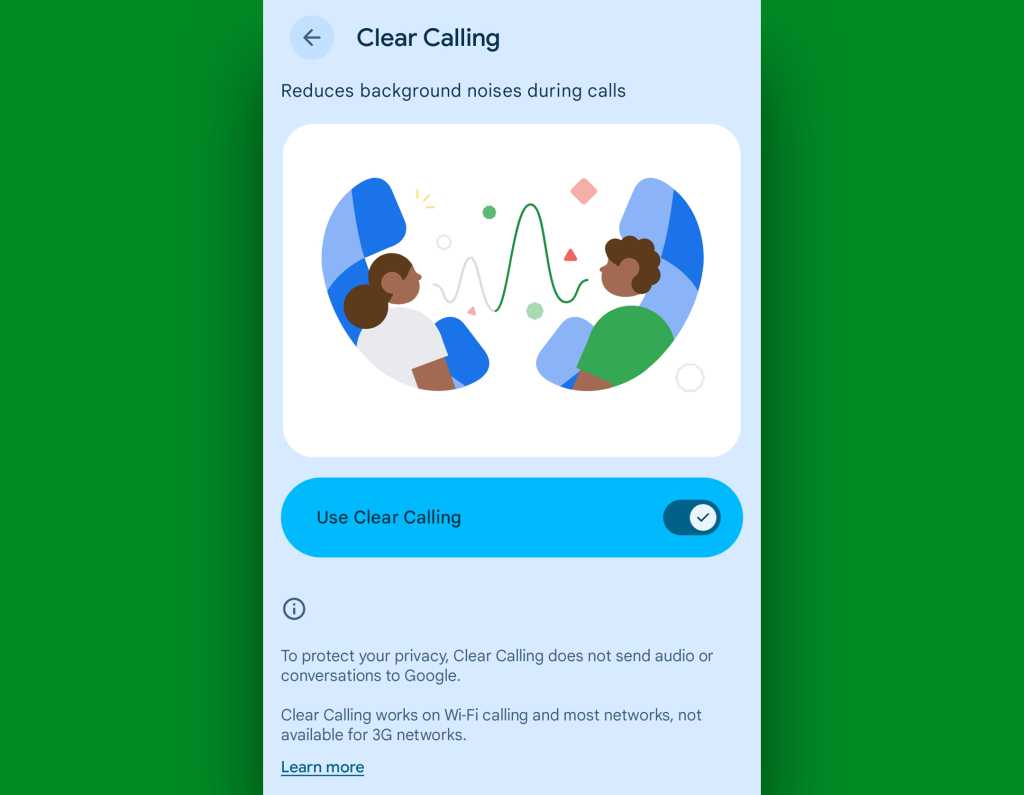
Since 2022’s Pixel 7 series, all Pixels have offered a helpful option called Clear Calling that you’d be crazy not to enable. In short, it’s like noise cancellation for the human voice: It actively reduces the background noise when the person you’re talking to is in a loud environment (as people on cell phones always seem to be). And it genuinely does make a meaningful, noticeable difference.
Best of all? All you’ve gotta do is dig around a bit once to make sure the system is enabled:
First, open up your Pixel’s system settings.
Tap “Sound & vibration,” then scroll down and look for the line that says “Clear Calling.” Again, it should be present on any Pixel model from the Pixel 7 onward.
Tap that, then confirm that the toggle on the screen that comes up next is in the on and active position.
One flip of a switch, and boom: All your calls will be noticeably clearer.
JR Raphael, Foundry
And that’s it! All your compatible calls will now have Clear Calling enhancements in place, and you’ll be able to hear what any comrades, colleagues, and/or caribous you communicate are saying more easily than ever.
Not bad, right? And we’re just getting started.
Pixel calling trick #2: The hassle-free holder
The worst part of phone calls, without a doubt, is having to hold. It’s the time-tested way for some of the world’s most sadistic companies to waste precious moments in your day, test what little patience you have left, and summon the pink-speckled rage-demon that lives deep within your brain.
Enter one of the Pixel’s best-kept secrets: With your Google-made gadget in hand (or fin — no offense intended to any aquatic readers out there), you’ll never have to hold again.
Open up the Phone app, tap either the three-dot menu icon in its upper-right corner or the three-line menu icon in its upper-left corner, and select “Settings” from the menu that pops up. Look for the section labeled “Hold for Me.” It’s present on the Pixel 3 and higher, and it’s presently available in the US, the UK, Canada, Australia, and Japan (sorry, other international pals!) — mostly for English-speaking Pixel owners, though also with the Japanese language in Japan.
If you meet those conditions, tap that line, then make sure the feature is actually active by flipping the toggle into the on position on the screen that comes up. It’s typically off by default on most new Pixels, so you will need to make sure you take this step anytime you reset your phone or move into a new device.
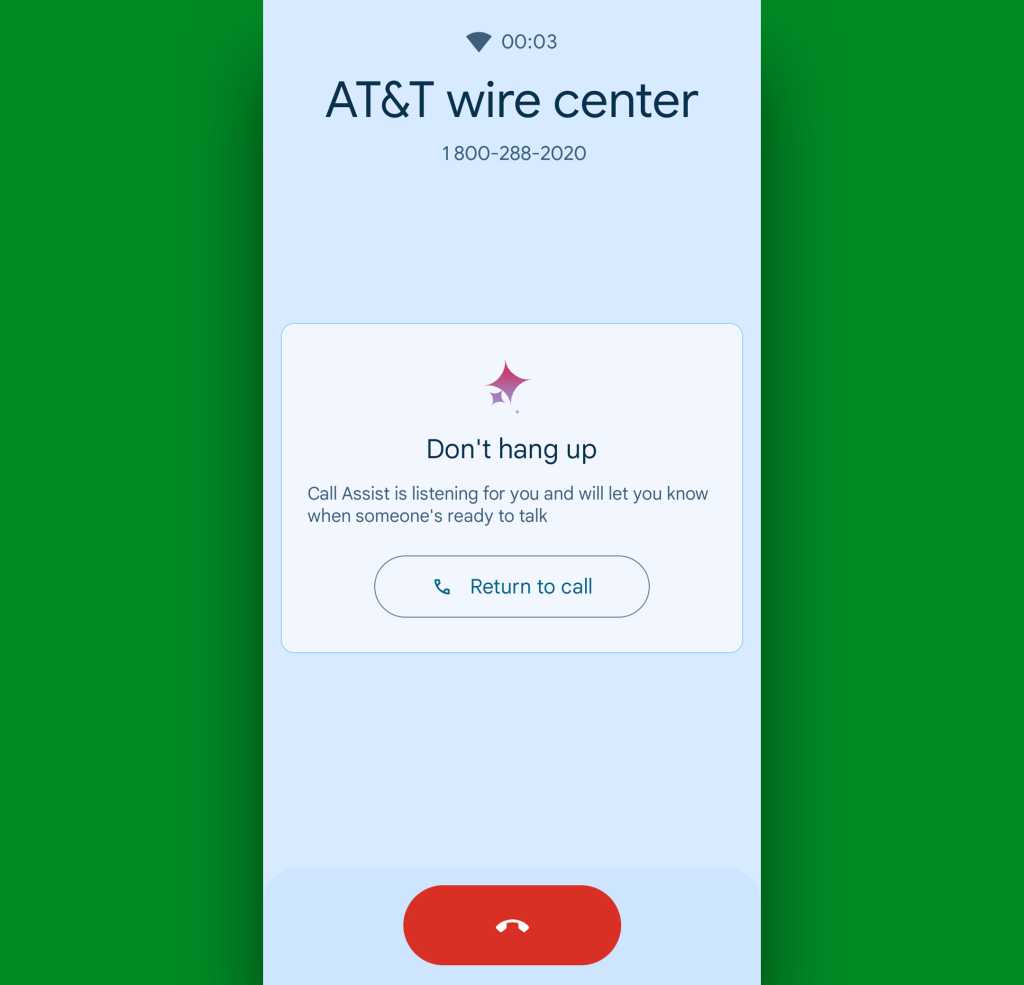
Then just call any crappy company you like (or don’t like, to be more accurate) and look for the handy new Hold for Me option on your screen once the call is underway and your brightly colored rage beast starts polka-dancing around your cranium. As long as the call involves a toll-free number, your fancy new sanity-saving button should show up and be ready for vigorous pressing.
That Hold for Me button is one of the Pixel’s best calling-related tricks.
JR Raphael, Foundry
The second the company places you on an eternal hold, just smash that button, utter a few choice curse words, for good measure, and then just go about your business without having to listen to the sounds of smooth jazz and endless reassurances that your call is, like, totally important to them (and will be answered — let’s all say it together now — in the order it was received).
No more holding for you, thanks to your Pixel’s Hold for Me (occasionally also known as Call Assist) capability.
JR Raphael, Foundry
As soon as an actual (alleged) human comes on the line or some other manner of input from you is required, your Pixel will alert you. At that point, unfortunately, the displeasure of dealing with said company is back on your shoulders. But being able to skip the 42-minute build-up to that point is a pretty powerful perk and one you won’t find on most other devices.
Pixel calling trick #3: The irritation estimation station
Having your Pixel hold for you is fantastic and all, but what if you could avoid putting yourself in a position where you even have to hold in the first place?
Well, hold the phone, my friend — ’cause your Pixel can help with that, too.
In what may be the most hidden of all hidden Pixel calling perks, the Pixel Phone app has the incredibly cool ability to tell you how busy any given business number is likely to be before you even place the call.
This one happens automatically, whenever relevant info is available, so you mostly just need to know it exists and then keep an eye out for it when the right situation arises.
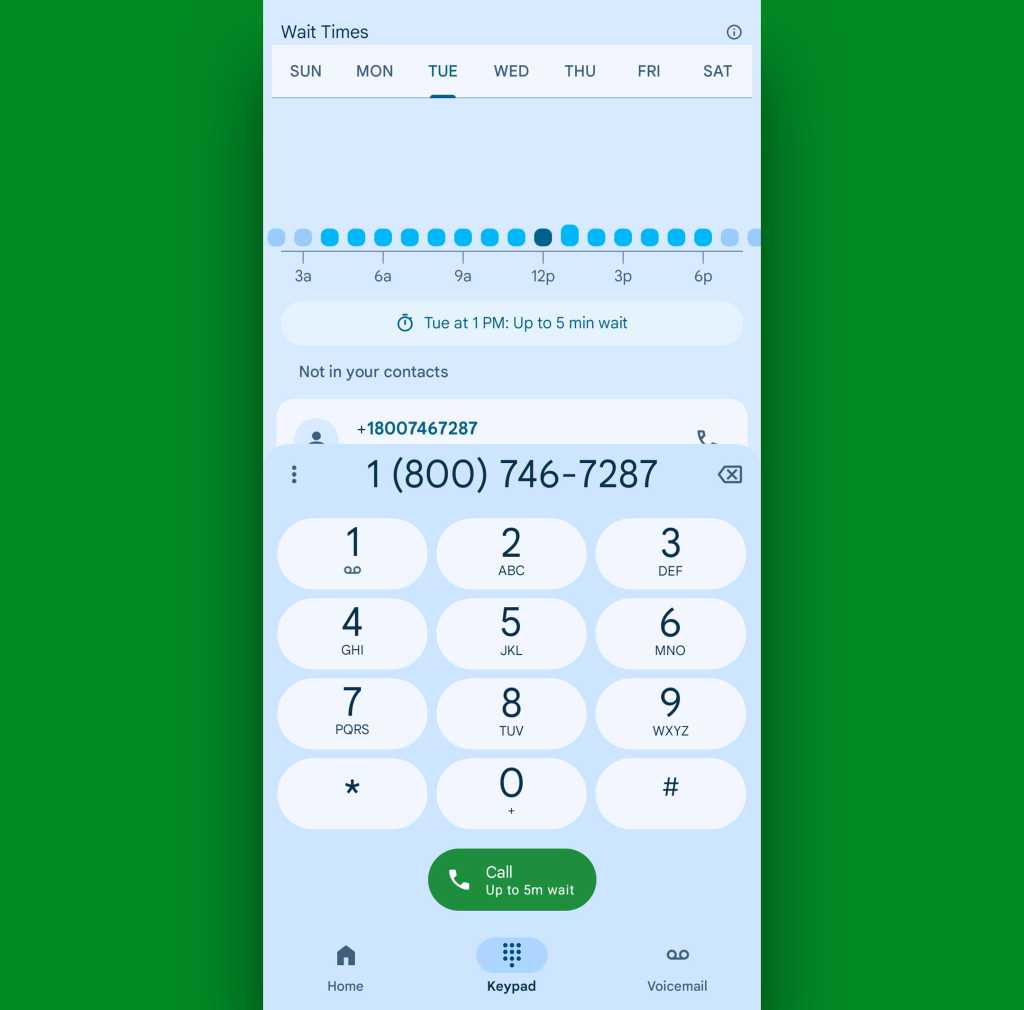
The way it works is this: When you open up your Pixel’s Phone app and start typing out a number in the dialer, your Pixel will automatically match those digits with its knowledge of typical activity for that business at different times of day and the subsequent likely time you’re bound to wait depending on when you’re calling. As soon as you finish typing in the number, that info will appear on your screen if it’s available — like so:
See exactly how long waits are expected to be with your Pixel phone’s built-in intelligence.
JR Raphael, Foundry
Now, that’s some intel I will happily accept!
What’s especially useful about this setup is that in addition to seeing the expected wait time for your call in the current moment, you can tap any other day or time to compare and see if things might be at least a little less bad at some point in the future.
Yes, please — and thank you.
Pixel calling trick #4: The menu maze skipper
Holding aside, one of the most irritating parts of calling a company is navigating your way through those blasted phone tree menus. You know the drill, right?
For store hours and information, press 1.
For directions to the nearest location, press 2.
For a test of your sanity, continue to listen to these choices.
For the sound of sea cucumbers, press 4.
For the option you actually want to select, prepare to wait through at least 14 more annoying options.
Yeaaaaaaaaah. Not a great use of anyone’s time (though, to be fair, a great way to test your ability to get angry).
Well, my Pixel-palmin’ pal, your Googley gadget’s got your back. But it’s on you to enable the associated feature and make sure it’s ready to save you from your next visit to the haunted phone tree forest.
Here’s how:
Open up that fancy Phone app of yours.
Once again, tap the three-dot or three-line menu icon and select “Settings.”
Look for the “Direct My Call” option and smack it with your favorite fingie.
Flip all the toggles on the screen that comes up into the on position. (Again, they’re usually off by default with any new or freshly reset Pixel phone.)
Flip a pancake in a griddle and then eat it with gusto.*
* Gusto-filled pancake consumption is optional but highly recommended.
This one’s available on the Pixel 3a and higher and only in the US and UK and in English, by the way. Insert the requisite grumbling on behalf of all other Pixel owners here.
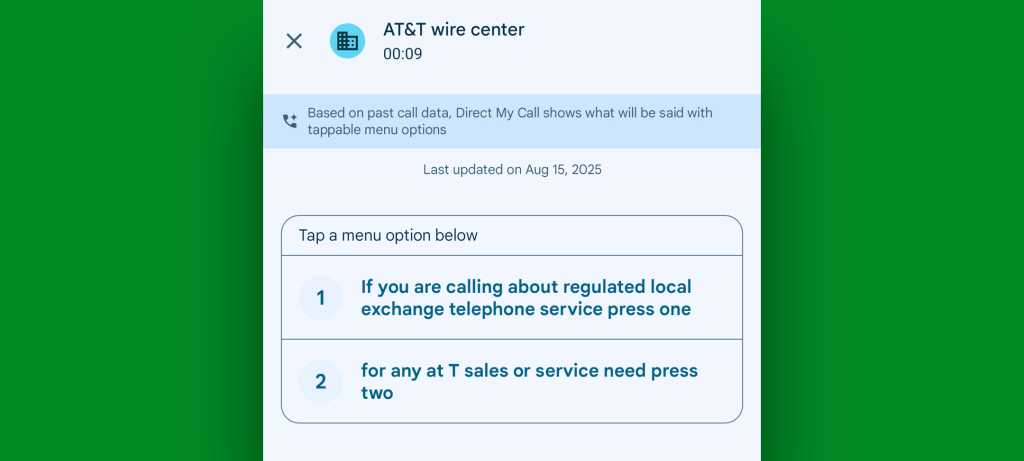
So long as you can get the option enabled, though, just look for the Direct My Call button at the top of the screen after you’ve made a call to a company that clearly hates you. Tap it, and as soon as your Pixel detects number-based menu options being provided, it’ll kick the feature in and start showing you any available options — set apart in buttons alongside a transcription of everything else the obnoxious phone system is saying to you:
Phone menus are far less obnoxious with the help of your Pixel’s Direct My Call system.
JR Raphael, Foundry
Still mildly annoying? Of course. But a noticeable step up from actually having to tune in and listen to all that gobbledegook in real-time? Holy customer service nightmare, Batman — is it ever.
Pixel calling trick #5: The complete call transcriber
Our next buried Pixel calling treasure is technically an Android accessibility feature. But while it provides some pretty obvious (and pretty incredible) benefits for folks who actually have hearing issues, it can also be useful for just about anyone in the right sort of situation.
It’s part of the Pixel’s Live Caption system, and it has a couple of interesting ways it could make your life a little easier. The system itself is available in English on the Pixel 2 and later and English, French, German, Italian, Japanese, and Spanish on the Pixel 6 series and later (tan elegante!).
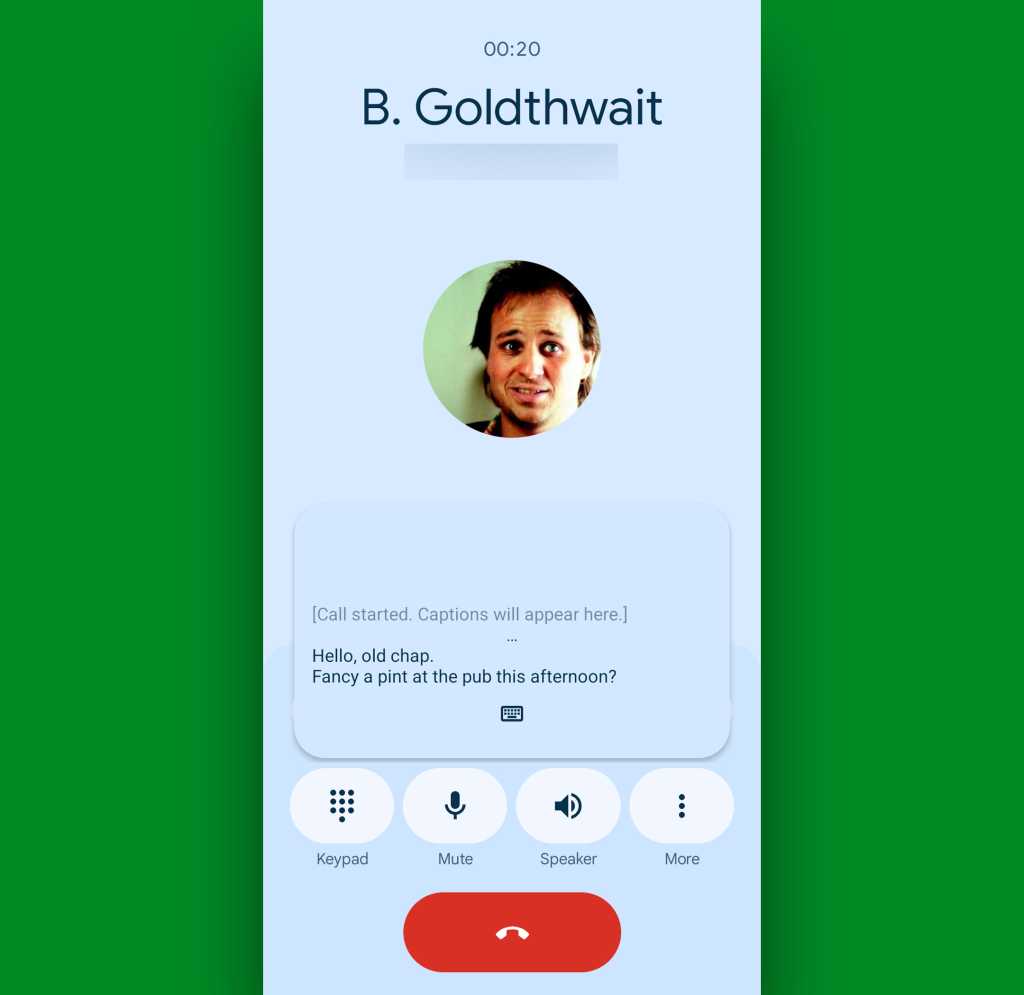
To use it, just press either of your phone’s physical volume buttons while you’re in the midst of a call — then tap the three-dot menu icon in the volume panel that pops up on your screen and select “Live Caption” from the menu that appears next. (On older Android versions, the option may show up directly in the volume control panel, as a rectangle-with-a-line-through-it icon.)
Tap that icon, confirm that you want to turn on the Live Caption for calls system, and then just wait for the magic to begin.
You can see what anyone is saying with the Pixel’s Live Caption option.
JR Raphael, Foundry
How ’bout them apples, eh? Everything the other person says will be transcribed into text and put on your screen in real-time all throughout the call.
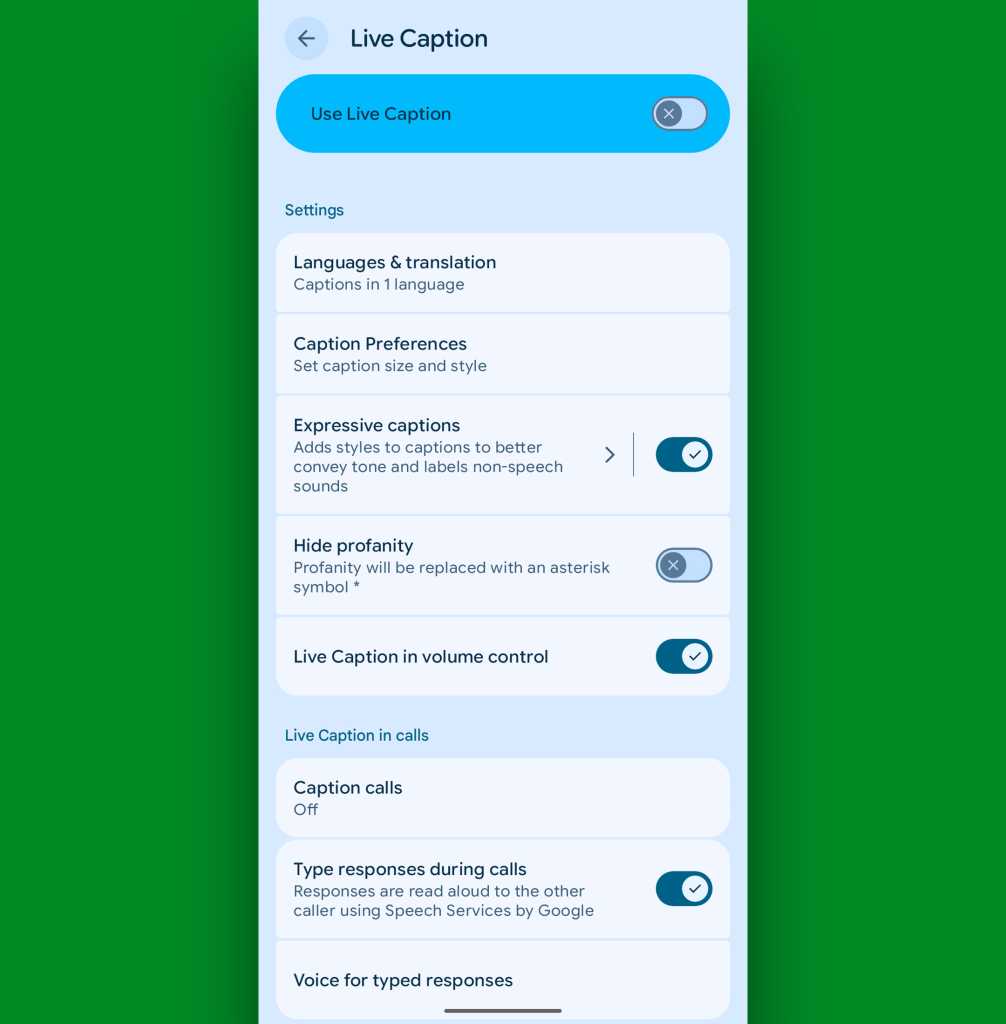
If you’ve got the Pixel 6 or higher, you can even have your phone translate the jibber-jabber into a different language on the fly. Those more recent Pixel models can also allow you to type out responses back and then have the affable genie within your gadget read your words aloud to the other person on your behalf — a fine way to have an actual spoken conversation without making a single peep, for times when both silence and voice-based communication are required.
To activate that option and also configure the other Live Caption possibilities, head into the Sound & Vibration section of your system settings and tap the “Live Caption” line. There, you can enable the ability to “Type responses during calls” and also tell your Pixel to caption your calls always or never — or to prompt you every time to check.
The Pixel’s Live Captions settings hold a treasure trove of hidden helpers.
JR Raphael, Foundry
Just be sure to hit your volume button again once the call is done and turn the Live Caption system back off via that same volume-panel icon. Otherwise, the system will stay on and continue to caption stuff indefinitely (and also consume needless battery power while it’s doing it).
Pixel calling trick #6: The automatic note-taker
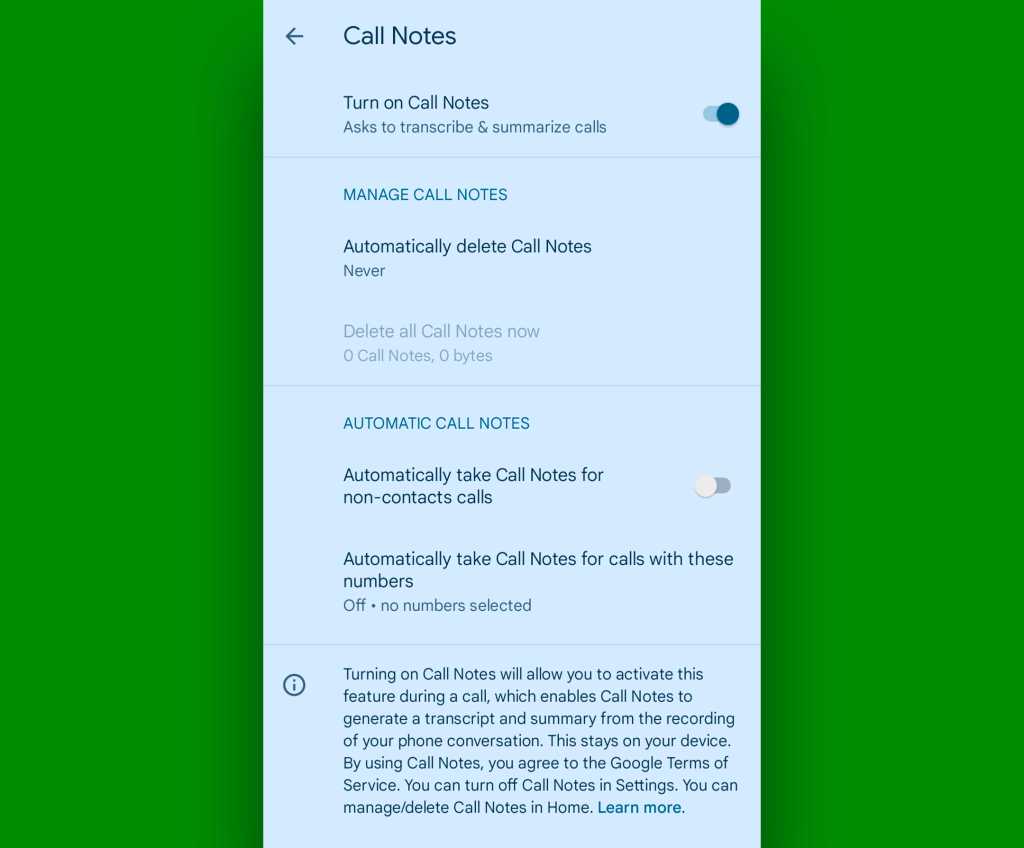
In addition to that real-time transcribing, more recent Pixels are able to capture complete transcriptions of calls and then summarize ’em for you so you can easily revisit ’em later (if you’re crazy enough to actually want to revisit your voice conversations, that is).
The feature’s called Call Notes, and you’ll find it as an option within the non-“a”-model Pixel 9 devices as well as the newer Pixel products.
All you’ve gotta do is activate it once and decide exactly how you want it to work.
Pixel Call Notes can happen automatically — or, if you’d rather, on demand as well.
JR Raphael, Foundry
But before a call even gets to that point…
Pixel calling trick #7: The automated screener
Perhaps my favorite tucked-away Pixel phone feature is one that brings us into the realm of incoming calls. It’s an extraordinarily sanity-saving system for screening calls as they come in to keep you from having to fritter away moments of your day talking to telemarketers, totally theoretical relatives named Ned, and anyone else you’d rather avoid.
This one’s available on all Pixel models but also only for English and in the US, as of now. The feature sort of works in a bunch of other countries, too, though without the automated element.
To set it up, head back into your Pixel’s Phone app and once again tap that three-dot menu icon followed by “Settings.” This time, find and select the line labeled “Call Screen.”
It may take the system a few minutes for your phone to activate the feature the first time you open it, but once it does, you can set up exactly how the system works and when it should kick in. The latest version of Google’s Pixel Call Screen gives you three simple paths to choose from, depending on how aggressively you want your Pixel to screen and filter calls for you:
Maximum protection automatically kicks all unknown numbers (i.e. anyone who isn’t in your Google Contacts on Android) into the screening processes and auto-declines any calls determined to be spam on your behalf
Medium protection takes things down a notch and screens only suspicious-seeming calls, while continuing to auto-decline spam
And Basic protection declines only known spam calls, without all the extra screening
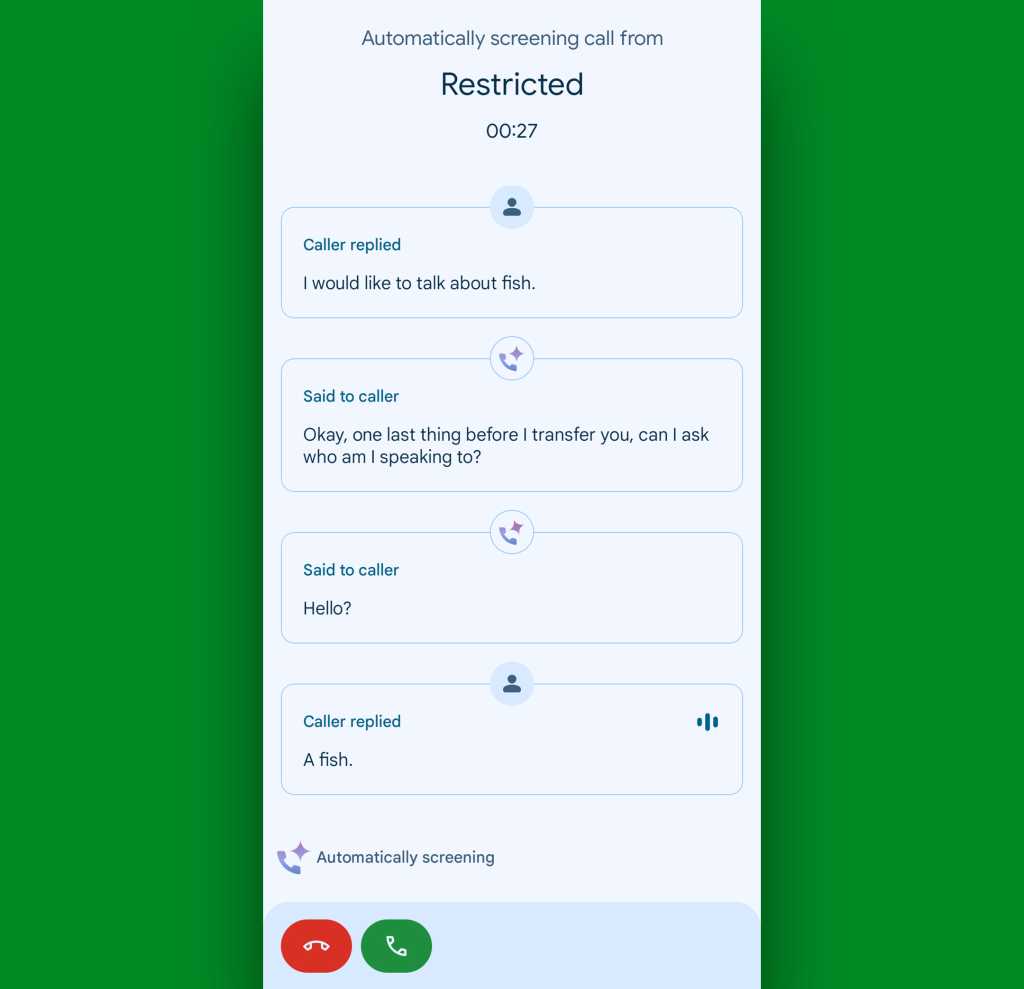
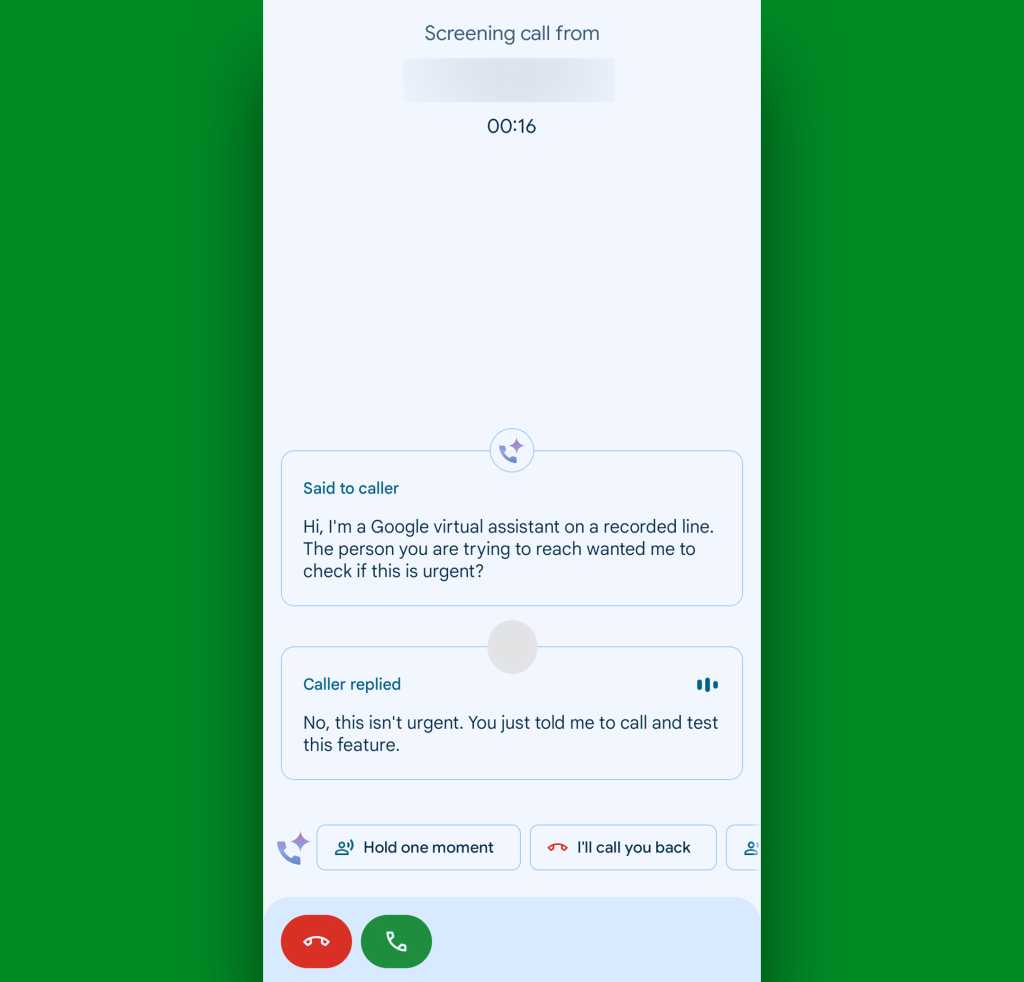
Pick whichever path you prefer, and the next time a person and/or evil spirit on the other line gets sent into screening, your phone will ring while showing a transcription of their response on the screen. That way, you can see what the call’s about before deciding if you want to pick up.
Call Screen lets your Pixel screen and filter calls on your behalf.
JR Raphael, Foundry
And here’s the especially cool part: Once the system is set up and activated, you can also always activate a version of it manually, too — even when a call is coming in from a known number. Just look for the “Screen call” or, on more recent devices, “Urgent?” command on the incoming call screen. Whoever’s calling will be asked what they want and/or if it’s urgent, and you’ll see their responses transcribed in real-time. You can then opt to accept or reject the call or even consider follow-up questions to get more info (and/or annoy your co-workers, friends, and family — an equally valid use for the function, if you ask me).
Call Screen can ask all sorts of questions for you before you decide to take a call.
JR Raphael, Foundry
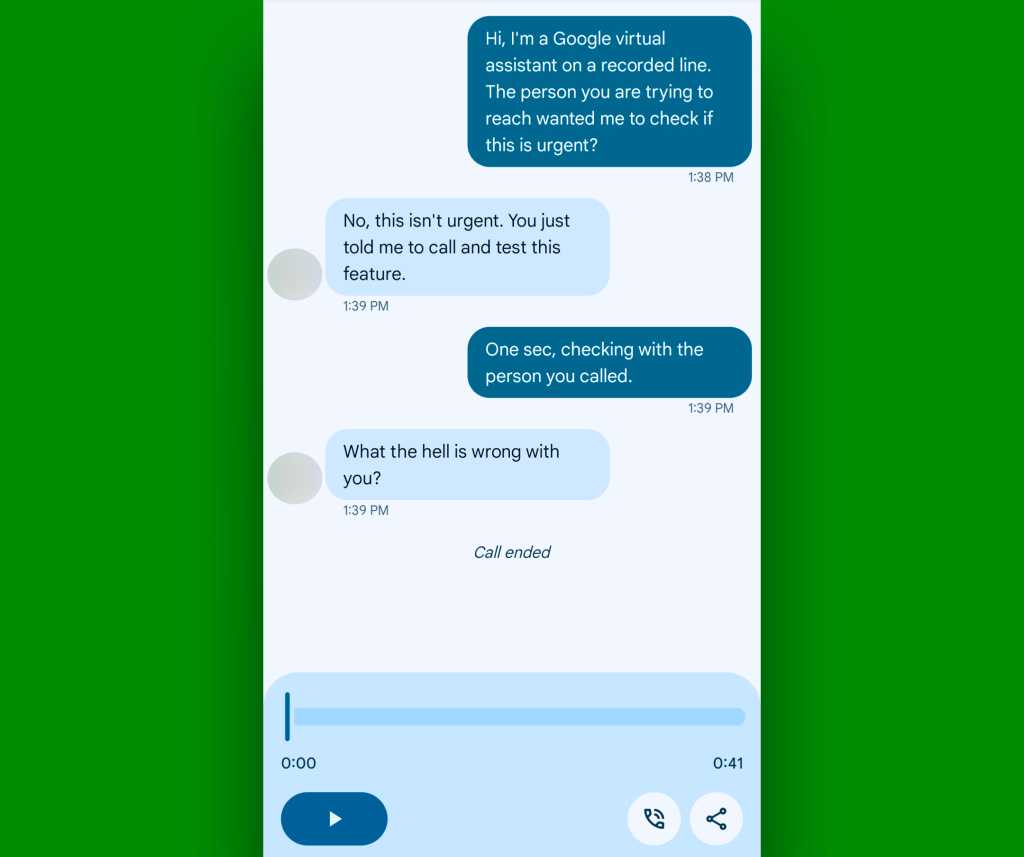
You can always find a full transcription and audio recording of those interactions in the Home tab of your Phone app, too, in case you ever want to go back and review (and perhaps publish) ’em later (hi, honey!).
Your Pixel’s Call Screen recordings and transcriptions are always available, if you ever want to revisit ’em.
JR Raphael, Foundry
Ah…efficiency.
Pixel calling trick #8: The scam spotter
When it comes to scams, detecting a devious-looking call before you pick it up isn’t always enough. But now, the Pixel extends its protection into ongoing calls with a snazzy new Scam Detection system.
It’s limited to the US for now and also only to anyone with a Pixel 9 and up — or with a Pixel 6 and higher, if you’re using the Phone app’s beta version.
If that’s you, march back to your Phone app’s settings and look for a line labeled — yup, you guessed it… — “Scam Detection.”
srcset="https://b2b-contenthub.com/wp-content/uploads/2025/08/google-pixel-phone-features-scam-detection.jpg?quality=50&strip=all 2160w, https://b2b-contenthub.com/wp-content/uploads/2025/08/google-pixel-phone-features-scam-detection.jpg?resize=300%2C183&quality=50&strip=all 300w, https://b2b-contenthub.com/wp-content/uploads/2025/08/google-pixel-phone-features-scam-detection.jpg?resize=768%2C469&quality=50&strip=all 768w, https://b2b-contenthub.com/wp-content/uploads/2025/08/google-pixel-phone-features-scam-detection.jpg?resize=1024%2C626&quality=50&strip=all 1024w, https://b2b-contenthub.com/wp-content/uploads/2025/08/google-pixel-phone-features-scam-detection.jpg?resize=1536%2C939&quality=50&strip=all 1536w, https://b2b-contenthub.com/wp-content/uploads/2025/08/google-pixel-phone-features-scam-detection.jpg?resize=2048%2C1252&quality=50&strip=all 2048w, https://b2b-contenthub.com/wp-content/uploads/2025/08/google-pixel-phone-features-scam-detection.jpg?resize=1141%2C697&quality=50&strip=all 1141w, https://b2b-contenthub.com/wp-content/uploads/2025/08/google-pixel-phone-features-scam-detection.jpg?resize=275%2C168&quality=50&strip=all 275w, https://b2b-contenthub.com/wp-content/uploads/2025/08/google-pixel-phone-features-scam-detection.jpg?resize=137%2C84&quality=50&strip=all 137w, https://b2b-contenthub.com/wp-content/uploads/2025/08/google-pixel-phone-features-scam-detection.jpg?resize=785%2C480&quality=50&strip=all 785w, https://b2b-contenthub.com/wp-content/uploads/2025/08/google-pixel-phone-features-scam-detection.jpg?resize=589%2C360&quality=50&strip=all 589w, https://b2b-contenthub.com/wp-content/uploads/2025/08/google-pixel-phone-features-scam-detection.jpg?resize=409%2C250&quality=50&strip=all 409w" width="1024" height="626" sizes="auto, (max-width: 1024px) 100vw, 1024px">Google’s new Scam Detection system is a valuable extra layer of protection to have in place.
JR Raphael, Foundry
Tap that line, then flip the toggle on the next screen into the on position. And from that point forward, if anything suspicious ever starts happening during an active call, your phone will notify you — hopefully before it’s too late.
Pixel calling trick #9: The custom calling card
As of August 2025, a new Pixel Phone app feature is in the midst of rolling out that lets you completely customize how the incoming call screen looks for specific contacts on your device — thus making it visually distinctive and easy to spot even at a glance when someone important is calling you.
It’s called Calling Cards, and it’s kinda like the iPhone’s Contact Posters feature — only without the arbitrary restriction that lets it work only with other people on the same platform.
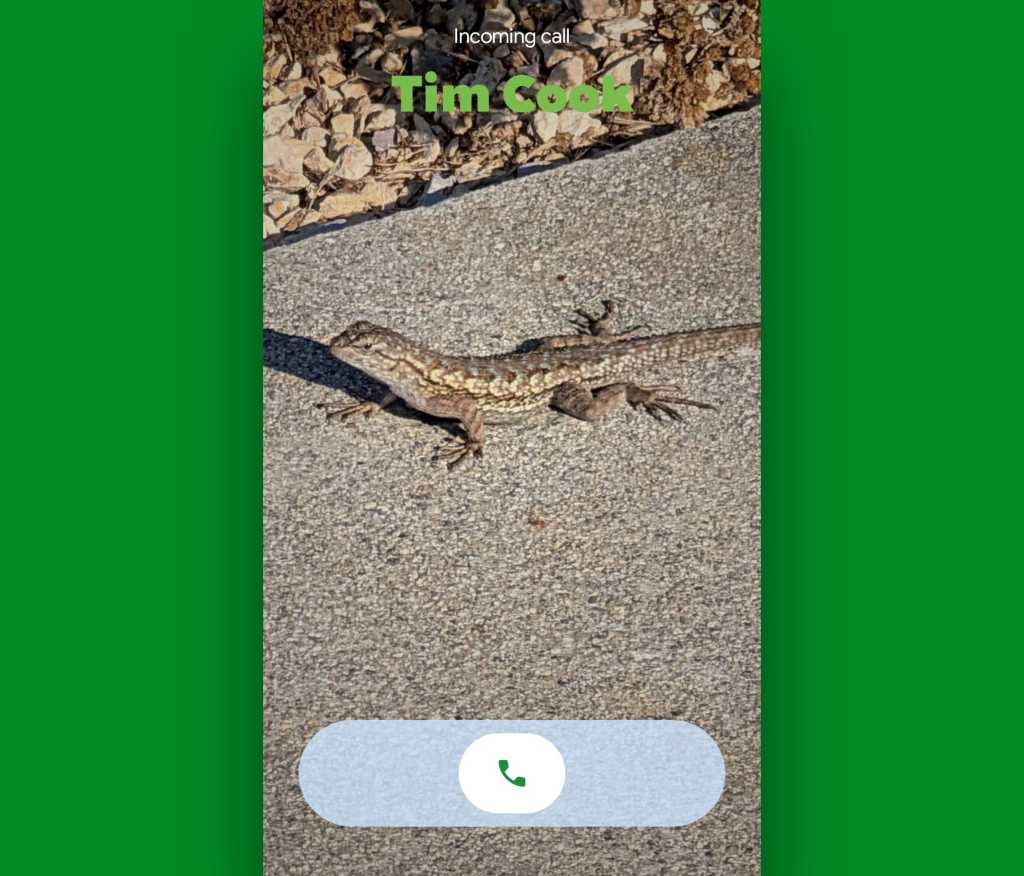
With Google’s version, once it appears for you, you can simply mosey into the Phone app’s settings and seek out the line labeled “Calling Cards,” then go about selecting a full-screen photo background and custom font and font color for any or all of your saved contacts.
Then, whenever those people call you, you’ll instantly recognize who it is without even needing more than a passing glance.
Google’s Calling Cards feature let you completely customize the incoming call screen for any individual contact on your phone.
JR Raphael, Foundry
If you aren’t seeing it on your own Pixel yet, give it a week or two and then check back — or bump yourself up to the Phone app’s beta version if you want to increase your odds of getting the feature sooner than later.
Pixel calling trick #10: The single-tap answer
While we’re thinking about incoming calls, do you find it occasionally inconvenient to have to swipe along your phone’s screen anytime you want to answer — or maybe even reject — a call?
That’s the default Android phone-answering gesture, and it often isn’t especially easy to pull off — if, say, you’re got your hands full or maybe your hands just aren’t entirely steady.
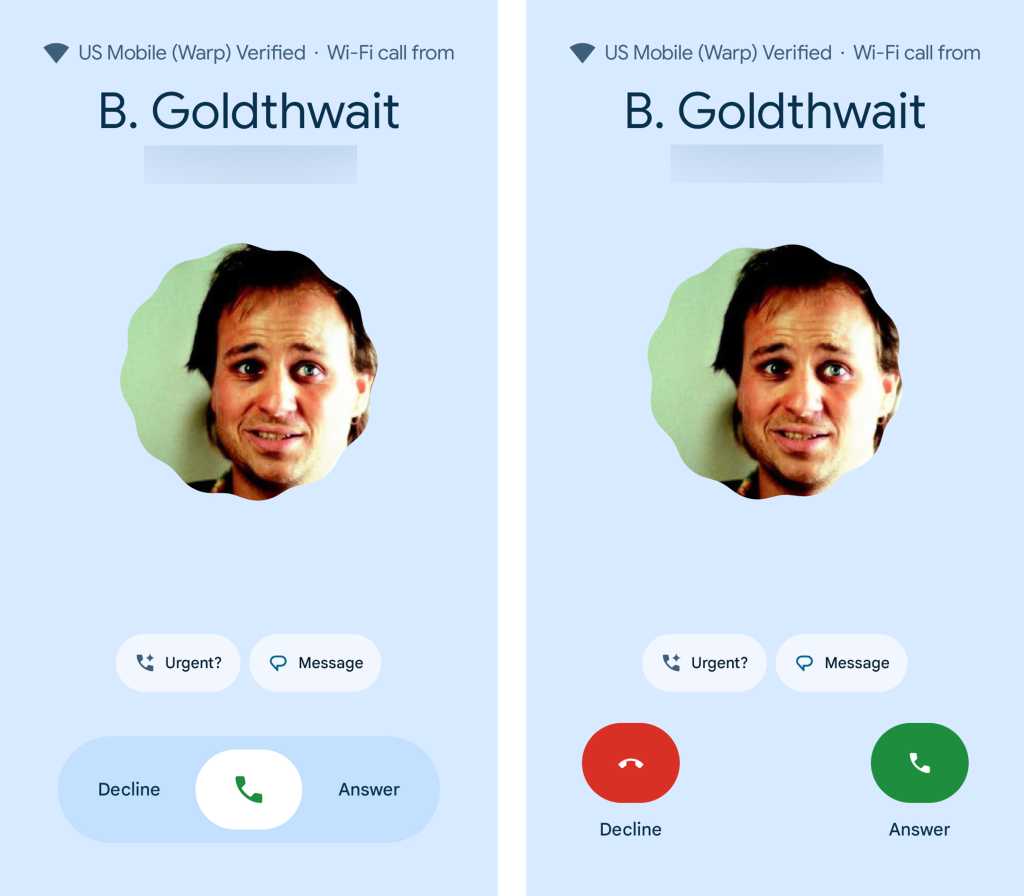
At long last, Google’s giving us the option to switch over to a single-tap command for incoming calls, too. Just look for the newly added (and also still in the process of rolling out, as of this writing) “Incoming call gesture” option within the Pixel Phone app to switch from swiping to tapping, if you’d rather.
You’ll see the difference immediately, once you do.
The standard horizontal-swipe setup, at left, compared to the new single-tap option, at right.
JR Raphael, Foundry
Pixel calling trick #11: The out-loud call announcer
Provided you work in a place where occasional noises aren’t a problem, another interesting way to stay on top of incoming calls is to tell your Pixel phone to read caller ID info out loud to you anytime a call comes in. That way, you can know who’s calling as soon as you hear the ringtone, without even having to find your phone or glance up from your midafternoon Wordle break Very Important Work Business™.
This one’s super-simple to set up: Just gallop your way over into the Phone app, tap that three-dot or three-line menu icon and select “Settings,” then look for the “Caller ID announcement” line way down at the bottom of the screen.
Tap it, and you’ll be able to choose to have incoming call announcements made always, never, or with the lovely middle-ground option of only when you’ve got a headset connected.
Hear incoming call info out loud in whatever scenarios you want with the Pixel’s Caller ID announcement options.
JR Raphael, Foundry
And here’s an extra little bonus to go along with that: If you’ve got a Pixel 6 or higher and use English, Japanese, or German as your system language, you can even accept or reject a call solely by speaking a command out loud.
You only have to configure it once: Provided you have one of those devices, head into your Pixel’s system settings and type quick phrases into the search box at the top of the screen.
Tap “Quick phrases” in the list of results, then turn the toggle next to “Incoming calls” into the on position — and the next time a call starts a-ring-a-ring-ringin’, simply say “Answer” or “Decline” to have your Pixel do your bidding without ever lifting a single sticky finger.
Pixel calling trick #12: The polite rejecter
All right, so what if you get a call you know you want to avoid — but in an extra-polite way that prevents you from having to respond to a voicemail later? Well, fear not, for your Pixel has a fantastic feature for that very noble purpose.
The next time such a call comes in, look for the “Message” button on the incoming call screen, right next to that “Screen call”/”Urgent” command we were just going over a minute ago. (And if your Pixel’s screen was on when the call started and you’re seeing the small incoming call panel instead of the full-screen interface, press your phone’s power button once. That’ll bump you back out to the standard full-screen setup, where you’ll see the button you need.)
Tap that command, and how ’bout that? With one more tap, you’ll be able to decline the call while simultaneously sending the person a charming message explaining the reason for your rejection.
One-tap rejection with the Pixel’s Quick Responses system — doesn’t get much easier than that.
JR Raphael, Foundry
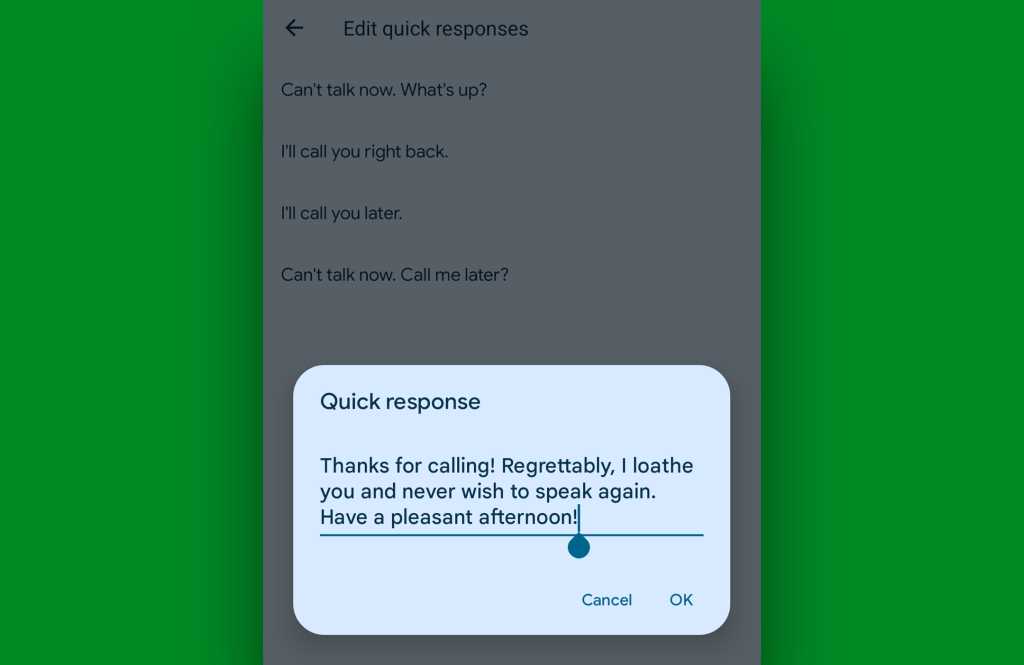
You can pick from a handful of prewritten texts or even opt to write your own message on the spot, if you’re feeling loquacious. You can also customize the default responses to make ’em more personalized and appropriate for your own friendly rejection needs. Just go back into the settings area of your Pixel Phone app and look in the “Quick responses” section there to get started.
You can create your own custom Quick Responses within the Pixel Phone app’s settings.
JR Raphael, Foundry
Cordial, no? And speaking of simple dismissals, we’ve got another important Pixel calling trick to consider…
Pixel calling trick #13: The simple silencer
Let’s be honest: No matter what type of pleasant-seeming ringtone you pick out on your phone — the gentle tolling of chimes, the majestic fwap! of an octopus violently flapping its limbs, or maybe even the soothing bellows of that weird guy who for some reason shouted in every single song by the B-52’s — something about the sound of a phone ringing always manages to raise one’s hackles.
Well, three things: First, on the Pixel 2 or higher, you can configure your phone to vibrate only when calls first come in — and then to slowly bring in the ring sound and increase its volume as the seconds move on. That way, the actual ringing remains as minimally annoying as possible and only begins (and also only gets loud) when it’s actually needed. To activate that option, look in the Sound & Vibration section of your system settings, tap either “Vibrate for calls” or “Vibration & haptics,” then make sure the toggle next to “Vibrate first then ring gradually” is in the on and active position.
Second, more recent Pixel models have a nifty “Adaptive alert vibration” feature that’ll intelligently turn down your device’s vibration strength anytime your phone is sitting face-up on a surface. That’s a nice way to make that buzzing a bit less bothersome when a call comes in in any such scenarios. You can find the switch for that one in the that same system settings area.
And finally, a super-simple possibility to remember: The next time your Pixel rings and you want to make it stop — whether you’re planning to answer the call or not — just press either of the phone’s physical volume buttons. It’s easy to do even with the phone in your pocket, and the second you do it, all sounds and vibrations will end. You’ll still be able to answer the call, ignore it, send a rejection message, scream obscenities at the caller with the knowledge that they’ll never hear you, or whatever feels right in that moment. But the hackle-raising sound will be silenced, and your sanity will be saved. Whew.
And last but not least…
Pixel calling trick #14: The proactiveprotector
If you know you don’t want any incoming calls interrupting you, don’t wait for a ring to react. Instead, silence your phone ahead of time.
And rather than relying solely on Android’s Do Not Disturb system (or even its more multifaceted and powerful Modes setup) to handle that chore, make it extra-easy on yourself and simply flip your phone down on its face on any surface in front of you.
That’s really all you’ve gotta do — at least, once you’ve taken the time to activate the amusingly named “Flip to Shhh” option in Google’s Android Phone app.
So one more time, scoot into those Phone app settings, scroll all the way down to the bottom of the screen, and tap the “Flip to Shhh” line. Then just flip the switch on the screen that comes up next to activate it.
From there, it’s literally a single face-down placement to silence your phone instantly — anytime, anywhere, and without any on-screen interactions. Not too shabby.
Remember: There’s lots more where this came from. Come join my completely free Pixel Academy e-course for seven full days of delightful Pixel knowledge — starting with some camera-centric smarts and moving from there to advanced image magic, next-level nuisance reducers, and oodles of other opportunities for advanced Pixel intelligence.
A new report from edge cloud platform provider Fastly reveals what it called “a striking shift in the nature of automated web traffic” with a recent analysis of traffic indicating that AI crawlers make up close to 80% of the AI bot traffic observed. Meta generated more than half, eclipsing both Google and OpenAI combined.
These results are derived from traffic analyzed between April 16 and July 15 across two of the company’s offerings, Next Gen WAF and Bot Management, and illustrate, the company said, how AI-driven automation is reshaping online traffic.
For the purpose of the report, its authors categorized AI bots into two types: Crawlers and Fetchers. Crawler bots, they wrote, “ operate similarly to search engine crawlers — they systematically scan websites to collect content for building searchable indexes or training language models. This process is a precondition to the model’s ‘training’ phase.”
Fetcher bots, on the other hand, they said, “access website content in response to user actions. For example, when a user requests up-to-date information on a specific topic, a fetcher bot retrieves the relevant page in real time. They are also used to help surface website links that match a user’s search query, directing them to the most relevant content. Crawler bots contribute nearly 80% of the total AI bot request volume, with fetcher bots making up the remaining 20%.”
‘Massive surge in AI bot traffic’
Real-time fetching by AI bots, the report states, is a greater challenge than peak crawler rate. Analysis revealed that in one case, a single crawler reached a peak of around 1,000 requests per minute.
Real-time fetching, on the other hand, is significantly more aggressive: in one instance, a fetcher bot made 39,000 requests per minute to a single website at peak load. “This traffic volume can overwhelm origin servers, strain server resources, consumer bandwidth, and cause expensive DDoS-like effects even without malicious intent,” the report noted.
Meta’s AI bots alone generate 52% of AI crawler traffic, which is more than double that of Google (23%) or OpenAI (20%).
Sectors facing the highest levels of scraping for training AI models include high-tech, commerce, and media & entertainment.
ChatGPT generates the most real-time traffic to websites, with 98% of fetcher bots requests attributable to OpenAI’s bots.
Asked what prompted the report, Matthew Mathur, senior security researcher at Fastly, said on Thursday, “we’ve seen a massive surge in AI bot traffic, raising a lot of concern across the industry. With our visibility into internet traffic, we’re in a crucial position to show how AI bots are affecting the internet — from excessive load on web infrastructure, unauthorized use of website content, to distorting analytics.”
In response to the findings, Reddy Doddipalli, technical counselor and product lead at Info-Tech Research Group, said, “with the rise of genAI models and embedded systems, the demand for large-scale data aggregation has led to a surge in crawler activity, with bots sifting through billions of web pages to feed ML algorithms.”
While there are many advantages of AI crawlers, he said, the bottom line for organizations, website owners, and users is to understand the negative implications, such as data privacy, security, ethics, intellectual property, infrastructure [and] bandwidth consumption.
Doddipalli says he recommends developing a framework and best practices to manage and mitigate crawler activity. “For example, many of these crawlers now mimic human behavior, bypassing traditional defenses and controls and requiring innovative detection techniques,” he noted, adding that thought is required to ensure AI bot behavior remains a constructive force, not a destructive element.
The findings from Fastly, said David Shipley, head of Canadian firm Beauceron Security, “[are indicative of] how the costs of AI are going to impact everyone. As web hosting providers face higher traffic from these bots, [it is] inevitable those costs are going to be passed on to website owners.”
This is happening at a time when human to website traffic is cratering, negatively impacting sites that depend on ad revenue and adding another pressure to those businesses, he said.
Website owners also face a tough choice, said Shipley, adding that on one hand, “having their blogs and information in the corpus of information used by these tools is valuable when people use tools like ChatGPT in information gathering or shopping decisions. There’s also the future potential for people to be able to use AI agents to interact with the websites and complete orders.”
Matter of time before a DDoS attack
On the other hand, he observed, the relationship “can also be parasitic, with AI racking up costs to improve its training data set and, based on data so far, not acting as a funnel like search engines used to be in sending traffic to websites for conversion for e-commerce.”
According to Shipley, “an additional risk is the danger of disintermediation — particularly if the AI hallucinates and gives people the wrong information about your website [and] business products Or worse, people intentionally poison the AI models to harm your business (and that will happen sooner or later).”
From a security perspective, it’s also likely only a matter of time before someone figures out how to include this massive AI traffic in DDoS attacks, he said.
Bot traffic, said Mathur, especially AI bot traffic, “will continue to grow, so having controls in place to mitigate this is essential. Utilizing directives in robots.txt, implementing technical controls (for example, rate limiting), or investing in a full bot management solution will help protect organizations. Having a strategy is also essential, so that when bot traffic spikes, organizations are already prepared.”
The Fastly report calls for smarter bot management strategies by organizations, but when asked whether any of them already have sound strategies in place, he said, “high profile ones seeing a revenue decline resulting from LLM’s use of their data, or public web resources experiencing performance problems from crawling, have been vocal about this problem and are working to address it.”
However, said Mathur, “there is likely a larger population of smaller sites and developers that don’t have sufficient visibility into bot traffic and don’t fully realize the costs of AI crawling, let alone have proactive strategies in place.”
A new study from AI security provider CalypsoAI reveals a “growing use and misuse of AI” within US organizations by employees at all levels, including C-suite executives.
Of note, it said, “half (50%) of executives say they’d prefer AI managers over a human, although 34% aren’t entirely sure they can tell the difference between an AI agent and a real employee. Over a third of business leaders (38%) admit they don’t know what an AI agent is — the highest of any role. Almost the same proportion (35%) of C-suite executives said they have submitted proprietary company information so AI could complete a task for them.”
Those findings and others are contained in the firm’s study, The Insider AI Threat Report, which states, “hidden reality inside today’s enterprises: employees at every level are misusing AI tools, often without guilt, hesitation, or oversight.”
For many, it is fine to break rules
The survey of more than 1,000 US workers revealed that, overall, 45% of employees say they trust AI more than their co-workers, 52% of employees would use AI to make their job easier, even if it violates company policy, and 67% of executives say they’d use AI even if it breaks the rules.
The misuse, said the Dublin-based company in the release, even extends to “highly regulated industries” and includes:
60% of respondents from the finance industry admitting to violating AI rules, with an additional one-third saying they have used AI to access restricted data.
42% of employees in the security industry knowingly using AI against policy, and 58% saying they trust AI more than they do their co-workers.
A mere 55% of workers in the healthcare industry following their organization’s AI policy, and 27% saying they “would rather report to [AI] than a human supervisor.”
Asked what prompted the study, CalypsoAI CEO Donnchadh Casey said via email on Friday, “we wanted hard data on what is happening inside enterprises with AI adoption. External threats often get the attention, but the immediate and faster-growing risk is inside the building, with employees at all levels using AI without oversight. Our customers are already telling us they are seeing this risk grow. The research confirms it.”
‘Shadow AI now the new shadow IT’
He said his initial reaction to the findings as they began to pour in, especially when it comes to C-suite leaders’ habits with AI, was that it was surprising to see how quickly the C-suite is bypassing its own rules.
Senior leaders, said Casey, “should set the standard, yet many are leading the risky behavior. In some cases, they are adopting AI tools and agents for business tasks faster than the teams responsible for securing them can respond. Our customers see the same pattern across industries, which is why this is as much a leadership challenge as it is a governance challenge.”
Justin St-Maurice, technical counselor at Info-Tech Research Group, said, “Shadow AI has become the new shadow IT. Employees are using unsanctioned tools to get real work done because AI can deliver two things they actually feel: Cognitive offload takes the drudge work off of their plates, and cognitive augmentation is helping them to think, write, and analyze faster.”
CalypsoAI’s numbers, he said, “show how strong that pull is. Their data shows that more than half of workers say they would use AI even if their organization’s policy says no, a third have already used it on sensitive documents, and almost half of surveyed security teams admitted to having pasted proprietary material into public tools. I’m not sure it’s as much about disloyalty as it is about how governance and enablement lag behind how people work today.”
The risk here is clear, added St-Maurice, because every unmonitored prompt can lead to intellectual property, corporate strategies, sensitive contracts, or customer data leaking out to the public. “And naturally,” he noted, “if IT blocks these AI services, it’ll drive users further underground to look for new ways to access them. The practical fix is through structured enablement.”
A proper strategy, he said, is to provide a sanctioned AI gateway, connect it to identity, log prompts and outputs, apply redaction for sensitive fields, and publish a few clear and plain rules that people can remember. This should be paired with short, role-based training and a catalog of approved models and use cases. This gives employees a safe path to the same gains.
Casey agreed, noting that any solution geared toward correcting the problem of unauthorized AI use must address both people and technology.
“Many enterprises’ initial reaction is to block AI entirely, but this is counterproductive, as employees often circumvent rules to capture AI productivity gains,” he said. “A better approach is to give access to AI across the organization, but monitor and control this access to step in when behavior deviates from policy.”
This, he said, means organizations should have clear, enforceable policies paired with real-time controls that secure AI activity wherever it happens, which includes oversight of AI agents used for business tasks that can operate at scale and touch sensitive data.
“By securing AI where it is deployed and doing real work, enterprises can allow its use without losing visibility or control,” he said.
The survey was conducted in June by research firm Censuswide, who surveyed 1,002 full-time office workers in the US, aged 25-65.
Microsoft’s August Patch Tuesday release offers a rather complex set of updates, with 111 fixes affecting Windows, Office, SQL Server and Exchange Server — and several “Patch Now” recommendations.
Publicly disclosed vulnerabilities in Windows Kerberos (CVE-2025-53779) and Microsoft SQL Server (CVE-2025-49719) require immediate attention. In addition, a CISA directive about a severe Microsoft Exchange vulnerability (CVE-2025-53786) also requires immediate attention for government systems. And Office is on the “Patch Now” update calendar due to a “preview pane” vulnerability (CVE-2025-53740).
Thankfully, Microsoft’s browsers and development platform (Visual Studio) can be added to a standard release cadence.
Microsoft SharePoint Server: After you install this update, you might experience an issue when you configure calendar overlay settings. For more information, see “Invalid EWS URL: ” error in Overlay settings in CalendarService.ashx (KB5064829). (No, that’s not a typo, but the real title of this Microsoft Knowledge Base (KB) article.)
Major revisions and mitigations
There are more than the usual number of updates and changes to existing patches, recommendations and remediations this month. We distilled this long list to just the changes that require developer/administrator attention as opposed to more informational or documentation changes:
CVE-2025-53786: Microsoft Exchange Server Hybrid Deployment Elevation of Privilege Vulnerability. Microsoft released new information on an Elevation of Privilege (EoP) vulnerability that was not addressed by recent security changes as documented in the April 18 Exchange Team blog post.
CVE-2022-41089: .NET Framework Remote Code Execution Vulnerability. Microsoft had published a number of technical workarounds for this vulnerability in .NET. Please note that if you used any workaround or mitigations for this issue, they are no longer needed; Microsoft recommends you remove them. To do so, see the instructions in the “Alternative Workaround” section of KB5022083.
CVE-2024-29187: GitHub: CVE-2024-29187 WiX Burn-based bundles are vulnerable to binary hijack when run as SYSTEM. Microsoft added Windows version 1607 to the affected system table, so we added this to our updated CVE list (recognizing that 1607 is a very old build). But the packages generated on this legacy build are still in circulation.
Windows lifecycle and enforcement updates
The company didn’t publish any enforcement updates, but the following Microsoft products are nearing their end of service life cycles:
Support for Windows Server 2008 will end in January 2026.
Windows Server 2008 Premium Assurance will end on Jan. 13, 2026.
Though no surprise to some, Microsoft will remove PowerShell 2.0 from Windows starting this month, eight years after announcing its deprecation and keeping it around as an optional feature.
As always, the Readiness team analyzed Microsoft’s latest updates and provides technically sound, actionable testing plans. August’s release brings updates to core Windows components, with significant changes affecting printing subsystems and remote desktop authentication. Two components have been designated as high-risk and warrant immediate attention: the Printing Subsystem and Remote Desktop Authentication components.
For this testing guide, we grouped Microsoft’s updates by Windows feature and accompanied each section with prescriptive test actions and rationales to help prioritize enterprise validation efforts.
Core OS and printing
Microsoft updated core kernel components affecting Windows as a whole, including kernel and system drivers. The printing subsystem update carries high risk necessitating immediate validation. These low-level system changes can affect system stability and printing functionality across the enterprise. We recommend the following testing approach:
Apply the security updates and reboot the system.
Test various print scenarios, including printing from 32-bit applications.
Run scenarios to test that Win32 applications properly render text content.
Use Kernel Transaction Manager to create, roll back, migrate, and dispatch transactions.
Test transaction NTFS scenarios.
Remote Desktop and network connectivity
This month’s updates significantly affect remote desktop authentication and network connectivity components. The updates to Microsoft Active Directory authentication are marked as high-risk and affect both Azure AD and traditional Active Directory authentication scenarios. Low-level network socket functionality has also been updated. We recommend testing of the following areas:
Authentication scenarios for AD/AAD-joined devices
Test RDP logins using Azure AD token (interactive login), NTLM credentials and Kerberos.
Validate RDP login via Remote Desktop Gateway (RDGW) using AD credentials.
Ensure correct RDP session timeout and auto-reconnect behavior.
Validate credential caching and re-authentication prompts using Connect → Disconnect → Reconnect → Logoff → Login testing cycles.
Trigger and verify MFA challenges during RDP login.
Network connectivity testing
Transmit UDP packets to IPv4 and IPv6 address structures and create UDP sockets with Winsock library, bind and unbind with IP addresses.
Send and receive large packets over the network using IPv6. Test using large files.
Establish multiple concurrent TCP connections using Winsock APIs and verify clean termination.
Filesystem and storage
Updates to core filesystem components, including ntfs.sys and cldflt.sys, require validation to ensure file system operations continue to function properly. Directory querying functionality has been specifically updated and requires targeted testing:
Test directory querying related scenarios with DOS (i.e. short) file names.
Apply test scenarios where your internal or line-of-business applications access SMB servers.
Test applications that use .lnk files, specifically mentioning the TargetPath in the LNK file properties.
Media and codecs
Microsoft updated media handling components affecting video playback and image processing capabilities. These updates require validation across different media scenarios:
The team recommends prioritizing remote desktop authentication testing this month, particularly around Azure AD integration scenarios, leading onto printing subsystem validation and ensuring that your RRAS configurations continue to function. Pay special attention to the high-risk components identified in this release, as any regressions could significantly hit enterprise remote access and printing capabilities.
Each month, we break down the update cycle into product families (as defined by Microsoft) with the following basic groupings:
Browsers (Microsoft IE and Edge);
Microsoft Windows (both desktop and server);
Microsoft Office;
Microsoft SQL Server;
Microsoft Exchange;
Microsoft Developer Tools (Visual Studio and .NET);
Adobe (if you get this far).
Browsers
Microsoft released 10 updates to its browser platforms, all of them rated important. Eight of the patches are Chromium updates, with the remaining two for Microsoft Edge. All of these low-profile changes can be added to your standard release calendar.
Windows
The following Windows product areas have been updated with six critical patches, 60 rated important and one update rated as moderate:
Windows GDI+, Graphics and DirectX Kernel.
Microsoft Message Queuing (MSMQ).
Windows NTLM and Hyper-V.
Windows Kerberos.
Unfortunately, the Kerberos update (CVE-2025-53779) has been publicly disclosed leading to a “Patch Now” recommendation.
Microsoft Office
A larger-than-usual set of updates for Microsoft Office this month includes five patches (CVE-2025-5373, CVE-2025-53733CVE-2025-53784, CVE-2025-53740, CVE-2025-53766, and CVE-2025-53784) rated critical and 13 updates rated important. Unfortunately, CVE-2025-53740 has a preview pane vulnerability leading to a “Patch Now” recommendation for Office.
One of the primary points of focus for both testing and rapid deployment involves Microsoft Exchange Server. Five patches were released, and while all are rated as important, we believe that they should receive immediate attention. The primary factor: the latest directive from CISA detailing the active exploitation of CVE-2025-53786, which directly affects hybrid Exchange environments. It looks like government implementations are both particularly susceptible and actively targeted. Add this update to your “Patch Now” schedule.
Developer tools
Microsoft released two updates for its development platform, (CVE-2025-53772 and CVE-2025-53773) affecting Visual Studio and Microsoft’s Web Deploy tools. Add these low-profile updates to your standard release calendar.
Adobe (and third-party updates)
No updates this time from Microsoft for Adobe products. And the only third-party product updates were for Chromium — which don’t really count. So, I will use this space to apologise for having separate sections for Microsoft SQL and Exchange Server. It’s a lot for anybody. Luckily, I didn’t have to add an extra section for SharePoint server — that would be bad.
It is really strange it isn’t asked, as it seems a really appropriate question when so much coverage of what has always obviously been a put-up attack against the company has focused on the (up to 30%) “Apple Tax’”Cupertino puts on sales through the App Store. Competitors and regulators seem deaf to arguments that the only ones paying that much in commission were the larger software companies moving more than $1 million dollars in apps.
That implies government regulators weren’t much interested in the smaller companies, and only really wanted to listen to the big ones.
Tell me what you want, what you really, really want
What did those big firms want? Margins, of course. In this case, they want to be able to sell their software — which they know is highly profitable — outside of the App Store, not because they want to make it cheaper for consumers (which they won’t), but because they see Apple’s 30% margin and want to keep that bit of cash for themselves.
The problem is that once that cash is removed from App Store economics, Apple will need to recoup that money somehow, which will likely translate into higher developer fees and increased costs for developers that choose to stay in the store.
Apple’s largely progressive system, in which those with the broadest shoulders carried the load, has been rejected. So, what is a reasonable profit martin for companies to make?
Aswath Damodaran, professor of finance at the Stern School of Business at New York University, is widely regarded as the world’s leading expert on corporate financial data. He keeps a regularly updated database tracking all kinds of values, including industry specific margins. His data tells us that Apple’s 30% App Store margin is tiny in comparison to the massive profitability of the large software companies that don’t want to pay their share. In fact, the margin on Software (System and Application) sits at 72.38%.
If you want my future, forget my past
That latter figure is astonishingly high and indicates how much of your tax dollars are subsidizing software companies. (How much does your local or national government pay in software licensing costs at roughly 70% margins?) It certainly helps Microsoft maintain its own 43.79% margin across its business — and presumably means larger software firms have been able to lavishly lobby governments and regulators to force the App Store to open up.
The only sectors higher than software are retail REITS (shopping centers, office rentals, etc) at 77.48% and Big Pharma (70.3%), closely followed by financial services (ie. the people who gave us the financial crisis) at 68.37%. Even now, tobacco is also a high-margin industry at 61.96%.
So, if tobacco, pharmaceuticals, financial services, and software can operate at those margins, who is taxing whom here? Apple, with its own overall 31.57% margin, or its competitors in the App Store space, striving to protect and grow their 70% slice of the pie?
Taking is too easy, but that’s the way it is
Well, for that 70% you get the software you need. So, what does Apple’s existing App Store model add to that? Take a look at Apple’s system and here’s a few things to get you started:
Universal distribution and global reach.
Malware and virus protection.
Developer tools and support, including verification of every developer.
Customer tools and support, including verification of every customer.
This seems to be a huge amount of value. What should the margin be on that?
Wind it all around
Apple’s take seems pretty slim in comparison to the software sector’s margins. What’s clear is that the real money here isn’t in running the App Store but in selling the software sold on the store. That store absolutely revolutionized software sales, enabling big developers to keep even more revenue from each sale by eliminating the cost of physical distribution. They did, but prices didn’t really decline; that’s how the software industry enjoys that obscenely high margin.
But Apple’s enemies want to keep it all, and will no doubt introduce their own App Stores to distribute their software free of Apple’s restrictions against fraud, malware, privacy erosion. They will not emulate everything that made the App Store great because they don’t need to; and they will have their own take on the ideal consumer experience. (It almost certainly won’t aim for anything as high as Apple has always delivered. (That is why people choose Apple in the first place.)
You probably won’t get privacy disclosures, probably won’t be able to purchase some essential software at the App Store, and won’t enjoy the same after-sales support as before. But none of that matters to these people.
All they want is to keep those margins as high as they possibly can without a word about just what a reasonably profit margin should be.
As I see it, these people argue for the red and for the blue — on the one hand they’ll say business is based on whatever people are happy to pay, while on the other they’ll demand government interference when they find people are happy to pay more than they want them to. In the end, it’s about the green.
Get with my friends
Because rather than continue to reinvent their own business to optimize efficiency and revenue, they want to keep things exactly the same — all aided and abetted by our current crop of imagination-free governments, shoring up anemic economies by charging you more for less than you already have. Or, to paraphrase Charlie Munger in All the President’s Men, “Show me the compensation model and I’ll show you the outcome.”
It’s really not the Apple Tax you should be fighting — it’s the prioritization of profit over customer experience that matters. And customers aren’t winning.
Nvidia has floated the idea of “Graphics 3.0” with the hope of making AI-generated graphics central to physical productivity, especially in factories and warehouses.
The concept revolves around graphics generated by generative AI (genAI) tools as opposed to humans. Nvidia said AI-generated graphics could help in multiple ways, including training robots to do their jobs in the physical world or by helping AI assistants automate the creation of equipment and structures.
“We believe we are now in Graphics 3.0…being superpowered by AI,” said Ming-Yu Liu, vice president of research at Nvidia, during a keynote at SIGGRAPH 2025, the graphics conference held this week in Vancouver, BC.
Nvidia’s GPUs are widely used by text-based genAI models and virtual assistants. Beyond that, the company hopes Graphics 3.0 will change the physical world by allowing AI to run robots, traffic signals, home appliances, autonomous cars, and equipment in offices, factories and warehouses.
Robots will “assist us in our homes, redefine how work is done in factories, warehouses, agriculture, and more,” Nvidia CEO Jensen Huang said in a short video address during an event keynote.
But creating Graphics 3.0 isn’t easy, as virtual AI differs from physical AI by relying on data used to train foundation models from the likes of OpenAI and Google. Because physical AI relies on pixels, which aren’t as readily available, Nvidia is creating synthetic data by simulating virtual worlds for applications.
“Robots don’t learn from code. They learn from experience. But real-world training is slow and expensive,” Huang said.
Nvidia has created AI models and simulation tools to create pixels that can ultimately be used to train robots, autonomous cars and other physical AI devices. “We need to invent completely new tools so that artists can conceptualize, create, and iterate orders of magnitude more quickly than they can today,” Aaron Lefohn, vice president of research at Nvidia’s real-time graphics lab, explained during the keynote.
Nvidia talked about its Cosmos AI models that will help robots take commands, sense, reason, plan, and then execute tasks in the physical world. The models can help robots bring digital intelligence into the physical world, said Sonia Fidler, vice president of research at Nvidia’s spatial intelligence lab.
“Physical AI can’t scale through real world trial and error. It’s unsafe, time consuming and expensive,” Fidler said.
For example, autonomous cars are being trained in virtual worlds because crashing cars hundreds of times to create training data is not feasible.
The company also this week announced Omniverse NuRec, which turns real-world sensor data into fully interactive simulations robots can train in or test on. It includes different tools and AI models for the construction, simulation, rendering, and enhancement of 3D digital environments.
The virtual reconstruction of worlds comes through 2D data collected from cameras and sensors. Every pixel is labeled based on a visual understanding of the sensor data.
“It is very important to stress here that visual understanding is not perfect and because of different ambiguities it’s hard to perfect,” Fidler said.
The company also announced AI material-generation tools to create more realistic graphics “complete with realistic visual details, including reflectivity and surface textures,” Lefohn said.
3D experts and engineers can “engage AI assistants using simple language to describe their requirements,” Lefohn said.
IT loves buzzwords. But it is now becoming frightfully common for analysts, vendors and even other IT specialists to take established tech phrases and assign them entirely new meanings. (And to be clear, none of these folk ever spell out that that’s what they are doing.)
Case in point: “Tech debt”. That term has meant the same thing for many years: it describes coding shortcuts (either to cut costs or to speed completion or both) that may help in the short term but will eventually catch up with you — and cost you far more money and time.
And yet, I have been hearing from various trusted sources (analysts, vendors, IT pros, etc.) an entirely new definition for tech debt. They’re using it more and more to describe the painful processes for dealing with legacy systems.
I first noticed this strange definition-hijacking when talking with a top analyst from Moor Insights & Strategy about the slow move to Windows11. When talking about “the increase in the complexity of the upgrade decision, these hidden interdependencies” — a perfectly viable point — the analyst dubbed the problem as “the great reckoning of technical debt.”
Since that interview, I’ve heard various other respected analysts and industy experts using the same definition for tech debt.
People, as someone who makes my living through the use of English words, let me say this loud and clear: Words have meaning. You can’t take a well-known phrase and just randomly assign it a new definition.
You want to talk about legacy integration headaches with on-prem data and 18 global cloud partners? Or maybe those internal programmers creating homegrown apps — and then deliberately short-cutting or entirely ignoring proper documentation? Great. Coin a new term for the concept. Don’t jam your new definition into an existing term.
It’s not just about the phrase “tech debt.” Consider Multi-Factor Authentication (MFA). That term couldn’t be simpler. It means only one thing: that you are using more than one method to authenticate users. That’s it. And yet, I recently watched a senator ask a corporate CEO who was testifying before Congress whether his firm used MFA.
When the CEO said “yes, ”the senator promptly moved on to a different line of questioning.
Wait a second! That answer tells us nothing. The senator should have followed up with something like, “Great. How many authentication methods are you using and which ones are you using?”
That would allow the senator to at least evaluate the effectiveness of those authentication methods, whether it’s robust (say, perhaps FIDO2), minimally acceptable (maybe an Authenticator app) or a gift to attackers everywhere (unencrypted SMS comes to mind).
People throw out MFA as though it means something — and others pretend they’ve been given useful information.
I have seen vendors calling their authentication mechanism “an MFA.” No. That doesn’t work. One form of authentication is not an example of “multiple forms of authentication” (unless that approach has multiple personalities).
There’s also a form of verification called Continuous Authentication (CA), which is not to be confused with Behavioral Analytics (BA), though they both have much in common. Think of BA and CA as two different security guards in a building. CA is the one in the lobby who makes sure you’re authorized to be in the building. Once you get the the greenlight, that guard’s job is mostly done.
BA is a guard making rounds on the fourth floor, ensuring you don’t try going anywhere you’re not supposed to. Think of a supply chain analyst who’s trying to access payroll records; the BA guard sounds the alarm and gets higher authorities involved.
BA is not really about authentication; it’s about making sure you don’t break bad after the lobby guard lets you in. (Yes, I’m an enthusiastic fan of Walter White.)
Another misuse of English in tech circles is the horrific “post-quantum encryption.” That term is supposed to refer to the day when true quantum systems emerge and start breaking all manner of regular cryptography.
But that would be “quantum encryption” — meaning encryption that would theoretically be able to stand up to a quantum system. Post-quantum means after quantum. That would mean that this would protect cryptography from whatever comes along to replace quantum, presumably many, many years — if not decades-from now.
Post means after. (Or it means a breakfast cereal company or a daily newspaper, but I digress.) Pay attention, people.
Karen Andersen, a technical architect at IT consulting firm World Wide Technology, argues that the worlds of consulting, analysts, and vendors would implode if they were all forced to use English words and phrases properly. (She was specifically referencing tech debt.)
“If we have to use actual meaning in word choices, the whole world is going to detonate,” Andersen said, adding, “Or should I say debt-onate?”
Rex Booth, the CISO at identify vendor SailPoint, acknowledges the loss of accuracy in language, but defends its perpetrators.
“Tech phrases that at one point provided sufficient meaning and functionality — the classic definition” can evolve, he said. “Meaning changes over time. There can be this collision between linguistics and technical culture.”
Booth is being far too forgiving.
Now, let me check my MFA for tech debt and make sure my BAs and CAs are all in order.
The AI boom has created a record-breaking wave of new billionaires and high company valuations in the past year at a rate unprecedented in history, according to CNBC.
CB Insights reports there are now 498 AI “unicorns” (private companies worth at least $1 billion) with a combined value of $2.7 trillion — and 100 of them were founded after 2023. In total, more than 1,300 AI startups have been valued at $100 million or more.
Large rounds of capital for companies like Anthropic, OpenAI, Anysphere and Safe Superintelligence have created new paper fortunes, with several founders now multi-billionaires, at least on paper.
Unlike the dotcom era, many AI companies are staying private longer, thanks to constant capital injections from venture capitalists, sovereign wealth funds and private investors. Liquidity is instead created through secondary markets, takeovers, and mergers.
Not surprisingly, the phenomenon is heavily concentrated in the San Francisco area.
Just in time to build up the late-summer Apple product refresh hype, news of a big collection of product upgrades has magically appeared as Cupertino puts the finishing touches to its iPhone keynote event invite.
To help Apple fans monitor the impact of the latest leaks on their blood oxygen levels, the company also helpfully reintroduced some support for oxygen tracking at about the same time the latest leaks appeared. The speculation follows tantalizing promises from Apple CEO Tim Cook who in early August told an all-hands Apple employee meeting that he’d “never felt so much excitement’ about the products the company has planned.
“The product pipeline, which I can’t talk about — it’s amazing, guys. It’s amazing,” Cook said. “Some of it you’ll see soon, some of it will come later, but there’s a lot to see.”
So, what’s with the latest speculation?
Chips with everything
If the code is correct, Apple is about to breathe new life into numerous products with chip upgrades to make them more powerful. It also plans to introduce brand new product families, though the schedule for many of the following products is likely to extend into 2026. There’s exciting news across Apple’s product range:
iPods: Apple’s plotting a new iPad mini with the same high-end A19 Pro chip you’ll find inside iPhone 17 Pro models. Also, as it seeks to broaden its market to guard against economic unpredictability, Apple plans a spring launch for a new low-cost iPad equipped with an A18 chip, a big upgrade from the A16 inside the current entry-level model.
Vision Pro: As expected, Apple will put an M5 chip inside the Vision Pro.
Home: Apple’s new HomePod mini will hold an updated S-series chip, while Apple TV gains an A17 Pro processor — a substantial boost beyond the current A15 Bionic chip. It will likely need this power for those sofa-based Apple Intelligence interactions. It might also need this for the smart home it plans, including a Ring-competing security camera with movement and person detection, and its first attempts at home robotics.
Mac: Not only do we now expect the first M5 Mac models and also a $599 MacBook, but the latest news claims Apple intends introducing a next-generation Studio Display 2. Code-named J427, this isn’t expected to debut until 2026. But the introduction of a new A19 Pro internal processor should make it capable of accurately handling modern and future video and audio codecs.
iPhone: In a chime of loud synchronicity, all these new product speculations come just in time to raise the temperature as Apple prepares to introduce the first of its new iPhone 17 range. They’re expected to bring more memory than ever, double the entry-level storage for a small price increase, and 8x optical zoom (on Pro models). Expect iPhone 17, iPhone 17 Air, iPhone 17 Pro, and iPhone 17 Pro Max models.
Apple Watch: Expect a third-generation Apple Watch Ultra, with a faster chip, larger display and 5G (including satellite messaging support); Apple Watch Series 11 gets a processor upgrade and the first Apple Watch SE upgrade since 2022.
AirPods and AirTags: Apple is also preparing upgrades to AirPods Pro and AirTags. The latter are expected to be more accurate and operate at longer range, while AirPods Pro 3 promise improved noise cancellation and advanced sleep and hearing health features.
Is that all there is?
This extensive collection of rumored product upgrades seems to provide a good glimpse at the next 12 months of planned introductions, but there are some things missing from the list. Apple will no doubt introduce new Macs and iPad Pro models during this time, even as it will at last introduce the contextually aware Apple Intelligence it promised us at WWDC last year.
The latter introduction will probably create opportunity for additional Apple products and services, including the company’s take on a digital health coach, integration between those health services and the company’s existing products, and the opportunity to develop additional solutions, such as health assistant robotics.
Even further out, we know Apple hopes to introduce glasses equipped with visionOS as well as its first-ever folding iPhone.