Microsoft on Friday reported that a glitch is causing Windows to tell users that Microsoft Defender Antivirus is turned off when it is in fact fully functional, a bug that the vendor says it is working to fix.
Consultants say that this advisory raises a major concern in that it will train users to ignore critical alerts, which makes them far more susceptible to attacks.
The Microsoft release health dashboard update on the issue reported: “After installing the latest updates for Microsoft Defender Antivirus, notifications might appear stating that ‘Microsoft Defender Antivirus is turned off’ even though the antivirus is functioning correctly and all settings show it as active. These notifications can appear when Windows starts and intermittently afterward. They persist even if notification settings are turned off. This issue can be observed in any version of Windows or Windows Server with Microsoft Defender Antivirus running with the latest Defender updates.”
The post added: “We are working to release a resolution in a future Microsoft Defender Antivirus update and will provide more information when it is available.”
It then listed the various Windows client and server versions impacted: everything from the current Windows 11, version 26H1 and Windows Server 2025 back to Windows 10 Enterprise LTSC 2016 and Windows Server 2012.
Bad guidance
Industry observers said the suggestion that users ignore these alerts is concerning.
“Microsoft has just published guidance telling enterprises to ignore the exact signal that precedes a large share of ransomware detonations,” said Aman Mahapatra, chief strategy officer for technology consulting firm Tribeca Softtech, pointing out that disabling endpoint protection is standard tradecraft across virtually every ransomware affiliate playbook over the last five years.
“The alert Microsoft is telling people to disregard is the same alert an operator triggers minutes before encryption starts,” he said. “That is a genuine security regression created by a bug advisory and the open-ended timeline on a fix makes it worse.”
More disturbingly, he expects many security operations centers (SOCs) will create rules to suppress these alerts, which will make the problem even more severe.
“When a signal fires constantly and is known to be false, human response degrades in days, not weeks,” Mahapatra said. “A SOC seeing hundreds of these across a Windows fleet will write a suppression rule by next week, because the alternative is drowning [in false alerts], and that rule will outlive the bug by months. Nobody goes back to remove filters that are keeping the queue clean.”
Mahapatra also predicted that attackers will quickly leverage the bug to help in social engineering attacks.
“An attacker calling a help desk with ‘You’ll see Defender alerts on my machine, Microsoft says it’s the known bug, ignore it’ now has a corroborating vendor advisory backing the pretext,” Mahapatra said. “Help desks have been primed for exactly this issue. That is a working pretext with public documentation behind it, and it will get used.”
Lane Thames, team lead for cybersecurity R&D at Fortra, amplified Mahapatra’s concerns.
“IT teams need to be very careful about how they communicate this problem to users, and that communication should happen immediately,” Thames advised. “The message cannot simply be, ‘If Windows says Defender is turned off, ignore it.’ That is exactly the behavior we spend years teaching users not to adopt.”
“The better message is that Microsoft is currently experiencing a known notification issue with Microsoft Defender, but users should continue reporting security warnings through the normal help desk or security channel,” he said. “IT should verify Defender’s actual state rather than asking users to make that determination, otherwise, when the next warning is real, users may have already been trained to ignore it.”
This Microsoft alert “creates a perfect opportunity for a real attack to hide in the noise,” he added.
Degradation of trust
But Thames stressed that there is a bigger potential issue: degradation of trust.
“Security notifications only work when users believe them. If Windows repeatedly tells someone that their antivirus is disabled when IT tells them that it isn’t, eventually one of those sources loses credibility, if not both,” he said. “Microsoft needs to resolve this quickly, because false security warnings have a large consequence: they degrade the trust that security controls depend on.”
Tom Kellermann, VP of AI security and threat research at TrendAI, a division of TrendMicro, added that in the attacks his team has analyzed, roughly 67% leverage tampering with and disabling security software, something that is is usually a precursor to “a more systemic and intrusive campaign.”
The Microsoft advisory’s wording “is a poor example of crisis communications” and is “ridiculous,” he said. “Do not trust that advice [to ignore the alert]. Verify if it’s accurate and involve your threat hunting teams,” who can examine XDR telemetry.
Preserve the evidence
Noah Kenney, principal consultant at Digital 520, advised CISOs and CIOs to save evidence of this situation to prove insurance claims that will likely initially be denied.
“Six months from now, an insurer looking at a breached server won’t accept ‘Microsoft said there was a bug’ as proof that Defender was running. The popup says off. Microsoft says on. The company’s own telemetry has to break the tie,” he said. “That means time-stamped records of sensor check-ins, Defender versions, and any gaps in reporting. CISOs should save those records now. The patch will make the warning disappear, but it will not recreate evidence if the company failed to retain it.”
He noted that his greatest concern about the Microsoft alert is its wide impact on many Windows versions.
“Windows 11 26H1 and Windows Server 2012 are fourteen years apart, and Microsoft says this bug can hit both,” he said. “Companies separate desktops, servers, legacy systems, and critical infrastructure into different patch rings, but Defender runs through all of them. The popup will get patched, but that shared failure path through the Windows estate will still be there, and a bad update can produce the same wrong security signal everywhere at once.”
When you think of AI, and Nvidia’s GPUs often come to mind because they have been so much a part of the ongoing AI revolution.
But at the recent Hot Chips show in California, an alternative future appears to be taking shape as corporate concerns continue to grow about cost, energy use and AI slowdowns.
New AI chips detailed at the event by OpenAI, Intel, Meta and others promise cheaper and faster token generation at lower power consumption. Chipmakers are also moving AI away from GPUs and onto CPUs and PCs.
“What Hot Chips demonstrated…is that the market underneath Nvidia is becoming much more diverse,” said Stephen Sopko, an analyst at Hyperframe Research.
Though enterprise AI budgets continue to go up, the focus is increasingly on finding ways to make AI more productive and reducing waste in the budget. “But I would not tell CIOs that their AI budgets are therefore going down,” Sopko said.
Hot Chips pointed to a future where more AI work can be squeezed out of the same watt, rack or dollar with new hardware designs and power management. “The cost of performing a given unit of AI work should continue falling dramatically,” Sopko said.
OpenAI shared details of its homegrown AI chip called Jalapeño, which will help the company “serve more demand and lower the cost of delivering a successful result,” according to a blog entry.
OpenAI started its AI journey with Nvidia GPUs, and plans to spend $750 billion on data centers to power its tool and services. The Jalapeño chip will presumably spice up those data centers for inferencing.
Research firm SemiAnalysis was granted exclusive access to test the chip and came away impressed with what it found. “In general, first-generation chips are not competitive, but OpenAI bucks the trend by being industry-leading and beating every Nvidia, AMD, and Google chip we have been able to test on multiple top open source models,” SemiAnalysis said in a newsletter report.
AI compute will over time be more distributed than it has been in recent years, but cloud will continue to be an important option for highly compute-intensive requirements, said Jack Gold, principal analyst at J. Gold Associates.
Within the next year or two, thousands of agents will be running on edge platforms, AI PCs, localized servers or sovereign data centers, Gold said. “It’s going to be a larger number of vendors’ chips running different apps that are not all GPUs from one vendor,” he said.
GPUs can be costly from a power and performance perspective for agentic AI, which is “why you see the major GPU players like Nvidia and AMD emphasize new AI-friendly CPU architectures,” Gold said.
Nvidia has recognized the need for chips beyond its own GPUs for inferencing. At Hot Chips, the company shared details about its Vera CPU and Groq 3 LPX inferencing chip, for instance.
Meanwhile, Intel talked up an upcoming server CPU called Diamond Rapids, and a PC CPU called Wildcat Lake; the latter is designed to bring AI to edge devices and low-cost laptops.
Diamond Rapids has AI extensions so inferencing can be done on the CPU without redirecting the workload to other co-processors. The Wildcat Lake chip has neural processing units (NPUs) and borrows features from Intel’s Xe3 graphics chip, which is also used in the company’s AI inferencing GPUs. (It’s similar to Intel’s existing Panther Lake chip.)
System architecture changes were also a big part of the conversation at Hot Chips, said Jim McGregor, principal analyst at Tirias Research, who attended the show. Most presentations focused on eliminating bottlenecks in data movement, advanced chip designs and computing closer to or inside memory, he said.
Enterprise AI is likely to become increasingly heterogeneous, Sopko said. As a result, IT decision-makers should design AI architectures so they can move between GPUs, CPUs and specialized chips as the economics of AI change, he said.
“The strategic risk isn’t choosing the wrong chip in 2026. It’s building an AI architecture that prevents you from taking advantage of a much cheaper or better one in 2028,” Sopko said.
Think back to 2011 when Jobs pushed Cook into the CEO seat. It was a tragic start, as cancer took Jobs much too early. When Cook stepped into the role, people didn’t seem to expect much from him as CEO. He was a strategy and operations type, after all, not a visionary. He had no product design background, they said.
That opinion never seemed to shift, no matter what Cook did. It’s as if Apple Music, AirPods, Apple Watch, Vision Pro, AirTag, Apple Pay and other services, the development of Apple’s own processors, and the company’s financial success (despite challenging disasters such as COVID-19) counted for nought.
Cook’s ethical commitments, particularly toward LBGT+ and Black representation, privacy, and the environment have also become far more fundamental to corporate DNA than they were under Jobs. The Jobs-era Apple was worth a healthy $350 billion when he stepped down; as Cook moves on, Apple has become a $4 trillion corporation with hundreds of millions of consumers contributing monthly recurring fees for a variety of compelling services.
You need to follow your own star
Perhaps it didn’t matter that critical opinion didn’t shift. Cook’s tenure saw the man define his own measure of success. Some may recall that when Jobs launched the iPhone in 2007, he said, “Every once in a while, a revolutionary product comes along that changes everything.”
Jobs argued that the Mac, iPod, and then iPhone were all such products. It’s important, I think, to remember that Cook was part of the team that launched the last two of those and arguably contributed to the iMac, which redefined the first. My point is that revolutionary products do not grow on trees; even Jobs understood that. So did Cook — and his work on the Vision Pro and AI showed how challenging it is to build revolution. Success is seldom a straightforward journey. Jobs himself might have found himself considering the difficulty of such voyage on April 11, 1985, when ousted from the company he loved.
But Cook didn’t look to his predecessor for a definition of success. That’s what lazy journalists and an expectant public did. Instead, what Cook did was lean into his strengths to build on what was already there for the benefit of the company he also loved.
It is arguable that changing the payment habits of the entire global economy from cash to cashless has been something revolutionary. So much so that even Walmart has at last caught up. Apple Pay now has something like 92% share among US mobile wallet users. I truly believe that a future honest appraisal of Apple under Cook’s leadership will identify an extensive number of major successes that have been buried by the lazy and inaccurate “not a product guy” narrative.
Eyes wide open
Which brings me to Apple’s new CEO, Ternus. What kind of leader is he going to be?
His colleagues describe him as collaborative and even-tempered, with a deep focus on product refinement. We’re told he is working to rebuild Apple’s famed design department, gutted by high-profile departures and aggressive recruitment by OpenAI. While we do know he has been groomed for the role for a few years, we don’t really know a huge amount about him — except that he’s being presented to us by Apple and its media satellites as a “product guy.” He’s a hardware engineering veteran taking his position as Apple heads into the AI era and he’s going to be under pressure to prove the company has what it takes to succeed going forward.
The way Cook’s Apple has designed this transition leans into the perceived strengths and weaknesses of both men. Ternus turns up just in time Apple to introduce an expected wave of exciting AI-enabled products including the first folding iPhone, a future glass 20th anniversary iPhone (in 2027), amazing new Macs and exciting smart products, including pendant and smart home accessories. (There is still no car yet — can you imagine how much RAM that thing would need?)
Under Ternus’ leadership, Apple is going to try to redefine the company as a product innovation factory, with AI as the secret sauce to hold its hardware dream together. The ongoing litigation against OpenAI shows how deeply competitive things are likely to get. Things might even become politically tough, though Ternus will have the strategic and operational genius of Cook available to him on the executive board.
Stay hungry, stay foolish
Looking at the transition, its important to point out that both Cook and Ternus have been working together (along with the wider Apple team) to set the stage. You only need to look at the big decisions that have slipped out from Apple in just the last couple of months to see how Cook wants to give his successor as clear a slate as possible to ease that transition. They are doing succession by the book, and the company is probably already working on similar succession plans to support future departures from its current aging senior leadership. I suspect Ternus already knows both who his executives are today and who will be in place tomorrow.
Under Jobs, the company became visionary, under Cook, it became vast, and under Ternus, the measure of success starts with the idea of him being a “hardware guy,” though that success remains to be defined.
Which is the point. We shouldn’t measure Ternus by comparison with either predecessor, any more than we should gauge Cook in comparison with Jobs. Each CEO reflected a company going through different times, and we don’t know what the future holds. We just know that for Apple, it’s now for Ternus to try to define what success for him should look like. “Stay hungry, stay foolish, don’t settle,” as someone once said.
Please subscribe to my daily Apple-related news headline summary at The Core. You can also follow me on BlueSky, LinkedIn, and Mastodon.
When you’re working with Microsoft Copilot to create a business document, you might find yourself torn between two opposing instincts. Part of you is itching to edit its output right away, while another part wants to keep prompting the AI assistant to refine the generated text.
Turns out you can do both.
The Pages feature in the M365 Copilot app is a dynamic text editor that works in a window alongside your Copilot chat. It lets you turn the AI’s response into a persistent document (a “page,” in Microsoft parlance) that you can edit manually while continuing to collaborate with Copilot on it.
You can also invite your co-workers to collaborate on it, either by sharing the page with them or by embedding it in a Word document, Outlook email, OneNote note, or Teams chat as a Loop component. (More on that later.)
In this guide, we’ll go over how to use the Pages tool in the M365 Copilot app. It’s available with a paid Microsoft 365 plan and, notably, does not require a separate Copilot license. This means that enterprise users who have a Microsoft 365 plan but not a Microsoft 365 Copilot add-on plan can use Copilot Pages.
(Confusingly, there’s also a lower-end free Copilot app for users who don’t have an M365 account. It has its own basic Pages tool, but it doesn’t include all the features of Pages in the M365 Copilot app.)
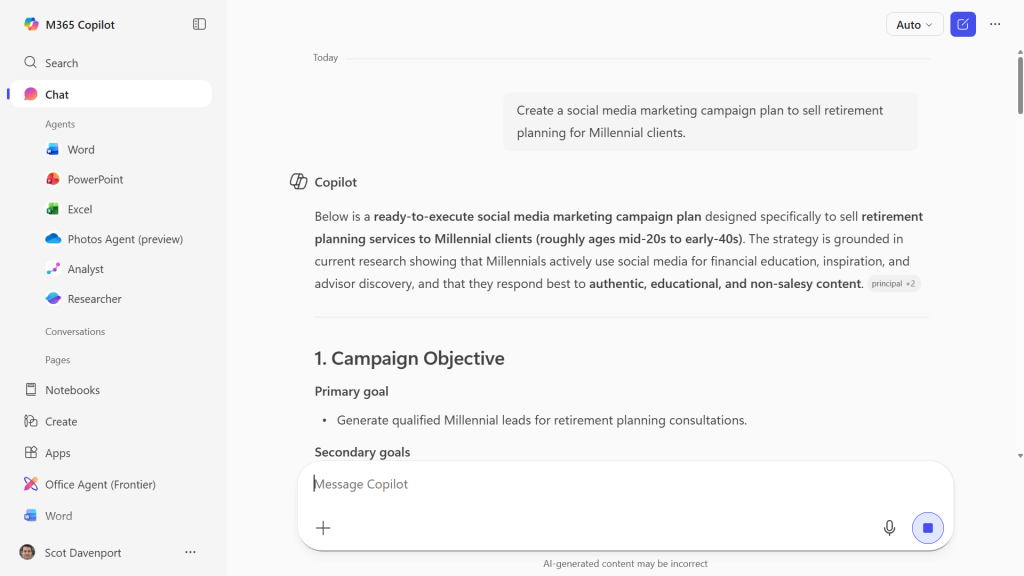
Copilot Pages works within the M365 Copilot app. Head to microsoft365.com (the old-school office.com works too), where you’ll see the Copilot Chat interface front and center.
Get your first page going: Simply type in a request for Copilot as usual.
To start a Copilot page, start a Copilot chat.
Howard Wen / Foundry
When Copilot gives you a result that you want to turn into a document, such as a list of action items or an outline for a marketing plan, scroll to the bottom of the result and click the pencil (Edit in Pages) icon. (Depending on your M365 subscription, you might have to click the three-dot icon and then select Edit in Pages from the menu that pops up.)
Click the Edit in Pages option below Copilot’s result to launch a page.
Howard Wen / Foundry
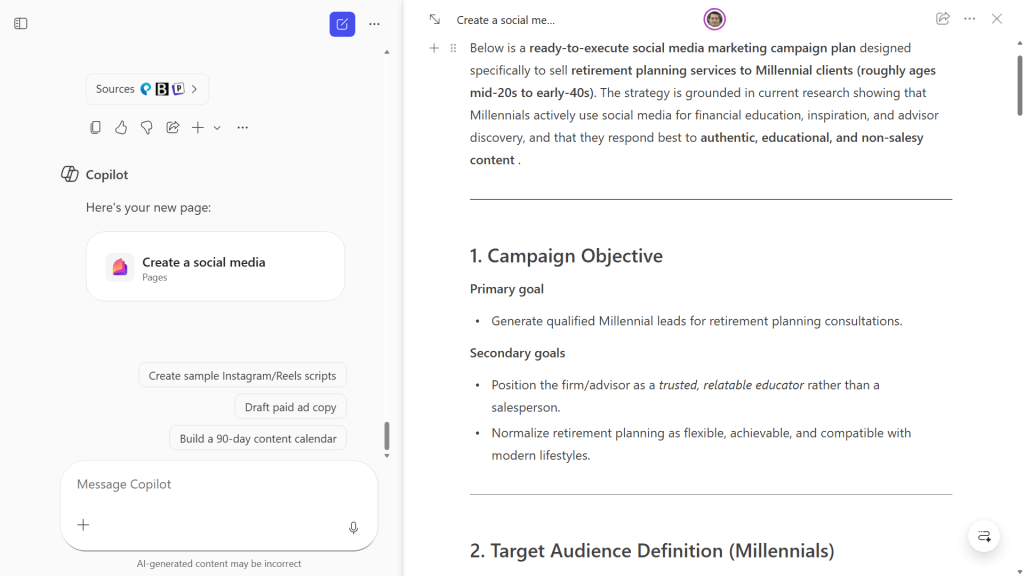
The screen will split into two windows, with your chat with Copilot on the left and a document canvas (your new page) containing the generated text on the right.
Your new page opens to the right of your Copilot chat.
Howard Wen / Foundry
Give your new page a name: Before you do anything else, move the pointer to the upper-left of your page. The first few words you wrote to Copilot in your prompt appear inside a text box. Click the text box and type in an appropriate name for the page.
Edit your Copilot page
Each text item on your page canvas (paragraph text, heading, bulleted list item, etc.) is a separate element that you can edit in various ways.
Add or edit text: Click inside a text element and start typing. To select a word, double-click on it. To select a line of text, triple-click on it.
Format text: Select the text you want to format. This action will open a formatting toolbar where you can change the font style (bold, italic, underline, etc.), formatting (headline, list, etc.), or color of the highlighted text.
Highlighting text brings up the formatting toolbar.
Howard Wen / Foundry
Move a text component: Move the pointer over the component until you see a small icon with six dots in a grid to the left of it. Click-and-hold this icon, drag the component down or up the page, and let go where you want to relocate the component on the page.
Use the six-dot icon to drag and drop any text component to a new location on the page.
Howard Wen / Foundry
Copy or delete a text component: Click the six-dot icon. On the menu that opens, select Copy (a copy of the component will be saved to your clipboard) or Delete.
Add a component: Place your mouse pointer at the end of a text component and press Enter. In the “Just start typing…” field that appears on the next line, type in your new text. Your new component will be formatted as paragraph text by default, but you can reformat it as described above.
Alternatively, you can move the pointer over a text component and click the + icon (Click to insert below) that appears to its left, or just type a forward slash (/). This will summon a menu of several components that you can add to your page. The ones listed under the “General” category will be the most relevant for work-related purposes: Table, Checklist, Bulleted list, Numbered list, Date, Callout, Table of contents.
Type / to bring up a list of different text components you can add to your page.
Howard Wen / Foundry
Revise and expand your page with Copilot
From the document canvas, you can use Copilot to rewrite passages of text in two ways:
Use Copilot to rewrite a text component: Highlight the text you want Copilot to rewrite. On the formatting toolbar that opens, click Ask Copilot. (Or click the six-dot icon to the left of the component and select Ask Copilot from the menu that opens.)
A text entry box will open. Type a prompt inside it that describes how you want Copilot to rewrite the text in the component, such as making it more concise or giving it a more professional tone.
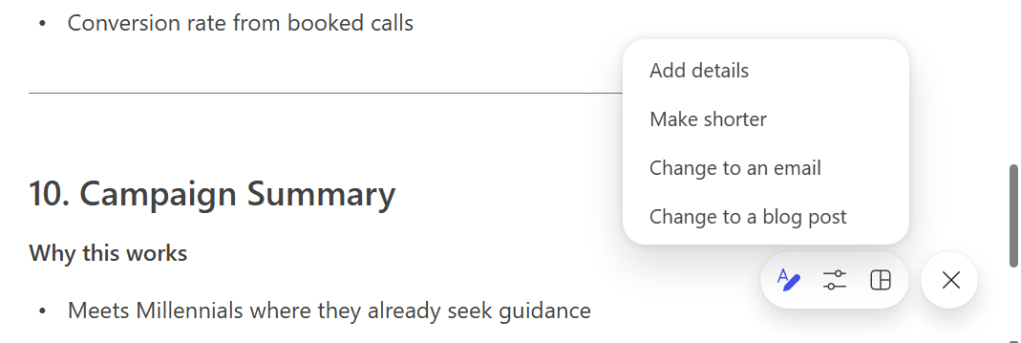
Use Copilot to rewrite an entire page: Alternatively, you can have Copilot rewrite the text of your page as one document. At the lower-right corner of the document canvas, click the backwards “S” icon (Copilot shortcuts). This will open a mini-toolbar with three icons:
Adjust content: The four selections under this icon will trigger Copilot to rewrite your page to be more concise or detailed, or to rewrite it as an email or blog post.
Change tone: Four selections here will prompt Copilot to adjust the tone of your page.
Style page: These selections will prompt Copilot to add section headers to your page, if they’re not already present, or have it write an introduction or conclusion paragraph for your page.
Options for having Copilot rewrite an entire page.
Howard Wen / Foundry
Add more text generated by Copilot to your page: With the document canvas open in the right window, you can still chat with Copilot in the left window, and add additional content that Copilot generates in your chat to your page in the right window.
In your prompt, tell Copilot to add the text it generates to your open page. It will be added where you’ve set the cursor on your page. Or, at the bottom of the text that Copilot generates in the left window, click the + icon (Add to page). The newly generated text will be added to the end of your page.
You can continue chatting with Copilot and add more material to your open page.
Howard Wen / Foundry
Share and collaborate on your Copilot page
In addition to collaborating with Copilot on your page, you can invite co-workers or clients to edit the page as well.
Share your page
Click the Share button (an icon of an arrow over a square) at the at the upper-right corner of your page. You’ll see a menu with two options:
Page link: Generates a link to your page that you can paste in an email or chat to share with other people.
Copy component: Creates a different kind of link that lets you embed your page in a Word document, Outlook email, OneNote note, or Microsoft Teams chat as a Loop component that co-workers can collaborate on. (See our Microsoft Loop cheat sheet and guide to using Loop components in M365 apps for details about how this works.)
Sharing a Copilot page.
Howard Wen / Foundry
When either link type is generated for your page, you’ll be presented with a confirmation panel. Click the Settings button on this panel if you want to change the access permissions for the link to your page.
This will open a panel that lets you specify who can access your page through this link, and whether they can edit your page. People you can share the page with include co-workers in your organization, specific people you invite, or, if your company allows it, anybody at all. You can also set an expiration date for when the link will no longer work, as well as a password that people must enter to access your page.
Collaborate on a page
If you’ve given others permission to edit your page, they’ll be able to add, move, and delete the text elements on the page, as well as tag other collaborators and add comments. They’ll only see the page itself, not your Copilot chats. If the receiver has their own Copilot license, they can use Copilot to edit the page.
Tag a person: If there’s a component in your page that you want a co-worker to take a closer look at, insert the cursor somewhere in this component and type the @ symbol followed by their name. If they’re in your Microsoft 365 contacts, their name should pop up for you to select. Their tagged name will appear in this component, and they’ll be notified in an email.
When you write a comment, you can tag a person by typing @ followed by their name.
Export your Copilot page
You can export your page to Microsoft Word or PDF. At the upper-right corner of your page, click the three-dot button, select Export, and then select either Document or PDF.
When you export a page to Word, it will open in the Word web app in a new browser tab. When you export it to PDF, it’ll be downloaded to your PC.
Manage your Copilot pages
The pages that you create from your chats with Copilot appear in the Library section of the Microsoft 365 Copilot app.
At the upper-left corner, click the Expand navigation icon. A sidebar opens along the left. Click the Library icon, and the pages you’ve created or been invited to will appear in the main window.
The pages you’ve created with Copilot appear in the library for your M365 account.
Howard Wen / Foundry
Click the name of a page, and it’ll re-open inside the document canvas window. Or, if you want to delete it, move the pointer over its name, click the three-dot icon at its right, and select Delete.
The Trump Administration’s decision to punish Anthropic for its stance forbidding Claude’s use in domestic surveillance and autonomous weapons by identifying it as a supply chain risk to national security was “arbitrary and capricious,” a federal judge ruled on Thursday.
US District Court Judge Rita Lin said federal authorities had no legitimate reason to tell companies with government contracts that they couldn’t work with Anthropic.
“The undisputed record shows that the challenged actions constituted unlawful retaliation in violation of the First Amendment and that Anthropic was denied the pre-deprivation process required under the Fifth Amendment,” Lin said in her ruling, calling the designation “arbitrary and capricious.”
She stressed that the government action seemed punitive, and was not based on legal and national security risks.
The government’s words and deeds “confirm that the challenged actions were based on a desire to make a public example out of Anthropic for its ‘arrogance’ in criticizing the government, not based on any articulable basis to believe that Anthropic would actually sabotage its model,” Lin wrote.
She pointed out, “a few days before the challenged actions began, Secretary Hegseth proposed applying the Defense Production Act to Anthropic, which would mean the company was essential to national security rather than a threat to it. Even now, the government is discussing collaboration with Anthropic on its new model, Mythos, in an array of sensitive contexts. None of that is consistent with a genuine fear that Anthropic is a saboteur [that] would poison its software to harm national security.”
The judge added that the stated government fears made no sense, noting that the usage policy applicable to Pentagon work is a purely contractual limit. “Anthropic is incapable of enforcing it technologically, and does not have direct visibility into how DoW [Department of War] uses its model,” she pointed out.
“Nothing in the Administrative Record describes, even at a high level, what technological means would give rise to the so-called ‘backdoors’ or could otherwise allow Anthropic to ‘disable’ or affect Claude during a DoW operation,” the judge wrote. “Anthropic has submitted unrebutted evidence that it lacks any technological means to access or control deployed models.”
Lawyers, consultants, and analysts who looked at the decision were confident that the case would be appealed, and that it will end up in the US Supreme Court.
Alan Webber, program VP for national security, defense, and intelligence at IDC, said that Lin’s ruling “was that the label [supply chain risk] was retaliation for Anthropic refusing to loosen safety guardrails DoD [Department of Defense, aka the Department of War] wanted lifted, dressed up in national security language. Put another way, a government customer tried to use a supply chain risk designation as leverage in a contract dispute over model behavior and application, and not because of an actual vulnerability.”
Implications for CIOs
Webber said the implications for CIO strategy are concerning.
“If a government CIO is relying on a vendor’s contractual guardrails, this case says those commitments can potentially become the trigger for exactly the kind of blacklisting that risk registers are supposed to protect against,” Webber said, noting that anyone who paused Claude usage or froze a subcontract because of the DoD mandate has a legal basis to resume the initiatives. “But obviously that doesn’t mean they will, or even should, as this will be appealed.”
He added that competing AI vendors have been using the government action as a sales tool, and with this ruling, the argument that Anthropic is a designated supply chain risk ”just got weaker, which could lead to contract award disputes.”
Consultant Brian Levine, executive director of FormerGov, recommended that CIOs do what they should have always done: Evaluate all products based solely on their merits.
“CIOs should focus on using the frontier models that they believe make the most sense for their business, considering factors such as effectiveness, cost, security, safety, and confidentiality,” he said. “Anthropic and the other large frontier models each have too much market share to make retaliation for their use realistic, and the administration seems to have already moved on from this particular battle.”
Justin Greis, CEO of consulting firm Acceligence, agreed that this case has profound implications for CIOs and their AI decisions.
What the federal judge did was reject the leap from a commercial and policy disagreement to an expansive supply chain risk designation without a sufficiently grounded technical rationale or process, Greis pointed out.
“The court found that Anthropic did not have the ability to access, alter, or shut down models once deployed in the government environment, and that the government ultimately conceded Anthropic’s technology was not inherently riskier than other comparable black box AI models,” he said.
“I think that distinction matters enormously for CIOs and CISOs,” he stressed. “As AI becomes part of the operating fabric of an enterprise, ‘We don’t trust the vendor’ cannot become a substitute for a defined risk model. Organizations need to be able to articulate what the actual technical risk is, how it manifests, what controls exist, and whether the response is proportional to that risk.”
“That becomes particularly important with AI,” he added, “because people can easily conflate disagreements over model behavior, usage policies, ethics, contractual restrictions, and cybersecurity into one amorphous category called ‘AI risk.’”
Original government edict still problematic
Mark Rasch, a former federal prosecutor who is now general counsel at Unit221B, a threat intel and security consulting company, said he was surprised by how quickly government attorneys surrendered on this case.
“One of the things that struck me is that the government appears to have abandoned any rationale it might have had for its decision about Anthropic,” he said. The government “came back with all these reasons, but then they abandoned them all when they had to prove them.”
But, he said, the government instruction to all government contractors to also shun Anthropic was problematic.
“It’s one thing for the government to say ‘We’re not going to do business with you.’ It’s quite another thing to say ‘Nobody we do business with can do business with you either,’” Rasch said. “This says that if you are disfavored by the administration, they’re not just going to blacklist you and say they won’t do business with you. They’re going to say that nobody can do business with you.”
Supreme Court arguments will likely be very different
Rasch predicted that the legal arguments in the Supreme Court will be quite different, and will potentially sidestep the lack of evidence.
“In the Supreme Court, [the government’s] biggest argument will not be that ‘We are right that it is a supply chain risk,’ but that, ‘Whether we’re right or wrong is irrelevant. We get to make that [supply chain risk designation] decision, not the court.’”
That would mean that the Supreme Court Justices could avoid exploring whether the government made the right decision, and instead focus on whether the government has the unlimited right to decide who is a national security risk.
Anthropic on Thursday launched the Model Hardware Standard, a new framework designed to enable the control of hardware using AI agents. With the new framework, AI agents will, for example, be able to operate robots or microscopess.
The Model Hardware Standard could also be useful for developing new drugs or calibrating the laser in a quantum computer, according to Reuters.
The company’s plan is to eventually release the new framework as open source, after it undergoes thorough testing.
An important but potentially fragile trend is emerging in the data being reported by smartphone industry trackers: while painful component price increases are denting overall phone sales, the iPhone’s market share continues to increase.
This likely reflects two key truths:
Apple has fought to keep iPhone prices as stable as possible; though it has raised the price for its other products, it has not yet done so for its all-important smartphone.
The company has built a great reputation for making smartphones that keep going for years and hold value better than rival platforms, though the looming price increase could put that perception to the test.
As prices rise, quality matters more
To most people, iPhones offer a perceived value. So, when the chips are down, consumers still gravitate toward them. They recognize the quality of these devices and, as the cost of other smartphones continues to increase, see iPhones as a more valuable alternative.
Not only that, of course, but with the latest ‘e’ series iPhones, Apple is punching its way into the mid-range/value smartphone market, even as incumbents are forced to raise prices because of the AI-driven memory cost inflation.
Smaller vendors are also being forced to raise prices or quit markets, with many reducing the number of devices they offer or leaving specific markets entirely. They are far more affected by memory price inflation than Apple, because they don’t order components at the same scale.
“The 2026 decline reflects more than temporarily weak demand,” said Counterpoint analyst Yang Wang. “Higher component costs are pushing manufacturers to remove products and configurations that are no longer economically viable, particularly at lower price points.”
This is a global trend
IDC tells us to expect a record 16.7% decline in smartphone shipments in 2026 because of the memory crisis, which is pushing smartphone ASPs up 27.6% this year to around $581. (The researchers also expect Apple to inject some growth into this market when it introduces its folding iPhone). They point out also that while total shipments are falling, the value of the market is increasing — because prices are climbing. And they note that while low-end Android devices are disappearing, the premium end of the smartphone market (itself dominated by Apple and Samsung) remains more resilient.
“The era of the cheap smartphone has ended,” said Francisco Jeronimo, IDC vice president for worldwide client devices. “From here, the winners will be the vendors with the scale and supply leverage to hold demand at prices consumers have never had to pay before.”
The picture is much starker on a platform basis, as Android devices account for almost the entire market decline; its share fell seven percentage points in a single year. Meanwhile, iOS share grew almost four percentage points to a record-high 23.6%.
The pattern is being repeated globally — nation by nation and no matter which analyst you choose to track. Counterpoint expects Apple to gain relative share, even as the market declines. That’s true in most regions; the same analyst reports that while the MEA smartphone market fell 10%, the iPhone gained 28% share. It’s the same in Europe, where shipments slipped 10% in Q2, with only Apple gaining share, from 25% to 34% of the region’s smartphone market. In India, while phone shipments fell 11.2%, the iPhone is up 8.5%.
Globally, the iPhone 17 was the world’s biggest-selling smartphone in Q2 2026. That means the top 10 devices are now completely dominated by Apple and Samsung. The one caveat within all this is price. Apple hasn’t yet raised iPhone prices, but is widely expected to increase them by $100 in a few weeks. When it does, the inherent value of the platform should continue to be a strong advantage for the company, which is also scooping up converts in the second-user market.
“A very elite set of consumers are being targeted here, who will be lining up to buy the device,” said IDC.
Siri Ai holds the key
The wild card is Siri and AI. Apple is digging in with Siri AI and is expected to introduce AI in partnership with Alibaba in its second biggest smartphone market, China, potentially alongside the new iPhones. There’s a lot riding on this, and initial reviews of what it has accomplished in Siri AI have been very positive. Apple can be confident that it now offers the very best private, potentially on-device consumer AI play, backed up with an end-to-end computing system that supports sovereign and on-prem AI services in the form of its fantastic Macs.
What does that mean? Rothschild & Co Redburn recently upgraded Apple to “buy” with a $400 target, speculating the company could become, “the gatekeeper of consumer AI, delegating AI workloads to a subservient fleet of open-source models.”
Creative Strategies analyst Carolina Milanesi puts Apple’s AI strategy into few words: “Apple wants to own as much of the AI workflow as it can hold,” she said.
Apple’s relative smartphone market share combined with its fast-growing Mac market share means it has a compelling offer as it seeks to stake its claim in that space. What’s open to question is whether iPhone users will be comfortable using AI more frequently on their device, while Apple’s challenge is ensuring the privacy it promises is a commitment it can keep.
You can follow me on social media! Join me onBlueSky,LinkedIn,Mastodonand subscribe to my excellent, hand-curated daily Apple news headline summary atThe Core.
A working paper posted to SSRN by University of Pittsburgh business professor Mark Ma and colleagues, makes a sweeping claim: The productivity shortfall is caused by employees who resist AI out of fear for their jobs.
Over a five-year period, the researchers looked at millions of Glassdoor reviews, thousands of financial reports, hundreds of AI-investment and layoff announcements by US public companies, and some 10,000 earnings-call transcripts.
They found a wide divide between managers, who tend to be true believers in the promise that AI will deliver sky-high productivity, and employees, who worry that AI-driven productivity gains will cost them their jobs.
Companies, the researchers claim, are caught in a doom loop in which they lay off employees, citing productivity gains. But fear of layoffs causes workers to resist the technology, which sabotages the very gains the companies were counting on. Executives see that lack of productivity and conclude that more layoffs will help. (The flogging will continue until morale improves….)
It’s a tidy narrative. There’s just one problem — while parts of this study are backed by verifiable data, two key elements are not. The report fails to support their assumption that fear of layoffs causes employees to resist using AI, and also that productivity gains would be higher if only workers would enthusiastically embrace it.
The researchers never establish causation in their data. It’s a correlation. (That hasn’t stopped other outlets from reporting the link as causal.)
(A quick aside: One of my favorite podcasters, the economist Tyler Cowen, flagged a study this week that examined 194,631 cross-sectional social science papers and found that the share using causal language in titles or abstracts rose from a stable 20% before 2000 to more than 60% by 2024. Unproven causal claims appear to be something of a fad in social science.)
I don’t buy the claim that employee foot-dragging explains the missing productivity gains, for one simple reason: It makes no sense.
For starters, the notion that rank-and-file employees are broadly resisting AI isn’t entirely true. Many are embracing it. A Columbia Business School survey of 1,400 US employees, written up in Harvard Business Review, found that 31% of individual contributors expressed enthusiasm about adopting AI. And many of the non-enthusiastic are being forced to embrace it. More than half of US workers now use AI.
If AI is a significant driver of productivity, businesses should generally be seeing measurable gains now that roughly half of US workers report using it on the job.
Another issue: Workers who think AI might take their jobs have every incentive not to avoid it but to use it conspicuously, demonstrating that they’re on board with the company’s pro-AI policy.
I think the more likely explanation involves another dynamic altogether.
A better idea: Blame AI overload
The time and trouble of producing a business report, proposal, plan, slide deck, or budget used to limit how large, how complex, and how frequent such documents were. Now, thanks to AI, people can churn out incredibly complex business communications, ideas, and proposals in a few minutes.
Using AI makes the person generating such documents super productive. But then it burdens everyone else who has to sift through those documents, teasing out hallucinations, problems, and irrelevancies, and struggling to grasp ideas that even the so-called creator hasn’t taken the time to understand.
One person’s productivity is everyone else’s information overload, lowering a company’s overall productivity.
“AI can make an organization extraordinarily busy without necessarily making it more productive,” said Justin Greis, CEO of consulting firm Acceligence, in the report on Meta I mentioned above.
This dynamic is playing out everywhere:
Job applicants can use AI to apply for far more positions, burdening hiring managers and slowing the hiring process. (LinkedIn data shows applications per job posting in the US have roughly doubled since spring 2022.) AI that’s supposed to make it easier to find a job actually makes it harder.
AI is emboldening more people to represent themselves in court while also speeding up the work of lawyers. A 2026 study by researchers at MIT and USC drew on 4.5 million federal civil cases filed between 2005 and 2026, applied an AI-text detector to a random sample of 1,600 complaints, and found that the share containing AI-generated text rose from 1% in 2023 to 18% in early 2026. That burdens judges, who now have to comb through long, complex filings for citations to nonexistent cases and other hallucinations, slowing justice. AI that’s supposed to make court cases quicker makes them slower.
Students increasingly use AI to produce longer essays, and a growing number of instructors report leaning on AI tools to keep up with grading, a loop in which the writing and the reading are both partly automated.
AI-pilled chatbot enthusiasts who believe the technology is solving all their problems are judging AI through a narrow personal lens. Likewise, analysts and AI companies look at one person’s productivity gains, extrapolate across thousands of employees, and wrongly conclude that the gains will scale without considering the impact of that output on the productivity of others.
Understanding the problem at scale
The idea that productivity-enhancing AI might reduce productivity sounds paradoxical, so consider this oversimplified thought experiment. Suppose AI enables you to write three times as many emails as before (say, 30 a day instead of 10). Your email-writing productivity has tripled, making you more valuable to the company.
The problem is that every additional email you send lands in someone else’s inbox. Your colleagues, who once got 10 emails from you daily, now get 30. Multiply that across an organization: if 10 people triple their email output, the team gets 300 emails a day instead of 100. If 100 people do the same, that figure blows up to 3,000, three times the reading burden. The AI that makes email writing easy makes email reading hard for everyone else.
Of course, this dynamic doesn’t apply to every use of AI, every industry, or every employee.
But on the macro level, this is clearly happening. I’m sure you’ve seen it at your own company. And it helps explain what Deloitte called the “paradox of rising investment and elusive returns.”
AI isn’t “bad.” But shortsighted and delusional thinking about it is.
AI is like nearly every powerful technology since the Industrial Revolution: It rewards individuals for behavior that collectively exhausts a shared resource (in this case, human attention).
What’s called for is a wholesale redesign of workplace AI. We need tools built not to make the individual user more “productive,” but to make the organization more productive, magnifying individual ability without dumping needless work on everyone else.
AI disclosure: This article is 100% human-written by the author, Mike Elgan. Some research, brainstorming, and fact- and grammar-checking were performed using AI tools.
Let’s face it: Email is inherently a bit of a pain. And while Google’s Gmail service is generally pretty pleasant to use, it certainly has some room for improvement — especially on the mobile front.
But as is so often the case with Google products, what you see isn’t entirely what you get. The Gmail Android app has some super-useful hidden touches you’ve probably never noticed lurking beneath its surface — easily overlooked features that can make your mobile email experience more powerful, productive, and effective.
Here are 16 such options worth uncovering — or maybe just remembering.
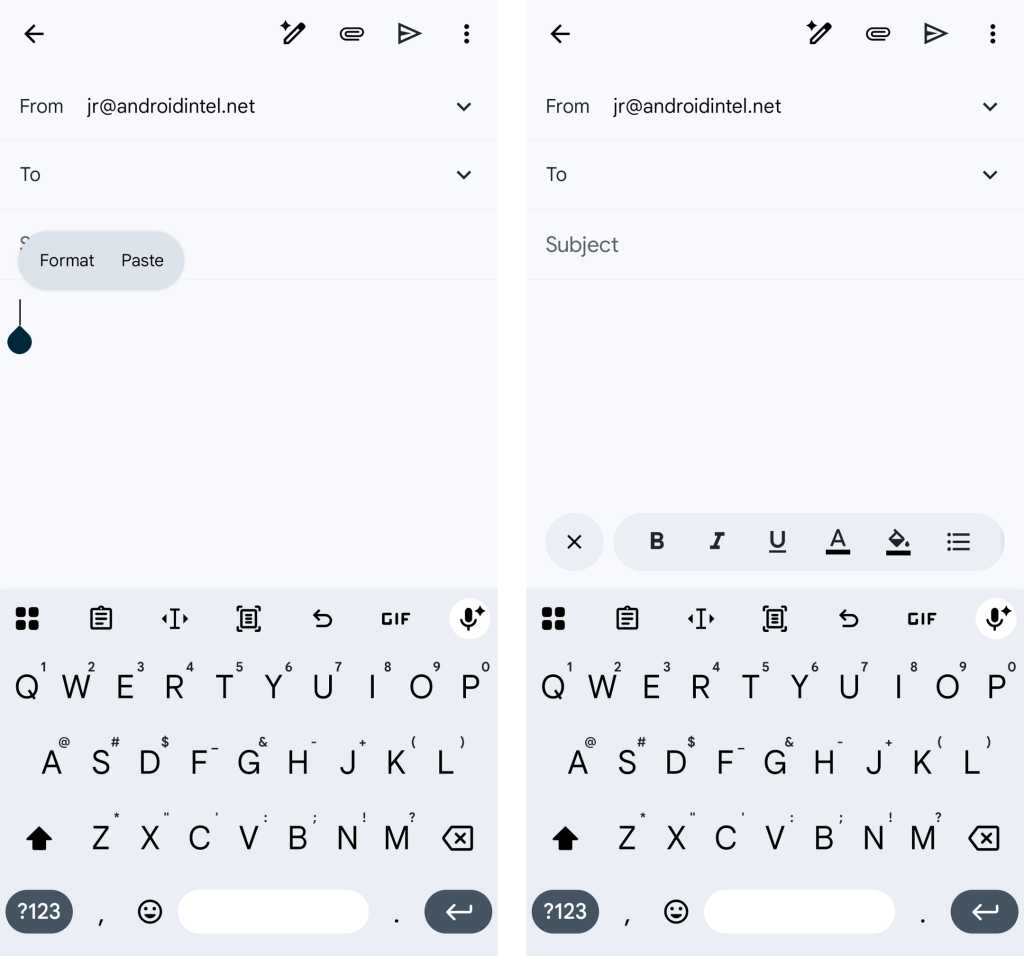
The Gmail Android app’s email composing screen seems like a pretty bare-bones affair, but long-press on any open space whilst writing a new email — and by golly, goodness goshness, look what you’ll find:
Text formatting is, in fact, available in the Gmail Android app. It’s just up to you to find it.
JR Raphael, Foundry
Tap that “Format” option, and how ’bout that? It’s a full slate of advanced text formatting commands for composing your message. You can style any part of your email with bold, italic, or underlined text; you can change your email’s font color or background color; and — an occasional life-saver for the clipboard-happy hyper-pasters among us — you can clear out all existing text formatting with a single tap.
Pretty handy, right?!
Gmail Android feature #2: Custom swipe gestures
Ever wish you had an easier way to snooze messages from your inbox — or maybe even just mark ’em as unread without having to do a complicated finger-tap dance? Prepare to be pleased.
Go open up the Gmail Android app’s settings (by tapping the three-line menu icon in the upper-left corner and scrolling down until you see the “Settings” option). Tap “General settings,” then select “Swipe actions.”
There, you can configure exactly what action is associated with swiping an email to the left and to the right from your inbox or from any other message list view. Set things up the way you want, then swipe away to your heart’s content (with the optional occasional cackle).
Gmail Android feature #3: A speedy account-switcher
Speaking of secret swipes, if you’ve got more than one Google account connected to your phone — say, a work account and a personal account or maybe a work account and a confidential chinchilla-chatting account — make a mental note of this: You can switch between your accounts in the blink of an eye by swiping that furry little finger of yours up or down on the profile picture in the Gmail app’s upper-right corner.
Gmail Android feature #4: The contact control panel
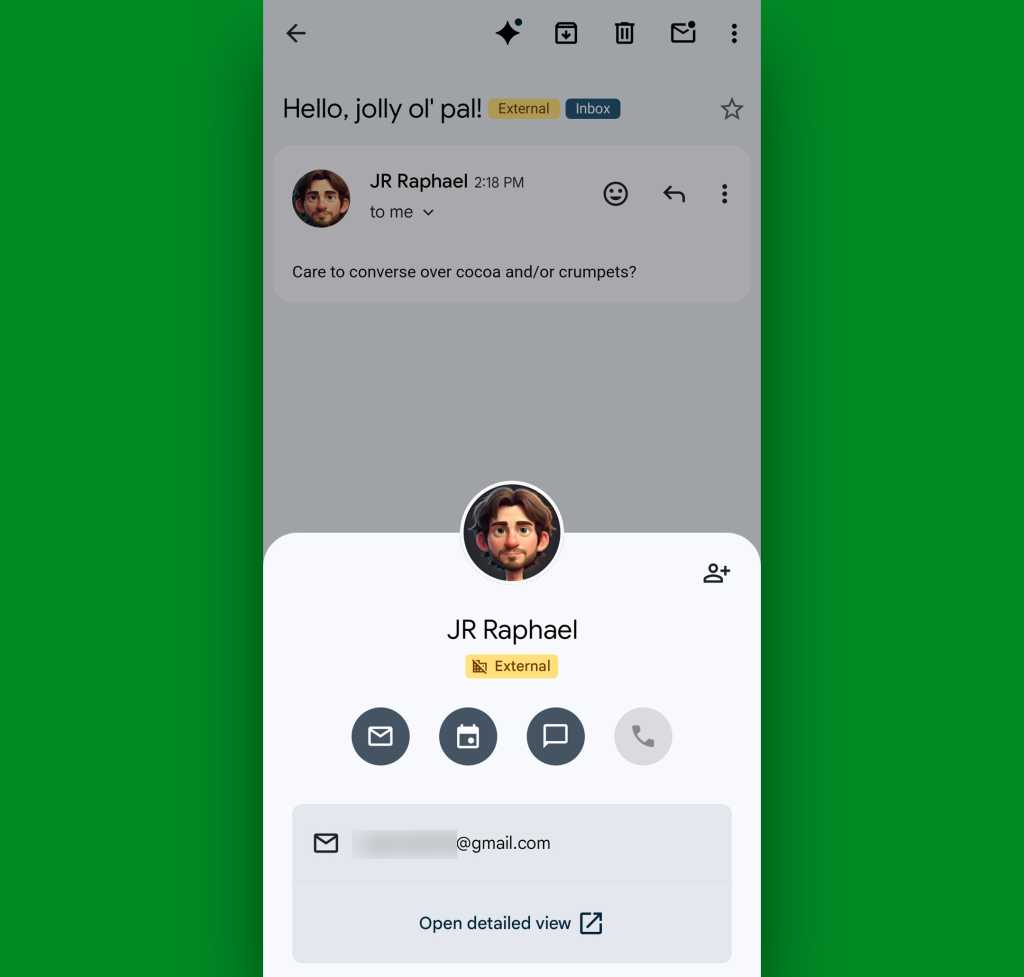
While we’re on the subject of face-oriented actions, here’s another underappreciated Gmail Android gem to add into your productivity toolkit: While you’re viewing any email in your inbox, tap on the sender’s profile picture toward the upper-left corner of the screen.
That’ll pull up a tucked-away control panel that holds one-tap options for starting a new email to that person, scheduling a new calendar event with that person, firing up a new Google Chat conversation with that person (if they’re using a Google account), and calling that person (if you have their phone number stored in your phone’s contacts).
The Gmail app’s contact pop-up panel is a handy way to see someone’s info and interact with them outside of that one email.
JR Raphael, Foundry
(Side note: That might be the most flattering image of me ever creeated.)
You can also add the person into your contacts directly via that panel by tapping the little person-plus icon in its upper-right corner — which’ll appear only if said person (and/or chinchilla) is not already in your contacts.
Gmail Android feature #5: The contact step-saver
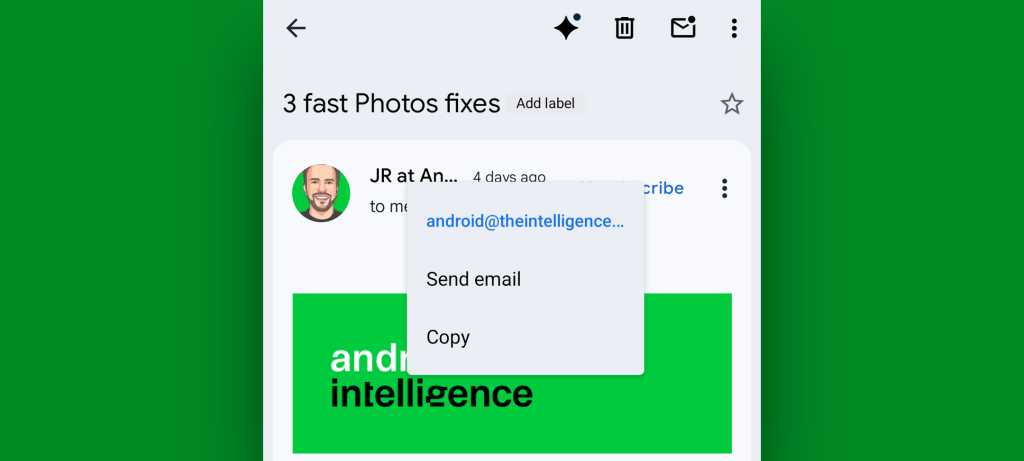
Let’s keep the contact-related goodness going, shall we? Betcha didn’t know you could press and hold a sender’s name whilst viewing an email in Gmail to unearth some handy hidden options.
But yes, oh yes, you absotively can. Go give it a whirl and see: When you do that, you’ll reveal useful commands for copying that person’s email address onto your system clipboard as well as for starting up a separate new email thread to them on the spot.
Simple email address copying, you say? Yes, please!
JR Raphael, Foundry
Who knew?!
Gmail Android feature #6: A subject shortcut
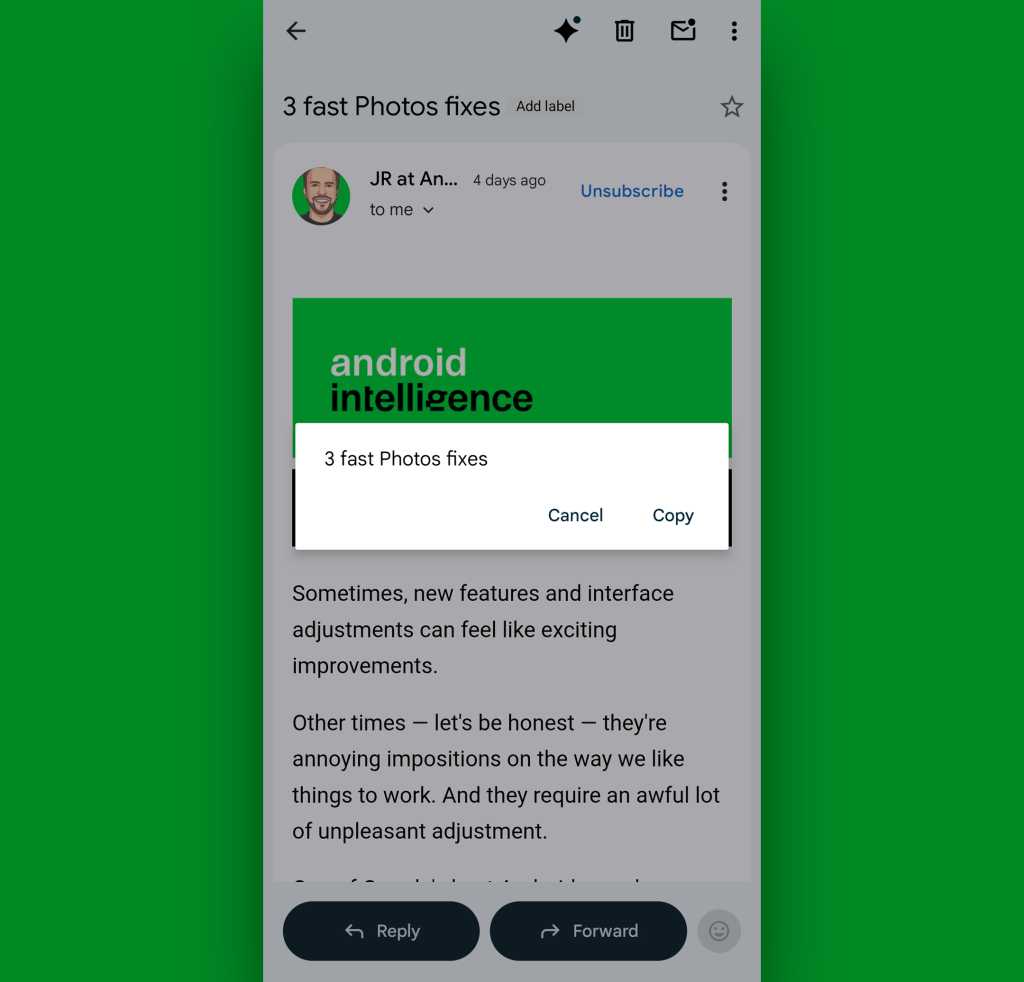
Here’s another handy long-press treasure to file away in your mental folder of Gmail Android tricks: Long-pressing on the subject line of any message while you’re viewing it will reveal an artfully concealed command for copying said subject in a single fast snap.
An email subject is also easy to copy quickly, once you know the trick.
JR Raphael, Foundry
Bam! We’re on fire. And we’ve got lots of good stuff left.
Gmail Android feature #7: Your reply redo
Ever realize you’ve hit the reply button in an email on your phone when you meant to hit reply-all? Or maybe vice-versa? It happens to me all the time (though admittedly, I have an especially mushy man-noggin).
If it happens to you, too, remember this: You don’t have to abandon the draft that’s open to go back and start over. Just tap the word “Reply” at the top of the Gmail Android reply window on your screen, and — surprise! Right there, you can toggle from a reply to a reply-all and even a forward, if you want — all without ever moving an inch or abandoning the obviously brilliant message you already started composing.
Gmail Android feature #8: The recipient summoning spell
On a related note, the next time you realize you need to add another recipient into an email on your phone — be it a new draft you’re writing, a reply, a forwarded message, whatever — save yourself the trouble of stopping your workflow to move up to the recipient field and instead try this:
Right in the body of the email, where you’re already working, type @ followed by the first letter or two of the person’s name. (You can also go old-school Google+-style and use the + sign instead of @, if you’d rather.)
As long as the person in question is in your contacts, their name will appear in a special selector box right next to your cursor. And from there, it’s just one more tap to add ’em into the email.
Gmail Android feature #9: The recipient shiftaroo
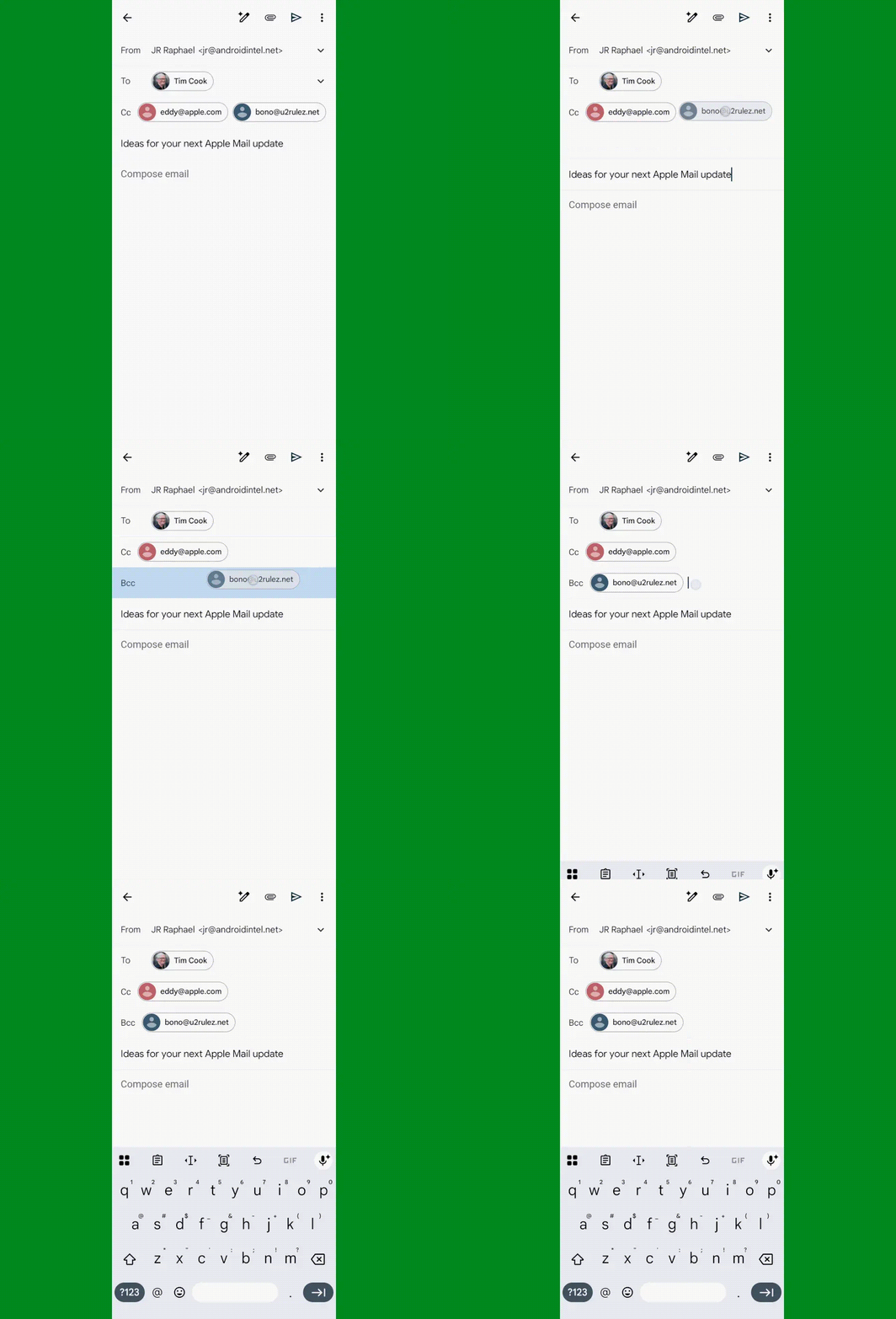
Speaking of recipients, if you ever find yourself needing to move folks around between the “To,” “cc,” and “bcc” fields in an email, just press and hold your finger onto the address in question within any Gmail draft that you’re actively editing.
A simple slide is all it takes to change a recipient’s placement.
JR Raphael, Foundry
You can then slide, slide, slippety-slide without ever having to lift another finger.
Gmail Android feature #10: An end to accidental actions
It’s all too easy to tap an icon by mistake when you’re managing email on the go, but Gmail actually has a spectacular way to keep yourself from doing something stupid on accident. It’s an extra step of confirmation for the worst kind of errant email presses — archiving or deleting a message you weren’t done with yet or hitting the Send button before your draft was finished. And it takes only a few quick taps to get it set up and activated.
Mosey your way back to the “General settings” area of the Gmail settings, scroll down to the very bottom of that section, and look for the “Action Confirmations” heading — and there, activate whichever bits of added confirmation will give you extra peace of mind:
Gmail can confirm that you actually want to perform an action to avoid inadvertent archiving — or worse.
JR Raphael, Foundry
The one thing worth noting is that the archive and delete confirmations don’t, vexingly, work with the swipe-based gestures we were just discussing for those commands. That’s especially unfortunate, since Gmail’s swipe gestures are all too easy to activate inadvertently when you’re trying to use Android’s awkwardly overlapping system-wide Back motion (unless you know the secret Android gesture trick for avoiding that). But either way, some protection is still better than no protection, don’t ya think?
Gmail Android feature #11: A less annoying Promotions tab
The Gmail Android app’s Promotions tab is both a blessing and a curse. It gives you a great way to keep less pressing messages out of your main inbox view, but it also throws in some ads and does funky stuff with the order of your email.
There’s not much you can do about the ads, unfortunately, but you can stop the app from reordering messages and putting what it considers to be the “high value” promotions above everything else — which can sometimes cause you to see random older emails above more recent and potentially more pressing missives. (Not cool, Google. Not cool.)
To get back to a fully chronological, normal-style view, jump back into the Gmail app’s settings — and this time, tap the address of your Google account, then tap “Inbox categories” on the following screen.
Scroll all the way down to the bottom of the screen that shows up next. See that option labeled “Enable Top Picks”? Uncheck it.
Back your way out of there and then bask in the delight of having your emails once again presented in proper order, even if you can’t completely eliminate those pesky Promotions-tab ads.
Gmail Android feature #12: A less nudgy inbox
While we’re thinking about annoying features, you know how Gmail does that thing where it “nudges” you to respond or follow up to messages that have been sitting in your inbox for a while? If you find that to be more bothersome than beneficial, head back into the app’s settings and once again select your Google account.
Scroll down til you see the option for “Reply and follow up.” Tap it, then uncheck both options on the screen that follows — for “Suggest emails to reply to” and “Suggest emails to follow up on.”
Nudges no more. Serenity now.
Gmail Android feature #13: The Google service sweep-away
Maybe you’re the one person in the world who actually enjoys having that mammoth-sized navigation bar invading your inbox and taking up precious screen real estate — y’know, that monstrosity Google added into the app a while back to >shove its latest messaging services down our throats offer an easy way to access Google Chat and Meet from within your inbox as well as via their own standalone apps?
I’ve long heard rumors that such a person exists somewhere out there. If you are that person, kindly skip over this section and move on to the next one, as this tip won’t apply to you.
For the rest of us, though, do yourself an enormous favor and turn that blasted added navigation bar off. Just go back into the Gmail Android app’s settings, tap the name of your account, and then:
Uncheck the box next to “Chat,” beneath the “General” header…
And scroll down to uncheck the box next to “Show the Meet tab for video calling,” too, under the “Meet” header.
All that’s left is to breathe a huge sigh of relief.
How about an added inbox-oriented option you’ll actually want to enable? You’d never know it, but Gmail gained a genuinely helpful feature a handful of years back that lets the app automatically seek out info about shipments mentioned in your email and then keep you aware of their status as the associated packages inch ever closer to your desk and/or door.
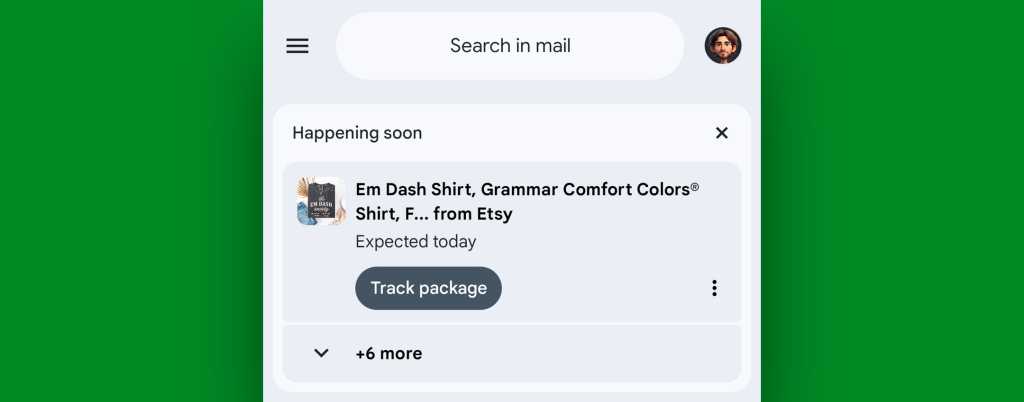
Whenever Gmail detects an incoming delivery for you, you’ll see a card like this at the top of your inbox:
Keep tabs on your deliveries right atop your inbox — no ongoing effort required.
JR Raphael, Foundry
The only catch is that you might have to first flip a switch for the feature before it’ll work.
Thankfully, it’s quite easy to do — once you know where to look (and what you’re looking for!): Take another trip into the Gmail app settings, tap the name of the account in question, and scroll down until you see an option that says “Package tracking.”
Tap the checkbox next to it to enable it, if it isn’t already active. (And if you aren’t seeing it, take note: This feature for some reason only seems to be available for individual Google accounts, not those connected to Workspace organizations. Go figure.)
All that’s left is to watch and wait for your next package tracking updates to pop up at the top of your inbox — then watch and wait for word that your delivery is en route.
Gmail Android feature #15: A speedy way to set an out-of-office responder
For years, the Gmail mobile app had no way to manage the service’s out-of-office vacation auto-responder. And I’m sure I’m not the only one who sometimes signs out ahead of a planned break and then realizes half an hour later I forgot to set my away message.
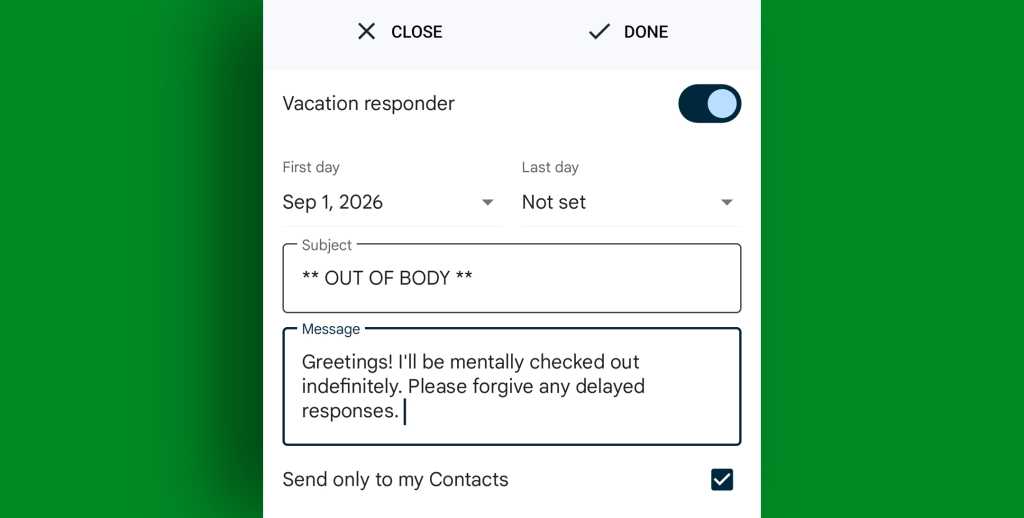
Well, fret no more, for at some point in the not-too-distant past, the Gmail Android app gained the ability to control the out-of-office responder. Yes, indeedly: You can just open up the app’s settings, tap the name of the account you want to modify, and then look for the “Vacation responder” option midway down the list of choices.
From there, it’ll take you a mere matter of moments to enable, configure, and edit your out-of-office auto-response to suit any situation imaginable.
Out of office auto-responder editing is never more than a few fast taps away.
JR Raphael, Foundry
Gmail Android feature #16: More selective notifications
Email notifications can occasionally be helpful, but let’s be honest: They can also be pretty hellish. Give yourself a break from the noise by trying out the Gmail Android app’s high-priority notification option, which uses all sorts of signals from your inbox to figure out which incoming messages are actually important to you — and then to notify you only about those emails.
To take it out for a spin, venture once more into the Gmail app’s settings, select your Google account, tap the line labeled “Notifications,” and select “High priority only.” Give it a day and see what you think.
If you know exactly what types of emails you need to be notified about — say, those from a particular person or domain name, those with a specific word in their subjects or bodies, or those that are sent to a particular address of yours — you can skip the machine-made guesswork and just set up your own custom Gmail notifications. As long as you can figure out a consistent formula for what sorts of emails are notification-worthy to you, that approach works incredibly well.
Either way, you’ll have a lot less noise — and a lot more energy to deal with what really matters. Even if, y’know, “what really matters” is simply finding a few free minutes to eat a midmorning hoagie.
Hungry for more Android-flavored knowledge?> href="https://www.theintelligence.com/android-cw/" target="_blank" rel="noreferrer noopener">Snag my free Android Notification Power-Pack> next to discover even more powerful enhancements for your favorite phone.
AI Assisted Editor, now available in beta, is an optional alternative to the standard view — now called Pro Editor mode — that provides a prompt-based interface similar to the Firefly editor rather than the full range of Photoshop tools. It includes a side panel that contains generative AI (genAI) features such as Generative Fill, Remove Background, and AI Markup, as well as a text prompt box.
The more streamlined editor view could also prove useful for existing users that don’t need the full workspace for every edit, Adobe said. More seasoned professionals might switch to the AI Assisted Editor for concepts or mock ups, or for quick editing that doesn’t require the full set of Photoshop functions.
For those who don’t need it, however, the new mode can be hidden from view.
Among the other Photoshop features unveiled Thursday is Prompt to Edit, which lets users apply changes to an entire image with a simple prompt — for example, adding stormy clouds and rain. That creates an output layer that can then be modified, such as masking out image elements or changing the opacity.
Prompt to Edit is available in both AI Assisted and Pro Editor views.
A new “markup” feature lets users “visually communicate” edits to Firefly by drawing onto an image, indicating areas to recolor, for instance. This makes it easier to direct the AI model compared to text prompts. The Instruct Edit with Masks, which relies on Firefly Image 5, lets users specify what elements of an image to change with text prompts, with unmasked areas left untouched.
Other updates include Light Adjustment Layer, which provides “professional-grade” lighting controls, such as exposure, contrast and shadows, in a non-destructive adjustment layer, Adobe said. A Stock Panel integration provides access to more than 900 million Adobe Stock assets in Photoshop via a dockable panel, while another addition, Dynamic Text, Shapes and Paths, automatically adapts text along curves as freeform layouts.