Month: April 2025

US wants to nix the EU AI Act’s code of practice, leaving enterprises to develop their own risk standards

The European Union (EU) AI Act may seem like a done deal, but stakeholders are still drafting the code of practice that will lay out rules for general-purpose AI (GPAI) models, including those with systemic risk.

Now, though, as that drafting process approaches its deadline, US President Donald Trump is reportedly pressuring European regulators to scrap the rulebook. The US administration and other critics claim that it stifles innovation, is burdensome, and extends the bounds of the AI law, essentially creating new, unnecessary rules.

The US government’s Mission to the EU recently reached out to the European Commission and several European governments to oppose its adoption in its current form, Bloomberg reports.

“Big tech, and now government officials, argue that the draft AI rulebook layers on extra obligations, including third party model testing and full training data disclosure, that go beyond what is in the legally binding AI Act’s text, and furthermore, would be very challenging to implement at scale,” explained Thomas Randall, director of AI market research at Info-Tech Research Group.

Onus is shifting from vendor to enterprise

On its web page describing the initiative, the European Commission said, “the code should represent a central tool for providers to demonstrate compliance with the AI Act, incorporating state-of-the-art practices.”

The code is voluntary, but the goal is to help providers prepare to satisfy the EU AI Act’s regulations around transparency, copyright, and risk mitigation. It is being drafted by a diverse group of general-purpose AI model providers, industry organizations, copyright holders, civil society representatives, members of academia, and independent experts, overseen by the European AI Office.

The deadline for its completion is the end of April. The final version is set to be presented to EU representatives for approval in May, and will go into effect in August, one year after the AI Act came into force. It will have teeth; Randall pointed out that non-compliance could draw fines of up to 7% of global revenue, or heavier scrutiny by regulators, once it takes effect.

But whether or not Brussels, the de facto capital of the EU, relaxes or enforces the current draft, the weight of ‘responsible AI’ is already shifting from vendors to the customer organizations deploying the technology, he noted.

“Any organization conducting business in Europe needs to have its own AI risk playbooks, including privacy impact checks, provenance logs, or red-team testing, to avoid contractual, regulatory, and reputational damages,” Randall advised.

He added that if Brussels did water down its AI code, it wouldn’t just be handing companies a free pass, “it would be handing over the steering wheel.”

Clear, well-defined rules can at least mark where the guardrails sit, he noted. Strip those out, and every firm, from a garage startup to a global enterprise, will have to chart its own course on privacy, copyright, and model safety. While some will race ahead, others will likely have to tap the brakes because the liability would “sit squarely on their desks.”

“Either way, CIOs need to treat responsible AI controls as core infrastructure, not a side project,” said Randall.

A lighter touch regulatory landscape

If other countries were to follow the current US administration’s approach to AI legislation, the result would likely be a lighter touch regulatory landscape with reduced federal oversight, noted Bill Wong, AI research fellow at Info-Tech Research Group.

He pointed out that in January, the US administration issued Executive Order 14179, “Removing Barriers to American Leadership in Artificial Intelligence.” Right after that, the National Institute of Standards and Technology (NIST) updated its guidance for scientists working with the US Artificial Intelligence Safety Institute (AISI). Further, references to “AI safety,” “responsible AI,” and “AI fairness” were removed; instead, a new emphasis was placed on “reducing ideological bias to enable human flourishing and economic competitiveness.”

Wong said: “In effect, the updated guidance appears to encourage partners to align with the executive order’s deregulatory stance.”

How to win fake friends and influence fake people

We’re all talking to fake people now, but most people don’t realize that interacting with AI is a subtle and powerful skill that can and should be learned.

The first step in developing this skill set is to acknowledge to yourself what kind of AI you’re talking to and why you’re talking to it.

AI voice interfaces are powerful because our brains are hardwired for human speech. Even babies’ brains are tuned to voices before they can talk, picking up language patterns early on. This built-in conversational skill helped our ancestors survive and connect, making language one of our most essential and deeply rooted abilities.

But that doesn’t mean we can’t think more clearly about how to talk when we speak to AI. After all, we already speak differently to other people in different situations. For example, we talk one way to our colleagues at work and a different way to our spouses.

Yet people still talk to AI like it’s a person, which it’s not; like it can understand, which it cannot; and like it has feelings, pride, or the ability to take offense, which it doesn’t.

The two main categories of talking AI

It’s helpful to break the world of talking AI (both spoken and written) into two categories:

  1. Fantasy role playing, which we use for entertainment.
  2. Tools, which we use for some productive end, either to learn information or to get a service to do something useful for us.

Let’s start with role-playing AI.

AI for pretending

You may have heard of a site and app called Status AI, which is often described as a social network where everyone else on the network is an AI agent.

A better way to think about it is that it’s a fantasy role-playing game in which the user can pretend to be a popular online influencer.

Status AI is a virtual world that simulates social media platforms. Launched as a digital playground, it lets people create online personas and join fan communities built around shared interests. It “feels” like a social network, but every interaction—likes, replies, even heated debates—comes from artificial intelligence programmed to act like real users, celebrities, or fictional characters.

It’s a place to experiment, see how it feels to be someone else, and interact with digital versions of celebrities in ways that aren’t possible on real social media. The feedback is instant, the engagement is constant, and the experience, though fake, is basically a game rather than a social network.

Another basket of role-playing AI comes from Meta, which has launched AI-powered accounts on Facebook, Instagram, and WhatsApp that let users interact with digital personas — some based on real celebrities like Tom Brady and Paris Hilton, others entirely fictional. These AI accounts are clearly labeled as such, but (thanks to AI) can chat, post, and respond like real people. Meta also offers tools for influencers to use AI agents to reply to fans and manage posts, mimicking their style. These features are live in the US, with plans to expand, and are part of Meta’s push to automate and personalize social media.

Because these tools aim to provide make-believe engagements, it’s reasonable for users to pretend like they’re interacting with real people.

These Meta tools attempt to cash in on the wider and older phenomenon of virtual online influencers. These are digital characters created by companies or artists, but they have social media accounts and appear to post just like any influencer. The best-known example is Lil Miquela, launched in 2016 by the Los Angeles startup Brud, which has amassed 2.5 million Instagram followers. Another is Shudu, created in 2017 by British photographer Cameron-James Wilson, presented as the world’s first digital supermodel. These characters often partner with big brands.

A post by one of the major virtual influencer accounts can get hundreds or thousands of likes and comments. The content of these comments ranges from admiration for their style and beauty to debates about their digital nature. Presumably, many people think they’re commenting to real people, but most probably engage with a role-playing mindset.

By 2023, there were hundreds of these virtual influencers worldwide, including Imma from Japan and Noonoouri from Germany. They’re especially popular in fashion and beauty, but some, like FN Meka, have even released music. The trend is growing fast, with the global virtual influencer market estimated at over $4 billion by 2024.

AI for knowledge and productivity

We’re all familiar with LLM-based chatbots like ChatGPT, Gemini, Claude, Copilot, Meta AI, Mistral, and Perplexity.

The public may be even more familiar with non-LLM assistants like Siri, Google Assistant, Alexa, Bixby, and Cortana, which have been around much longer.

I’ve noticed that most people make two general mistakes when interacting with these chatbots or assistants.

The first is that they interact with them as if they’re people (or role-playing bots). And the second is that they don’t use special tactics to get better answers.

People often treat AI chatbots like humans, adding “please,” “thank you,” and even apologies. But the AI doesn’t care, remember, and is not significantly affected by these niceties. Some people even say “hi” or “how are you?” before asking their real questions. They also sometimes ask for permission, like “Can you tell me…” or “Would you mind…” which adds no value. Some even sign off with “goodbye” or “thanks for your help,” but the AI doesn’t notice or care.

Politeness to AI wastes time — and money! A year ago, Wharton professor Ethan Mollick pointed out that people using “please” and “thank you” in AI prompts add extra tokens, which increases the compute power needed by the LLM chatbot companies. This concept resurfaced on April 16 of this year, when OpenAI CEO Sam Altman replied to another user on X, saying (perhaps exaggerating) that polite words in prompts have cost OpenAI “tens of millions of dollars.”

“But wait a second, Mike,” you say. “I heard that saying ‘please’ to AI chatbots gets you better results.” And that’s true — sort of. Several studies and user experiments have found that AI chatbots can give more helpful, detailed answers when users phrase requests politely or add “please” and “thank you.” This happens because the AI models, trained on vast amounts of human conversation, tend to interpret polite language as a cue for more thoughtful responses.

But prompt engineering experts say that clear, specific prompts — such as giving context or stating exactly what you want — consistently produce much better results than politeness.

In other words, politeness is a tactic for people who aren’t very good at prompting AI chatbots.

The best way to get top-quality answers from AI chatbots is to be specific and direct in your request. Always say exactly what you want, using clear details and context.

Another powerful tactic is something called “role prompting” — tell the chatbot to act as a world-class expert, such as, “You are a leading cybersecurity analyst,” before asking a question about cybersecurity. This method, proven in studies like Sander Schulhoff’s 2025 review of over 1,500 prompt engineering papers, leads to more accurate and relevant answers because it tells the chatbot to favor content in the training data produced by experts, rather than just lumping the expert opinion in with the uneducated viewpoints.

Also: Give background if it matters, like the audience or purpose.

(And don’t forget to fact-check responses. AI chatbots often lie and hallucinate.)

It’s time to up your AI chatbot game. Unless you’re into using AI for fantasy role playing, stop being polite. Instead, use prompt engineering best practices for better results.


>We’re all talking to fake
people now, but most people don’t realize that interacting with AI is a subtle
and powerful skill that can and should be learned.The first step in developing
this skill set is to acknowledge to yourself what kind of AI you’re talking to
and why you’re talking to it. AI voice interfaces are
powerful because our brains are hardwired for human speech. Even babies’ brains
are tuned to voices before they can talk, picking up language patterns early
on. This built-in conversational skill helped our ancestors survive and connect,
making language one of our most essential and deeply rooted abilities.But that doesn’t mean we can’t
think more clearly about how to talk when we speak to AI. After all, we already
speak differently to other people in different situations. For example, we talk
one way to our colleagues at work and a different way to our spouses. Yet people still talk to AI
like it’s a person, which it’s not; like it can understand, which it cannot;
and like it has feelings, pride, or the ability to take offense, which it
doesn’t. The two main categories of
talking AIIt’s helpful to break the
world of talking AI (both spoken and written) into two categories: >1.    
Fantasy role playing, which we use for
entertainment. >2.    
Tools, which we use for some productive end,
either to learn information or to get a service to do something useful for us. Let’s start with role-playing
AI.

id="ai-for-pretending">AI for pretending>You may have heard of a site
and app called Status AI, which is often
described as a social network where everyone else on the network is an AI
agent. A better way to think about it
is that it’s a fantasy role-playing game in which the user can pretend to be a
popular online >influencer. Status AI is a virtual world
that simulates social media platforms. Launched as a digital playground, it
lets people create online personas and join fan communities built around shared
interests. It “feels” like a social network, but every interaction—likes,
replies, even heated debates—comes from artificial intelligence programmed to
act like real users, celebrities, or fictional characters.It’s a place to experiment,
see how it feels to be someone else, and interact with digital versions of
celebrities in ways that aren’t possible on real social media. The feedback is
instant, the engagement is constant, and the experience, though fake, is
basically a game rather than a social network. Another basket of role-playing
AI comes from Meta, which has launched
AI-powered accounts
on Facebook, Instagram, and WhatsApp that let users
interact with digital personas — some based on real celebrities like Tom Brady
and Paris Hilton, others entirely fictional. These AI accounts are clearly
labeled as such, but (thanks to AI) can chat, post, and respond like real
people. Meta also offers tools for influencers to use AI agents to reply to
fans and manage posts, mimicking their style. These features are live in the
US, with plans to expand, and are part of Meta’s push to automate and
personalize social media.Because these tools aim to
provide make-believe engagements, it’s reasonable for users to pretend like
they’re interacting with real people. These Meta tools attempt to
cash in on the wider and older phenomenon of virtual online influencers. These
are digital characters created by companies or artists, but they have social
media accounts and appear to post just like any influencer. The best-known
example is Lil Miquela, launched in 2016 by the Los Angeles startup Brud, which
has amassed 2.5 million Instagram followers. Another is Shudu, created in 2017
by British photographer Cameron-James Wilson, presented as the world’s first
digital supermodel. These characters often partner with big brands. A post by one of the major
virtual influencer accounts can get hundreds or thousands of likes and
comments. The content of these comments ranges from admiration for their style
and beauty to debates about their digital nature. Presumably, many people think
they’re commenting to real people, but most probably engage with a role-playing
mindset. By 2023, there were hundreds
of these virtual influencers worldwide, including Imma from Japan and Noonoouri
from Germany. They’re especially popular in fashion and beauty, but some, like
FN Meka, have even released music. The trend is growing fast, with the global
virtual influencer market estimated at over $4 billion by 2024.

id="ai-for-knowledge-and-productivity">AI for knowledge and productivity>We’re all familiar with
LLM-based chatbots like ChatGPT, Gemini, Claude, Copilot, Meta AI, Mistral, and
Perplexity. The public may be even more
familiar with non-LLM assistants like Siri, Google Assistant, Alexa, Bixby, and
Cortana, which have been around much longer.I’ve noticed that most people
make two general mistakes when interacting with these chatbots or assistants.The first is that they
interact with them as if they’re people (or role-playing bots). And the second
is that they don’t use special tactics to get better answers. People often treat AI chatbots
like humans, adding “please,” “thank you,” and even
apologies. But the AI doesn’t care, remember, and is not significantly affected
by these niceties. Some people even say “hi” or “how are
you?” before asking their real questions. They also sometimes ask for
permission, like “Can you tell me…” or “Would you mind…”
which adds no value. Some even sign off with “goodbye” or
“thanks for your help,” but the AI doesn’t notice or care. Politeness to AI wastes time —
and money! A year ago, Wharton professor Ethan Mollick pointed out that people
using “please” and “thank you” in AI prompts add extra
tokens, which increases the compute power needed by the LLM chatbot companies.
This concept resurfaced on April 16 of this year, when OpenAI CEO Sam Altman
replied to another
user on X
, confirming that polite words in prompts have cost OpenAI “tens of millions of
dollars.”
“But wait a second,
Mike,” you say. “I heard that saying ‘please’ to AI chatbots gets you
better results.” And that’s true — sort of. Several studies and user
experiments have found that AI chatbots can give more helpful, detailed answers
when users phrase requests politely or add “please” and “thank
you.” This happens because the AI models, trained on vast amounts of human
conversation, tend to interpret polite language as a cue for more thoughtful
responses.But prompt engineering experts
say that clear, specific prompts — such as giving context or stating exactly
what you want — consistently produce much better results than politeness. In other words, politeness is
a tactic for people who aren’t very good at prompting AI chatbots. The best way to get
top-quality answers from AI chatbots is to be specific and direct in your
request. Always say exactly what you want, using clear details and context. Another powerful tactic is
something called “role prompting” — tell the chatbot to act as a
world-class expert, such as, “You are a leading cybersecurity
analyst,” before asking a question about cybersecurity. This method,
proven in studies like Sander
Schulhoff’s 2025 review
of over 1,500 prompt engineering papers, leads to
more accurate and relevant answers because it tells the chatbot to favor
content in the training data produced by experts, rather than just lumping the
expert opinion in with the uneducated viewpoints. Also: Give background if it
matters, like the audience or purpose. (And don’t forget to
fact-check responses. AI chatbots often lie and hallucinate.)It’s time to up your AI chatbot game.
Unless you’re into using AI for fantasy role playing, stop being polite.
Instead, use prompt engineering best practices for better results.

Apple plans to make all US iPhones in India by end of 2026

Apple is on track to source all the iPhones it sells in the US from India by the end of next year as politically driven tensions drive a wedge between the US and China. This is a major move that the company has been building toward for some time, but the recent tariffs announcements may have accelerated the plan.

Designed by Apple in California, Made in India

If you’ve been following my work you’ll already be aware of the importance India now has for Apple. India is expected to be the manufacturing hub for 25% of all the iPhones sold globally by the end of the year, and now the Financial Times reports that Apple aims to make 60 million iPhones in India “as soon as next year” — though other sources suggest that target may prove too ambitious.

To support this transition, Apple and its partners have invested billions in building their businesses there. Foxconn is currently building its second-largest factory outside China in India. At a cost of $2.5 billion, the facility will create 40,000 jobs and double its manufacturing capacity in India. India’s biggest conglomerate, the Tata Group, also makes iPhones for Apple using facilities formerly owned by Pegatron and Wistron.

To support the project, Apple is also encouraging component manufacturers to set up shop in India, with India’s government recently announcing a range of incentives to help encourage them to do so.

The idea behind this is, of course, to ensure that the iPhones assembled in India make use of components that are also manufactured there in order to minimize the cost of any tariffs. These investments are accompanied by a range of external improvements, including improved infrastructure.

While there have been no major signals to this effect as yet, it is becoming increasingly likely that Apple will eventually commence manufacturing other products in India at some point.

This didn’t — and couldn’t — happen overnight

What’s important to note is that none of this is happening suddenly. This has already taken years.

Apple has been working on its journey to India for almost a decade, presumably since before Apple CEO Tim Cook made his first disclosed visit to the nation. During that visit, Cook stressed that his company intended taking position in India, saying: “We’re not here for a quarter, or two quarters, or the next year, or the next year. We’re here for a thousand years.”

Apple had originally intended simply to set up retail stores there and build a business from India’s burgeoning middle class, but very swiftly saw the sense of transitioning some production to the nation, accelerating these plans once the Covid plague threw international supply chains into chaos.

In other words, while the company’s move to make iPhones for US market in India may seem sudden, it is something that has taken years. That effort proves that shifting manufacturing to new nations is not an overnight task; it takes time, a lot of investment, an available and accessible skilled workforce, and more.

With that in mind, it is foolish to expect manufacturing infrastructure to migrate across territorial boundaries any faster than Apple — with all its advantages — has been able to achieve in India.

The overall impact of Apple’s more diversified approach is a decreased reliance on its former manufacturing partner, China, from which India and other nations, including Brazil, Vietnam, and Thailand, are seeing some benefit as Apple is also increasing its manufacturing capabilities in those countries.

Doing the business

The company’s moves into India aren’t just about tariff avoidance.

The decision to base more manufacturing there has helped Apple capture hearts and minds among consumers there, translating into accelerating business results. Driven by the iPhone 16 series, Apple sold three million iPhones for the first time in India in Q1 2025, according to IDC, its largest-ever shipment in the nation. “Apple achieved its best-ever Q1 in India, driven by strong iPhone 16 series momentum,” said Canalys.

In other words, it looks as if Apple’s shrewd decision to create business in India will pay a double benefit, giving the company access to a growing and developing economy even as the so-called ‘First World’ economies tumble into existential decline.

You can follow me on social media! Join me on BlueSky,  LinkedIn, Mastodon, and MeWe. 

Freelancers now represent more than one in four US workers

As AI integration accelerates, businesses are facing widening skills gaps that traditional employment models struggle to address, and so more companies are choosing to hire freelancers to fill the void, according to a new report.

The report, from freelance work platform Upwork, claims there’s a major workforce shift as well, with 28% of skilled knowledge workers now freelancing for greater “autonomy and purpose.” An additional 36% of full-time employees are considering switching to freelance, while only 10% of freelancers want to return to traditional jobs, according to the report, which is based on a recent survey of 3,000 skilled, US-based knowledge workers.

Gen Z is leading the shift, as 53% of skilled Gen Z professionals already freelance, and they’re expected to make up 30% of the freelance US workforce by 2030.

“The traditional 9-to-5 model is rapidly losing its grip as skilled talent chooses flexibility, financial control, and meaningful work over outdated corporate structures,” Kelly Monahan, managing director of the Upwork Research Institute, said in a statement. “Companies that cling to old hiring and workforce models risk falling behind.”

US businesses have ramped up their freelance hiring by 260% between 2022 and 2024, according to a report from Mellow.io, an HR platform that manages and pays freelance contractors.

Increasingly, US businesses have turned to freelancers overseas — most frequently Eastern Europe — to fill their tech talent void, particularly for web developers, programmers, data analysts, and web designers, according to Mellow.io.

“This trend shows no signs of slowing,” Mellow.io’s report stated. “The region offers an unparalleled balance of cost efficiency and highly skilled talent.”

The US is a freelancer haven

Gig workers, earning through short-term, flexible jobs via apps or platforms, are also thriving, according to career site JobLeads.

JobLeads analyzed data from the Online Labour Observatory and the World Bank Group to reveal the countries dominating online gig work. The United States is leading in the number of online freelancers with 28% of the global online freelance market.

Software and tech roles dominate in the US, representing 36.4% of freelancers, followed by creative/multimedia (21.1%) and clerical/data entry jobs (18.2%).

Globally, Spain and Mexico rank second and third in freelancer share, with 7.0% and 4.6%, respectively. Among full-time online gig workers, 52% have a high school diploma, while 20% hold a bachelor’s degree, according to JobLeads.

“The gig economy is booming worldwide, with the number of gig workers expected to rise by over 30 million in the next year alone,” said Martin Schmidt, JobLead’s managing director. “This rapid growth reflects a fundamental shift in how people approach work — flexibility and autonomy are no longer just perks but non-negotiables for today’s workforce.”

Gen Z and younger professionals are embracing gig work for its flexibility and control, while businesses gain access to a global pool of skilled freelancers, Schmidt said.

“As the sector continues to evolve, both workers and employers need to adapt to a new reality where traditional employment models may no longer meet the needs and expectations of the modern workforce,” he said.

Confidence in freelancing is high, with 84% of freelancers and 77% of full-time workers viewing its future as bright, according to Upwork’s report. Freelancers are also seeing more opportunities, with 82% reporting more work than last year, compared to 63% of full-time employees, the report said.

Freelance workers generated $1.5 trillion in earnings in 2024 alone, Upwork said. The trend is gaining momentum, particularly among Gen Z, with many full-time employees eyeing independent work, according to Upwork.

Freelancers are leading in AI, software, and sustainability jobs, demonstrating higher adaptability and continuous learning, according to the report, which focused exclusively on skilled knowledge workers, not gig workers. It also included “moonlighters,” or workers who have full-time employment but freelance on the side.

More than half (54%) of freelancers report advanced AI proficiency compared to 38% of full-time employees, and 29% have extensive experience building, training, and fine-tuning machine learning models (vs. 18% of full-time employees), the report stated.

Those who earn exclusively through freelance work report a median income of $85,000, surpassing their full-time employee counterparts at $80,000, the report stated.

Upwork’s Future Workforce Index is the company’s first such report, and so it said it is unable to provide freelance employment numbers from previous years that would indicate a rising or falling trend.

“However, what we can confidently say, based on multiple studies conducted by the Upwork Research Institute over the past several years, is that freelancing isn’t a passing trend,” an Upwork spokesperson said. “It continues to hold steady and accelerate, emerging as a vital and intentional component of the skilled workforce.”

A silver tsunami

Emily Rose McRae, a Gartner Resarch senior director analyst, said she’s seeing growing interest in freelancing from professionals who desire more flexible work, oftentimes as a safety net for people who lost their job during economic turmoil “and also as a way to build up a network of clients when starting a new business or looking to expand your small business.”

Organizations are also facing an impending “silver tsunami” of older workers retiring and leaving a talent gap in their wake.

“Many clients I speak with on this topic are trying to identify the best strategy for addressing this expertise gap, whether it is upskilling more junior employees, bringing retired experts back to serve as freelance mentors or coaches, contracting out critical projects to experts on a freelance market, or even redesigning roles and workflows to reduce the amount of expertise needed,” she said.

“Being able to bring past employees back as freelancers can be critical for knowledge management and training,” McRae said. “This is especially critical when increasingly AI tools are being deployed on the basic and repetitive tasks that were previously the training ground used for employees to create a pipeline of future experts within the employee base,” McRae said.

Despite the occurrence of layoffs — and sometimes because of them — organizations often face skills gaps exacerbated by the rise of AI, according to Forrester Research.

Skills intelligence tools, often powered by AI, can help organizations identify and manage the skills and gaps in their workforce and predict future skill needs, including recommending needed recruiting, upskilling and reskilling, and talent mobility. Companies must also be able to scale up or down rapidly in on-demand talent markets, which include contractors, freelancers, gig workers, and service providers. On-demand talent increases the adaptability of your workforce but works best for non-core functions and for specialized skills that are needed for a limited period.

Companies, however, can’t simply replace employees with freelancers without facing significant risks, McRae noted. Freelancers are best used for defined projects with clear deliverables. Using them to do the same work as former employees, without changing the role or workflow, can lead to legal and operational issues, she said. As reliance on non-employees grows, so do risks like worker misclassification, dual employment, compliance problems, and costly mistakes such as rehiring underperforming contractors or overpaying for services.

“I’ll see this at organizations that instituted hiring freezes, so business leaders turned to contractors to continue to be able to meet their goals,” she said. “It can also create financial risks — when there isn’t much transparency or data collection going on, organizations may find that they are paying the same contractor service provider or freelancer different rates in different departments, for the same set of tasks.”

There’s also a risk that third-party contractors are not vetting temp workers, who may not meet the necessary certifications and trainings to comply with local or national regulations, McRae added.

“Or that contractors and freelancers have not been fully offboarded after completing their assignments and still retain access to the organization’s systems and data,” she said.

14 ways Google Lens can save you time on Android

Psst: Come close. Your Android phone has a little-known superpower — a futuristic system for bridging the physical world around you and the digital universe on your device. It’s one of Google’s best-kept secrets. And it can save you tons of time and effort.

Oh — and no, it isn’t Gemini.

It’s a little somethin’ called Google Lens, and it’s been lurking around on Android and quietly getting more and more capable for years — since long before “AI” became part of our popular vernacular. Google doesn’t make a big deal about it, weirdly enough, and you really have to go out of your way to even realize it exists. But once you uncover it, you’ll feel like you have a magic wand in your pocket.

At its core, Google Lens is best described as a search engine for the real world. It uses (yes…) artificial intelligence to identify text and objects both within images and in a live view from your phone’s camera, and it then lets you learn about and interact with those elements in all sorts of interesting ways.

But while Lens’s ability to, say, identify a flower, look up a book, or give you info about a landmark is certainly impressive, it’s the system’s more mundane-seeming productivity powers that are far more likely to find a place in your day-to-day life.

So grab your nearest Android gadget, go install the Google Lens app, if you haven’t already — or take your pick from any of the other smart Google-Lens-launching shortcuts — and get ready to teach your phone some spectacularly useful new tricks.

[Hey — love shortcuts? My free Android Shortcut Supercourse will teach you tons of time-saving tricks for your phone. Sign up now and start learning!]

Google Lens trick #1: Dive deep into your screen

>In a mildly wild twist, the first and newest Google Lens goody in our list is also the oldest and most familiar one of all — at least, if you’ve paying attention in this arena for long.

>It’s a snazzy new feature that lets you indirectly have Lens analyze whatever’s on your screen and then give you helpful extra context around it.

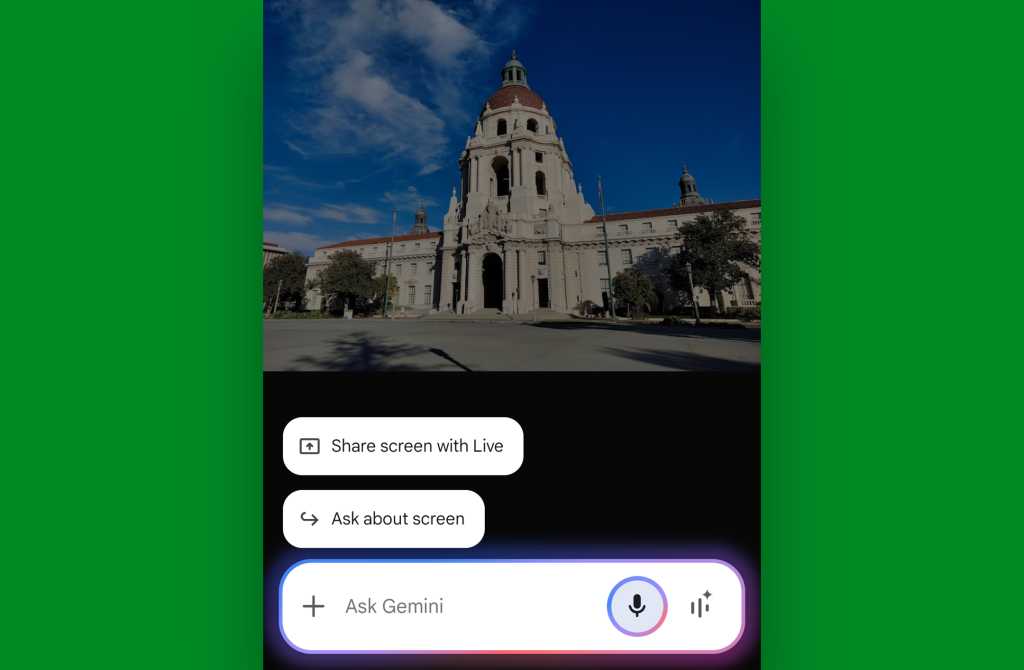
>This one can actually be accessed via Google’s next-gen Gemini virtual assistant. Just summon Gemini, using the “Hey Google” hotword or any other method you like, then look for the tappable “Ask about screen” button within its overlay interface.

Google Lens Android: Ask about screen
The “Ask about screen” button within Gemini is a hidden way to access a powerful Lens feature.

JR Raphael, Foundry

While the answer is wrapped in Gemini, the technology powering it is the same stuff that’s been present within Lens for ages. And it’s every bit as impressive.

Google Lens Android: Ask about screen results
Answers, on demand — from anywhere on Android.

JR Raphael, Foundry

>And if you’re feeling a pesky sense of déjà vu around this, well, you should be: Google first announced this latest iteration of the on-demand screen searching system more than two years ago, for the previous-gen Google Assistant system. Prior to that point, Assistant had briefly offered a similar sort of setup >without> Lens’s involvement. And prior to that, Google had a spectacularly useful native Android feature called Now on Tap, way back in 2015’s Android 6.0 (Marshmallow) era — though amusingly, we haven’t >quite> caught back up to that level of search intelligence just yet.

>Hey, what can we say? It’s the Google way.

Google Lens trick #2: Copy text from the real world

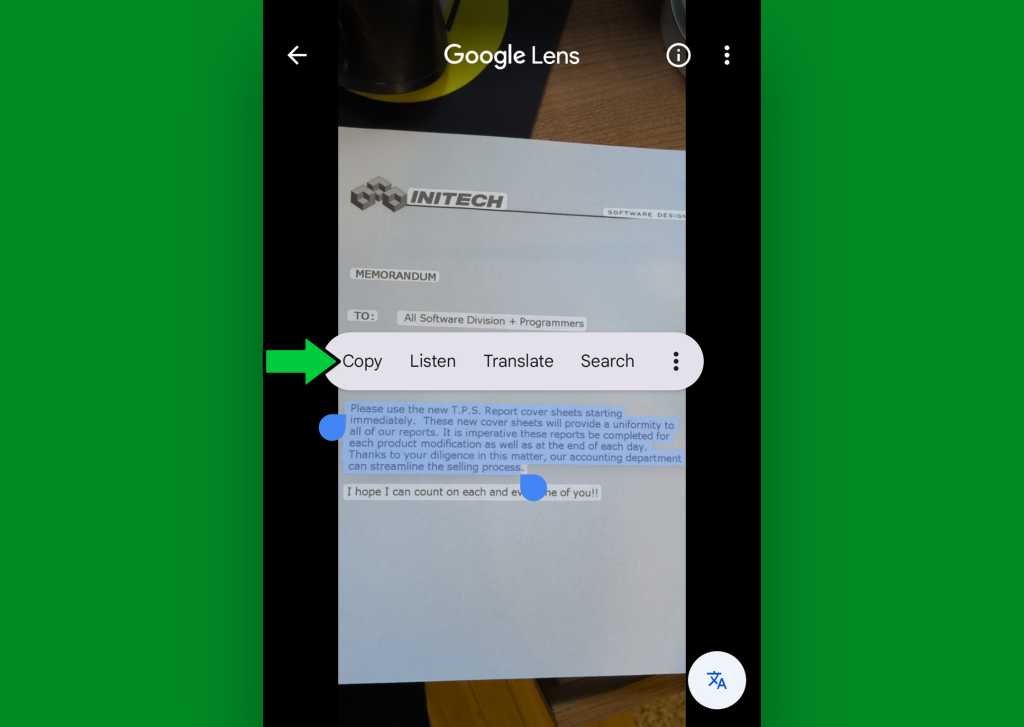
From the virtual world to the physical world around us, Google Lens’s most potent power and the one I rely on most frequently is its ability to grab text from a physical document — a paper, a book, a whiteboard, a suspiciously wordy tattoo on your rumpus, or anything else with writing on it — and then copy that text onto your phone’s clipboard. From there, you can easily paste the text into a Google Doc, a note, an email, a Slack chat, or anywhere else imaginable.

To do that, just open up Google Lens, point your device’s camera at any text around you, then tap the big circular search icon — and you’ll be able to use your finger to select the exact portion of text you want as if it were regular ol’ digital text on a website.

All that’s left is to hit the “Copy” command in the pop-up alongside it, and every last word will be on your system clipboard and ready to paste wherever your thumpy little heart desires.

Google Lens Android: Copy text
You can copy text from anywhere — virtual or physical — with a little help from Lens.

JR Raphael, Foundry

Google Lens trick #3: Connect text to your computer

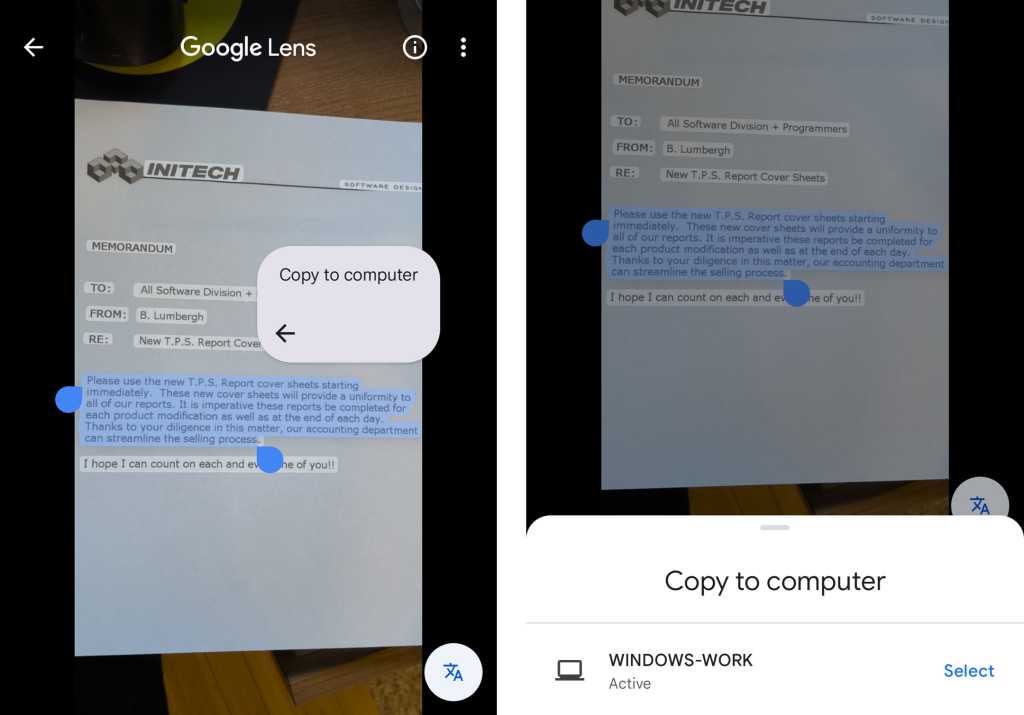
Let’s face it: Most of us aren’t working only from our Android phones. If you need to get some real-world text onto your computer, Lens can handle that for you, too.

Just go through the same steps we did a second ago, but this time, look for the “Copy to computer” option in the same pop-up menu. (You might have to tap a three-dot icon within that pop-up to reveal it.) As long as you’re actively signed into Chrome with the same Google account on a computer — any computer, whether it’s Windows, Mac, Linux, or ChromeOS — that option should appear. And when you tap it, you’ll get a list of all available destinations.

Google Lens Android: Send text to computer
Get any text onto your computer’s clipboard in an instant with Lens’s clever copying commands.

JR Raphael, Foundry

Pick the device you want, and just like magic, the text from the physical document will be on that computer’s clipboard — ready and waiting to be pasted wherever you want it. Hit Ctrl-V (or Cmd-V, on a Mac), and shazam! It’ll pop into any text field, in any app or process where pasting is supported.

Google Lens trick #4: Hear anything out loud

Maybe you’ve just been handed a long memo, a printed-out brief of some sort, or a letter from your dear Aunt Sally. Whatever it is, give your eyes a breather and let Lens read it for you while you’re on the go and between meetings.

Just point your phone at the paper, exactly as we did before, and select some specific text within the image once more. This time, look for the little “Listen” option in the pop-up panel atop your image.

Pound your pinky down on that bad boy, and the Google Lens app will actually read the selected text out loud to you, in a soothingly pleasant voice.

Hey, Google: How ’bout a nap-time story while we’re at it?!

Google Lens trick #5: Ask, ask, ask away

In a move that now seems foreshadowing, Lens has the completely concealed ability to let you chat out loud and ask anything imaginable about whatever your device’s camera is showing.

All you’ve gotta do to try it is open up Lens, aim your camera at something, and then press and hold Lens’s big search button. Then, you can simply speak aloud and ask anything on your mind in a completely natural, conversational way.

Google Lens Android: Talk
Pressing and holding the Lens search button lets you talk and ask questions in a completely natural way.

JR Raphael, Foundry

Google’s official introduction of the feature involved asking questions about why some sort of product isn’t working as expecting or how you can fix some common real-world maintenance issue, but it can be every bit as helpful for practically any purpose — anytime you find yourself facing a question about something in front of you.

This one, for now, seems to be available only within the U.S. and in English.

Google Lens trick #6: Interact with text from an image

In addition to the live stuff, Lens can pull and process text from images — including both actual photos you’ve taken and screenshots you’ve captured.

That latter part opens up some pretty interesting possibilities. Say, for instance, you’ve just gotten an email with a tracking number in it, but the tracking number is some funky type of text that annoyingly can’t be copied. (This seems to happen to me way too often.) Or maybe you’re looking at a web page or presentation where the text for some reason isn’t selectable.

Well, grab a screenshot — by pressing your phone’s power and volume-down buttons together — then make your way over to the Google Lens app. Tap the image icon in Lens’s lower-left corner, look for your screenshot in the gallery that appears, then tap it. And from there, you can simply touch your finger anywhere on the screen to select any text you want. (The same capability is also now present in the newer Android Circle to Search system, by the by, though that feature is still much more limited in its availability.)

You can then copy the text, send it to a computer, or perform any of Lens’s other boundary-defying tricks. Speaking of which…

Google Lens trick #7: Search for any text, anywhere

After you’ve selected any manner of text from within the Google Lens app, look for the “Search” option within the pop-up panel that appears atop it. It’s all too easy to overlook, but alongside the other options we’ve gone over sits the simple and supremely useful “Search.”

Keep that option in mind as a super-easy way to get info on text from any physical document or captured image without having to manually peck in the words on your own. (Sometimes, Lens will even put related results right within a panel beneath your image, without any additional searching required.)

And on a related note…

Google Lens trick #8: Search for similar visuals

We already know that Lens can search for the text from an image. But the app is also capable of searching the web for other images — images that match the actual objects within whatever photo or screenshot you’re viewing. It’s a fantastic way to find visually similar images or even identify something like a specific phone model or product seen within a photo.

To pull off this slice of Googley sorcery, open up an image of anything within Lens — or just point your phone at an object in the real world — then swipe up on the panel that appears beneath it and look for the “Visual matches” section.

Google Lens Android: Similar images
Searching for similar visuals is a smart way to get extra context about anything around you.

JR Raphael, Foundry

Google Lens trick #9: Save someone’s contact info

If you find yourself holding a business card and thinking, “Well, blimey, I sure as heckfire don’t want to type all of this into my contacts app,” first, congratulate yourself on the excellent use of blimey — and then sit your beautiful person-shell back and let Lens handle the heavy lifting for you.

Open Lens, point your phone’s camera at the card, and tap on the person’s phone number or email address. The Google Lens app should recognize the nature of the info and prompt you to add a contact.

One more tap, and the deed is done.

Google Lens trick #10: Email, call, text, or navigate

Got an address or number you need to get onto your phone for a specific sort of action? It could be on a business card, on a letter, or even on the front of a random business’s door. Whatever the case, just open the Google Lens app, point your phone at it, and tap the text. (Or, option B: Snap a photo of the info in question and then pull it up in the Lens app later.)

Once Lens sees it, it’ll offer to do whatever’s most appropriate for the sort of info involved. Then, with a single tap, you’ll have the address ready to roll in a new email draft, the number ready to call or text in your dialer or messaging app, or the website pulled up and ready for your viewing in your browser — no time-wasting typing required.

Google Lens trick #11: Translate text from the real world

If you ever find yourself staring at a sign in another language and wondering what in the world it says, remember that the Google Lens app has a built-in translation feature. To find it, open the app, aim your phone at the text, and tap the word “Translate” along the bottom edge of the screen.

Before you know it, Lens will replace the words on your screen with their English equivalents (or with a translation in whatever language you select, if English isn’t your tasse de thé) — practically in real time. It’s almost spooky how fast and effective it is.

srcset="https://b2b-contenthub.com/wp-content/uploads/2025/04/google-lens-android-translate.webp?quality=50&strip=all 800w, https://b2b-contenthub.com/wp-content/uploads/2025/04/google-lens-android-translate.webp?resize=289%2C300&quality=50&strip=all 289w, https://b2b-contenthub.com/wp-content/uploads/2025/04/google-lens-android-translate.webp?resize=768%2C798&quality=50&strip=all 768w, https://b2b-contenthub.com/wp-content/uploads/2025/04/google-lens-android-translate.webp?resize=671%2C697&quality=50&strip=all 671w, https://b2b-contenthub.com/wp-content/uploads/2025/04/google-lens-android-translate.webp?resize=162%2C168&quality=50&strip=all 162w, https://b2b-contenthub.com/wp-content/uploads/2025/04/google-lens-android-translate.webp?resize=81%2C84&quality=50&strip=all 81w, https://b2b-contenthub.com/wp-content/uploads/2025/04/google-lens-android-translate.webp?resize=462%2C480&quality=50&strip=all 462w, https://b2b-contenthub.com/wp-content/uploads/2025/04/google-lens-android-translate.webp?resize=347%2C360&quality=50&strip=all 347w, https://b2b-contenthub.com/wp-content/uploads/2025/04/google-lens-android-translate.webp?resize=241%2C250&quality=50&strip=all 241w" width="800" height="831" sizes="(max-width: 800px) 100vw, 800px">
Translation on demand, courtesy of Google Lens.

JR Raphael, Foundry

Pas mal, eh?

Google Lens trick #12: Calculate quickly

The next time you’ve got a numerical challenge in front of your weary peepers, give your musty ol’ brain a break and let Lens do some good old-fashioned solvin’ for ya.

Just open up Lens and point your phone at the equation in question — whether it’s on a whiteboard, a physical piece of paper, or even a screen in front of you. Scroll over along the line at the bottom of the Lens viewfinder screen until you see the word “Homework” (and don’t worry: Despite what that label implies, you don’t have to be an annoyingly youthful and bushytailed student to use it).

Tap that, then tap the big Lens search icon. And with everything from basic equations to advanced math, chemistry, physics, and biology, Lens will eagerly do your calculation for you and spit back an answer in the blink of an eye.

I won’t tell if you don’t.

Google Lens trick #13: Scan your skin

Here’s a weird one: If you ever have some mysterious marking on your mammal skin and find yourself fretting over whether it’s a freckle or something more nefarious, take matters into your own hands and let Lens play the role of dermatologist for you.

Just fire ‘er up on whatever Android phone you’re holding and point the viewfinder at your >wretch-inducing wart perfectly natural epidermal abnormality, then tap that Lens search button. Before you can spit out the words “Holy moley,” Lens will give you a best guess at what you’ve got goin’ on.

Its results aren’t scientific, of course, but they are based on matching your marking to an endless array of examples Lens seeks out on the web — so they’re a fine way to put your mind at ease while you wait for an actual doctor to examine your suspiciously spotted outer layer.

Google Lens trick #14: Crack the codes

‘Twas a time when Android code-reading apps were all the rage — and plenty of folks still have ’em hangin’ around today. So long as the Google Lens app is on your phone, though, guess what? You don’t need anything more.

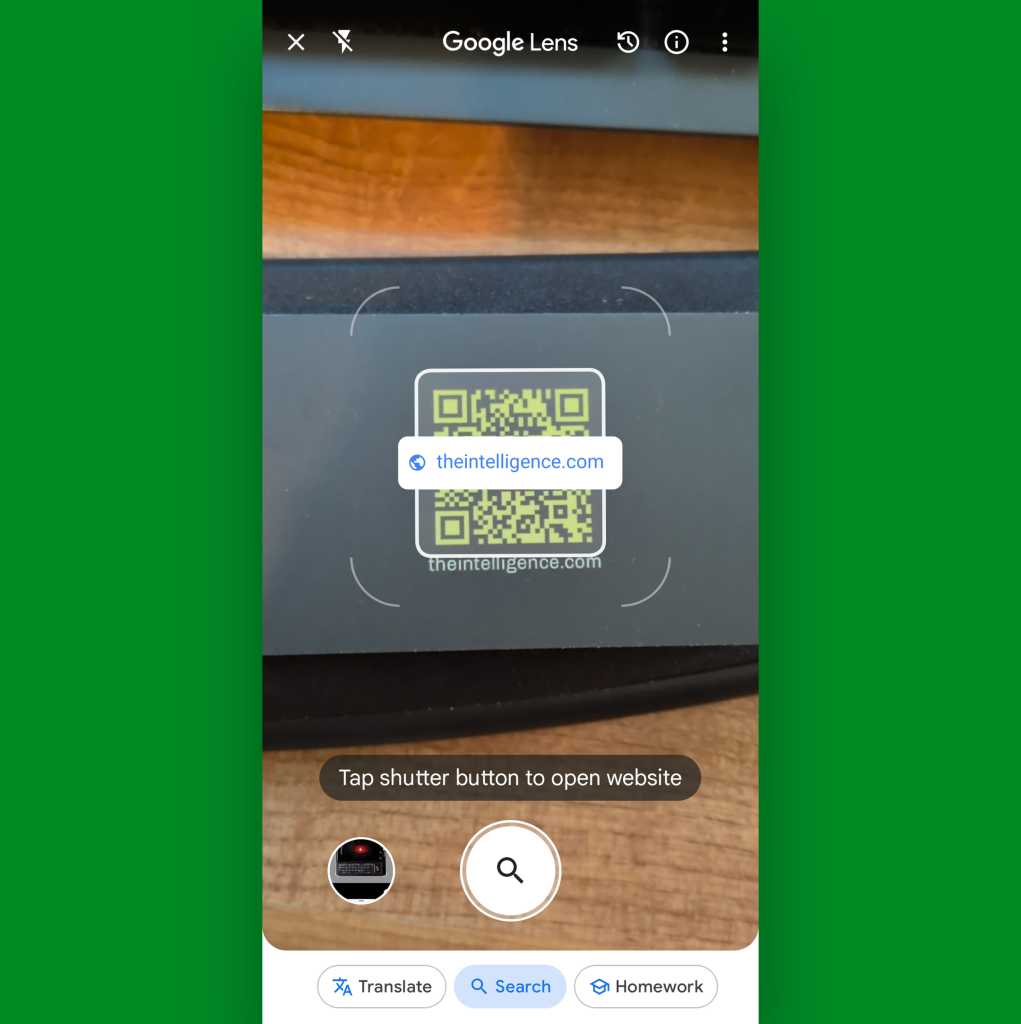
Just open up Lens, aim your camera at any barcode or QR code, and poof: Lens will offer to show you whatever that code contains faster than you ask “What does QR stand for, anyway?”

Google Lens Android: Scan codes
Who needs a QR code reader when Lens is ready and waiting?

JR Raphael, Foundry

Being a mobile-tech magician has never been so satisfying.

Get six full days of advanced Android knowledge with my free Android Shortcut Supercourse. You’ll learn tons of time-saving tricks for your phone!

Analysts weigh in on enterprise impact if Google forced to sell Chrome

The Google antitrust trial is “a nonsensical move by the US government that is ridiculously short-sighted, because if compromising privacy for ad revenue is bad, compromising privacy to train AI models is dangerous,” an industry analyst said Thursday.

Paddy Harrington, senior analyst at Forrester, who specializes in security and risk, added that efforts by the US Department of Justice (DOJ) to derail the company is a “move that may have been done in the name of anti-trust and competition, but it does not appear as if anyone thought through the implications of something else.”

That ‘something else’ raised its head this week during the remedies portion of the trial that began in August 2024, in which Judge Amit Mehta ruled against Google. Nick Turley, the product lead of ChatGPT at OpenAI, said his company would be interested in acquiring Google’s Chrome browser if the company is forced to sell it.

Could disrupt the browser market

Harrington countered, “this is not as simple as selling off a product; it’s a complete platform. And it’s moving from Google, where data collection is about selling ads, to OpenAI, where data collection is about training AI to then sell to a ridiculously wide variety of purposes. A ‘devil you know versus the devil you don’t know’ sort of deal.”

Such a move, said Harrington, has the potential to completely disrupt the browser market as a whole, not just for Google. “It’s understandable why OpenAI would want it for training the AI models, but if they purchase Chrome, what happens to Chromium? While it’s the open-source project of Chrome and ChromeOS, does Google keep the project under their development arm, or does it go with the browser?”

He pointed out that the majority of non-Chrome browsers use Chromium as their engine, so “if it stays under Google, by and large the browser market should probably remain the same. If it goes along with the sale to OpenAI, that could cause a serious disruption, as the privacy focused developers may want to distance themselves from a company that’s making money feeding their AI models.”

It’s all about the data

OpenAI’s interest in Chrome, said Brian Jackson, principal research director at Info-Tech Research Group, “is all about the data. OpenAI acquiring Chrome would be like Exxon acquiring an untapped oil field with the drilling already done. Just turn on the taps, and the good stuff starts flowing. Beyond that, OpenAI also has about 3.5 billion users, which it could reach instantly with its AI services.”

It is, he said, possible to imagine an OpenAI version of Chrome that would start with ChatGPT search by default instead of Google.com, and that would offer agentic integration to complete tasks such as shopping, booking appointments, or unsubscribing from unwanted emails.

“Such a coup would instantly transform OpenAI’s outlook from a provider of LLMs that sit behind the scenes of major tech brands to one of most prominent direct owners of customer relationships in the world,” said Jackson. “ChatGPT is already propelling it into that territory, but Chrome is still many magnitudes more well used.”

As for the impact all of this might have on enterprise users, Harrington said that “it would make sense for Chrome Enterprise (CEB) to go along with the ‘consumer’ Chrome business, and while there are two editions — one free, one paid — the paid version really just opens up the number of functions you can manage inside the browser. The functions are there already, it’s just a matter of how they’re turned on and off.”

All of this, he said, “is tied to Chrome itself, and Chrome Enterprise is just a rebundled version of it into an MSI (for enterprise distribution and an enterprise approach to configuration) with ADMX templates.”

Anshel Sag, principal analyst at Moor Insights & Strategy, agreed, saying he could not imagine Chrome Enterprise being sold separately from the consumer version, “since they are fundamentally the same browser with different features and security.”

A question of trust

Asked about the level of trust CIOs and CISOs have in Google compared to OpenAI, he said, “there is more trust in Google, simply because the company has shown that it’s serious about security and privacy. That said, OpenAI doesn’t really have that kind of a track record, and while it does work with enterprises, it is still unclear how it might handle something like a browser, and all of the responsibilities that come with maintaining that level of security.”

One of the biggest costs that would further impact OpenAI’s profitability is R&D for Chrome, and ensuring it remains secure, Sag added.

Jackson said there is no doubt Chrome Enterprise would be impacted. The service, he said, is “the browser with some other enterprise management capabilities wrapped around it. It’s possible OpenAI would reach an agreement to still allow Google to own and sell its enterprise contracts there, but the product at the core of it would still be controlled by OpenAI.”

Then, he said, “there’s the question of what OpenAI does with the data, and how the change in ownership would impact enterprise trust. When it comes to cybersecurity in the enterprise, the modern best practice approach is a zero-trust approach. Zero-trust principles say to treat all connections as potentially hostile, limiting access to systems and data based on only what is absolutely needed by an authenticated user.”

The ’devil we know’

For browsers, he said, “ there are a couple of ways that enterprises try to make that work. Some large enterprise clients will use Chrome Enterprise, which offers browser policy management. This is where they can limit what data the browser can access and what it can do with that data.”

Other enterprises, said Jackson, would let users download pre-approved consumer browsers, likely including Chrome, and have IT manage them with other centralized administration tools such as Windows Active Directory or a Unified Endpoint Management solution.

He said, “unless OpenAI tries anything too aggressive with data collection, we’ll see enterprises take the same approach to web browsers in the future. Ultimately, Google is also a large data-hungry tech giant that is trying to train its own AI models, and we’d have every reason to be as concerned about its motivations to harvest user data as OpenAI. But it’s the devil that we know.”

European tech firm rallies for digital sovereignty amid rising tech nationalism globally

A growing chorus of European technology executives is calling for the continent to assert control over its digital future, with Danish IT services giant Netcompany leading the latest push for technological self-reliance.

In an open letter published on Wednesday — coinciding with the symbolic illumination of the Statue of Liberty replica in Paris a day before — Netcompany CEO André Rogaczewski explicitly challenged Europe’s dependence on foreign technology platforms and urged the region to “bring our data home.”

“From social media to cloud infrastructure, from applications to algorithms, we are dependent on technologies developed elsewhere, by actors who may not share our values,” warned Rogaczewski, whose firm employs over 8,000 technology consultants across Europe.

The high-profile campaign comes amid escalating tensions in global technology markets, with the European Commission recently intensifying scrutiny of US cloud providers’ market practices and ahead of upcoming EU-US discussions on trans-Atlantic data governance frameworks.

“We are calling for European solutions — built by European companies, run on European data, and accountable to European citizens,” Rogaczewski stated, directly challenging the market dominance of American tech giants including Microsoft, Google, and Amazon Web Services, which collectively control a significant majority of Europe’s cloud infrastructure market according to industry reports.

Europe’s strategic pivot in digital policy

The remarks come amid a concerted push by European governments and institutions to localize control over key digital systems. Recent EU policies — the Digital Services Act, the Digital Markets Act, and the AI Act — are part of an evolving legal framework to strengthen regional oversight of platforms, algorithms, and cloud-based services.

A month ago, leading European companies and lobbying groups — including Airbus, Element, and Nextcloud — under the umbrella of “EuroStack Initiative” signed an open letter urging the creation of an EU sovereign infrastructure fund to boost public investment in innovative technologies and build strategic autonomy in key sectors.

“Building strategic autonomy in key sectors is now a recognised urgent imperative across Europe. As part of this common effort, Europe needs to recover the initiative, and become more technologically independent across all layers of its critical digital infrastructure,” the EuroStack letter read.

These initiatives follow a global trend where technology is no longer seen purely through the lens of innovation or efficiency but as a strategic national asset. The US has tightened its grip on semiconductor exports to China. China, in turn, is accelerating its own domestic tech stack and enforcing data localization. In this shifting context, Europe’s historical reliance on the US and Chinese digital infrastructure has become a liability.

Building a European tech ecosystem

Netcompany, a publicly listed IT services provider with operations across Europe, is among a growing number of regional firms advocating for digital sovereignty. Their CEO’s comments underline the urgency to reduce reliance on US-based cloud giants and software vendors. Instead, the letter encourages a continental effort to cultivate indigenous technologies that align with European legal standards and ethical norms.

“Technology lies at the heart of our wealth creation,” Rogaczewski said. “It drives our competitiveness and sits at the very center of how we communicate, learn, and develop as societies.”

This vision extends beyond public discourse into concrete initiatives. GAIA-X, a European cloud infrastructure initiative, exemplifies this push toward a sovereign tech ecosystem, alongside other strategic programs including SiPearl and the EU’s AI Continent Action Plan that target capabilities in cloud infrastructure, semiconductors, and AI.

US tech giants have not been idle in response to these sovereignty concerns. Amazon Web Services, for instance, has committed to a €7.8 billion ($8.9 billion) investment in an “AWS European Sovereign Cloud” and maintains that its approach has been “sovereign-by-design” from the beginning, with customers having “complete control over where they locate their data” within European regions and verifiable control over who can access it.

“While complete technological independence is a complex and long-term goal, Europe is clearly building momentum toward digital and AI sovereignty,” said Shreeya Deshpande, senior analyst at Everest Group, highlighting how the coordinated nature of such efforts reflects growing momentum across Europe.

While challenges remain, particularly in scaling and integrating across fragmented markets, the political will and regulatory backing for European tech nationalism is growing.

Sovereignty without isolation

Rogaczewski’s appeal reflects a growing consensus among European stakeholders that sovereignty does not mean isolation. Rather, it signals a recalibration of Europe’s role in the global digital order. Europe is seeking to maintain open markets and innovation, while ensuring that core digital infrastructure and sensitive data remain under regional control.

“Emerging mechanisms, such as data embassies and sovereign cloud frameworks, offer a practical middle path — enabling countries to maintain legal and operational control over data and AI systems while remaining interoperable with global platforms,” Deshpande added.

The message resonates with policymakers who see technology not just as a tool of commerce but as a pillar of democratic governance. “This places our security, sovereignty, and democracy at risk,” Rogaczewski warned, referring to Europe’s current dependency on foreign platforms.

The lighting of the Statue of Liberty — once gifted by France to the US as a symbol of shared democratic values — served as a potent backdrop to Rogaczewski’s message. He framed his letter as both a reminder of historical ties and a warning that those values are now “under heavy pressure.” “Our modern societies are based on the very same principles of freedom and democracy,” he wrote. “We must stand united in our commitment to these values and fight for them each and every day.”

White House condemns Europe’s ‘extortion’ of Apple and Meta

If it looks like a trade war, swims like a trade war, and quacks like a trade war, then it’s probably a trade war that has now broken out — this time between the US and the EU as the White House condemns Europe’s punitive fines against Apple and Meta, fines the companies intend to appeal.

Europe hit Apple and Meta with fines of €500m and €200m, respectively, yesterday, punishing both companies for noncompliance with Europe’s Digital Markets Act, a piece of legislation that pretends to be about opening up markets but seems custom-designed to impact the US tech giants.

The White House has called these fines a “novel form of economic extortion” and has warned Europe that the US will not tolerate the magnitude of these fines.

Custom-fitted penalties

The steep fines surprised most commentators, as whispers coming out of the bloc had hinted that the EU would impose minimal fines against both tech companies in order to avoid reprisals from the US administration. This doesn’t seem to be what happened, unless we assume that €700m is now seen as small change by Europe’s leaders, who appear to have given themselves the right to charge US companies even more. 

The fines come as Europe and the US attempt to forge new trading agreements in response to pressure from the US administration and its tariff threats. While the impact of tariffs will hurt US consumers most, repercussions will also be felt by manufacturers and trading partners who have fed US demand until now.

The effect will also soon be felt on a wider basis as a trade barrier-induced slump hits shipping and distribution globally in the coming weeks, reflecting the slowdown in demand around the imposition of those tariffs. 

Playing at leadership

Despite the looming risk of consequences for their own economies, both in terms of manufacturing demand and the impact on their own manufacturing businesses of an onset of low-cost consumer goods originally destined for the US market, Europe’s leaders seem to want to cosplay at playing hardball.

European Commission spokesperson Thomas Regnier recently said the EU “will enforce our tech legislation without any doubt, and this has nothing to do with the trade negotiations currently ongoing with the US.”

That may be how Europe’s leaders see it, but their self-perception means little to a White House that sees these fines as extortionate reprisals against some of America’s biggest and most successful firms.

The administration is far more likely to cleave to the opinion of Meta and Apple:

  • “The European Commission is attempting to handicap successful American businesses while allowing Chinese and European companies to operate under different standards,” Meta said.
  • “Today’s announcements are yet another example of the European Commission unfairly targeting Apple in a series of decisions that are bad for the privacy and security of our users, bad for products, and force us to give away our technology for free,” Apple said.

Who designed the rules, and for what purpose?

While Regnier insists the rules are being applied fairly and would be applied against any firm, no matter where they are from, critics argue that the DMA seems to have been expressly drafted to constrain the power of US firms.

The US is not blind to this conjecture. “Extraterritorial regulations that specifically target and undermine American companies, stifle innovation, and enable censorship will be recognized as barriers to trade and a direct threat to free civil society,” said a White House spokesperson.

The bellicose response emerging from within the US administration suggests it is quite willing to issue its own set of reprisals against Europe’s attempts to fine the tech firms — but that response may not be immediate, pending the result of any legal appeals to those decisions on the part of Apple and Meta.

The scenario doesn’t equate to the best mood music.

At a time when the administration is practicing a very blunt approach to making deals, European leaders seem to want to hide the true nature of their own equally self-serving responses behind unconvincing veneers of respectability (such as the DMA).

Will the future be better tomorrow?

In this kind of context, the idea that relationships may become worse before they get better isn’t just a problem waiting to happen. It appears to be a problem that’s already here.

Like a squawking duck, this particular sequence of events certainly seems to be forming up to become exactly what it sounds like as the US administration puts its own perception of national interest first, unleashing a challenging set of circumstances for businesses worldwide, including those of Apple and Facebook, the US business entities it probably sees itself as trying to protect. 

Ironically, the consequences of these combined sequences of events probably won’t unleash a great deal of benefit for anyone — except, possibly, for some wealthy individuals who want to sell apps via their own App Store.

US President George W. Bush once famously said, “The future will be better tomorrow.”

Right now, in the absence of positive dialogue, that’s not what I see coming down the pipe.

You can follow me on social media! Join me on BlueSky,  LinkedIn, Mastodon, and MeWe. 

6 steps to recover missing data in Windows

Sadly, there are many reasons why data stored on disk drives in Windows can — and sometimes does — go missing.

As someone who’s used Windows 11 since the day after the first Insider Preview appeared on June 28, 2021, I’ve been through a dozen different data recovery incidents over the past 3-plus years. Some of these have resulted from failing storage media, others from issues with cables or connectors between the media and the PC or its motherboard, and one or two have been self-inflicted arising from mistakes when using disk partitioning or repair utilities. What can I say? I like to experiment, and break things so I can fix them.

In each of these incidents I’ve been able to claw back my missing data, and in most cases you can too. In this story I’ll go over several techniques you can use to try to recover lost files. I’ll use Windows 11 in the examples throughout, but these tips apply to Windows 10 as well.

In this article:

  • Three main reasons for data loss
  • When recovery is needed, backup’s the thing
  • Step 1 to data recovery: Recycle Bin
  • Step 2: Windows Backup / File History
  • Step 3: chkdsk
  • Step 4: Windows File Recovery
  • Step 5: Partition/data recovery
  • If file recovery succeeds, follow up with a disk health check
  • Step 6: Call in the professionals

As with my tutorials for repairing Microsoft Office and repairing Windows itself, the idea is to perform these steps in order. If the first step doesn’t work, move on to the next, and so forth. With luck, you’ll recover your missing data early in the sequence.

But first, let’s take a look at the main culprits when it comes to Windows data going MIA.

Three main reasons for data loss

In most cases, three primary causes stand behind situations that call for data recovery. These are:

1. File or file structure damage or corruption. Basically, files are just long sequences of bits (1s and 0s) chained together through a master file table (or its equivalent) on the storage media. For various reasons, those patterns can become damaged or disrupted. Consequently, they may go missing or become unreadable. In this case, your repair efforts attempt to restore those bits to their original form and order.

2. Partition or disk structure changes or damage. In Windows, storage devices use specific disk layouts to create logical volumes (which usually have names and associated drive letters) wherein file systems reside. Each volume (and certain other disk structures related to boot-up and recovery on Windows system/boot disks) has at least one associated on-disk partition. The drive maintains one or more copies of a partition table to keep track of disk extents, called sectors, where partitions (volumes and other special disk regions) reside.

When errors or unwanted changes affect a partition table, it must be repaired before the files and folders in any of the volumes it describes may be accessed. In this case, the repair process attempts to restore the partition table’s original structure and contents.

3. Storage hardware problems. For spinning disks, this might involve damage to a disk platter’s read/write heads or one of its recording surfaces, and usually manifests as loss of drive sectors. In severe cases, a storage device may fail completely so that its contents become completely unreadable. For SSDs, something similar can happen when the drive’s controller suffers from hardware errors, or when the flash memory locations under its control become damaged or unreadable.

For both kinds of drives, failure is often a progressive cascade. That is, it starts slowly, with the failure of one or two sectors or memory locations, and gets progressively worse over time. Eventually the device fails completely. At that point, end-user recovery is impossible, and one must turn to a data recovery company for expensive professional recovery services.

That’s why it’s best to act upon the first sign(s) of disk trouble while there’s still time to head problems off at the pass. In this case, repair means attempting to capture valid data from good sectors or locations before they have a chance to go bad.

When recovery is needed, backup’s the thing

Long before you encounter data loss issues, it’s worth employing one or both of Windows’ built-in file backup tools. File History takes snapshots of files stored in certain main folders in Windows 10 and 11. Windows Backup saves your files, apps, settings, and credentials to OneDrive in the cloud. These set ‘em and forget ‘em tools require little or no effort to use once set up; see my tutorials on File History and Windows Backup for details.

In my opinion, though, nothing beats access to a fresh, current system backup of a drive from which items may be missing or lost. For example, I keep project work on two separate SATA SSDs (F: and X:) and back them up every morning, along with the all-important C: boot/system drive where Windows itself lives. Thus, I’m reasonably sure that no matter what happens to one or more of those drives, I won’t lose more than a day’s work or data, worst case.

Before attempting any kind of file or data recovery on Windows 11, the first thing you should do (let’s call it Step 0) is back up the problem drive on which missing or inaccessible files or data once resided. This means you can always get back to where you started, should your own data recovery efforts cause further problems. You will then be able to turn the media over to a data recovery company that has tools and capabilities that ordinary users like you, dear reader, and I do not have at our disposal.

That’s the worst-case scenario, though. There are several steps you can take first to try to recover your lost files yourself. Let’s walk through those first, shall we?

Step 1 to data recovery: Recycle Bin

A typical situation that calls for data recovery is one where a user or some program has deleted a file from a Windows volume, intentionally or perhaps accidentally. Afterward, the user wishes to regain access to that file.

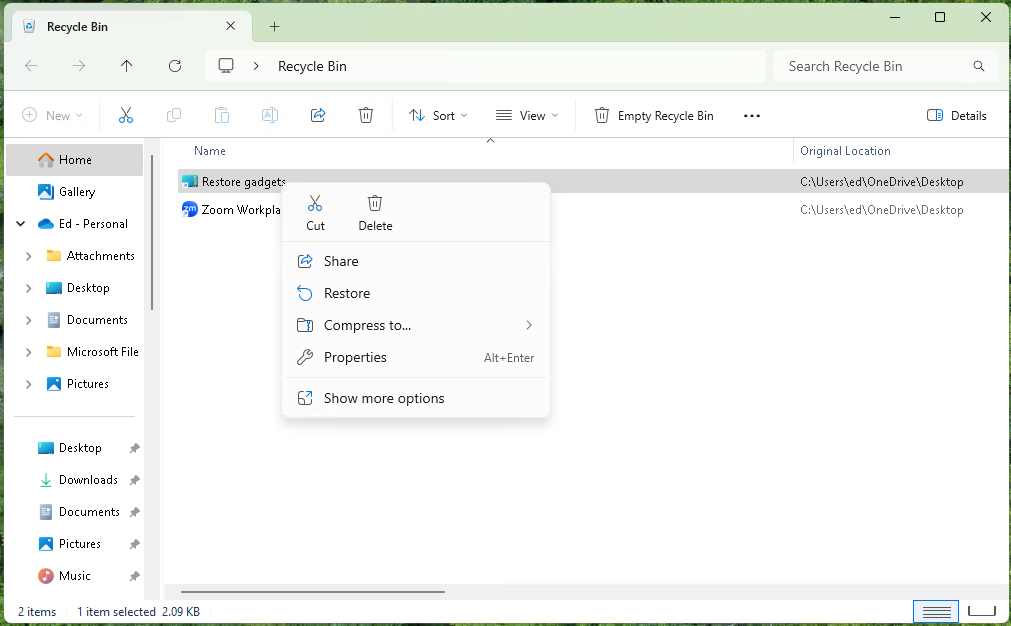
It seems obvious, but checking Recycle Bin to see if the missing file is present can often save a lot of unnecessary hassle when recovering lost items. Double-click the Recycle Bin icon on the desktop, then browse or use the search box to see if the missing file is there. If it turns up, a right-click on the item, then selecting Restore is all that’s needed to put the file back where it came from (see Figure 1).

right click menu for file in windows recycle bin

Figure 1: Right-click any item in Recycle Bin, then click Restore. That’s all it takes to recover files from the Recycle Bin.

Ed Tittel / Foundry

If the file you seek is not available in the Recycle Bin, other actions may help.

Step 2: File History / Windows Backup

This step comes with some ifs attached. The first if is “Is File History (or Windows Backup) turned on?” The second if is “Does File History (or Windows Backup) include this file?” If so, the third if is “Are the damaged or missing files available through File History (or Windows Backup)?”

To briefly explain: both File History and Windows Backup are turned off by default and must be enabled. Even then, these utilities only back up files stored in specific folders — namely, Documents, Downloads, Pictures, Videos, and Music (a.k.a. “Library folders”) from the logged-in user’s file hierarchy. (See my File History and Windows Backup tutorials for details on setting them up, including a way to include additional folders in File History backups.)

If you have both tools enabled, consider what kind of restore operation you need. Windows Backup offers basically an “all-or-nothing” restore capability. If you’re simply looking to restore one or a small number of files and/or folders, it’s not the right tool for the job. Why? Because Restore in Windows Backup works through the Windows Installer — that is, when you start the Windows install process and log in with your Microsoft Account (MSA), it will offer to restore the PCs for which it has backups associated with that account through OneDrive. This is generally best reserved for situations where a full system restore or rebuild is called for. It’s not a good fit for restoring some smaller number of files or folders.

If you take this route, please understand you’ll have to wait through a clean Windows 10 or 11 install, after which Windows Backup will start the process of bringing your apps, files and folders, settings and preferences back (but there will still be more work for you, as explained in my Windows Backup tutorial — see the section “WB comes with a catch…”).

For a one-off file or just a handful of items, use File History instead.  Click Start > Settings, then type file history into the Settings search box. From the options that appear, select Restore your files with File History.

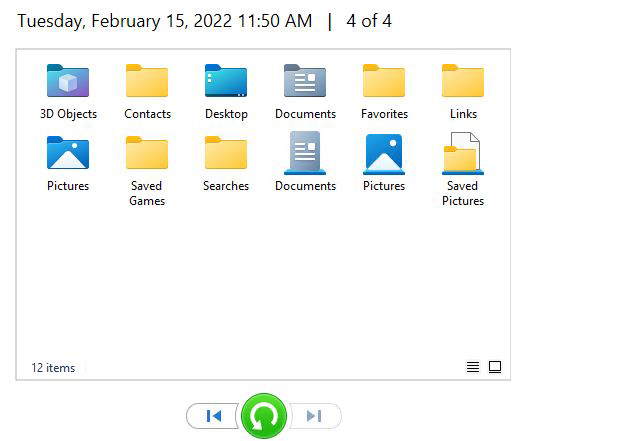
You’ll see a File Explorer-like view of your backed-up folders. Click any folder to drill down to the item you want. If you navigate into the Documents folder, for example, you’ll see its contents show up. By highlighting one or more files, you select them for a “copy back” operation. Then, when you click the green arrow at bottom center (see Figure 2), it will restore the files you’ve selected to their original location.

recovering items via windows file history

Figure 2: Select an item and click the green “back-circle” arrow to restore it.

Ed Tittel / Foundry

For in-depth details about File History, including its limitations, setup minutae, and the best way to configure it, see “How to use File History in Windows 10 and 11.”

If a file or folder is not available for restoration through File History or Windows Backup, more robust recovery is needed. That means it’s time to move on to the third step.

Step 3: chkdsk

If the affected drive remains readable and visible in Windows — that is, the drive letter still appears in File Explorer and some (or most) of its files and folders remain visible therein — the next step to recovery is to use the command line check disk utility, a.k.a. chkdsk.exe. You’ll need to run it at an administrative command prompt or in an administrative PowerShell session. (Type either cmd or powershell in the Windows search box, right-click Command Prompt or Windows PowerShell in the list of results, select Run as administrator, and enter the password if prompted.)

You can use either of two key parameters to effect disk repairs, as outlined on the MS Docs Windows Commands reference for chkdsk):

  • /f: Fixes errors on the disk. The disk must be locked. If chkdsk cannot lock the drive, a message appears that asks you if you want to check the drive the next time you start the computer.
  • /r: Locates bad sectors and recovers readable information. The disk must be locked. /r includes the functionality of /f, with the additional analysis of physical disk errors.

The only way to repair the Windows boot/system disk (usually drive letter C:) is to elect the option to repair after the next restart, followed by a restart of the affected PC.

For minor disk corruption or damage, this step is often as far as you’ll need to go. If it works, count yourself lucky — and make another backup right away!

Step 4: Windows File Recovery

Microsoft offers a good, basic file recovery utility called Windows File Recovery (winfr.exe) for Windows 10 version 2004 and up and all versions of Windows 11. It’s available in the Microsoft Store.

This utility launches in an administrative command prompt session and runs at the command line. I tried the command to recover download files, as shown in Figure 3.

windows file recovery operation in a command window

Figure 3: winfr.exe is added to the path, and online examples are entirely worth trying out, as shown for downloads here.

Ed Tittel / Foundry

There is a learning curve involved in using this tool, but the user manual is available online and very much worth reading and exploring for those willing to tackle file and folder recovery at the command line. If you know what’s missing and where it resided, you can use it to recover files quickly and easily using specific filters — the more specific, the better, as I learned when recovering my old download files.

The winfr tool also supports what’s called “extensive mode,” which offers more comprehensive and far-reaching repair capabilities. Regular mode is turned on by default; you must use the /extensive parameter to access extensive mode’s capabilities. It’s good at handling non-NTFS file sytems (e.g., FAT and exFAT), and can find more files deleted longer ago. Extensive mode can also attempt repairs after formatting a disk — which takes us into territory for the next topic, partition repairs — and it is better able to cope with disk corruption than regular mode.

Those who prefer to undelete files using a graphical interface instead of working at the command line should try the free but good Piriform tool Recuva.

Step 5: Partition/data recovery

There are plenty of good third-party data recovery tools available for Windows 11. That said, those that can recover entire drives — especially big ones — or that offer partition and formatting recovery usually cost money.

For example, upgrading from the free version of Recuva to the Professional version means gaining more advanced file recovery, including partition recovery, recovery from damaged or reformatted disks, and more extensive recovery for long-deleted files and folders. It costs US$25 for a one-year subscription. Similarly, MiniTool Partition Wizard, which offers excellent partition handling and modest partition recovery in its free version, but adds extensive file, folder, and partition recovery capabilities to its Pro version (US$59 yearly).

Ditto for Stellar Data Recovery, which comes in a variety of versions that range from Standard (US$60 yearly) to Toolkit (US$299 yearly/$599 lifetime). Only those who need to recover BitLocker-encrypted or multi-OS drives need those higher-end versions. In my testing, the Toolkit version found 2.4TB of recoverable files on a 1.84TB drive, which strikes me as both impressive and entirely too comprehensive. You can see that in the lower left corner of Figure 4.

stellar data recovery window showing recoverable files

Figure 4: Remarkably, Stellar Data Recovery found 2.4TB of recoverable files on a 1.86TB drive.

Ed Tittel / Foundry

Stellar uses a simple File Explorer-like UI through which you can navigate to select files or folders to restore from its collection of recoverable items. It’s intuitive and easy to use, and quite fast, considering what it does (took less than 10 minutes to offer a huge list of recoverable files and folders, as shown).

Once partition or file recovery is effected, you can then tackle file and folder recovery from newly restored partitions (if needed), or from the list of recoverable items your tool offers up. In cases where accidental reformatting or partitioning mistakes have been self-inflicted — I’ve done this to myself on at least two occasions when I targeted the wrong drive — successfully restoring the old partitioning scheme usually brings all the old files and folders back, too.

If file recovery succeeds, follow up with a disk health check

Something had to cause whatever issues led you down the recovery road. If you’ve managed to recover data through chkdsk, Windows File Recovery, or another data recovery tool, it’s a good idea to give the problem disk a thorough checkup after that’s done.

Hard drive and SSD makers often offer such tools as downloads for the drives they sell, and there are plenty of free and for-a-fee tools available for disk health checks. I’m partial to the open-source CrystalDiskInfo because it provides a good overview of a disk’s SMART data (self-monitoring, analysis and reporting technology, which includes error counts that often signal impending disk failures).

Other tools such as HD Tune Pro ($35, occasionally available for free, plus free trial) and Hard Disk Sentinel (free trial available, $20 for the standard version, $30 for the pro version) offer more detailed disk diagnosis and surface/media scans to provide better information on disk health and condition. The former took 30 minutes to scan my 3-year-old Western Digital SN810 SSD (nominal 2TB; actual 1.86TB) before giving 80% of it a clean bill of health despite heavy usage, as shown in Figure 5. (The free trial won’t scan the full disk as an inducement to buy the Pro version.)

drive scan results in hd tune pro

Figure 5: The HD Tune trial version error scan covers only 80% of any disk to persuade users to buy a Pro copy.

Ed Tittel / Foundry

If a disk shows questionable health or more than 10% of its sectors are damaged, it’s time to replace it. Make a backup while you still can, order a new device, and you’ll be able to restore the backup when the replacement arrives.

Step 6: Call in the professionals

If steps 1 through 5 fail, you’ll need to seek outside help. Here’s Software Testing Help’s list of the top 10+ data recovery services for those who must travel this road.

Hopefully, you’ll never need to send a drive to a professional data recovery service. If you do, be prepared to pay handsomely for their work. Charges of $300 and up are typical. (Bigger drives cost more, as you might expect.) And it can take weeks or months to get through their service queues.

Some companies will let you send them a replacement drive on which to restore what they find. Others will insist on selling you such a drive, sometimes at above-market prices. But sometimes, there is no alternative, and you’ll pay what you must to get precious or irreplaceable files and data back.

Be sure to work out as much of the cost picture as you can before sending a drive off for recovery. You don’t want the bill, however big it turns out to be, to come as a surprise. In my 30-plus years of working with personal computers, I’ve never had to send a drive off for professional recovery. Even so, it’s good to know such services exist should one ever need them.

Personally, I learned the value of backups in 1989, when a 300MB SCSI drive attached to a Macintosh cratered. I lost a book manuscript as a result. I’ve never been caught unprotected again, nor should you be. Happy computing!

This article was originally published in June 2021 and updated in April 2025.

3 smart shortcuts for activating Do Not Disturb on Android

Stop me if you’ve heard this one before: Google’s got a wild new idea about “reinventing” how we silence our phones.

It’s happening now, in the current Android 15 era of our favorite operating system. Google eliminated the simple, one-tap system for silencing a device and putting it into Do Not Disturb mode and instead bundled that setting into a perplexing new Modes menu. Now, when you want your phone to zip its metaphorical lip, you’ve gotta tap the Modes tile within your Android Quick Settings panel, then find and activate Do Not Disturb from there.

That may seem like a small distinction, but for something as foundational as silencing your frickin’ phone, it’s an extra step that adds up and quickly feels cumbersome — especially if you’re hunting for it multiple times a day. More than that, it’s an extra slice of confusion that creates needless murkiness around what oughta be a simple-as-can-be core phone function.

And, oh yes: We’ve been here before. Way back in the Android 5.0 “Lollipop” era of Android, Google similarly sought to revamp the simple silencing function — with a similar sort of setup, even, around overly complicated “modes.” Long story short, it was bewildering and annoying, everyone hated it, and Google eventually backtracked and brought back a simple one-step silencing system.

Now, it seems, history is poised to repeat itself again in yet another amusing Android flip-flop. Freshly uncovered code suggests El Googenphlorp has heard the outcry and is actively working to restore a one-tap Android Do Not Disturb toggle that’ll exist alongside the new Modes option.

There’s no telling how long it’ll take to show up for most of us, though. And in the meantime — whether you’re using a device with the latest Android version and its ever-fun Modes maze or not — you’ve got some spectacular ways to not only restore a simple Do Not Disturb toggle on your own but also to improve upon it and make it even more effective.

Pick whichever path you prefer, and prepare for an instant and immensely practical upgrade to your day-to-day Android-using experience.

[Psst: Love shortcuts? My week-long Android Shortcut Supercourse will teach you tons of time-saving tricks for your phone. Sign up now for free!]

Android Do Not Disturb shortcut #1: The simple toggle return

We’ll start with the simplest possibility of all, and that’s bringing back the one-tap Do Not Disturb toggle in your Android device’s Quick Settings section — without having to wait on Google to make it happen.

This one couldn’t be much easier to manage. Just install the free and aptly named Simple DND app from the Play Store. Open it up and follow the prompt to grant the app the permission to manage your phone’s Do Not Disturb state — then tap the Add Tile button on its main screen and confirm that you want to do that.

Android Do Not Disturb toggle: Simple DND
One tap, and boom: Simple DND puts a simple Do Not Disturb tile right back into Android’s Quick Settings for you.

JR Raphael, Foundry

And that’s it: You should now see a new single-step Do Not Disturb tile right in your Quick Settings, if you swipe down twice (or swipe from the right side of the screen, on certain devices) to open it.

Android Do Not Disturb Quick Settings tile
Do Not Disturb, right back where it belongs — thanks to Simple DND.

JR Raphael, Foundry

That, of course, is simply restoring the once-standard Android behavior in a roundabout way. But you can also make it even easier to access your device’s Do Not Disturb mode and silence or unsilence your phone on the fly, if you want.

Android Do Not Disturb shortcut #2: The Pixel tap dance

If you’re using a reasonably recent Pixel device, you’ve got an incredibly cool and impossibly convenient way to make Do Not Disturb easy to toggle.

For this path, you’ll need to go download a handy (and completely free) little app called Mute. Install it, then open ‘er up and follow the prompts to allow the app to modify your system settings.

Next, head into your system settings and scroll down until you see the line labeled “System.” Tap that, then tap “Gestures” followed by “Quick Tap to start actions.”

Flip the toggle next to “Use Quick Tap” into the on position, then tap the option for “Open app” to select it — and once it’s active, tap the gear-shaped icon alongside it and select “Mute” from the list that pops up.

Android Do Not Disturb: Pixel Quick Tap
Quick Tap strangely doesn’t support toggling Do Not Disturb out of the box, but the Mute app fixes that.

JR Raphael, Foundry

Make your way back out of that menu, and now, anytime you double-tap the back of your Pixel, you’ll feel a brief vibration and see a small visual confirmation that Mute has been activated. Your phone’s media and ringer volume will shoot all the way down to zero, and Android’s Do Not Disturb mode will be activated. Double-tap again, and Do Not Disturb will go back off while your volume settings pop back up to their previous levels.

You might have to experiment a bit to figure out the exact right spot on the back of your phone where the tapping gesture works most reliably. On most Pixels, it’s higher than you might expect — right beneath the camera module.

Once you know where to tap, though, you’ll have a swift ‘n’ satisfyingly simple new way to switch your phone in and out of Do Not Disturb without having to mess with any on-screen menus. As long as the screen is on — even if the device is locked! — all it’ll take is two quick taps to silence or unsilence as needed.

Android Do Not Disturb shortcut #3: The notch nudge

No Pixel? Or maybe you just aren’t into the whole tap-a-tap tactic? No problem.

With the help of a clever and convenient app called Touch the Notch, you can transform that blacked-out space at the top of your screen — y’know, where the front-facing camera lives — into a simple switch for impressively efficient toggling of your device’s Do Not Disturb status.

Just snag the app, then open it once to configure it. The first time you do, you’ll be prompted to pay four bucks to bump up to the app’s full version. You may want to do that, for reasons we’ll explore in a moment, but you don’t have to commit right off the bat. If you’d rather try the app out first and see whatcha think, tap the “x” in the upper-left corner of the upgrade offer to skip it.

Now, tap “Required permissions” on the app’s main screen, then tap the checkbox next to “Touch the Notch.”

With that one-time initialization out of the way, you can scroll down the app’s main screen and review the available options. If you didn’t upgrade to the app’s full version, you’ll be limited to “Single touch” — which isn’t exactly optimal but will get the job done and at the very least let you see what the app can do.

Personally, I’d suggest going with “Long touch,” which does require the one-time $4 upgrade but works brilliantly well and is far less likely to be activated accidentally. Tap that line, then find and select “Do Not Disturb” in the list of choices that comes up and make your way back out of that menu.

Android Do Not Disturb: Touch the Notch
Touch the Notch adds all sorts of interesting possibilities into an otherwise unfunctional area of your phone’s screen.

JR Raphael, Foundry

Now, for the real magic: At this point, all you’ve gotta do is press and hold that blacked-out spot at the top of your screen (a.k.a. the notch) for a split-second, no matter what else you’ve got goin’ on with your device, and boom: Android’s Do Not Disturb mode will flip on and back off, with every press you make.

srcset="https://b2b-contenthub.com/wp-content/uploads/2025/04/android-do-not-disturb-toggle-notch.webp?quality=50&strip=all 800w, https://b2b-contenthub.com/wp-content/uploads/2025/04/android-do-not-disturb-toggle-notch.webp?resize=300%2C23&quality=50&strip=all 300w, https://b2b-contenthub.com/wp-content/uploads/2025/04/android-do-not-disturb-toggle-notch.webp?resize=768%2C59&quality=50&strip=all 768w, https://b2b-contenthub.com/wp-content/uploads/2025/04/android-do-not-disturb-toggle-notch.webp?resize=150%2C11&quality=50&strip=all 150w, https://b2b-contenthub.com/wp-content/uploads/2025/04/android-do-not-disturb-toggle-notch.webp?resize=640%2C49&quality=50&strip=all 640w, https://b2b-contenthub.com/wp-content/uploads/2025/04/android-do-not-disturb-toggle-notch.webp?resize=444%2C34&quality=50&strip=all 444w" width="800" height="61" sizes="(max-width: 800px) 100vw, 800px">
Toggle on, toggle off: Touch the Notch’s Do Not Disturb sorcery in action.

JR Raphael, Foundry

Doesn’t get much easier than that. And you don’t need any special fixes from Google to make any of these paths instantly available.

Get even more advanced shortcut knowledge with my free Android Shortcut Supercourse. You’ll learn tons of time-saving tricks!