I live in the future, at least as far as language translation technology is concerned.
During the past couple of months, I’ve spent most of my time in Italy and Mexico. During all that time, I understood Italian and Spanish — thanks to the Live Translation feature of my Ray-Ban Meta glasses.
Announced in September, “Live Translation” is based on Meta’s Llama 3.2 AI model and is currently limited to US and Canada users enrolled in Meta’s Early Access Program.
The feature translates audible French, Spanish, and Italian into audible English in the glasses and typed English on the app — and shows the wearer’s English translated into the selected language.
When I first arrived at the Catania airport in Sicily, I turned on Live Translation by saying, “Hey, Meta: Start Live Translation.”
The first thing I heard using this feature was airport employees directing travelers. They spoke in Sicilian-accented Italian, but I heard: “European passport holders please enter this line; all others go here.”
From that point on, I turned on Live Translation from time to time and was able to understand simple things people might be telling me. In a few cases, I translated my own words into Italian (first speaking in English, then reading the translation in the app in Italian).
It’s not perfect. It also translates English into English (and sometimes mistranslates English to English). It can fail to translate words spoken nearby. At other times, it will translate words spoken across the room when people are talking to each other, not to me.
Ray-Ban Meta glasses also do another neat translation trick. While using Live AI, another Early Access feature, you can look at a sign in a foreign language and ask what it means in English, and it will speak the English translation.
Despite the language glitches, this is a clear glimpse of the future for all of us — the very near future.
Apple AirPods
Bloomberg reported on March 13 that Apple will add live language translation to iOS 19 for AirPod users.
According to the report, the user’s AirPods capture foreign language speech and speak the English translation into the ears of the AirPod wearer. Then, when the user speaks English, the iPhone speaker plays the translation into the foreign language via Apple’s Translate app.
The feature is expected to be announced at Apple’s Worldwide Developers Conference (WWDC) in June and released in the fall.
The languages to be supported have not been reported, but Apple’s Translate app supports 20. And Apple is by no means first to market with language translation earbuds.
The feature does what I described for the Apple AirPods: It delivers translated foreign-language speech through the Pixel Buds while outputting translated English words through the phone speaker. That’s what happens in Conversation Mode. When users switch to Transcribe Mode, they can get a live transcription of the translated foreign language, which is useful for listening to business presentations, attending speeches, or watching movies.
The Pixel Buds’ language translation feature works via the excellent Google Translate app. In Conversation Mode, it supports more than 100 languages; Transcribe Mode, however, only supports four languages: French, German, Italian, and Spanish.
Language translation requires an Android device running Android 6.0 or later that’s Google Assistant-enabled, including non-Pixel phones. However, if you do have an advanced Pixel phone, the translation gets much better.
Compatible Pixel phones (especially models with a Tensor processor) offer Live Translate with text messages, through the camera, in videos, and even during phone calls.
A world of translation products
Language translation features that go in the ears come in many varieties.
The TimeKettle WT2 Edge/W3 is highly rated. It supports 40 online languages and 13 pairs of offline languages, enabling two-way simultaneous translation that eliminates the need for alternating speech patterns. The system achieves up to 95% translation accuracy through its AI platform, according to the company.
The Vasco Translator E1 supports an impressive 51 languages and uses 10 different AI-powered translation engines. The system allows up to 10 people to join conversations using the mobile app.
The Pilot by Waverly Labs translates the wearer’s words to others and also translates replies back to the wearer’s language.
Smart glasses that translate are also available.
The Solos AirGo 3 Smart Glasses perform real-time language translation via the SolosTranslate platform and OpenAI’s ChatGPT.
Brilliant Labs’ Frame AI Glasses are open-source AR glasses that can translate languages seen in the environment, recognize images and provide information about them, and search the internet for results. The glasses use augmented reality to display translations directly in the user’s field of vision. They integrate with OpenAI, Whisper, and Perplexity technologies.
TCL AR Glasses can live-translate conversations, offering an integrated heads-up display for showing the translation.
Other form-factors exist, too, including the TimeKettle X1, K&F Concept Language Translator Device, ili Wearable Translator, Vasco Translator E1, TimeKettle WT2 Edge, and Timekettle ZERO Language Translator.
All these products demonstrate that the technology for traveling the world and being able to hold conversations, read signs and understand people in foreign languages is already here, and has been for a while.
Going mainstream
What’s about to change is the arrival of this feature in totally mainstream products. Something like 100 million people use their Apple AirPods almost every day. Meta expects to sell more than 10 million Ray-Ban Meta glasses by the end of 2026, by which time Live Translation and Live AI will be offered to all users globally.
What’s really happening is that we’re heading for a world in which every wearable speaker — earbuds, headphones, smart glasses, and more — will give us live language translation on command or even automatically.
The worst thing about this emerging trend is that, in the future, far fewer people will bother to learn foreign languages, relying instead on AI.
But the upside is that language barriers between people on our planet will be essentially erased, and people will more easily understand one another. That’s got to be a good thing.
In the meantime, live translation tech has been a radical and welcome game-changer for me as I travel the world as a digital nomad. Partnering with AI, I can speak foreign languages I never learned.
An industry generative artificial intelligence (genAI) alliance, the AI Infrastructure Partnership (AIP), on Wednesday announced that xAI, Nvidia, GE Vernova, and NextEra Energy were joining BlackRock, Microsoft, and Global Infrastructure Partners as members. But given that the announcement specified no financial commitments or any other details, analysts doubted it would make much of a difference.
Still, even though the massive global momentum behind genAI is unlikely to be changed by the announcement, the addition of the two energy companies to the group was an implicit acknowledgement that the ever-increasing power requirements of genAI data centers need serious attention.
Scott Bickley, advisory fellow at Info-Tech Research Group, said that the massive resources behind this initiative, including Blackrock, which reported in January that it held assets worth $11.6 trillion, making it the world’s largest money manager, can make the difference.
Sales of virtual reality (VR) headsets fell by 12% in 2024 compared to the previous year, according to a new report from analyst firm Counterpoint. The decline markers the third year in a row sales have fallen — and it is mainly on the consumer side that demand is low.
The best performer is Meta, which has a 77% market share, followed by Sony, Pico, DPVR, and Apple.
When it comes to Apple, interest in the pricey Vision Pro has increased among business users. But the headset, which went on sale just over a year ago, is still only available in 13 countries and territories.
Counterpoint expects demand for VR headsets to remain low this year, though interest in smart glasses with augmented reality (AR) capabilities is expected to increase significantly.
With its latest Digital Markets Act (DMA) action against Apple, the European Commission (EC) proves it is bad for competition, bad for consumers, and bad for business. It also threatens Europeans with a hitherto unseen degree of data insecurity and weaponized exploitation. The information Apple is being forced to make available to competitors with cynical interest in data exfiltration will threaten regional democracy, opening doors to new Cambridge Analytica scandals.
This may sound histrionic. And certainly, if you read the EC’s statement detailing its guidance to “facilitate development of innovative products on Apple’s platforms” you’d almost believe it was a positive thing. Gee, you might think, now those no-mark, cheap not-so-smart watches will offer some of the features Apple invented. But the positive spin of a press release puts a gloss over a tide of darkness.
What Europe wants
Device manufacturers and app developers will be provided with improved access to iPhone features that interact with connected devices (e.g. displaying notifications on smartwatches), faster data transfers (e.g. peer-to-peer Wi-Fi connections, and near-field communication) and easier device set-up (e.g. pairing).
To force this interoperability, developers will gain “improved access to technical documentation on features not yet available to third parties, timely communication and updates, and a more predictable timeline for the review of interoperability requests.”
The words, “not yet available” do a lot of heavy lifting in the above. They basically require that, when developing new features, Apple must also develop those features to be compatible with competitive system for no cost. That’s going to raise the cost of development and slow the introduction of new features in the EU.
The specification decisions are legally binding. Apple is required to implement them in accordance with the conditions set out in the decisions, European regulators explained, adding that Apple still has the right to independent judicial scrutiny.
I don’t know whether Apple will exercise that right, but it should. Seriously, if commissioners really believe this will be good for tech, innovation, or competition across the region, their hallucination shows the extent to which our political classes are utterly disconnected from the reality most of us endure. It is also noteworthy that Apple is the only tech firm these demands are being made of.
Europe gives your privacy away
I’m not just talking about the notion that Apple must permit sideloading on iPhones and offer support for app services outside of the App Store. I’ve almost accepted there’s merits to that. There might even be solutions to the dangers it also provides. But in this case, I’m looking at a reprehensible set of additional demands being levied against the company in the region.
One of the worst of these is that notifications, until now end-to-end encrypted on your devices, will be shared with manufacturers of “connected devices” in unencrypted form. Ostensibly, that is so manufacturers can work with those notifications and weave them into their own product experiences. But in practice, it means your notifications can be exfiltrated from your device and transported to servers beyond your control.
Once that information is out there, it is no longer protected and will give those with access to it (likely including data-mining firms) even closer insight into what you do, where you go, and who you are.
It’s a measure that absolutely conflicts with GDPR rules, which is why companies with an at-best questionable record on respecting customer privacy such as Meta have been requesting such access. Apple also claims some companies are making interoperability requests that abuse the DMA system.
A threat to security?
You won’t need to dig deep to see how this kind of data was abused before. Now it will be again, this time using more powerful generative AI (genAI) technology to generate insights, results, plans, personalized posts and highly targeted ads.
Don’t even get me started on how the exfiltration of data could also be used by foreign intelligence services. I’m sure the Commission spent time considering that before it decided to carve a massive hole at the heart of privacy and security on the world’s most trusted and secure mobile platform.
Why wouldn’t the kind of information gathered by data brokers using these “connected devices” be of use to, say, a hostile intelligence service attempting to track troop or munitions movements?
Apple can protect us against this kind of threat, you say? Not under the DMA. Because when it comes to security patches for services/on-device features used by competitors, Apple will need to not only test its patches on its own devices, but on theirs (at its own expense).
In some cases, such as when attempting to put a stop to hostile data extraction, third-party developers may complain, Apple will have to investigate, and the complaint may end up on the desk of some European mandarin for final adjudication. As a result, sometimes essential software updates might take days, weeks, or even months to gain approval, leaving customers exposed to abuse in the meantime.
Is that what you call security?
That’s not Apple’s fault, either, it’s how this part of the DMA implementation has been designed.
What Apple said
Apple isn’t at all happy. In a statement, it said: “Today’s decisions wrap us in red tape, slowing down Apple’s ability to innovate for users in Europe and forcing us to give away our new features for free to companies who don’t have to play by the same rules. It’s bad for our products and for our European users. We will continue to work with the European Commission to help them understand our concerns on behalf of our users.”
There are several other iniquitous measures contained in Europe’s flawed judgement. For example, Apple will be forced to hand over access to innovations to competitors for free from day one, slowing innovation. This is going to make product introductions in Europe much slower. The implementation also gives unqualified European officials the power to micromanage what Apple does and what software it gets to release.
It’s a field day for Apple’s biggest competitors. It is noteworthy that Apple is the only company to have such demands made of it under so called ‘Specification Tools’ provided to European regulators under the DMA.
What makes this weird is that even though other companies are also subject to the DMA’s interoperability requirements, it is only Apple that is being forced to share its innovations. It means Apple must give away its intellectual property to competitors for free — even though those competitors are not obliged to follow the same rules. That seems to be an incredibly one-sided application of process that ignores the 250,000+ APIs Apple already offers developers so they can build products on its platforms.
Who pays for all of this?
You — users worldwide — will pay for Europe’s folly. You see, while Apple will now be forced to pay staffers to test software changes across all its own devices and across third-party and competing services and products in Europe, it will not be able to pass on that charge to those competitors.
To get some scale to this, Apple already has 500 engineers in Europe working on DMA compliance. The new DMA findings mean it will need to hire even more, and if the competitors aren’t paying for those people, and Europe is not paying for those people, then it will be you paying for those people.
This likely means more expensive Apple products, as Apple users globally are forced to pay to support rules that actually make their digital lives less secure, while also opening up access to their personal information to some of the worst companies in the world.
What about business?
This affects enterprise users as well. Sure, some companies (particularly one household name) will make billions exploiting this personal information. But others will immediately find themselves struggling with a newly inflated threat environment that means they’ll have to, among other things, limit what employees do with the devices they use and put policies and protections in place against casual data exfiltration.
Endpoint security, already a challenging space, will become even more difficult to guarantee, as that harmless seeming smart home device with seemingly benign access to your notifications turns out to be sending your notifications and location data to rogue nation states.
How does that protect your business? It doesn’t. How does that help your business grow? It won’t.
Better use Lockdown Mode — until Europe bans it.
State-sponsored failure
I’ve always been pro-Europe. The freedom to move between member states and the opportunity to settle in them was an important benefit for most of my life, until it was thrown away with Brexit. But this new set of European rules absolutely illustrates the dumb decision-making that drove so many in my country to vote to leave the bloc. It’s yet another chink in the battle-weary armor of privacy and security. It’s yet another in what seems an unyielding series of state-mandated enshitifications that erode platform security, damage personal privacy, and threaten business and commerce globally, not just in Europe.
The effect of this mass data exfiltration is a threat to democracy. The only beneficiaries will be dodgy AI firms trying to monetize your data for their advantage. None of this is good. All of it is wrong. And globally, we are all poorer for it.
When you receive an email with an invoice, wouldn’t it be nice if it automatically saved the file to your finance folder, logged the amount in your tracking spreadsheet, and notified your manager? That’s exactly what Microsoft Power Automate can do, along with a host of other automated actions.
Like its competitors IFTTT and Zapier, Power Automate allows business professionals of all stripes to create automated workflows involving a series of tasks across certain applications or services — even those from different vendors — that send notifications, ask for and offer approvals, and handle rote tasks automatically, with no coding required. The automation tool is part of what Microsoft calls its Power Platform, a suite of AI-enabled and AI-enhanced process automation tools.
Power Automate taps into enterprise apps and services via components called “connectors.” Microsoft offers more than 1,000 prebuilt, certified connectors, and you can build custom connectors to other apps.
While anyone with a Microsoft account can use Power Automate for free on a limited basis, business users will need a paid subscription to access key connectors and tools. Power Automate is included with most Microsoft 365 enterprise plans, so you may well already have access to it; if not, separate Power Automate plans start at $15 per user per month.
Here’s what you need to know to get up and running with Power Automate.
In this article:
Understanding the basics
Getting started
Your first automation: Email filing
Adding AI power: Copilot and AI Builder
Making your flows reliable
The last word
Understanding the basics
Often with a service like Power Automate, you get a bit of the writer’s “staring at a blank page” syndrome, where you don’t even know where to begin. What’s even possible? Fortunately, Microsoft offers templates that show a bunch of a different possibilities: surf over to its templates gallery to get a sense of what you can do, from saving email attachments in a SharePoint library to recording form responses from a Google Sheet (yes, really!).
But the templates are just a starting point. You’ll want to write something customized for your own workflows, I’m sure. Before we dive into building automations (or “flows” as they’re called in Power Automate), let’s get comfortable with what we’re working with.
Think of Power Automate as your personal digital assistant that can work across your applications. There are three main types of automation you can create:
Cloud flows are like having an assistant in the cloud, constantly watching for things to happen in your online apps like Outlook, SharePoint, or Teams. There are actually three types of these cloud flows: automated, instant, and scheduled, which do about what you think they’d do.
Desktop flows are like having someone sit at your computer, clicking and typing for you in desktop applications like Excel or specialized business software.
Business process flows are more like having a guide that walks you through complex procedures step by step, ensuring nothing gets missed.
Each type serves a different purpose, and you’ll likely use a combination of them as you become more comfortable with automation.
Getting started
Let me walk you through setting up Power Automate for the first time. The process is straightforward, but there are a few important details to pay attention to.
First, open your web browser and go to microsoft365.com. If you’re not already signed in, use your work email and password. You’ll know you’re in the right place when you see the Microsoft 365 app launcher (a square icon with nine dots) in the top left corner.
Click the app launcher; this opens a panel showing all your available Microsoft 365 apps. Don’t worry if you don’t see Power Automate right away — scroll down and look for it. The icon looks like a multicolored right arrow. If you don’t see it, use the search bar at the top of the app launcher pane.
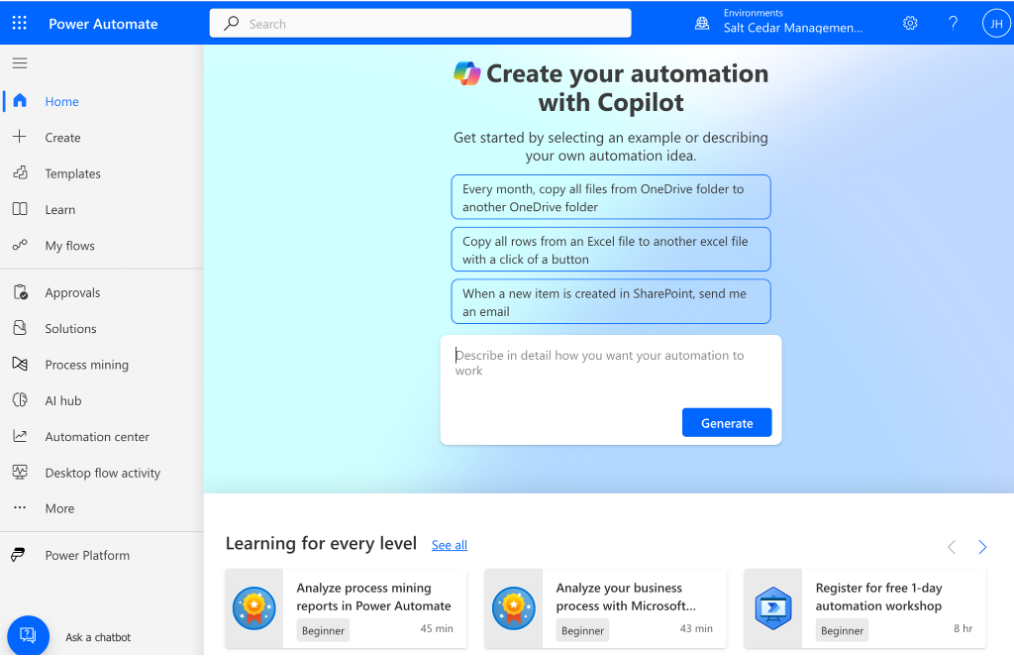
Click on Power Automate to open it. The first time you open it, you might see a brief tutorial. Feel free to go through it or click Skip if you prefer to dive right in. When the whole app opens, you’ll see a welcome screen with templates and suggestions.
Power Automate’s Home screen is brimming with suggested flows and tutorials.
Jonathan Hassell / Foundry
Take a moment to look at the left navigation bar: this is where you’ll find your flows, templates, and connections later.
Your first automation: Email filing
You probably noticed in the previous screenshot that Copilot, Microsoft’s generative AI tool, is now integrated with Power Automate. That means you can describe an automation you’d like to create in natural language, and Power Automate will generate a flow based on your prompt. But Copilot isn’t available to all Power Automate users, and it’s helpful for everyone to know how to build a flow from scratch; that’ll make it easier to adjust and improve any AI-generated flows.
So, let’s start with something everyone needs: automatically organizing emails. Let’s assume you’re in charge of receiving applications for something at work — maybe it is an internship, or perhaps you’re running a scholarship program and you are managing the entries. I’ll show you how to create a flow that stores files attached to emails in SharePoint and tracks them in a neat, centralized list. This is a perfect first flow because it’s both useful and teaches several important concepts.
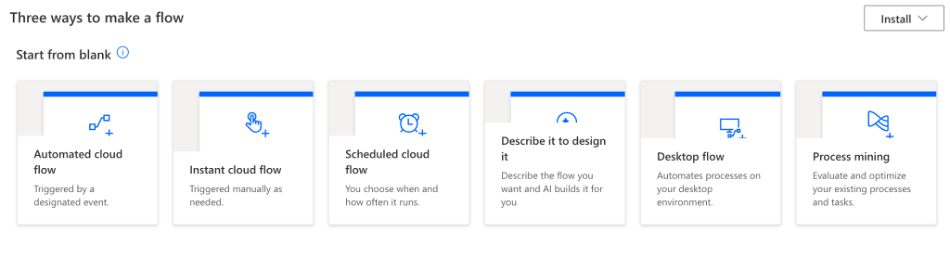
From the Power Automate home page, look for the button in the left navigation bar labeled Create and click it. (You can alternatively click My flows first, then look for the New flow button up top.)
You’ll see several options. For this flow, we want the whole automation to run without us having to start it, so select Automated cloud flow.
Choose Automated cloud flow on the left for your first flow.
Jonathan Hassell / Foundry
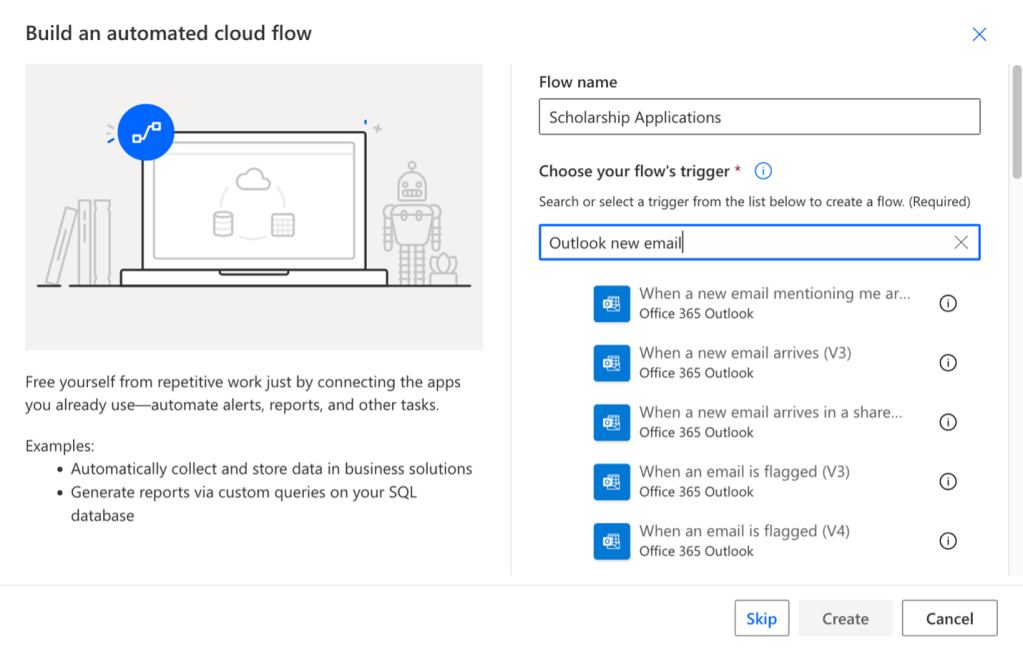
This opens the flow creation wizard. Name your flow Scholarship Applications.
Next, you choose a trigger, which is the event that will start your flow. In the trigger search box, type Outlook new email and select When a new email arrives. You will be able to add conditions to make it more specific later.
Name the new flow and choose a trigger.
Jonathan Hassell / Foundry
Click Create to continue. The trigger appears in the middle of a blank canvas in Power Automate.
Next, we add steps. The flow executes one step at a time, and each step is an action that the flow will perform once triggered. But first we need to configure the start of our sequence and add a couple of parameters so we can nail down which types of emails we’re looking for and what about them we want Power Automate to do.
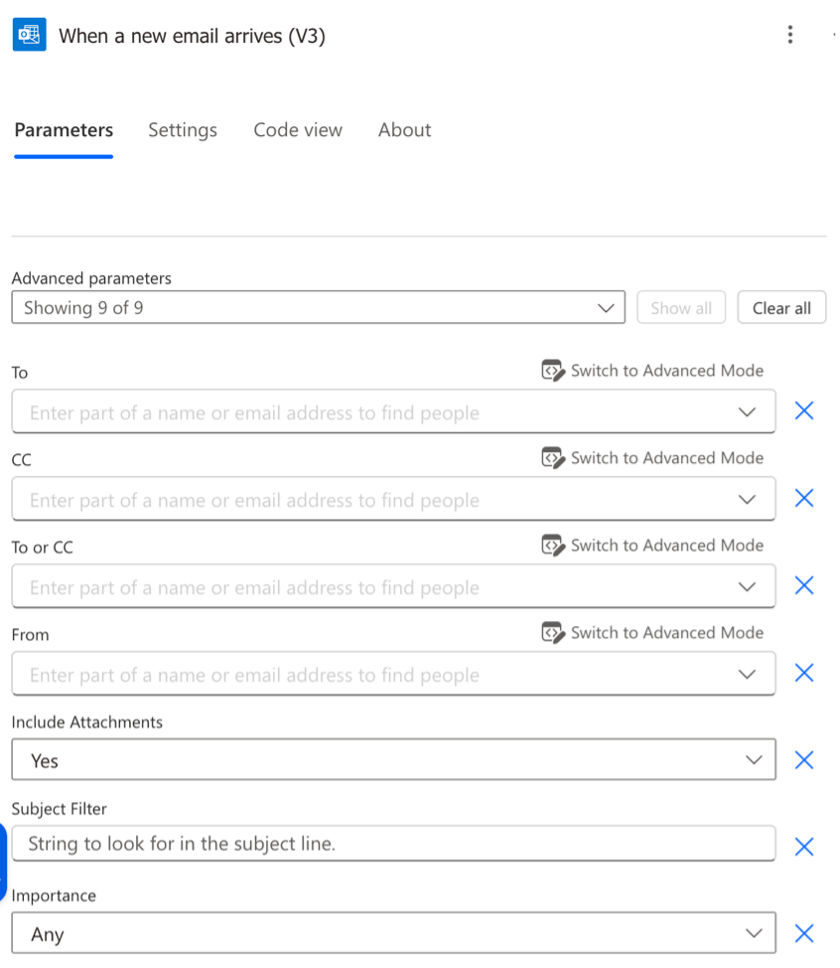
Click the When a new email arrives trigger and look at the parameters tab. You’ll want to add four important advanced parameters, which you’ll be able to see in the window by clicking Show all.
Adding advanced parameters to the new email trigger.
Jonathan Hassell / Foundry
You want to add the following:
Include Attachments: set to Yes
Subject Filter: type in Scholarship application
Folder: set to Inbox (click the folder icon and select Inbox from the pop-up menu)
Then just click back over on the canvas area to save those changes.
Let’s keep adding actions. Click the + sign below your “When a new email arrives” trigger, and the “Add an action” pane appears.
Let’s add our new action by searching for Create item. It will have the SharePoint logo attached to it to let you know it’s related to SharePoint Online. Click on Create item to add it to your canvas.
Adding an action after the trigger will tell the flow what to do next.
Jonathan Hassell / Foundry
Now you can configure the action a little more granularly. You need to give the SharePoint Create item action a couple of parameters, because otherwise it won’t know what SharePoint site you want to use for this flow, nor will it know which list to use and augment as new emails and attachments arrive.
Go ahead and select the SharePoint site you want to use, and then select the list you want for this flow. You might need to go over to your SharePoint site first and create a new list for use with this flow; once you do, it should appear in a drop-down list automatically when you click the List Name field. (It may take a few minutes to show up.) You’ll also want to add a text column in your SharePoint list called “Message Content” — this is where the automation will store the body of the email message for you.
You’ll also want to add a couple of advanced parameters to your Create item action:
Click Show all to show the choices.
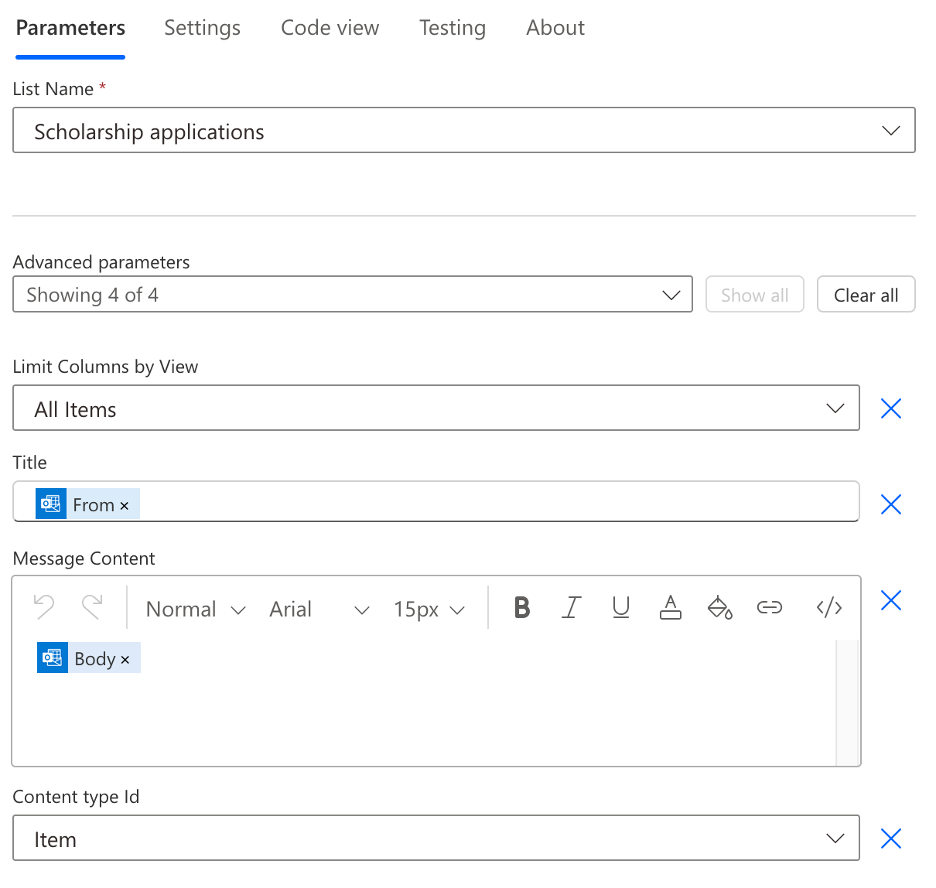
Under Limit Columns by View, select All Items.
Under Title, type / (slash) and select Insert dynamic content from the pop-up menu. On the pane that appears to the right, select From under “When a new email arrives.”
Under Message Content, type / and select Insert dynamic content, then select either Body or Body Preview under the Outlook “When a new email arrives” list in the pane on the right. (Body Preview might not be immediately visible. To find it, type body in the search box up top and it will appear among the options.)
Under “Content type Id,” select Item.
Setting up advanced parameters of the SharePoint action item.
Jonathan Hassell / Foundry
Click the canvas to close the parameters screen and save your changes.
Next, we need to add a condition. A condition affects the behavior of an action when another factor is true or false. In this case, we want the condition to say that the next two actions have output from the previous action applied to them — specifically, we want the attachment from the new email received to be applied to each of our next two subsequent actions.
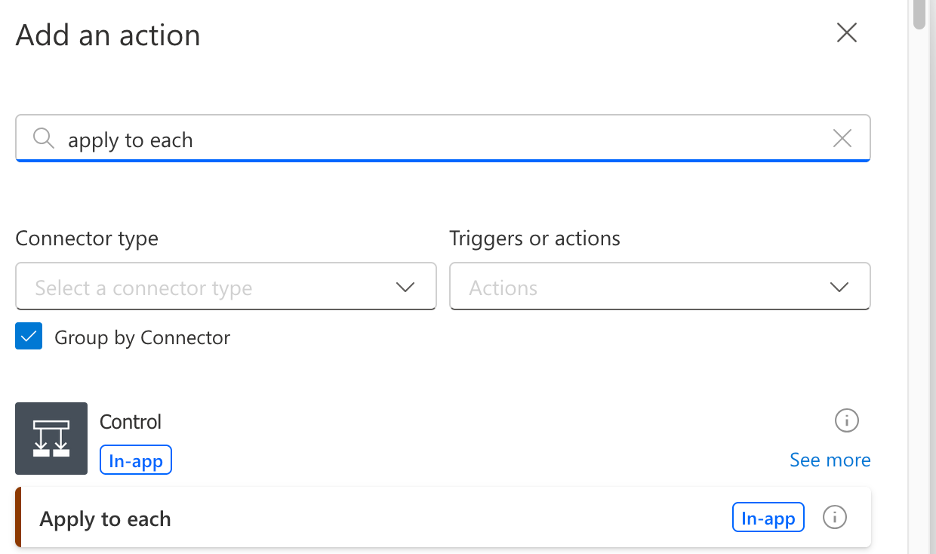
Click the + sign under the Create item action. On the “Add an action” screen, search for apply to each and then click the Apply to each option that comes up under Control.
Adding an “Apply to each” control.
Jonathan Hassell / Foundry
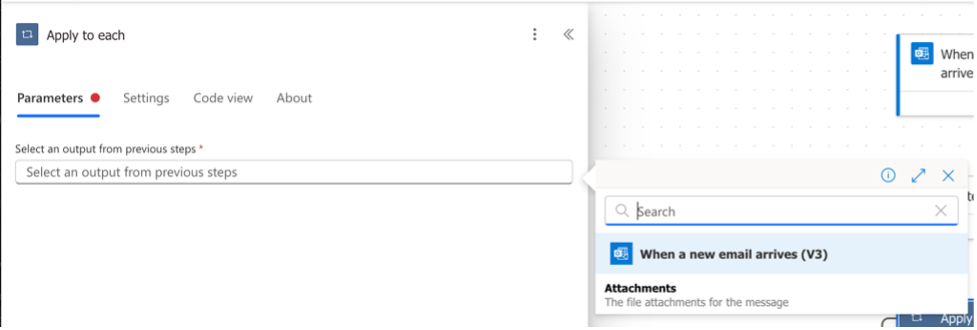
In the “Select an output from previous steps” field, type / and select Insert dynamic content, then select Attachments to the right. This tells Power Automate to use the attachment for each of the next actions it’s going to take.
Attaching the attachment to the next actions.
Jonathan Hassell / Foundry
Click on the canvas to save the “Apply to each” control. At this point, your flow should look like the figure below.
Our flow now has a trigger, an action, and a condition.
Jonathan Hassell / Foundry
Next, click the + sign below the “Apply to each” action and add another action. (This ought to be a pretty familiar routine for you at this point.)
Here, we need to get the attachment — but we need to use the Outlook “Get Attachment” and NOT the SharePoint “Get attachments.” This is a key distinction. So when you search for get attachment, make sure to pick the one in the Outlook subsection.
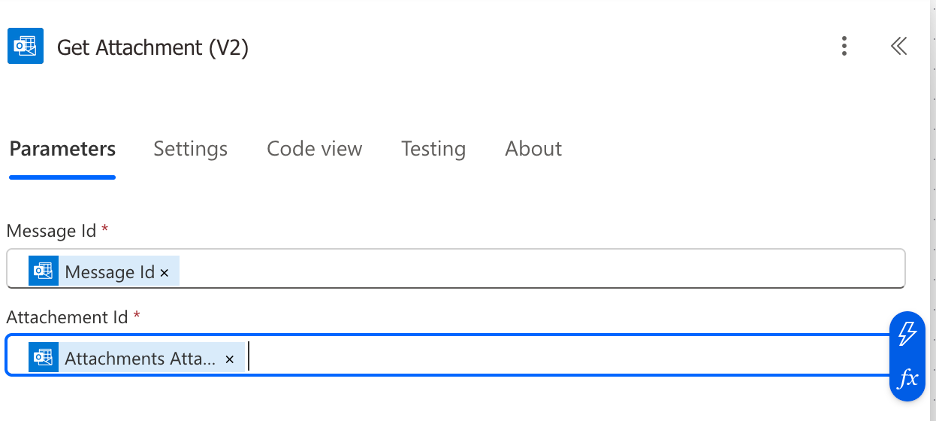
Then, in the parameters section, hit / and choose Insert dynamic content in each field, and add Message Id to the Message Id field and Attachments Attachment ID to the “Attachement [sic] Id” field. Both of these items are under the Outlook “When a new email arrives” list in the pane that appears on the right, but they might not be immediately visible. To find them, type the first few letters of each in the search box up top and choose the item from the list that appears.
Filling out the parameters for the Get Attachment action.
Jonathan Hassell / Foundry
Click back on the canvas when you’re done to save your changes.
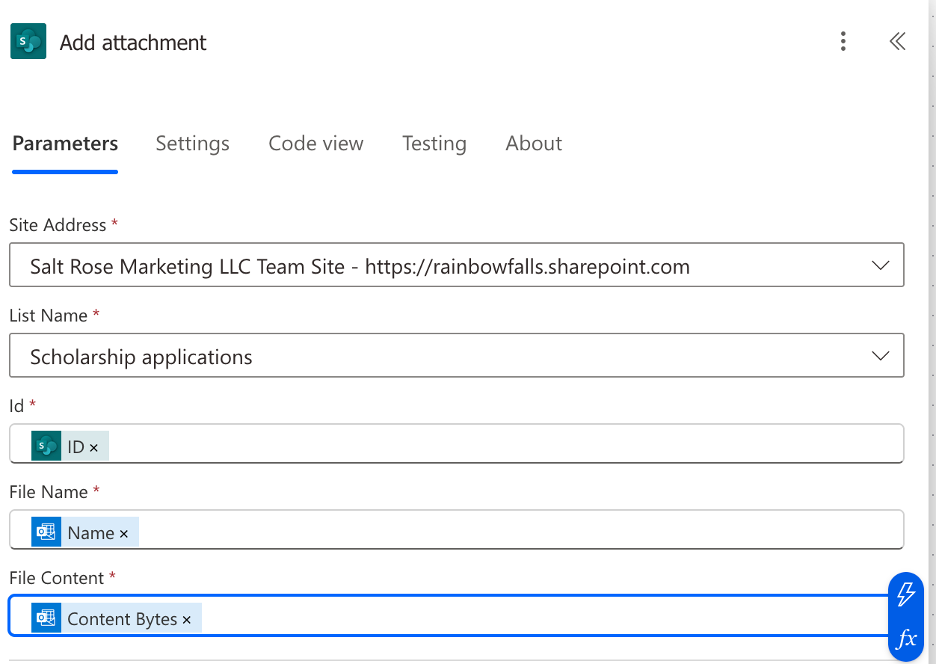
Now, for the final action, click the plus sign below the Get Attachment item, search for add attachment, and choose Add attachment from the SharePoint list. Here, you need to add parameters again, which you should be getting used to as well. You’ll want to add:
Site Address: pick your SharePoint site.
List Name: pick the SharePoint list.
Id: hit the / key, choose dynamic content, and select ID from the SharePoint list.
File Name: hit the / key, choose dynamic content, and then choose Attachments Name from the Outlook list.
File Content: hit the / key, choose dynamic content, and then choose either Content Bytes or Attachments Content from the Outlook list.
Filling in the parameters for the “Add attachment” action.
Jonathan Hassell / Foundry
Finally, click Save in the top right of the overall Power Automate window to keep the flow saved in your account. The final flow should look like this:
Your flow is now ready to test. Use the Test button to try it out. You’ll be asked how you want to test — select Manual, and then send yourself an email with an attachment and put “scholarship application” in the subject line. The flow will report back to you onscreen and show you how long it took to process and what happened at each step.
Note: you may receive errors about a duplicate filename. This relates to the fact we’re not trying to rename individual attachment names when we save them into SharePoint, so if you get a bunch of PDFs from different individuals all called “application” or something similar, Power Automate is telling you the names are duplicated and it isn’t renaming them. This is fine for our purposes, since we are saving the attachments to individual list items, so we’ll always know who they’re from regardless of the filename.
Other errors may result from how your specific Microsoft 365 tenant is configured, but you can often find a workaround. For example, using the Body item in the Message Content field in this flow works fine in my tenant, but when my editor tested it in her tenant, the flow failed, flagging ‘item/MessageContent’ as the source of the error. When she substituted Body Preview in that field, the flow ran flawlessly. So if you hit an error when you start building your own flows, it’s worth looking for a similar item you can substitute.
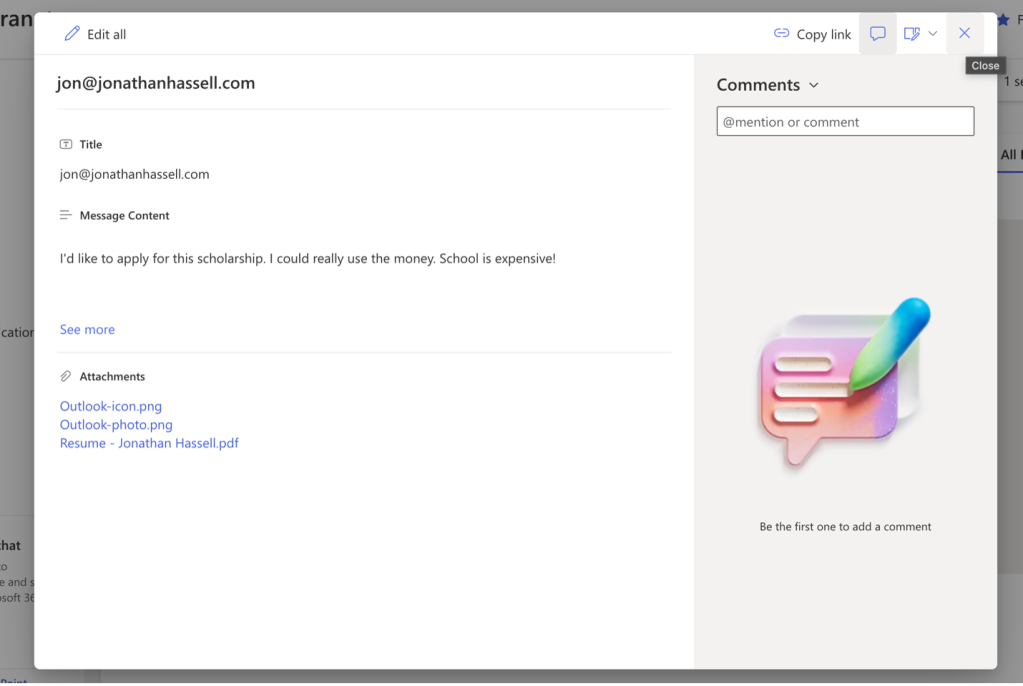
You’ll know the flow is working when you get green arrows at each step. You can also head over to your SharePoint list, and you should see your message added to the list. The email address of the sender will be in the first column, the message body in the second, and then when you click the individual item, you’ll see the attachments listed there — just click on them to open them up.
Viewing the final result of the automation in SharePoint.
Jonathan Hassell / Foundry
Voila! You’ve just made your first flow and organized a bunch of stuff out of your inbox into a single place where you can share the load with co-workers.
Adding AI power: Copilot and AI Builder
Now let’s make things really interesting by adding artificial intelligence to your flows. This is where automation becomes truly powerful, handling tasks that traditionally required human review.
In this example, let’s ask Copilot to create a flow that automatically processes invoices using AI Builder, a Power Platform feature that creates AI models that automate your business processes. What’s cool about this example is that you’re going to build it simply by describing what you want in natural language, and as part of the resulting flow, Power Automate will integrate AI Builder actions, which use generative AI to review and extract information from existing data and then do something with it.
Note: You’ll need an AI Builder credit allocation or a premium Power Automate license to work with this section.
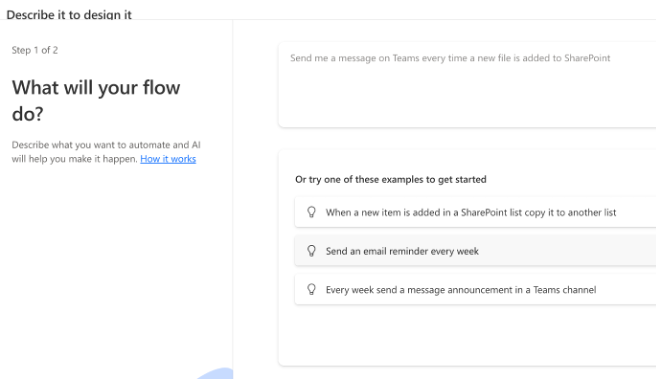
Create a new flow in Power Automate, and then click Describe it to design it. You’ll get the following screen as a result:
Type in natural language to have Copilot generate a workflow based on your prompt.
Jonathan Hassell / Foundry
Now, in the large box in the center of the screen, just describe the flow you want to create. I’ll give you some language here, which you can either cut and paste yourself into the wizard, or you can change any part of it you like simply by customizing the prompt.
Example: When a new invoice file is created in SharePoint, I want to use AI Builder to extract information from the invoices. Specifically, I want to extract the invoice number (highly recommended), date, total amount, vendor information, and line items (if needed). Once that information has been extracted, I want the information to be added to a list in SharePoint, with the AI-extracted fields mapped to list columns, and also including the processing date and status. I also want to send an email to accounting to notify them of the presence of the invoice, and that email should include extracted data in the email body, have the original invoice file attached, and should also have links to the SharePoint entry. I also want some error handling to check if AI extraction succeeded, and if it didn’t, I want an email to notify me of the failure and also to create a task for manual review.
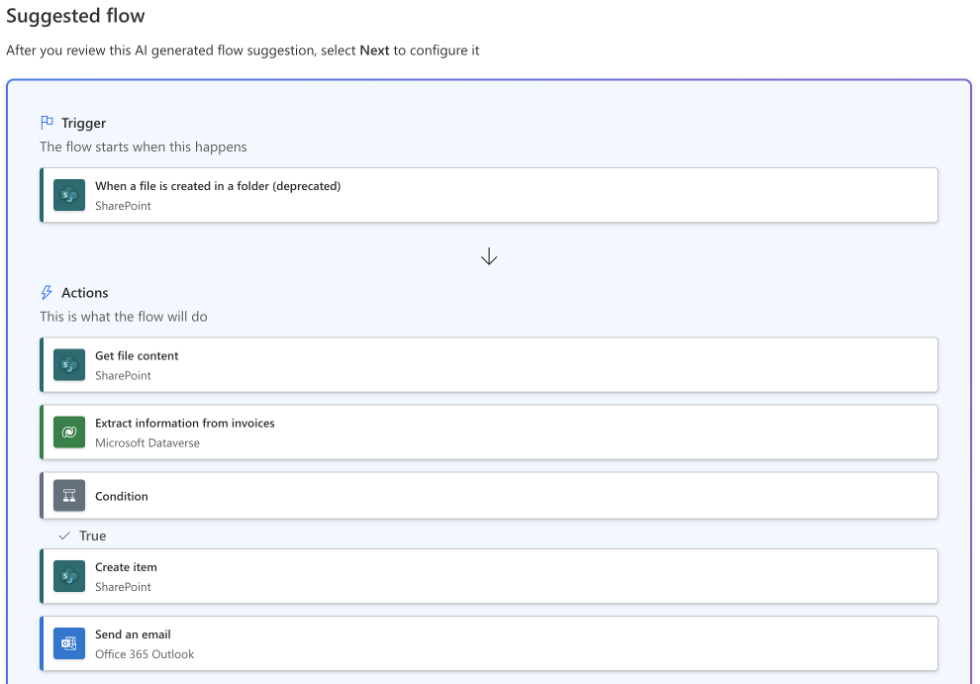
Once you’ve got the prompt set, click the arrow at the bottom right of the prompt window to enter it. Depending on how you customized your prompt, you’ll get something like the following flowchart, reflecting Power Automate’s interpretation of your prompt:
You can take an AI-generated flow and then expand and fine-tune it.
Jonathan Hassell / Foundry
That’s it! You can click Next below the suggested flow and then click each action as we did before to configure the specific SharePoint libraries, lists, and files involved as well as the email contents and bodies.
Making your flows reliable
Reliability is the cornerstone of successful automation. While creating flows is exciting, ensuring that they continue to work flawlessly is what separates effective automation from frustrating setbacks. Let me walk you through how to build robust, dependable flows that you can trust.
First, think about error handling as you build your flow. After each major action, take a moment to consider what might go wrong. Maybe an email won’t send, a file won’t upload, or data won’t process correctly. These potential failure points need safeguards.
This is where Run after settings become your best friend. You can create an action that responds to what happens during a previous step in the sequence: when the step is successful, when it fails, when it’s skipped, when it times out, or some combination of the above. Think of this as your flow’s safety net.
For example, you could set up an action that sends you an email notification if a previous action fails, is skipped, or times out. Click the + sign after an action to add a new step. Search for and select Send me an email notification. Type in a subject line for the notification (which could include the Subject line from the original email, via the / key, dynamic content pane) and some body text indicating that the flow did not complete successfully.
Next, right-click the new action in the flow and select Run after from the pop-up menu. The action’s pane opens to the Settings tab. Scroll down to the “Run after” section. You’ll see the name of the action immediately above it in the flow. Click that action to expand it, then check Has timed out, Is skipped, and Has failed. Uncheck Is successful.
If you like, you can add other previous actions to this list by clicking Select actions and selecting the actions you want, then expanding and checking/unchecking the status options under each action. In this way, you can set up a single “Run after” step for all the previous actions in a flow, or you can create different “Run after” steps for different actions in the flow.
By setting up “Run after” responses, you’ll be prepared when something does go wrong. Set up notification actions to alert you immediately if a step fails. Create incident tickets so your team can track issues. Keep a log of errors in a spreadsheet for pattern analysis. And don’t forget about retry logic — sometimes a second attempt is all that’s needed to succeed.
Parallel branches are another powerful tool for reliability. By clicking the + symbol between steps and choosing Add parallel branch, you can create simultaneous operations. This is perfect for running independent processes, maintaining backup procedures, or sending out secondary notifications. Think of it as having multiple backup plans running simultaneously.
Finally, let’s talk about monitoring — your early warning system for potential issues. Create a daily monitoring flow that runs automatically. Have it check your flow history and look for any failures. Set it up to send you a daily digest summarizing what’s working and what needs attention. Include success rates so you can spot trends before they become problems.
Your monitoring system should also include smart alerts. Set up notifications for critical failures that need immediate attention. Configure warnings when performance starts to slip. Track usage statistics to ensure you’re making the most of your automation resources.
Remember, reliability isn’t about preventing every possible problem — it’s about having systems in place to catch issues early and resolve them quickly. With these practices in place, you can build flows that don’t just work today but continue working reliably long into the future.
The last word
Microsoft Power Automate provides a service like Zapier and IFTTT that is well integrated with both Microsoft 365 and many other popular cloud services used by individuals and businesses alike. While I’m not exhaustively comparing Power Automate to IFTTT and Zapier, Microsoft shops and especially organizations already in bed with Microsoft 365 may find integrating flows into their daily work easier and more user-friendly.
Whatever the situation, using flows can mean the difference between forgetting subtle but critical details in business workflows and having all of your bases covered.
This article was originally published in October 2019 and updated in March 2025.
Windows comes loaded with a lot of applications, but to be honest, they aren’t all the best. There are better tools out there, and you don’t have to spend any money to get them.
These are must-have applications I always find myself installing on any new PC –— they’re all free, open source, and will instantly upgrade any Windows experience. Even better, they can boost your productivity at work or just streamline the way you use your PC at home.
Each of these is also lightweight and bloatware-free: No annoying features that get in your way, no ads bothering you, and no heavy application grinding away slowly while you wait for it to open — just a collection of useful, community-created tools that respect you and do their jobs well. Now, this is what PC computing was meant to be.
Everything is the best file-search tool on Windows, hands down. Unlike the built-in file search feature in the Start menu or File Explorer, Everything finds, well, everything, in an instant. And while those search results are just for file names, it’s still an incredibly fast and lightweight way to find anything on your PC. I find it absolutely indispensable.
Everything is the best Windows file search tool — bar none.
Chris Hoffman/IDG
2. PowerToys (especially PowerToys Run)
Microsoft PowerToys is an incredible collection of tools I recommend to everyone. There are so many useful PowerToys in this package, and many of them feel like upgrades to built-in Windows experiences — like the “Advanced Paste” tool that lets you convert text you copy from Microsoft Word to Markdown formatting as you paste it to FancyZones (which is basically the Windows “Snap” feature on steroids).
But the best upgrade in the package just might be PowerToys Run. It’s an alternate launcher for Windows — you could use it instead of the Start menu, pressing a key combination (like Windows+Space) to open it.
And, unlike the Start menu, PowerToys Run actually respects your choice of default web browser and search engine, rather than forcing you to use Bing and Edge. That’s reason enough to use it, though it can also do so many other things — such as finding notes in your OneNote notebooks, switching to windows by their name, searching your browser history, and more.
PowerToys Run is the launcher Windows should include.
Chris Hoffman/IDG
3. Open-Shell (but Start11 is more polished)
Don’t like the standard Windows Start menu? Open-Shell is a completely free, open-source replacement that will work well on both Windows 10 and Windows 11.
That said, Open-Shell isn’t the most feature-filled application. Start11 is definitely the best Start menu replacement — if you’re willing to spend $10 to $15. (It’s the one application I’m mentioning here that isn’t open source, but it’s inexpensive and very polished.)
Whichever option you choose, you can customize and personalize your Start menu — and you won’t see ads or forced changes as Microsoft keeps updating Windows and tweaking the menu. It’s a great way to make Windows 11 behave more like Windows 10, too.
4. EarTrumpet
Do you find yourself adjusting the volume of individual apps? I do — especially when participating in online meetings. Windows has this functionality, but it takes a few clicks and some scrolling to find.
EarTrumpet makes it much easier. After installing it, you’ll get a convenient system tray icon where you can access application volume sliders in just a single click. Simple.
EarTrumpet lets you control application volumes in a snap.
Chris Hoffman/IDG
5. ShareX (or Greenshot for quick screenshots)
The Windows Snipping Tool is getting pretty good, especially on Windows 11, where it also has built-in screen recording features. But ShareX is still more powerful — and it also brings easy screen recording to Windows 10.
ShareX is packed with useful features. It can take a scrolling screenshot of a document, or record a video and save it as an animated GIF. It lets you annotate images — and you can even configure it to automatically upload the images you capture to a server when you’re done. It’s a serious power-user tool for capturing screenshots.
Greenshot, another classic screenshot tool, is still a great pick for quick screenshots. However, it’s no longer actively updated like ShareX.
6. Sumatra PDF
Sumatra PDF is an incredibly lightweight app for viewing PDF files. It launches with lightning fast speed, and it’s a nice minimal tool. It doesn’t include the serious security features Adobe uses to “sandbox” PDF code, but it doesn’t need to. Instead, Sumatra PDF stays secure by refusing to support scripting and other advanced document features that make PDFs more like web pages than traditional documents.
In other words: If you want to complete an interactive government form with built-in code, you’ll want another PDF reader. But if you just want to read a PDF document the old-fashioned way? Sumatra PDF is perfect — and fast.
Sumatra PDF helps you avoid those PDFs getting lost in a pile of browsers, too. It can even read eBook files!
For simple and minimal document viewing, Sumatra PDF is the best.
Chris Hoffman/IDG
7. NanaZip (or 7-Zip)
7-Zip is a classic free file archiver tool — a nag-free alternative to WinRAR and WinZip. It can open nearly anything you can throw at it, including RAR files, 7Z files, and TAR files. But 7-Zip is getting a little long in the tooth, and it shows — the interface just feels outdated.
That’s one reason why I prefer NanaZip, which is based on the same underlying 7-Zip code, but offers a more modern interface that feels at home on the latest version of Windows. More importantly, NanaZip automatically updates itself, unlike 7-Zip, ensuring you’ll always have the latest security patches installed without micromanagement.
8. Notepad++
The classic Notepad application is much too basic. On Windows 11, it’s more powerful with features such as tabs — but it also asks you to sign in with your Microsoft account. It’s weird.
Notepad++ is a major upgrade. This lightweight text editor has tabs — even on Windows 10 — and it sports syntax highlighting for programming and scripting. It’s useful even if you just need to tweak HTML regularly, like I do, and the Find and Replace feature works well. Plain and simple, it’s packed with useful features that will come in handy for when you need to work with plain-text files.
Notepad++ is the best plain-text editor for Windows PCs.
Chris Hoffman/IDG
9. Paint.NET
Microsoft is making Paint more powerful, but if I am being honest, it is starting to feel like an AI image generation playground. Paint.NET, on the other hand, is an incredible tool and a secret weapon I’ve used my entire career: a completely free, easy, and lightweight way to quickly edit images and screenshots.
Microsoft’s bundled Media Player app is fine, but VLC media player is even better. It can play nearly any type of video or audio file you throw at it — no configuration necessary. It’s also jam-packed with useful features, but you don’t have to use them. Out of the box, it’s just a simple, practical media player.
And if you still have a local music library? MusicBee is the best library-style player for managing that MP3 collection.
More classic Windows-tweaking apps
There is no need to settle for a PC that doesn’t work exactly how you want it — sometimes, all you need to take your PC to the next level is knowing where to look for the right apps. For more ways to improve your Windows experience, check out this guide on the easiest way to install apps on a new Windows PC.
Want even more Windows productivity and tweaking tips?Sign up for my free Windows Intelligence newsletter. I’ll send you three new things to try each Friday. Plus, you’ll get free copies of Paul Thurrott’s Windows Field Guides as a special welcome gift.
New PCs introduced Tuesday by Dell sport high-powered Nvidia GPUs designed to help workers test AI models before deployment.
The new AI PC lineup includes laptops and desktops with Nvidia’s latest Blackwell Ultra and Blackwell GPUs, which provide the muscle needed to test compute-intensive AI models. AI PCs are designed to run generative AI tools and models more efficiently than standard PCs.
“These AI developer PCs will make it much easier for developers to prototype, to test and even scale their models into production environments,” said Kevin Terwilliger, vice president and general manager for consumer, commercial and gaming PCs at Dell.
The announcement coincides with Nvidia’s rollout of its latest GPU Blackwell Ultra at the GTC conference in San Jose. The GPU is the successor to the red-hot Blackwell GPU, which racked up $11 billion in sales in the most recent quarter.
The Pro Max series of workstations bring hardware previously used in data centers to desktops. “These systems will redefine AI developer experiences by really bridging the gap between desk side experimentation and enterprise scale AI deployment,” Terwilliger said.
The new Pro Max with GB300 packs the tightly coupled Blackwell Ultra GPU and Grace CPU, both made by Nvidia. It includes 784GB of unified system memory — 288GB HBM3e memory and 496GB of LPDDR5X memory.
Developers can test and prototype AI models with up to 460 billion parameters on the Pro Max with GB300. The system delivers 20 petaflops of performance with the FP4 data type, which is a low-precision measure for inferencing.
The Pro Max with GB10 includes Nvidia’s Blackwell GPU — a generation behind the Blackwell Ultra — and the Grace CPU. Developers will be able to work with AI models with up to 200 billion parameters on a PC that delivers 1 petaflop of FP4 performance.
The systems are slated to be available later this year, include Nvidia’s DGX Base OS or Ubuntu Linux, and will be preconfigured with Nvidia’s AI software.
Desktop prototyping makes it easy to determine the size and performance of AI models, according to Terwilliger. “Once you right size it for the data set, then it’s appropriate to then scale it into the data center,” he said.
Some Dell customers need a secure test environment where they can tune some of their own data, said Matt Toolan, a Dell spokesman. For example, customers have tested different digital assistants to determine whether chat capabilities and responses were meaningful and on target, Toolan said.
Anshel Sag, principal analyst at Moor Insights and Strategy, was skeptical about Dell’s claim of using Pro Max PCs to scale AI models to data centers.
Instead, the AI tools more about making the deployments of on-device AI smoother, Sag said. “I don’t really think PC workloads are really useful for data-center scale deployments. I do believe Dell is uniquely positioned to enable hybrid AI that are entirely on-premise,” Sag said.
Dell also announced Pro Max laptops with RTX Pro GPUs based on the Blackwell architecture. The company claimed the PCs will be up to 36% faster than the previous-generation Precision PCs.
The Dell Pro Max laptops have “tandem” OLED displays, haptic touchpads, lattice-less keyboards and 8-megapixel IR cameras. The systems come with Intel Core Ultra Series 2 or AMD Ryzen processors, offer screen sizes from 14-in. to 18-in., and will ship later this year.
Dell did not provide pricing information for the systems.
If you’re looking for an AI PC, why wouldn’t you be looking for a Mac?
After all, Apple’s systems are built for privacy and security and, thanks to Apple Silicon, are now quite capable of running big generative AI (genAI) models swiftly in-house — and at a fraction of the energy costs of Windows-based systems. While a move to Apple won’t suit every company or even every situation, it’s absolutely true that the platform is a viable one for AI, and has remained so for some time.
To understand how viable Macs are for running AI in your business, consider the recently-launched M3 Ultra Mac Studio. Apple made impressive claims for these systems on launch. It told us its highest-end Mac Studio was 16.9 times faster than the M1 Ultra Mac Studio at generating tokens using a large language model (LLM) with hundreds of thousands of parameters. That neat claim was recently put to the test when YouTuber Dave Lee showed us that the most highly specified M3 Ultra Mac Studio is capable of running a 671-billion-parameter AI model natively on the system at under 200 watts of energy. (He used DeepSeek RI, of course.)
A supercomputer on your bookshelf
That’s an amazing statistic; it means you can run a powerful genAI models using DeepSeek on a system that fits on a shelf above your desk, which must be a compelling proposition to any enterprise purchaser considering deployment of an in-house self-hosted system for AI. It’s even more impressive when you consider that comparable performance on traditional PCs would require multiple GPUs and consume 10 times as much energy.
(You might be able to find some way to put together a PC-based cluster to deliver the same kind of performance, but it is arguable that you’ll still spend the $14,000 you’d need to drop to get the most powerful Mac desktop. (In some cases, you might not need quite as much of a system.)
What this all means — or should mean — is that the enterprise landscape is ripe for Apple. After all, the company’s devices are private by design, secure by nature, and deliver performance and energy consumption advantages other PCs at the same price points don’t match. Not only do they deliver this, but they also have the processor horsepower it takes to run AI natively.
If you just need to run smaller AI models, then an M4 MacBook Air also has you covered, allowing most businesses to now consider Mac-based and self-hosted AI deployments for a range of use cases.
Apple, the perfect endpoint AI solution
While buffeted by bad news elsewhere in its business, the Mac has become a bright star for Apple, thanks to Apple Silicon. While Apple Intelligence might have let the company down, Apple Silicon has not. That matters quite a lot, given a recent report from IDC Research claiming that four-in-five (80%) of PCs sold this year will be AI PCs, though there are some challenges to that.
Apple helps meet those challenges, of course. IDC’s survey revealed that while nearly all organizations are using or intend to use cloud-based AI platforms, the security and data privacy inherent to these systems remains the biggest challenge to broad deployment, even more than cost.
While most business users are looking at the ever-expanding plethora of enterprise-focused cloud-based AI systems, they are really concerned about what happens to their data when shared in the cloud, particularly in regulated industries where compliance matters, such as healthcare.
That’s driving many enterprises seeking to deploy AI to search for solutions that let them deploy genAI tools on endpoints — self-hosted AI that runs natively on a device they own and have in their own office, in other words.
That, of course, is what Apple’s Macs — and certainly its Mac Studio — are more than capable of doing.
AI models for the few
There’s a lot more to running AI in business than text summaries, automated writing tools, Microsoft Copilot, or even super-smart Webex AI bots; enterprise users are seeking to build or buy their own bespoke AI packages capable of learning from their own heavily curated business data and helping them with their business. That’s not software that necessarily comes in a box (digital or otherwise), but is software that, at best for ultimate privacy and security, runs natively on the device.
AI PCs — devices that directly integrate AI capabilities into hardware and software — are rapidly taking over the PC market; some analysts have gone so far as to designate 2025 the “Year of the AI PC.”
HP is the latest vendor to join the fray. It announced today at its HP Amplify 2025 partner conference that it has completely redesigned its mobile and desktop computers to meet the demands of mainstream enterprise workers, and its fully revamped portfolio is now populated with AI PCs.
“The way we work now is more demanding than ever,” Cory McElroy, HP’s VP for commercial product management, said in a press pre-briefing. “The expectations are different. It’s not enough that devices work well; we need our devices to anticipate our needs and actually help us through our day-to-day.”
The new enterprise devices include both laptops and desktops. Here’s a brief look at the offerings:
ProBook 4 AI PCs
The HP ProBook 4 G1i and ProBook 4 G1a (the “i” and “a” indicate whether the device is powered by an Intel or AMD processor) target remote workers and road warriors who, HP said, “need to get productive with advanced tech, AI workstyles, and multilayered security.”
They offer up to 32GB SDRAM and up to 1TB of storage, with the option to add a second SSD of up to 256GB to the AMD version. Each processor version can be configured with a 14 inch or 16 inch display.
EliteBook 6 AI PCs
The EliteBook 6 G1i and EliteBook 6 G1a are designed for frontline professionals and office support staff, HP said, and offer multiple display sizes: 13 inch, 14 inch, and 16 inch screens for the Intel model, and 14 inches or 16 inches for the AMD versions.
Although they don’t qualify as Copilot+ PCs, they are robustly configured with up to 64GB of DDR5 SDRAM and up to 2TB of storage.
Both Intel and AMD models are equipped with enhanced conferencing and collaboration features, including Poly Camera Pro, which now uses the NPU for many of its advanced features to save power.
EliteBook 8 AI PCs
The EliteBook 8 series offers neural processing unit (NPU) options capable of up to 50 trillion operations per second (TOPS), qualifying some models to be designated Copilot+ PCs and, HP said, providing up to 224% better power efficiency and 43X faster AI image generation than previous generations without NPUs. The series offers up to 64GB DDR5 memory, up to 2TB of storage, and, as with all of HP’s PCs, endpoint security is built in.
McElroy pointed to “new levels of serviceability and intentional design,” as the mobile devices are modular. “Once the bottom cover is removed, vertical components such as battery, fans, storage or other key elements can be much more easily removed than in previous traditional designs,” he explained, to make it easier for enterprise IT to maintain the devices.
HP’s desktop series, EliteDesk 8, is now AI-powered as well, and the company also said it is the world’s first business desktop PC portfolio to protect against quantum computer hacks.
Further, the new HP EliteStudio 8 AiO G1i is the first commercial all-in-one PC with integrated keyboard-video-mouse (KVM) ability through HP Device Switch, allowing users to control, toggle between, and manage multiple devices via a single console. HP calls it an ideal tool for employees constantly moving around the office.
Select models of EliteBook, EliteDesk and EliteStudio also qualify as Copilot+ PCs, making them particularly appealing to enterprise buyers looking to refresh to Windows 11. Microsoft has strict requirements for machines designated Copilot+ PCs: They must run Windows 11, have an NPU capable of 40-plus TOPS, at least 16GB of RAM and a minimum of 256GB of solid state drive (SSD) storage or universal flash storage (UFS).
An onboard ‘AI Companion’
The new devices come with a built-in ‘AI Companion’ that can retrieve, filter and summarize files and create content, among other tasks, all without the need for an internet connection.
Users can leverage the AI Companion in two ways: In ‘on-device’ mode, the companion uses a local large language model (LLM) for the most private AI experience or when the user needs to work offline, McElroy explained. Alternatively, they can switch to ‘cloud mode’ when they need the “latest and greatest” from industry-leading models online.
The companion allows users to snip an image from their screen and use that snip as a prompt. Other new capabilities planned for the spring include what HP called “intuitive voice and text commands,” and built-in keylogger protection to help keep data secure.
“When you have the right tools, work doesn’t have to feel like work,” McElroy noted. “By enabling new AI experiences, new ways of working and the ability to do things faster, we’re powering dynamic change so the entire company can be more productive and fulfilled for their day to day.”
A recent Windows 11 security update is causing unexpected issues for enterprise customers, including the unintentional removal of Microsoft’s Copilot AI assistant from affected systems, creating potential workflow disruptions for organizations that have integrated the AI tool into their operations.
The update, KB5053598 (OS build 26100.3476), released during March’s Patch Tuesday, applies to all editions of Windows 11 version 24H2 and was primarily intended as a security fix. However, Microsoft has acknowledged it contains a flaw that causes the Copilot app to be “unintentionally uninstalled and unpinned from the taskbar” on some devices.
“We’re aware of an issue with the Microsoft Copilot app affecting some devices. The app is unintentionally uninstalled and unpinned from the taskbar,” Microsoft said in an advisory.
Impact on enterprises
For organizations relying on Copilot integration, Microsoft recommends that affected users reinstall the app from the Microsoft Store and “manually pin it to the taskbar” while a permanent fix is developed.
The company clarified that the Microsoft 365 Copilot app remains unaffected by this issue, which may provide some relief to enterprise customers who have invested in the premium AI assistant version.
More concerning for enterprise IT administrators, the update conflicts with Citrix Session Recording Agent (SRA) version 2411, potentially removing January 2025 security updates from systems running this enterprise software.
This regression in security posture could leave systems vulnerable to already-patched exploits, creating additional workload for IT departments that must now carefully manage the update process.
“Devices that have certain Citrix components installed might be unable to complete installation of the January 2025 Windows security update,” the advisory added. Affected systems may initially apply the security update but fail during restart with an error message stating, “Something didn’t go as planned. No need to worry – undoing changes.”
This issue presents a significant challenge for enterprise customers who rely on Citrix virtualization solutions. IT departments must now choose between maintaining security patches and ensuring the operational continuity of critical business applications.
However, the software major stated that this issue likely affects a “limited number of organizations as version 2411 of the SRA application is a new version.”
The company emphasized that home users are unlikely to be affected by Citrix-related problems, as the software is primarily deployed in enterprise environments.
Broader implications
The incident highlights the ongoing challenges of maintaining operating system integrity while rapidly deploying new features and security patches. For enterprise customers, who often maintain strict change management protocols, unexpected application removals, and conflicts can cause significant operational disruptions.
Many organizations have been gradually adopting Copilot as part of their productivity strategy, with some still evaluating its enterprise value. This unintended removal may give pause to IT decision-makers considering broader deployment of AI assistants within their environments.
The bug also underscores the complexity of modern operating system updates, which must account for countless hardware configurations and third-party software interactions. Enterprise customers often delay updates precisely to avoid such issues, creating a delicate balance between security and stability.
Workarounds and solutions
For organizations affected by the Copilot removal, Microsoft’s temporary solution requires manual intervention, potentially creating additional work for IT support teams in large deployments. The company has not provided an estimated timeline for a permanent fix.
Regarding the Citrix compatibility issue, Microsoft recommends that enterprise customers running SRA version 2411 delay the installation of KB5053598 until a resolution is available. For organizations that have already deployed the update and encountered problems, a rollback to the previous version may be necessary.
The update also affects Windows on Arm users who play the Roblox game.
The Microsoft advisory said that such users will be unable to download and play the game from the Windows Store after installing this update, though Microsoft notes the game remains accessible via direct download from Roblox’s website.
While this may seem like a minor issue, it demonstrates how seemingly unrelated applications can be affected by operating system updates.
Microsoft indicated that it is “working on a resolution to address this issue.” The company typically addresses such conflicts through subsequent patches, though enterprise customers may need to implement temporary workarounds in the meantime.
This incident serves as a reminder for enterprise IT departments to maintain robust testing environments and phased deployment strategies for Windows updates, particularly when running specialized software like Citrix SRA. Organizations should also consider documenting their custom application configurations to better identify potential conflicts with future updates.