Category: Artificial Intelligence, Generative AI, Google, Productivity Software, Vendors and Providers

Google’s new AI app is a glimpse of the future

I don’t know about you, but I spend a lot of time offline. And not by choice. That’s why I love new tools that work offline like the great one Google just launched. 

I know, I’m an outlier. As a full-time digital nomad who travels constantly, I have unusual connectivity problems. Right now, I’m living on a farm in Tuscany. It’s amazing. I love it. But for two days recently, the connectivity got so bad I could barely work. There was little I could do except drink Chianti and gaze at the rolling green hills. (On Easter Sunday and the day after — a local day off — everybody was at home stressing their internet connections, which made connectivity close to impossible.)

I often find myself in this position. My wife and I tend to favor old houses in old neighborhoods, usually in Europe or Latin America, and the connectivity can be bad to nonexistent. 

I lose connections while driving, while in or near very old stone buildings, while flying in airplanes, and while driving through remote areas. 

But even for people who don’t travel and move around like I do, being offline can also be a choice. It’s much more secure to disconnect, especially in public spaces like coffeeshops and airports and when using one of the many untrustworthy cloud-centric companies. Sometimes you need desperately to save battery life. Sometimes it can feel healthy psychologically to know you’re offline. 

Tools can and should work better offline. I have an expensive iPhone that would have been considered a supercomputer just 10 years ago. A modern smartphone is powerful enough to do a lot of the work that’s currently performed in the cloud. 

Cloud computing is necessary for chatbots like ChatGPT, Perplexity, Claude and Gemini because all-purpose AI models require hundreds of billions of parameters, massive amounts of RAM, and huge amounts of electricity to be ready to do anything and everything very quickly. Forcing these workloads onto a mobile device fundamentally caps the intelligence and capability of general-purpose AI. But breaking down individual tasks (like transcription) doesn’t require massive data centers. 

The biggest problems for me are two of the tools I use most: MyMind and Lex. 

I wrote about MyMind in August. It’s a lifelogging, bookmarking, remember-everything tool that makes it very fast at recalling information. It uses AI to auto-tag and takes the work out of both saving and recalling information. 

Unfortunately, without a connection, I lose MyMind. It simply has no offline capability. So when I’m disconnected and want to save or recall something, I can’t. The more I rely on this prosthetic memory tool, the more being offline gives me amnesia. This is my biggest complaint about MyMind. 

I’ve also told you about Lex. Lex is essentially a word processor with built-in AI tools designed not to write for you (and make you worse at writing), but instead to point things out and advise you in ways that make your writing better. 

Lex also doesn’t work offline. Which is a shame, because its major alternatives like Google Docs and Apple Pages do. You can simply use them offline, and later when you get a connection they sync to the cloud. Lex’s lack of offline support is the main reason I often think about cancelling my subscription and going back to Pages. (Note that I use a Bluetooth keyboard with my phone to do real writing of columns, newsletters, blog posts and even books.)

Both MyMind and Lex use AI and I expect that in the very near future we’ll see a shift away from all-purpose chatbots to smaller, special-purpose AI-based tools like these running on the edge or on our phones. 

One great example of this shift is a new tool from Google called AI Edge Eloquent. 

Talk to the handheld

Google launched its free, iOS-only, English-only offline dictation app on Monday. While dictation doesn’t sound very interesting, Google has built in several features that make it really great. 

Firstly, it uses AI, with Gemma-based speech recognition models running locally on the phone. It doesn’t just capture what you say, but what you meant to say. Which is to say that it ignores your ums and ahs and repetitions, capturing only the clean words you intended. (If you toggle on cloud processing, it works even better.) It’s very good at adding punctuation automatically. 

When you’re done talking, the app automatically loads the clean text to the clipboard. That means you can talk to the app, then just switch over to your word processor, social media app, email app or other app and simply paste in the results. 

The app can re-write your transcripts using one of four default style options: 

  1. Key points (condenses speech into a bulleted list)
  2. Formal (shifts the text into a professional tone)
  3. Short (summarizes the message)
  4. Long (expands on the initial text)

(For most writing, I don’t recommend these kinds of stylistic shortcuts; I recommend communicating in your own style.) 

After you dictate something, you can press a stop button or a pause button. This is a great pair of choices because if you’re working on a longer piece, the pause button lets you gather your thoughts, do a bit of research, then resume, ending up with the whole screed in the clipboard. 

The most surprising feature is that it can learn custom words. For example, it learns from your edits, from the manual addition of words or — wait for it — from your Gmail conversation history (a button asks your permission, and you need to choose to explicitly log in to Gmail). The Gmail option brings in not only jargon, but also names, brand names you’ve talked about, abbreviations, foreign words, place names, and others. 

And, finally, the app prominently displays “usage stats,” including how many words, how many words per minute, average dictation speed, total number of words dictated, and the total number of “polishing edits” made by the app. 

AI Edge Eloquent sherlocks Wispr Flow and Willow, which each cost $15 per month. It also sherlocks SuperWhisper, priced at $85 per year. (In Silicon Valley parlance, “sherlocking” is when a major company copies a major feature of a competitor’s product, thereby rendering the competitor’s product obsolete.)

In short, AI Edge Eloquent is kind of perfect and extremely useful for anyone who wants to dictate anything. 

The slow rise of offline AI

I’m seeing a few other tools emerge that are based on the idea that AI should be on the edge and offline. 

One interesting new tool released this week is called WarClaw from a Bellevue, WA-based startup called Edgerunner AI. The company calls the tool a “digital adjutant” (an adjutant is a military officer who serves as an assistant to a military commander). 

The company claims WarClaw was built by former soldiers for use by active-duty military personnel. It’s a secure operating layer built on top of OpenClaw, according to the company. (I talked about OpenClaw earlier this year, as did my colleague Steven Vaughan-Nichols, who explained about how incredibly insecure OpenClaw is. 

The software is designed to work during combat in what they call DDIL settings (Denied, Disconnected, Intermittent, and Low bandwidth).

WarClaw runs on a disconnected mobile device and was trained on specific military data. It automates mission planning, scheduling, and the analyzing of information. Surprisingly, it can directly control office tools like Microsoft Word, PowerPoint, Excel, Slack, web browsers, and email. 

The company has already won contracts to supply WarClaw to three US military branches. 

While WarClaw is for soldiers, I think business people could benefit from such a tool. For example, it would be great to have an offline assistant while traveling on business to data-insecure places (like China) and environments (like airports). 

I’d love to see nearly all the AI jobs currently requiring a connection to be turned into an app that runs locally, disconnected on the phone. Beyond the obvious convenience, that also represents a big opportunity for Google and Apple: they can match their AI tools to increasingly powerful smartphones, which gives phone buyers a powerful reason to upgrade their hardware more frequently. 

AI disclosure: I don’t use AI for writing. The words you see here are mine. I do use a variety of AI tools via Kagi Assistant (disclosure: my son works at Kagi) — backed up by both Kagi Search, Google Search, as well as phone calls to research and fact-check. I use a word processing application called Lex, which has AI tools, and after writing use Lex’s grammar checking tools to find typos and errors and suggest word changes. Here’s why I disclose my AI use and encourage you to do the same.
How to create documents (and more) with Gemini Canvas

People with Google Workspace or Google AI Pro accounts can use Google’s Gemini AI assistant to generate documents in Docs and other Workspace apps. But anybody can use the Canvas tool in the Gemini web or mobile app (for Android or iOS) to create documents — without a paid subscription.

Using Canvas, you can prompt Gemini to generate a document such as a business plan, essay, outline, proposal, report, study guide, or any other document type. There’s a lot more you can do with Canvas as well, such as creating apps and games, but for the purposes of this tutorial we’ll focus on business documents and related materials.

In this quick guide, we’ll go over how to have Gemini generate a document with the Canvas tool, how to edit the Canvas document with Gemini, how to export it to Google Docs, and how to create additional materials from it, such as infographics and interactive quizzes. We’ll focus mainly on the Gemini web app since it has more features than the mobile app.

How to create a document with Gemini Canvas

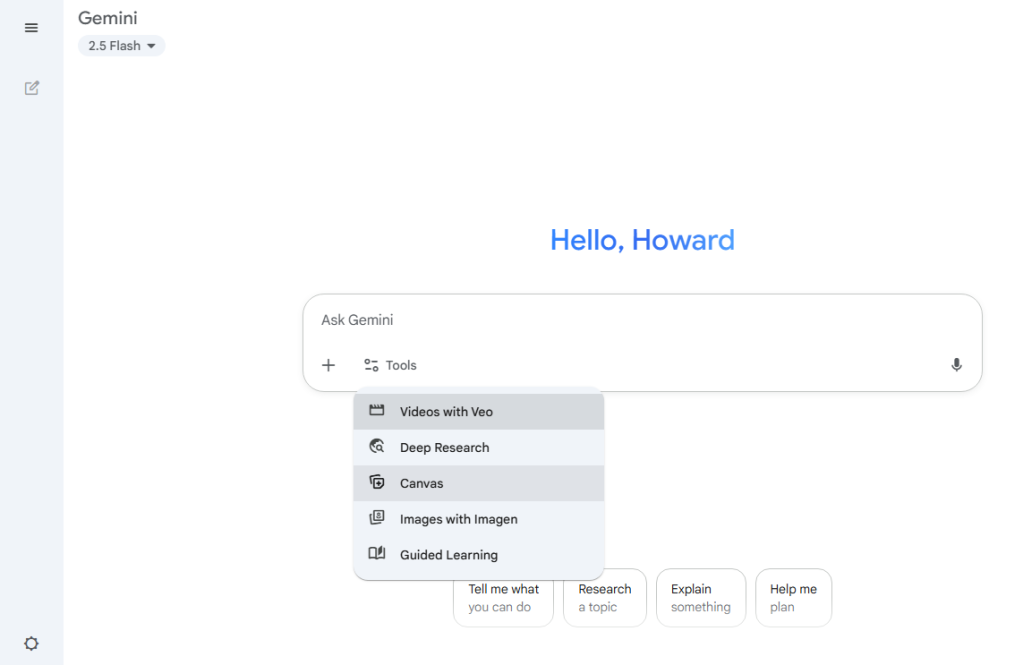
In the Gemini web app, sign in with your Google account if you haven’t already, then click Tools at the bottom of the chat window. On the menu that opens, select Canvas.

gemini web app home screen with tools menu open in chat window

Select Canvas from the Tools menu to get started.

Howard Wen / Foundry

With the Canvas tool now activated, you may see four suggested document types below the chat window. You can select one of these or type a prompt in the chat window describing the type of document you want Gemini to create, such as: Create a business plan for a tax consulting business aimed at Gen Z customers.

gemini web app with prompt in chat box

With Canvas activated, type in your prompt.

Howard Wen / Foundry

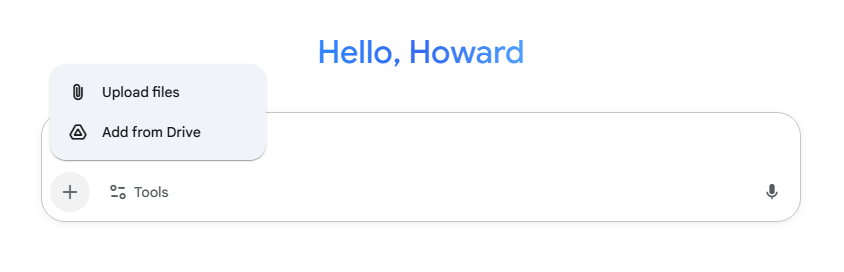
Optionally, you can upload one or more documents or images stored in your Google Drive or on your PC for Gemini to reference as it creates the Canvas document. (Be careful not to upload confidential data.) Click the + icon at the bottom of the Gemini chat window, and on the menu that opens, select Upload files or Add from Drive.

gemini chat window with menu showing upload files and add from drive options

You can upload files for Gemini to base a generated document on.

Howard Wen / Foundry

In the Gemini mobile app: Activate the Canvas tool by tapping the icon below the chat window that looks like two slider controls, then select Canvas. To upload a file or photo for Gemini to base the generated document on, tap the + icon and then Files (to select a file on your device), Gallery (to access your photo library), or Camera (to take and upload a photo).

How to format and edit the Canvas document

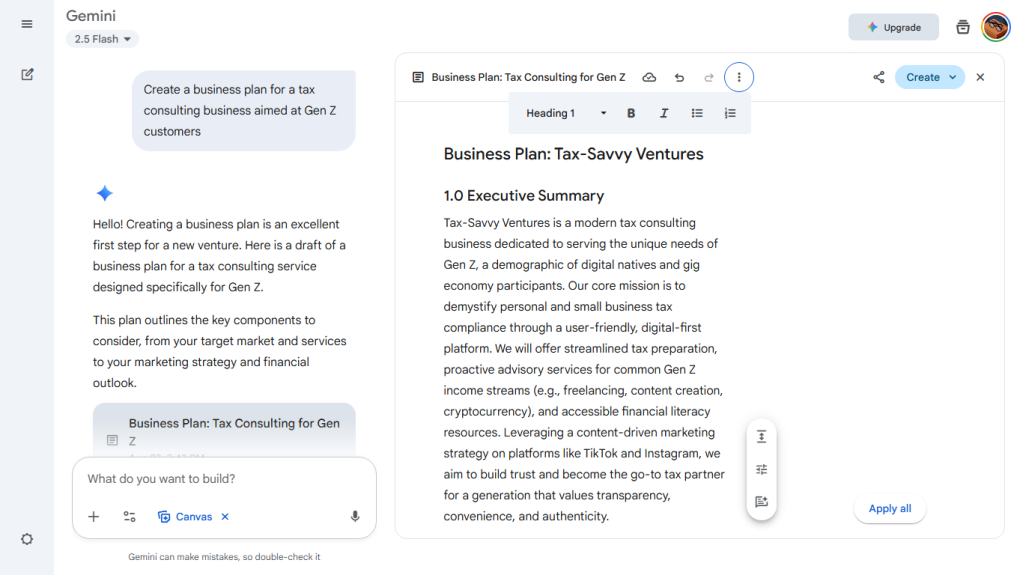
After Gemini creates a document based on your prompt, it appears in a large pane on the right side of the Gemini web app. In this pane, you can scroll through the entire document to read it.

gemini app with chat on left and generated document on right

Your conversation with Gemini is on the left; the canvas containing the generated document is on the right.

Howard Wen / Foundry

Formatting your Canvas document

Along the top of the document is a toolbar. (If it doesn’t show up automatically, click the three-dot icon to open it.) You can use this toolbar to format portions of text in the document that you select. This includes adding bullet points or headlines to it.

Editing your Canvas document with Gemini

Along the right of the document is a vertical mini-toolbar that has three icons on it. Each prompts Gemini to perform a particular action to the Canvas document.

  • Change length: Opens a vertical scale that lets you trigger Gemini to adjust the length of the Canvas document, ranging from Very short to Very long.
  • Change tone: Opens a vertical scale that lets you trigger Gemini to rewrite the tone (writing style) of the Canvas document, ranging from Very casual to Very formal.
srcset="https://b2b-contenthub.com/wp-content/uploads/2025/10/gemini-canvas-05-mini-toolbar.png?quality=50&strip=all 560w, https://b2b-contenthub.com/wp-content/uploads/2025/10/gemini-canvas-05-mini-toolbar.png?resize=300%2C126&quality=50&strip=all 300w, https://b2b-contenthub.com/wp-content/uploads/2025/10/gemini-canvas-05-mini-toolbar.png?resize=150%2C63&quality=50&strip=all 150w, https://b2b-contenthub.com/wp-content/uploads/2025/10/gemini-canvas-05-mini-toolbar.png?resize=444%2C187&quality=50&strip=all 444w" width="560" height="236" sizes="auto, (max-width: 560px) 100vw, 560px">

Click one of the icons in this mini-toolbar to have Gemini change the document’s length or tone, or suggest edits.

Howard Wen / Foundry

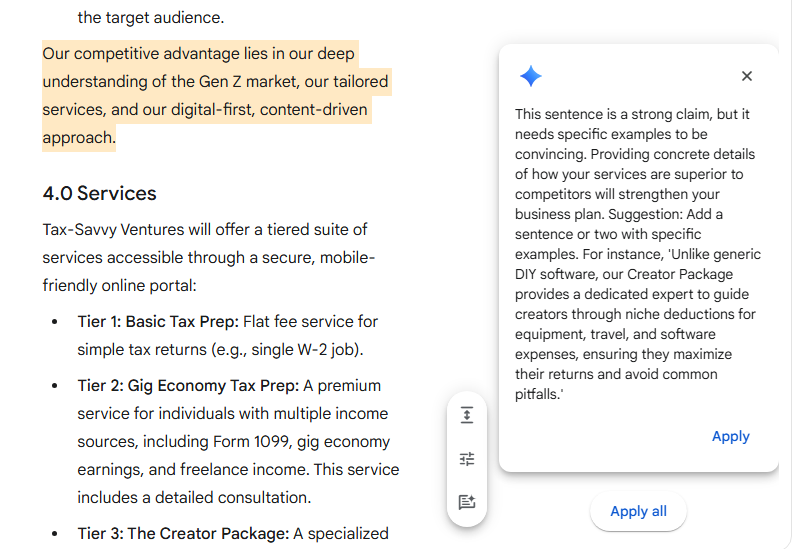
  • Suggest edits: Triggers Gemini to scrutinize the Canvas document and suggest improvements. These suggestions will appear in notecards along the right side of the document, with the text they’re referring to highlighted in the document. Click Apply on a note card to have Gemini apply its suggestion.
highlighted text with gemini suggestion for improvement on a card to the right

Gemini’s suggestions for improving the document appear on cards to the right of the highlighted text.

Howard Wen / Foundry

To limit any of these tools to a particular section of the Canvas document, select the text in the document that you want Gemini to take action on, then select one of these three editing actions from the vertical toolbar.

Remember that all AI-generated text may contain errors and hallucinations. Always check Gemini’s output for accuracy, including when you ask it to refine text.

In the mobile app: The generated Canvas document is embedded in your Gemini chat. Tap Open to open it in a separate pane. However, you can’t format or edit the Canvas document in the Gemini mobile app.      

How to export or share Canvas documents

Once you’ve done your initial formatting and editing to a Canvas document, you can send it to Google Docs for further editing or share it online for others to view.

Exporting your Canvas document to Google Docs

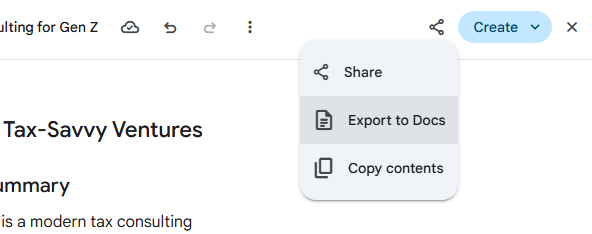
With the Canvas document open in the main pane, click the Share & export icon to the upper right of the document, next to the print icon. On the menu that opens, select Export to Docs.

share menu with export to docs selected

Exporting a Canvas document to Google Docs.

Howard Wen / Foundry

The Canvas document will be exported as a Google Docs document and open immediately in a new browser tab. You’ll find it listed in your Google Docs and Google Drive, and you can open it any time in Google Docs to view and edit.

In the mobile app: You can send Canvas documents to either Google Docs or Gmail. With the document open, tap the three-dot icon at upper right and choose Open in Docs or Draft in Gmail.

Sharing your Canvas document as a public web link

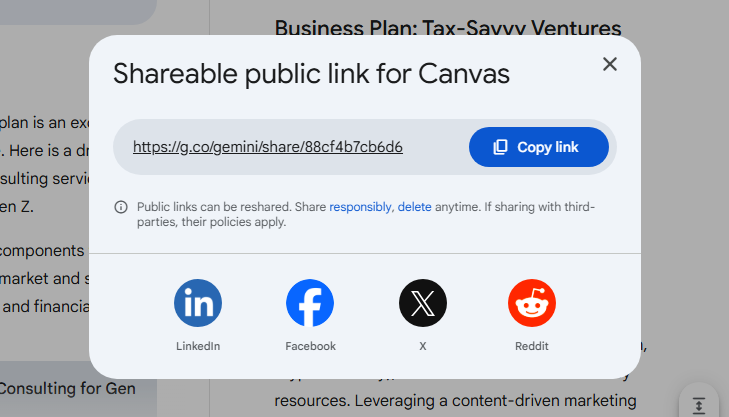
You can generate a web link to your Canvas document. Anyone will be able to click this link to view it in the Gemini web app (not the mobile app).

To the upper right of the document, click the Share & export icon (a < shape with circles at each point). On the menu that opens, select Share. A panel will open that shows the web link that was generated for this chat session. Click the Copy link button. The link will be copied to your PC clipboard.

pop up screen with public link to canvas document

Generating a public link for a Canvas document.

Howard Wen / Foundry

Note: Users with work or school accounts can’t create publicly shareable links. Instead, you can export the Canvas document to Google Docs, as detailed above, or click Share & export > Copy contents to copy the document text.

To delete public web links to your Canvas documents: Toward the bottom of the left sidebar, click Settings & help (a gear icon). On the menu that opens, select Your public links.

A page showing all the public web links to your Canvas documents will open in the main window. You can then delete any of these links.

How to convert your Canvas doc to another format

Canvas documents aren’t limited to a text-only format. With a Canvas doc open in the main pane, you can create different types of materials from it.

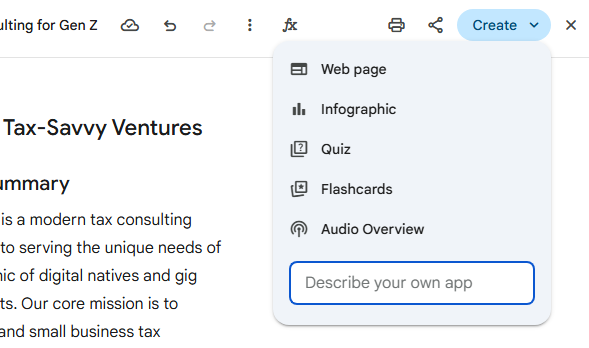
To the upper right of your document, click the Create button and choose a format to convert it to: Web page, Infographic, Quiz, Flashcards, or Audio Overview. Or you can type in the kind of material you want Gemini to create.

create menu in gemini web app with types of materials to create from canvas doc

Choose the type of content you want Gemini to create from your Canvas document.

Howard Wen / Foundry

Most of these are self-explanatory. The Audio Overview selection will generate a podcast-style audio production in which a pair of AI voices summarize the information in the Canvas document. (This feature is the same as in Google’s NotebookLM app.)

Note that Gemini may be able to render an infographic based on the information in the Canvas document — but this isn’t always a given.

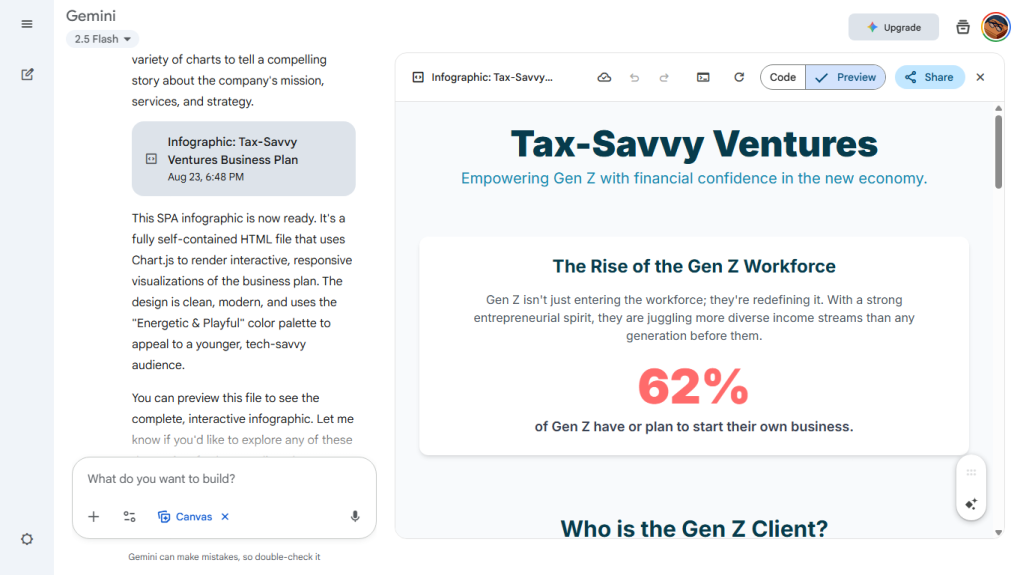
Once you’ve selected a new format, Gemini will churn for some time as it assesses the document and creates the new material form it — how long depends on the complexity of the material being created. Then the converted Canvas document will appear in the main pane and as a card in your chat session with Gemini. You can click this card to re-open it later.

an infographic generated from a canvas document by gemini

An infographic generated from a Canvas document.

Howard Wen / Foundry

More complex formats like web pages and infographics initially appear in the main window as HTML code. Click the Code and Preview buttons at the upper right to toggle between back-end and front-end views.

How to manage Canvas documents in Gemini chats

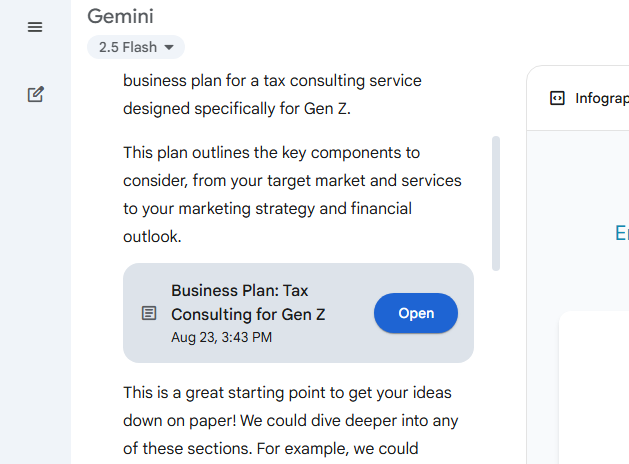
In your chat session with Gemini, the document that Gemini created is represented by a card that’s embedded within its response. If this Canvas document isn’t already open to the right of the chat session, clicking its card (or the blue Open button on the card) will open it.

gemini chat with a card for a generated canvas document

Click the card for a generated Canvas document to open it.

Howard Wen / Foundry

In a single chat session, you can have Gemini create multiple Canvas documents, prompting it to do so one after another. Thus, a single chat session can have multiple document cards, each representing a document that you prompted Gemini to create.

By clicking New chat (a pencil and paper icon) at the top of the left sidebar, you can start a new chat session with Gemini and prompt it to create Canvas documents within that chat.

Managing your chat sessions

You can expand the left sidebar so that you can see a list of your chat sessions with Gemini. Click the three-bar icon at the top of the sidebar to expand it, and again to close it.

Each chat session containing one or more Canvas documents that you had Gemini create is listed on the left sidebar under the heading “Recent.”

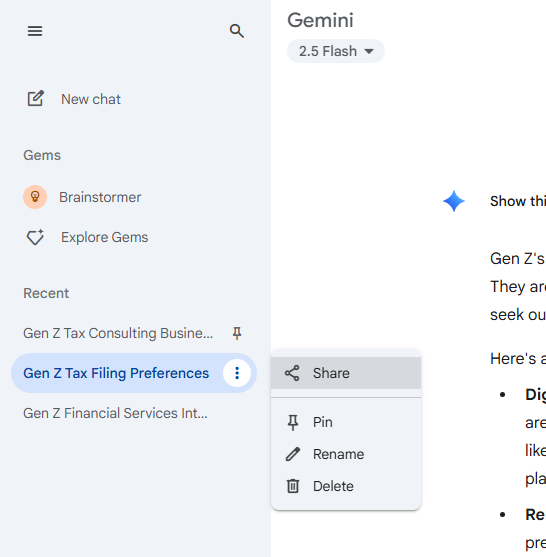
chat selected in gemini app sidebar with management options menu

Options for managing a Gemini chat session.

Howard Wen / Foundry

To pin, rename or delete a chat session: On the left sidebar, move the pointer over the title of the chat session that you want to manage. Click the three-dot icon that appears to the right of its title. On the menu that opens, select Pin, Rename, or Delete.

When you pin a chat session, it moves to the top of the list under “Recent.”

In the mobile app: Tap the three-bar icon at the upper left of the screen. You’ll be taken to a page where you can initiate a new Gemini chat or view your recent chats. Tap a chat to open it, or press and hold it to see a menu where you can pin, rename, or delete it.