From time to time, certain key elements in the Windows 10 or 11 user interface can go dormant. You click on or touch the Start menu icon, or other icons in the taskbar, and nothing happens. Keep trying, but nothing keeps happening. This can be anywhere from frustrating to infuriating.
Thankfully, there’s an extremely easy fix for this sort of behavior, as I will soon explain.
No need to restart, though that works, too
One ingrained response in many Windows users when the UI starts misbehaving is to restart their computers. And indeed, that does work to fix a nonresponsive Start menu or taskbar icons. But it takes time — at least a minute for most PC users — and can derail your productivity.
Because File Explorer handles processing for the Start menu and the taskbar, including its notification area, there’s a simpler, faster fix worth trying before you pull out the big gun.
If you press the key combination Alt-Shift-Esc or right-click an empty area in the taskbar, you can launch the Task Manager utility quickly and easily. Figure 1 shows the right-click pop-up menu in Windows 11 (left) and Windows 10 (right), from which you should select the Task Manager item to run that tool.
Figure 1: Right-click taskbar options in Windows 11 (left) are far fewer than in Windows 10 (right). In either, pick Task Manager.
Ed Tittel / Foundry
Use Task Manager to restart File Explorer
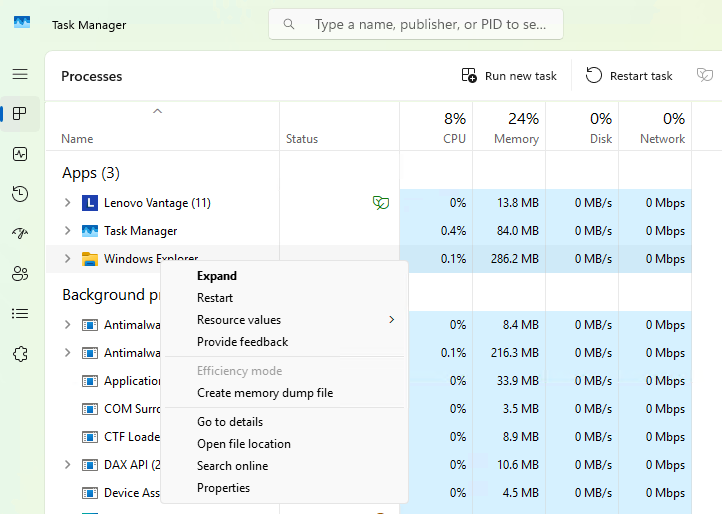
After Task Manager starts up, look for the entry named “Windows Explorer” under the “Apps” heading (see Figure 2). Even though the app itself is named “File Explorer,” it’s shown up as “Windows Explorer” in Task Manager since Windows 95 made its debut 30 years ago.
Figure 2: Right-click on Windows Explorer, then click Restartin the pop-up menu (2nd from top).
Ed Tittel / Foundry
If you don’t see Windows Explorer listed in Task Manager, no worries. Simply launch an instance of File Explorer. If you can’t do that from the taskbar or Start menu, use the Windows key + R shortcut. This opens the Windows run box, inside which you can type explorer (or explorer.exe). Once launched, it appears in Task Manager as Windows Explorer under the Apps heading as shown above.
Right-clicking Windows Explorer and selecting Restart from the menu that appears usually restores the Start menu and the taskbar to normal operation. This can take up to 30 seconds to complete, so wait for the taskbar to reappear before resuming normal Windows activity. That said, this restart is much faster than restarting Windows.
Don’t be surprised when you see the taskbar go blank and all icons disappear. This is a normal side effect of restarting File Explorer. Before it can be restarted, it must first be stopped — and when it’s stopped, all those UI elements disappear temporarily. However disconcerting this may be, it won’t last long.
As soon as the File Explorer process restarts, it restores the Start menu and taskbar icons and the UI behaviors they support. In the vast majority of cases, that will fix whatever caused the Start menu or taskbar icons to stop responding to user inputs via mouse or touch — and you can get back to work.
The old fallback
If that doesn’t do the trick, then it’s time to restart Windows. If the usual techniques (e.g., Start > Power button > Restart) don’t work, you can use Windows key + R and type the command shutdown /r /t 0 into the run box. (Warning! The /t 0 setting means Windows will restart immediately, so save what work you can before taking this route.)
This article was originally published in July 2021 and updated in July 2025.
The “black screen” phenomenon in Windows 10 and Windows 11 shows poignantly how nothing sometimes matters quite a lot. Seeing nothing except a black screen where the desktop and its applications normally appear is disconcerting for users, because they literally can’t see what the PC is — or isn’t — doing.
When experienced Windows users encounter a black screen, they know at least two things immediately. First, they know that something is wrong with their PC. And second, because nothing (or nothing much) is visible, they can surmise that the graphics subsystem is likely involved, based on the absence of information on display.
That’s a good start, but what users really want is to get their desktop back. In this story I’ll guide you through the different types of black screen in Windows 10 and 11, and the surest methods I’ve found to fix them.
Windows cognoscenti recognize two different types of black screen for both Windows 10 and 11. The first is a black screen, plain and simple. This means the screen is completely dark with nothing at all showing. Zip, zero, nada.
If you see a completely black screen, it’s worth checking to see if the PC is actually powered on. Sometimes when Windows shuts down, it kills the power, too — in which case the fix could be as simple as powering and booting up the device. (Or not.)
The second type is what’s called a “black screen with cursor.” Just as it sounds, this means that the display is completely black, except that the mouse cursor is shown on that black background. Often, the cursor will track mouse movement even though it’s mousing over a completely black screen. The image at the top of the story shows this second kind of black screen.
In my personal experience, the black screen with cursor occurs far more frequently than a black screen by itself (no cursor). I’ve found that two causes are the most likely culprits when a black screen with cursor appears.
First is a failure of the graphics subsystem to interact with the display upon waking from sleep. Second is symptomatic of a problem with the graphics driver, the special software that interacts with the display on behalf of the graphics subsystem inside the OS to render pixels on the screen, itself.
The presence of a cursor that responds to mouse movement — as it often will — is actually a good sign. It indicates that the OS is still working (at least to some extent) behind the scenes. It also shows that the mouse driver can still track cursor position onscreen. This means that there’s a very good chance that the desktop can be restored to normal operation using a few well-known key combinations.
Two keyboard combos can (often) restore normal operations
Even if there’s no cursor present, it’s worth trying these key combinations as a first and second step. Both combos involve pressing multiple keys simultaneously. This usually means using one finger to depress the first key and holding it down, using a second finger to depress the second key and doing likewise, then more of the same for a third key, and so on.
Combo 1: Restart the graphics driver
This four-key combination tells Windows to stop, then restart any and all graphics drivers that happen to be running. Most Windows systems use only a single graphics driver, but those with multiple graphics cards (or perhaps a graphics card plus the CPU’s graphic chipset) and multiple displays may have multiple drivers running.
This keyboard combo reads: Windows key + Ctrl + Shift + B. I usually do the first three keys with my left hand, then press the B key with my right forefinger while the others remain depressed.
If you see immediate disk activity (from a disk activity indicator), that’s a good sign. Sometimes the screen will return to normal operation a few seconds later, showing that the driver has reloaded and is now running successfully. Sometimes, nothing else will happen after the disk activity light ceases flashing. That signals it’s time to try the second combo.
Combo 2: The three-fingered salute
This is a familiar key combo to longtime Windows (and even DOS) users. It reads: Ctrl + Alt + Delete.
It’s notorious to those who’ve been using Microsoft OSes for a long time (since the mid-’90s or earlier), because it used to forcibly reboot the OS when struck. Starting with Windows 95 (and Windows NT version 3.5), this key combination now invokes the secure sign-in screen shown in Figure 1 below.
Figure 1: Ctrl-Alt-Del invokes the Windows secure sign-in screen on both Windows 10 and 11.
Ed Tittel / Foundry
Even when the preceding combo gets the graphics driver going, it sometimes still won’t light up the screen. And sometimes when that’s the case, this key sequence will repaint the screen to show you the secure log-in options.
What this screen capture doesn’t show is the power buttons at the lower right, with networking, ease of access, and power controls (shut down, restart, and so forth) from left to right. If this screen does appear, click Cancel, and your desktop may reappear in working order.
What if the screen stays black?
If the cursor is absent, these key combos often won’t help — and sometimes they don’t help even when the cursor is present. In such cases, there’s really only one thing to do next: forcibly power off the affected PC. For most devices, this means holding down the power button until the PC shuts down. On desktop PCs with a discrete power supply (aka PSU), you may have to power that PSU off, wait 30 seconds, then power it back on to get the same effect.
A minority of devices may have the power button action redefined so that the PC keeps running despite this action. In that case, it may be necessary to disconnect the PC from its power source. For laptops, this may also mean waiting until the battery runs completely down (or disconnecting the battery, on PCs that permit this).
For most PCs, a subsequent restart will return the device to normal operation — including a working graphics subsystem with no black screen. If the screen remains black despite all these efforts, additional troubleshooting is needed.
I will now briefly describe additional troubleshooting techniques that may or may not lead to a working system. The further you must go down this list of options, the more likely it is that a hardware failure of some kind is involved.
For desktops, this may mean you need to replace an external graphics card (or the CPU or motherboard if a built-in CPU graphics chipset is in use). For laptops, it may mean replacing the motherboard or making a trip to a repair depot, assuming that the problem device is still covered under some kind of service or repair contract.
The troubleshooting sequence for persistent black screens
1. Try a different display. Perhaps the graphics circuitry is indeed working. (This is possible if the disk activity light runs for a while after restart, but the screen remains black.) Plugging in an alternate display may work, in which case troubleshooting has just identified the display rather than the GPU or graphics chipset, and associated drivers, as the culprit.
2. Boot into Safe Mode for various checks. This requires access to bootable Windows 10 or 11 recovery media. (I describe how to build such media near the end of another Computerworld story: “How to repair Windows 10 or 11 in 4 steps.”) If the PC will boot to recovery media and the display works, congratulations! You’ve just established that something is wrong with the normal boot image for Windows on the affected PC.
You can try a boot repair utility (I like the “Fix Windows Boot Problems” tool on Macrium Reflect Free’s Rescue Media) or get some repair ideas from the afore-cited “How to repair…” article. If the PC retains its black screen, it’s pretty conclusive that something is wrong with the GPU or built-in graphics circuitry. Proceed to Step 3.
3. Try different graphics circuitry. Though this troubleshooting technique can also serve as a repair, it depends on a USB 3 external GPU to see if the internal GPU or graphics circuitry isn’t working. If you can plug such a USB device into the affected PC, and then graphics work when a display is hooked up to the device, you’ve just demonstrated where the problem lies. That problem must now be addressed. Proceed to step 4.
(Don’t have a USB 3 external GPU for testing/troubleshooting? See this Newegg search for some good potential USB 3-based candidates, many of which are available in the $60 to $100 range for HDMI, DisplayPort, and DVI displays.)
4. Replace the graphics hardware. It’s up to you (and prevailing service contract arrangements) whether this is a DIY exercise or if it involves turning the PC over to a repair shop or a designated, official repair outlet for an OEM or maker. But some way, somehow the graphics hardware must be replaced. For some laptops, especially older ones, this may mean that outright device replacement, rather than repair, is the best option.
Nobody wants to see a black screen on Windows
If you (or one of your users) does encounter this particular phenomenon, you should now have a pretty good idea of how to address it. In most cases, reloading the graphics driver or restarting the PC will do the trick. In other cases, there’s no choice except to work through the standard troubleshooting sequence as outlined above.
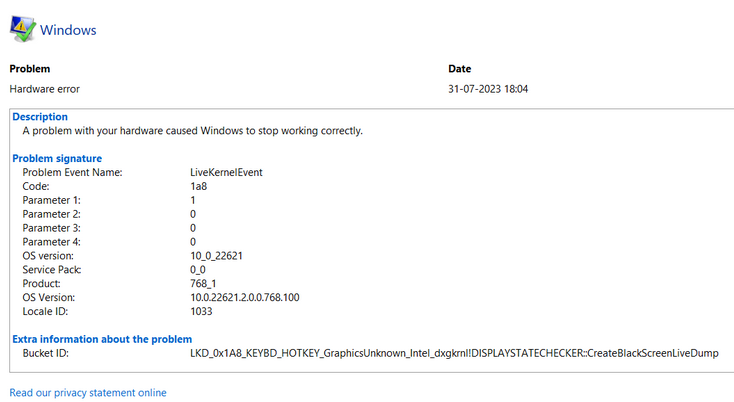
If you’re really, really lucky, a quick dive into the Windows Reliability Monitor can reveal the same kind of error details shown in Figure 2 below, which started appearing in Windows 10 with version 2004. Prior to that release, black-screen errors went mostly unacknowledged in Windows error reporting.
Figure 2: Note the black screen mention in the Bucket ID info at bottom of the error detail.
Ed Tittel / Foundry
This particular image comes from Windows 11 22H2 (as you can see from the beginning of the build number, 10.0.22621). The Bucket ID includes the string “CreateBlackScreenLiveDump” — that’s your indicator that the OS snagged a black screen error on your behalf.
This story was originally published in November 2020 and updated in June 2025.