Chinese cloud provider Alibaba has released four versions of its video-generation AI model as open source, allowing users to download and run them for free on capable PCs.
The Wan2.1 text-to-video model “excels at generating realistic visuals by accurately handling complex movements, enhancing pixel quality, adhering to physical principles, and optimizing the precision of instruction execution,” the company said in a blog post.
The model is a free alternative to OpenAI’s Sora video-generation model, which created waves when it was commercially released last year. Sora is part of ChatGPT Plus plan and costs $20 per month with per-month limits of up to 50 videos at 480p resolution and fewer 720p videos. Another option, Google’s Veo 2 is only available to select users.
The four Wan2.1 models “are designed to generate high-quality images and videos from text and image inputs,” Alibaba said.
The models have between 1.3 billion and 14 billion parameters to generate videos lasting a few seconds at a resolution up to 720p video. It’s not clear whether the company plans to release a model capable of generating 1080p video.
Video generation AI could be a useful productivity tool, but it has a long learning curve, said Jack Gold, principal analyst at J. Gold Associates. “A lot of models are rudimentary,” he said. “You aren’t making three-hour movies out of it. It’s still early days.”
Gold likened video-generation AI models today to word processors in the 1980s, which got better over time. What’s different with AI is that users are feeding information to the model.
“From the perspective of an enterprise user, the question is — what am I giving away for free? A lot of these programs are going to learn from what you use them for,” Gold said.
Even so, the open-source text-to-video model gives enterprise users something they never had, said Karl Freund, founder and principal analyst at Cambrian AI Research.
“It’s going to be a huge market,” Freund said, with a lot of interest from creative, media, and enterprise users.
Freund said enterprises spend a lot of money on multimedia, with many text-to-image generation models from Adobe, OpenAI, Google and X.AI already being used in the cloud. Video is the next step.
Chinese AI providers are already shaking up the market, with Alibaba’s Wan2.1 the latest to arrive. The DeepSeek chatbot tool, for example, demonstrated advances made by Chinese companies in AI, and Wan2.1 demonstrates progress in video models. Also in the mix: Microsoft and Amazon, which now offer DeepSeek R1 through their cloud services.
“We’ve always believed that no single model is right for every use case, and customers can expect all kinds of new options to emerge in the future,” Amazon Web Services CEO Matt Garman said in a LinkedIn post last month.
As they did with DeepSeek, cloud providers may take Wan2.1 and offer it through their own services to generate revenue, Freund said.
The analysts were mixed about security concerns that could arise from the video-generation model. Gold pointed out the Wan2.1 model could be used maliciously to generate deepfakes.
“There’s bad and good with everything,” he said.
The Chinese origins of the model also concerned Gold, but it is open for inspection and open-source advocates will comb through it as they did with DeepSeek.
The models are available for download on Alibaba Cloud’s AI model community, Model Scope and via Hugging Face, which also hosts public AI models such as Meta’s Llama, Microsoft’s Phi and Google’s Gemma.
The CEO of Signal said Tuesday that the service will leave Sweden rather than comply with a rule that will require vendors to capture all secure messages and save a plain text copy, in case authorities later want to subpoena that data, .
But the issue goes far beyond one secure messaging company and one government’s regulators. The European Union is considering similar regulations (many of them requiring backdoors to the data, which is even more problematic than simply saving a copy), as are the UK, France, and several other jurisdictions, including the US. If enough of those regulators insist on being able to access secure communications, it raises the issue of whether encrypted communications can be effectively used by any business.
“In practice, this means that we are asked to break the encryption that is the foundation of our entire operation. Asking us to store data would undermine our entire architecture, and we would never do that. We would rather leave the Swedish market entirely,” Signal CEO Meredith Whittaker told a Swedish news organization. “If we create a vulnerability based on Swedish demands, it would create a way to undermine our entire network.”
In many jurisdictions, regulators have been pushing for such access for ostensibly legitimate reasons, such as cracking down on child pornography or organized criminal organizations that are using encryption to hide from law enforcement.
But Fred Chagnon, principal research director at Info-Tech Research Group, argues that such well-intended efforts are doomed to fail, and will deliver negative side effects.
If such rules breaking encryption are enforced, the bad guys will simply use alternative methods to hide their actions, Chagnon said, whereas people who truly need to have conversations outside the earshot of authoritarian regimes will be severely hurt.
There is also a practical problem with Sweden’s demand that a copy of messages be retained in clear text. Even though the data is intended to be retained in case law enforcement later needs it, once saved, it could also be accessed by any group breaking into that vendor’s systems.
“Governments pursuing encryption [access] are playing a dangerous game of short-sightedness. This isn’t about one app or one country. It’s about the fundamental right to secure communication,” Chagnon said. “By forcing Signal to compromise its core security, they’re signaling that end-to-end encryption is essentially outlawed. This creates a precedent where private, secure communication becomes impossible. Introducing a backdoor isn’t a fix. It’s a systemic failure, creating a permanent vulnerability that can only be temporarily mitigated with compensating controls. Inevitably, these controls will fail. The platform’s lack of security is, therefore, a feature, not a bug.”
Chagnon said that this back-and-forth vendor-to-regulator dynamic could quickly change if/when regulators find a vendor who is willing to let regulators access secure communications.
“Every time there is [vendor] capitulation, it makes it exponentially harder to win the next fight. It’s inevitable that some government will find a way to find some company [to agree] and that will make a precedent,” Chagnon said. “I don’t think governments are thinking about the unintended consequences. They used to be able to tap everyone’s phones. They are trying to get back to that standard.”
Michela Menting, senior director for global technology intelligence at ABI Research, mostly agreed with Chagnon, but also said that she had less fear that these regulatory efforts to undermine encryption would ever succeed.
“Governments have been threatening to mandate backdoors into encryption protocols for a long time, and they are never successful. These pronouncements by well-meaning but misinformed politicians are often a lot of bluster, and the debate seems to resurface cyclically,” Menting said. “No good can ever come of putting in backdoors to encryption, not when so much of the world’s modern communication relies on it to guarantee privacy and confidentiality.”
She also said that, in turbulent political times, good cops can quickly morph into bad actors.
“As we see today, even democratic countries that imbue such rights in law can start swinging towards authoritarianism,” she said. That makes it “so important that encryption isn’t unduly tampered with, for whatever reason.”
Menting stressed that she did not have serious concerns that encryption would be meaningfully hurt by those efforts.
“It would be highly unlikely for a domino effect, whereby governments around the world start calling for backdoors into encryption protocols, and, heaven forbid, the underlying primitives, forcing vendors to pull out of doing business in those countries,” Menting said. “And it is highly unlikely that enterprises would start creating their own messaging apps. That would start becoming highly prohibitive in terms of cost, and in any case, there aren’t enough cryptographic experts available around the world anyway to do that.”
Another analyst, Heidi Shey, principal analyst for security and risk at Forrester, said enterprises also should be discouraging their people from using consumer-grade apps such as Signal anyway.
“In many situations, enterprises should not be using consumer apps like WhatsApp and Signal for business purposes. There are enterprise apps for secure communications that address concerns such as regulatory compliance, data sovereignty, as well as targeted attacks on and surveillance of their communications,” Shey said. “Such apps will have capabilities for managing data retention, metadata security, assurance, and more. In Europe, this includes enterprise apps from providers like Element, Salt Communications, Threema, and Wire.”
The US Department of Government Efficiency (DOGE) appears to have a new chief after the White House appointed a little-known official, Amy Gleason, as its “acting administrator.”
Such administration appointments don’t normally attract a lot of attention, but these are not normal times and, as commentators keep reminding everyone, DOGE is not a normal department.
Even the news of Gleason’s appointment was made in unorthodox style through comments to media outlets by an anonymous White House official, rather than through an official press announcement.
At the same time, it now has fewer staff — although these are possibly not the roles DOGE booster Elon Musk was hoping to eliminate when he emailed government employees last week a now notorious ultimatum requiring them to list their weekly achievements by reply or face being fired.
Federal workers at the US Digital Service, now renamed DOGE, have the IT and technical skills needed to fulfil DOGE’s remit of cutting government overheads and driving out waste while slimming down its supposedly bloated headcount.
Not all of them, though, are happy with the department’s abrupt change of direction. On Tuesday, 21 of them, including engineers, data scientists and IT staff, resigned en masse, claiming in a letter passed to media outlets including Associated Press that they were being asked by DOGE to use their technical skills to “dismantle critical public services.“
“We swore to serve the American people and uphold our oath to the Constitution across presidential administrations. However, it has become clear that we can no longer honor those commitments,” the letter reportedly said.
Motivation in question
Many of the remaining staff working for DOGE lacked the skills to do the job and were motivated primarily by ideological zeal, the letter said. DOGE was mishandling sensitive data, introducing security risks and breaking critical systems, they added. The last straw: being asked about their political loyalty during interviews.
These are not the first resignations and might not be the last from the technical teams Musk will be depending on to fulfil his, at times, increasingly chaotic remit. Last week Steven Reilly, lead engineer for the notify.gov government messaging service, resigned over an alleged request by a Musk appointee for access to 20 government systems containing sensitive data.
Everyone had previously assumed DOGE was being run and directed by Elon Musk even though for two weeks nobody within the administration was able to confirm this. Bizarrely, that included White House press secretary Karoline Leavitt when asked direct questions on the subject during press briefings.
Last week, 14 US states forced the administration’s hand by naming Musk as DOGE head as part of a suit seeking to curb the department’s power. This was denied by White House Director of the Office of Administration, Joshua Fisher in a counter-filing; Musk wasn’t running or directing DOGE because nobody was, he claimed.
That now looks like a delaying tactic. DOGE might not have official status, but at least it now has a chief in Gleason, even if her appointment appears to have been made in the strangest way possible by a White House source who would prefer to remain nameless.
Acting administrator Gleason’s LinkedIn profile includes a three-year stint with the first Trump Administration as a “digital services expert,” after a career largely focused on healthcare.
In theory, her appointment makes her accountable for DOGE’s actions and missteps, which matters at a time when its actions are generating significant opposition and scrutiny.
But the question is whether she — or anyone — can ever be said to be running DOGE when everyone pays more attention to the statements of the operation’s puppet master, Elon Musk.
What’s not in doubt is that with DOGE rapidly turning into a rallying point for opponents of the Administration’s agenda, Gleason has her work cut out for her.
Until relatively recently in history, quickly gaining access to tens of millions of files on citizens would have been impossible. They were held in paper files requiring months of work by huge teams to trawl through. In the last two decades, this has changed. Now, in the digital era, those same files can be stored on a large hard drive. Analyzing the data can be achieved within days or hours.
That’s why access to these files is controlled by layers of rules and laws covering data security and privacy, and who is trustworthy enough to be granted access. This is the battle line now cited in multiple lawsuits: is DOGE’s unorthodox modus operandi and data mining agenda remotely compatible with these rules?
At the 3D Experience Forum in Houston, Dassault Systemes announced a new 3DLive visionOS app designed for customers in manufacturing and product design.
It’s all about digital twins, which let customers quickly adapt to market demand and deliver accurate product quality, training, and more. In other words, the app can be seen as a real-world active deployment of spatial computing in vital product, manufacturing, and engineering scenarios. It is very much what visionOS is all about.
Virtual twins, manufacturing, design, and Industry 4.0
The company said it worked with Apple to integrate Vision Pro into its 3D Experience platform. It combines with Dassault’s own generative AI (genAI) and its 3D UNIV+RSES, to “unleash unprecedented possibilities.
“Our engineering collaboration with Apple represents a bold advance that reveals the power of 3D UNIV+RSES, where 3D is a universal language for a new world combining real and virtual,” Elisa Prisner, Dassault Systèmes’ executive vice president for corporate strategy and platform transformation, said in a statement. “The wide and growing adoption of the 3DEXPERIENCE platform by our clients makes this cooperation a unique value for our gigantic, highly diversified customer base, seeing the high potential of 3D UNIV+RSES to collaborate and train our next generation AI-based experiences on their own virtual twin data set.”
“Apple Vision Pro continues to push the boundaries of what’s possible with spatial computing and is changing the way people work across key industries,” said Mike Rockwell, Apple’s vice president of the Vision Products Group. “We’re thrilled to be collaborating with Dassault Systèmes to supercharge the 3DEXPERIENCE platform with spatial computing capabilities that will enable engineers and designers to effortlessly bring 3D designs to life in ways not previously possible.”
What does it do?
The idea is that virtual twins created on the 3DEXPERIENCE platform can be explored in virtual 3D space. More importantly, it enables teams to collaborate on projects, thanks to Vision Pro’s advanced cameras, sensors and tracking, which allow virtual twins to interact with the physical world around them in 3D UNIV+RSES with scientific accuracy.
Imagine, for example, you are working to develop industrial machinery of some kind. Using these tools, you could build a virtual representation of the machine and use the built-in AI to put your creation through virtual real-world tests to identify problems in the design and find improvements. This is going to be considerably less expensive and risky than actual physical prototyping.
Alternatively, when assessing devices for maintenance, the digital twin can show how things are meant to work, helping to identify ongoing flaws. The same applies to any form of product design and should make it much easier and cheaper to develop new product and bring it to market — particularly as teams can collaborate on these designs in real or asynchronous time from anywhere in the world using Vision Pro and Dassault Systemes’ solutions.
Can anyone have a go?
If you use Vision Pro (as I wish I had the opportunity to do), you can try this tech for yourself. Dassault Systèmes is publishing a visionOS app called HomeByMe Reality to visualize different home interiors. You can use this at home, in a showroom, or in a furniture store. The app can also enable people to virtually tour real estate property.
Enterprise customers will be able to download Dassault Systèmes’ new 3DLive app for Apple Vision Pro this summer.
Switching to Windows 11? You’re not alone. With the clock ticking down to Windows 10’s end-of-support date in October, professionals around the globe are making plans — and lots of them are making the upgrade to Windows 11.
Some parts of Windows 11 can seem downright alien at first — especially that new taskbar, which was originally designed for the now-cancelled “Windows 10X” and works a little differently from the classic Microsoft taskbar. But there’s a lot you can do to make Windows 11 work more like the Windows 10 you’re used to — without a drag on your productivity.
Whether you’re upgrading your home PC or using Windows 11 at work, these tips can help you boost familiarity and productivity on Microsoft’s latest operating system. The good news is that, a few years after its release in 2021, Windows 11 is pretty solid in 2025. Some of the most annoying missing features have been restored — for example, you can now drag and drop files to the taskbar!
Windows 11’s taskbar icons are centered by default, and that can be the most immediately jarring thing you notice. It breaks muscle memory if you’re used to having the Start button in the bottom-left corner, and that’s not good for productivity.
Luckily, this one is easy to fix with no extra software. Just right-click an empty spot on the taskbar and select “Taskbar settings.” Expand the “Taskbar behaviors” section, click the “Taskbar alignment” section, and select “Left.” All the icons will move to the left.
Windows 11’s taskbar can put all the taskbar icons on the left — just like on Windows 10.
Chris Hoffman, IDG
If you want the Start button at the bottom-left corner and the taskbar icons in the center, though, you’ll need a little something extra…
Windows 11 tip #2: Restore the old Start menu style
Want a more classic Start menu? I recommend Stardock’s Start11 as the most capable and polished Start menu replacement. Stardock has a great reputation and has been making Windows-tweaking tools for a long time.
With Start11, you can choose a variety of Start menu options — ranging from a Windows 10-style Start menu to a classic Windows 7-style Start menu. (I prefer the Windows 7 style, myself.) It’s very customizable and powerful, but you don’t have to tweak it if you don’t want. You can just install it, choose your preferred Start menu style, and then forget about it.
The application is packed with extra features for the taskbar, too. Want to put the Start button at the bottom-left corner of your taskbar and leave the application icons in the middle, as I mentioned a moment ago? Start11 can do that. Want to move your taskbar to another edge of your screen instead of leaving it on the bottom? Start11 can now do that, too. It’s a feature that was part of Windows 10 and removed from Windows 11; Start11 can restore it.
Start11 is a paid app — but at $10 a year for one PC or $15 per year for up to five PCs, it’s a reasonable price for a polished, top-of-the-line experience. You can try it free for 30 days, so you can decide whether it’s actually worth it to you.
For Start menu replacements, Start11 offers the most options and the most polish.
Windows 11 tip #3: Go back to a classic context menu
Windows 11 includes a redesigned File Explorer with a shiny new context menu that appears when you right-click files and folders. If you find yourself missing some context menu options, you can return to the traditional, Windows 10-style menu with all the classic options in a few ways:
Right-click a file or folder in File Explorer and select “Show more options” in the context menu.
Hold down the Shift key as you right-click an item in File Explorer.
Use a registry hack to force File Explorer to always show the old context menu. (If you’re not comfortable hacking the registry, though, skip it — you can always just hold the Shift key while right-clicking to find the old menu.)
I recommend avoiding the registry hack for most people, as the new menu works well most of the time. But if it really bothers you, that’s there as a more advanced power-user option.
Windows 11 tip #4: Return Notepad to its simpler state
Windows 11 has a shiny new Notepad with tabs, text formatting, and even generative AI (genAI) features — complete with Microsoft account integration to track your AI credits.
Out of the box, Notepad remembers what you type and reopens with your last session. If you use Notepad as a scratchpad, this can get annoying. To make it work more traditionally, click the gear icon at the top-right corner of the Notepad window, expand “When Notepad starts” under “Opening Notepad” and select “Start new session and discard unsaved changes.”
Notepad is a completely different application on Windows 11.
Chris Hoffman, IDG
If you’re looking for a more traditional text editor that doesn’t have built-in AI features or Microsoft logins, try the third-party Notepad++. It’s more complex, but it’s packed with features for people who need to work with plain-text files — including syntax highlighting for a variety of programming languages.
Windows 11 tip #5: Stop Snap Layouts
Windows 11 has a Snap Layouts feature that helps you more easily use the Snap feature. Some people love it, others feel it gets in the way. You’ll see it when you hover your mouse cursor over a window’s maximize button, when you press Windows+Z, and when you snap a window normally (by clicking and dragging it or by pressing the Windows key and an arrow key).
Want to turn it off? Open the Settings app, select “System,” and select “Multitasking.” Expand the “Snap windows” section and choose the options you want to disable.
For example, you might want to turn off “Show snap layouts when I hover over a window’s maximize button” if you find yourself accidentally triggering the pop-up while hovering the mouse cursor over the maximize button.
Windows 11 tip #6: Reset File Explorer’s starting point
On Windows 11, File Explorer normally opens to the “Home” view — which features “Quick access,” recent files, and other such items.
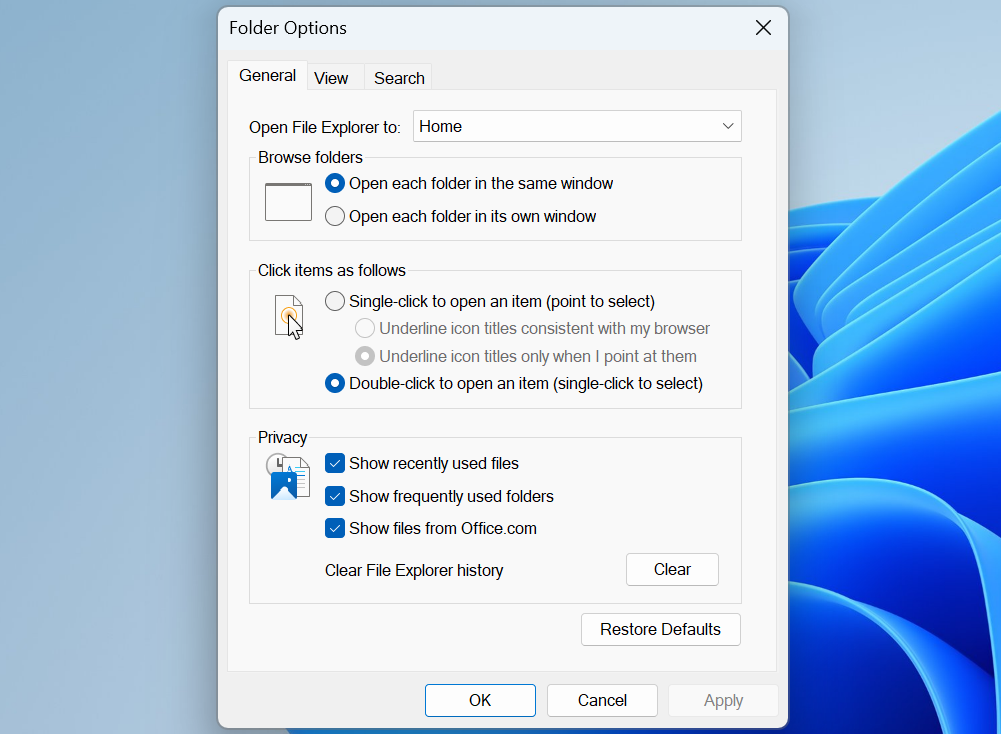
For a more traditional file-browsing experience, click the “…” button on File Explorer’s toolbar and select “Options.” Click the “Open File Explorer to” box at the top of the Folder Options window that appears and select “This PC.” You’ll go straight to the “This PC” view showing drives and devices.
Windows 11 tip #7: Turn off frequently used files and folders
To be honest, File Explorer’s Home view isn’t that bad — “Quick access” can be useful, for instance. If your problem is just that you don’t want to see recently used files and folders when you open File Explorer, you can turn them off.
To do so, click the “…” button on File Explorer’s toolbar and select “Options.” Under the Privacy section, uncheck the “Show recently used files,” “Show frequently used files,” and perhaps also the “Show files from Office.com” checkboxes if you’d prefer a cleaner, local-files-only experience.
The Folder Options window has quite a few options for tweaking File Explorer.
Chris Hoffman, IDG
You can also click the “Clear” button to eliminate the history of files and folders you’ve used.
Windows 11 tip #8: Uncombine taskbar buttons
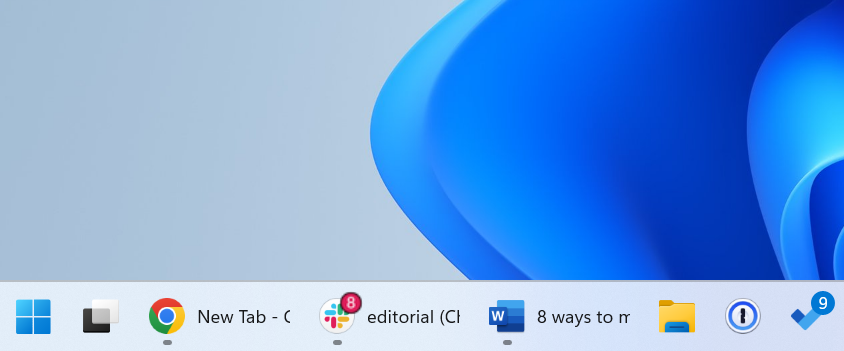
Windows 11 and Windows 10 both use “combined buttons” out of the box — application icons rather than the traditional taskbar buttons from the Windows XP era.
At release, Windows 11 didn’t even offer the option to avoid this. It was one of the many ways the taskbar felt like a big step back early on.
You can now get a classic taskbar button experience, though: Just right-click an empty spot on the taskbar, select “Taskbar settings,” expand “Taskbar behaviors,” click the “Combine taskbar buttons and hide labels” box, and select “Never.”
Windows shifted to combined buttons with Windows 7, but many people still prefer the classic style.
Chris Hoffman, IDG
More Windows 11 tweaking tips
Windows 11 can feel unfamiliar, but a few tweaks can make it much more like home — or work! For more ways to improve your Windows 11 experience, check out these guides to turning off obnoxious ads and fixing common Windows annoyances.
Want even more Windows productivity and tweaking tips? Sign up for my free Windows Intelligence newsletter. I’ll send you three new things to try each Friday. Plus, you’ll get free copies of Paul Thurrott’s Windows Field Guides as a special welcome gift.
Microsoft and Apple were once the yin and yang of the tech world. Microsoft was dull and plodding, milking buggy, barely-good-enough-for-prime-time Windows for tremendous profits, thanks to a worldwide operating system monopoly. The company was incapable of creating new, innovative products, and relied on sharp-elbowed (and potentially illegal) business practices to stay atop the tech world.
Apple was its polar opposite. Under Steve Jobs’ out-of-the-box thinking and obsessive attention to the smallest details, it released what seemed an unending stream of beautifully designed products that changed the way the world uses technology: the Mac, iPhone, iPod and iPad.
That was then.
These days, the two companies have reversed roles. If you’re looking for innovation, look to Microsoft. Meanwhile, Apple stagnates, milking old products for new money.
For evidence, you need only look at a single day – Feb. 19, 2025. On that day, Microsoft announced a breakthrough in quantum computing, based on a branch of physics known as quantum physics. (It’s beyond the scope of this article to detail exactly how quantum computing works, but you can get some details in Microsoft’s announcement.)
The technology will eventually be able to solve technological, mathematical and scientific problems that can’t be cracked right now. When it’s ready for prime time, it will likely be able to supercharge AI development and usage. Microsoft has been working on quantum computing since the early 2000s and will continue spend money on it. And while it will take years to come to fruition, it’s one of the few technologies that has the potential to change the world.
On the same day Apple announced…drumroll, please!…a cheaper version of the iPhone, the iPhone 16e, a successor to the iPhone SE. There’s no new technology in it, aside from the first modem built by Apple. On second thought, hold the drumroll.
How did we get here? Why is the tech world looking to Microsoft for the newest technologies like AI and quantum computing, and looking to Apple for a cheaper iPhone? To understand the present and predict the future, you need to know the past. So, we’ll start out by looking at both companies’ earlier days.
A look at technology’s past
It’s said that to a man with a hammer, everything in the world looks like a nail. In the old days of Microsoft, Windows was its hammer. Its competitors were the nails. One by one Microsoft used Windows to pound them into submission. Lotus, the maker of Lotus 1-2-3 — the world’s most popular spreadsheet — gone. Harvard Graphics, maker of the Harvard Graphics —the world’s most popular presentation software — gone. WordPerfect, maker of the world’s most popular word processor WordPerfect, barely even a shell of its former self. Many other competitors were crushed by Microsoft as well.
The strategy worked for years…, until it didn’t. The world changed, and Microsoft didn’t change along with it. Its attempt to build a mobile operating system bearing the Windows name cost the company billions of dollars before CEO Satya Nadella killed it. Its other attempts at getting into new markets, like the laughably bad Zune music player to compete with the iPod, went off the rails. The Internet came along, and Microsoft didn’t pivot quickly enough to it because it was still focused on Windows, allowing the rise of Google, Meta and myriad other companies.
As for Apple, under Steve Jobs it seemingly did everything right. It focused on new technologies, each new product beautifully designed and built — and released before people even knew they wanted them, creating entirely new markets. Jobs was an impatient innovator, and he refused to rest on his laurels or repeat the past. Something new was always in the works.
So, what happened?
At Microsoft, Bill Gates and Steve Ballmer, architects of Microsoft’s rise to power, left the company in Nadella’s hands. He wasn’t wed to the company’s past and didn’t believe Windows was the solution to every tech problem.
He’s been a quiet innovator. Under his leadership, cloud computing, not Windows, became the focus. Then Nadella turned to AI. And all along, he continued to spend money on quantum computing. The company now lives on the cutting edge.
After Jobs died in 2011, Apple was never the same. Tim Cook took over as CEO. He’s been a brilliant manager, growing the company to the point it’s now valued at $3.7 trillion, the largest in the world. But is he an innovator? No. The Apple Watch and AirPods launched under his watch might bring in nice amounts of revenue. But they’re far from being breakthroughs.
A look to the future
What’s next for both companies when it comes to innovation?
At Microsoft it’s clear. The company has become an AI company and it’s not looking back. It’s going to continue to pour money into quantum computing. I don’t know what else it’s cooking up in its labs, but I’m sure it’s something.
As for Apple, it’s having a hard time catching up with Microsoft and the rest of the industry when it comes to innovation. And it’s doing a particularly bad job in AI. Apple Intelligence, the company’s answer to Microsoft’s and other companies’ generative AI (genAI) efforts, has floundered badly. OpenAI’s ChatGPT was released more than two years ago, and Microsoft Copilot, based on ChatGPT, was released more than a year ago. Apple Intelligence still isn’t here, and it’s falling behind schedule. It may not be released until the WWDC (Apple’s annual developer conference), and possibly not even then, a full year after it was first announced.
When it’s released, it will still lag badly behind its genAI competitors. Bloomberg reports that an upgrade to make Siri “more conversational and a closer match for ChatGPT” has been postponed to 2026. That’s about a century in AI time. By then, the competitors will be several generations ahead of Apple.
The upshot? Apple is doing a great job of milking existing products, but a terrible job of innovation, while Microsoft continues to innovate. And there’s no sign of that changing anytime soon.
Ahem: I have two separate confessions to make, both equally embarrassing.
Confession #1 is that I love email. I’m totally not kidding, either. It’s about as uncool of a thing as possible to adore, I realize — I mean, everyone hates their inbox, right?
For me, though, email is a brilliant communication system. It’s a refreshingly versatile and direct way to reach both anyone and everyone, whether we’re talkin’ individual messages for personal and professional purposes or full-fledged publications like the titillating tech newsletters I send through my ever-evolving knowledge-sharing collective, The Intelligence.
So, yeah: I frickin’ love email. Sue me.
Confession #2 may seem counterintuitive on the surface, given that gut-spilling humiliation I just put myself through. But I promise, it actually makes sense: I, the guy who endlessly writes about email and built an entire livelihood around the idea of email as a communication channel, also….hate email.
Surely you’ve both adored and abhorred something at the same time, right? Email can be wonderful, and I rely on it daily in so many ways. But man, it can also be an endless migraine-maker because of the way other people insist on invading my inbox with eternal demands on my time. (If you’re someone who has ever emailed me, I swear, this isn’t about you. I still love you. I just hate email. Sometimes.)
The biggest challenge with email — whether you love it, hate it, or a mix of the two, like me — is finding a way to focus on the stuff that matters while tuning out the noise. And while we’ve got no shortage of tweaks and tools for taming the jungle of your inbox, the real problem, especially on the phone front, is figuring out how to turn email notifications into something that isn’t a uselessly distracting all-day drone.
It’s the exact type of nerdy problem I love to tackle, and today, I’ve got an inspired new solution for you to put to use.
[Why stop with emails? Take your entire Android notification game to soaring new heights with my free Android Notification Power-Pack — six powerful enhancements for any Android device.]]
A new approach to Android email notifications
All right, so, first things first: By default, most Android email apps tend to take one of three approaches with email notifications:
They bombard you with alerts for every stupid email you receive, thereby causing you to be constantly distracted and/or to tune the alerts out entirely.
They hit you over the head with alerts for every email they deem to be “important” or “high-priority,” which similarly bleeps and bloops and interrupts you for all sorts of messages that don’t actually require your immediate attention.
They don’t notify you at all, thereby allowing important and at times timely stuff to slip through the cracks and remain unnoticed until you happen to open up your inbox.
None of these paths, suffice it to say, is optimal. So what if there were a better way — a way you, the non-artificially intelligent human who actually understands which emails need to notify you and which do not, could intelligently control your Android email notifications and proactively decide which exact emails alert you?
My friend, prepare to have your mind blown.
This tip is actually a two-parter: First, I’ll show you a simple way to categorically create alerts for emails that meet specific conditions while turning off all the other ruckus. And second, I’ll show you how to apply that same formula on the fly to specific limited email threads so you can flag individual conversations for ongoing alerting, even if they don’t meet your general notification-generating conditions.
Whew! That sounds like a lot, I know. And there’s a fair amount to this. But I promise: It’s actually quite easy. And once you get this set up this once, it’ll then Just Work™ from that point forward — with barely any ongoing effort required.
Ready?
Step 1: Disable the default Android email alerts
Before we can improve your Android email notifications, we need to get rid of the underwhelming ones that exist by default.
We’re gonna use Gmail as the example for all of this, since that’s the default email app on Android and the one most Android-appreciating animals rely on. But if you’re using Outlook or any other Android email app, you should be able to set up something similar by finding the equivalent steps and actions within that environment.
For Gmail, our first step is gonna be to disable all the standard existing email notifications — ’cause unless you actually want to be notified for every single email that arrives in your inbox all day long (or even every email that Gmail determines might be “important” to you), those notifications probably aren’t serving you well.
So do this:
Open up the Gmail app on your phone.
Tap the three-line menu icon in the app’s upper-left corner and then select “Settings.” (You might have to scroll down a bit within the menu before you see it.)
Tap the name of the Gmail address you want to adjust for these purposes.
Tap “Notifications” and make sure “All” is selected in the pop-up that appears.
Cool? Cool.
Now, back in the main settings menu for your Gmail account:
Tap “Manage labels.”
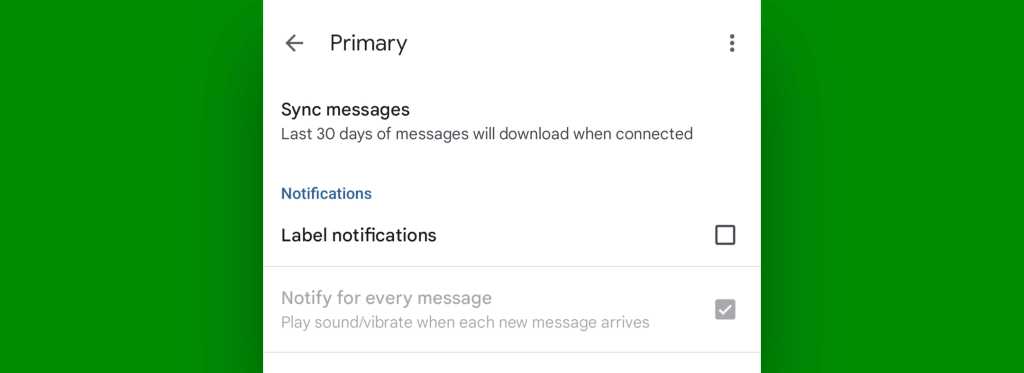
For any label you see with “Last 30 days” beneath it, tap its line and uncheck the box next to “Label notifications” — so that it looks like this:
Turning off your default Android Gmail notifications is the first step to a more enlightened approach.
JR Raphael, IDG
Again, be sure to repeat that for every label in the list with “Last 30 days” beneath it so that none of those labels will create notifications for you from this moment forward.
And now we’re ready to tell Gmail which emails you actually do want to be notified about.
Step 2: Set up your new Android email trigger
For this next step, you’re gonna need to access Gmail on a computer. For reasons I cannot fathom, Google still doesn’t make it possible to create and edit labels or filters on Android here in the year 2025 — when so many people are using mobile devices so much of the time! — and this means you’ve gotta get to the desktop Gmail website to make it happen.
Once you’re there, click the gear-shaped icon in the site’s upper-right corner, then click “See all settings” in the panel that pops up.
Then:
Click the “Labels” tab at the top of the screen.
Click the “Create new label” button, in the “Labels” area of the page.
Type Notify in the field for the label’s name and click the “Create” button to save it.
This new Gmail label is the key to smarter Android email notifications. (Just wait!)
JR Raphael, IDG
Easy, right? Now we’ve got the Gmail label that’ll cause an email to notify you, and we’re ready to go back to the Gmail app on your Android device to set it up accordingly.
In Gmail on Android, head into that same settings section we were looking at a minute ago — by tapping the three-line menu icon in the app’s upper-left corner, selecting “Settings,” then selecting your Gmail address — and once more, tap “Manage labels” in the menu that pops up.
Find and tap the new “Notify” label we created. (If you aren’t seeing it yet, you may need to back all the way out of the app’s settings then go back in anew to force it to refresh.)
Then:
Tap “Sync messages” and choose “Last 30 days.”
Tap the checkbox next to “Label notifications” to activate it.
Tap the checkbox next to “Notify for every message” to activate it.
We want emails associated with our “Notify” label to create a notification, each and every time.
JR Raphael, IDG
And with that, m’dearie, your foundation is set. And now we’re ready to create your auto-notifying formula and also learn the steps for flagging a specific email conversation for ongoing notifications as you go.
Step 3: Create your always-notify playbook
We’ll start with the auto-notifying formula — the parameters you want to create for which types of emails should always notify you, no matter what.
They might be emails from a specific sender — like your boss, an especially important client, or your illicit pet koala who periodically emails you hilarious marsupial jokes. They might be emails that come to a specific address, like a high-priority company account you’re tasked with monitoring. Or they might be emails that contain a specific phrase, like “site down” or “hilarious marsupial joke.”
Whatever the case may be, we’ve gotta go back to the Gmail desktop website on a computer once more to do the one-time initial setup around this — as, again, Google for reasons unknown won’t let you create Gmail filters from a phone.
So from the Gmail desktop website:
Click the search box at the top of the screen, then click the three-line control panel icon that pops up at the right of the box.
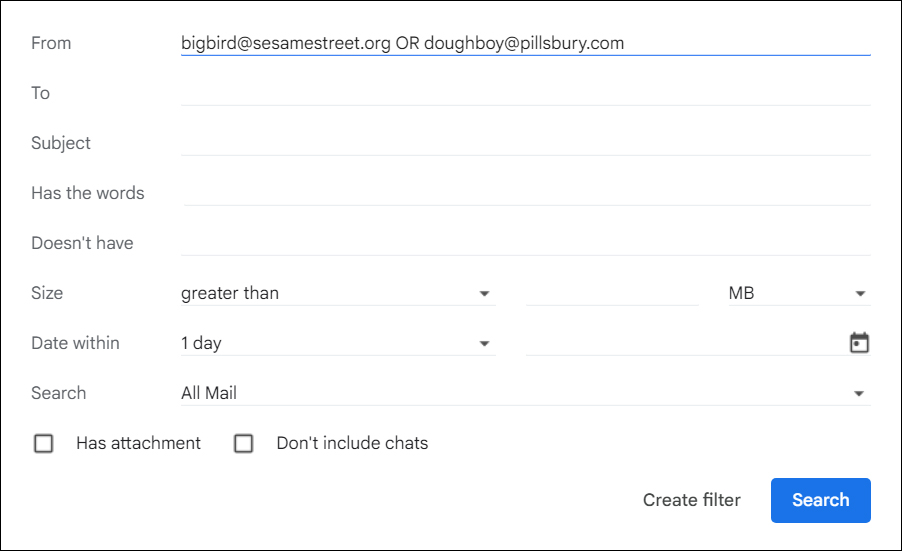
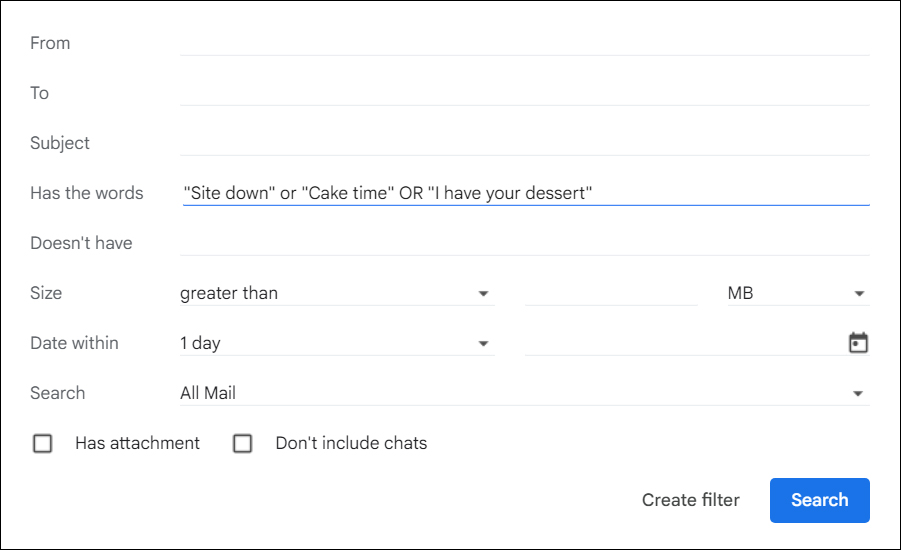
In the pop-up that appears beneath it, type in whatever conditions you want for the emails that’ll notify you — focusing on the “From,” “To,” “Subject,” and “Has the words” fields.
The “From,” “To,” and “Subject” fields are the most important pieces of this puzzle.
JR Raphael, IDG
You can use quotation marks and the word OR to separate multiple terms, if you want to include more than one possibility within a single rule, but you’ll want to stick to just one field per rule — so only the “From” field or only the “Subject” field, for instance. You can then go back and repeat this process to create separate rules for other fields, if you want.
You can use quotation marks and the word OR to separate multiple terms within a single field.
JR Raphael, IDG
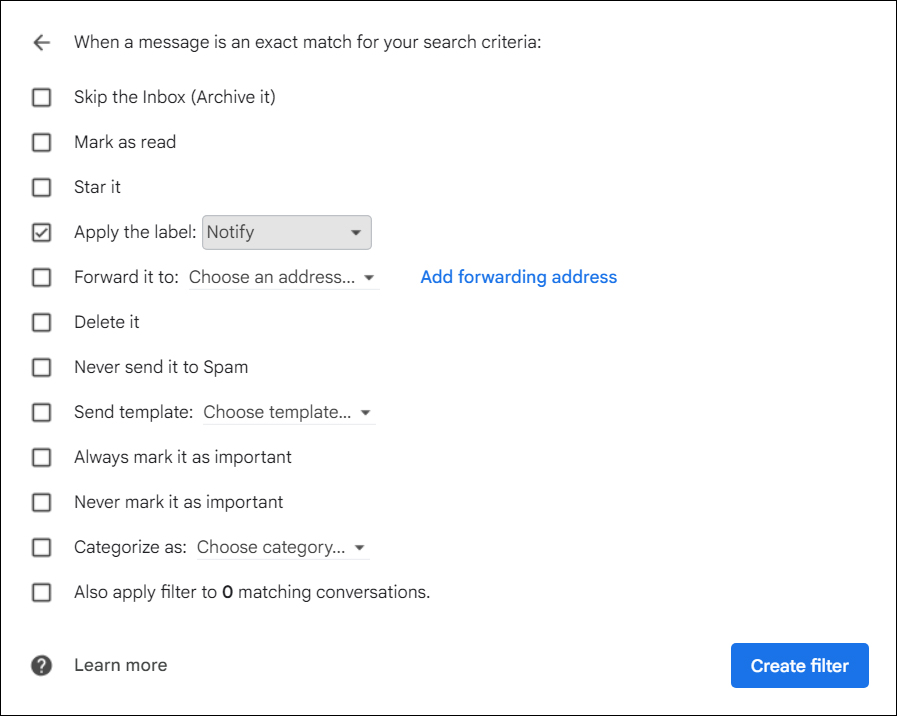
Once you’ve got things set, click “Create filter” at the bottom, then check the box next to “Apply the label” and select that “Notify” label we made a moment ago.
Adding on our special “Notify” label is the secret sauce that makes this all work.
JR Raphael, IDG
Click the blue “Create filter” button, and that’s it: Your rule is set. And any incoming emails that meet the conditions you specified will always notify you on Android, while all other emails will stay quiet.
Now, for the final piece of this puzzle…
Step 4: Prepare for on-the-fly alert enabling
The automated Android email notifying rules are great for making sure your phone alerts you to emails that you know in advance are gonna be important — based on who’s sending ’em or what they’re about.
But what about when you randomly run into a conversation you want to monitor that doesn’t meet those conditions — say, a specific email thread with a potential business partner or realtor (or even a koala realtor who happens to be a potential business partner) that you really want to watch for replies around right now?
With the system we’ve created, adding any such email on the fly into your alert system is easy.
The way you’ll do it varies slightly depending on whether you’re sending the email from a desktop computer or from Android.
From a computer:
Start a new email like you always do in Gmail.
Click the three-dot menu icon in the lower-right area of the compose box. (You can do this before or after you’ve written the email. It doesn’t matter!)
Hover over “Label” in the menu that comes up, then find and click the “Notify” label we made a little while ago.
The Gmail website makes it especially easy to add a label as you’re writing a new email.
JR Raphael, IDG
That’s all: You can now just send your email normally, and it’ll have the “Notify” label applied from the get-go — meaning any new replies coming into it will trigger your Gmail Android alert and create a notification on your phone.
If you want to add an existing email thread into your notification mechanism, meanwhile, you’ll just click the label-shaped icon above it (or click the three-dot menu icon above it, if you don’t see a label icon, and select “Label as” from the menu that pops up) — or use the L keyboard shortcut, provided you’ve got Gmail’s keyboard shortcuts activated — and select our spiffy new “Notify” label.
From Android:
The Gmail Android app doesn’t make it quite as simple to add a label onto a new email on the fly, while you’re actually writing it. So in that scenario, when you want to have any replies to a specific email thread notify you, you’ll need to first send the email and then head into your Gmail Sent folder (located within the app’s three-line main menu) to add the label onto it right after.
Just open the email from there, then tap the three-dot menu icon above it and select “Change labels.” Find and select “Notify,” and boom: You’re good to go.
With any email you’ve received or you’re replying to, it’s even easier: Tap that same three-dot icon in the upper-right corner while viewing the email, then select “Change labels” and tap “Notify.”
And with that, give yourself a well-earned pat on the back. You, my koala-obsessed companion, just gave your Android email a magnificent upgrade. You won’t be bothered by needless notifications ever again, and you’ll always know when something important hits your inbox.
That’s an enlightened way to handle email notifications on Android. That, you might even say, is what one could call Android intelligence.
Proposed cuts at a key US government agency will likely mean the demise of CHIPS Act funding, which could effectively end the program and undermine efforts to reshore semiconductor manufacturing and research to the US.
Axios and Bloomberg on Tuesday reported that the National Institute of Standards and Technology (NIST) plans to cut 497 jobs this week. NIST, a non-regulatory agency within the US Department of Commerce (DoC), helps drive innovation and industrial competitiveness and oversees the CHIPS for America program.
Robert Maire, president of consulting firm Semiconductor Advisors, wrote in a blog post that the plan to cut NIST staff isn’t “bluff or negotiation tactic.” Instead, the layoffs signal a complete shift in direction under US President Donald J. Trump, he said.
“Trump made it clear over the last few days that he will institute 25% tariffs on imported semiconductor devices, so [it’s] obvious that strategy is shifting from incentivizing US chip production to penalizing imports instead,” Maire said. “This also lowers the likelihood of TSMC taking over Intel manufacturing, as giving top US chip production to Taiwan contradicts the new strategy.”
The Trump Administration, Maire said, hasn’t fully considered the impact of the cuts, since “100%” of AI chips, most Intel chips, all AMD chips, TSMC customers’ chips, and more than 80% of memory chips are imported — with the majority of them outside the US.
“Obviously chip manufacturing companies will slow spending on programs they previously thought they were getting CHIPS Act funding for, if not cancel those projects outright,” Maire said. “If I were running a chip company, I would not count on CHIPS Act funding — even if I had a signed contract, as its clearly not worth the paper it’s written on if NIST is eviscerated.”
Industry analysts have agreed in the past that tariffs on imports will act as a penalty on the industry, while the CHIPS Act — hallmark legislation passed three years ago under then-President Joseph R. Biden Jr. — acts an incentive.
Jack Gold, principal analyst with tech industry research firm J. Gold Associates, has called Trump’s plan to enact tariffs on oversea chip makers is simply “wrong.” Funds already granted under the CHIPS Act should be safe if transferred, but with NIST staff cuts, the program could stall without oversight, he said.
“Ending it would be a mistake,” Gold said, arguing that incentives work better than tariffs for bringing chip manufacturing back to the US. If funding is pulled, companies like Intel might halt their projects, as they likely can’t replace the lost funding, he added.
“I don’t know how the companies (Intel and others) would replace the funding if it gets pulled,” Gold said. “In fact, I think it’s unlikely and the chip guys would just shutter whatever they are building, at least for the near term.”
The issue goes beyond CHIPS funding, Gold added, saying program cuts will hurt local communities expecting new facilities that would create jobs, pay taxes, and boost the economy. Areas such as Ohio, where projects were planned, “will miss out,” he said. And, local politicians in states expecing the grant monies, including New York, Ohio, Texas, and Arizona, are likely unhappy, he said.
“As for why Trump and company would do this, I think it’s just a short sighted view of, ‘Let’s cut all spending, without regard for what that spending ultimately means.’ As I said, you can’t accomplish bringing back manufacturing to the US simply by penalizing with tariffs. It won’t work,” Gold said. “Besides, it takes three to four years to build out a new fab, so imagine that amount of tariffs going into our products. What doesn’t have a chip in it these days? We will all be paying more for things.”
To date, the DoC has allocated, but not dispensed, about $32 billion in funding among chipmakers, including Intel, Samsung, Micron, TSMC, and Texas Instruments, all of whom have unveiled plans for a number of new US chip fabrication plants. In return, those chip designers and makers have pledged about $300 billion in current and future projects in the US, according to the White House under Biden.
With the CHIPS Act spurring them on, the likes of Qualcomm, in partnership with GlobalFoundries, also said it would invest $4.2 billion to double chip production in its Malta, NY, facility.
Despite widespread bipartisan backing, some members of Congress expressed concerns about certain provisions, such as the level of government subsidies or the potential for the bill to benefit only a few large tech companies. Still, the majority of both Democrats and Republicans recognized the strategic importance of boosting semiconductor production on US soil.
In addition to Trump’s opposition, House Speaker Mike Johnson said in 2024 that Republicans would likely repeal the CHIPS Act. Johnson, who voted against the measure, later walked his comments back, saying he would like to “streamline” it, according to The Associated Press.