Synopsys said it would eliminate approximately 10% of its global workforce as the chip design software company integrates its $35 billion acquisition of engineering simulation firm Ansys. This move could affect up to 2,800 employees.
The Sunnyvale, California-based company disclosed the restructuring plan in a Securities and Exchange Commission filing on November 12, stating that the cuts would enable it to “invest in key growth opportunities and drive business efficiencies” following the Ansys deal, which closed in July.
The combined workforce totaled approximately 26,500 employees as of the companies’ most recent financial reports. Synopsys had about 20,000 employees at the end of fiscal 2024, according to the company’s annual report, while Ansys employed 6,500 people as of December 31, 2024, according to its 10-K filing.
The company said it expected to incur pre-tax charges ranging from $300 million to $350 million for severance, termination benefits, and site closures. The majority of workforce reductions were expected during fiscal 2026, with the restructuring substantially complete by the end of fiscal 2027, according to the filing.
Synopsys declined to say which geographies or business functions would be most affected, saying only that it intended to “capitalize on the highest-growth opportunities”.
Strategic repositioning, not distress
“A 10% workforce reduction following a $35 billion acquisition sits at the upper bound of what we consider typical for enterprise software and semiconductor tooling deals, but it is not surprising given the scale and ambition of this integration,” said Sanchit Vir Gogia, chief analyst and CEO at Greyhound Research. “This is not a distress signal. It is a tightly controlled attempt to compress multi-year synergy extraction into the first 18 months of ownership.”
The restructuring positioned Synopsys more competitively against rival Cadence Design Systems, Gogia said. By combining chip design automation, semiconductor IP, and multiphysics simulation, “Synopsys can now offer enterprise customers a unified path from transistor design to full system digital twins,” he said. “This shifts the competitive dynamics decisively.”
The Ansys acquisition, first announced in January 2024, expanded Synopsys’ total addressable market from $19 billion to $31 billion, according to the company. The deal faced months of regulatory scrutiny in the US, the UK, and China before coming to a close in July.
Impact on customers
The workforce reduction raises questions for enterprise IT leaders about product roadmaps and support continuity during the Synopsys-Ansys integration. The combined company served customers including Intel, AMD, and Nvidia for chip design tools, and Tesla, SpaceX, Boeing, and BMW for simulation software, according to company materials.
Synopsys said on its corporate website that all Ansys tools would remain fully supported and that existing customers would not face forced migrations. Materials on the website said the company expected to deliver its first integrated capabilities in the first half of 2026, focusing on multiphysics simulation for multi-die chip packaging, a critical technology for AI accelerators.
“CIOs and engineering leaders should prepare for an integration that is firm in direction but deliberate in execution,” Gogia said. Customers should expect both product families to remain intact with roadmaps “stitched together progressively rather than force-merged,” he added. Early integration would appear as tighter connections between electronic design automation workflows and physics simulation tools, particularly for advanced packaging and thermal analysis.
On pricing, Gogia said CIOs should anticipate bundle offers and multi-year incentives in the short term. “Longer term, once integrated workflows demonstrate measurable productivity gains, the company will feel justified in raising prices on high-value suites,” he said, advising CIOs to lock in multi-year price protections before new bundles become standard.
However, Gogia cautioned that a broader platform “magnifies the leverage of the vendor and increases the cost of switching.” He advised CIOs to enforce stronger governance on data portability and maintain competing toolchains for critical design steps.
Broader industry realignment
The restructuring came roughly two months after Synopsys’ stock plummeted 35% following a third-quarter earnings miss. The company reported $1.74 billion in revenue versus analyst expectations of $1.77 billion, according to earnings materials filed with the SEC.
The announcement followed a broader wave of tech industry layoffs, with US employers cutting more than 150,000 jobs in October alone, according to outplacement firm Challenger, Gray & Christmas.
Gogia characterized the 2025 wave of layoffs as “a structural realignment rather than a sign of industry decline.” Companies were recalibrating for an era in which AI and automation reshaped labor requirements, he said, removing layers of management and consolidating duplicated teams. “The deeper signal is that technology vendors are positioning for an AI-centric decade,” Gogia said. “They are reallocating resources from slower growth or legacy units into AI-infused engineering, cloud infrastructure, and system simulation.”
OpenAI has updated its GPT large language models. Again.
The GPT-5.1 models understand what users want more quickly, staying on track and in character better than before.
But there’s still no one vendor’s AI model that stands head and shoulders above the rest.
OpenAI has introduced GPT-5.1, an update to its GPT-5 model, aiming to deliver faster responses, improved reasoning, and more flexible conversational controls as the company works to refine its ChatGPT experience for both consumer and enterprise users.
The release includes new Instant and Thinking variants designed to offer more adaptive reasoning and a broader range of personalization options, the company said in a blog post.
GPT-5.1 is available across ChatGPT’s free and paid tiers, with enterprise and education customers receiving a brief early-access period before it becomes the default model. OpenAI said the models are also accessible through the API.
In a separate Substack post, OpenAI CEO for Applications, Fidji Simo, said these chat models are “trained using the same stack as our reasoning models,” adding that they “score higher on factuality and complex problem-solving than GPT-5, while also introducing a more natural, conversational tone.”
The update expands ChatGPT’s personalization controls with presets such as professional, friendly, candid, quirky, efficient, cynical, and nerdy, and aims to improve the reliability of custom instructions so they persist across multi-turn conversations.
Implications for enterprises
Analysts point out that the real story with GPT-5.1 is not the headline features but the subtle behavioral shifts that remove a lot of the friction enterprises quietly learned to live with this past year.
“The model is quicker to pick up intent, less likely to wander, and noticeably better at keeping a steady voice from one message to the next,” said Sanchit Vir Gogia, chief analyst, founder, and CEO of Greyhound Research. “That alone cuts a surprising amount of hidden operational waste. Teams no longer need to rephrase the same request four different ways or spend half their time smoothing out tone inconsistencies that creep into customer-facing text. This is something CIOs would appreciate.”
The real test is whether it reduces manual clean-up. Enterprises want fewer correction cycles and escalations. They also want a model that does not start acting like a different personality mid-conversation.
“GPT-5.1 makes progress on all of that,” Gogia said. “Coding output is steadier, long-context reasoning is less fragile, and the model is less prone to slipping into verbose rambling or over-polite filler. You can feel the engineering underneath. The routing architecture and the dual-style reasoning pathways matter more than the marketing language around them.”
However, it may be challenging for CIOs to fully evaluate GPT-5.1’s improvements, as many changes focus on enhancing user experience through better tonality and reasoning, according to Anushree Verma, senior director analyst at Gartner.
“These updates increase the model’s immersive capabilities, capturing users’ attention and encouraging stronger engagement,” Verma added. “Other models have positioned tonality as a competitive differentiator, and GPT-5.1’s upgrades have been made with this in mind.”
OpenAI’s competitive position
The update comes as OpenAI faces stiff competition from rivals, including those in China, and after ChatGPT 5 faced criticism for issues during rollout.
“The shine of being the default choice has faded,” Gogia said. “Enterprises that once embraced OpenAI without hesitation are now mixing and matching models to suit workload, cost, and regulatory expectations. GPT-5.1 helps OpenAI reassert itself not by leaping ahead on raw capability, but by focusing on the fundamentals that shape enterprise confidence.”
But rivals like Claude, Gemini, Mistral, and emerging open-source models are vying for market share, and modern enterprise architectures increasingly assume a multi-model fabric as the norm.
“In such a situation, GPT-5.1 functions less as a single pillar and more as the strongest member of a larger toolkit,” Gogia said. “It will still be the preferred choice for deep analytical work and ambiguous, multi-step tasks, but it must now coexist with competitors that outperform it in cost-sensitive or domain-specific scenarios.”
A year after its acquisition of Cameyo, Google is making the virtual application delivery platform generally available and integrating it with Chrome Enterprise.
Cameyo’s virtualization technology enables business to access “legacy” Windows applications —from ERP tools to AutoCAD or Excel — a major limitation for Chromebooks in the workplace. It differs from traditional virtual desktop infrastructure (VDI) tools by delivering just the individual app a user requires, Google said; the app is then accessed via the Chrome browser or as a progressive web app.
On Wednesday, Google announced that Cameyo by Google, as it’s now known, is generally available, priced at $132 per user a year.
“Cameyo by Google helps us deliver on our vision for the future of work, one where you can access all of your applications side by side,” Rob Beard, product manager at Google, said during a briefing. It enables a “workspace where web apps and legacy applications are virtually the same, where the virtualization layer is invisible to the end users.”
IT admins, Beard said, can “deliver apps to end users’ devices in minutes, without having to configure or even touch those end user devices.”
Google has also added an integration between Cameyo and Chrome Enterprise Premium, is browser and device management tool. This will ease the “deployment and management” of virtual apps, saidBeard, with access controls available via the Google Admin Console. The integration enables additional security features around virtual apps, such as URL filtering and data loss prevention (to stopusers from copying data out of an SAP app running in Cameyo, for instance).
Another addition is the ability for Google’s Gemini AI assistant to interact with Cameyo-basedWindows apps. Otherwise, Cameyo users shouldn’t notice much difference from the product they’ve been using already, said Beard.
Cameyo by Google could help organizations that standardize on Google’s enterprise offerings continue to use legacy Windows apps, said Tom Mainelli, IDC group vice president, device and consumer research.
“Cameyo looks great as a standalone virtualization solution, but what’s powerful about this launch is its increased integration with the broader Google enterprise suite,” he said.
The ability to access Google’s Gemini AI in legacy apps could prove useful for end users, he said, while the Chrome Enterprise Premium integration means customers can “layer on additional security features” to those virtual apps.
While Cameyo by Google won’t convince a fully Windows-based enterprise to move entirely to Google’s ecosystem, it can “make it easier for organizations that are curious about and experimenting with Google’s various enterprise offerings to move more users into that ecosystem,” he said.
A survey of 214 CIOs and IT leaders in Western Europe, conducted by Gartner between May and June, found that more than 61% plan to increase their reliance on local and regional cloud providers due to geopolitics. More than half (53%) plan to restrict future use of global cloud providers for the same reason — and 44% reported they’re already limiting use.
“It shows that geopolitics absolutely have an impact on the decision making of organizations when it comes to cloud,” said Rene Buest, senior director analyst at Gartner.
There are several reasons for an increased focus on digital sovereignty, according to Buest.
One is a fear the US government could block access to cloud services. For instance, the International Criminal Court’s (ICC) chief prosecutor, Karim Khan, reportedly lost access to Microsoft services earlier this year, several months after US President Donald Trump placed sanctions on the organization. Microsoft has since denied it suspended services for the ICC.
Other cases, such as Adobe cutting off Venezuelan customers in compliance with US sanctions against that country, reinforced concerns about who has access to their data.
“Digital sovereignty has a lot to do with control — who has control over the technology or over the cloud I’m on,” said Buest. “And if I’m not able to control it, there’s the likelihood that I won’t be operational at some point anymore.”
There’s also uncertainty around trade negotiations, with many worried that tariffs could be placed on US cloud services.
Amid geopolitical uncertainty, many European organizations are turning to alternatives to established cloud providers, and 55% plan to expand their use of open-source software, according to the Gartner survey.
Several public sector organizations in the region are moving to open source digital workplace apps. The German federal state of Schleswig-Holstein is replacing Microsoft software with LibreOffice, Nextcloud, and Open-X-Change, while the city of Lyon in France, will replace Windows and Office with open-source alternatives. And the Austrian Armed Forces will reportedly deploy LibreOffice to 16,000 workstations.
Digital sovereignty is expected to grow as a priority globally, according to Gartner. By 2030, the analyst firm forecasts that more than 75% of all enterprises outside the US will have a digital sovereignty strategy that involves local or regional cloud usage.
Heightened interest in digital sovereignty will result in increased spending on local clouds and open-source applications, but the likes of Amazon, Google, and Microsoft are unlikely to be too troubled. These hyperscalers account for 70% of the IaaS, PaaS, and hosted private cloud market in Europe, according to a report by Synergry Research Group from July. US tech giants also lead in SaaS, with Microsoft 365 and Google Workspace widely used by private and public sector organizations.
Buest expects some cloud spending to shift to European providers in the coming years, boosting revenues for local suppliers. But a mass exodus of customers from global cloud providers is unlikely.
“We won’t see a big shift, or that the hyperscalers lose an immense amount of market share,” said Buest. “It’s still a drop in the ocean.”
For CIOs and other IT leaders, his advice is to select which workloads are appropriate for a sovereign cloud and when to rely on hyperscalers — a room booking application would contain less sensitve corporate information, for instance. They should assess the current level of sovereignty and control over their data and understand the likelihood of various risk scenarios.
“So basically, [it’s] good old risk management,” said Buest.
When you pick up an iPad Pro equipped with an M5 processor you’re not only picking up a tablet more powerful than most laptops, you’re also picking up a passport to tomorrow, with a tablet that’s quite capable of running on-device AI.
Tomorrow’s tablet is here
Why does this matter? Well, look at the speed with which AI technologies are evolving and the billions of dollars being spent on improving the models they use. This rapid pace of innovation means that while much AI processing takes place in the cloud today, in the months to come we’ll see more and more models appear that run on-device. We’re already seeing this in Apple Intelligence, and also in my personal favorite app, Drawthings.ai, which I’ve been using on an M5 iPad Pro Apple made available to me.
In hand, I have an 11-inch iPad Pro with Wi-Fi + Cellular, 1TB of storage, standard glass screen. It costs $1,799 (and can easily power an external display at up to 120Hz).
Working with the iPad showed me two things:
That it is absolutely more powerful than a user like me needs most of the time.
That it can happily handle complex apps and workflows.
That this surplus performance means it will be equally capable of handling really demanding apps that haven’t even been introduced yet.
The system’s computational performance and capabilities cement the iPad’s place as a viable computer replacement and makes it highly suitable for use by professionals who need access to a bit of power while working in hyper-mobile environments. (Think image and video editors, both of which can use these systems as laptop replacements in some scenarios.)
That no other tablet comes close to this level of performance is why the new iPad Pro is tomorrow’s tablet today. It should keep users happy for years and will continue to remain popular across second-user markets.
What it replaces
The M5 iPad Pro replaces the M4 iPad Pro, which used to be the best tablet money could buy and has now become the second-best tablet you can get.
The only effective difference between both models is the processor, Wi-Fi 7 support, and support for fast charging — the M5 iPad Pro can get to a 50% charge in around 30 minutes with a 60W adapter. Everything else — display technology, cameras, speakers, capacity, size, and weight is exactly the same (bar memory bandwidth and installed memory, which is higher).
The differences between the newest model and the M2-powered iPad Pro introduced in 2022 are a little greater; these include the processor, better display technology, more CPU cores, camera improvements, and greater screen brightness and resolution.
The processor power that is core to Apple’s current hardware story means that those using an M4 iPad Pro are likely still really happy, while those with an M2 almost certainly remain cheerful, as well. This means the M5 iPad Pro is really intended to be an upgrade to people choosing to move to Apple or those upgrading from older tablets, including the M1 iPad Pro. Apple recognizes this, which is why] it helpfully pointed out that the M5 iPad Pro is “up to 5.6x faster than iPad Pro with M1.”
Speeds and feeds
Since the upgrade story here is primarily around speed and performance, it’s time to look at some benchmarks. These are the scores I yielded in my own testing.
Geekbench
CPU: 4,109 single-core; 16,561 multi core
GPU Metal Score: 73,889.
3DMark:
3,928 at 29.1fps.
AnTuTu Benchmark
CPU: 119559,
GPU: 1423031,
Overall: 3634694
It is worth noting that the Geekbench aggregate data shows the M5 iPad Pro to be significantly faster than the 3,658 single-core scored by the M4 model, or 2,593 single-core of the M2 iPad Pro. (The M1 model delivered a 2,307 single-core score.) Multi-core scores for older models were 13,517 (M4), 9,795 (M2), and 8,330 (M1) respectively. What that data shows is clear and significant performance improvements over time. Iteration by iteration, Apple is consistently making massive improvements in silicon design; this shows itself to customers in the form of faster performance, more capable systems, and longer usable lives.
Not only are these the best tablets you can get today, but they are likely to remain so until Apple introduces the next upgrade.
A note about an additional improvement in this model: memory bandwidth is improved by 30% on the last generation with throughput at over 150GBps. This isn’t necessarily an improvement you’ll see in normal use, but you’ll find the system feels much slicker as soon as you begin doing anything computationally intensive. Faster storage read/write speeds and more on-board memory also boost the experience.
Apple is transparent that it sees its systems — Macs, iPads, Vision Pro, and iPhones — as being the go-to devices with which to build, use, and develop artificial intelligence. It’s a story it can easily prove, all the way back to the pre-Chat GPT M1 Macs, which included dedicated GPUs and a Neural Engine with which to support these complex technologies.
Track back on the Mac, or the iPad, and you know that Apple’s adventures with machine intelligence go back further than Siri; the company understands what it needs to bring to the table to support development of future AI systems. In that respect, it doesn’t matter whether Apple has built its own AI or not, what matters more is that its systems can support AI made by others.
Did Apple achieve this? You bet. From webAI to the astonishing DrawThings, a wave of AI applications is coming to Apple Silicon. I worked with DrawThings to create fantastic illustrations in a myriad of styles, on the device, no cloud required (beyond access to download models). The iPad got a little warm to the touch, but the images were complex, interesting, and absolute proof you can use the device to run high-performance AI.
I also worked with MicDrop 1.1.0 to make some truly awful sounds, which I’ll make no claim for other than saying this was not the application’s fault.
In demos, I’ve seen an iPad crunch through other AI augmented apps, including DaVinci Resolve, and Image Playgrounds; I can easily imagine that Final Cut, Logic Pro, and iMovie sessions will see major benefits from the performance boost.
Apple promises that video transcoding on Final Cut Pro for iPad is six times faster on one of these iPad Pros than it was on M1-powered models. This graphics performance boost is anecdotally equally evident when playing games — it was a hoot replaying Divinity: Original Sin 2 for a little and becoming a little frustrated in Genshin Impact (again).
Who is this tablet for?
Boiling it down a little, what I’m saying is that if you need an iPad that’s capable of handling the toughest possible applications, games, or for artificial intelligence, then that’s what you’ll get with the M5 iPad Pro. If you don’t need that power yet, but might need it in the next 12 months, then it’s still worth upgrading today.
Equally, if you are using an M2 iPad Pro or earlier or just want to upgrade from another older iPad model, then the M5 is a good upgrade. It’s built for the future and should see you devouring all available tasks for the next few years.
The only tablet that comes anywhere near this one is, of course, last year’s iPad Pro. Which is the point, really, because with Apple Silicon, Apple is now only really competing with itself, and anyone investing their way into the company’s ecosystem is purchasing products with the power to handle the next wave of AI computing.
Meta researchers have unveiled a new reinforcement learning framework called SPICE (Self-Play in Corpus Environments) that enables large language models (LLMs) to improve their reasoning skills without human supervision.
Developed with the National University of Singapore, SPICE trains a single model to act as both a Challenger, which generates complex, document-based problems, and a Reasoner, which solves them.
By grounding the learning process in real-world text corpora rather than synthetic data, the system avoids the hallucination loops that have plagued earlier self-play methods. It achieves an average improvement of nearly 10% in mathematical and general reasoning benchmarks.
The researchers described the approach as a “paradigm shift” toward AI systems that can self-improve through interaction with the vast, verifiable knowledge embedded in web documents rather than static human-curated datasets.
Why self-improving AI is difficult
The idea of self-improving AI has begun to take shape with the rise of LLMs capable of reasoning. However, most existing methods face fundamental barriers after some initial progress.
“Without external grounding, models inevitably plateau or collapse due to two critical issues,” the researchers said in the paper. “(1) hallucination amplification, where factual errors in both generated questions and answers compound as models train on their own unverifiable synthetic data, and (2) information symmetry, where both the problem generator and solver share the same knowledge base, preventing genuine challenge and leading to simpler, more repetitive patterns.”
Even new techniques that aim to keep training data diverse, such as variational synthesis, still encounter limitations. They can only work with what was already captured during pretraining, essentially remixing the same information in new ways.
What makes SPICE effective
SPICE is built on the concept that a single LLM assumes two alternating roles, one that creates challenges and another that tries to solve them.
In one phase, the model acts as the Challenger, drawing information from a large document corpus to generate complex, document-grounded questions. In the next phase, it switches roles to become the Reasoner, attempting to answer those questions without seeing the source material.
The Challenger earns higher rewards when it creates problems that sit right at the edge of what the Reasoner can handle, making the tasks difficult but still solvable. The Reasoner is rewarded for producing correct answers.
This back-and-forth process, supported by real-world data, allows the system to keep discovering new challenges and improving its ability to solve them without human supervision.
This approach removes the verification bottleneck that has limited earlier research to specialized areas such as mathematics and coding. Because the answers are based on real documents, the system can verify them against factual sources rather than relying on synthetic or assumed data.
What the tests show
When tested across different LLMs, the researchers found that SPICE showed clear and consistent improvements in reasoning performance.
On the Qwen3 4B model, performance rose from 35.8 to 44.9 percent, while the larger Qwen3 8B model climbed from 43.0 to 48.7 percent. A stronger impact was seen in OctoThinker models, with improvements from 14.7 to 25.2 percent on the 3B version and from 20.5 to 32.4 percent on the 8B version.
“The adversarial dynamics between Challenger and Reasoner create an automatic curriculum: the fixed Reasoner’s pass rate decreases from 55% to 35% as it learns to generate progressively harder problems, while the fixed Challenger’s pass rate increases from 55% to 85%, indicating successful co-evolution of both roles,” the study said.
The researchers also found that grounding the training process in real documents was essential for lasting improvement.
Models trained without this external reference quickly hit a ceiling and stopped getting better. But when SPICE drew on real-world text, it kept progressing steadily, using fresh document material to generate new and more complex challenges throughout training.
Implications of the study
By using large document collections as external sources of knowledge, SPICE helps models improve instead of stagnating on their own data. Industry analysts say such frameworks could eventually influence how enterprises train domain-specific AI models, but adoption will come with new responsibilities.
“SPICE opens new possibilities for adaptive AI, but enterprises can’t afford to set it and forget it,” said Tulika Sheel, senior VP at Kadence International. “Self-improving systems need self-checking mechanisms. Human oversight, audit trails, and compliance guardrails must stay front and center.”
Sheel noted that while the Challenger–Reasoner setup could, in theory, be replicated with corporate data such as financial or legal documents, it would demand “deep infrastructure, clean datasets, and a strong focus on transparency.”
She also warned that autonomous learning loops introduce risks like bias amplification and compliance drift. “SPICE nudges AI closer to self-sufficiency, but autonomy without accountability is dangerous,” she said.
Anish Nath, practice director at Everest Group, suggested that enterprises would benefit more from frameworks like SPICE by treating them as a training capability, not autonomy in production.
“Run self-play in sandboxes with gated releases; start on low-risk/internal workflows, then graduate to critical processes as evidence accumulates,” Nath said. “Enforce guardrails: schema-constrained outputs, policy engine, least-privilege tool whitelists, drift/anomaly detection, signed actions + audit trails, rollback/kill-switches, and human approvals for high-impact actions.”
Nath added that self-generated training data does point toward autonomous development loops, but warned of risks such as model collapse, data poisoning, and untracked drift. “These can be mitigated with independent evaluation models, provenance tracking, versioned datasets, and human gates for capability upgrades,” he said. “Improvement has to remain controlled, auditable, and compliant.”
No matter what type of Android phone you carry or how you usually use it, one thing is a near-universal constant:
You’re gonna spend a ton of time messing with messages.
The messages may be from clients, colleagues, or your cousin Crissy from Cleveland (damn it, Crissy!). But regardless of who sends ’em or what they’re about, they’re all poppin’ up on your phone and cluttering your weary brainspace.
My fellow Android adorer, I’m here to tell you there’s a better way.
Google’s Android Messages app has gotten surprisingly good over the years. That’s no big secret. If you only rely on what you see on the surface, though, you’re missing out on some of Messages’ most powerful and underappreciated efficiency-enhancing options.
Today, we’ll explore the Android Messages app’s most effective out-of-sight superpowers. They may not be able to cut down on the number of messages you send and receive on your phone (DAMN IT, CRISSY!), but they will help you spend less time fussing with ’em. And they might just help you have a more pleasant experience, too.
Let’s dive in, shall we?
(Before you splash forward, take note: The tips on this page are all specific to the Google Messages app for Android. If you’re using a phone where that exact app wasn’t preinstalled or set as the default, you can download it from the Play Store and give it a whirl. You might be pleasantly surprised by what you find.)
Android Messages trick #1: Custom icons
We’ll start with what might be my favorite little-known trick within Google’s Android Messages app: With a couple quick adjustments, you can turn any of your contacts’ faces into a custom notification icon. That icon will then show up at the top of your phone whenever that person messages you for extra-easy visibility and access.
See?
A quick bit of simple setup, and bam: Anyone’s face can become their notification icon (for better or for worse!) on your phone.
JR Raphael, IDG
The only catch is that your phone needs to be running 2020’s Android 11 operating system or higher for the feature to be available. (And honestly, if your phone isn’t running Android 11 at this point, you’ve got bigger fish to fry, Francesco.) Also, Samsung has screwed around with this system for no apparent reason — a frustratingly common theme with Samsung’s heavily modified approach to Android, especially as of late — so you may or may not be able to take advantage of this on a Galaxy gadget, depending on how recently its software has been screwed up updated. (Exaggerated sigh. What more can I say?!)
On any reasonably recent Android device that sticks close to Google’s core Android interface, though, here’s how to make the magic happen:
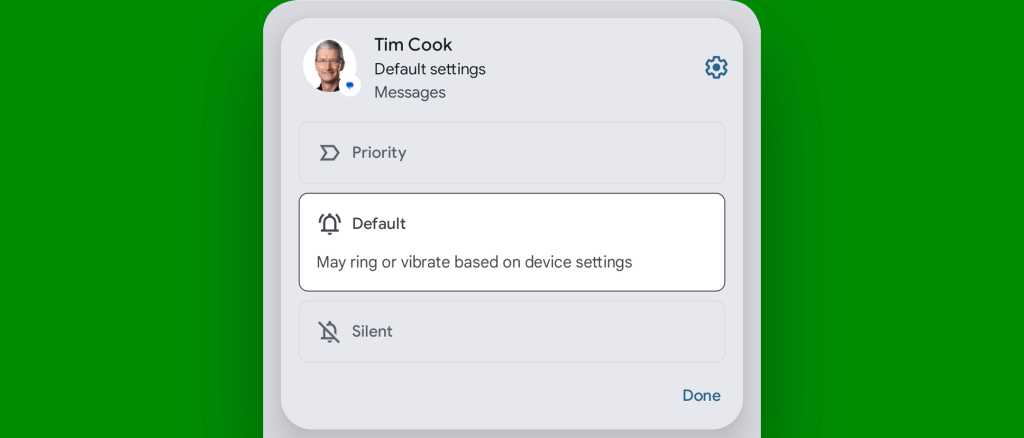
The next time you get a message from someone, press and hold your finger to the notification.
That’ll pull up a screen that looks a little somethin’ like this:
Android’s Priority conversation setting is the key to creating custom notifications that really stand out.
JR Raphael, IDG
Tap the “Priority” line, then tap “Apply” to save the changes.
And that’s it: The next time that person messages you, you’ll see their profile picture in place of the standard Messages icon in your status bar, and the notification will show up in a special section above any other alerts.
Hip, hip, hoorah!
Android Messages trick #2: Custom sounds
In addition to making it easier to spot an important contact by their notification icon, you can also create a custom alert sound for messages coming in from different people — or even from specific threads within the Google Messages app — so you immediately know what they are, even before you have a chance to look.
This is one of those things that’s super-basic but also awkwardly out of sight and consequently unknown to an awful lot of Android-owning organisms. But once you know where to find it, it really couldn’t be much easier to get going. And it’s all connected to Android’s notification channels, which let you get incredibly nuanced on how different types of notifications within apps behave.
The quickest way to zip where you need to be is to open the thread you want to customize within Messages itself — whether it’s a one-on-one text with an individual person or a group conversation with multiple contacts. Once you’re inside the thread, tap the three-dot menu icon in its upper-right corner and select “Details,” then select “Notifications” on the screen that comes up next.
And hey, wouldya look at that? You should now be staring at a series of options about how that exact notification behaves — including, at least in the standard Google version of Android, the all-important “Sound” setting.
srcset="https://b2b-contenthub.com/wp-content/uploads/2025/11/google-messages-android-custom-sounds.jpg?quality=50&strip=all 2160w, https://b2b-contenthub.com/wp-content/uploads/2025/11/google-messages-android-custom-sounds.jpg?resize=300%2C271&quality=50&strip=all 300w, https://b2b-contenthub.com/wp-content/uploads/2025/11/google-messages-android-custom-sounds.jpg?resize=768%2C693&quality=50&strip=all 768w, https://b2b-contenthub.com/wp-content/uploads/2025/11/google-messages-android-custom-sounds.jpg?resize=1024%2C923&quality=50&strip=all 1024w, https://b2b-contenthub.com/wp-content/uploads/2025/11/google-messages-android-custom-sounds.jpg?resize=1536%2C1385&quality=50&strip=all 1536w, https://b2b-contenthub.com/wp-content/uploads/2025/11/google-messages-android-custom-sounds.jpg?resize=2048%2C1847&quality=50&strip=all 2048w, https://b2b-contenthub.com/wp-content/uploads/2025/11/google-messages-android-custom-sounds.jpg?resize=773%2C697&quality=50&strip=all 773w, https://b2b-contenthub.com/wp-content/uploads/2025/11/google-messages-android-custom-sounds.jpg?resize=186%2C168&quality=50&strip=all 186w, https://b2b-contenthub.com/wp-content/uploads/2025/11/google-messages-android-custom-sounds.jpg?resize=93%2C84&quality=50&strip=all 93w, https://b2b-contenthub.com/wp-content/uploads/2025/11/google-messages-android-custom-sounds.jpg?resize=532%2C480&quality=50&strip=all 532w, https://b2b-contenthub.com/wp-content/uploads/2025/11/google-messages-android-custom-sounds.jpg?resize=399%2C360&quality=50&strip=all 399w, https://b2b-contenthub.com/wp-content/uploads/2025/11/google-messages-android-custom-sounds.jpg?resize=277%2C250&quality=50&strip=all 277w" width="1024" height="923" sizes="auto, (max-width: 1024px) 100vw, 1024px">A special sound for every conversation is no more than few fast taps away.
JR Raphael, Foundry
Tap that, then find and select any sound you like. The next time a new message comes in for this conversation, there’ll be no mistaking what awaits you from the second it arrives.
Android Messages trick #3: Contact prioritizing
While we’re thinking about making certain conversations stand out, ever wish you could keep your most important messaging threads at the top of the list for easy ongoing access?
Poof: Wish granted. No matter what kind of Android phone you’re holding or how needlessly meddled with its software may be, just hold your finger onto the conversation in question on the main Messages app screen, then tap the pushpin-shaped icon in the app’s upper bar.
You can now pin up to 20 conversations that way, as of just the other week, and they’ll always appear above all other threads in that main inbox view.
Android Messages trick #4: Short-term tune-out
Some incoming messages always require your immediate attention. Others, in contrast, are best tuned out and caught up with much later.
Surely you’ve been in that type of thread before, right? Y’know, the one where people are getting just a little too active — sending message after message, typically either during your workday or while you’re trying to focus on anything other than their uninteresting missives?
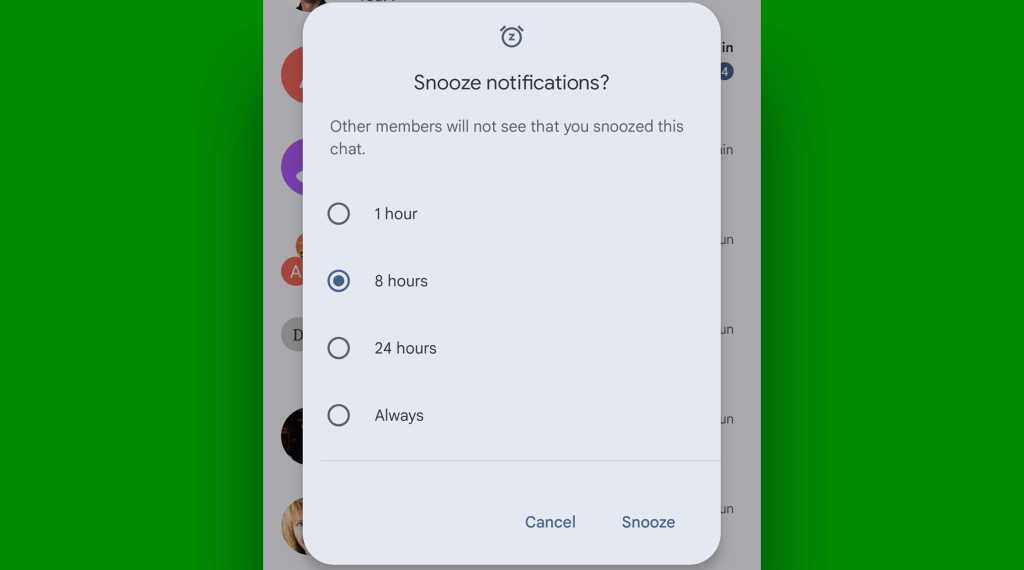
Google’s Android Messages app actually has a great way to deal with such struggles. It’s a temporary snoozing mechanism that lets you opt out of notifications from one specific conversation and that conversation only and stop receiving alerts from it for a set amount of time.
To try it out, press and hold your finger onto any thread in your main Messages list, then look for the clock icon with a “z” inside of it at the top of the screen. Tap that, and you can then decide to snooze notifications from that single conversation for one hour, eight hours, 24 hours, or — if you really want to tune it out — forever.
The sanity-saving Android Messages snooze option. (Don’t worry: I won’t tell.)
JR Raphael, Foundry
You’ll continue to get notifications from all other conversations in the meantime, and you’ll still be able to see new activity from the snoozed thread by opening up Messages and actively looking at it. But you won’t be interrupted by its alerts again — for a little while, at least.
Android Messages trick #5: Gemini be gone
Speaking of tuning out distractions, if you rarely to never interact with Google’s Gemini chatbot from inside the Messages app — perhaps because, y’know, it’s also available in approximately 7 gazillion other in-your-face places — you might appreciate the distraction-free satisfaction of an interface without a prominent Gemini button begging for you to caress it every frickin’ time you open up your messages.
(The Gemin icon is that starbust-shaped symbol that sits perpetually above the “Start chat” button, in Messages’ lower-right corner, if you haven’t ever tapped it to find out.)
And good news: You can actually send that icon a-packin’, if you’re so inspired: Just tap your profile picture in Messages’ upper-right corner, select “Messages settings,” then tap “Gemini in Messages” and flip the switch on the screen that comes up next into the off and inactive position.
All that’s left is to pat yourself on the back and celebrate the fact that you’ll only have to see Gemini in 6.9 gazillion other places from this point forward.
Android Messages trick #6: Free in-flight Wi-Fi
Gemini may be little more than a distraction within Messages most of the time, but one moment when that capability can actually come in handy is while you’re flying the allegedly friendly skies.
A while back, a crafty reader alerted me to the fact that you could use Gemini’s Messages integration to effectively give yourself free in-flight Wi-Fi access even when you haven’t paid for the privilege. It’s a heck of a clever hack and a moment when you genuinely may want to activate Gemini within the Messages app, at least for a little while.
Whether from the sky or on the regular ol’ ground, the next time you’re working to plan a meeting or event with a fellow Homo sapien in Messages, make yourself a mental note of this:
Anytime someone sends you a message that includes a specific date and time, the Messages app will underline that text. See it?
That underlined time is a covert link from an incoming message to your Android calendar agenda.
JR Raphael, IDG
You’d be forgiven for failing to realize, but you can actually tap that underlined text to reveal a shortcut for opening that very same day and time in your Android calendar app of choice. It’s a great way to get a quick ‘n’ easy glimpse at your availability for the time you’re discussing.
And if you then want to create a calendar event, just look for the “Create event” command that should appear right below that very same message. That’ll fire up a new calendar event for you on the spot, with the appropriate day and time already filled in.
That button to the left of the text suggestions is a spectacular time-saver for on-the-fly event creation.
JR Raphael, IDG
Don’tcha just love simple step-savers?
Android Messages trick #8: Seamless scheduling
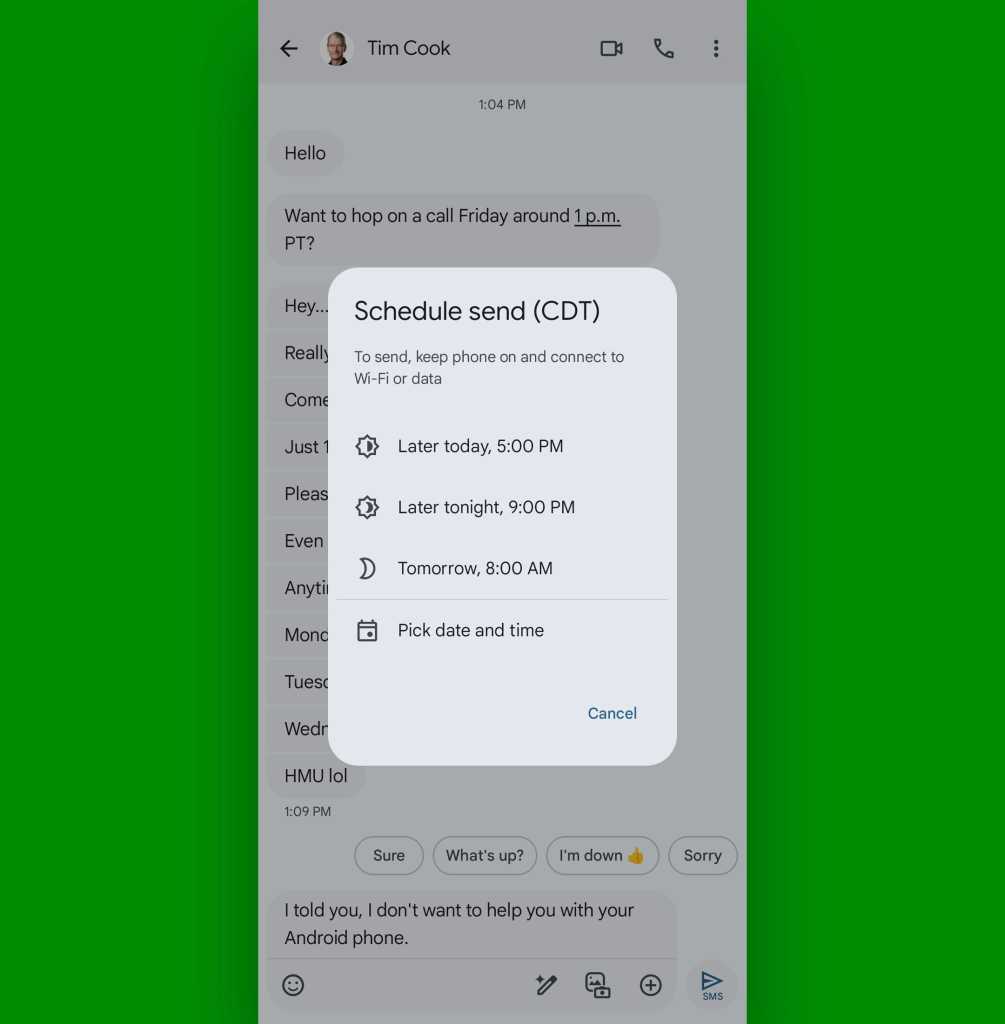
If you’re ready to hammer out a response to a message right now but don’t want your reply to be sent for a while, follow the advice shared by a reader in my Android Intelligence newsletter recently and simply schedule your message for some specific future time.
The Android Messages app’s scheduling system is spectacularly useful. You can rely on it for setting reminders to be sent to clients, business-related messages to be pushed out the next morning, or context-free middle-finger emojis to be delivered to your cousin in Cleveland at ungodly hours in the middle of the night.
To tap into this productivity-boosting power, just type out your message normally — but then, instead of tapping the triangle-shaped send icon at the right of the composing window, press and hold your finger onto that same button when you’re done.
No reasonably sane person would possibly realize it, but that’ll pull up a hidden menu for selecting precisely when your message should be sent.
Send any message, anytime — no matter when you actually write it.
JR Raphael, IDG
And the person on the other end will have no way of even knowing you wrote the thing in advance.
Android Messages trick #9: Swift saving
When you run into a message you know you’ll want to reference again, save yourself the trouble of trying to dig it back up later and instead star it on the spot to make it fast as can be to find in the future.
It couldn’t be much easier to do: Whilst viewing an individual message thread, just press and hold your finger onto the specific message you want to save, then tap the star-shaped icon that appears in the bar at the top of the screen.
Then, when you want to find the message again, tap the search icon at the top of the main Messages screen and select “Starred” from the menu that comes up. That’ll show you every message you’ve starred for exceptionally effortless resurfacing.
Android Messages trick #10: Smart searching
Speaking of that Messages search system: Starring is sublime, but sometimes, you need to dig up an old message that you didn’t go out of your way to save.
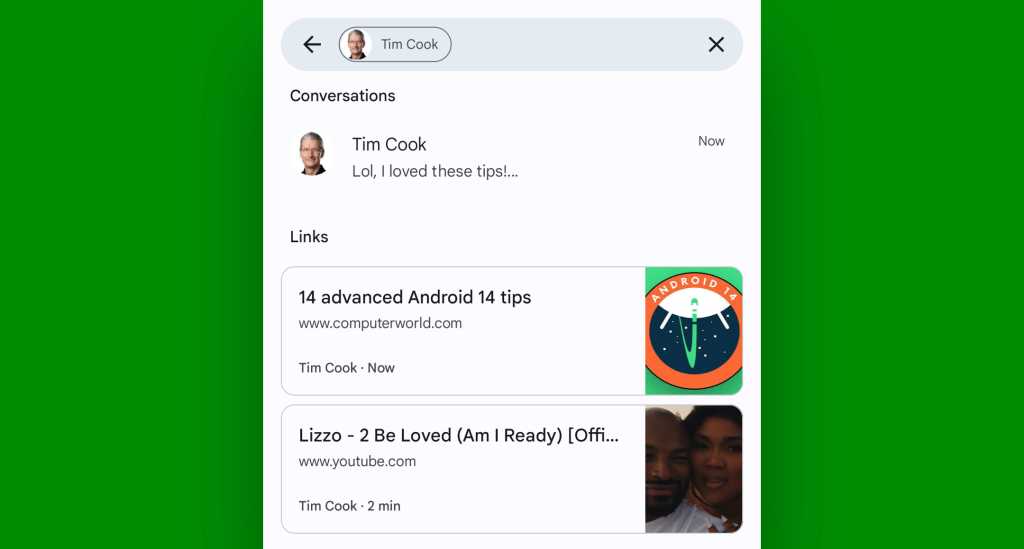
The Android Messages app makes that even easier than you might realize. Tap that same search icon at the top of the app’s main screen — and in addition to searching your entire history message for any specific string of text, take note:
You can start typing out the name of anyone in your contacts, then select them from the suggestion that appears — and then type in some text to look for something specific only within messages from that one person.
You can use the options within the main Messages search screen to look specifically at images, videos, locations, or links people have sent you.
And you can combine any of those variables for even more granular finding — looking for links you sent to a particular client, for instance, or locations an out-of-town colleague sent to you.
The Android Messages app’s search system is chock-full of helpful info.
JR Raphael, IDG
How ’bout them apples?!
Android Messages trick #11: Instant marking
I don’t know about you, but I find it impossibly irksome to see messages sitting with bold emphasis in my Android Messages inbox. That, to me, is a marking that means I need to read (and possibly also respond) to the message in question. And I can’t possibly rest for the day until I know that everything in my Messages inbox is open, addressed, and dealt with (or at least opened and with a reminder set to deal with it at some specific future time).
Sometimes, though, it’s all too easy to fall behind and get a backlog of bolded messages — and in such scenarios, sometimes, you need a quick ‘n’ easy one-switch reset button to bring everything back to read status and give yourself a fresh start.
Well, surprise: Messages has such an option! Tap your profile picture in the app’s upper-right corner and look for “Mark all as read” in the menu that comes up to find it — then breathe a sigh of relief as all that attention-demanding boldness melts away once and for all.
Android Messages trick #12: Easier-to-read text
On the subject of more noticeable text, file this next Android Messages feature under “accidental discoveries”: The next time you find yourself squinting at something in a messaging thread on your phone, try a good old-fashioned zoom gesture on the screen — placing your finger and thumb together and then spreading ’em slowly apart.
You’d never know it, but the Messages app supports that standard gesture for zooming into a conversation. The inverse applies, too: When you’re ready to zoom back out and make everything smaller, just bring your two fingers closer together.
And if those actions aren’t working for you, tap your profile picture in the upper-right corner of the main Messages screen and select “Messages settings,” then make sure the toggle next to “Pinch to zoom conversation text” is in the on position.
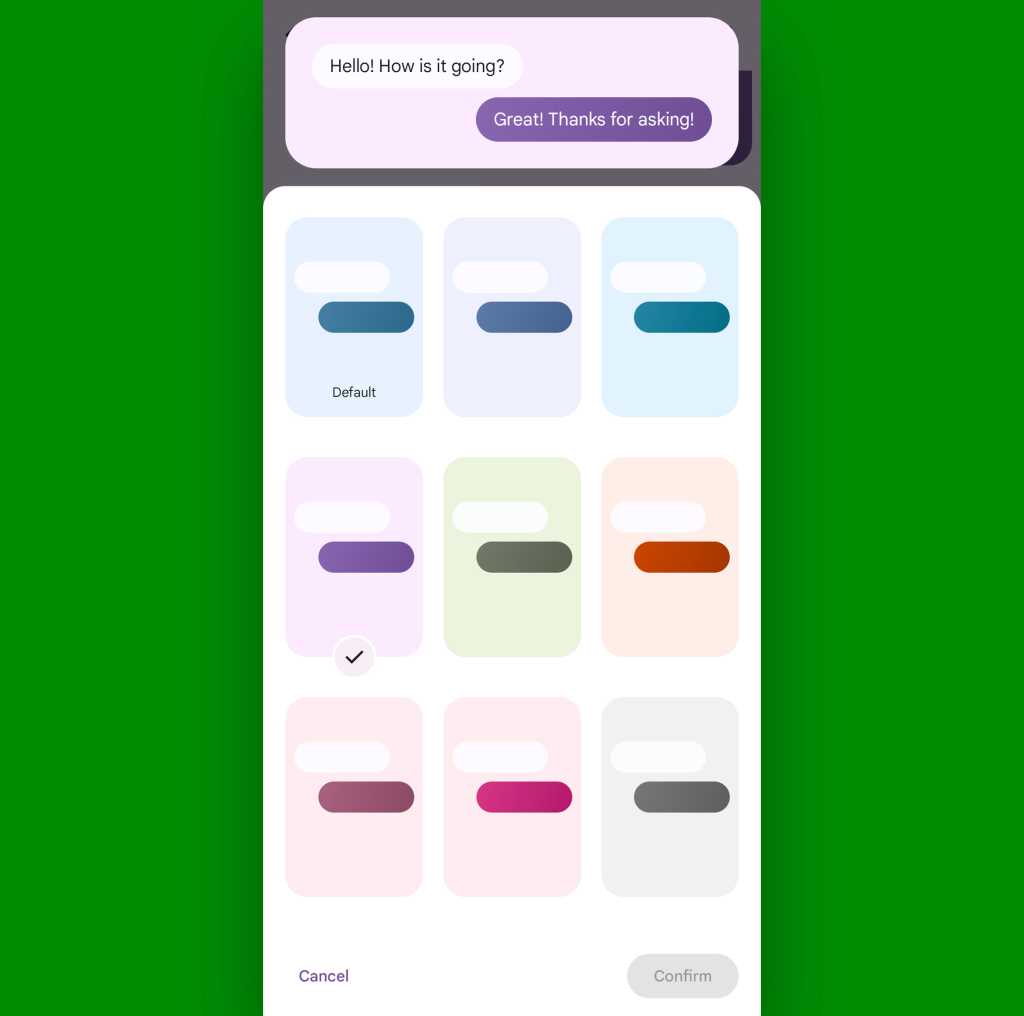
Android Messages trick #13: Custom colors
While we’re thinkin’ about easier reading, a relatively recent Android Messages addition can let you create a custom color palette for any conversations you’ve got goin’.
That way, you can always remember that texts with your significant other are in, say, purple, whereas messages with your most important client are in red. (Best not to get those two threads confused.)
This one works only with messages sent using the modern RCS messaging platform, which basically means messages that don’t involve pesky people still carrying around iPhones with outdated software on ’em. (It’s always the iPhone people, isn’t it?!)
With any currently supported conversation, open up the thread within Messages — then:
Tap the three-dot menu icon in the screen’s upper-right corner.
Select “Change colors” from the menu that appears.
Pick the color scheme you prefer, then tap the Confirm button at the bottom.
Every Android Messages conversation can have its own distinctive color, if you take the time to set it up.
JR Raphael, IDG
Repeat for any other compatible conversations, and you’ll always know exactly what you’re looking at even with a fast glance — and without having to give it an ounce of active thought.
Android Messages trick #14: Meatier media
You know a fantastic way to waste time? I’ll tell ya: moving from one app to another just to glance at something someone sent you (like those blasted Bangles video Crissy is always blasting your way).
But get this: Google’s Android Messages app can let you preview and get the gist of both text articles and even YouTube videos without ever leaving your current conversation — from right within the app and that very same message thread.
The key is to make sure you’ve got the associated options enabled:
Tap your profile picture in the upper-right corner of the main Messages screen.
Select “Messages settings,” then tap “Automatic previews.”
Make sure the toggle next to “Show all previews” is on and active.
Now, the next time someone sends you a link, you’ll see the associated item’s thumbnail and description right then and there, within the Messages conversation:
Videos expanded in-line within Messages — easy peasy.
JR Raphael, IDG
With web pages, Messages will show you just enough of a preview to let you make an educated decision about whether you want to tap the link or not.
Web links gain useful extra context once you enable the right option within the Android Messages settings.
JR Raphael, IDG
Almost painfully sensible, no?
Android Messages trick #15: Smarter shortcuts
If I had to pick the simplest Android Messages trick for enhancing your efficiency, it’d be embracing the built-in shortcuts Google gives us for faster message actions.
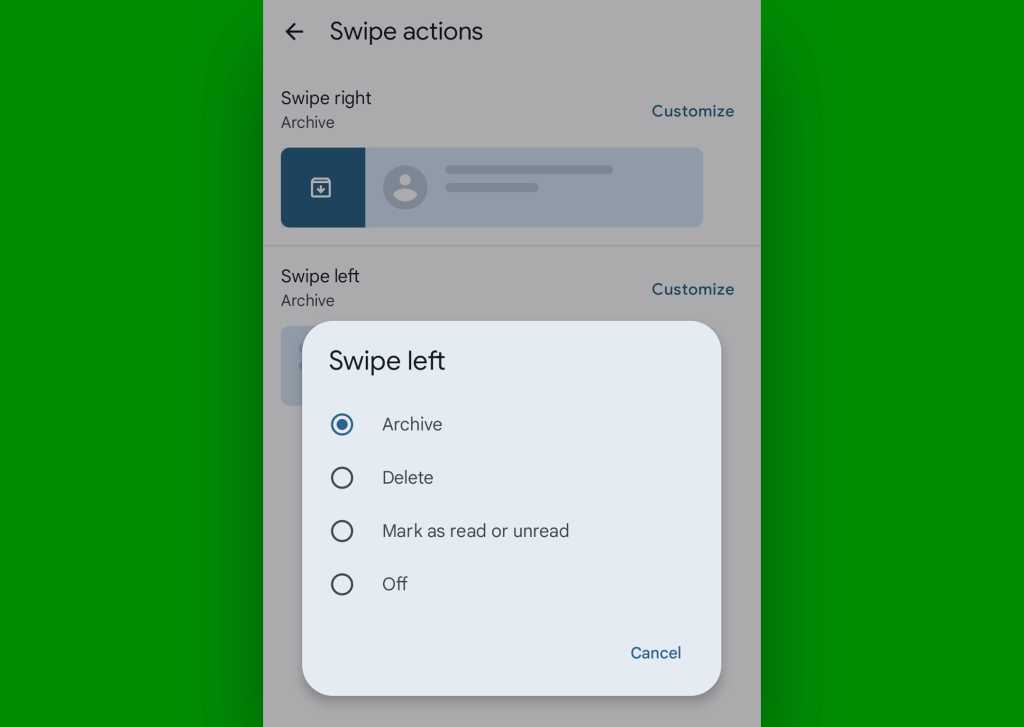
From the main Messages screen, you can swipe left or right on any message to perform an instant action — archiving the conversation, permanently deleting it, or toggling it between read and unread status.
All you’ve gotta do is mosey your way back into the Messages app’s settings areas and tap on the “Swipe actions” item to set things up the way you want…
Step-saving swipes within Messages — now available for your customization.
JR Raphael, IDG
…and then, just remember to actually use those gestures moving forward. (That part’s on you.)
Android Messages trick #16: Quicker cleanup
Certain services love to send confirmation codes via text messaging when you sign in or try to perform some action. It may not be the most advisable or effective form of extra security, but — well, it’s better than nothing. And for better or for worse, it’s a pretty common tactic.
Core security considerations aside, the most irksome part of these confirmation codes is having ’em clutter up your messages list at every Goog-forsaken moment. But the Google-made Android Messages app can actually take care of that for you, without any ongoing effort — if you take about 20 seconds to make the right tweak now.
Here’s the secret:
Tappity-tap that comely character in the upper-right corner of the main Messages screen (y’know, the one whose appearance has a striking resemblance to your oversized head).
Tap “Messages settings” in the menu that comes up, then select “Messages organization.”
Within that curiously created section, you’ll see only one option: “Auto-delete OTPs after 24 hrs.” OTP may not exactly be an everyday, universally known abbreviation, but fear not — for it isn’t an erroneous reference to an early 90s rap hit with equally ambiguous meaning. Nope: It stands for one-time password, which is the same thing we’re thinking about here.
Flip that toggle into the on and active position, then flip a finger of your choice to all the confirmation codes in your messages list and rest easy knowing they’ll be auto-purged a day after their arrival from that point forward.
Who’s down with OTP? Every last homie. (I apologize.)
Android Messages trick #17: Readable reactions
Slack-style reactions may seem silly on the surface, but they serve an important communication purpose in allowing you to quickly acknowledge a message without having to carry the conversation on further. Whether it’s a thumbs-up, a clapping hands symbol, or even perhaps an occasional burrito emoji, it really can be a handy way to say “Yup, got it” (or “Yup, want beefy goodness”) without having to use a single word.
You probably know you can summon a reaction within the Android Messages app by pressing and holding a specific message within a conversation and then selecting from the list of available emoji options — right? But beyond that, Messages packs an even faster way to issue a reaction in the blink of an eye.
And here it is: Simply double-tap your finger onto any individual message within a conversation. That’ll apply the thumbs-up reaction to it without the need for any long-press or symbol selection.
It’d be nice if there were a way to customize which reaction is used for that action by default — so that, obviously, we could all change it to the burrito emoji, since that’s what any sane person uses most often — but if and when an upward thumb will do the job, now you’ve got a super-easy way to bring it into any conversation with a fast finger tap.
Last but not least in our list of magnificent Messages enhancements is something specific for your conversations with the Apple-adoring animals in your life. And it relates to those very same sorts of reactions we were just going over.
One obnoxious side effect of Apple’s “no one exists outside of iOS” mentality, y’see, is the way the iPhone’s equivalent of those reactions show up on Android. Plain and simple, they show up as — well, plain and simple text messages, instead of coming through as reactions.
Surely you’ve encountered this, right? Those pointless messages you get from iGoobers that say stuff like “Loved ‘Please stop texting me, Crissy'”?
Well, scribble this on your metaphorical mental iPad: Google’s Android Messages app is actually able to intercept those absurd platform-specific reactions and turn ’em into standard reactions instead of plain-text interruptions. And it’ll take you all of 12 seconds to enable the option:
Head back into the Messages app’s settings.
Tap “Advanced.”
Look for the line labeled “Show iPhone reactions as emoji” and make sure the toggle next to it is in the on position.
All that’s left is to breathe one final heavy sigh of relief — and to send Crissy a well-deserved burrito reaction.
Hey: Don’t let the learning stop here. Get six full days of advanced shortcut knowledge with my free Android Shortcut Supercourse. Tons of time-saving tricks await!
The alarms and flashing red lights are warning we’re in an AI bubble. Hundreds of billions of dollars are being invested in the technology by Microsoft, Google, Amazon, Meta, Nvidia, Intel, and generative AI (genAI) startups like Anthropic, OpenAI, and others.
Gary Marcus, a founder of two AI companies, has been sounding the call loudest of all, most recently in a column for TheNew York Times, warning that the countless billions spent on genAI will be wasted because there will be little payback. Instead, he argues, companies like Microsoft should instead put their money in more targeted ways for specific purposes like medical research.
Microsoft begs to differ. It’s essentially been saying: “AI bubble? What AI bubble?” and doubled down on its AI spending. The company’s not alone. Amazon, Google, Meta, OpenAI and all the other AI believers are doing the same thing.
Follow the money
To understand why Microsoft continues to bet big on AI, take a look at its spending plans and the customer demand for its AI services. Microsoft execs laid them out during the company’s most recent earnings call, which covered the first quarter of the 2026 financial year.
Microsoft reported in the call that its capital spending for the quarter jumped to $34.9 billion, driven primarily by AI spending. That’s about a 50% increase over the $24.2 billion in capital spending in the previous quarter.
And that’s just the beginning. It says it’s going to spend more than $80 billion in capital spending, and possibly much more. All that spending, the company says, is because of surging demand for AI.
Amy Hood, Microsoft’s finance chief, said the company has to keep spending that and more because it can’t keep up with customers’ demands for its AI services.
“I thought we were going to catch up,” she said during the call. “We are not. Demand is increasing. It is not increasing in just one place. It is increasing across many places.”
She added that Microsoft already has $400 billion under contract for future sales. “That’s for booked business,” she said. “Today.”
The $400 billion is an understatement. It doesn’t include $250 billion in computing power for AI that OpenAI has agreed to buy from Microsoft.
No surprise: He believes that he and OpenAI will be among those making “a phenomenal amount of money.”
He’s right that there’s a bubble. Bubbles are an inevitable part of the way technology makes its way into the economy and people’s lives. Venture capitalists invest in many companies during bubbles, knowing that most will fail. But even if only a handful of their investments hit it big, VCs more than make up for their bad bets. That’s the phase we’re in right now.
The last time this happened in a big way was 25 years ago, at the height of the dot-com bust. Companies that died during it deserved to die — nothing supported their sky-high valuations. Pets.com, the poster child for the bust, left investors with $369 million in losses. By the fourth quarter of 1999, it had spent $61.8 million and had only $5.8 million in sales. The company went from its IPO to liquidation in a mere 268 days.
The dot-com bubble bursting, though, didn’t mean that there was no money to be made on the internet, or that it wouldn’t change the way people live and do business. Our world has changed dramatically because of the internet. Trillion-dollar fortunes have been made on it and continue to be made.
The same thing will happen with the AI bubble. Companies with no real value will fail; those that offer value will thrive.
How will the bubble affect Microsoft?
Expect Microsoft to be one of those that flourish. Unlike many AI companies, it’s got lots of interested customers and significant AI revenue — as the company noted in its earnings report, it can’t keep up with demand.
There’s a lot going on in the enterprise tech world. Add all those changes to the day-to-day standard IT job of keeping everything up running and many IT leaders and professionals can quickly get overwhelmed.
So how do you keep up?
Here are 14 ways IT departments can approach this conundrum while maintaining their sanity amid constant change — especially with everyone from the C-suite to front-line workers clamoring for the latest tech.
Set expectations. Be clear about what you can realistically accomplish in terms of new technology given your budget and manpower. Set firm boundaries and be consistent both within and outside the IT department.
Rely on trusted sources for research. Cultivate tech news sources you can rely on. Many tech developments, especially around hot topics like genAI, are routinely covered by a variety of media sources (including mainstream news outlets and tech influencers). Separate the hype from what is really going on — what’s working and what isn’t.
Communicate with peers. In addition to curating sources, having relationships with people at other organizations in your industry (and sometimes outside your industry) is a powerful way to see what colleagues are doing and get perspective. This can help lead to innovations within your IT department, opportunities for collaboration, and potential new hires.
Be open to suggestions. Being receptive to ideas inside and outside IT can be critical. No IT leader or admin is an expert on everything when it comes to emerging technology. Good ideas can come from anywhere, so it’s important to demonstrate your openness. (Not every idea will be worth pursuing, of course.)
Open proofs of concept. When ideas seem attainable and worth exploring in depth, proof-of-concept projects is a logical next step. Each should be well defined, have set timelines and measurable goals. If projects are open ended or vaguely planned, they risk becoming zombie projects that never die.
Realize not everything will work. That’s why proofs of concept and pilot projects are important. Be prepared for failure. Many if not most ideas or projects, will fail or at least go through a rough patch. But even failures can be useful learning experiences. Set expectations accordingly.
Encourage experimentation, but with guardrails. Experimentation is a good thing, be it by technical staff, executives, or everyday users. You do yourself a disservice by outlawing experimentation, but you can’t let it go unchecked. Whether for security reasons, IT resource limits or usability/user training requirements, you need to keep experiments from overtaking everything else need to do.
Shadow IT exists; use it. For years, studies have shown that shadow IT — where users quietly build their own workflows and processes and even make their own purchases without informing IT— is more prevalent than many decision makers realize. With almost any new technology, users will experiment, with or without IT’s knowledge. (This is how BYOD began.) Your best approach is to allow this to happen, and in some circumstances encourage it. Banning it isn’t an effective strategy and you might actually learn how to incorporate various tools and techniques into larger, more managed, projects.
If you say no, explain why. There’s an old adage that IT is the department of “no,” always shutting down people and ideas. Even if you’re ok with shadow IT projects, there will be times you have to draw a line. Few people like being told no, it but if you can explain your rationale, most will accept it. (Whatever idea you’ve vetoed could still reemerge in the shadows; a solid explanation of IT’s thinking gives you an opportunity to work with those employees cooperatively.)
Work with vendors, partners and consultants. No IT department is an island. Everyone has to deal with vendors, consultants and other partners to successfully get a handle on new technologies. Outside relationships can bring forward new ideas, allow IT to see things with fresh eyes and augment your internal staff. (Beware of “partners” too focused on hype — and be certain that they understand your current position and specific enterprise needs.)
Create centers of excellence. These centers can be a good way to educate staffers, execs and front-line employees about the challenges of exploring, adopting and integrating emerging technologies. This can relieve pressure on IT leaders to be up to date on every tech development and how it relates to your company. And they can help build a working group to establish expertise, use cases, best practices and needed requirements, documentation and support.
Avoid hype. Control your enthusiasm for new technology. This doesn’t mean you don’t show enthusiasm; it does mean that you operate in a “no hype” zone, where clear eyes and realism are in order.
Remember scalability, support and security. New technologies can be exciting, but IT has to consider how each will scale, the strain they’ll place on tech support, and how they could affect corporate security. As each new concept, product or initiative arises, IT always has to keep these three areas in mind.
Be open to disruption, but be realistic. GenAI, agentic AI, AI PCs — note the AI thread running through all three — are potentially massive disruptors of the status quo. IT can’t afford to be afraid of disruption, but it’s important to remain realistic about the nuts and bolts of getting new tech initiatives working —as well as the potential affects on your organization and its workers.
A host of new technologies is coming to market faster than ever. Knowing how to evaluate them and their potential impact on your business is a requirement for every IT leader. Things will never be as simple as they once were, but you can develop pathways and processes for you, your staff and organization to manage the flood of news and announcements and separate the potential from the hype.
Because the pace of change isn’t likely to slow down anytime soon.
Later this month, Microsoft plans to enhance its M365 productivity suite with “Agentic Users,” autonomous AI agents with their own identities and access to enterprise IT systems that can collaborate with one another and with humans.
“These agents can attend meetings, edit documents, communicate via email and chat, and perform tasks autonomously,” Microsoft said in an addition to its product roadmap entitled “Microsoft Teams: Discovery and Creation of Agentic Users from Teams and M365 Agent Store.” The update will be rolled out to desktop systems worldwide beginning later in November, according to the roadmap entry.
Microsoft provided further details about its plans for Agentic Users in a message posted to the Microsoft Admin Center, according to various reports from around the web.
“Agentic Users are a new class of AI-powered digital entities designed to function as autonomous, enterprise-grade virtual colleagues. Unlike traditional bots, Agentic Users are provisioned as full-fledged user objects with their own identity in the organization’s directory (via Entra ID or Azure AD), email addresses, Teams accounts, and presence in the org chart,” the purported Microsoft announcement began.
All users in enterprises with access to Microsoft teams and the Microsoft 365 Copilot store will be able to view agent templates, although only approved users will be able to create agents from those templates, it continued.
Microsoft did not respond to an email seeking confirmation of the authenticity of the message.
Confusion over licensing, increasing costs, and Microsoft’s revenue play
Before they can create any of the new agents, admins will need to approve a template for use and “assign the required A365 license,” the posting said. No further information was included about the nature or pricing of these licenses.
Analysts speculated how the new A365 licenses might relate to existing M365 licenses, which are typically sold on a per-user, per-month basis with an annual commitment.
“Previously released agents like Facilitator or Project Manager were bundled under M365 Copilot entitlements, with advanced actions billed via Copilot credits. A365 introduces explicit per-agent licensing and admin-controlled approval through the Agent Store and separates agent costs from human seats,” said Forrester vice president and principal analyst Charlie Dai.
Alexander Golev, partner at SAM Expert, a specialist in managing Microsoft licensing and cloud costs, suggested instead that A365 will replace M365 user licenses.
“Our expectation is that it will provide a combination of user-like access to Microsoft 365 services on a monthly/annual/3-annual fee basis plus the core functionality of M365 Copilot. Additional AI use will be charged in the same manner as with users — prepaid capacities and pay-as-you-go items. We don’t expect them to be all-inclusive,” he said.
Microsoft has been changing its licensing practices to increase its revenue significantly, Golev said. “In the recent years, they moved from server- or device-based licensing to CPU-based and then core-based.”
In its reporting of M365 revenue, Microsoft focuses on average revenue per user (ARPU), “which is now hitting its ceiling,” he said. “You can only scale so far. Earth’s population grows slower than Microsoft’s revenue targets. What we have been predicting is the move to ARPA — Average Revenue per Agent, which can scale exponentially,” Golev said.
Another licensing expert, Rich Gibbons, blogged about the new A365 licenses, saying that he expected Microsoft to use them as an opportunity to generate additional consumption-based revenue.
Risk of agent sprawl?
Analyst Pareekh Jain of Jain Consulting said he expects Microsoft to update its previously introduced agents as part of the rollout of Agentic Users, giving the existing agents their own email addresses and Microsoft Entra IDs too.
“Too many autonomous agents for overlapping or redundant tasks mirror the challenges most enterprises have faced with bot and app sprawl in prior M365 deployments. Without tight governance, enterprises could face duplication, higher spend, data security exposure, and oversight challenges,” Jain said.
But, said Dai, Entra IDs could play a pivotal role in avoiding that sprawl. “These IDs can be used to treat agents as directory-backed identities enabling lifecycle control, access reviews, and compliance policies….helping enterprises gain visibility and accountability,” he said.
Even before we learn all the details of these new Agentic Users, it’s clear that there are some aspects of them to which enterprises will have to pay particular attention.
Dai pointed out to the need for effective collaboration between IT asset management and FinOps teams, while Everest analyst Tanvi Rai said enterprises will need strong change management to train employees to supervise, validate and govern agent behavior effectively.
Despite all the uncertainty, what is evident is that Microsoft’s move will further intensify the race among rivals, such as Salesforce and ServiceNow, who are also accelerating their efforts to introduce autonomous AI-driven agents aimed at boosting productivity across enterprises.