Microsoft and the US Cybersecurity and Infrastructure Security Agency (CISA) have sounded the alarm about a Windows shell spoofing vulnerability that is already being exploited by attackers. It is not clear by whom as yet, but the main suspects are hackers in Russia.
CISA has mandated that all federal agencies patch this vulnerability, designated CVE-2026-32202, by May 12. According to a Microsoft advisory, exploitation of the flaw could lead to access to sensitive data, but attackers would not be able to gain control of the system.
However, one security expert has warned that the considerable gap between the time Microsoft identified the bug and the date by which the systems must be patched leads to increased risk.
The patch gap
Lionel Litty, CISO for security company Menlo, said that an incomplete patch for CVE-2026-21510 that resulted in the issue tracked as CVE-2026-32202 adds to the problem. “This has been a theme for many years. A vulnerability exists and the vendor has not been thorough enough in dealing with it, so a small variation has not been fully patched. What normally happens is that they’ve dealt with the main vulnerability, but there are still side effects.” The result of this is that there is a further delay in a complete fix while a new update is developed.
The big problem, said Litty, is the so-called patch gap. He said that initially there’s a gap between the time the vendors find a vulnerability and the time it issues a patch, and there is also a subsequent gap between the patch being issued and organizations completing the update. For example, he noted, if an update interrupts users’ work, they may be reluctant apply it. ”We can see on our platform that many users don’t update for weeks, or even months,” he said.
He pointed out that the vendors themselves are acting efficiently. But, he said, “as a CISO, I have to decide what level of pain to inflict on our users.”
A difficult balance
Erik Avakian, technical counselor at Info-Tech Research Group, noted that when it set the patching deadline, CISA had been operating within the guidelines laid down in Binding Operational Directive (BOD) 22-01, which requires US federal agencies to patch vulnerabilities within the timelines outlined under the policy, which range from 14 to 21 days.
“In cases of high-risk exploitation, CISA can shorten the deadline to three days,” he said. “But in the case of CVE-2026-32202, the CVSS score was rated at 4.3, and even though the vulnerability has been actively exploited, the rating does not meet the policy threshold for a faster patch cycle. In this case, CISA allotted a 14-day deadline, which meets its aggressive timeline standard based on the vendor rating.”
He said that there is indeed an argument that the 14 day window to patch a vulnerability that is being actively exploited in the wild is too long. But, he said, “I’m assuming in this case, the reason why it was not elevated to an emergency directive type patch cycle (which would require as little as 48 to 72 hours to patch) is due to Microsoft’s rating, as well as several other factors”.
Avakian explained his reasoning: “First, organizations can help mitigate the risk without applying a full patch by blocking certain ports for traffic at the firewall perimeter,” he said. “This type of countermeasure helps to reduce the risk while the 14-day patch window clock is ticking. The longer window gives testers added time to test patches being applied properly in a test/staging environment before rolling to production.”
Secondly, he said, “it’s one thing [for IT] to patch systems quickly, but it’s another when they’re rushed, because that carries the potential for additional unintended risk of breaking critical systems and applications if something goes wrong, or if the patch wasn’t tested properly.”
Avakian did agree that CISOs are facing a difficult balancing act, where they have to weigh risk against the stability of systems.
And, as Litty pointed out, the situation is constantly changing; the emergence of AI will cause more issues in the future. “We’re seeing a shrinking gap as AI becomes part of the problem,” he said, adding that AI use means people with fewer technical skills are able to exploit systems, and do so more quickly, so CISOs should not assume that sophisticated attacks are coming from nation states. There needs to be a change of mindset within organizations to deal with this.
“You can no longer spend a few weeks testing an upgrade and then implementing it: you have to do things much faster,” he said.
The company reported a March quarter record of $111.2 billion revenue, up 17% from last year. This follows another strong Q1 and means Apple now has an installed base of an astonishing 2.5 billion devices.
iPhone, MacBook Neo, Mac mini and Mac Studio led the charge during a quarter in which Cook confirmed “record” numbers of new-to-Mac customers. The iPhone 17 family, “is now the most popular line-up in our history,” said Apple CFO Kevan Parekh.
Looking ahead to the ongoing leadership transition, Cook said, “We have the right leader ready to step into the role.” For his part, incoming CEO John Ternus said: “This is the most exciting time in my 25-year career at Apple to be building products and services.”
MacBook Neo: The ‘iPhone moment’ for the Mac
It’s the MacBook Neo that truly seems to represent the “iPhone moment” for the Mac. Cook said customer response to the inexpensive laptop has been “off the charts. We set a March quarter record for customers new to the Mac, partly due to the Neo,” he said. “We under-called the level of enthusiasm that would be with it.”
Kansas City Public Schools, for example, is switching high school students from Windows laptops and Chromebooks to MacBook Neos, completing their transition to an all-Apple district, the company said.
If there are problems, it was that Apple was unable to source enough of the advanced nodes on which it builds its SOCs (processors) to satisfy demand for iPhones or Macs. That’s a challenge Cook anticipates will remain in place. “If you look forward to the June quarter, the majority of our supply constraints will be on several Mac models, given the continued high levels of demand that we’re seeing, and we have less flexibility in the supply chain than we normally would,” he said.
Cook believes it will take several months to reach supply/demand balance on those products, which is noteworthy given that they include both M- and A-series chips. He dug a little more deeply into the issue, admitting that the majority of the supply constraints relate to Macs, with huge demand for Mac mini and the Mac Studio to serve as platforms for AI and agentic AI tools.
Customers seem to recognize the power of those systems to run AI, so the company is seeing higher-than-anticipated demand, Cook said.
Records for everything, everywhere, all at once
Apple saw growth in every market, including strong double-digit growth in Greater China and the rest of Asia-Pacific. In China, the first half of the year grew at 33%. In the March quarter, revenue was up 28% — a quarterly record. The company also set new records in both developed and emerging markets, with double-digit growth in nearly every emerging market.
With 99% customer satisfaction, the iPhone 17 family set a new quarterly record as well, with revenue growing 22% year-over-year. These new devices are kicking off what Cook described as, “the strongest cycle that we’ve ever had in our history from the launch through March quarter.”
Services also set new records, up 16% on the year. iPad saw an 8% increase in revenue, while the wearables and accessories segment grew 5%. Among many other benchmarks, the company said it set all-time records for iPhone upgrades, the Mac installed base and the iPad installed base.
Apple says it expects memory costs to impact business
Apple discussed memory component price increases, confirming it did feel some impact in its March quarter, but was able to partially offset by digging into inventory. However, the company anticipates significantly higher memory costs in the current quarter, which it has modeled into its guidance. “I can tell you that beyond the June quarter, we believe memory costs will drive an increasing impact on our business,” Cook said. “…We’ll continue to evaluate this, and as we’ve said before, we’ll look at a range of options.”
Those options could conceivably include price increases, but might also see the company redouble its push to persuade customers to purchase accessories and services to help it sustain current prices.
Artificial intelligence and R&D
Apple’s research and development spending has increased dramatically in recent quarters, with much of that investment relating to its AI development. “We’re investing in products and services, and we see opportunities in both of those,” said Cook. The company also confirmed its AI investments are seen as being strategically very important.
Apple touched on the AI work it is doing with Google. “The collaboration with Google is going well,” said Cook. “We’re happy with where things are and we’re happy with the work that we’re doing independently as well.”
A note about margins: Apple’s $31 billion Services revenue was up 16%, but delivers margins of 76.7%, while hardware sales provide 38.7% margins. Company’s gross margin was 49.3%. One way to read this is that Apple’s Services business is in position to swallow some of the component price increases Apple anticipates will hit its hardware across the rest of the year, particularly for memory.
Back in the USA
Finally, the company also confirmed that if it receives any refund on US tariffs it has already paid it intends to reinvest that cash into US innovation and advanced manufacturing. “These would be new investments and would be in addition to our prior commitments in the US,” said Cook.
Apple said it is no longer providing net cash neutral as a formal target and now intends to independently evaluate cash and debt. Looking forward, the company expects June quarter revenue to grow by between 14% and 17% with gross margins between 47.5% and 48.5%.
What the analysts say
Apple’s price target has been raised across the board following its announcement, up $10 at Wells Fargo, $15 at Morgan Stanley, and $5 at Barclays. “The results suggest Apple is continuing to weather the global memory chip crunch, pointing to the tech giant’s supply chain resilience,” said Emarketer analyst Jacob Bourne.
“The reason why shares of Apple are not up more [following the announcement] is investors wonder if the new Siri can power an encore to iPhone super cycle that wraps up this quarter. I believe the answer is yes,” wrote Deepwater Asset Management analyst Gene Munster. Wedbush analyst Daniel Ives said Apple may be entering a “golden era,” reiterating a $350 price target with all eyes on WWDC in June.
Here’s some of the most interesting data points from across the quarter:
Earnings per share: $2.01
Revenue: $111.1 billion, up 17%
iPhone revenue: $56.9 billion
iPhone sales up 22%
Mac revenue: $8.4 billion
iPad revenue: $6.9 billion
Wearables, Home and Accessories revenue: $7.9 billion
Artificial intelligence has had an immediate and profound impact on software development. Coding practices, coding tools, developer roles, and the software development process itself are all being reimagined as AI agents advance on every stage of the software development life cycle, from planning and design to testing, deployment, and maintenance.
Download the May 2026 issue of the Enterprise Spotlight from the editors of CIO, Computerworld, CSO, InfoWorld, and Network World and learn how to harness the power of AI-enabled development.
Got extra smartphones sitting around your office? How about tablets? As we move multiple generations into mobile technology, more and more of us are building up collections of old, dated devices from both our work and our personal lives. And more often than not, those devices do little more than take up space and gather dust.
Here’s a little secret, though: Your abandoned Android gadgets are actually virtual gold mines. You just have to find the right way to tap into their potential and give them new life.
So grab the nearest DustBuster and get ready: Here are 25 ways to make your old phone or tablet useful again.
1. Create a no-cost Wi-Fi extender
If you struggle with poor Wi-Fi coverage in particular areas of your home, office, and/or home office (hello, my fellow converted garage dwellers!), a random old Android device can serve as a surprisingly effective extender for your internet signal — in the same way that a dedicated Wi-Fi extender or repeater appliance could.
Few folks realize it, but the hotspot option built into Android works not only with mobile data — the way most of us use it with a current, active Android device — but also with any Wi-Fi network associated with the device. That means your old Android gizmo can take the signal it’s receiving from a router and broadcast it further, almost as if it were a point in a mesh networking system like Eero or Nest Wifi (only without quite as elegant or simple of a setup — but hey, this approach is completely free!). It’s an interesting advantage that Apple devices notably don’t offer.
The key is to find a place for the phone where it’s close enough to a router to be seeing a reasonably strong Wi-Fi signal and close enough to your dead zone that it can extend the signal further in that direction, while still being plugged in to have consistent power. You may have to experiment to figure out what exact positioning works best.
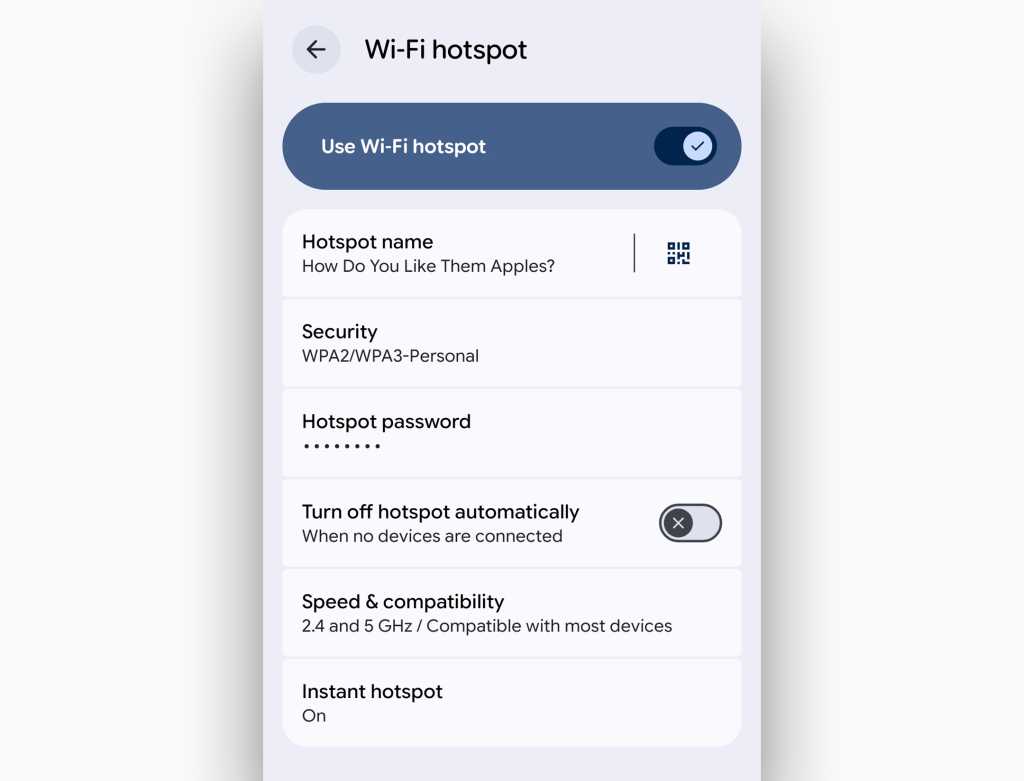
Once you have the device in the right spot, though, all that’s left is to find the hotspot option within its settings and get it configured correctly. The precise placement of the option may vary depending on the device’s software, but you’ll usually want to look within a Network & Internet section of the system settings (or whatever closest equivalent you find), then look for a “Hotspot” or “Hotspot & Tethering” subsection within that area.
Tap the option for “Wi-Fi Hotspot” there, and you should be able to configure the name and password of the network the phone will generate — using your existing Wi-Fi network as its backbone. If there’s an option to turn the hotspot off automatically anytime no other devices are connected, you’ll probably want to disable that. And if you see an option for setting the network to be 2.4GHz or 5GHz, you’ll likely want to enable both of those paths.
Then, just flip the switch to start your hotspot — and that’s it: Your extended network is officially up and running.
Android’s Wi-Fi hotspot setup, in action — a feat iPhones won’t allow.
JR Raphael / Foundry
Now, just go into the part of your building where Wi-Fi wasn’t great and try connecting to your phone’s network instead of the standard Wi-Fi network. If your positioning worked, the signal should be noticeably stronger — and your connection should be noticeably faster as a result.
2. Use it as a wireless trackpad and controller for your computer
With the right software and a couple minutes of configuration, your old Android device can act as an on-demand controller for your Windows, Mac, or Linux computer.
An app called Unified Remote and a Wi-Fi or Bluetooth connection are all you need to make the magic happen. The free version of the app gives you basic mouse and keyboard control along with specialized remotes for media playback and power-related commands, while the full $5 version adds in program-specific remotes for presentation control along with other advanced features.
loading="lazy" width="400px">
Unified Remote provides basic mouse and keyboard control along with a variety of specialized remotes.
JR Raphael / IDG
Grab whichever version you prefer and download the server-side software for your computer — then toss your old device into a desk drawer or computer bag and rest easy knowing it’ll be ready and waiting the next time you need to go wireless.
3. Turn it into a remote computer terminal
Want easy access to your home computer from the office — or vice-versa? Your old Android phone or tablet can be a splendid stationary screen for keeping a remote system at arm’s reach.
And it couldn’t be any easier to make that happen. All you need is Google’s free Chrome Remote Desktop program on both your computer and your old Android device, and your phone or tablet will effectively become a window to your desktop.
Snag the companion Remote Desktop Android app, get all signed in there, and that’s it: Your old Android device is now a full-fledged terminal and access point for any computer you want.
4. Make it a portable storage device
Cloud services may often be the simplest way to store and transport files nowadays, but there’s something to be said for good old-fashioned physical storage — both in terms of consistent availability regardless of connectivity and in terms of the added assurances having especially important files in your own pocket can provide.
While there’s certainly no shortage of high-quality portable thumb drives and external hard drives available, any old Android device is essentially the same thing — with the added advantage of also offering up an easy interface for interacting with anything on its local storage and optionally dropping such files into an email, a Slack chat, or any other cloud-connected spot should the need ever arise.
And just like that, you’ve got a generative AI chatbot at your beck and call 24/7 without having to have it take over your current Android device and run down its battery.
6. Give yourself a separate work and personal phone
With more and more companies taking a bring-your-own-device approach for the workplace, the lines between our personal and professional lives are getting increasingly blurry.
And while Android does have some decent options for creating separate work and personal profiles — both natively, if your phone is part of an enterprise-managed arrangement, and with a little creative configuring in any other scenario — there’s an undeniable appeal in creating a formal barrier between your worlds and being able to leave your work completely behind when the opportunity arises.
So think about using your old Android device as a dedicated work or personal phone and setting it up explicitly for that purpose, then using your current Android phone exclusively for the other role. That’ll give you separate physical devices for your separate life roles — the kind of power most people only dream about seizing these days.
7. Use it as a universal smart remote
Even the junkiest old Android device has ample power to serve as a smart remote for your home or office. That can be a helpful way for you and anyone else around to control your various smart devices and multimedia components without needing any special access (or your own current personal phone in hand).
First, the easy part: Load up your old phone or tablet with all the relevant apps for your smart-device setup — things like Google Home, Hue, and anything else appropriate for controlling your home or office tech.
Next, think about adding some tools that’ll let the device handle any audio and video systems in your area. There are a few ways you can make that work:
Pair the phone or tablet with one of Google’s Streamer boxes or, better yet, one of the company’s older, simpler, and far more affordable Chromecast dongles, if you’ve still got one sitting around somewhere. You can then keep the old Android device on your desk or coffee table and use it as a hub for wirelessly casting content — everything from Netflix and YouTube to TED Talks, CNBC, and Google Slides — to your TV.
Use your device as a dedicated remote for your home or office entertainment setup. If the device is running an Android version from 2012 or later, you can give yourself a ready-to-roll Google TV remote that’ll work with any compatible streaming products by installing and then signing into the official Google TV app. The Play Store also has a variety manufacturer-made apps for controlling specific components, including those by AT&T U-verse and Roku.
Set up a full-fledged media server using Plex, then use your old device as a dedicated remote to stream your own local content to a TV. (The Plex media server software is free; a premium subscription with added features runs $7 per month, $70 per year, or $250 for a lifetime license.)
8. Transform it into a free-standing security camera
Who needs a fancy-schmancy connected camera when you’ve got an old Android phone sitting around? With the aid of a third-party app, the camera on your dated device can let you keep an eye on your home, office, or top-secret crime lair from anywhere — and even perform advanced functions like video recording and motion detection.
Just download the free IP Webcam app or get the fully featured $5 pro version and follow its instructions. Within moments, you’ll be able to peek through your device’s lens from any compatible web browser and cackle with glorious glee.
9. Repurpose it as a dedicated camera
Smartphone cameras just keep getting better, but we’re reaching a point where even cameras from a few years back are really quite good — and the differences between them and their more current siblings are relatively subtle.
With that in mind, an old Android device can be a perfect way to have a ready-to-roll camera at your disposal for times when you might not want your primary phone to be out and about on your adventures — whether you’re worried about it getting wet or damaged or maybe just trying to disconnect from the world of work-related dings and pings for a while.
The best part about this setup that is no special preparation is even required. Just grab the old phone and go, and rest easy knowing your “real” phone is safe and sound somewhere far away from whatever you’re photographing.
10. Reframe it as a full-time videoconferencing station
Set up your old Android device with the app for your video-chatting platform of choice — Zoom, Google Meet, Microsoft Teams, or whatever the case may be — then drop it into a dock on your desk or conference room table. Say “hocus pocus” for good measure, and ta-da: You’ve just created a permanent access point for virtual face-to-face communications.
Just think: With enough old phones and tablets, you can create an entire house- or office-wide videoconferencing system. Sign each device into its own unique account, with the name of the room as its username, and seeing someone across the building will never be more than a couple quick taps away.
11. Turn it into a kitchen command center
Hard to believe, but my ancient 2011 Motorola Xoom tablet was one of the most used devices in my house until it finally kicked the bucket some six years into its life. That’s because I converted it into a multipurpose command center for our kitchen — a role my 2012 Nexus 10 tablet then took over for another couple years after that.
So how to make a kitchen command center of your own? Easy: First, use a custom Android launcher like Smart Launcher or Niagara Launcher to simplify your old tablet’s home screen and add in some easy-to-perform gestures — like double-tapping anywhere on the screen to launch Android’s voice search function for on-the-fly info-gathering and other hands-free commands, either via Gemini or the old Google Assistant, if your old Android device still has that present.
If you really want to get wild, you can even set up a smart-display-like screensaver that’ll turn your device into a customizable intelligent info center whenever you aren’t actively using it — kind of like what Google has tried (but thus far mostly failed) to accomplish with its not-so-old Pixel Tablet product.
12. Make it a data-based extension of your current phone service
If you use Google Fi (formerly known as Project Fi) for your current phone’s wireless service, take advantage of a little-known bonus feature: the ability to get an extra SIM card that’s connected to your account and able to provide data on any other device — without any superfluous fees.
All you’ve gotta do is order the card from the Google Fi website, pop it into an old phone (or a tablet, if you happen to have one with a SIM slot) — and bam: That device is instantly online and connected. You’ll pay only for whatever mobile data the device uses in any given month, at the same flat rate associated with your regular Fi plan, so it’s essentially just an extension of your primary phone.
That opens up plenty of interesting possibilities: You could use your old device as a ready-to-go backup phone in case your regular one is ever missing, broken, or low on battery; you could use it as a dedicated hotspot to beam out mobile data access without draining your primary phone’s battery; or you could use it as an always-connected on-the-go slate for your kids (hello, airport video-streaming) without having to pay for an extra line of service.
13. Make it your live window into the world
Don’t have the greatest view from your desk? Let your old Android phone or tablet be your window to wild and exciting locales.
To get started, grab the EarthCam Webcams app from the Google Play Store. It’ll give you one-touch access to an impressive list of live streaming cameras around the world, from the hustle and bustle of New Orleans’ famous Bourbon Street to the swooshing serenity of Niagara Falls. Pull up any view you like, then tap the icon to go full-screen and gaze the day away. If you find yourself craving some variety, you can consider upgrading from the app’s free collection to a set of 175 live cameras for a one-time $5 fee.
loading="lazy" width="400px">
EarthCam lets you gaze down Niagara Falls — or a slew of other webcams around the world — for a break from the mundane.
Ah, memories. Snag an inexpensive stand, plug your device into its charger, and turn it into a cloud-connected photo frame for your home or office.
If you use Google Photos, just open up the app, tap on any photo in your main library or within a specific album, and then tap the three-dot menu icon in the upper-right corner of the screen. Scroll horizontally along the menu that appears and select “Slideshow.” The app will cycle through your photos and give you plenty of memories to reflect upon whilst relaxing or taking care of business.
If your old Android phone is a Pixel, you can also set it on one of Google’s official Pixel Stands to start an ever-evolving Photos-linked slideshow showing any specific albums or even specific people you want.
15. Use it as a dedicated e-reader
Want a distraction-free reading environment for your next business trip or public transit commute? Load up your old Android device with only the apps you need for reading — Google Play Books, Amazon Kindle, Nook, or whatever tickles your text-ingesting fancy.
You can even borrow books from your local library: Check with your nearest branch for information on how to do it or download the free Libby app, which is used by a variety of libraries, schools, and institutions.
Be sure to disable notifications from Gmail and other noisy apps — heck, even switch the device into airplane mode once you’ve downloaded the content you need — and you’ve got the equivalent of a dedicated e-reader without all the usual phone or tablet temptations.
16. Transform it into a dedicated desk calendar
Dock your old device on your desk and put it to work as your personal calendar. Google’s own Calendar app can get the job done with plenty of productivity-oriented elements, or the free DigiCal Calendar Agenda app will give you an even more graphical and customizable interface that’s perfectly suited for this purpose.
loading="lazy" width="400px">
The DigiCal app looks especially sharp in its landscape (horizontal) orientation.
JR Raphael/IDG
DigiCal is free with an optional $5.50 upgrade for extra themes and customization options.
17. Treat yourself to a dedicated audio player
The idea of an iPod may seem amusingly antiquated at this point, but there’s something to the idea of having a dedicated device for the specific purpose of playing podcasts, music, or even just some manner of white noise.
By outsourcing that task to an old Android device, you can grant yourself the freedom to leave your current phone behind when you’re working out, doing something outside, or even just taking a break from business on the weekend — and eliminate the temptation to keep checking your inbox or looking at other work-related distractions.
You can also give yourself a great way to listen to audio while traveling without having to wear down your primary device battery during a long day of flights.
18. Make it a mounted command center for a non-connected car
Save yourself the hassle of futzing around with your current phone in your car by turning your old device into an always-available command center for a car that doesn’t have its own built-in equivalent.
Just find a decent car dock and mount the device somewhere safe. Be sure to plug it into your car’s power port and connect it to the stereo (via Bluetooth or a 3.5mm headphone jack). Then, either use your primary phone as a hotspot to keep it online or go the economical route and download any necessary music and directions before you hit the road, while you’re still connected to Wi-Fi.
All that’s left is to open up the Google Maps app and start a navigation, and you’ll be moving full-speed ahead with a simplified interface and ready-to-roll voice commands.
19. Turn it into a kid-friendly learning tool
Your old tablet may seem tired to you, but it’s still top-notch tech by toddler standards — so why not turn it into a fun and educational gadget for your kid?
On most reasonably recent tablets, you can find a native Restricted Profile feature right within the operating system: Just head into the system settings, tap “Users” (or “Users & accounts” and then “Users,” depending on your OS version), and then “Add user or profile.”
Select the option to add a restricted profile. You’ll be prompted to enable or disable access to each app installed on the tablet, allowing you to control exactly what processes your progeny will and won’t be able to use.
If your old device has Android 7.0 or higher (or Android 5.0, on a limited number of models), Google’s Family Link program can give you even more robust controls — including the abilities to set screen-time limits and receive weekly activity reports. You can learn more and sign up at the Family Link website.
20. Let it serve as a high-tech e-clock
Time for something new? An old phone with a dock can make a snazzy customizable clock for your desk or nightstand. Google’s own Clock app is a great place to start, especially if you want to use the clock for alarms. Look for the “Screensaver” option in the Display section of your system settings to make it automatically activate anytime your device is plugged in.
21. Convert it into a gaming device for your downtime
Put down the briefcase and summon your inner Pac-Man: Silly as it may seem, your old Android device is a mini-arcade just waiting to be called into action. (Hey, we all need the occasional break from working, right?)
To complete your device’s Game-Boy-like transformation, just surf the Play Store for some games — you can even find emulators for console-level systems, if (ahem) you know where to look — and then level up by grabbing a universal Android game controller like the ones you’ll find available on Amazon or at other tech retailers.
22. Keep it handy for emergencies
Any cell phone can make emergency calls, even if it’s not connected to active service. Keep an old phone charged and in your car or travel bag; if something bad happens and your active phone is either dead or unavailable, you’ll still have a way to get through to 911.
23. Turn it into your personal testing ground
Android is a tinkerer’s dream. It typically doesn’t take too much sorcery to root, or gain system-level access to, an Android device — and once you’ve done that, you open up a whole new world of possibilities. You can install powerful root-only applications and even replace your device’s entire operating system with a custom ROM full of fresh features and advanced customization potential.
Anytime you start poking around under the hood, though, you risk screwing something up. And when the device in question is your primary phone or tablet, that can be a daunting gamble to take (especially since rooting a device usually violates its warranty).
That’s where an old phone or tablet can come into play. Put on your hacker’s hat and do a Google search for “root [your device name]” and then “[your device name] ROM.” There’s a huge community of Android enthusiasts out there, and you’ll almost certainly find some helpful user-generated guides to get yourself started.
24. Sell it
This one’s easy, right? After all, what’s old to you is new to someone else. You can go the regular route and list your device on Craigslist or eBay — or you can check in with a more niche service like Swappa or Gazelle to get an instant estimated price for your device. Amazon and Best Buy also both offer buyback programs that may be worth investigating.
Whatever you do, make sure you head into your device’s system settings and perform a full factory reset before passing anything along. You’ll probably also want to remove any memory cards you might have added, if your old phone or tablet has an external storage slot.
25. Donate it
Feeling philanthropic? Rest assured: There’s no shortage of organizations ready to put your old Android device in the hands of someone who could really use it.
A few possibilities worth considering:
Medic Mobile: This nonprofit organization recycles old phones and tablets and then uses the proceeds to purchase new phones for health workers in Africa, Asia, and Latin America. The workers use those phones for things like tracking disease outbreaks and communicating in emergencies. You can print a prepaid shipping label on the Medic Mobile website.
Cell Phones For Soldiers: This nonprofit sends old phones along with free international calling service to troops serving overseas from all branches of the U.S. military. You can donate a device by finding a local drop-off point or requesting a mailing label.
Rainforest Connection: This nonprofit utilizes old phones to protect threatened rainforests in Indonesia, Africa, and the Amazon. How? The devices are fitted with solar panels for energy as well as specialized software that uses their microphones to monitor for the sound of illegal chainsawing and then alert nearby rangers to the activity (yes, really!). You can donate a device by mailing it to the organization’s California headquarters.
So there you have it: 25 intriguing options for giving new life to your old device. Figure out which one best suits you — and send those gadget-dwelling dust bunnies packing.
This story was originally published in August 2014 and most recently updated in May 2026.
AI is getting faster. But slow-responding AI is perceived as better by users.
At least that’s the conclusion reached by new research presented at CHI’26, which is the Association for Computing Machinery’s Barcelona conference on Human Factors in Computing Systems.
Two researchers — Felicia Fang-Yi Tan and Professor Oded Nov at the NYU Tandon School of Engineering — tested 240 adults by having them use an AI chatbot. The answers were artificially delayed by two, nine, or 20 seconds. (The delay had nothing to do with the question or the answer.)
Afterwards, the researchers asked how they liked the answers. In general, participants preferred the answers that took longer (although sometimes users got frustrated with the 20-second delay).
Why? Because a delay led the users to believe the AI was “thinking” or showing “deliberation” — invaluable input for AI companies and an interesting result.
In almost every product category, faster usually means better. But for AI chatbots, it turns out, a delay makes people assume the results are better.
In other words, unlike other products, people judge AI the way they judge people. (If people give a slower answer to a question, we tend to assume it to be a more thoughtful one.) In still other words, study participants believed something that wasn’t true.
There’s just one problem: Armed with this data, the researchers advise AI developers to implement “context-aware latency” by abandoning a one-size-fits-all approach, using latency as a “tunable design variable.” Simple questions, they say, should get a quick answer. More complex questions, including moral dilemmas, should “feature” slight delays to match the request’s gravity. They call it “positive friction.”
The researchers claim it would be a good practice to trick users into believing an AI chatbot is considering their answer more than it really is — because users will be happier in their delusion that AI is like people, who need more time to mull over serious questions.
(In fairness, the researchers do warn that if users equate longer response times with higher quality, they might place undue trust in a slower system.)
The underlying assumption here is that users trusting AI more, and believing something about the AI that isn’t true, are both good things.
User delusion as interface design
Other research offered comparable advice.
In a May 13, 2025 study published in Frontiers in Computer Science, researchers Ning Ma, Ruslana Khynevych, Yunqiang Hao, and Yahui Wang found that emotion matters more than raw computer intelligence when designing easier-to-use chatbots. Call it ease-of-use maxxing.
The study found that when chatbots use fake human voices, simulated human faces, and chatty words, users feel an “emotional connection” to the AI. It enhances “cognitive ease,” meaning that it takes less effort for the brain to process.
They found that AI chatbot designers should prioritize emotional engagement and fake empathy over raw intelligence as the best way to gain a user’s trust.
The assumption behind this is also that users trusting AI more is good, and that ease-of-use is more important than user clarity about the nature of the AI (namely, that it has zero authentic human qualities).
Both studies represent examples of AI researchers advocating user delusion about AI.
The trouble with AI anthropomorphism
AI designs have a large set of tools for making AI seem human. They can use colloquial speech and slang, respond to the mood of the user by shifting tone, personalize chats by remembering details about the user, turn to humor or sarcasm, and give responses that blatantly lie, such as “I feel that way, too,” or “I’m genuinely sorry.” They can also use natural-sounding audible voices or visual avatars.
Some critics of this argument might say that using interaction design to indulge and bolster user delusion about the “humanity” of AI is harmless. Is conversational interaction really so bad?
In any event, you might say, it’s nothing new. It’s true that software developers engage in user interface optimization, which includes loading animations, progress bars and confirmation dialogs.
Artificial delays are a staple of manipulative online services, like background checkers and people finders, which use fabricated, drawn-out progress bars to build perceived value and exploit the sunk cost fallacy so you’re more likely to pay for a report you thought was free.
But artificially intelligent chatbots are categorically different from naturally dumb software and websites because of the way the human brain responds to them.
When AI chatbots use human-like language, people naturally respond to them as thinking, feeling, social beings. Not everybody does this, but a solid and growing minority of people do.
A large number of documented cases suggests a growing problem: users start falsely believing that chatbots possess human-like qualities such as thoughts, feelings, and intention.
A study called the AI, Morality, and Sentience (AIMS) survey, published in July 2024, found that even then roughly 20% of US adults already believed that some AI systems were sentient, meaning they possessed mental faculties like reasoning, emotion, and self-awareness. The same study found that belief growing.
This can lead to paranoia and social isolation when people spend hours talking to bots while ignoring their actual lives and relationships. False emotional ties can trick people into replacing healthy, real human relationships with artificial ones.
During a Congressional Hearing on AI chatbots last November, Dr. Marlynn Wei, MD, JD (an integrative psychiatrist and founder of a holistic boutique psychotherapy practice based in New York City) defined “four areas of risk: 1) emotional, relational, and attachment risks; 2) reality testing risks; 3) crisis management risks; and 4) systemic risks like bias and confidentiality and privacy.”
Chatbots create these risks by mirroring language, personalizing responses, and referencing past conversations to create “an illusion of empathy and connection.” She revealed that five out of six AI companion bots use emotional pressure to keep users trapped in conversations.
Camille Carlton, policy director at the Center for Humane Technology, warned in the same hearing that AI companies routinely use manipulative and deceptive tactics to engender brand loyalty in their products.
Treating chatbots as sentient beings allows tech companies to take the attention economy to the next level — the “attachment economy” — making users emotionally attached to their products, despite the potential harms.
Gray calls it “deception mode.” His idea is that therapy bots convey no human-like qualities by default, but users can explicitly turn them on (i.e., “deception mode”).
Imagine a law that required chatbot companies to turn off all fake-human attributes like empathy, humor, tone personalization, and lies about the chatbot feeling anything, and present the bot as a neutral tool.
The law could allow companies to add a “deception-mode” button. But flipping that switch, which users would have to do explicitly each time they use the chatbot, could turn on all the humanlike qualities.
The benefit of “deception mode” is that the user gives informed consent before the deception begins, reminding them of the reality that all those warm, human-like qualities are just so much software.
Even more valuable is calling it “deception mode,” which grounds the user in the reality that the human-sounding attributes are inherently delusional and manipulative — not evidence of consciousness and sentience.
AI is here to stay. And our relationship with it is going to be a strange trip. A growing number of people will be deluded into believing that AI is sentient, and I believe this number will become the majority in the future.
This is not good. What we need is clarity over what AI really is, and control over how it behaves. We need “deception mode.”
AI disclosures: I used Gemini 3 Pro via Kagi Assistant (disclosure: my son works at Kagi) as well as both Kagi Search and Google Search to fact-check this article. I used a word processing product called Lex, which has AI tools, and after writing the column, I used Lex’s grammar checking tools to hunt for typos and errors and suggest word changes.