Author: Security – Computerworld

Google’s Gemini, 3 years in: Is this the future we wanted?

Believe it or not, it’s now been a full three years since Google’s Gemini assistant took its incredibly awkward and painfully premature first steps into the world.

Google announced Gemini — known as Bard, at the time — in February of 2023. (In a classic Google move, the Gemini moniker came into the mix several months later, initially as the name of a “model” powering Bard, then took over as the brand of the whole kit and caboodle a few months later.)

To say it’s been a rocky road since then would be the understatement of the century. Google has crammed Gemini into our faces at every given opportunity in a move reminiscent of the Google+ mess, often while it was still too half-baked to be effective and all while creating endless confusion between Gemini and the Google Assistant platform it’s (slowly) replacing on Android — and beyond.

And that’s to say nothing, of course, of the confidently asserted misinformation Gemini — like most every other large-language model system out there — consistently serves up. Plain and simple, these systems get facts wrong shockingly often, which is a major liability for business and an even more unthinkable issue for society. And yet, Google and its contemporaries behind other similar systems continue trying to convince us this technology is the end-all answer for everything and an on-demand answer engine ready to replace traditional search as our source for any and all knowledge.

Despite (insert huge breath here) all of that, as I’ve been contemplating Gemini’s three-year anniversary, I’ve been struck by a bit of an epiphany — an explanation of why, exactly, having Gemini squeezed into so many corners of our lives feels like such an irritating imposition, even in spite of the growing list of genuinely useful possibilities Gemini now adds into the Android environment and the ways it can legitimately be helpful in other more limited, specific scenarios.

With Google’s annual I/O conference now right around the corner and even more Gemini jibber-jabber sure to be splorched upon us soon, it’s a prime time to step back and ponder what the real foundational flaws are, at this point in Gemini’s evolution, and why they’ll be such a challenge for Google to address.

[Get level-headed knowledge in your inbox with my free Android Intelligence newsletter. Three new things to try every Friday!]

Gemini’s simplest struggles

Let’s start on the surface: The biggest problem with Gemini today is actually the same one we talked about this same time two years ago — and that’s that Gemini just isn’t a very good assistant, when it comes to the simple sorts of help most average Android device owners (and other Google-connected device users) actually want and need in their day-to-day lives.

A part of me assumed that all of Google’s progress with Gemini these past couple years would have changed things more dramatically. But as I’ve been talking to my fellow Android appreciators over the months and thinking about all the ways Gemini falls short in my own life, I’ve realized that that very same shortcoming is still as glaring as can be.

And the real-world examples, from my own personal experiences and those of folks who have chatted with me about their frustrations, (a) are seemingly endless — and (b) mostly all come down to the same core theme of the service being harder to use and simultaneously less useful than its predecessor.

For instance:

  • ‘Twasn’t long ago that Google made a huge frickin’ deal about the ability to use “continued conversation” with Assistant — on supported Android devices as well as various Google/Nest smart speakers and displays. That meant you could say something like “Hey Google, what’s the weather?” — then, after it answers, simply follow up with “What about this weekend?” Gemini can’t do that with a hands-free interaction, and what’s more, it won’t remember the context of your previous conversation and understand a follow-up question like that even if you go out of your way to say “Hey Google” and wake it up again.
  • Speaking of the weather, trying to get Gemini to answer basic but specific weather questions — like “When is it going to rain today?” — is an exercise in aggravation. I’ve lost count of the number of times someone in my household has tried to coerce such info out of a Gemini device and eventually just given up and looked up the forecast themselves. Considering most real people rely on services like this for finding out the weather more than anything, that’s a pretty damning downgrade.
  • Gemini’s control of connected devices — lights, thermostats, and so on — is maddeningly inconsistent and exasperating to the point where many humans I hear from have just stopped trying to bother with it altogether.
  • Want to start a simple stopwatch on your allegedly smart Google-connected display — y’know, the kind of thing you might do regularly when using such a device in your office or maybe kitchen? Good luck with that: Gemini, for reasons unknown, can’t handle it.
  • While Gemini, like Assistant before, will remember most any fact you tell it — a power that can absolutely be handy — the once-useful ability to tell your Android phone to remember where you parked and then later navigate back to that location is confoundingly now absent in our Gemini universe. (Gemini will just remember whatever you tell it as a plain-text fact, without the actually-helpful Maps integration and instant navigation option.)
  • On a related note, the long-helpful ability to set reminders connected to a specific location — so your reminder will pop up the next time you arrive at said spot? Yeah, not so much anymore, with Gemini in the picture.
  • Need to do anything without an active internet connection? Not gonna happen: Gemini can function only when it’s online, rendering it completely useless when you’re somewhere without a signal.

And all of that’s still just the start.

The broader Gemini flaws

Beyond any number of specific shortcoming examples is the indisputable fact that Gemini just tends to be slow, inconsistent, and unreliable as a basic virtual assistant compared to the system it’s replacing. So while, yes, it can do all sorts of whizbang parlor tricks like creating fake images and videos, generating 30-second “songs” on command, and acting as your chatty companion for all those moments when you’re just dying to talk to a computer at length, it more often than not feels like a step backwards at the tasks that actually matter — the simple sorts of things most of us actually want a virtual assistant to handle when we ask.

And, again, all of that’s to say nothing of the deeply troubling issue of accuracy and being able to rely on any info Gemini gives you as an on-demand assistant. Whether you’re asking about your calendar or asking for broader world knowledge, interact with Gemini or any other LLM chatbot enough — and pay careful enough attention to the responses it’s giving you — and you will see instances where it’s flat-out making stuff up and presenting those inaccuracies to you as fact.

As I wrote early on in the AI chatbot craze, when it comes to online interactions, getting something right even 90% of the time isn’t good enough. Accuracy and thoroughness matter. One simple answer is fine — when it’s right. And when you can trust that it’s right.

If even one out of every 10 attempts at using something produces a flawed or for any reason unsatisfactory result, folks tend to lose faith in said thing pretty fast. And they then end up turning to another tool for the same purpose. More than a couple rare misses here and there, and it’s just not worth the effort for most mere mortals.

Studies of AI chatbots’ accuracy rates vary — which in and of itself likely speaks to the sheer inconsistency of these systems, even when asked the same exact thing multiple times — but look around, and you’ll have a tough time finding many reports suggesting that these systems get things right even 90% of the time. Most estimates are much, much worse.

And all it takes is a single unnoticed inaccuracy or errant action to send you down a deep, dark path — be it personally or professionally. Just ask the Meta director of AI safety (!) who accidentally allowed an AI agent to delete her inbox the other day. Or ask the folks behind a conference about AI (!!) that found dozens of “hallucinated citations” in papers it had accepted. Or ask the National Weather Service, whose AI-generated weather predictions recently included completely made-up fake town names like “Orangeotild” and “Whata Bod” (and crazy as it sounds, I swear I’m not making that up).

The list just keeps going. And going. And going.

So while Google now wants us to trust Gemini with even more complicated tasks — like ordering a ride or assisting with online shopping, both of which launched as limited beta features for certain devices this week — it’s tough to see how that’s gonna be consistently and reliably trustworthy enough to actually be advisable or even just tolerable to use in the real world. (Have you seen how this same sort of feat has been going with Chrome’s recently-rolled-out in-browser equivalent?)

And, more pressingly, the much simpler and more table-stakes ways in which most of us actually want to have an assistant help us are still frustratingly incomplete and unpredictable, three full years into Gemini’s existence.

I interact with an awful lot of Android phone owners and folks who are heavily immersed in the Google ecosystem, and I’m not sure I’ve encountered anyone who genuinely feels that things are better now with Gemini than they were with Assistant before. On the contrary, almost all of my interactions in this area come down to complaints about how much worse the virtual assistant experience has gotten in the measures that matter and how the places where Gemini does offer something new tend to range from “mildly amusing for a little while” to “more troubling than promising, in terms of the long-term implications.”

After three years and a dizzying amount of over-the-top hype, the biggest questions in my mind are simply: Did anyone actually ask for this? And, more pressingly: Is this the future we wanted?

Outside of Google’s walls and the greater tech industry arena, I suspect you’d be hard-pressed to find many emphatic yeses.

Get no-nonsense Googley insight in your inbox with my Android Intelligence newsletter — free, from me to you, every Friday.
AI doesn’t think like a human. Stop talking to it as if it does

Autonomous agents take the first part of their names very seriously and don’t necessarily do what their humans tell them to do — or not to do. 

But the situation is more complicated than that. Generative (genAI) and agentic systems operate quite differently than other systems — including older AI systems — and humans. That means that how tech users and decision-makers phrase instructions, and where those instructions are placed, can make a major difference in outcomes.

AI systems have already developed quite a history of disregarding instructions and overriding guardrails. (I’ll spare you for now my admonitions about how the “lack of trustworthiness of today’s genAI and agentic systems is a dealbreaker that means they should simply not be used.”)

But this month saw two powerful examples of how two hyperscalers — AWS and Meta — got burned by how they communicated with these complicated AI systems.

The first involved a December incident affecting AWS, where an engineer didn’t know his own privileges and therefore didn’t know — literally — what his agentic system was capable of doing. The agent deleted and then recreated a key AWS environment.

AWS declined to say just what the system had asked and what the engineer said when approving the request. 

The Meta mess

The Meta case is even more frightening because the perpetrator/victim was not some nameless AWS engineer, but the director of AI Safety and Alignment at Meta Superintelligence Labs, Summer Yue.

As Yue described the incident in a posting on X, “Nothing humbles you like telling your OpenClaw ‘confirm before acting’ and watching it speedrun deleting your inbox. I couldn’t stop it from my phone. I had to run to my Mac mini like I was defusing a bomb.”

Yue may have only begun working for Meta last July, but she held senior AI roles for years, including stints as VP/Research at Scale AI and five years in senior research positions at Google. She was no novice.

When someone in the discussion group asked how it happened, her posted reply said: “Rookie mistake tbh. Turns out alignment researchers aren’t immune to misalignment. Got overconfident because this workflow had been working on my toy inbox for weeks. Real inboxes hit different.”

Yue said she had instructed the system to “check this inbox and suggest what you would archive or delete. Don’t take action until I tell you to.” She added that “this has been working well for my toy inbox, but my real inbox was huge and triggered compaction. During the compaction, it lost my original instruction.”

As various readers in that forum noted, Yue tried begging the agent to stop deleting her emails (she told the system “Stop don’t do anything”) as opposed to giving a machine-friendly order such as /stop or /kill. She eventually made the system respond when she got to her desktop computer. (She had been trying to stop things from her phone, which didn’t work.)

One commenter suggested the problem involved giving a prompt, which agents do not always follow, especially if there is a long list of prompts. “The real fix is architectural. Write critical instructions to files the agent re-reads every cycle, not online instructions that vanish when the context window fills up.”

Lessons learned?

There are many lessons to unpack from the monstrous Meta mishap. First, don’t rush to extrapolate from what an agent does with a small test area or even a sandboxed trial performed with air-gapped machines. Once it’s released into the wild of a global environment, lessons learned from limited exposure might not apply. Tests show what an agent can do, not necessarily what it will do when unleashed.

Even ordinary communications with an agent can be problematic. When an agent asks for permission to perform a function, avoid assuming any common sense or shared understanding of reasonableness. 

In the AWS situation, AWS said the engineer’s first mistake was not understanding their own system privileges and therefore what capabilities and access they’d given to the agent. That suggests a good procedure: create accounts with minimal access and then log into that low-level account when creating the agent.

That won’t guarantee that the agent will obey its instructions, but at least it will limit how much damage it can do if/when it goes rogue. 

I asked Claude — who better to know how to talk with a large language model (LLM) than an LLM? — for tips on talking with agents. “Rather than implying constraints, state them directly. Instead of ‘keep it appropriate,’ say, “Do not include any violence, profanity, or adult content.’ The more precise the boundary, the easier it is to follow consistently.”

Even better, Claude suggested telling an LLM “both what to do and what not to do. For example: ‘Write only about the topic I provide. Do not go off-topic, add unsolicited advice, or mention competing products.’”

Claude also acknowledged its own systems can forget instructions. “For long conversations or complex system prompts, restating the most important guardrails near the end or in a summary helps them stay active in Claude’s attention.” In other words, treat LLMs as if you’re talking with a 2-year-old. 

The real world is different

Part of the problem involves the nature of autonomous agents. Enterprises are not used to them and they think they are safely cocooned inside of walled-off sandboxes during their proof-of-concept (POC) testing  — just like 99% of the trials they’ve seen for decades.

But agentic AI doesn’t work that way. For those agents to deliver the massive efficiencies and flexibilities that hyperscaler sales people promise, they need to be dispatched in the wild, touching lots of live systems and interacting with other agents. 

That forces an impossible choice: keeping the agents secure means they can’t deliver the purported  benefits. A wise executive would say, “So be it. The risk of letting these agents loose is way too high. Cancel all genAI and agentic POCs.”

But wise executives also like to keep their jobs, which usually means efficiency and cost cutting will beat security and risk every single time. 

Joshua Woodruff, CEO of MassiveScale.AI, said the Meta situation offers a good peek into the IT mindset for many agentic trials.

“That’s how most people think about AI safety right now,” he said. “They write an instruction and assume it’s a control. It’s not. It’s a suggestion the model can forget when things get busy. Look at what the agent actually did from a security perspective. It performed well on low-value tasks. It earned trust. It got promoted to access sensitive data. Then it caused damage. That’s the exact behavioral pattern every security team is trained to watch for in humans.

“You have to use those architectural constraints and put the instructions in one of the memory artifacts. That way, it can’t compact it and the rule will have a better chance of surviving. Just remember that the agent can still read the rule and ignore it. Think of it as a policy manual, not a locked door.”

One ongoing issue is that there is a rash of human terms being used to describe these systems — they  “think” and use a “reasoning model” — even though users should know that none of these systems do any actual thinking or reasoning, Woodruff said. “It’s just math.”

But that anthropomorphization is dangerous; it allows people to treat and interact with these systems as if they’re human. The next thing you know, an experienced manager at Meta is shouting at her system to please stop. 

Treating an autonomous agent as if it’s a person gives a whole new meaning to someone “acting very Meta.”

US Defense Department takes issue with Anthropic over ethical stance

The US Department of Defense is on a collision course with Anthropic, which may prove bad news for the AI company.  According to political website, The Hill, the DoD is currently examining the terms of its relationship.

The issue is that Anthropic is holding an ethical line on the use of its Claude model and wants to ensure that its tools are not used to develop weaponry that fires without human input and that they are not used for mass surveillance of Americans. 

But this has not been met with favor by the Pentagon. “The Department of War’s relationship with Anthropic is being reviewed. Our nation requires that our partners be willing to help our warfighters win in any fight. Ultimately, this is about our troops and the safety of the American people,” chief Pentagon spokesperson Sean Parnell told The.

And it could get worse for Anthropic. According to Axios, the DoD is considering designating Anthropic a “supply chain risk” which could force other companies to shun Anthropic or lose out on defense contracts too. That would have a major impact on the company’s plans for growth.

AI agents still need humans to teach them

AI agents need skills — specific procedural knowledge — to perform tasks well, but they can’t teach themselves, a new research suggests.

The authors of the research have developed a new benchmark, SkillsBench, which evaluates agentic AI performance on 84 tasks across 11 domains including healthcare, manufacturing, cybersecurity and software engineering.  The researchers looked at each task under three conditions: no skills (agent receives instructions only), with curated skills (provided with a directory, code snippets and resources to help it) and self-generated skills (agent has no skills but is prompted to develop them).

[ Related: Agentic AI – Ongoing news and insights ]

Typical tasks included conducting a security audit of npm dependencies for vulnerabilities, or analyzing differential protein expression in cancer cell line data.

The best performances came from agents with curated skills, which scored an average of 16.2 percentage points higher than agents with no skills, an indication that AI cannot yet do without human intervention. Even so, in 16 out of the 84 tasks human guidance had a negative impact on results.

Performance varied widely across industry sectors, with curated skills having the biggest impact in healthcare tasks, but only a small one for software engineering.

Agents asked to generate their own skills demonstrated no increase in performance, showing that AI still requires some human prompting to get the job done.

Workers, bosses, disagree on whether AI will create jobs

Senior executives see AI adoption leading to job cuts, while workers say it will increase employment, according to a new survey published by the US National Bureau of Economic Research.

Amid so much speculation about the impact of the new technology, NBER’s study is tantalizingly titled “Firm data on AI” — but the data, which comes from a survey of 6,000 firms in four countries, leads to few solid conclusions.

More than 80% of executives surveyed said AI had no impact on either employment or productivity over the past three years. However, over the next three years, the situation will change: 3 years, forecasting AI will boost productivity by 1.4%, increase output by 0.8% and cut employment by 0.7%. This last finding contrasts sharply with employees surveyed, who expect an increase in employment of 0.5% over the same period.

Previous research suggests that the bosses have got it right.  There is evidence that AI deployment has already had an effect, hitting entry levels jobs especially hard. And IT professionals believe that their jobs will be badly affected by AI.

One thing is already clear. AI is well on its way to being an essential part of the working day. The NBER survey, which covered the US, UK, Germany and Australia, found that about 69% of firms actively use AI, predominantly for text generation, particularly younger, more productive firms. Among senior executives, 72% personally use AI at work, although only for an average of 1.5 hours per week.

Apple’s enterprise partners evolve their channel approach

Enterprise tech markets are complex, not just because of technology but also because every business has different needs, strategies, compliance requirements, and customers. The diversity means that when it comes to tech deployment, channel resellers play an important role in tech purchasing.

The role of channel resellers

“We’re seeing tremendous momentum around Mac in the enterprise,” Jeremy Butcher from Apple Enterprise Product Marketing told me in an interview. “It’s so great to see the momentum around Macs in the enterprise. As you know, it’s very intentional.”

Apple continues to experience accelerating adoption across business and enterprise environments, with a recent US survey of 300 CIOs confirming the trend. That survey showed that 96% of US CIOs expect their Mac fleets to grow over the next two years.

Supporting these deployments requires its own ecosystem. Resellers are the bedrock of enterprise tech, and they represent the next frontier as Apple and its partners work to consolidate the platform’s growing gains in the enterprise markets. That’s the context in which an otherwise easy-to-miss Jamf press release speaks volumes. 

The statement tells us about a newly-inked strategic partnership between Jamf and Prianto, a European enterprise software distribution company. The arrangement means Prianto provides resellers with sales support, administrative services, technical pre-sales assistance, and professional services to help them deploy Jamf solutions. 

Essentially, it empowers a cavalry of specialized resellers to offer up Macs, iPhones, iPads and Jamf MDM solutions to their audiences. These are small resellers who might otherwise lack the specific Apple expertise their clients need as Apple device support becomes increasingly prevalent in business environments.

Accelerating Apple adoption in the enterprise

The collaboration between Jamf and Prianto is aimed primarily at IT resellers and managed service providers (MSPs), not direct end-users. It allows partnerships to address increasingly complex deployment challenges, expanding the Apple experience with MDM and tailoring it to the varied needs of diverse enterprises.

Prianto’s expertise in enterprise software distribution means it can scale its reach into European markets while ensuring local resellers have the technical backing to manage complex Apple-first environments. This makes it easier for smaller resellers to offer Apple-specific management and security solutions. It also makes it far easier for Jamf to build its presence in strategically important markets where localization is important. 

This is not the only such arrangement Jamf has reached. Jamf introduced its Global Partner Program last year. It also recently tagged Exclusive Networks as a primary distributor to scale Apple device security in the UK and Ireland and has strategic partnerships with major players, including CDW and Insight, to handle large-scale enterprise deployments in the US and elsewhere. 

Meeting the diverse needs of the Apple enterprise

For me, this isn’t a story about Jamf, but one that represents the increasing capacity of the Apple enterprise ecosystem to mutate to meet the evolving digital transformation of business IT. That trend means flexible integration and channel support will only matter more as artificial intelligence becomes more deeply woven within business environments and becomes even more significant as Apple’s stance on privacy becomes more widely understood. What’s better than sovereign tech services? Tech services that gather no data at all. 

Apple, with Private Cloud Compute, can offer those at scale, and its focus on privacy overall acts as a net positive for the company in an increasingly insecure era. Privacy, already critical to Apple’s strategy, is now emerging to be a key differentiator as organizations seek to minimise data exposure and comply with stricter regulations.

Jamf is far from being the only device management vendor within the Apple ecosystem, and is equally far from being alone in working to secure support from channel resellers. Addigy, for example, has put lots of resources into similar work; JumpCloud continues its own efforts to woo MSPs; Hexnode offers its own MSP program; and Fleet delivers its own take on Apple device management within open-source tools already familiar to IT (and sponsors the powerful MacAdmin community). 

Some enterprises still struggle when integrating Apple devices into legacy IT environments. They are challenged to ensure compliance with sector-specific regulations, while also providing adequate support for end-users. Strategic partnerships with MSPs should help them address these pain points, offering smaller resellers access to the kind of tailored support and expertise they may lack. 

Together, these approaches help the base Apple platforms scale to meet the diversity of need that characterizes business environments in their transition to replace legacy platforms with technologies resilient enough to handle tomorrow’s tech needs. 

Please follow me on Twitter, or join me in the AppleHolic’s bar & grill and Apple Discussions groups on MeWe. Also, now on Mastodon.

Apple’s iOS adoption data shows consistency

Apple has published its official iOS 26 and iPadOS 26 adoption figures on its developer website. While they do show a slightly slower upgrade pace than in past years, it’s far from the dramatic falloff implied by StatCounter earlier this year following a change in how it gathered this information.

What are the latest adoption numbers?

The company says its numbers are based on iPhones and iPads that transacted on the App Store on Feb. 12, 2026. The statistics are more or less in line with those for previous years:

  • 74% of all iPhones introduced in the last four years (since 2022) are running iOS 26.
  • 66% of all iPhones are running iOS 26.
  • 66% of all iPads introduced in the last four years are running iPadOS 26.
  • 57% of all iPads are running iPadOS 26.

How do the numbers compare with previous years?

To compare, here are Apple’s iOS 18 adoption figures at around this time last year:

  • 76% of all iPhones introduced in the last four years (since 2021 at that point) were running iOS 18.
  • 68% of all iPhones were running iOS 18.
  • 63% of all iPads introduced in the last four years were running iPadOS 18.
  • 53% of all iPads were running iPadOS 18.

It is also worth noting that iPadOS adoption has increased, year-on-year. 

Focusing only on iPhones then, in 2024, 76% of all iPhones introduced in the last four years (2020) were running iOS 17. Earlier, by June 2023, iOS 16 had reached 90% of all iPhones introduced in the last four years (since 2019). That was up on the previous year (2022) when iPhones stood at 89% adoption, while in 2021 iOS 14 was installed on 81% of Apple smartphones introduced since 2017.

Why has adoption slowed — and has it really?

In other words, Apple’s adoption figures show a relatively consistent trend. And while adoption does seem to have slowed in comparison to some years, it’s simply not as dramatic as the StatCounter data suggested:

  • This could simply be a matter of scale, given there are millions more iPhone users than before — and millions more second-user devices that may not run the latest systems.
  • It might also reflect a change in people’s attitudes toward updates, and quite possibly reflects the fact that Apple is becoming more proactive at ensuring security updates are installed even without major point upgrades. The main thing is that people upgrade eventually. 
  • Apple has become a lot more iterative in its approach to updates; while it does ship compelling upgrades from time-to-time, it typically teases out big feature improvements along with each major point upgrade. This also means that eventually during the 12-month lifecycle of an OS version, Apple will ship an improvement that will finally motivate an otherwise reticent customer to upgrade. 

Apple Intelligence and Liquid Glass might have dented adoption, at least among those who expected more of the first and want less of the second. But Apple’s latest data suggests the impact of both things is far, far more limited than online social media would lead you to expect (which may sound familiar). Another factor is the rate and cadence at which the company introduces major updates seems slightly extended this year, likely reflecting the company’s wider product introduction plans, about which we’ll learn more in March.

Apple is not Android

So, has adoption of the latest Apple system upgrades slowed? Not significantly, and what deceleration does exist is easily explained by other completely acceptable factors. 

Of course, what’s most important isn’t so much the numbers themselves as the confidence they should give developers that Apple continues to convince hundreds of millions of people to upgrade to new operating systems relatively swiftly. That means developers can focus on the most recent versions rather than spending much energy supporting old ones.

Apple’s platforms are not like others, as you do not sacrifice millions of customers solely by focusing on the current operating system versions. That’s good for developers, good for customers, and if your business happens to be mobile, quite possibly good for you.

Please follow me on Twitter, or join me in the AppleHolic’s bar & grill and Apple Discussions groups on MeWe. Also, now on Mastodon.

Data stored in glass could last over 10,000 years, Microsoft says

Enterprises struggling with the cost and complexity of long-term data archival could soon have a new option: a piece of glass.

New research published on Wednesday suggests that a borosilicate glass plate 120mm square and just 2mm thick can store 4.8TB of data across 301 layers with accelerated aging tests, indicating that the data would remain intact for at least 10,000 years.

“Glass is a permanent data storage material that is resistant to water, heat, and dust,” Microsoft researchers wrote in a paper published in the science and technology journal, Nature. “We have unlocked the science for parallel high-speed writing and developed a technique to permit accelerated aging tests on the written glass, suggesting that the data should remain intact for at least 10,000 years.”

Previous versions of the technology required fused silica, a high-purity glass available from only a handful of manufacturers. The new findings show the system works equally well with borosilicate — widely manufactured and significantly cheaper — bringing the technology a step closer to commercial viability, the paper added.

The timing is significant.

The global datasphere is doubling approximately every three years, according to Seagate research cited in the paper, yet “most digital archive systems rely on media that degrade” well short of the multi-decade retention timescales that legal, financial, and regulatory obligations increasingly demand, the authors noted.

Magnetic tape, the most widely deployed archival medium today, reflects those constraints. An LTO-10 (Linear Tape-Open) cartridge, the current enterprise benchmark, holds 30TB to 40TB native at 400MB/s, but its rated shelf life is just 30 years. It requires climate-controlled storage between 16°C and 25°C and migration roughly every five to ten years.

That operational overhead, analysts say, is the real cost of tape — not the media. “Archival estates rarely fail because cartridges chemically degrade on schedule,” said Sanchit Vir Gogia, chief analyst at Greyhound Research. “They fail because compatibility windows close, drive generations evolve, firmware support sunsets, and robotics require refresh.”

Tape-as-a-service models have shifted some of that burden, noted Vishesh Divya, principal analyst at Gartner, moving hardware lifecycle management to providers under defined service-level assurances.

“LTO tape remains the benchmark for enterprise cold storage,” he said. “The media cost per terabyte remains low, the ecosystem is mature, and enterprises have decades of operational experience managing refresh cycles,” Divya said.

Sony’s Optical Disc Archive — the main optical alternative at 5.5TB per cartridge with a 100-year rated shelf life — was discontinued in March 2025, leaving no comparable product on the market.

How data is written and read from the glass

Project Silica, Microsoft’s glass-based storage initiative, uses femtosecond laser pulses to encode data as three-dimensional structures called voxels inside the glass, at 25.6 megabits per second per beam and an energy cost of 10.1 nanojoules per bit.

The paper describes two encoding methods. The first method, birefringent voxels, modifies the polarization properties of the glass. The team reduced the laser pulses required to a pseudo-single-pulse technique — one pulse split to simultaneously begin one voxel and complete another — enabling faster beam scanning.

The second method, phase voxels, is a new invention that modifies the phase properties of the glass instead and requires only a single pulse per voxel. Crucially, it works in borosilicate glass, where the birefringent approach did not. “Much higher levels of three-dimensional inter-symbol interference in phase voxels can be mitigated with a machine learning classification model,” the researchers wrote.

Earlier Project Silica readers required three or four cameras to retrieve data; the updated system requires one, completing what the researchers described as the first fully demonstrated end-to-end glass archival system, from writing and storage through to retrieval.

Longevity verified through accelerated aging

The longevity claim is backed by a nondestructive optical method the team developed to measure voxel degradation in place, combined with accelerated aging techniques applied to written borosilicate samples. “Accelerated ageing tests on written voxels in borosilicate suggest data lifetimes exceeding 10,000 years,” the researchers noted.

For enterprise buyers, longevity alone will not make the case.

“A realistic TCO comparison must be modelled across multi-decade lifecycle horizons, not procurement cycles,” said Gogia. “Glass storage reframes the economic curve by potentially eliminating migration cycles — reducing labour, reconciliation overhead, and operational disruption.” Write speeds remain materially slower than tape, however, making glass better suited to ultra-cold, low-ingestion estates.

Compliance adds a further dimension. Data encoded as permanent optical modifications cannot be overwritten, reducing ransomware exposure. But “compliance is a system property, not a substrate property,” Gogia cautioned. “Enterprises must still ensure encryption key rotation, metadata indexing, and audit trail completeness. A 10,000-year medium does not remove the obligation to demonstrate governance discipline.”

No commercial product yet

Microsoft said in a separate blog post that the research phase of Project Silica is now complete. “We are continuing to consider learnings from Project Silica as we explore the ongoing need for sustainable, long-term preservation of digital information,” the company said, without disclosing a commercialization roadmap. If commercialized, glass storage is unlikely to displace tape.

“It is more likely to emerge as a specialized ultra-long retention rather than a replacement for tape-based cold storage,” said Gartner’s Divya. “Any new medium would have to compete on the full-stack equation — economics, hardware, software, and operational model — not just on media longevity.”

5 ways Gemini can help you make Google Slides presentations

Gemini, Google’s generative AI assistant, has various tools you can access within Google Slides to assist you in creating and editing your presentations. Additionally, you can generate whole presentations in the standalone Gemini app and then export them into Slides to work on.

Anyone with a Google account can use the Gemini app for free. To use Gemini within Google Slides, you need to be subscribed to a Google Workspace Business Standard, Business Plus, or Enterprise plan or a Google AI plan. Alternatively, you can sign up for Google Workspace Labs with a free Google account to use some of the features described in this story.

Note: If you use Google Workspace at work, your administrator may need to enable permission for Gemini to be used in Google Slides.

In this guide we’ll cover how to use all these features. If you’re new to Google Slides or need a refresher, see our Google Slides cheat sheet first to get up and running.

As when using any generative AI tool, remember that Gemini can make mistakes or simply make things up, so you should always check its output for accuracy.

In this article:

  1. Use Gemini to create a presentation
  2. Use Gemini to create individual slides
  3. Use Gemini to generate images for your slides
  4. Use Gemini to edit images in your slides
  5. Use Gemini to polish text in your slides

1. Use Gemini to create a presentation

You can prompt Gemini to create an entire presentation with multiple slides. This isn’t a function built into Slides, as of this writing. Instead you do this through a feature called Canvas in the Gemini web app. Based on your prompt, the AI can generate a set of slides that you then export to Slides as a single presentation.

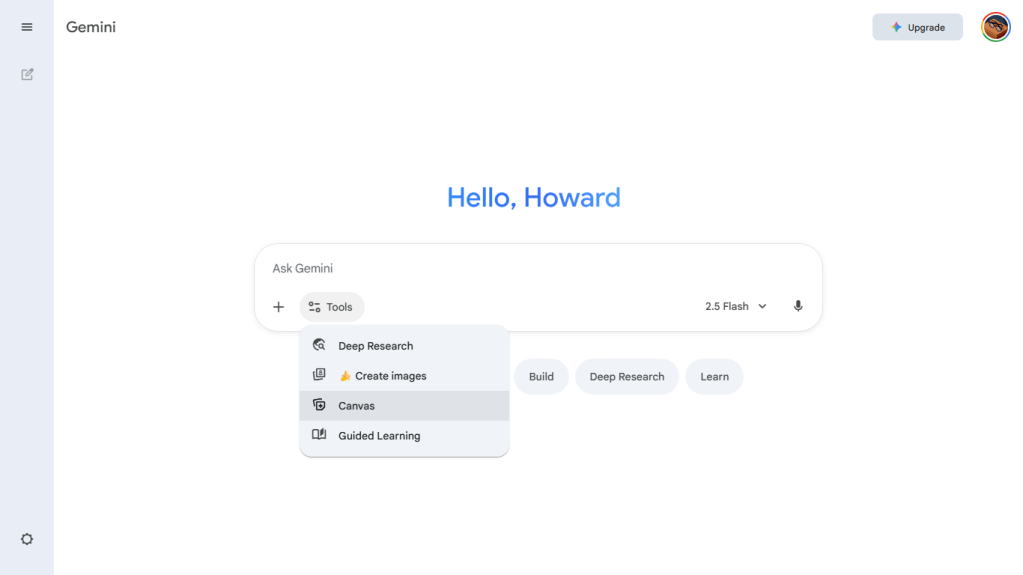
Open the Gemini web app in your browser. At the bottom of the chat box, click Tools. From the drop-down menu that opens, select Canvas.

gemini web app with canvas being selected from the tools menu

In the Gemini web app, select the Canvas tool to get started.

Howard Wen / Foundry

Then, inside the chat box, type your prompt: It should be detailed and specifically outlined. First you should state “Build a presentation” or “Create a presentation.” Next, you can describe general or specific information that you want to have on each slide. Consider these examples:

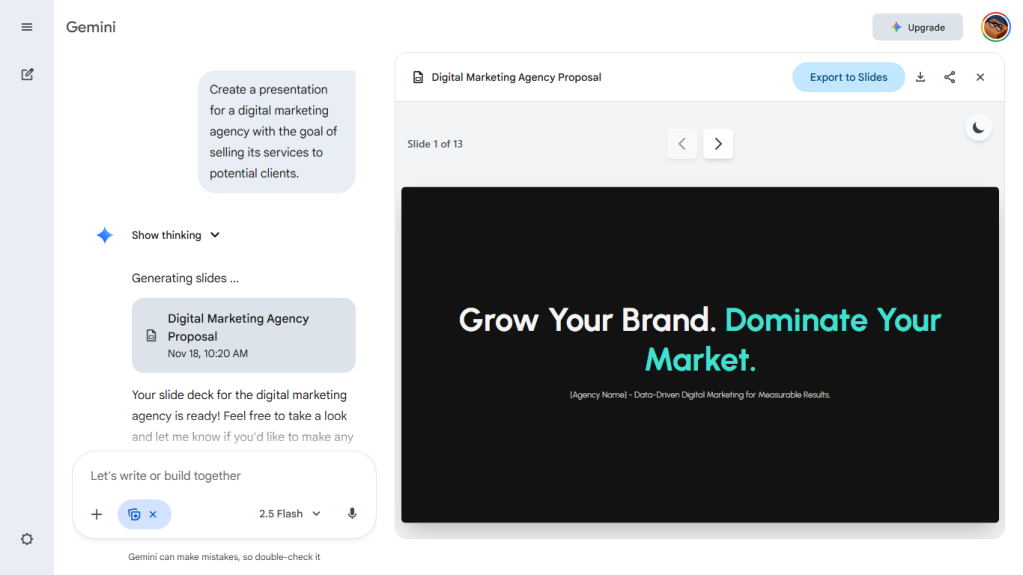
  • Create a presentation for a digital marketing agency with the goal of selling its services to potential clients.
  • Build me a presentation template that reports my company’s quarterly earnings. Include these slides in it:
    • Slide 1 is the intro with text explaining the purpose of this presentation.
    • Slide 2 shows a chart template for Quarter 1.
    • Slide 3 shows a chart template for Quarter 2.
    • Slide 4 shows a chart template for Quarter 3.
    • Slide 5 shows a chart template for Quarter 4.
    • Slide 6 is the conclusion.

You can also click the + symbol on the toolbar to attach a file from your Google Drive or upload one from your PC, such as a document or spreadsheet. Gemini will try to use this as a source to create a series of slides for a presentation. Examples:

  • Build a presentation using the attached spreadsheet. Use the attached document to create slides for a presentation.

When you’re finished writing your prompt, press the Enter key or click the right arrow icon at the lower right of the chat box. Gemini will get to work. It’ll generate a presentation that appears in the chat window above the chat box. You can preview it by scrolling through it.

gemini app showing a generated slideshow with export to slides button above

A preview of the generated presentation appears in the main window of the Gemini app.

Howard Wen / Foundry

If you like what you see and want to export it to Slides, click the Export or Export to Slides button at the upper right of the presentation preview. The presentation will be saved as a Google Slides file in your Google Drive.

For more details about using Canvas in the Gemini app, including editing Gemini’s output, see our Gemini Canvas guide.

2. Use Gemini to create individual slides

With a paid Google Workspace account, you can use the Gemini sidebar right in the Slides app to help you create and edit various elements of your presentation. For starters, you can have Gemini generate individual slides. These can serve as templates that you add your information to, or they can be initial drafts that include details specific to your needs.

See our Google Slides cheat sheet for detailed steps for using Gemini to generate slides.

3. Use Gemini to generate images for your slides

You can also prompt Gemini to create an image and insert it onto a slide.

With your presentation open, navigate to the slide where you want to add an image, or add a new slide to put the image on.

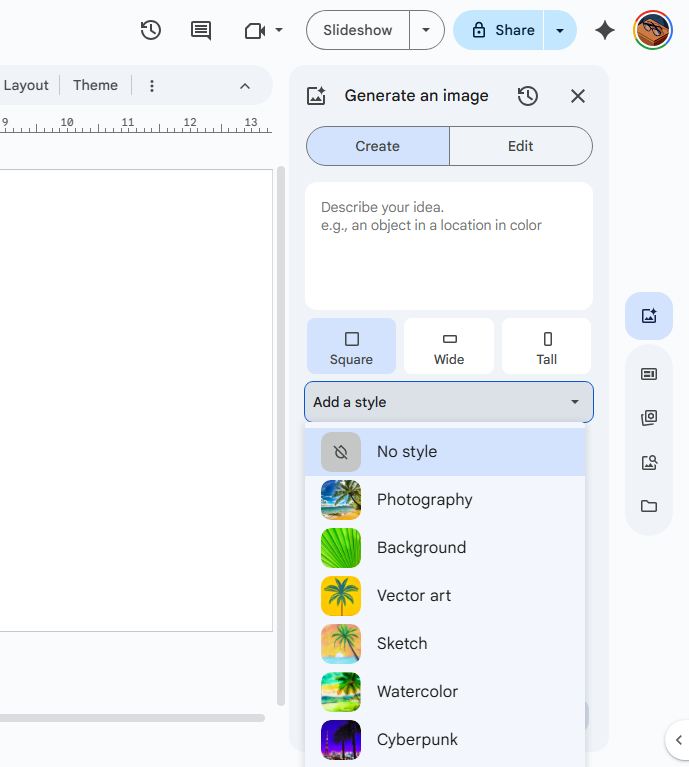
On the vertical toolbar to the right of the slide, click the Generate an image button (an icon of a picture with a sparkle at upper right). Alternatively, on the menu bar along the top, select Insert > Image > Generate an image. The Gemini sidebar will open to the right of your presentation, showing a set of tools for creating images.

generate an image sidebar in google slides - open to create tab

When you select Generate an image, the Gemini sidebar displays image creation tools.

Howard Wen / Foundry

Inside the chat box, write a prompt that describes the image you want Gemini to create. Use your imagination!

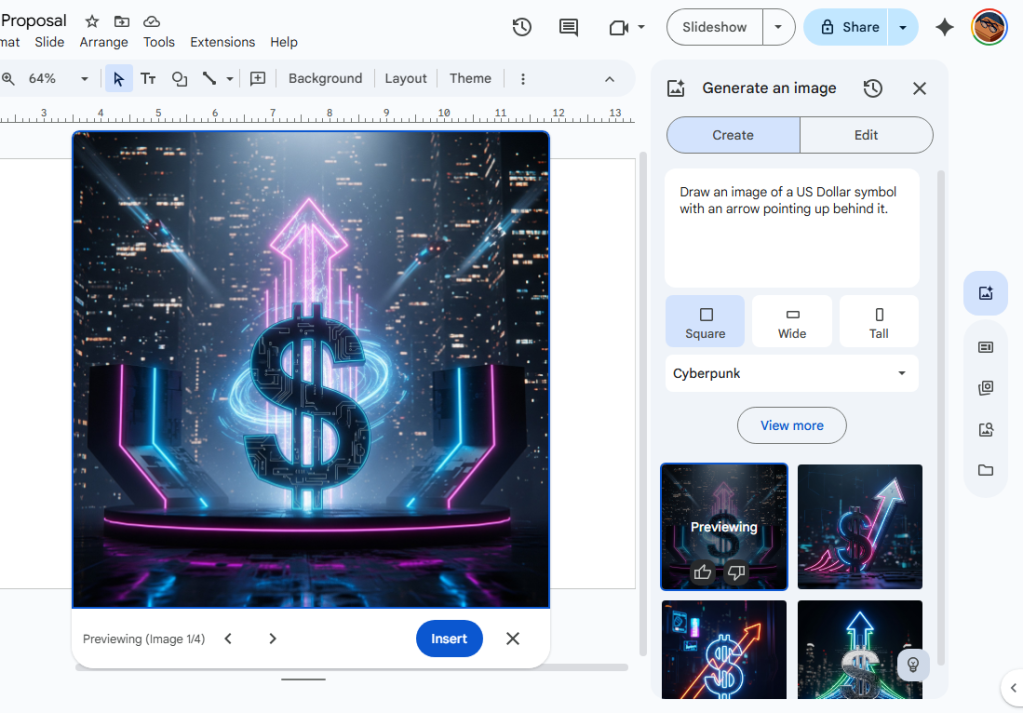
  • Draw an image of a US dollar symbol with an arrow pointing up behind it.
  • Generate an image of a man pointing at a chalkboard with the word GOALS written on it.

You can also click Add a style in the sidebar and select a specific art style for Gemini to use when rendering your image, such as Photography, Vector art, or Watercolor.

Gemini will generate four images based on your prompt and display thumbnails in the sidebar. Click one of these thumbnails to see a larger preview of how it will look on your slide. You can click the < and > buttons to cycle through the other generated images.

google slides with generated image in main window and four thumbnails in gemini sidebar

Previewing the images Gemini generated.

Howard Wen / Foundry

If you decide on one that you like, click its Insert button. The image will be placed onto your slide where the cursor is.

If you don’t like any of the images that Gemini generated, revise your prompt or write a new prompt in the chat box to have Gemini generate another round.

4. Use Gemini to edit images in your slides

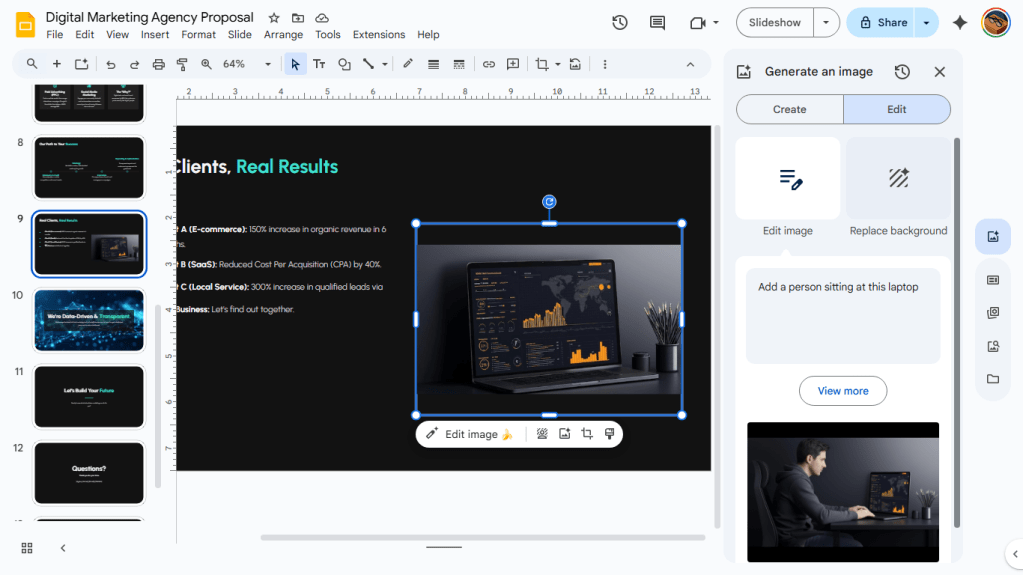
Gemini can help you make AI-generated alterations to images in your presentation. It can replace the background of an image, or you can edit the image in a variety of ways, such as having Gemini change its size or add elements to it that come from your imagination. While it may sound like these capabilities are meant to be applied to photographs, you can also experiment with charts or other illustrations to generate interesting results.

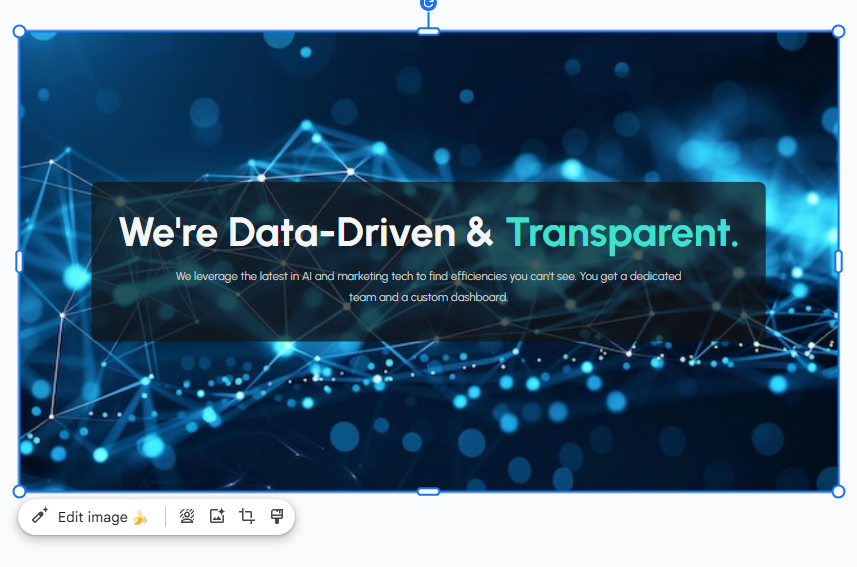
With your presentation open, navigate to the slide that has the image you want to edit. Select the image on the slide. On the small toolbar that appears below the selected image, click Edit image. Alternatively, you can right-click on the image and select Edit image on the menu that opens.

image selected in google slides with edit image toolbar appearing below

Select the image you want to change and click Edit image on the toolbar that appears below.

Howard Wen / Foundry

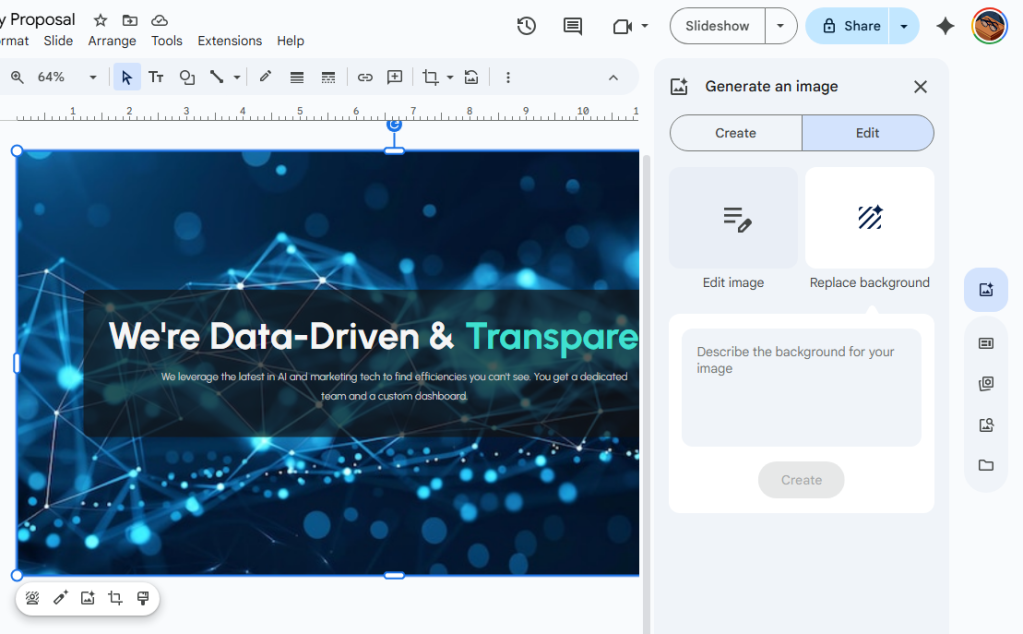
This action will open the Gemini image editing sidebar to the right of your presentation. On it, there are two options that you can select: Edit image and Replace background. Click the one you want to use.

generate an image sidebar in google slides showing edit tab

In the Gemini image editing sidebar, your choices are Edit image or Replace background.

Howard Wen / Foundry

Inside the chat box, you’ll be shown an example prompt. Type in a prompt that describes the change that you want Gemini to make, and click the Create button.

“Replace background” examples:

  • Set this chart against a cityscape at nighttime.
  • Add drawings of small seashells as subdued elements behind this logo.

“Edit image” examples:

  • Widen horizontally this photo to the edges of the slide.
  • Add a person sitting at this laptop.

Gemini will generate an altered version of the image based on your prompt and show a thumbnail in the sidebar. Click View more to have Gemini generate another image.

google slides with original image in main window and edited version in the gemini sidebar

A thumbnail of the altered image appears in the Gemini sidebar.

Howard Wen / Foundry

Click a thumbnail to see a preview of how it will look on your slide. You can click the < or > buttons to cycle through the other generated images.

If you decide on one that you like, click the Replace button. The AI-generated image will replace the one on your slide. Or you can click the down arrow to the right of the Replace button and click Insert. The generated image will be inserted where the cursor is.

5. Use Gemini to polish text in your slides

Another way to use Gemini in Slides is to have it rewrite blocks of text on your slide. This text-polishing feature can make large passages more concise (and thus more legible when you present them to others) or change the tone of the writing.

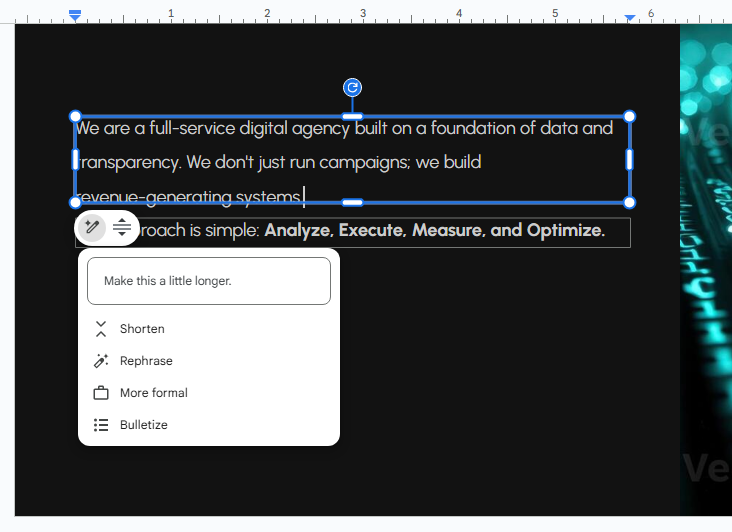
With your presentation open, navigate to the slide that contains the text that you want to polish, such as a list, paragraph, or title. Click this block of text, then click the Refine button (a pencil with sparkle icon) at the lower left of your selected text. This opens the Refine menu with the following options: Shorten, Rephrase, More formal, or Bulletize.

text on a slide selected with refine menu appearing below

Options for refining text on a slide.

Howard Wen / Foundry

In some cases, you may find that Gemini has preselected one of these options for you. For example, if your text doesn’t fit into the space allotted to it on the slide, Gemini might show Shorten as the default option. You can click the down arrow next to Shorten to access the other refinement options.

You can select one of these options or click inside the box with the words Modify with a prompt, where you can type a prompt that describes how you want Gemini to rewrite the selection. Examples:

  • Make these words sound more casual and friendly.
  • Rewrite this into a numbered list.
  • Make this a little longer.

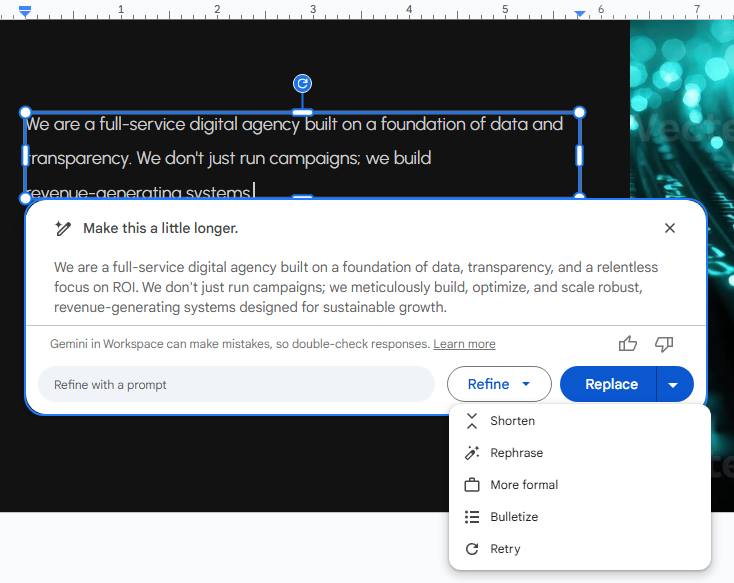
After you’ve made your selection or entered your custom prompt, a rewrite will be generated and appear in a panel over the slide.

pop up window in slides with revised text generated by gemini

You can insert the rewritten text that Gemini generated or refine it in various ways.

Howard Wen / Foundry

If you like the result, click the Replace button. The original text on your slide will be replaced with the generated version. Or you can click the down arrow to the right of the Replace button and click Insert. The generated text will be inserted where the cursor is.

If you want to refine the generated text, you can either type a prompt in the “Refine with a prompt” text entry box or click the Refine button again and select another rewrite option. To trigger Gemini to generate a different result from your original prompt, select Retry from the Refine menu.

Related: