Model builders are moving beyond simple AI chatbots to creating comprehensive assistants that, in the words of AI dignitary Ethan Mollick, “do real work” in enterprise workflows.
Anthropic is continuing its push in this area with a new feature, Agent Skills, which allows Claude to improve its execution of specific tasks. When relevant, the model can automatically access folders containing specific instructions, scripts, and other resources, then act on them with human approval.
“Think of Skills as custom onboarding materials that let you package expertise, making Claude a specialist on what matters most to you,” Anthropic said in its announcement.
Use Anthropic’s, or build your own Skills
Anthropic has provided four pre-built agent Skills:
Microsoft Word: To create documents, edit content, or format text;
PDF: To build formatted PDF documents and reports;
Microsoft PowerPoint: To craft presentations, analyze content, and edit slides;
Microsoft Excel: To generate spreadsheets, analyze data, and generate reports with charts.
Users can also build their own skills for Claude and use them across Claude apps, Code, and API. Claude automatically invokes the relevant skills when performing a task, without manual human intervention; for auditability, it provides its chain of thought (CoT) reasoning.
When building new Skills, human users get guidance from an AI “skill-creator” . Claude will ask about the workflow, build out a folder structure, format files, and bundle resources. Then, when performing a task, it will scan available skills, identify relevant matches, and load the minimum information it needs to quickly and efficiently do the job.
Users can also customize skills for specific use cases, and create, view, and upgrade different versions through the Claude Console. Skills are portable and have the same format across workflows, meaning users only have to create them once.
To build custom Skills, users must provide a “human-friendly” name (for instance, “brand guidelines”); a clear description of what the Skill should do and when to use it (such as, “apply brand guidelines to presentations and documents, including official colors, fonts, and logo usage”), and specify when Claude should reference it (for example, whenever creating external materials such as Word documents, marketing materials, client reports, or presentations that represent the company).
Developers can point the agent to resource folders containing all relevant materials such as document templates, and indicate any required software packages (like Python or Pandas), if necessary.
Skills are available to Pro, Max, Team and Enterprise subscribers; users can enable them in their settings, although Team and Enterprise users require admin approval and enabling as well.
Microsoft SharePoint and OneDrive: To search and analyze documents across sites and libraries.
Microsoft Outlook: To analyze emails and other communications and provide insights on the status of projects, feedback from clients, or team alignment.
Microsoft Teams: To search through conversations, discussions, and meeting summaries, and track project milestones.
Further, Claude now incorporates enterprise search across systems. For instance, when queried about a company’s policy on remote work, the model can pull information from HR documents in SharePoint and emails in Outlook.
“Enterprise search is particularly valuable for onboarding new team members, answering strategic questions like analyzing patterns in customer feedback, and quickly identifying the right internal experts to consult on any topic,” Anthropic said.
The Microsoft 365 integration and enterprise search are available to Claude Team and Enterprise plan customers.
A new arms race
“Claude’s new Skills move is a next step in what’s basically a new arms race,” said Wyatt Mayham of Northwest AI Consulting. It competes with a number of similar platforms from Google, Microsoft, ChatGPT, Perplexity and others.
He noted that model builders are all “chasing the autonomous worker,” but are approaching it from different angles.
For instance, Anthropic’s edge is trust. The company’s “Constitutional AI” design is built for predictability and safety, which is critical in finance or healthcare.
“Enterprises don’t want an AI that just can trigger a workflow,” said Mayham. “They want to trust it not to break one.”
Microsoft and Google, for their parts, are “ecosystem players,” embedding AI deeper into productivity suites by having Copilot and Gemini use internal data such as Microsoft Graph or Google Workspace to make AI feel native inside existing tools. Mayham pointed out that this makes adoption easy, but also locks enterprises into their platforms.
OpenAI, meanwhile, has a split focus: Custom GPTs are a “hit” for no-code builders, while the Assistants API serves developers. However, they’re not unified, and Anthropic seems to be sidestepping this hurdle by designing Claude for direct enterprise integration.
Different priorities
OpenAI is “closest in architectural ambition” to Anthropic, with its AgentKit providing a structured way to build modular, reusable agent workflows, noted Thomas Randall, a research director at Info-Tech Research Group.
However, adapting a tool like AgentKit to Skills requires more automation and lightweight authoring for broader enterprise workflows, he said. So, while Microsoft and Google may not provide comparable solutions to Skills in the short term, “this isn’t necessarily a put-down; these vendors just have different aims.”
“Microsoft and Google are choosing to prioritize platform lock-in and data integration as their competitive edge,” Randall explained. “Ultimately, Skills is a meaningful differentiator if Anthropic can make it work within the Microsoft/Google ecosystems.”
However, while all these capabilities are great, their strategic value lies less in the underlying technology and more in the ability to “institutionalize controlled, repeatable workflows,” he noted. “Enterprises will not gain value unless their internal workflows are already well-structured.”
For enterprises, the upside for all these enhancements is speed and safety, Mayham said. Agentic AI can automate cross-tool workflows such as onboarding processes, data pulls, or documentation prep. But, he said, the real differentiator will be governance: determining who has the authority to grant permission to connect systems, define what data that models can access, and decide how human review is built in.
“Companies should keep tight control over data privacy, access permissions, and audit trails, and assume a human-in-the-loop step for any AI that can change systems of record,” he advised.
Microsoft this week released 175 updates affecting Windows and Office and .NET, including server-based updates for Microsoft SQL Server and Exchange server. There are also four zero-day fixes (CVE-2025-24052, CVE-2025-24990, CVE-2025-2884 and CVE-2025-59230), leading to a “Patch Now” recommendation for Windows. (All other updates can be added to your standard patch release schedule.)
Microsoft documented a single, relatively minor issue with last month’s patches affecting Windows 11 desktops only: Applications that use Enhanced Video Renderer (ECR) with HDCP enforcement or Digital Rights Management (DRM) for digital audio might show copyright protection errors, frequent playback interruptions, unexpected stops, or black screens. Microsoft partially resolved this problem with its October update. We don’t expect an out-of-bounds fix for this playback issue; a full fix may have to wait until next month.
Major revisions and mitigations
Microsoft published several revisions to its Azure Entra ID and authentication offering and other Azure tools. However, there appears to be only one revision to a desktop (or server) patch since September:n CVE-2025-50173: Windows Installer Elevation of Privilege Vulnerability. Microsoft has updated the recommendations for this patch to include using the Multimedia Redirection Installer as well as updating all affected target systems.
This revision requires customer action and should be considered for most enterprise deployments.
Windows lifecycle and enforcement updates
So this is awkward. General support for Windows 10 ended Oct. 14, with Microsoft advising: “At this point technical assistance, feature updates and security updates are no longer provided. If you have devices running Windows 10, we recommend upgrading them to Windows 11”
It is probably now the time to give Windows 11 a try. Soon(ish).
Each month, the Readiness crew analyzes the latest Patch Tuesday updates and provides detailed, actionable testing guidance based on a large app portfolio and an in-depth analysis of the patches and their potential impact on Windows platforms and application deployments. These areas are covered:
RDP connectivity and session reliability.
Printing and document workflow resilience.
Network throughput and proxy behavior validation.
UI and GPU rendering stability within Hyper-V environments.
Core OS and system validation
Readiness recommends that testing teams begin by validating the foundational elements of the Windows platform. Ensuring smooth startup, account management, and policy operations helps catch regressions early and prevents cascading test failures downstream:
Validate administrative tasks such as user creation, group management, and policy refresh.
Confirm stability during restart, shutdown, and update rollback scenarios.
Run targeted tests of BitLocker recovery and drive encryption workflows.
As part of this testing effort ,ensure that Windows desktop system-level policies, encryption, and authentication behave as expected before you layer on additional higher‑level functionality testing.
Remote Desktop and network connectivity
We recommend validating session reliability, reconnection performance, and the behavior of dependent services for hybrid and distributed environments:
Perform end-to-end RDP sessions between clients and servers. Copy files between sessions, redirect local printers and USB devices and disconnect and reconnect sessions to verify state persistence.
Confirm VPN connectivity using multiple tunneling and authentication methods.
Open browsers, connect repeatedly to multiple sites, and transfer large files to validate stability over TCP/IP.
Test SMB loopback connections using UNC paths and validate proxy configurations when switching between corporate and guest networks.
Your testing should generate stable connectivity sessions under changing conditions, with stateful RDP and VPN sessions and predictable proxy behavior.
Printing and document workflows
Testing teams should prioritize both client and server‑side printing services, with an emphasis on high‑concurrency and recovery scenarios such as:
Restart the service during active printing to ensure there are no deadlocks or orphaned tasks.
Critical core printing functions were updated this month, so crashes and blue-screens could be “on the menu” with this update. (Let’s hope not.)
Networking and bluetooth interoperability
Network stacks and wireless connectivity remain central to mobility testing. Teams should prioritize interoperability, speed, and reconnection behaviors for both wired and wireless scenarios:
Conduct file‑transfer tests over IPv6 and measure throughput under variable latency.
Perform a Bluetooth file transfer.
Exercise packet send/receive flows using browsers, messaging apps, and file uploads.
Test Bluetooth pairing and switching between multiple devices.
Observe media playback and disconnect/reconnect transitions for smoothness and stability.
Verify Nearby Share for varied file sizes and formats.
You should be looking for stable file transfers (including Nearby Share and Bluetooth), consistent device switching, and reliable wireless throughput across mixed environments.
Storage and file system operations
Prioritize validating data integrity and access control through stress testing of file systems and storage pools:
Perform NTFS read/write tests including rename, delete, and copy.
Execute permission changes using GetSecurityInfo and SetSecurityInfo.
Test ReFS deduplication scheduling through PowerShell.
Try testing out credential exchanges and cryptographic functions — and ensure that audit events operate consistently across updated builds.
Each month, we break down the update cycle into product families (as defined by Microsoft) with the following basic groupings:
Browsers (Microsoft IE and Edge)
Windows (both desktop and server)
Microsoft Office
Microsoft Exchange and SQL Server
Microsoft Developer Tools (Visual Studio and .NET)
Adobe (if you get this far)
Browsers
There were no native updates for Microsoft’s browsers this month. The Chromium project has released 14 patches that have been integrated in the latest Edge release. Add these low-profile changes to your standard release calendar.
Windows
The following product areas have been updated with two critical patches, 101 labeled important, (yes, that’s a lot) and one rated as moderate. Given the reports of public disclosure and exploitation, we’ve highlighted the following vulnerabilities:
CVE-2025-24052 and CVE-2025-24990: To address this Elevation of Privilege vulnerability in Windows desktops, Microsoft is not offering an update, but instead a removal of the ltmdm64.sys driver. The Readiness team recommends an application portfolio assessment, scanning for file and API level dependencies for this driver. Looking for application packages that deal with Faxes would be a good start.
CVE-2025-2884: This update addresses a vulnerability in the CryptHmacSign function. There have been issues reported on this (and similar) out-of-bounds vulnerability(s) since June. However, Microsoft now says this vulnerability has been publicly disclosed.
CVE-2025-59230: Exploits for this vulnerability in Windows Remote Access Connection Manager (WRACM) have been published; unless addressed, it could lead to an elevation of privilege scenario on the target systems.
Given these four reported zero-days for Windows, add this to your “Patch Now” schedule for October.
Microsoft Office
Microsoft released three updates (rated as critical) affecting Office as a platform and specifically Microsoft Excel with CVE-2025-59234, CVE-2025-59236 and CVE-2025-59227. All three updates address use-after-free memory issues; the remaining 15 patches are rated as important and address information disclosure related vulnerabilities. Add these Office updates to your standard release calendar.
Microsoft Exchange and SQL Server
Microsoft published a single update for SQL Server this October. This patch (CVE-2025-59250) has been rated important and attempts to resolve an issue with the JDBC integration with Microsoft SQL Server. A server reboot will be required. In addition, Microsoft released three updates to Microsoft Exchange Server (CVE-2025-53782, CVE-2025-59249 and CVE-2025-59248). Add these SQL Server and Exchange Server changes to your standard server update plan.
Developer tools
Six updates were published for Microsoft .NET and Visual Studio, all of them rated important. The update to Git (CVE-2025-54132) might appear odd as it relates to a bug in the Mermaid Diagram tool, but it was created on behalf of Git for publishing reasons. Add these updates to your standard patching schedule.
Adobe (and third-party updates)
Next month, we might see the retirement of this Adobe related section (promises, promises). That said, Microsoft has released seven updates from third-party vendors, including CERT/CC, Mitre and GitHub. It looks like Mitre and AMD are raising these CVE entries on behalf of open source organizations (such as libTiFF) to facilitate the rapid patches of these commonly used components. It’s a good idea. I hope that we see more of this kind of collaboration.
Want to use artificial intelligence (AI) that maintains privacy and doesn’t need a lake full of water or industrial electricity generator to make an emojii? Apple has that.
Stop to consider it: the ongoing AI bubble is totally reliant on investments in server-side infrastructure, water, and energy at colossal levels. While these online services can do what you ask of them, are they really the best articulation of what AI can be?
Dare to be different
I don’t think so, and I believe Apple has a response to that — in part, because of the sheer performance-per-watt offered by Apple Silicon.
Think of it this way: many of the tasks Apple Intelligence can do for you now don’t use any external services at all, don’t require banks of servers, and have no need for additional energy. That’s because they take place on the device, using the energy inside it (and the increasingly sophisticated cooling systems Apple builds).
Those Apple Intelligence features aren’t confined to Apple’s software, either. Thanks to the company’s work on Foundation Models, these large language model (LLM) engines are available for use within third-party apps, too. (Check back next week to learn more about The Omni Group’s work on this and how they’ve found a way to make Apple’s LLMs work in even more personal ways.)
Reach for the stars
Meanwhile, despite well-publicized staff churn within Apple’s AI development teams, the company is working to create other on-device LLM engines for additional tasks. While the tasks supported today may seem a bit limited when compared to the general AI industry hype, Apple has at last lifted off and will introduce additional LLMs over time. These will also be made available to developers and users, putting localized intelligence in every piece of hardware equipped with an Apple processor.
This is all possible because of Apple Silicon, a market-leading processor family that continues to improve regularly and iteratively and is far and away ahead of what others can provide.
This performance is built for AI, and Apple’s making no secret of it. The M5 chip it introduced this week offers four times the performance for AI workloads as the already market leading M4 processor. “M5 ushers in the next big leap in AI performance for Apple Silicon,” said Johny Srouji, Apple’s senior vice president of hardware technologies.
One step beyond
That’s not hyperbole — these improvements make for real results when running AI on Macs (and other Apple devices). It’s already quite possible to run your own local AI on an off-the-shelf Mac. You already do each time you use Apple Intelligence — or when you run LLM models using webAI.
What this means is that while Apple’s home-baked AI might not yet match competitors like OpenAI in terms of what it can achieve, it does have the advantage of not relying on any infrastructure other than the device you already use. You can, of course, access third-party AI services from an Apple device, if you choose.
Don’t stop believin’
So, while the ongoing AI bubble demands billions in infrastructure spending, Apple’s approach empowers the endpoints to run local LLMs as required. That’s important because it also opens up opportunity for agentic, focused AI solutions working together to tackle complex projects. (Does anyone remember SETI at home?)
We are watching the evolution of focused, flexible, AI solutions that run locally on the device, delivering the advantages of Ai without the latency, tokenization or privacy costs. I’m proposing a flotilla of AI-empowered endpoints, each one using as little energy as possible, working together on tasks.
A change is gonna come
That approach has lots of advantages for larger deployments, delivering fixed costs without forcing them to become dependent on cloud-based services. The latter will inevitably need to claw back their vast infrastructure spending with high access charges once the venture capital funding runs out and they need to nickel and dime their users just to survive. Many will not make it.
Think different. Apple’s vision of placing intelligence across all its endpoints will eventually be vindicated by history. And the biggest as-yet unwritten chapter in that story remains to be heard once Siri gains contextual intelligenceperhaps next year. If I’m right about this, things are about to get interesting.
Workers want remote work so badly they’re willing to take a 25% pay cut to get it, according to a new study from economists at Harvard University, Brown University, and UCLA.
The study published this week was conducted with Levels.fyi, a compensation benchmarking platform used primarily by technology professionals. The data included job offers, compensation packages, final job choices of survey participants, and whether roles were in-person, hybrid, or remote.
Researchers also incorporated Glassdoor data on employer reputation, employee satisfaction, and local cost-of-living metrics. The key finding: workers were willing to forgo approximately a quarter of their pay for remote work, a figure three to five times larger than previous estimates. This is a shocking result, because earlier studies had typically estimated workers would only take a 5% to 10% pay cut.
But that research was based on surveys, whereas the new report is based on real-world job decision-making. In other words, the older studies were based on claimed beliefs; the new data is based on actual, real-world decisions.
This research suggests that, in theory, the price of four office worker salaries buys five remote workers. (In practice, there are also additional savings for remote employees because of reduced office-related expenses.)
Why office mandates spawned a bevy of buzzwords and phrases
It’s true that many jobs can’t be done remotely. When my kitchen catches fire, I don’t want the local firefighters working from home.
For many employees forced by their employers to work in an office, it feels obvious that their physical presence is obsolete, thanks to remote work technologies such as videoconferencing, instant messaging, project management, cloud storage, remote desktop access, team collaboration platforms, document sharing, and unified communications systems.
Return-to-office mandates and workplace trends have strained the relationship between employees and employers. This strange new office world has also sparked dozens of phrases coined by disaffected employees to communicate their attitudes on social media.
Micro-Retiring: Gradually withdrawing from work responsibilities or retiring in stages.
Acting Your Wage: Putting in effort proportional to one’s pay.
Monk Mode: Intense focus periods with minimal distractions, often at home after hours.
Performance Punishment: Being overloaded with others’ work due to one’s own high performance.
Fake Happy: Pretending to be content while feeling exhausted.
Woliday: Working during annual leave or vacation.
Office Peacocking: Making offices attractive and flashy to entice employees back.
Quitting Guilt: Feeling guilty after quitting an unhealthy job environment.
Lazy Girl Job: Desire for low-effort, less demanding jobs.
Snail Girl Era: Preference for a slower-paced work lifestyle.
Hush Trips: Working remotely in undisclosed locations to avoid office interruptions.
QuitTok: The subset of TikTok posts by people griping about their jobs.
Boreout: Workplace boredom causing disengagement or mental health issues.
Bare Minimum Mondays: Doing the least amount of work on Mondays.
Career Cushioning: Preparing for job changes while maintaining current employment.
Rage Applying: Applying to jobs out of frustration with a current job.
Anti-Perks: Employee benefits that are unappealing or detrimental.
Conscious Quitting: Intentionally quitting for personal or ethical reasons.
These phrases are a collective cry for help. But buzzwords used by and about remote workers tell a different story:
Quiet Thriving: Employees succeeding quietly without seeking attention.
Quiet overworking: The blending of work and home life by remote workers leading to employees working beyond normal hours and into the weekend.
Proximity Bias: Favoring employees physically present in the office.
Something’s wrong in the modern workplace, partly due to the coercion to make employees cope with an unpleasant commute, extra costs in clothes and gas, office interruptions, and rigid schedules incompatible with child-rearing and two-career households — all because management doesn’t feel comfortable with remote work.
Reading the headlines, a casual reader feels there was a rush to remote work in 2020 and 2021, followed by a reversal in recent years. But that’s not what happened, exactly. In reality, on the whole, remote work rose steeply in the first two years of the pandemic and more or less stayed up. In 2019, some 9 million people worked remotely. In 2022, that number jumped to 50 million. And as of 2025, it was still around 36 million.
Remote work is reducing demand for office space, increasing suburban growth, shifting economic activity from urban cores to suburbs, driving migration to mid-sized and more affordable cities, expanding residential space needs, and reshaping workplace culture with greater flexibility (but less social interaction).
The trend hasn’t been kind to some businesses, including downtown restaurants, coffee shops, dry cleaners, public transit systems, office supply retailers, urban gyms, corporate catering services, and commercial real estate firms focused on office leasing.
Other business types, however, are booming: home office furniture companies, video conferencing and collaboration software providers, suburban real estate agencies, home improvement retailers, local delivery services, coworking space operators, and broadband internet providers.
One of the biggest cultural changes is the rise in digital nomad living — working while traveling or temporarily living abroad. Before 2019, fewer than 10 million people lived as digital nomads globally. By the end of 2025, the number is expected to land somewhere between 50 million and 80 million people.
And if the endless chatter on Reddit and other social sites is any indication, there is a huge number of people trying to figure out how to become digital nomads. On Reddit, people are constantly asking about how to get a “digital nomad job.”
The truth is that there’s no such thing. A job is either remote, or it’s not. If it’s fully remote, then the employee is free to go wherever they want. Many companies have limited positions that are fully remote. And some companies are totally remote, with every employee in the company working remotely full-time.
Companies friendly to remote work include: Affirm, Allstate, Amgen, Amplify, Atlassian, BELAY, CrowdStrike, Dropbox, HubSpot, Humana, Kraken, Pearson, Pinterest, Reddit, Ryder, Spotify, StackAdapt, Stride Inc., Twilio, and Vista.
By late 2025, remote work is more popular than ever, office work less popular, and smart companies are saving money and attracting top employees by offering the flexibility and freedom of remote work as a perk. And now we know that workers will accept substantially less pay, just for the ability to work anywhere but in the office.
I think at this point, it’s safe to say I’m an Android launcher aficionado. (I think it’s also safe to both pat myself on the back and bop myself uponst the nose for coming up with such a delightfully dorky description. But I’ll save that for later.)
Android launchers, if you aren’t familiar, are special tools that essentially take over your device’s default home screen and app drawer environments — empowering you to replace those core areas with something more customizable, more minimal, or maybe just more well-suited to you and the way you like to get stuff done.
They’re without a doubt one of the best parts of this friendly little platform of ours and one of the reasons power users like myself could never even think about giving it up for that other mobile operating system.
Android’s long been home to a whole host of interesting launcher options that can lead to enhanced efficiency and a better, more personally optimized all-around user experience. And every now and then, a new contender comes into the mix that really makes me — ahem, remember: Android launcher aficionado — sit up, take a pretentious-looking puff on my pink plastic bubble pipe, and issue a satisfied-sounding “Hm!” of delight.
Today, m’dearie, is one of those days — doubled. Oh, yes: My never-ending Android explorations have led me to not one but two incredibly interesting new Android launcher options. They’re especially interesting not just because they’re effective but because they’re different — not only mildly tweaked copycats of the same concepts we’ve already got, as so often happens, but refreshingly inventive ideas that open up all sorts of new windows for how you can get around your device.
They also both happen to tie into a touch of tech nostalgia and bring beloved concepts from the past back to the forefront in some clever new ways.
So grab your own pink plastic bubble pipe, if you’ve got one, and allow me to make your introductions.
Android launcher #1: The Nokia-style scribble surface
It’s been a while since the name Nokia represented much more than nostalgia for most of us — but Snake-bearing block-phones aside, Nokia actually had a brief while of being a promising up-and-coming player here in the Android arena.
That phase didn’t last for long, unfortunately, but the company left a lasting impression with one interesting idea it brought into the universe — and that’s a home screen that’s simple by design and all about scribble-oriented gestures.
Yep — you read that right: You get around your phone by scribbling on the screen. And it’s actually surprisingly fast, easy, and intuitive.
Now, an independent developer has brought the concept back to life in a free Android launcher called ReZ Launcher. At its core, ReZ Launcher shows you a swipeable stacked widget at its top — with a clock, calendar info, and media controls, when relevant. Beneath that is the start of an app list, which you can continue to see by swiping upward from the bottom of the screen.
srcset="https://b2b-contenthub.com/wp-content/uploads/2025/10/android-launchers-rez-launcher-app-drawer.webp?quality=50&strip=all 800w, https://b2b-contenthub.com/wp-content/uploads/2025/10/android-launchers-rez-launcher-app-drawer.webp?resize=285%2C300&quality=50&strip=all 285w, https://b2b-contenthub.com/wp-content/uploads/2025/10/android-launchers-rez-launcher-app-drawer.webp?resize=768%2C809&quality=50&strip=all 768w, https://b2b-contenthub.com/wp-content/uploads/2025/10/android-launchers-rez-launcher-app-drawer.webp?resize=661%2C697&quality=50&strip=all 661w, https://b2b-contenthub.com/wp-content/uploads/2025/10/android-launchers-rez-launcher-app-drawer.webp?resize=159%2C168&quality=50&strip=all 159w, https://b2b-contenthub.com/wp-content/uploads/2025/10/android-launchers-rez-launcher-app-drawer.webp?resize=80%2C84&quality=50&strip=all 80w, https://b2b-contenthub.com/wp-content/uploads/2025/10/android-launchers-rez-launcher-app-drawer.webp?resize=456%2C480&quality=50&strip=all 456w, https://b2b-contenthub.com/wp-content/uploads/2025/10/android-launchers-rez-launcher-app-drawer.webp?resize=342%2C360&quality=50&strip=all 342w, https://b2b-contenthub.com/wp-content/uploads/2025/10/android-launchers-rez-launcher-app-drawer.webp?resize=237%2C250&quality=50&strip=all 237w" width="800" height="843" sizes="auto, (max-width: 800px) 100vw, 800px">Rez Launcher brings a simple interface to your Android home screen — with a special secret beneath its surface.
JR Raphael, Foundry
There’s an optional dock at the bottom, too, which you can set by long-pressing on any icons within the main app list.
But the star of the show is that aforementioned scribbling: You can just use your finger to draw any letter anywhere on the home screen, and ReZ will instantly show you all the apps and — if you want — contacts that match.
srcset="https://b2b-contenthub.com/wp-content/uploads/2025/10/android-launchers-rez-launcher-scribble.webp?quality=50&strip=all 800w, https://b2b-contenthub.com/wp-content/uploads/2025/10/android-launchers-rez-launcher-scribble.webp?resize=285%2C300&quality=50&strip=all 285w, https://b2b-contenthub.com/wp-content/uploads/2025/10/android-launchers-rez-launcher-scribble.webp?resize=768%2C807&quality=50&strip=all 768w, https://b2b-contenthub.com/wp-content/uploads/2025/10/android-launchers-rez-launcher-scribble.webp?resize=663%2C697&quality=50&strip=all 663w, https://b2b-contenthub.com/wp-content/uploads/2025/10/android-launchers-rez-launcher-scribble.webp?resize=160%2C168&quality=50&strip=all 160w, https://b2b-contenthub.com/wp-content/uploads/2025/10/android-launchers-rez-launcher-scribble.webp?resize=80%2C84&quality=50&strip=all 80w, https://b2b-contenthub.com/wp-content/uploads/2025/10/android-launchers-rez-launcher-scribble.webp?resize=457%2C480&quality=50&strip=all 457w, https://b2b-contenthub.com/wp-content/uploads/2025/10/android-launchers-rez-launcher-scribble.webp?resize=342%2C360&quality=50&strip=all 342w, https://b2b-contenthub.com/wp-content/uploads/2025/10/android-launchers-rez-launcher-scribble.webp?resize=238%2C250&quality=50&strip=all 238w" width="800" height="841" sizes="auto, (max-width: 800px) 100vw, 800px">Scribble any letter on the Rez Launcher home screen, and the app’s true magic is revealed.
JR Raphael, Foundry
You can keep scribbling more letters to narrow down the search further. It’s a swift and strangely satisfying way to find whatever you need without having to think about where it might be or spend any time searching.
ReZ Launcher has a fair amount of options for customizing its interface and fine-tuning its actions, but the real appeal of it is its simplicity and that unconventional scribble-search setup it enables.
It certainly stands out from the rest of the Android launcher pack and is a fun new possibility to play around with and see if it seems right for you.
And the same is very much true for our next item.
Android launcher #2: The live tile love-fest
We’ve seen efforts to bring the Windows Phone tile-style interface into Android — quite effectively, too! — but a clever creation called Mur Launcher marks the first time I’ve seen someone successfully blend the concept of that era of design with a contemporary Android-specific approach to create an entirely new kind of home screen vibe.
The result is incredibly interesting, to say the least. Mur organizes your apps into thematic categories and presents your most commonly used shortcuts in groups for easy ongoing access — with a look that very much feels like a marriage of Microsoft’s short-lived style and Google’s current Android-wide look.
srcset="https://b2b-contenthub.com/wp-content/uploads/2025/10/android-launchers-mur-launcher-home-screen.jpg?quality=50&strip=all 2160w, https://b2b-contenthub.com/wp-content/uploads/2025/10/android-launchers-mur-launcher-home-screen.jpg?resize=287%2C300&quality=50&strip=all 287w, https://b2b-contenthub.com/wp-content/uploads/2025/10/android-launchers-mur-launcher-home-screen.jpg?resize=768%2C803&quality=50&strip=all 768w, https://b2b-contenthub.com/wp-content/uploads/2025/10/android-launchers-mur-launcher-home-screen.jpg?resize=980%2C1024&quality=50&strip=all 980w, https://b2b-contenthub.com/wp-content/uploads/2025/10/android-launchers-mur-launcher-home-screen.jpg?resize=1469%2C1536&quality=50&strip=all 1469w, https://b2b-contenthub.com/wp-content/uploads/2025/10/android-launchers-mur-launcher-home-screen.jpg?resize=1959%2C2048&quality=50&strip=all 1959w, https://b2b-contenthub.com/wp-content/uploads/2025/10/android-launchers-mur-launcher-home-screen.jpg?resize=667%2C697&quality=50&strip=all 667w, https://b2b-contenthub.com/wp-content/uploads/2025/10/android-launchers-mur-launcher-home-screen.jpg?resize=161%2C168&quality=50&strip=all 161w, https://b2b-contenthub.com/wp-content/uploads/2025/10/android-launchers-mur-launcher-home-screen.jpg?resize=80%2C84&quality=50&strip=all 80w, https://b2b-contenthub.com/wp-content/uploads/2025/10/android-launchers-mur-launcher-home-screen.jpg?resize=459%2C480&quality=50&strip=all 459w, https://b2b-contenthub.com/wp-content/uploads/2025/10/android-launchers-mur-launcher-home-screen.jpg?resize=344%2C360&quality=50&strip=all 344w, https://b2b-contenthub.com/wp-content/uploads/2025/10/android-launchers-mur-launcher-home-screen.jpg?resize=239%2C250&quality=50&strip=all 239w" width="980" height="1024" sizes="auto, (max-width: 980px) 100vw, 980px">Mur Launcher brings a thoughtful blend of classic and new to any Android device’s home screen.
JR Raphael, Foundry
One swipe over reveals a handy screen that lets you see upcoming calendar events, favorite contacts, and commonly opened apps at a glance — while a swipe up takes you to a simple scrolling list of all installed apps, with recently opened apps at the bottom and a useful alphabetical slider to jump around to any specific spot.
A color-coordinated app drawer is one of the many interesting touches Mur Launcher enables.
JR Raphael, Foundry
That in and of itself is pretty darn distinctive. But Mur’s next-level step-up is its ability to let you create those aforementioned Windows-Phone-reminiscent live tiles, which bring dynamic content into the tiles on your home screen and let you see everything from playback controls to notification info within those same in-your-face spaces.
That capability requires an upgrade to the app’s premium version, which costs a whopping 99 cents a month — or eight bucks a year, if you’d rather go annual. (There’s also a one-time $26 lifetime purchase option.)
But the rest of the launcher is free, without any ads or interruptions.
And just like the one before it, it’s unlike anything else out there — and an excellent illustration of the powerful potential of Android’s launcher ecosystem, even beyond the most popular and prominent players.
Just as Windows 10 has reached its end of life (EOL), issues with Windows 11 abound, the most recent an update that broke localhost for some developers, preventing them from accessing web apps running locally on their machines.
The October 2025 cumulative update, (KB5066835), addressed security issues in Windows operating systems (OSes), but also appears to have blocked Windows’ ability to talk within itself.
Localhost allows apps and services to communicate internally without using internet or external network access. Developers use the function to develop, test, and debug websites and apps locally on a Windows machine before releasing them to the public.
“For anyone doing software development, this is huge,” said David Shipley of Beauceron Security.
The problem has been widely reported on Microsoft support forums as well as on other developer sites such as Stack Overflow and Stack Exchange. Microsoft has confirmed the bug; an updated Windows release health page describes the issue and its suggested mitigations.
Impacting the way devs do their work
KB5066835 is an October 2025 cumulative update for Windows 11 versions 24H2 and 25H2. It was preceded by a preview update, KB5065789, released on September 29, 2025, both addressing issues including problems with print preview in Chromium-based browsers, command time-outs impacting auditing in PowerShell Remoting and Windows Remote Management (WinRM), and persistent error messages in Windows Hello setup.
But developers have reported a few unexpected issues as well, including connection failures and HTTP/2 protocol issues impacting various development tools such as ASP.NET and Visual Studio.
Mitigation
Some developers have been able to get around these significant glitches by uninstalling the KB5066835 package, rebooting, and then pausing Windows updates so it won’t be automatically reinstalled. Others, however, have reported in online forums that their attempts to uninstall KB5066835 were unsuccessful, and that they had to instead remove the previous KB5065789 September package. If neither of those tactics worked, users suggested opening Windows Features and turning off Hyper-V, IIS, Windows Process Activation Service, and .NET Framework 3.5 and 4.8.
Microsoft responded by attributing the issue to a “variety of conditions,” including internet connectivity and the “timing of recent update installation and device restarts,” and says it is possible it may not be observed at all in some environments.
Its suggested mitigation is via Known Issue Rollback to remove the offending updates; this will be resolved automatically for home and unmanaged business devices, it said, and can be deployed using a special Group Policy in enterprises.
The company also suggested trying the following steps:
Open “Windows Update” in the “Windows Settings” app.
Click on “Check for updates” and allow any updates to install.
Restart the device (even if no updates were installed in the previous step).
“We are working on releasing a resolution for this issue in a future Windows update,” Microsoft said. “We will provide an update when more information is available.”
Disruption and frustration
“This is affecting local development as well as business applications,” one user wrote on a Microsoft-hosted forum. They reported that when the update is removed, “everything works again.”
The localhost loopback connection is a “fundamental” element of Windows that developers and enterprises quietly rely on every day, explained Erik Avakian, a technical counselor at Info-Tech Research Group. “Localhost serves as a sort of backbone for how many modern apps are built and tested.”
When localhost stops working, entire application development environments can be impacted or “even grind to a halt,” causing internal processes and services to fail and stop communicating, he pointed out. This means developers are unable to test or run web applications locally.
This issue is really about “denial of service,” where tools and processes dependent on internal loopback services break, he noted. Developers can’t debug locally, and automated testing processes can fail. At the same time, IT departments are left to troubleshoot, field an influx of service tickets, roll back patches, and look for workarounds.
“This bug is definitely disruptive enough to cause delays, lost productivity, and frustration across teams,” said Avakian. “All of those equate to real dollars in user time on task and business process disruption.”
Microsoft quality control in doubt: Something so fundamental shouldn’t break
From an economic impact point of view, software developers may each have lost a half day to a day or more due to this issue, noted Beauceron’s Shipley. “That adds up quickly,” he said.
He even went so far as to say that, depending on the number of developers impacted worldwide, this bug could have as large an impact as the widespread CrowdStrike outage in July 2024 that halted flights and took millions of companies temporarily offline.
“If people are rolling back this update, which includes security fixes, for high value targets like developers, this creates a huge risk,” said Shipley.
Having developers step back from automatic patching and take the old approach of waiting a few weeks before applying patches is “massively more dangerous” today, given the speed at which AI-enabled vulnerability development now operates (15 minutes or less), he noted.
“I’d love to see a post-mortem on how this mess happened and if there’s a role here that bad AI code or testing played in it,” said Shipley.
Info-Tech’s Avakian agreed that developers are being forced to pick between two bad options: “staying patched and secure [but unproductive] versus staying functional and productive.”
This type of issue underscores the importance of quality control and thorough testing by third-party suppliers and vendors before releasing updates to commercial markets, he said. Not doing so can have significant downstream impacts and “erode trust” in the update process while making teams more cautious about patching.
“Localhost is really one of the most basic pieces of the Windows networking stack,” said Avakian. “Something so fundamental shouldn’t fall through the cracks when testing update releases.”
He pointed out that the situation is also a great reminder to IT teams to stage updates in test environments first, test various critical business processes throughout the enterprise with each update iteration, and build runbooks with rollback plans and dependencies that map to business processes.
“When these disruptions are multiplied across dozens or hundreds of dev machines, it can amount to a high cost in time, delays, and coordination of the IT teams,” said Avakian.
Anthropic is launching Claude Haiku 4.5, the newest version of the generative AI (genAI) company’s smallest language model. The company says it offers the same performance as Sonnet 4, but at a third of the cost and more than twice the speed.
Haiku 4.5 reportedly performs on par with Sonnet 4, OpenAI’s GPT-5, and Gemini 2.5 in several benchmark tests, including SWE-Bench, Terminal-Bench, and tasks related to tool, computing, and visual reasoning skills.
The model is available in all of Anthropic’s free plans. Due to its low resource consumption, multiple Haiku agents can be run in parallel or in combination with more advanced models.
The previous version of Haiku was released a year ago. Anthropic two weeks ago launched Sonnet 4.5 and, two months ago, Opus 4.1.
Voice AI technology has been around for years. But clunky voices, awkward pauses, and problems with accuracy have been roadblocks to widespread adoption.
Many of those issues are now being resolved as more startups jump into the voice AI fray, Twilio and Zoom CEOs said recently at the Goldman Sachs Communacopia + Technology conference.
Twilio CEO Khozema Shipchandler said that internal research shows customers would prefer to interact with voice AI as opposed to humans — especially in healthcare. That’s because customers feel there’s an “asymmetry in knowledge between the two sides” when it comes to human agents, and weird interactions disappear with virtual voice agents, Shipchandler said.
“You don’t have these awkward pauses when you have these interactions take place between a human on one side and then a voice AI agent on the other side,” Shipchandler said.
Latency — or the reaction time by voice AI agents — has historically been an issue, but that is now close to being resolved, Shipchandler said.
The technology still has a long way to go, as it’s much harder to implement than text-based AI, said Jack Gold, principal analyst at J. Gold Associates. “Voice, even with a single language like English, has a huge amount of variability, with accents — think southern drawl vs. New England ‘ahs’ — and even the same language meaning different things to different people,” he said.
On the plus side, voice is a natural way to handle inquiries, as not everyone types well, Gold said.
In areas such as food delivery, 35% of orders still come in over the phone — and voice AI agents can help make those interactions faster and more efficient. “The voice AI’s capacity is unlimited,” Shipchandler said.
Thousands of venture-backed voice AI companies are now trying to solve these issues, he said.
More people are now talking to ChatGPT instead of using text prompts, which shows the potential of voice AI, Yuan said. “I think pretty sure in the next two to three years, a lot of new solutions will be built upon voice technology,” he said.
There are still risks involved in voice spoofing that will need to be resolved. If systems could identify a voice signature up front and then do light verification on the back end, customers can get right into the conversation and drive the interaction and outcomes. “You’ve got to take out spoofing, because that is a real thing,” Shipchandler said.
Meanwhile, Zoom is working with chief information security officers and publishing papers on how to deploy its AI technologies.
nice AIThere will be continuous improvement in voice AI over the next couple of years to eliminate many of the errors being discovered in voice-based AI systems, Gold said. “That will improve especially as the data input to the models gets better,” he said.
Microsoft’s Copilot will soon be able to work autonomously on local files in Windows, with Copilot Actions, an “experimental” feature that can perform tasks such as sending emails, updating documents and organizing files on its own.
The AI agent relies on a combination of AI vision and advanced reasoning to “click, type and scroll” like a human, Microsoft said. It follows the launch this past summer of a similar Copilot agent (currently available in preview) that can surf the web on its own, booking restaurants or planning trips on behalf of users, for instance.
Copilot Actions for local files, is “coming soon” to Windows Insiders in Copilot Labs, Microsoft.
Here’s how it works: users upload files to the Copilot chat interface in Windows, choose “take action” from a list of options, then describe the task they want completed.
Microsoft cited an example of a user uploading photos and directing Copilot to fix the image orientation and remove duplicates. The agent will then perform the task in the background, interacting with relevant desktop and web applications to complete the job.
“Whether you need a hand sorting through your recent vacation photos or need to extract info from a PDF, Copilot Actions can do the heavy lifting for you based on the context of what’s on your PC,” said Yusuf Mehdi, Microsoft’s executive vice president and consumer chief marketing officer, said in a blog post Thursday.
While the feature is still in development, Copilot Actions has the potential to boost productivity by handling repetitive digital tasks, said Tom Mainelli, group vice president, device and consumer research, at IDC. “Copilot Actions is an ambitious step toward AI that can act on our behalf. It’s an important milestone that I’m eager to test myself,” he said. “Reliability, trust, and clear real-world value will ultimately determine how quickly it becomes mainstream.”
Copilot Actions will detail each step as its performed and will request user approval in certain situations. Users also have the option to interrupt the agent and retake control at any point if they wish.
It remains to be seen just how reliable the agent will be and how comfortable users are having an agent interact with their files autonomously. Microsoft said it will start with a “narrow set of use cases” as the feature is tested with early users and the model is optimized prior to a full launch.
“You may see the agent make mistakes or encounter challenges with complex interfaces, which is why real-world testing of this experience is so critical to help us apply learnings to make this experience more capable and streamlined,” said Mehdi.
The company published a blog post outlining several measures to help users access Copilot Actions securely.
The tool will be disabled by default, for instance, and will have access to only a “limited set” of a user’s local folders — such as Documents, Downloads, Desktop, and Pictures — as well as other files accessible to all accounts on a system. “Only when the user provides authorization can Copilot Actions access data outside of these folders,” said Dana Huang, corporate vice president for Windows Security at Microsoft.
Based on early users’ feedback, Microsoft said security and privacy controls will be further refined ahead of a full release. (The company came under fire with Recall — another AI feature for Windows, which takes regular screenshots of a user’s device — before making changes to it prior to launch.)
Mainelli noted Microsoft’s efforts to address security concerns.
“By isolating agents, limiting permissions, and giving users transparency into actions, the company is working to create a secure environment in this brave new world of agentic AI,” he said. “Of course, any agent that can act on local files introduces some new risks. I expect enterprise IT and security teams to thoroughly test Copilot Actions and validate these controls before large-scale deployment.”
Microsoft made several other announcements today as it continues to embed AI features into Windows 11. It unveiled a text input option for Copilot Vision — a feature that can see a user’s screen and provide advice — to enable private interactions (coming to the Windows Insider program soon).
And it highlighted Copilot “connectors” that allow Windows Copilot to access files in Microsoft apps. These include OneDrive and Outlook, as well as Google services such as Google Drive, Gmail, Calendar, Contacts. The connectors allow users to surface files such as emails or PDFs directly from the chat interface so they can interact with them in different ways, such as creating summaries or checklists from the contents, for example.
For the first time in many moons now, Google’s giving us not one but two new full-fledged Android versions in a single year. Android 16 officially arrived into the world this summer, and it’ll soon be followed by another release this fall.
It may be mildly dizzying at times, but it sure is exciting — and an awesome indication that things are endlessly evolving in this arena, with something fresh ‘n’ shiny always on its way to your device or at least off on the horizon.
Here, specifically, are 14 such shimmering treasures to surface as soon as you see Android 16 show up on your phone — or to look for now, even if the software’s already been there and waiting for a while.
Note that these features are presented as they apply to Google-made Pixel phones and Samsung-made Galaxy devices, specifically. Different device-makers modify Android in different ways, so if you’re using a phone made by any other company, the availability and exact presentation of some items may vary — as may the timing around when exactly your device-maker decides to send any given Android version to you in the first place!
Android 16 tips, part I: Productivity
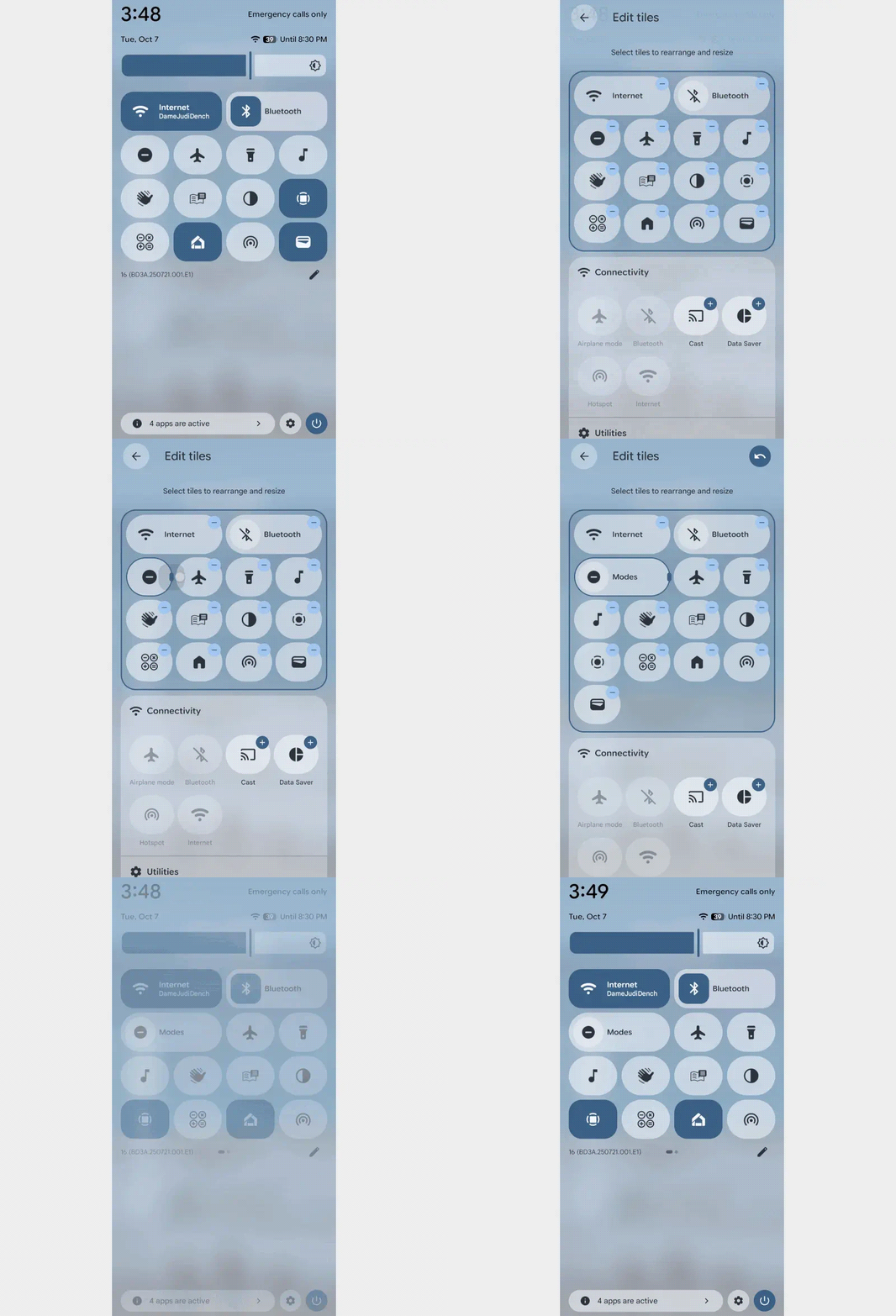
1. Maybe the most outwardly significant change in Android 16 — and simultaneously one of the toughest tweaks to notice — is the software’s subtly enhanced interface for the expandable Quick Settings panel of on-demand shortcuts.
Quick Settings, if the name doesn’t ring a bell, is the menu of tappable tiles that shows up when you swipe down from the top of your screen (swiping specifically from the right side of the display, somewhat confusingly, on recent Samsung devices). And as of Android 16, you can resize any of the shortcuts within that area to fit even more tiles within a single view.
See?
Edit, tap, slide — three steps to a Quick Settings tile resize.
Also, this one is showing up so far only on Google’s own Pixel devices. Samsung, which heavily modifies the standard Android Quick Settings interface in the software it sends out to its Galaxy gadgets, has suggested that the feature will reach its devices sometime next year.
As for other Android device-makers beyond that, we’ll have to wait and see — since no one else has rolled out any Android 16 updates yet (sigh…) — but in scenarios where software closely follows Google’s core Android interface, it certainly seems like the setup should be present.
2. Another easy-to-miss update in Android 16 is a whole new approach around how you tell your phone to hush.
Android’s Do Not Disturb system is now supplemented by a broader, more powerful, and more customizable feature called Modes — essentially a series of states you can create to control exactly how your device does or doesn’t interrupt you at different times. That means you can have multiple do-not-disturb presets for different sorts of scenarios.
So you might, for instance, have one mode for work that allows only notifications from work-related apps and messages from your family and then have another mode for the weekend that blocks all but the most urgent work-related alerts from making their way through.
It’s a lot to wrap your head around initially — and, not surprisingly, the specifics of how it works vary from the standard Google Android setup to Samsung’s different-for-the-sake-of-being-different implementation — but the good news is that once you’ve set things up the way you want ’em once, it’s quite literally just a matter of making a couple quick taps anytime you want to shift your phone from one mode to another from that point forward.
(Modes technically made its debut in Android 15, by the by, but only in a more rudimentary and limited fashion. Android 16 is where the feature really comes into its own.)
3. Speaking of easier adjustments, the Galaxy-aimed version of Android 16 includes an intriguing new series of preset Routines — Samsung’s term for snippets of simple automation that can save you time and make your phone even more primed for productivity.
They’re basically just “if this, then that”-style rules, with all manners of available triggers and actions. Maybe, for example, you’d want your phone’s ring volume to turn all the way up and your default ringtone to change to a generic ringing sound — instead of the wildly embarrassing “MMMBop” ringtone you usually use — whenever you’re at the office. Or maybe you’d like to automatically activate your aforementioned weekend mode anytime you’ve got a calendar event active with the word “vacation” in it. The possibilities are plentiful, and all you’ve gotta do is think about what might be useful for you.
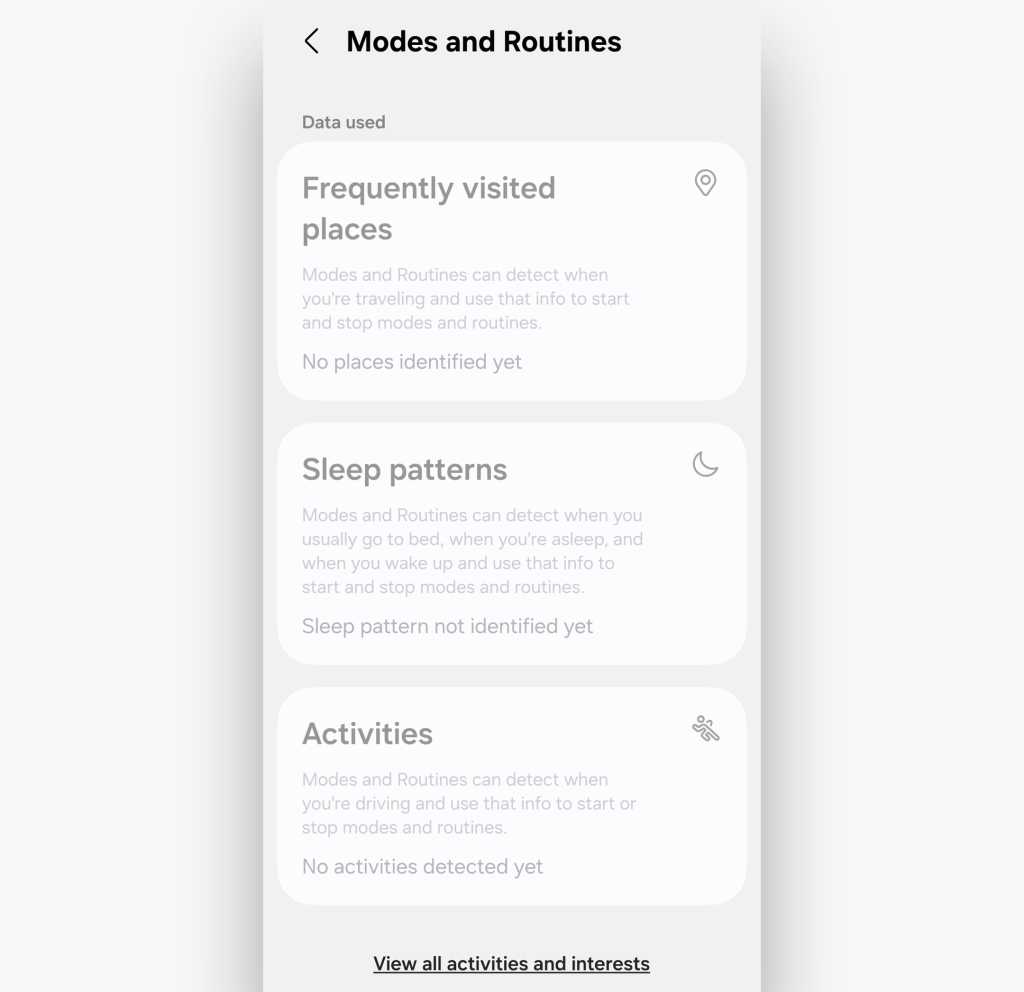
Samsung has some interesting new automation-related options in its Android 16 Modes and Routines section.
JR Raphael / Foundry
Look in the Modes and Routines section of a Samsung device’s system settings and tap the Routines tab at the bottom of that area to explore all your newly available options.
4. Reminders should just be simple — arguably even effortless — but all too often, they aren’t. For one all-too-perfect example, Google added an incredible on-demand screenshot-connected reminders system into its Pixel phones starting with the Pixel 9, and you can now emulate something similar on any Android device via Gemini, but those systems have one glaring limitation: They can’t create a reminder based on your physical location.
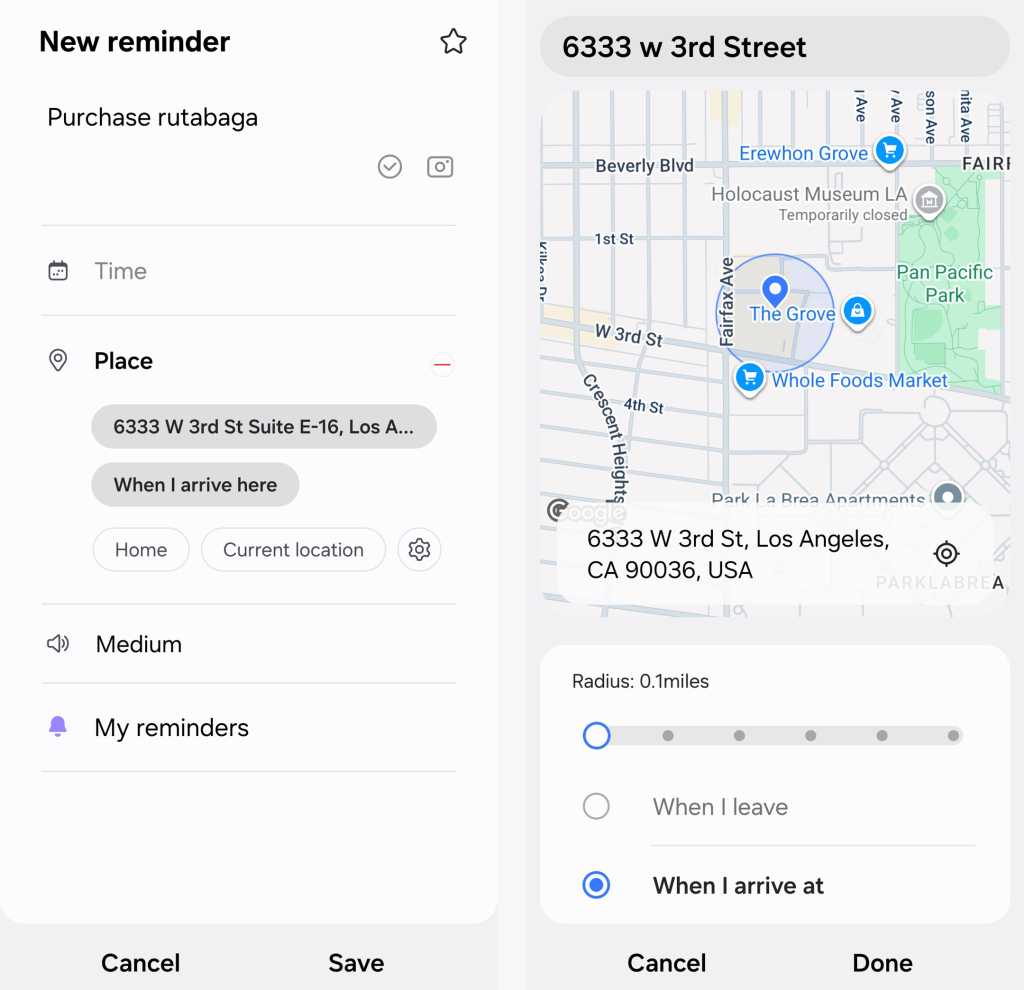
As of Android 16, Samsung is including a Reminder app on its devices that acts as a hub for any and all reminders you want to create on your phone. Notably, it offers the ability to associate a reminder with a specific physical spot and then have it appear whenever you arrive at or even leave said location.
Samsung’s new native Reminder app includes the option to set location-based reminders.
JR Raphael / Foundry
The downside is that the data is limited to being accessed only on Samsung Galaxy phones — meaning you can’t get to it on a computer or a non-Samsung phone or tablet, for one, and if you ever move to a different type of Android device in the future, you won’t be able to continue using the service. (It does have an option to sync with Microsoft To-Do, but since that app doesn’t offer location-based reminders, everything wouldn’t carry over — and also, such syncing can only occur when you’ve actively got the app open on a Samsung phone.)
All of that being said, it’s an interesting new option to have built into your phone for the moment, at least. If you want to try it, look for the new Reminder icon in your Android-16-running Galaxy device’s app drawer — and if you don’t see it, try tapping the search box inside the app drawer and searching for reminder. I had to do that once to get it to show up.
5. Ever find yourself struggling to hear or follow along while someone’s yappin’ your ear off during a Very Important Business-Related phone call? Samsung’s Android 16 setup sports a new feature that can help.
It’s technically redundant with an existing Android platform-level feature, but it might be a teensy bit more convenient to keep active for phone calls, specifically, without affecting any other part of your Android experience.
The feature is called Call Captions, and it does exactly what you’d expect: It puts visible text on your screen showing what each person is saying whenever a call is active (much like the Android Live Caption system, though that feature isn’t specific only to calls).
You can enable it by tapping the three-dot menu icon within the Samsung Phone app, if you’re so inclined, then selecting “Settings” followed by “Call Captions.”
6. Also new in the Samsung sphere is an option to group alarms in the Samsung-provided Clock app (which is not the same as the available-on-any-device Google Android Clock app) so you can turn ’em all on or off together with a single tap. This might be handy if, for instance, you travel frequently for work and have a certain series of alarms you use when you’re out on the road.
Open up the Samsung Clock app and tap the three-dot menu icon within the Alarm tab to find the “Alarm groups” option and see how it might work for you.
Android 16 tips, part II: Security
7. Android’s quietly been beefing up its security in ways that don’t tend to command a lot of headlines but are arguably among the platform’s most important progressions — particularly for professionals. And Android 16 is no exception: Perhaps most notably, the software introduces a new single-switch Advanced Protection option that essentially enables all the most important and advisable Android security settings for you in one fell swoop.
You can read more about what exactly is involved in my Android 16 Advanced Protection primer, and you can find the switch for yourself by searching your system settings for Advanced Protection.
8. Another Android-16-added element worth activating on any work-connected device is a feature called Identity Check. Identity Check ties into the long-standing Google Extend Unlock (a.k.a. Smart Lock) system and uses its “Trusted Places” data to determine which physical locations are relatively low risk for you — like your home, for instance, and maybe also your office.
It then requires extra biometric authentication around various “sensitive” actions anytime you’re outside of those places — so, for instance, you’d have to authenticate with a face unlock or fingerprint before changing your device’s PIN, pattern, or password or before disabling device tracking within the Google Find Hub (a.k.a. Find My Device) system if you aren’t in a trusted area.
It’s a smart added bit of protection with virtually no real downside. Be sure to search your system settings for Identity Check to find and enable it on any devices you’re using.
Android 16 tips, part III: General usability
9. Here’s a handy little addition you might need only on rare occasion but will be very happy to see when any such instance arises: As of Android 16, it’s now possible to restore data from a different device even after your initial setup.
Make a mental note for the future — and if you’re using a Samsung phone, take note, too, that Samsung opts to use its own proprietary system for this instead of relying on the standard Android setup, but it does offer a similar sort of option within its Samsung Switch app (albeit one that seems to be a little moreinconsistentineffectiveness, if user reports are any indication).
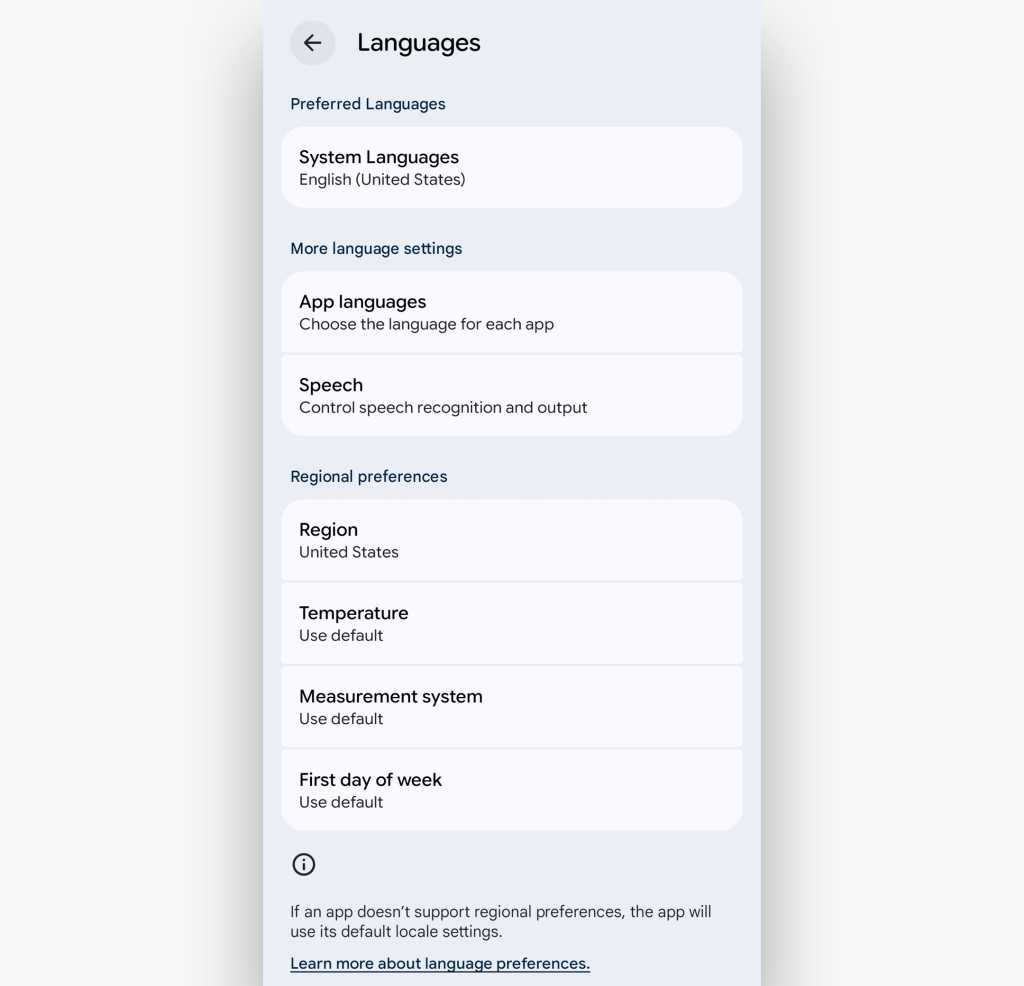
10. Got a Pixel? You can now set a bunch of non-language-specific regional preferences independent of your preferred language — in a shockingly sensible-seeming twist.
Head into the System section of your system settings and tap “Languages” to find the full list of choices.
You’ll find a lot more than just language-specific settings within the Android 16 Languages section.
JR Raphael / Foundry
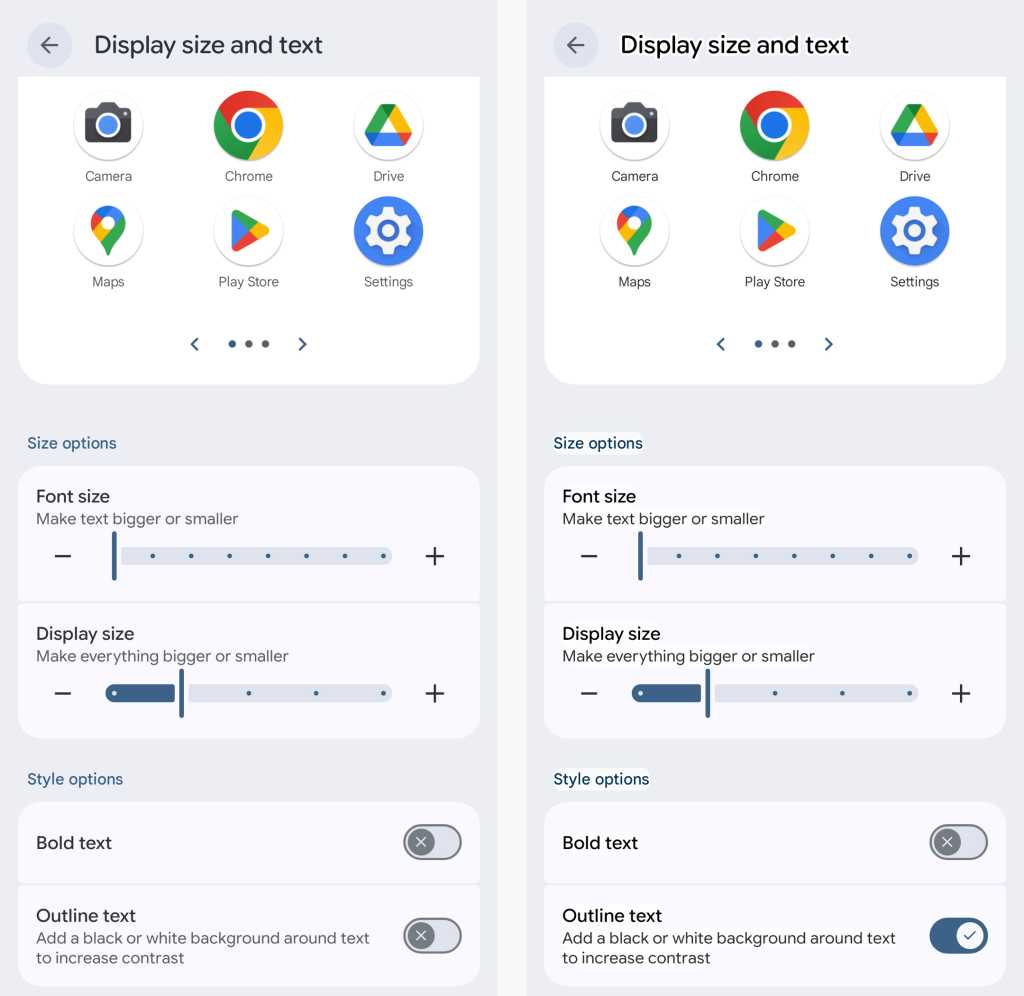
11. If you ever find yourself squinting to see certain text on your screen, you’ve got a handy new option as of Android 16: Inside the Accessibility section of your system settings, under “Display size and text,” you’ll find a switch that’ll outline all text and essentially highlight it (with either a black or white background, depending on the context) to make it easier to read.
At the bottom of the screen is Android 16’s new text outlining option — off (left) and active (right).
JR Raphael / Foundry
Samsung for some reason calls its equivalent “Relumino outline,” and it’s honestly a lot less effective in the way it’s implemented — but it’s there, if you want to try it, within the “Vision enhancements” area of the Accessibility settings on a current Galaxy gadget.
12. Here’s an interesting addition you almost certainly didn’t notice: Android’s split-screen system has gained an extra pinch of flexibility as of the Android 16 update.
Once you’ve initiated a screen split between any two apps, you can now slide the divider between ’em into a 90:10 divide — a ratio that wasn’t previously available and that opens the door to leaving yourself just a sliver of a view in one app while allowing the other to dominate your display.
Who knew?!
13. For the hearing-aid wearers among us, Android 16 on the Pixel front adds a new Quick Settings tile packed with an expanded and more easily accessible series of hearing aid options and controls.
You’ll likely have to find and add the tile into your active Quick Settings area before it’ll be visible — by using the pencil-shaped editing icon in that panel, then scrolling down until you find “Hearing Devices” and tapping it to turn it on.
Once you do, you’ll be able to tap that tile to reveal options for toggling between your hearing aid mic and your phone mic for phone calls — a new Android-16-added touch — along with the ability to adjust your hearing aid volume right from your phone.
14. You can keep better tabs on your battery health with Android 16’s new battery-monitoring features. On Pixels, you’ll find the in-depth dashboard in the Battery section of your system settings, under “Battery health”; with Samsung, the equivalent info (including a newly customizable “Battery Protection” option) is directly within the main Battery settings area.
Samsung’s new native Reminder app includes the option to set location-based reminders.
JR Raphael / Foundry
And remember: Here in the land o’ Android, the hunt for new treasures is never truly over. We’ll have the next big Android version in front of us to inspect and explore before long and plenty of other à la carte additions popping up all over in the meantime.