Those areas of improvement are all well and good — and plenty important, without a doubt! — but when it comes to serious productivity and work communication, there’s one more type of tool that can make a monumental difference and yet virtually never comes up in the Android typing conversation.
It’s the type of tool that lots of smart workers already embrace on the desktop front but that’s far less common in the mobile world, where it’s if anything even more useful — and that’s an intelligent text expander. Text expanders let you create and save common phrases or even entire paragraphs of text you find yourself typing often and then insert ’em into any text field, anywhere, with a quick ‘n’ simple keyboard command.
There’s one such tool on Android that stands out above the rest, and it just got a massive makeover that makes it even more of an indispensable addition.
Lemme show ya how it works and what it’s all about.
[Psst: Want even more advanced Android knowledge? Check out my free Android Shortcut Supercourse to learn tons of time-saving tricks for your phone.]
Your Android text expander advantage
My fellow Android-appreciating animal, allow me to introduce — or maybe re-introduce — you to a handy little tool called Typing Hero.
Typing Hero first popped up on my radar a few years ago. But it’s come a really long way since, especially with its recent revamp, and it’s well worth bringing to the surface now as a potential new piece of your Android productivity toolbox.
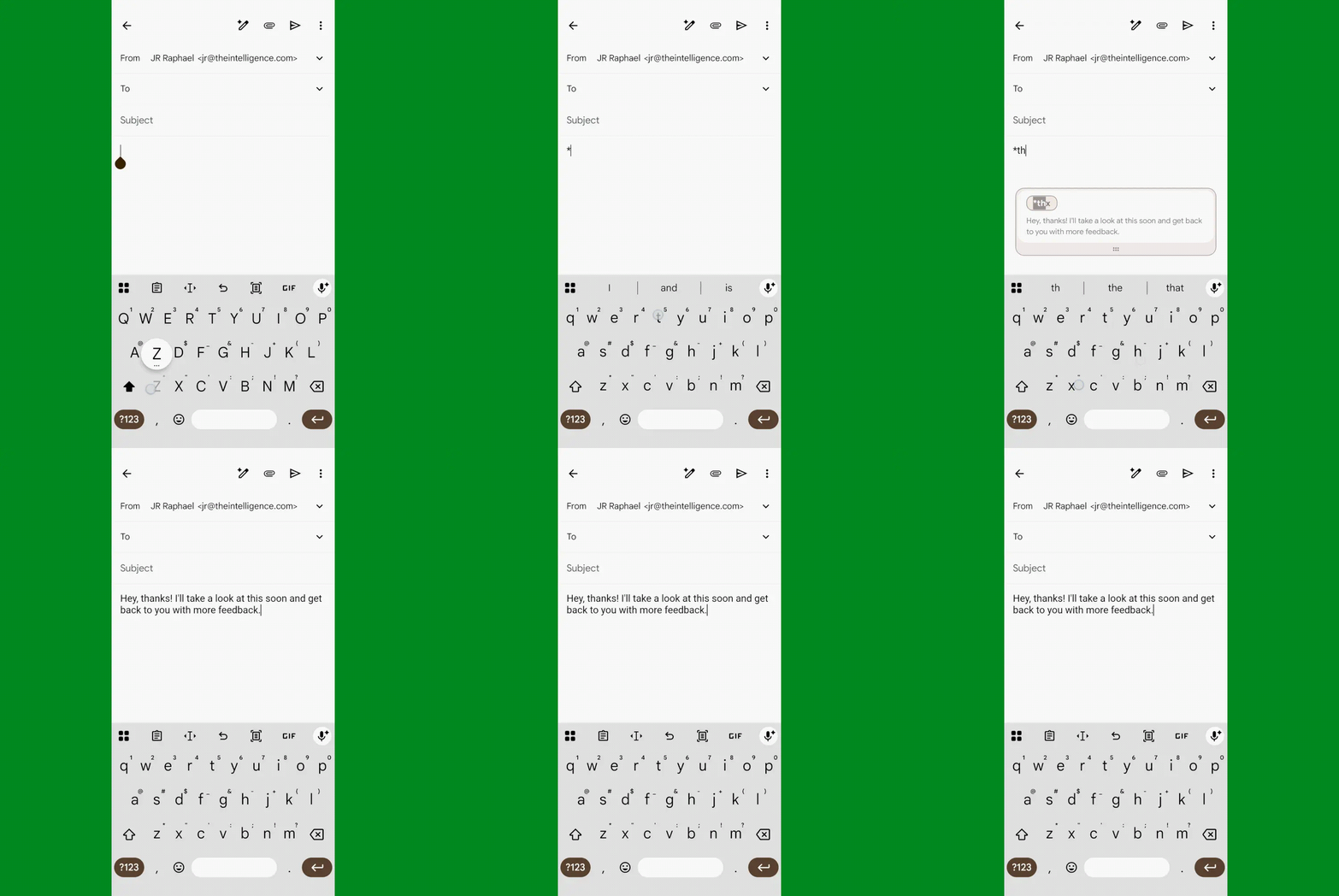
On the simplest possible level, what Typing Hero does is allow you to create prewritten text snippets and then map ’em to specific keyboard commands — short and memorable abbreviations like *thx or *omw that you can type into any text field, using whatever regular Android keyboard app you already use, and then have your full snippet appear right in that same place.
It’s so easy and so effective, it genuinely gives me a jolt of joy every time I see it happen:
Typing Hero in action, with its most basic text expanding feature.
JR Raphael, Foundry
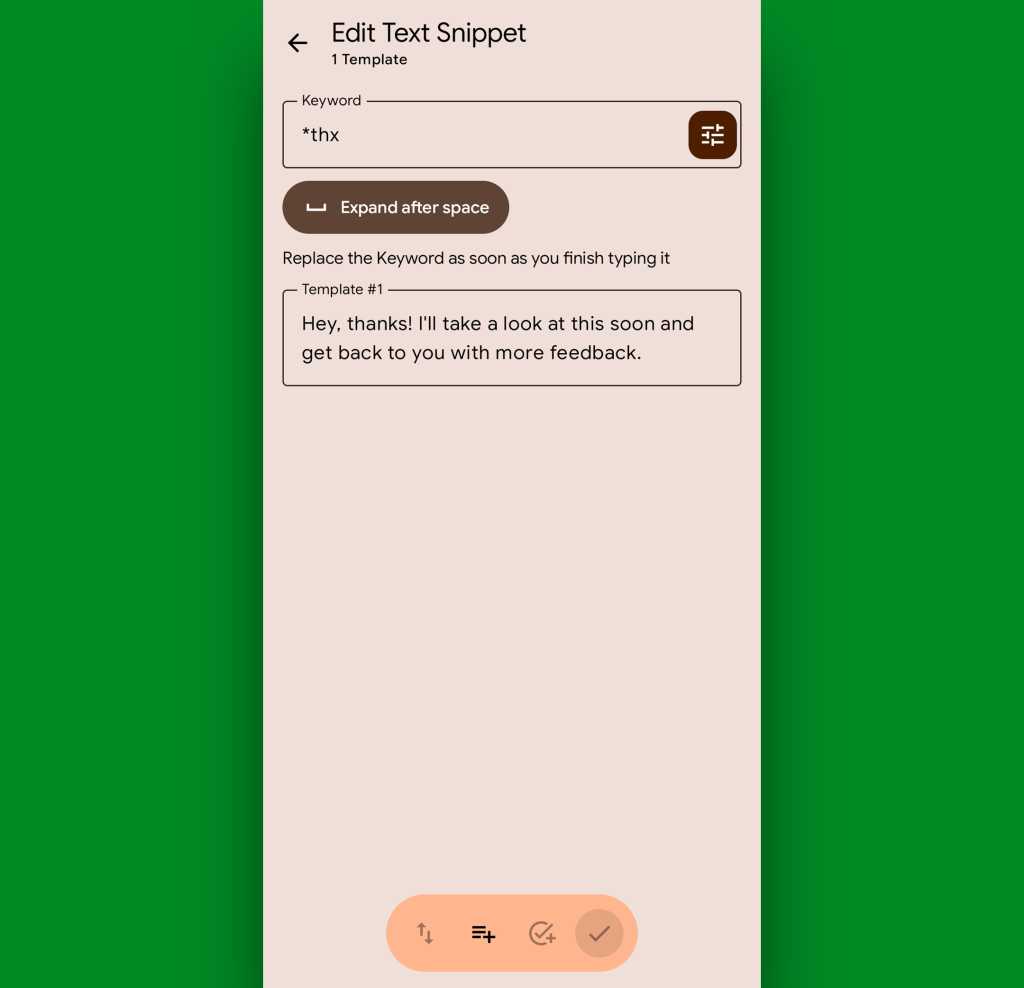
Setting up snippets is super-simple, too: You just go into the Typing Hero app, create a new snippet, and put in whatever keyword and result you want.
Creating new snippets in Typing Hero is surprisingly simple.
JR Raphael, Foundry
That in and of itself is such a smart time-saver, especially if you tend to type the same sorts of stock responses over and over while you’re dealing with emails, Slack messages, or any other kind of communication. And honestly, that’s what’ll make Typing Hero worth having in place for most of us.
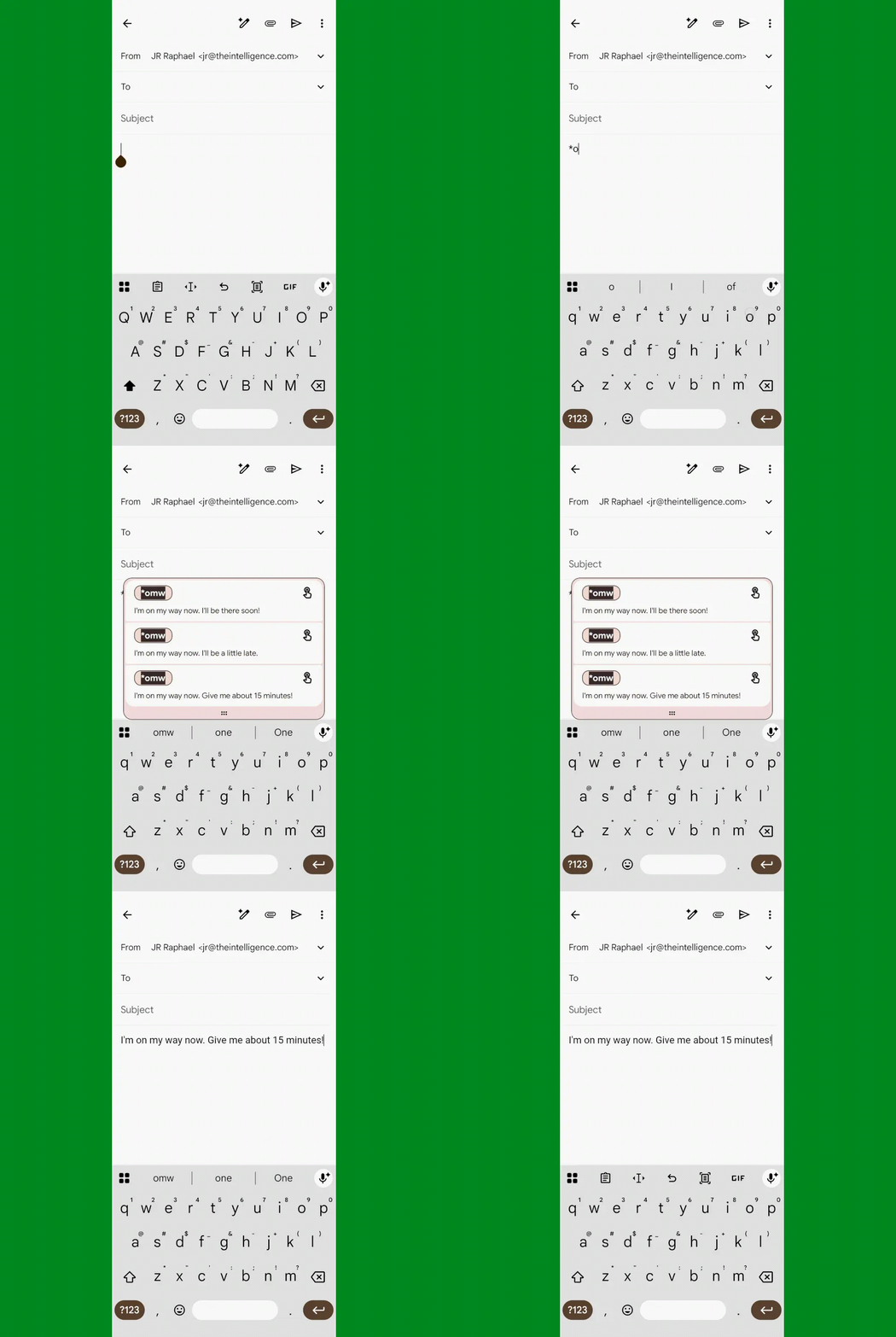
But the app gets even more interesting when you start to explore some of its extra-advanced options — for instance, being able to map multiple snippets to a single trigger keyword and then get a pop-up menu to choose from anytime you enter the term.
Triggering multiple related snippets is a powerful Typing Hero possibility.
JR Raphael, Foundry
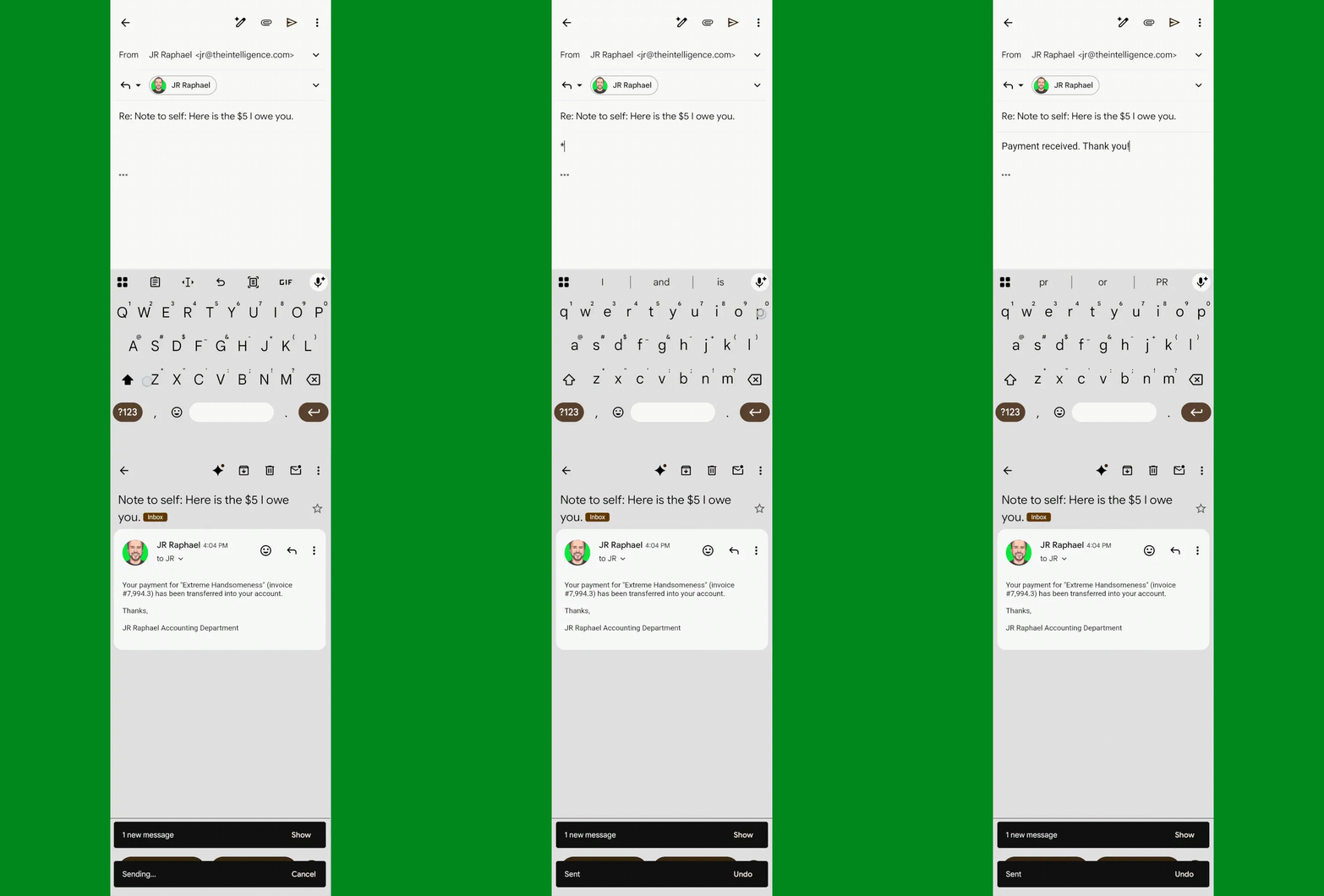
Typing Hero also supports all sorts of advanced commands for actual actions on Android — like automatically hitting send and then moving back to the previous screen as a part of a single keyword.
Text expansion alongside actual system-level actions makes for a pretty incredible pairing.
JR Raphael, Foundry
Not bad for step-saving, right?
Beyond that, Typing Hero can incorporate a bunch of different variables into its snippets — so, for instance, you might have it automatically insert whatever text was most recently copied into your Android system clipboard as a part of a snippet or automatically insert the current date or time.
You can even configure it to pause for your input and ask you to fill in certain blank variables whenever a snippet is activated — if, say, you want to manually type a name or a precise number into an otherwise standard prewritten message.
width="1024" height="998" sizes="auto, (max-width: 1024px) 100vw, 1024px">Typing Hero’s form filling feature presents a whole other level of time-saving delight.
JR Raphael, Foundry
No exaggeration: This thing feels like a secret weapon. And once you get used to having it in place on whatever device you’re using, you’ll wonder how it wasn’t always there and built right into Android as a readily available asset for everyone.
Oh, and the app is respectful of your privacy, too, with virtually no data ever leaving your device or being used in any way beyond its intended and approved purpose.
Typing Hero is free for up to 20 saved snippets and with certain feature limitations in place, like only being able to use a single snippet per keyword and not having the multiple-choice menu possibility we talked about a moment ago. You can lift all those limitations and unlock its full set of features with the app’s premium version, which costs $20 a month or $60 for a lifetime license.
Whether you go the premium route or just stick with the basic free setup, it’ll save you tons of time and bring a hefty upgrade to your on-the-go productivity. And that, m’dear, is yet another only-on-Android advantage worth celebrating.
Sometimes, the hardest part about getting stuff done is simply remembering what you have to do — and when.
And ironically, lots of the tools that exist to help us juggle our endless array of incoming tasks only seem to make it even more overwhelming. Truly, it doesn’t take much for the very act of managing your tasks — or maybe even just figuring out the best way to do it — to become a chore in and of itself.
Like many perpetually perplexed plebeians, I’ve exerted far too much energy on the impossible-seeming task of finding a system for tracking tasks that (a) actually works — and (b) doesn’t feel like a burden of its own. I’ve gone through more tasks and reminders systems than any sane person should ever encounter in a lifetime.
And lemme tell ya: At long last, I’ve encountered one that’s the perfect blend of simplicity and power.
It’s a brand new, off-the-beaten-path Android app you probably haven’t heard of but that absolutely should be on your radar. It’s both easier and more effective to use than most of the big-name tasks apps out there right now — and it almost, dare I say, even makes managing your to-dos enjoyable instead of exhausting.
Lemme show ya how it works.
[Keep the knowledge coming with my free Android Intelligence newsletter — three new things to try every Friday and my Android Notification Power-Pack as a special welcome bonus!]
A new gold standard for Android reminders
My fellow memory-challenged marsupial, allow me to introduce you to the amusingly named Ruff Reminders.
Ruff Reminders is an Android-first creation that’s only been in the Play Store for a matter of hours now — though I’ve had the opportunity to use it during its development for the past couple of months, as it’s progressed from a, well, rough framework into a polished and well-rounded place for storing all of your tasks both personal and professional and ensuring you never forget anything.
If the Ruff name sounds familiar, by the way, you might be thinking of the similarly themed Ruff Writing app — which puts a simple scrolling scratchpad right on your home screen for on-the-fly thought storing. I’ve featured it as one of my must-have Android widgets for some time now.
Ruff Reminders comes from the same source — an indie Android app developer named Bardi Golriz — and it exists as a perfect companion to its sibling’s scratchpad concept.
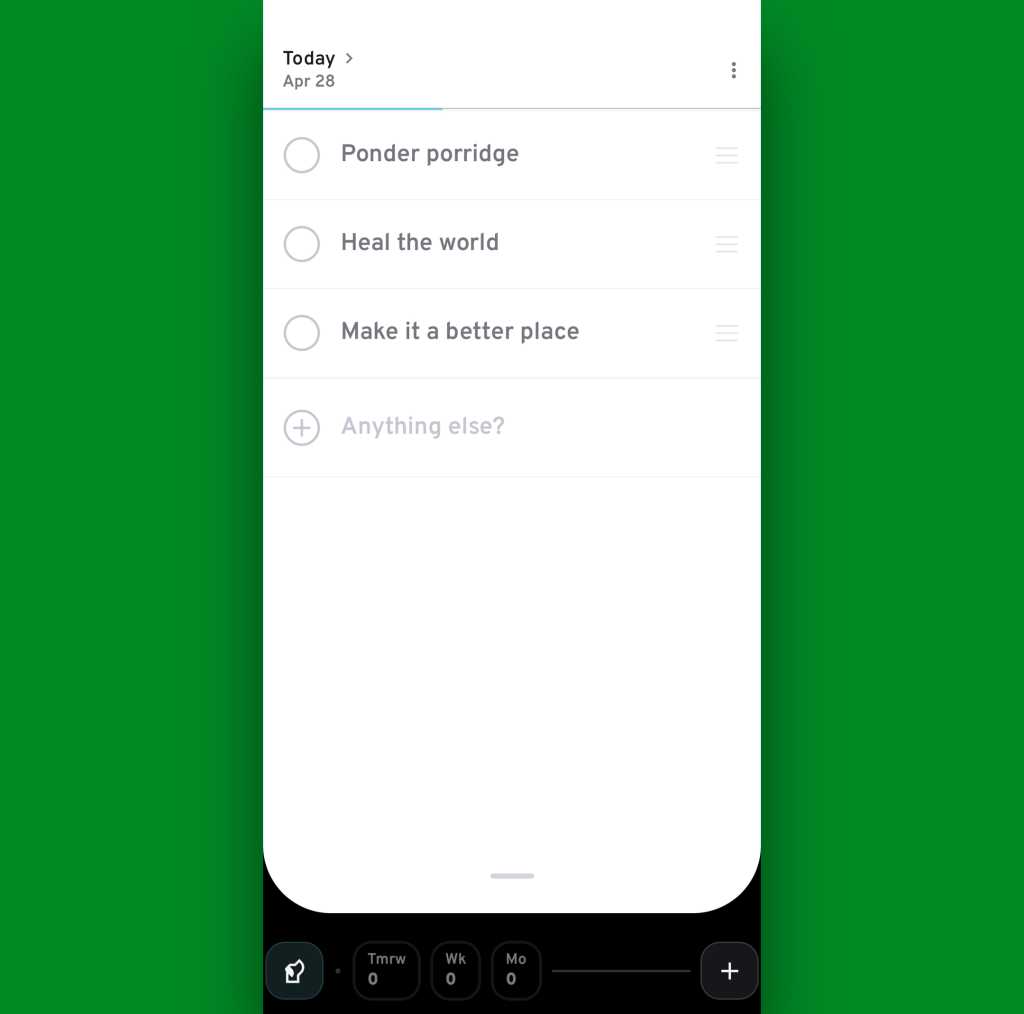
So let’s get into it: When you first open up Ruff Reminders, you’re greeted with a simple screen showing you the current day and a prompt to add any new reminders you need into the mix. The idea is that your focus belongs on the here and now — and starting with what you need to do today is the best way to actually get your tasks accomplished.
Ruff Reminders always starts you with a view of your tasks for the current day.
JR Raphael, Foundry
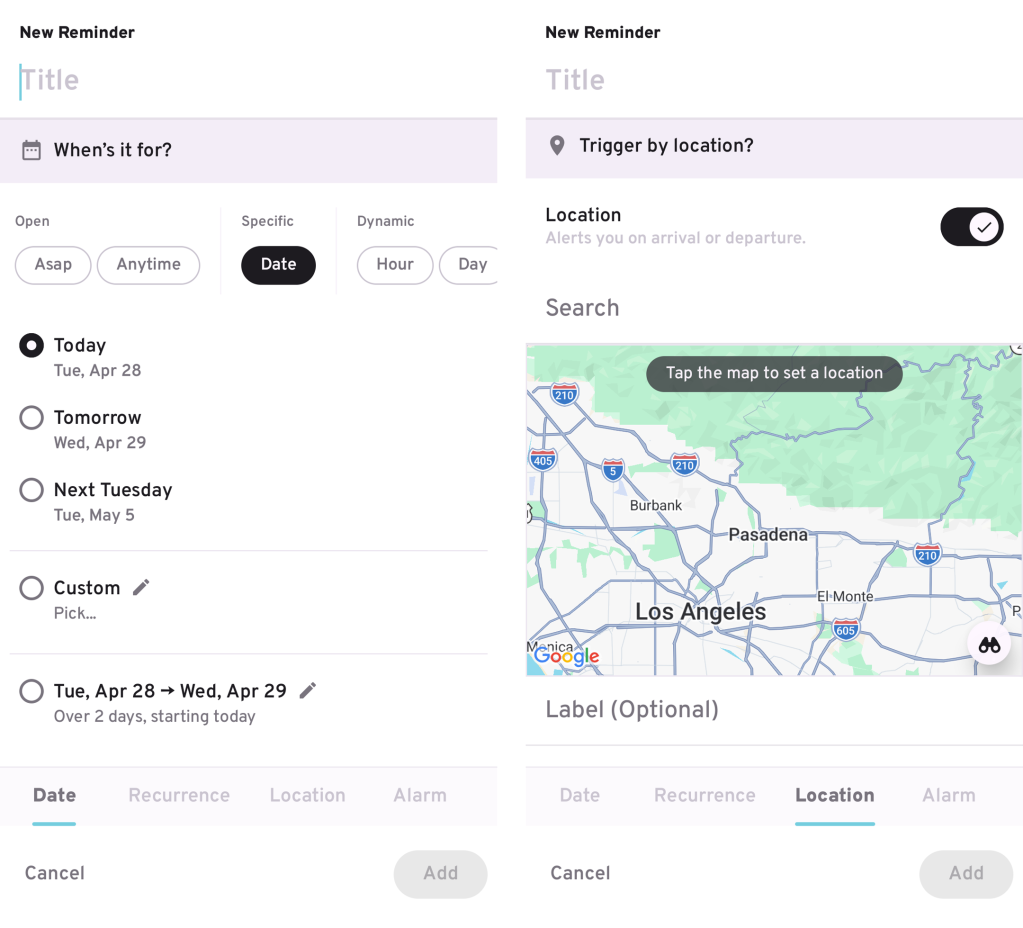
Creating a new task is as easy as tapping the “quick entry” prompt toward the top of the screen and typing. You can also use the plus icon in the lower-right corner of the screen for a more elaborate and detail-oriented task creation mechanism — and that’s where some of Ruff Reminders’ most impressive powers come into play.
To wit: For any task you create, you can schedule yourself a reminder for…
A specific date and time
A dynamic date or time — as in every Monday, every weekend, the first day of each month, and so on
And (drumroll, please…) a specific location — if, say, you want to be reminded about something when you get to the office, when you get home, or maybe even when you walk into a particular store or business
You can set all sorts of different reminders, including ones based on your physical location.
JR Raphael, Foundry
That last one in particular is a true treat to see. Like many Android-appreciating animals, I’ve been irked by Google’s ongoing retirement of location-based reminders all across the platform — first within the old Google Assistant system and then more recently within Google Keep as well. Ruff Reminders handily fills that void while offering a whole lot of other enticing extras that Assistant and Keep never provided.
For instance: For any location-based reminder, Ruff Reminders gives you the option to have a task pop up when you reach whatever location you specify either within a certain specific timeframe or anytime — and to have that reminder exist only once or as a recurring thing, every time you come or go from the location in question.
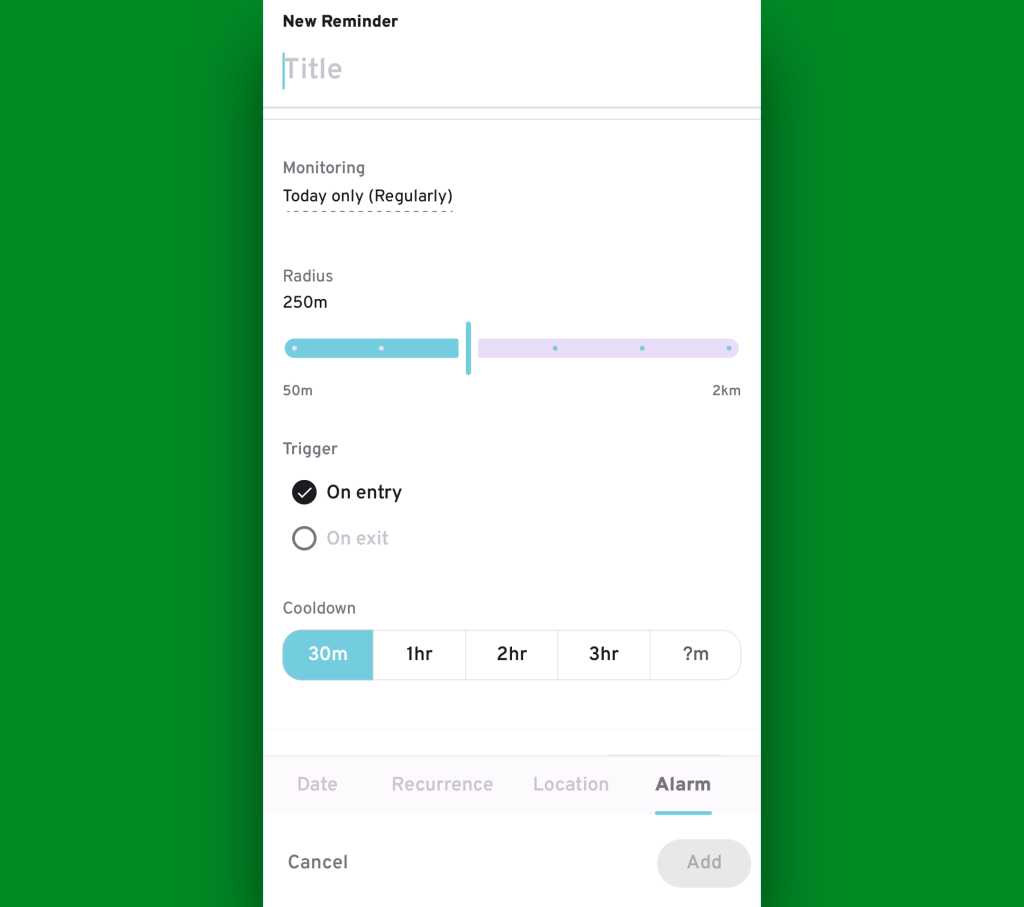
On that latter point, you can also set the reminder to trigger when you arrive at your chosen location or when you leave it — and you can choose exactly how wide of a radius the app uses to identify the spot — both of which add a whole other layer of flexibility and potential usefulness into the feature.
Ruff Reminders’ location reminders are especially versatile and powerful.
JR Raphael, Foundry
And all of that is still just the start.
Remembering — and beyond
Once you have tasks created, Ruff Reminders really does work to make sure you remember ’em. In addition to setting all of your own preferred reminder patterns for each new task you create, you can tell the app to always nudge you about still-pending tasks for the present day at specific times as well as to keep “chasing” you with more prominent alarms — even multiple alarms, if you want — for items you haven’t finished.
All of those options exist within the dog-shaped Ruff icon in the lower-left corner of the screen:
width="1024" height="919" sizes="auto, (max-width: 1024px) 100vw, 1024px">Ruff’s “nudges” and “chases” add in even more flexibility and reliability with making sure you never forget anything important.
JR Raphael, Foundry
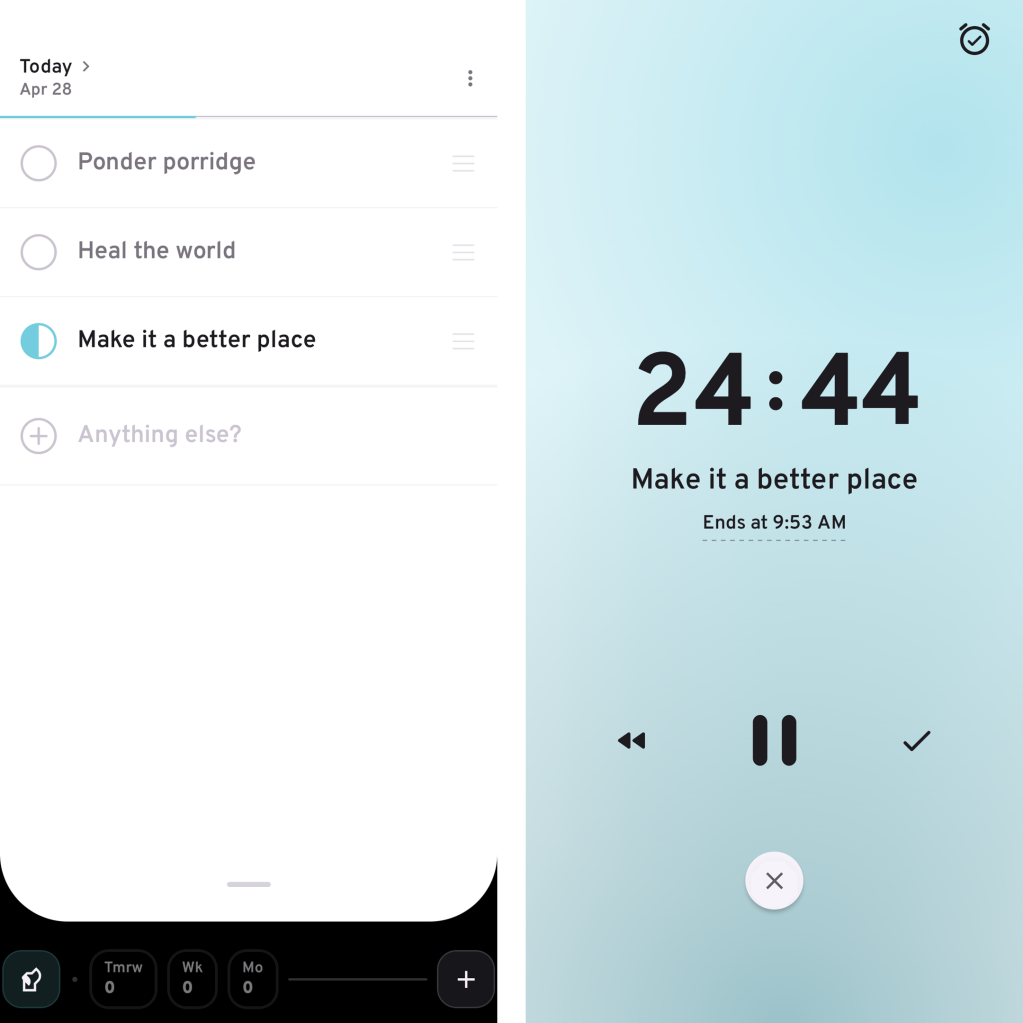
Once you’ve started a task, one tap on its line tells Ruff Reminders that it’s in progress and marks it accordingly. Another tap starts a full-screen timer (for any length you choose) to help you actually focus on the task. And pressing and holding the task marks it as finished.
You can also double-tap to reset an item’s status, if such a need ever arises.
Marking a task as in progress (left) exposes the option to begin a full-screen focus timer (right), if you want.
JR Raphael, Foundry
If something does still manage to slip by without getting completed, it’ll move down to the app’s command bar, at the bottom of the screen — where it shows up inside a red box with the number of unfinished past tasks front and center.
The Ruff Reminders command bar shows you how many missed tasks are still active and pending.
JR Raphael, Foundry
You can always tap that box to revisit and reschedule any missed tasks — or you can find any past task via the app’s swipe-up-from-the-bottom search system. But even more helpful are the ongoing reminders the app will keep bringing front and center whenever you tell it to keep chasing you about any particular item.
Tapping the double up arrows on a missed task moves it right back into your current “today” view.
JR Raphael, Foundry
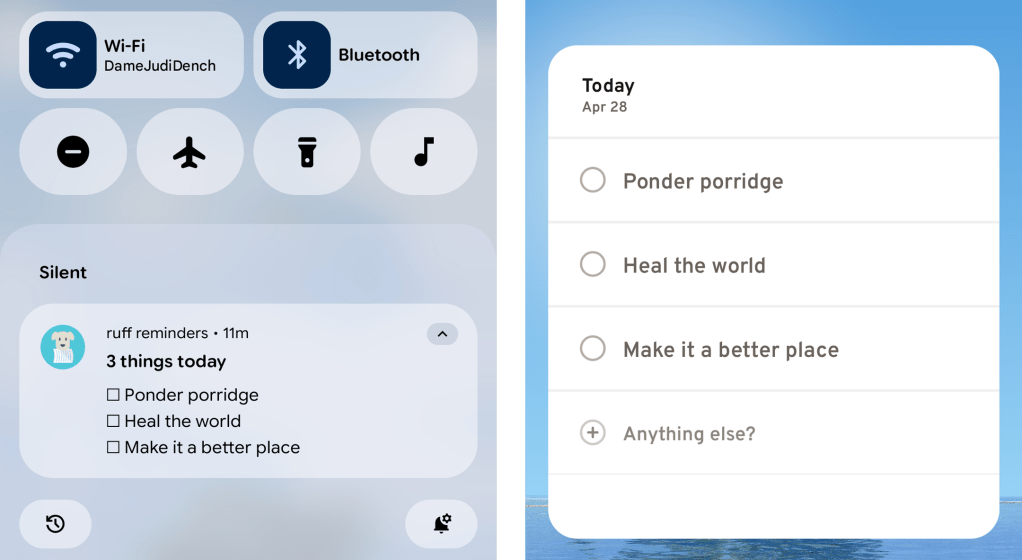
What else? Let’s see — for any items you set as “ongoing,” Ruff will create a persistent notification so you can easily see what’s lingering on your list. And as you’d expect for any serious Android productivity app, Ruff Reminders has a widget that lets you look at all your tasks for the current day and add new tasks right then and there, on your home screen, without ever having to open anything up.
Between Ruff Reminders’ persistent notification of ongoing tasks and its home screen widget showing today’s tasks, you’ve got no shortage of ways to keep important stuff front and center.
JR Raphael, Foundry
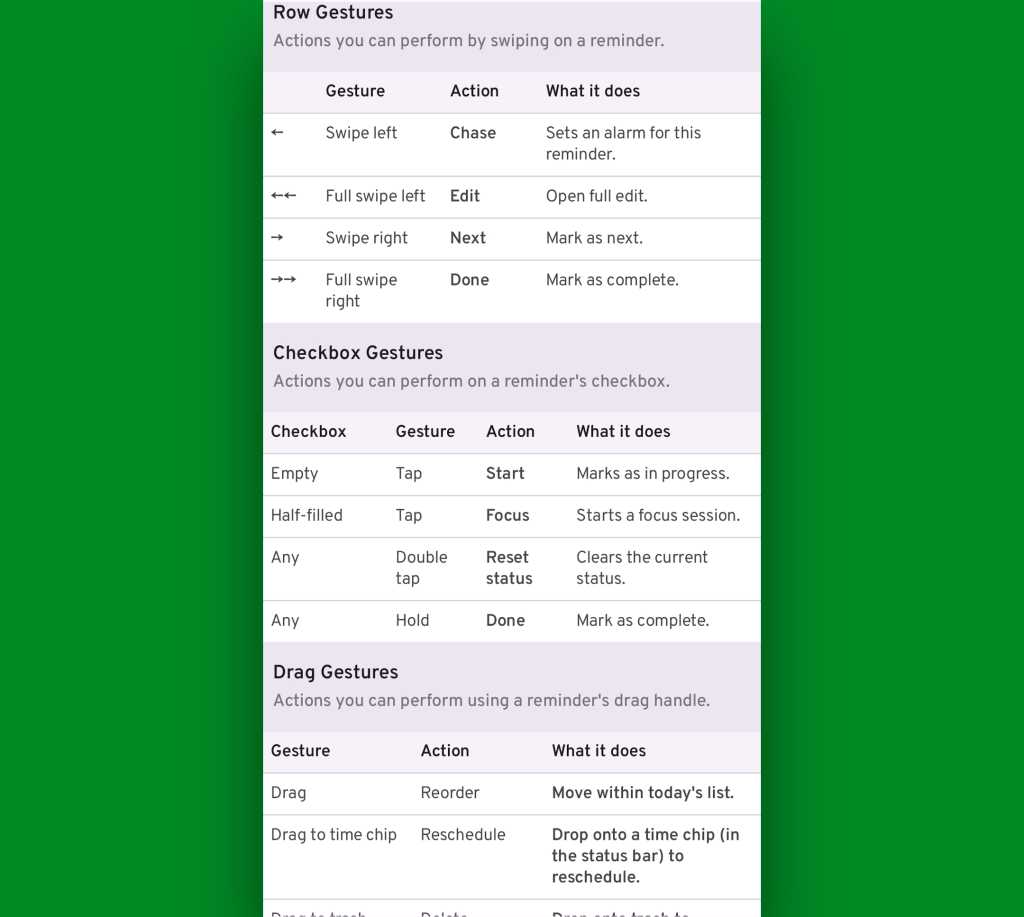
For the true productivity-obsessed power-user nerds among us, Ruff Reminders also has a whole host of step-saving gestures built into its interface. Like all of the app’s more advanced options, you absolutely don’t have to mess with ’em if you don’t want to — but if you’re the type of person who likes learning shortcuts and flying around your phone with taps and swipes, you’ll be delighted by all the possibilities this unlocks.
The more you use it, the more thoughtful and useful little touches you keep discovering — again, if and only if you want to explore those types of options.
Gestures galore await for the shortcut adorers among us.
JR Raphael, Foundry
What’s most interesting to me about Ruff Reminders is the space it fills between the everything-style, intensive-need to-do apps out there — things like Todoist or even all-purpose productivity tools like Notion, which are great for the right type of purpose and person but can be overwhelming overkill for more casual task tracking — and the super-simple, at times too-limited apps like Google Keep, which are fine for basic info-dumping but lacking in more powerful task management and reminder magic.
Ruff Reminders manages to be both simple and effective — an often overlooked middle-ground for those of us who want to track tasks and remember stuff in a way that goes beyond the most barebones basic approach but that doesn’t require an entire intricate platform to do it.
Oh, and as far as privacy goes, Ruff Reminder’s policy on that front is also refreshingly simple: It doesn’t collect or process any personally identifiable information. Period.
The app doesn’t have ads, either. Instead, it allows you to use its most fundamental setup for free and offers a paid subscription for its full set of features — three bucks a month or $20 per year, at the moment, with the latter price set to bump up to $30 after a while. (That pricing does also vary by country, so the rates will be slightly lower in certain parts of the world.)
For now, all you’ve gotta do is try it out and see if it works as well for you as it has been for me.
And if you need a helping hand to remind you, I know just the app to get the job done.
Increase your Android intelligence quotient with my free Android Intelligence newsletter— three new things to try every Friday and my free Android Notification Power-Pack today.
Quick: When was the last time you thought about the keyboard app on your phone?
If you’re like most people, the answer is probably somewhere between “a ridiculously long time ago” and “never.” And it’s no wonder: Keyboard apps are easy to forget! You install one — or stick with whatever came loaded on your phone by default — and then use it to input text when you need to. It’s just there, and unless you’re a weirdo who spends hours trying out different keyboards to see how they compare (and then trying ’em all out again months later to see how they’ve evolved and what other options have come along), you’re never gonna know what you’re missing.
Well, good news, my friend: I am that weirdo. Somehow, it’s my job. (Crazy, right?) And I’ve just finished assessing all of the significant Android keyboard apps in their current incarnations to see what they have to offer in 2026 and how they stack up.
Lemme tell ya: These once-unassuming typing tools have come a long way. The top Android keyboard apps now offer almost absurdly polished and refined text input experiences — and that’s just the tip of the iceberg. Android keyboards today are overflowing with all sorts of advanced functions that go way beyond their original purposes. And that means it’s more important than ever to find the right setup for your personal productivity needs.
So let’s get into it, shall we? These are the best Android keyboard apps around, broken down by where they excel and for whom they make the most sense.
The best all-around Android keyboard app for most people
If you just want a solid, thoughtfully designed keyboard that works well and is pleasant to use, Google’s own Gboard is tough to beat. Gboard is great for accurate swipe-based typing — where you slide your finger from one letter to the next without lifting it — and it does a decent job at tap-oriented typing, too, with its built-in typo correction and next-word prediction capabilities.
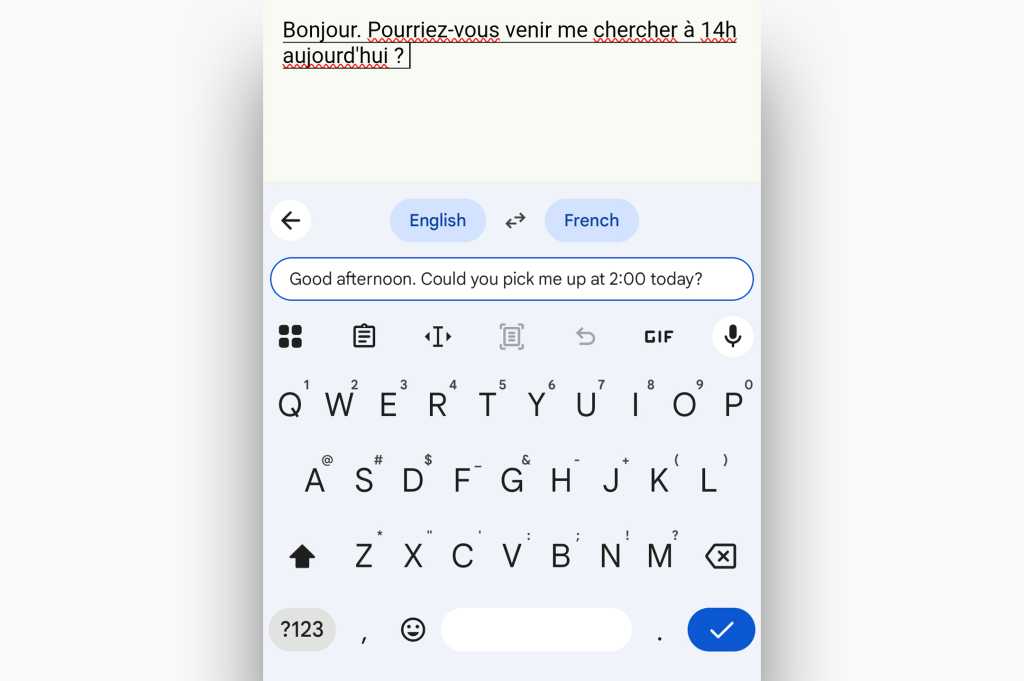
Beyond the basics, Gboard supports a variety of potentially useful advanced productivity features. For instance, you can take a photo of a physical paper or whiteboard from right within the keyboard and then insert its words directly into any active text field on your screen. You can also activate an integrated Google Translate mode that’ll translate anything you type from one language to another on the fly.
On-the-fly language translation is one of Gboard’s handy advanced features.
JR Raphael / Foundry
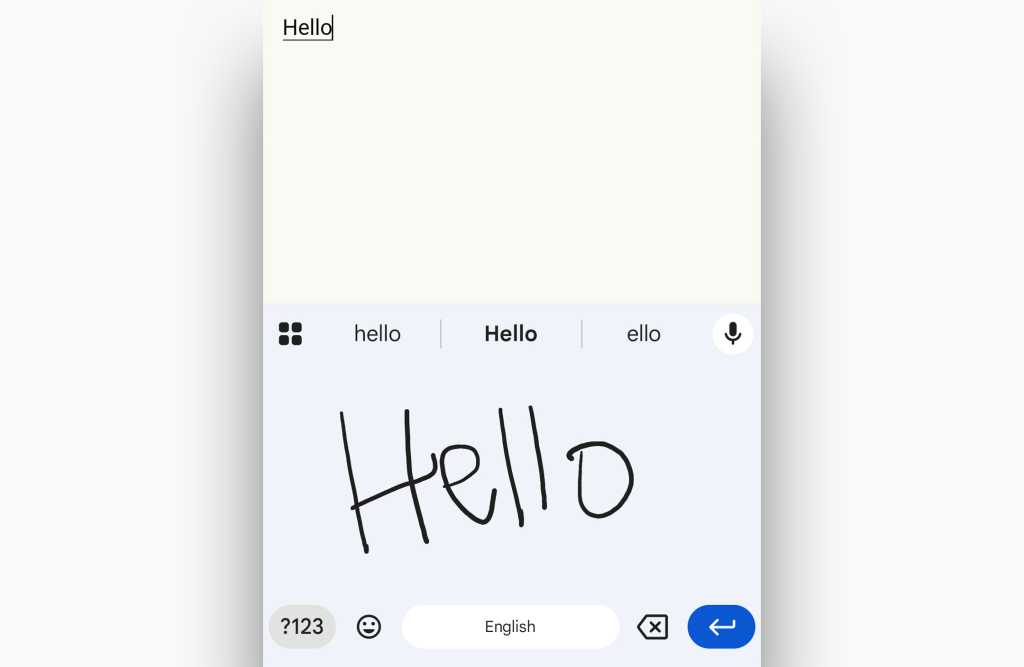
Other noteworthy elements include a handwriting mode, which transforms your on-screen scribbles into regular text as you write; a floating keyboard layout, which makes it easier to access the keyboard on a large-screened device; a built-in clipboard, which makes it quick ‘n’ simple to find and paste any recently copied content or permanently pinned items; a text selection tool that lets you use arrow keys to move your cursor around to any specific spot on your screen; and a series of other advanced options and hidden shortcuts for extra-speedy text input.
Gboard can interpret even the messiest handwriting and turn it into regular digital text on the fly.
JR Raphael / Foundry
Whether you take advantage of all those possibilities or not, though, Gboard is a well-rounded keyboard that lets you type quickly, accurately, and with minimal hassle on your Android phone. If you don’t have any special requirements and just want a commendable all-around keyboard that gets the job done, Gboard is the app for you.
The best Android keyboard app for simple Windows syncing
If you’re using Android alongside a Windows computer and like the idea of seamless text sharing across your devices, the now-Microsoft-owned SwiftKey is the Android keyboard app you want. The reason why is simple: SwiftKey and SwiftKey alone offers the ability to sync your Android and Windows clipboards — meaning you can copy something on one device and then instantly paste it on the other, without any extra effort or actions. All it requires is an easy one-time setup to get going.
That alone is a pretty compelling perk, but SwiftKey is also no slouch when it comes to regular on-screen Android typing — especially with its exceptional next-word prediction engine, which is something that’s been one of the keyboard’s greatest strengths since back before Microsoft owned it.
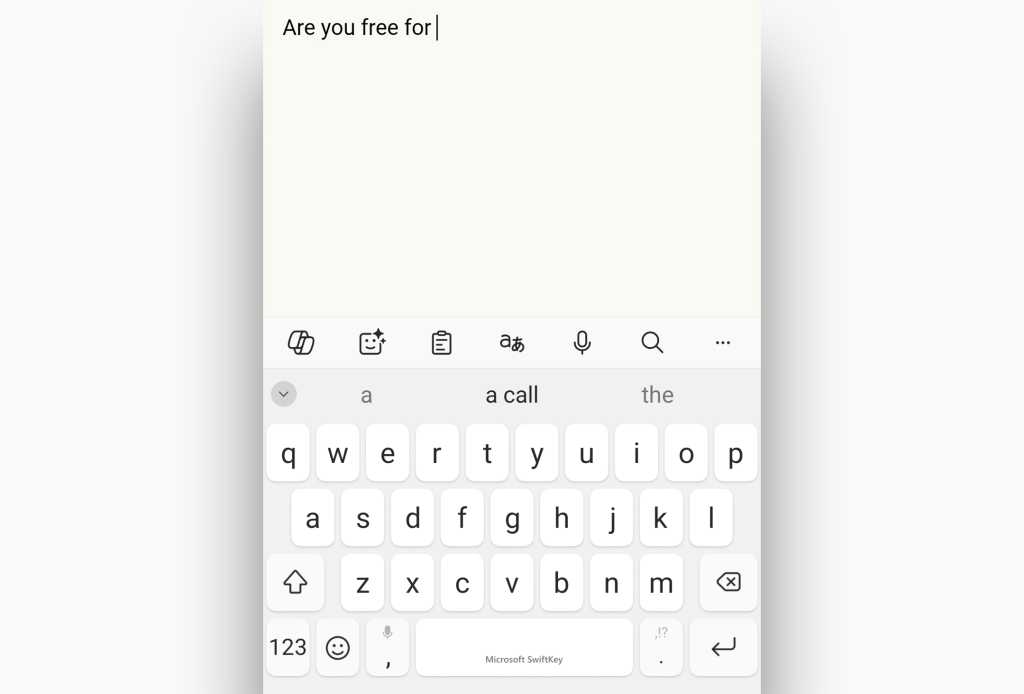
Microsoft’s SwiftKey excels at tap-based typing and text prediction.
JR Raphael / Foundry
SwiftKey has plenty of other bells and whistles, too, including many of the same mode and input options as Gboard, along with an all-in-one “multi-modal” setting that lets you dictate text while still being able to actively use your on-screen keyboard for manual typing. Some of its more interesting options from the past have been phased out over time, unfortunately, while plenty of eye-roll-inducing elements — like integrated shortcuts for Bing Search and Copilot along with some Microsoft Rewards madness — have made their way into the keyboard.
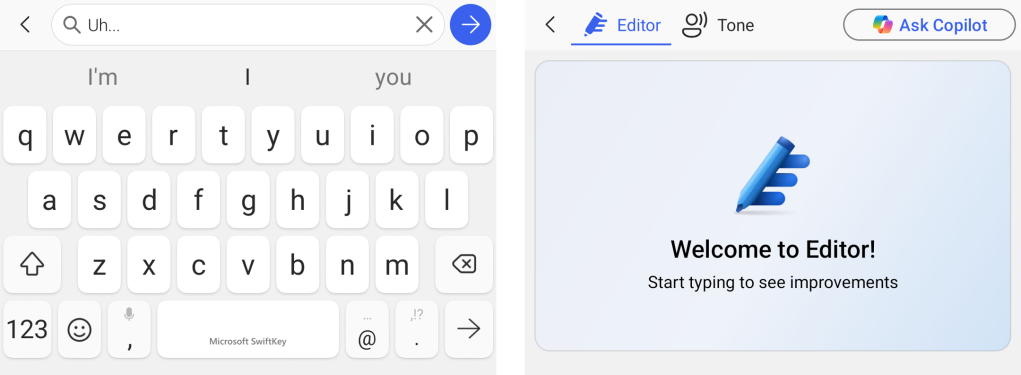
SwiftKey has an integrated Bing Search bar that just opens up Bing in your browser and a Copilot button that takes you to the Play Store to download the Copilot app.
JR Raphael / Foundry
The keyboard also, not surprisingly, relies mostly on Microsoft services over Google services by default for things like search and translation — which may be a positive, a negative, or a neutral, depending on your perspective.
Provided you’re willing to overlook all the crud Microsoft’s cramming into the keyboard nowadays, though, it’s actually a quite polished and viable alternative to Gboard — if a touch less impressive as an overall package — and its Windows clipboard syncing is a genuinely compelling and completely unique feature. If that holds a lot of appeal for you or you’re just heavily invested in the Microsoft ecosystem and want your Android experience to revolve around that universe, it’s well worth giving a whirl.
The best Android keyboard app for writing perfection
Our next Android keyboard app isn’t actually a keyboard in and of itself but rather a companion app that you’d use alongside another Android keyboard — like the two we just went over.
Grammarly, as its name suggests, is focused on watching your words and making intelligent suggestions about your grammar, spelling, and other potential issues as you enter text on your phone. And while it originally came in the form of a full-fledged Android keyboard, it’s now an extra layer that appears above whatever primary keyboard you prefer.
That implementation is actually quite thoughtful and clever, too, as it lets you enjoy the ever-evolving features and capabilities of a standout Android keyboard like Gboard or SwiftKey while also benefitting from Grammarly’s exceptional on-the-fly editing prowess. Those suggestions appear via a floating “G” bubble (for, y’know, Grammarly) that hovers just above your keyboard’s upper-left corner. Notably but not obviously, that bubble can be repositioned as you see fit if you press and hold your finger onto it and then drag it anywhere else on the screen.
Grammarly, in its resting state — as a simple floating bubble just above your regular Android keyboard.
JR Raphael / Foundry
Then, as you’re typing — in any app, anywhere on your device — Grammarly pops up corrections and suggestions alongside that bubble, which you can opt to accept or ignore. Even when it comes to something as simple as a misspelled word, it outshines other keyboards by making sure an error catches your attention both while you’re actively typing and after you’ve moved past the problematic text, thanks to its lingering presence in that easily visible bubble. And it does the same with grammatical issues, too — something most other keyboards attempt only if and when you actively seek out the feature.
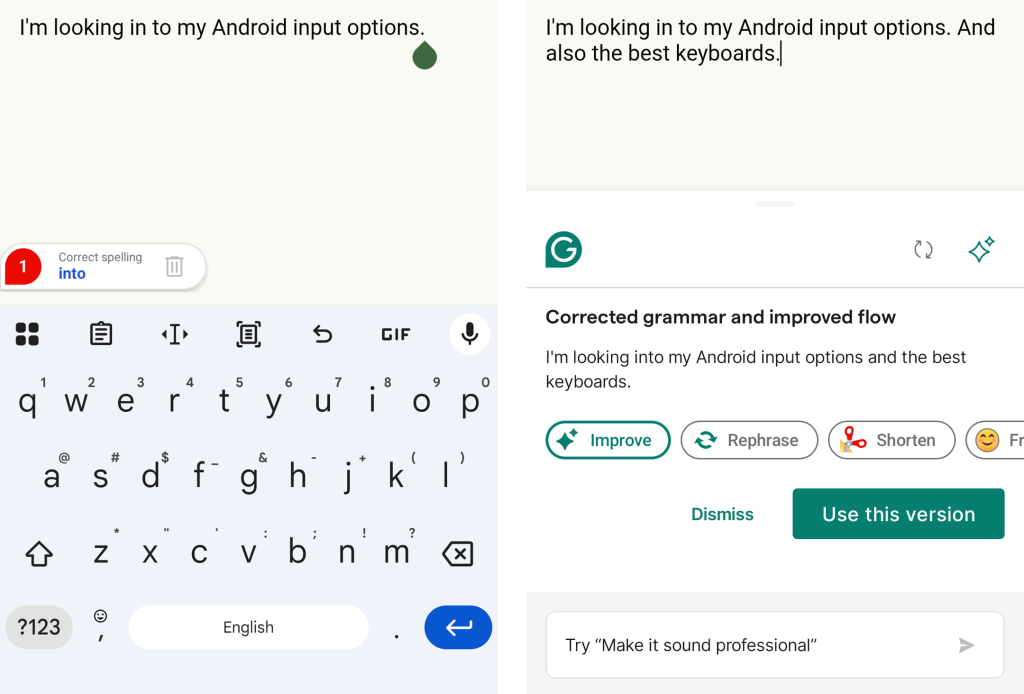
Grammarly pops up tap-to-accept corrections as you write and also notifies you of broader corrections in both grammar and tone.
JR Raphael / Foundry
There is, inevitably, an AI element now as well, wherein you can provide specific prompts for how you want Grammarly to rewrite your words — making something shorter, more descriptive, more professional, and so on. And that’s fine. But it’s also something that most other keyboards and writing surfaces in general also now offer, whether you want it or not.
Where Grammarly shines is in the basic ongoing guidance it gives you alongside your existing Android keyboard adventure. And that piece of the puzzle is also free to use, though there is an optional $140-a-year premium subscription that adds in more elaborate rewriting options along with a similar set of benefits across Grammarly’s desktop browser extensions and app-specific integrations.
No matter what Android keyboard you’re using, the recently released Wispr Flow Android app will bring a phenomenally powerful upgrade to your Android voice typing experience.
With Wispr Flow installed, anytime your keyboard is active, you’ll see a small floating-bubble icon directly above its keys. All you do is tap it and start talking — or hold it down, if you’d rather — and the app will intelligently interpret whatever you’re saying, eliminate any errors or redundancies, and put your words into neatly formatted text.
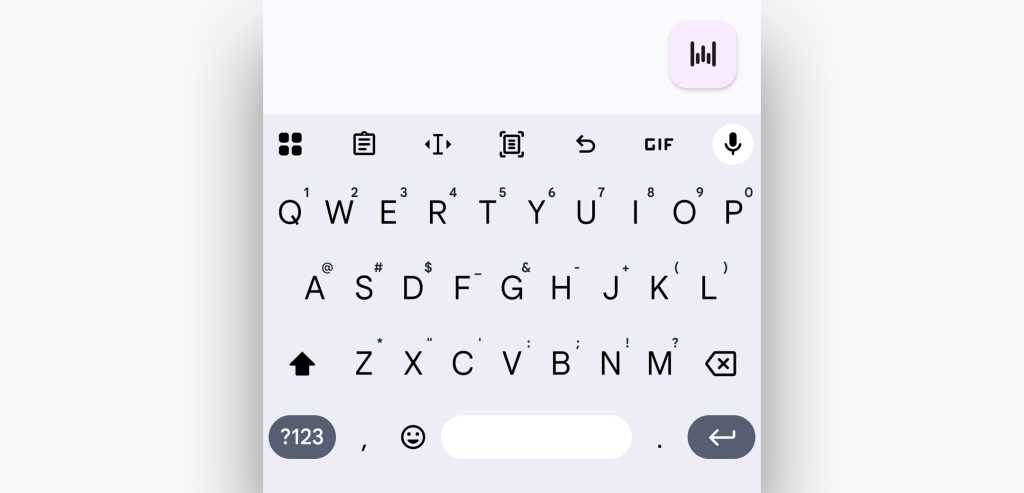
Wispr Flow is just a small icon that appears above whatever regular keyboard you’re using, whenever it’s active.
JR Raphael / Foundry
It does this at a level that no regular Android keyboard even comes close to matching — with instant and near-flawless transcription, automatic formatting and punctuation, and the ability to both eliminate inadvertent interjections and interpret and process deliberate corrections spoken as you go.
Wispr Flow stays open and active for as long as you’re talking, too — even with long, extended pauses — and, true to its name, it works work well even with whispered input for more sensitive (or maybe just courteous) public dictation, which is an area where most traditional voice input systems struggle. It also supports multilingual input and will automatically detect a change in your language and continue to transcribe flawlessly even as you switch dialects.
Wispr Flow is completely free to use on Android for now, as a part of its launch. At some point, it’ll shift into the standard Wispr Flow model, which allows up to 1,000 dictated words per week for free or unlimited use with a $144-a-year Pro plan that stretches across multiple platforms and device types and also includes multi-user team collaboration features.
The best Android keyboard app for privacy and simplicity
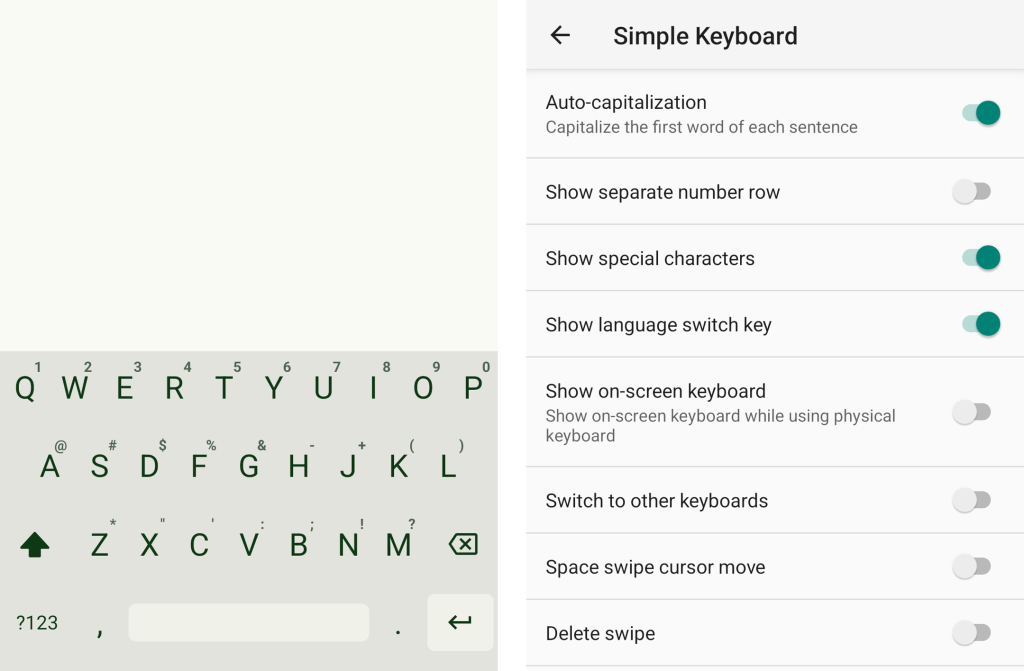
On the flip side to the more elaborate Android keyboard options is the bare-bones, basic-as-can-be Simple Keyboard — an app whose name tells you much of what you need to know about the experience it provides.
Simple Keyboard gives you, yes, a simple keyboard, with support for tap-based typing — and that’s pretty much it. There’s no text correction system, no next-word prediction, and no support for swipe-oriented input. There’s not even access to any sort of voice-to-text system, which every other app in this list provides. Heck, aside from a humble set of simple options, Simple Keyboard has no bells and whistles whatsoever. It is, quite simply, a keyboard. And that’s all it aspires to be.
The aptly named Simple Keyboard has a limited range of options — which in and of itself is essentially the app’s defining feature.
JR Raphael / Foundry
So why would you want such a frills-free typing experience when so many rich, feature-laden alternatives exist? Well, you might not want any of those added elements, for one, and might be content to have something that just lets you tap in words as needed. But perhaps more prominently, Simple Keyboard’s lack of lofty ambitions gives it one powerful feature no other keyboard can match: privacy — built in at its core, with a ground-level assurance that nothing you type could ever be transmitted off your device by the keyboard itself.
Pretty much every other Android keyboard app, y’see, requires perpetual network access in order to operate. And while most of the major players say they’ll never do anything nefarious with your data, there’s no denying that they do at the very least have the ability to observe and transmit it. (The need for internet access can be explained in a variety of perfectly legitimate ways, including the ambitious options those apps have for performing internet searches and even just learning your typing habits over time in order to provide better predictions — but still, if maximum privacy is a top concern of yours, that may not be enough to make it acceptable.)
Simple Keyboard, in contrast, requests no level of network access. In fact, the app doesn’t request any permissions or special forms of access at all. That means there’s no realistic way the app can log what you’re typing and then transfer that data off of your device — for any reason. The program’s code is even completely open source, if you’re tech-savvy and want to confirm exactly what it’s doing.
Most people will prefer the added creature comforts offered by the other apps in this list, but for the privacy-conscious and simplicity-seeking among us, Simple Keyboard is a valuable and unusual contender that plays an important role in this keyboard collection.
This article was originally published in March 2019 and most recently updated in March 2026.