Windows has come a long way since its initial release in 1985. From its birth, it gained a reputation as a kludge of an operating system, ugly and unloved, something that would get the job done (mostly) but cause lots of unpleasantness along the way.
Who can forget struggling to do something as simple as install a new printer? Or the dreaded Blue Screen of Death that would pop up for no apparent reason and crash Windows, taking all your work along with it?
The worst of those days are long behind us. Over time, Microsoft managed to kill many of the gremlins that bedeviled the operating system. Windows 11 is quite stable, and not nearly as confusing and cumbersome as previous versions.
That’s not to say all is well with Windows, though. There’s plenty that still goes wrong and plenty of design choices that can trip you up when you’re just trying to work.
Don’t fear. Help is on the way. Here are five of the worst things about Windows — and how to make them better so you can get some real work done.
1. Windows slows down with age
It seems inevitable: You buy a new PC and it runs like greased lightning. Then several years later, it’s slow as molasses. PCs, just like people, slow down with age. But there’s a lot you can do to speed up a years-old PC and make it zippy again.
First, disable programs that run at startup unnecessarily. As you install new software, or when existing software gets updated, it’s not uncommon that an increasing number of apps and processes run at startup when you don’t really need them.
To fix that, first launch Task Manager in one of these ways:
- Press Ctrl-Shift-Esc.
- Right-click the taskbar and select Task Manager.
- Type task manager into the Windows search box and select it from the results.
Click the Startup apps icon in the left-hand navigation pane — it’s the speedometer icon, fifth from the top. You’ll see a list of every application or process that launches at startup and runs on your PC in the background as you use it. The list includes each program’s name, publisher, whether it’s enabled to run on startup, and its “Startup impact.” The Startup impact tells you how much it slows Windows down — low, medium, high, none, and sometimes “not measured.”
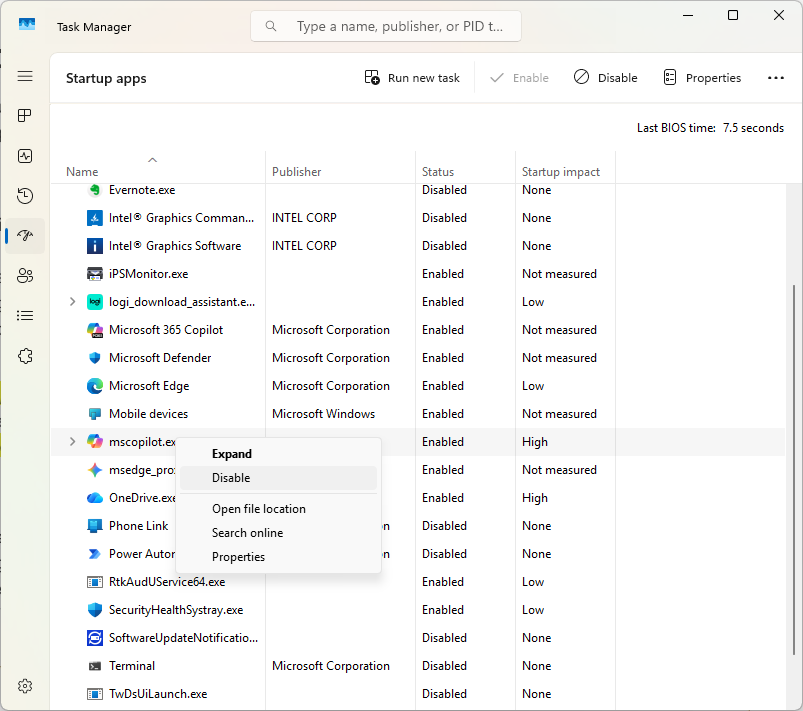
Here’s how to disable apps and services that run on startup.
Preston Gralla / Foundry
To stop a program or service from launching at startup, right-click it and select Disable. That only stops it running at startup. You can still run the application after launch. If for some reason you want it to launch at startup again, you can just return to the Startup apps area of the Task Manager, right-click the application and select Enable.
You may not recognize many of the programs that run on startup, but there are several ways you can find out more about any of them:
- Right-click an item and select Properties for information about it, such as its location on your hard disk, whether it has a digital signature, and other information including the version number, the file size and the last time it was modified.
- Right-click the item and select Open file location. File Explorer will open to the folder where the file is located, often giving you another clue about the program’s purpose.
- Select Search online after you right-click. Bing launches with links to sites with information about the program or service.
- Go to Should I Block It? and search for the file name. You’ll often find solid information about the program or service.
Another way to speed up an aging PC is to disable eye candy like shadows, animations, and visual effects, which can exact a performance hit.
To turn them off, in the search box, type sysdm.cpl and press Enter. The System Properties dialog box launches. Click the Advanced tab, then click Settings in the Performance section. The Performance Options dialog box opens, with a varied list of animations and special effects.
Select Adjust for best performance at the top of the screen and then click OK. Windows then turns off the effects that slow down your system.
For many more ways to speed up an aging PC, see 16 ways to speed up Windows 11 or 19 ways to speed up Windows 10.
2. Windows is bedeviled by glitches and system errors
Windows has come a long way since the days when running it felt like a crapshoot — would it crash for no apparent reason and show you the dreaded Blue Screen of Death today?
The operating system has come a long way since then. You may never see a Blue Screen again. That doesn’t mean it’s truly reliable, though. Glitches remain. System errors are a way of life.
Windows includes little-known troubleshooters that can help resolve these kinds of problems. To get to them, go to Settings > System > Troubleshoot.
As a first step, from the Options section, click the box to the right of Recommended troubleshooter history and select Ask me before running. This will allow Windows to suggest a troubleshooter for you to run if it detects you have a problem that needs a fix. You can also choose to have troubleshooters run automatically and then notify you or not. If you don’t want them to run at all, select Don’t run any.
I’ve found, though, that often Windows won’t recommend a troubleshooter when I’m running into problems. If that’s the case for you, from the Troubleshoot screen select Other troubleshooters. Windows will display a long list of troubleshooters you can choose, including for network and internet problems, printer problems, Bluetooth, Windows Update, and more.
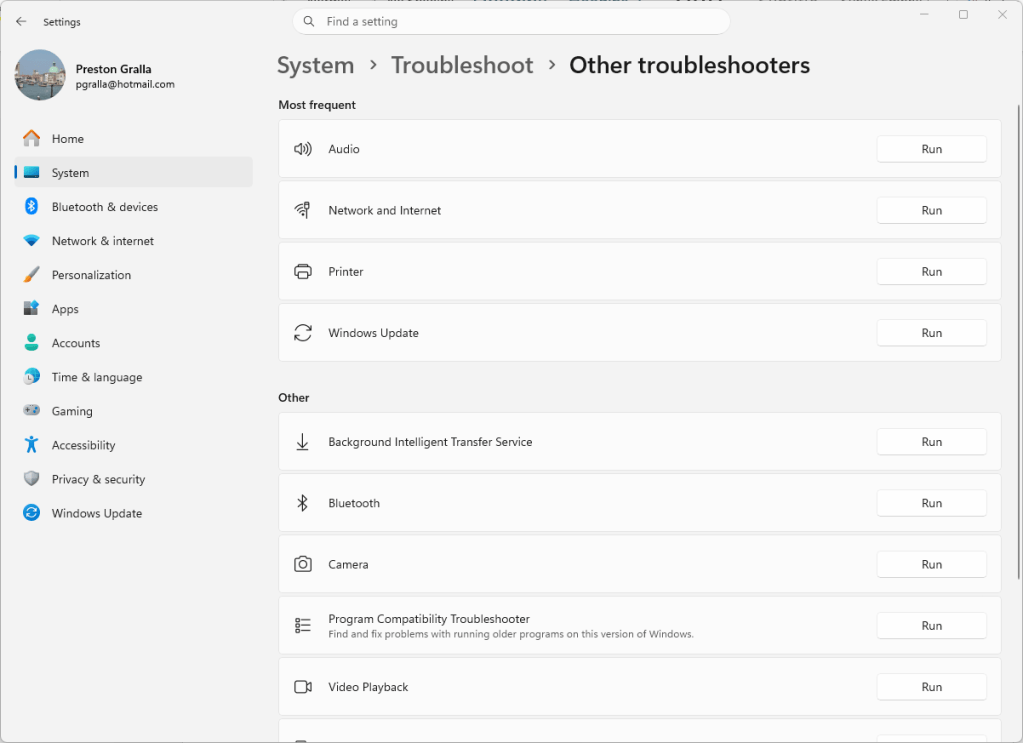
Go here to select a troubleshooter to cure what ails Windows.
Preston Gralla / Foundry
Select the troubleshooter you want to run from the list. The troubleshooter will try to diagnose the problem and then will either fix it itself or recommend what you should do.
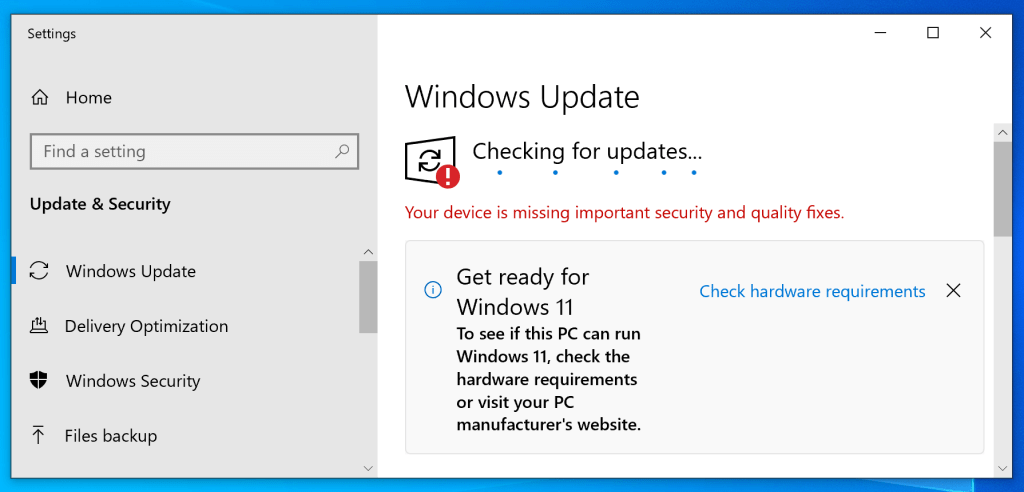
There’s no guarantee the troubleshooter will work, of course. There are other things you can try to fix the problem. It’s possible that Windows has gotten an update that has a fix, and you haven’t installed the update yet. Go to Settings > Windows Update and click for Check for updates. If there’s an available update, install it. That might do the trick.
You can also try turning to Copilot. Click the Copilot icon on the taskbar, describe the problem, and ask for help. Be as detailed as possible, including all details of the problem and the version number of Windows you’re using — not just Windows 10 or 11, but its specific version number. To find it, go to Settings > System > About. In the Windows info section, you’ll see the version number, such as 26H2.
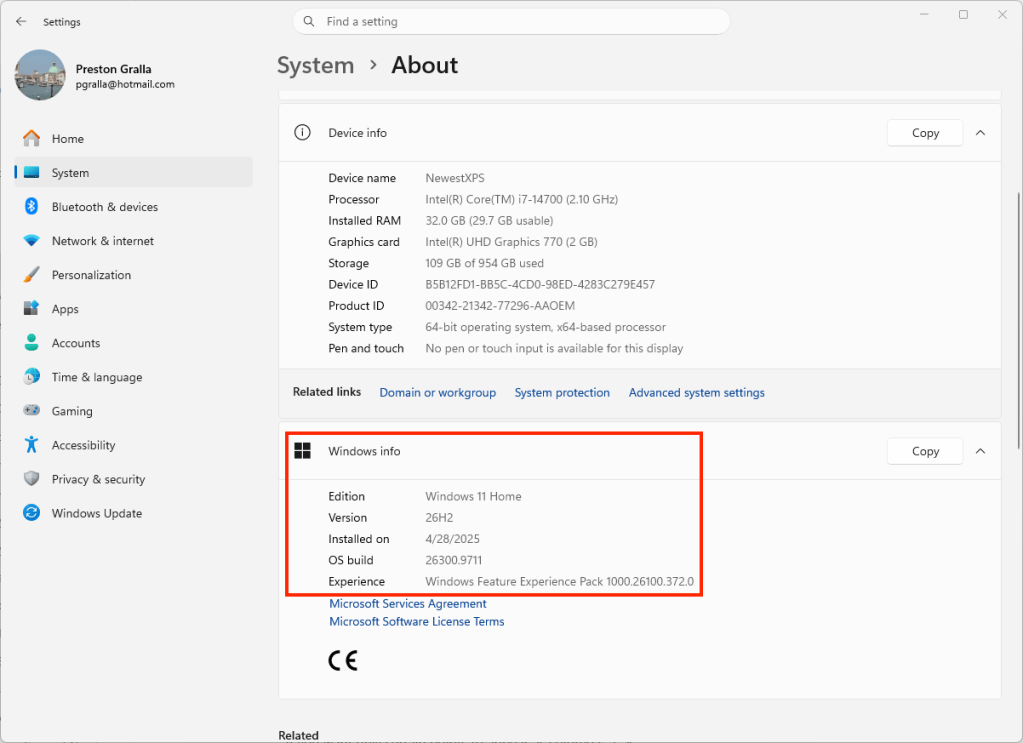 about screen with windows version highlighted" class="wp-image-4245928" width="1024" height="744" sizes="auto, (max-width: 1024px) 100vw, 1024px">
Go here to find your version of Windows.
Preston Gralla / Foundry
Sometimes Copilot does a great job of identifying the underlying issues and walking you through a fix. Not always, though.
If all else fails, you can use the IT admin’s favorite secret solution: Restart Windows. Quite frequently the problem will vanish.
3. Windows is a privacy-invader
Windows is always watching you, gathering data about the way you use it and sending it back to Microsoft. You don’t need to put up with this. Here are several simple ways to protect your privacy.
Start by turning off the Windows advertising ID that gathers information about you when you browse the web and when you use Windows 11 apps. To do it, go to Settings > Privacy & security > Recommendations & offers. Find Advertising ID near the bottom of the screen and move its slider to Off. From now on, your interests won’t be tracked. The ads you get will be generic ones rather than targeted ones.
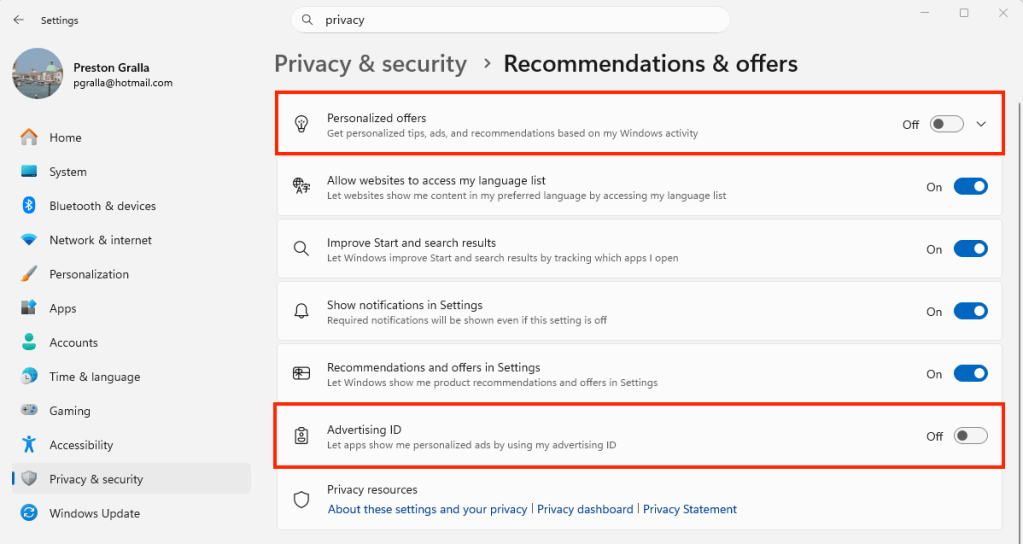
Turn off the Windows Advertising ID and personalized offers to help protect your privacy.
Preston Gralla / Foundry
Near the top of the same screen, turn off Personalized offers. This setting lets Microsoft present you with “ads and recommendations for Microsoft and third-party products and services, features, apps, and hardware to enhance your Windows experiences” based on your Windows usage and account info. If you’re worried about your privacy, that’s the last thing you want.
Next, turn off location tracking. With location tracking, your PC uses your location to provide services such as the local weather. But having Windows constantly track your location is another privacy incursion.
To turn it off, go to Settings > Privacy & security > Location. In the “App permissions” section, click Location and move the slider from On to Off. That will turn off location tracking for every user on the PC.
You can also leave on location tracking for some apps and turn it off for others. With location tracking turned on, look at the “Let apps access your location” section on the Location screen. It lists every Windows app that can use your location. Move the slider to On for the apps you want to allow to use your location and to Off for the apps you don’t.
That doesn’t cover desktop apps, though. Scroll down to “Let desktop apps access your location.” Move the slider to On if you want them to use location information. You’ll see a list of desktop apps have that previously used your location. You can turn them on and off individually.
Finally, go to Microsoft’s Privacy Dashboard. This lets you track and delete a good deal of information Windows gathers about you. From here you can turn off ad targeting and view and delete your browsing history, search history, location activity, voice activity, media activity, and more.
Head to the information you want to view and delete, then click the link, such as Browsing and search. It shows a list of your activities, including websites you’ve visited, how many times you’ve visited them, when you’ve visited them, and so on. Click Show all activities to see a more comprehensive list than the one the main screen.
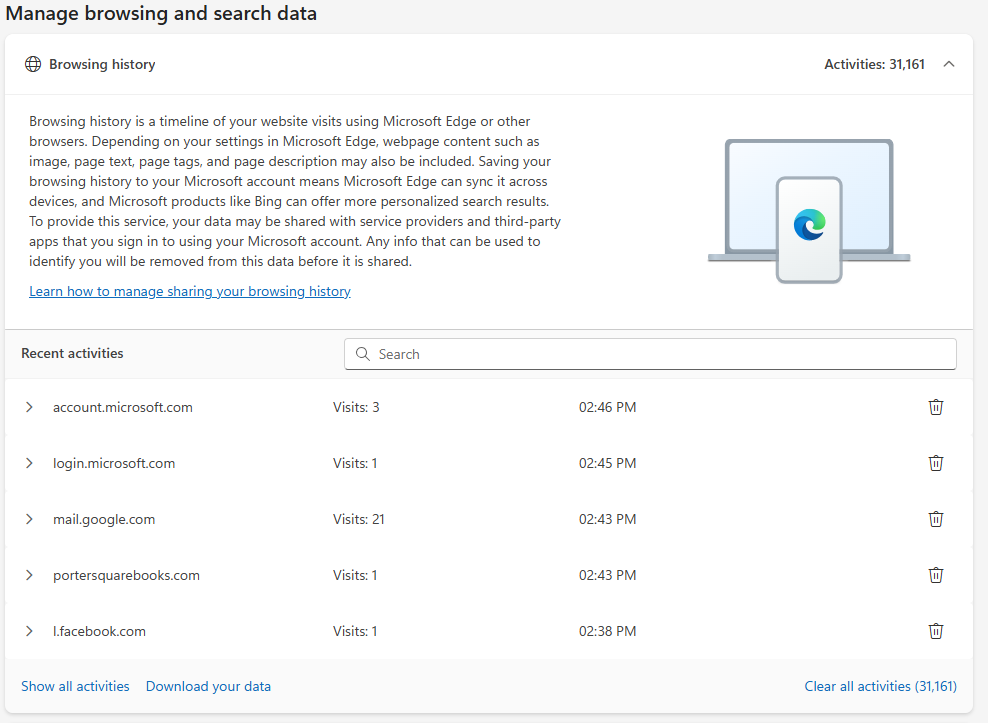
Microsoft’s Privacy Dashboard lets you view and delete granular activity data.
Preston Gralla / Foundry
Delete browsing items individually by clicking the trash can icon next to each one. To delete them all, click the Clear all activities link at the lower right of the list, then click Clear on the screen that appears.
You can do the same thing with many Windows activities, such as Search history, which tracks all the searches you do.
In the dashboard, you can also customize privacy settings for Microsoft products other than Windows, including Xbox, Microsoft 365, Edge, and Microsoft Teams. Scroll down to the “Find privacy settings in Microsoft products” section and click the product you’re interested in.
There’s a lot more you can do to protect your privacy in Windows. To find out more, go to How to protect your privacy in Windows 11 or How to protect your privacy in Windows 10.
4. Windows makes it too $%#$!! hard to change your default apps
When you try to open certain files or take certain actions — like click a web link in an email — Windows uses its default app. For a browser, for example, that means it chooses Microsoft Edge rather than an alternate browser like Google Chrome.
It should be a simple task to change your default apps. Unfortunately, it isn’t. Here’s how to do it, using the example of changing the default browser from Edge to Chrome:
- Go to Settings > Apps > Default apps, then scroll to the app you want to make your default app for a specific file or action. In our case, it’s Google Chrome.
- Click the arrow next to the app, and at the top of the screen that that appears, click Set default.
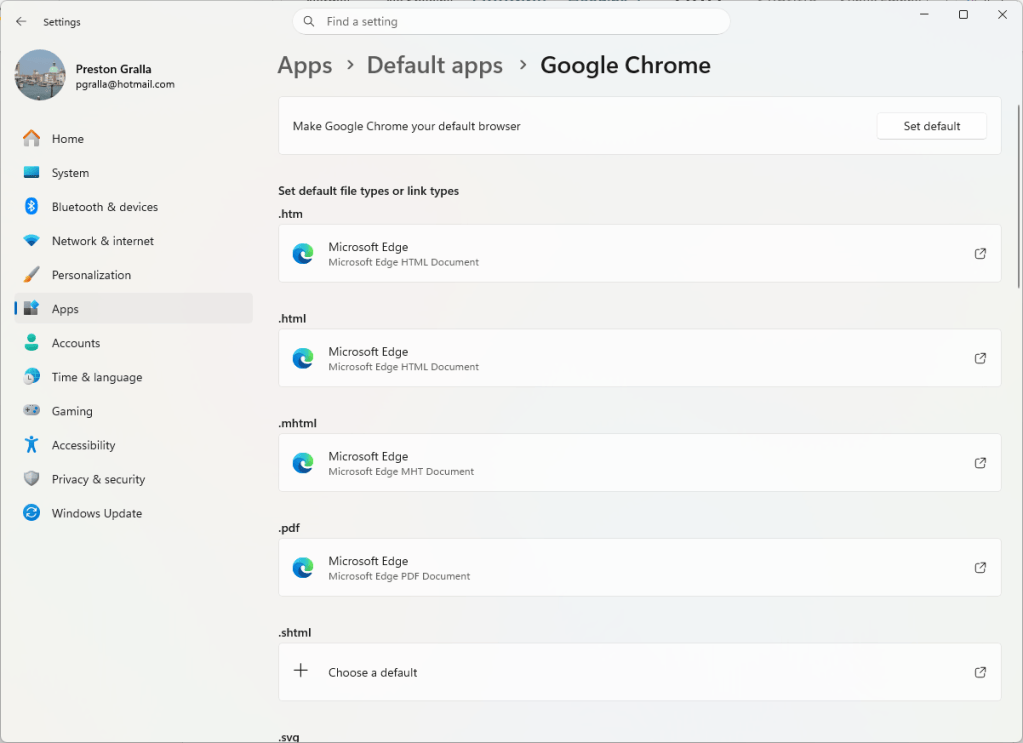 apps > default apps google chrome screen" class="wp-image-4245924" width="1024" height="744" sizes="auto, (max-width: 1024px) 100vw, 1024px">
Setting a new app default — in this case, Google Chrome for web browsing.
Preston Gralla / Foundry
- A checkmark appears next to “Set default.”
- To change the default back to Edge or another browser, scroll to the browser you want to be the default and click Set default.
Follow these same steps to change any other default app.
That may only be part of the process, though, because certain file types may still be associated with Microsoft’s default app. Even after changing the default browser to Chrome, for example, PDF files, mailto links, some graphics files such as .svg, and other file types are still associated with Edge by default. You’re going to have to hunt them down and change them one by one.
This may be true not just when you change your default browser, but for when you change any default app. You’ll have to hunt down the other associated file types as well.
Here’s how to do it with our example of Google Chrome. Follow the same directions for other apps:
- Go to Settings > Apps > Default apps and click your new default browser — in our example, Google Chrome.
- Scroll through all the file types and protocols, and click any still associated with the previous default (in our example, Edge).
- On the pop-up screen that appears, select the app you want to handle the file type (in our example, Google Chrome), then click Set Default.
Keep in mind that you don’t have to use the new default app for every file type. You can, for example, choose another app, such as a PDF reader for .pdf files.
5. OneDrive can drive you batty
In theory, Windows’ built-in cloud storage app OneDrive is a great idea. It integrates with File Explorer to store your files on your PC, automatically backs them up to the cloud as you change them, and syncs everything with the cloud and all your devices. And you get 5GB of cloud storage for free — more if you use certain versions of Microsoft 365.
What’s not to like?
Plenty. There are so many confusing things about how it works that delving into them all is beyond the scope of this article. (In fact, we have two separate tutorials dedicated to using OneDrive in Windows and using OneDrive on the web.)
So I’ll only cover the weirdest and most baffling thing here: The strange tale of dueling Recycle Bins — one in OneDrive, and one in Windows — which contain different files depending on how the files have been deleted.
Until the advent of OneDrive, when you deleted a file in Windows, it was sent only to the Windows Recycle Bin. The deleted file stays in the Recycle Bin for some time, so that if you accidentally deleted it, you can easily go there and restore it. How long the file remains there varies according to the size of your hard disk, how much space is devoted to the Recycle Bin, and your settings.
Then OneDrive came along with its own Recycle Bin, separate from the Windows Recycle Bin. So now, depending on how you delete a file, it will go into either the Windows Recycle Bin or the OneDrive Recycle Bin, or both. If you don’t know where to look for a deleted file, you won’t find it. Most people don’t even know there’s a separate OneDrive Recycle Bin, because Microsoft has done such a good job of hiding it.
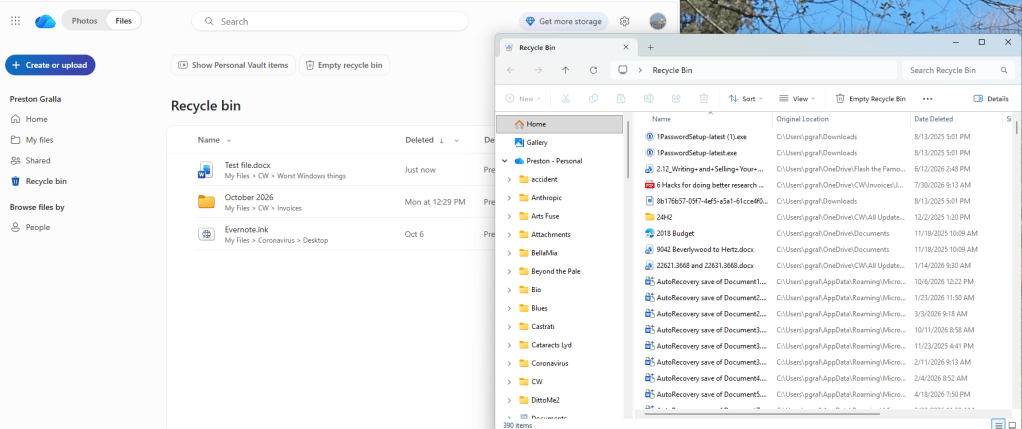
The dueling Recycle Bins in Windows and OneDrive
. (Click image to enlarge it.)Preston Gralla / Foundry
The first thing you need to know is that the OneDrive Recycle Bin only appears on the web-based version of OneDrive. It’s nowhere to be found in Windows itself. You can get to it in two ways:
- Right-click the OneDrive icon on the right side of the Windows Taskbar and select Settings > Recycle Bin. You’ll be sent to the OneDrive Recycle Bin, which is located in the web-based version OneDrive, not the local Windows OneDrive.
- Go directly to OneDrive on the web and click Recycle bin in the left-hand pane.
As to which files end up in the OneDrive Recycle Bin, it’s fairly mysterious. Given that OneDrive is so well-integrated with File Explorer, you would expect that files deleted in File Explorer would end up in there. Some files do, and some files don’t. If you delete a file in File Explorer that is synced to OneDrive, that file will show up in the OneDrive Recycle Bin as well as in the Windows Recycle Bin. If the file hasn’t been synced in OneDrive, it will appear in the Windows Recycle Bin only.
That means that if you delete files from the Downloads folder, they likely won’t show up in the OneDrive Recycle Bin, because by default, Downloads aren’t synced to OneDrive. If you do sync your Downloads folder, files deleted from there will show up.
I mentioned earlier that some deleted files go only to the OneDrive Recycle Bin. That typically happens when you delete the file in the web version of OneDrive. But it also happens when you delete the file from within a Microsoft 365 app like Word, such as by going to File > Open, then right-clicking a file you see there and selecting Delete file from the menu that appears. When you delete a file in either of these ways, it shows up only in the OneDrive Recycle Bin, not the Windows Recycle Bin.
The good news is that once you know all this, you should never lose a deleted file again. Whenever possible, delete files only using File Explorer. Every file deleted that way ends up in the Windows Recycle Bin, even if it doesn’t also show up in the OneDrive Recycle Bin.
You can also check both Recycle Bins if you can’t find the deleted file. It’ll show up on one or the other. Restore it from whichever bin you find it in.
For much more information about the ins and outs of OneDrive, including some nifty features available only in the web version, see Microsoft OneDrive cheat sheet: Using OneDrive in Windows and Microsoft OneDrive cheat sheet: Using OneDrive for Web.
More Windows tips: