That’s all fine and dandy — in theory. In reality, of course, these genAI engines are far less capable, consistent, and reliable than they’re made out to be, and most of those more advanced functions (including anything involving any manner of info seeking, answer providing, or text processing) are generally more of a liability than an asset.
But while it’s best to take most of the breathless hype with a hefty grain of salt, Gemini does have some genuinely useful capabilities. They just tend to be much more basic and narrowly focused than the overly ambitious ideas Google’s goin’ gaga for (and, as far as I can tell, most normal people have no idea what to do with in the real world).
Fittingly enough, this week, I accidentally stumbled onto a perfect example. It’s a simple-as-can-be Gemini feature that handles one basic task and handles it extraordinarily well.
It won’t upend the world, revolutionize your life, or give you a glimpse of our allegedly inevitable AI-laden future. Honestly, it’s debatable as to whether it actually even qualifies as AI at all.
But it’s incredibly useful, in a way that’ll instantly fit into your workflow and make your days easier. And, if you ask me, that’s a much more meaningful measure of success than what any complex AI-assessing metric can measure.
This Gemini gem is so simple, in fact, that it’s actually something our beloved old Google Assistant also used to be able to handle. But I had no idea it had carried over into Gemini in an updated form until I randomly happened to try it whilst playing around with something unrelated.
So here it is: With a simple spoken — or, if you prefer, typed out — command, Gemini can remember anything you tell it. And then, at any point down the road, it can recall that info for you and bring it back to your attention with a quick ‘n’ easy ask.
It’s essentially your own on-demand memo machine, in other words. And it’s already right there in your pocket, waiting to be called into action.
Here’s all you’ve gotta do to tap into its tucked-away powers:
Summon Gemini on whatever Android phone or tablet is in front of you.
Depending on the device and its settings, you might be able to do this by saying Hey Google, by pressing and holding your power button, or by tapping a shortcut on your home screen — or, no matter what device you’re using or how it’s configured, you can always download the standalone Gemini app and open it up that way, too.
Type or say remember that [something] is [something] — filling in your own description and item to be remembered in those two spots.
So, for instance, you might say remember that the door code is 77773, remember that my boss’s husband is named Hubert, remember that my rental car license plate is PORKY292, or remember that lot 3 is the best place to park.
In the blink of an eye, you should see a confirmation that Gemini has remembered what you asked.
Once you’ve asked it to remember something, Gemini will confirm that it’s made a (metaphorical) mental note.
JR Raphael, Foundry
Now, ready for the cool part?
Total Gemini recall
The next time you need to recall whatever info you told Gemini, you can simply summon the service once more — exactly as you did a moment ago — and ask it for whatever you provided.
To follow our same examples from earlier, then, you might ask things like:
What’s the door code?
What’s my boss’s husband named?
What’s my rental car license plate?
Where is the best place to park?
And, shazam: So long as your inquiry is reasonably close to the description you used when you saved the info, Gemini will cough it back up for you anytime, anywhere.
One quick command will recall anything you’ve asked Gemini to remember.
JR Raphael, Foundry
You can even access the same info via Gemini on any device where you’re signed into the same Google account — phone, tablet, or any kind of computer, too. It works the same exact way, no matter what specific setup you’re using.
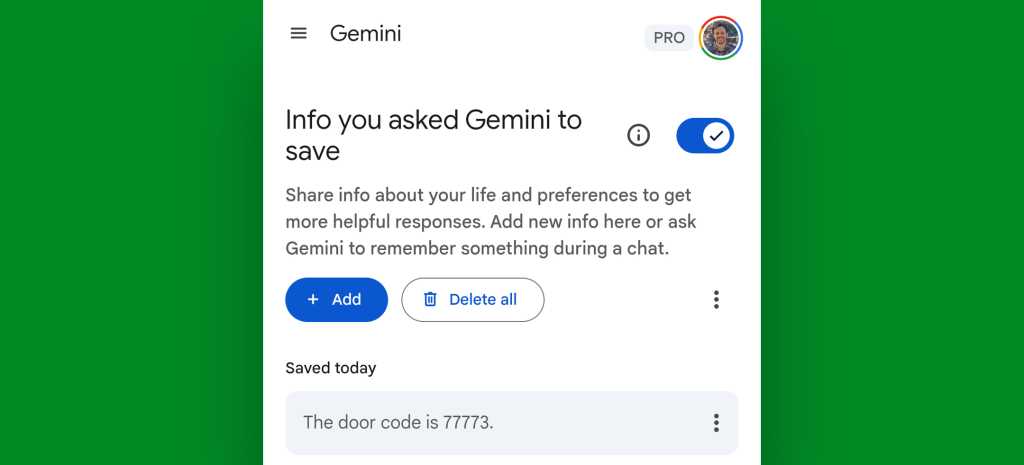
And one extra little tip: If you ever want to see and optionally also edit the entire list of everything you’ve ever asked Gemini to remember, you can do so by pulling up this page in any browser where you’re signed in.
All of your saved info in a single spot — available on any device, anytime.
JR Raphael, Foundry
As you may notice, this feature is officially meant for telling Gemini things that’ll affect how it interacts with you — like, for instance, that you prefer short and concise responses or that you’d like it to include a translation to Spanish with every answer it serves up.
But within that ambitious architecture exists a delightfully simple memo-making superpower. And sometimes, it’s the simplest stuff that’s the most useful of all.
Since last year, it has been possible to summarize texts and adjust the tone of your writing in Notepad, using Microsoft’s AI tool Copilot.
In the latest beta version of Notepad (11.2504.46.0), it is also possible to create new texts from a text prompt. You can then edit the document until you are satisfied.
Paint will also be equipped with new AI features, including the ability to create stickers that you can use in your documents. It will also be possible to isolate and edit individual elements, which can be useful if you want to reuse parts of your drawings.
Finally, the Snipping Tool will have a new AI feature to make sure your screenshots are ‘perfect.’
The latest beta versions of these apps are available to Windows Insiders in the Canary and Dev Channels on Windows 11.
More information about the AI news can be found on the official Windows Insider blog.
Swedish fintech company Klarna this week presented an updated quarterly report with the help of an AI version of the company’s CEO Sebastian Siemiatkowski.
TechCrunch reports that the presentation itself did not attract much attention online, but in the video, Klarna reveals that they used an AI avatar.
In connection with the updated quarterly report, Klarna was careful to emphasize that AI is a driving factor behind the company’s success.
Among other things, AI will “streamline” Klarna’s workforce from around 5,000 to around 3,000 employees. Whether the same fate awaits Sebastian Siemiatkowski remains to be seen.
Google (Nasdaq:GOOG) is implementing AI-driven enhancements to its software and collaboration tools that could translate to big productivity gains.
Google CEO Sundar Pichai started his keynote at the Google I/O developer conference this week with one of those features: real-time language translation in Google Meet, which was until now in research.
The feature uses Google’s AI technology to translate speech from one language to another in near real time, while matching the tone and expressions — such as “hmmm” — during delivery. The technology breaks down language barriers, Pichai said.
A video demonstrated the translation from spoken English to Spanish. A computer-generated voiceover spoke the translation after a one-second delay. Then the other participant’s response was translated from Spanish to English.
“We are even closer to having a natural and free-flowing conversation across languages,” Pichai said.
Translations to English and Spanish are now available in beta for Google AI Pro and Ultra subscribers, with more languages rolling out in the next few weeks.
“Real-time translations will be coming to enterprises later this year,” Pichai said.
Pichai, in the opening moments of his keynote, also mentioned a new product called Google Beam, a 3D video communications platform that transforms 2D video streams into a realistic experience. The product was in development for many years under a research effort called Project Starline.
Behind the scenes, an array of six cameras captures participants from different angles.
“With AI we can merge these video streams together and render you on a 3D light-field display with near perfect head tracking down to the millimeter and at 60 frames per second, all in real time,” Pichai said.
The result, Pichai said, was a much more natural and deeply immersive conversational experience.
The first Google Beam devices will be available for early customers later this year. Google is partnering with device maker HP, which will share more information about these devices a few weeks from now.
Traditional videoconferencing reduces many natural social cues that people experience in face-to-face interactions, which is where something like Google Beam fits in, said J.P. Gownder, vice president and principal analyst on Forrester’s Future of Work team.
“Those subtle cues contain a lot more information than people realize, so richer forms of videoconferencing that feel naturalistic could offer benefits,” said Gownder.
Since users don’t have to wear specialized equipment such as VR headgear, it will be that much more accessible.
“It’s probably a longer-term play, but if the experience is better, over time it could get traction,” Gownder said.
Google also shed more light on how it is implementing Workspace Flows, a feature that was introduced at last month’s Google Cloud Next as a way to automate work across Google Workspace apps.
Workspace Flows brings AI agents into the loop to get work done. Google can utilize AI agents called Gems that specialize in certain tasks such as customer service and work with other AI agents to complete tasks.
An onstage Gems demonstration showed how workers could use AI agents to automate processing customer service by sharing complaints with other employees via Google Chat, looking up product literature, referencing an internal genAI model for further answers, and automatically sending a possible resolution to customers.
Gems use Google’s Gemini AI model to analyze information, prioritize tasks, and generate feedback.
“These are AI experts you can create to solve particular tasks… you can actually have a team of Gems working together to solve these issues for you,” said Farhaz Karmali, Google’s product director for the Workspace ecosystem, during a keynote on the second day of Google I/O.
Karmali also shared some richer conversational features coming to Google Chat. Users will be able to subscribe to messages in a conversation, create groups, and manage memberships. These features will be helpful for ensuring targeted conversations and information reach the right agents.
“Imagine: you build a chat app that is agentic and you want to get all the information from a chat app. You can now summarize it, and this helps you take actions and so on,” Karmali said.
Other AI-powered features coming to Google Workspace include personalized smart replies, directed inbox cleanup, and fast appointment scheduling in Gmail; the ability to turn Google Slides decks into videos; and writing assistance in Google Docs that limits Gemini to specific sources designated by the user.
Google I/O overlapped with Microsoft’s Build developer conference, where the company introduced new Copilot agent features this week. Both tech giants are in the early stages of AI, and the shows focused on how they are still developing their unique agent ecosystems, Gownder said.
This May Patch Tuesday release is very much a “back-to-basics” update with just 78 patches for Microsoft Windows, Office, Visual Studio, and .NET. Notably, Microsoft has not released any patches for Microsoft Exchange Server or Microsoft SQL Server.
Due to the concerns of publicly reported exploits for five Windows vulnerabilities, the Application Readiness team has recommended a “Patch Now” schedule for Windows and a standard release cadence for the other platforms. To help navigate these changes, the team from Readiness has provided a helpful infographic detailing the risks of deploying updates to each platform.
Known issues
There are still reports of issues with devices with Citrix Session Recording Agent (SRA) version 2411 installed on Windows 10 platforms. This is an ongoing issue, with no further reported fixes or updates from Citrix or Microsoft. Otherwise (at the time of writing), Microsoft has not reported any issues with this month’s update for its Windows desktop and server platforms.
Major revisions and mitigations
Microsoft has not published any major revisions or mitigations to its patches and security fixes for this May.
Windows lifecycle and enforcement updates
Microsoft has not published any enforcement updates this month.
Testing guidance
Each month, the team at Readiness analyzes the latest Patch Tuesday updates from Microsoft and provides detailed, actionable testing guidance. This guidance is based on assessing a large application portfolio and a comprehensive analysis of the Microsoft patches and their potential impact on Windows platforms and application deployments.
We have broken the most significant changes into feature-based groupings to help with testing prioritization. The Readiness team recommends the following areas for testing for the May Patch Tuesday patch cycle:
Remote Desktop, security, and identification
Test your Remote Desktop Gateway configurations. Establish sessions through the gateway and reconnect a few times to ensure stability.
Validate VPN creation, connection, and deletion. Also test fast reconnection and password change flows with PEAP-MSCHAPv2.
Load system level crypto libraries and validate CheckSignatureInFile behavior using legacy (2011) certificates.
Test secure boot scenarios, especially if running dual-boot with Linux. Ensure all logins work after this month’s updates.
Run PowerShell modules with and without AppLocker policies to confirm policy enforcement integrity.
Media and codecs
Check your subtitles in MKV formats for Blu-ray playback.
Test audio/video recording using both internal and external devices.
Validate DRM-protected content, especially in Microsoft Edge and Office apps. Testing regimes should include a cycle of playback, record, and stream — then check your system logs for crashes or errors.
Storage and filesystems
Perform Windows error log creation, appends, and reopen scenarios using Common Log File System APIs.
Simulate SMB folder access from multiple windows. Changes in one view should reflect in the other.
Validate UNC path access across apps. Run these tests with Microsoft Explorer and line-of-business apps that access network shares or log files.
Installation and application infrastructure
Given the focus of the Readiness team, it would be remiss to forget the changes to Microsoft’s update and application infrastructure with the following tests:
Conduct basic install, repair, roll-back and uninstall tests for MSI Installer packages. This process should be (mostly) automated by now.
If you’re an organization that employs App Silos, you will need create a test cycle that includes invoking the BFS driver via an isolated app context
Run web, file transfer, and messaging scenarios to test network throughput under load.
In addition to these specific test exercises, we highly recommend a full business logic test of your internal and line-of-business applications that have significant graphics requirements. This is required due to the changes to the Windows kernel and GDI (graphic) subsystems).
Readiness recommends your testing in priority in the following order: RDP and remote access, application installations, PowerShell testing, and then storage system testing.
Updates by product family
Each month, we break down the update cycle into product families (as defined by Microsoft) with the following basic groupings:
Browsers (Microsoft IE and Edge)
Microsoft Windows (both desktop and server)
Microsoft Office
Microsoft Exchange and SQL Server
Microsoft Developer Tools (Visual Studio and .NET)
Adobe (if you get this far)
Browsers
Microsoft has not released any native updates for its browsers this month. However, there were five Chromium updates (CVE-2025-4050, CVE-2025-4372, CVE-2025-4096, CVE-2025-4052, and CVE-2025-405) that will update Microsoft Edge. All of these low-profile changes can be added to your standard release calendar.
Microsoft Windows
Microsoft has released three critical updates, plus 41 patches rated as important. The critical updates affect Microsoft’s Remote Desktop platform and the Virtual Machine bus (VMBus).
Unfortunately, the following Windows desktop updates have been reported as exploited in the wild:
As a result of these zero-days, the Readiness team recommends a “Patch Now” schedule for these Windows patches.
Microsoft Office
Microsoft has released two critical rated updates (CVE-2025-30377 and CVE-2025-30386) for the Microsoft Office platform this month. Both of these patches were updated mid-week for documentation reasons.
Following these critical patches, Microsoft has released a further 16 patches that have been rated as important; they update Microsoft Office in general (as opposed to Word or Excel). Please add these Microsoft Office updates to your standard release calendar.
Microsoft Exchange Server
No updates for Microsoft Exchange or Microsoft SQL server this month. Good news for all the server teams.
Microsoft development platforms
A single critical update (CVE-2025-29813) to the Microsoft DevOps platform and four patches rated as important by Microsoft have been released to the developer platforms this month. All of the patches rated as important affect Visual Studio and Microsoft .NET. Add these updates to your standard release schedule.
Adobe Reader (if you get this far)
No Adobe updates (published by Microsoft) for this May patch cycle. Given the recent security advances implemented in Windows 11 23H2 and 24H2, I think that we will see much less of Adobe in this column.
Meta Platforms (Nasdaq:META) has decided to delay the public release of its most ambitious artificial intelligence model yet — Llama 4 Behemoth. Initially expected to debut at Meta’s first-ever AI developer conference in April, the model’s launch was pushed to June and is now delayed until fall or possibly even later.
Engineers at Meta are grappling with whether Behemoth delivers enough of a leap in performance to justify a public rollout, The Wall Street Journal reported. Internally, the sentiment is split — some feel the improvements over earlier versions are incremental at best.
The delay doesn’t just affect Meta’s timeline. It’s a reminder to the entire AI industry that building the most powerful model isn’t just about parameter count—it’s about usefulness, efficiency, and real-world performance.
Sanchit Vir Gogia, chief analyst and CEO at Greyhound Research, interprets this not as a standalone setback but as “a reflection of a broader shift: from brute-force scaling to controlled, adaptable AI models.”
He said that while Meta has not officially disclosed a reason for the delay, the reported mention of “capacity constraints” points to larger pressures around infrastructure, usability, and practical deployment.
What’s inside Llama 4 Behemoth?
Behemoth was never intended to be just another model in Meta’s Llama family. It’s intended to be the crown jewel of the Llama 4 series, designed as a “teacher model” for training smaller, more nimble versions like Llama Scout and Maverick. Meta had previously touted it as “one of the smartest LLMs in the world.”
Technically, Behemoth is built on a Mixture-of-Experts (MoE) architecture, designed to optimize both power and efficiency. It is said to have a total of 2 trillion parameters, with 288 billion active at any given inference — a staggering scale, even by today’s AI standards.
What made Behemoth especially interesting was its use of iRoPE (interleaved Rotary Position Embedding), an architectural choice that allows the model to handle extremely long context windows—up to 10 million tokens. That means it could, in theory, retain far more contextual information during a conversation or data task than most current models can manage.
But theory doesn’t always play out smoothly in practice.
“Meta’s Behemoth delay aligns with a market that is actively shifting from scale-first strategies to deployment-first priorities,” Gogia added. “Controlled Open LLMs and SLMs are central to this reorientation — and to what we believe is the future of trustworthy enterprise AI.”
How Behemoth stacks up against the competition
When Behemoth was first previewed in April, it was positioned as Meta’s answer to the dominance of models like OpenAI’s GPT-4.5, Anthropic’s Claude 3.5/3.7, and Google’s Gemini 1.5/2.5 series.
Each of those models has made strides in different areas. OpenAI’s GPT-4 Turbo remains strong in reasoning and code generation. Claude 3.5 Sonnet is gaining attention for its efficiency and balance between performance and cost. Gemini Pro 1.5, from Google, excels in multimodal tasks and integration with enterprise tools.
Behemoth, in contrast, showed strong results in STEM benchmarks and long-context tasks but has yet to demonstrate a clear superiority across commercial and enterprise-grade benchmarks. That ambiguity is believed to have contributed to Meta’s hesitation in launching the model publicly.
Gogia noted that the situation “reignites a vital industry dialogue: is bigger still better?” Increasingly, enterprise buyers are leaning toward SLMs (Small Language Models) and Controlled Open LLMs, which offer better governance, easier integration, and clearer ROI compared to gargantuan foundation models that demand complex infrastructure and longer implementation cycles.
A telling sign for the AI industry
This delay speaks volumes about where the AI industry is heading. For much of 2023 and 2024, the narrative was about who could build the largest model. But as model sizes ballooned, the return on added parameters began to flatten out.
AI experts and practitioners now acknowledge that smarter architectural design, domain specificity, and deployment efficiency are fast becoming the new metrics of success. Meta’s experience with smaller models like Scout and Maverick reinforces this trend—many users have found them to be more practical and easier to fine-tune for specific use cases.
There’s also a financial and sustainability angle. Training and running ultra-large models like Behemoth requires immense computing resources, energy, and fine-grained optimization. Even for Meta, this scale introduces operational trade-offs, including cost, latency, and reliability concerns.
Why enterprises should pay attention
For enterprise IT and innovation leaders, the delay isn’t just about Meta—it reflects a more fundamental decision point around AI adoption.
Enterprises are moving away from chasing the biggest models in favor of those that offer tighter control, compliance readiness, and explainability. Gogia pointed out that “usability, governance, and real-world readiness” are becoming central filters in AI procurement, especially in regulated sectors like finance, healthcare, and government.
The delay of Behemoth may accelerate the adoption of open-weight, deployment-friendly models such as Llama 4 Scout, or even third-party solutions that are optimized for enterprise workflows. The choice now isn’t about raw performance alone—it’s about aligning AI capabilities with specific business goals.
What lies ahead
Meta’s delay doesn’t suggest failure — it’s a strategic pause. If anything, it shows the company’s willingness to prioritize stability and impact over hype. Behemoth still has the potential to become a powerful tool, but only if it proves itself in the areas that matter most: performance consistency, scalability, and enterprise integration.
“This doesn’t negate the value of scale, but it elevates a new set of criteria that enterprises now care about deeply,” Gogia stated. In the coming months, as Meta refines Behemoth and the industry moves deeper into deployment-era AI, one thing is clear: we are moving beyond the age of AI spectacle into an age of applied, responsible intelligence.
With that in mind, let’s do a little thought experiment:
What would happen if Apple decided to move iPhone manufacturing to the US today?
Nothing much to start with
The first thing, of course, is that nothing would happen.
Nothing could possibly happen that isn’t happening already.
It can’t.
You can’t magic this kind of iPhone manufacturing capacity out of thin air overnight. The factories don’t exist, the production equipment they need hasn’t been built yet, the land to put factories on hasn’t been purchased or even identified, the infrastructure around those sites hasn’t been upgraded to handle the inevitable traffic, the staff have not been recruited or trained, and Apple’s production partners would need to be convinced to deploy factories to America.
The company would also need to build a logistical system to import components and precious metals that the US does not have or cannot supply. (And, yes, recycling and a circular manufacturing system would help with that.)
How long do those problems take to solve?
We have a glimmer of an idea of how long it takes just by calculating the length of time it has taken for Apple to be able to shift about 20% of its iPhone manufacturing to India. Building production capacity to that point has taken a decade, and while iPhone manufacturing partners are rapidly expanding on this, obstacles to completely replacing China in the manufacturing chain remain.
If the US were willing to provide at least equivalent subsidies to help Apple and its partners set up shop in America as India has done to nurture industrial development there, then the best-case scenario says it would take at least another decade for Apple to shift production capacity to the US.
At what price?
But there would be other consequences of making such a move. India, which is a growing market for Apple, would not take it kindly, and sales growth there would shrink. Apple’s old partners in China would also be upset, which would cause even more Chinese consumers to abandon iPhones. (It matters that sales of foreign-brand smartphones in China are down 50%.)
Losing face in those markets would damage Apple’s bottom line — consumers there would reject the company as a response to feeling rejected themselves — even as investing to build production capacity in the US would generate additional costs. And, of course, the cost of American labor is higher.
The cumulative impact would be lower sales, higher costs, and inevitably lower revenue.
Apple generating less money isn’t just a problem for Apple, it’s a problem for America, too. Apple is one of the biggest corporate taxpayers in the US, and the US government, military, and economy needs those tax dollars to keep rolling.
The actual cost of transitioning manufacturing to the US wouldn’t just mean that Apple has to charge $3,000 per iPhone, it would also mean the US receives lower taxes. How does that make sense?
For what benefit?
Would it create jobs? That’s doubtful. The cost of labor and the shortage of key skills in the US would make it mandatory for these US iPhone factories to be highly automated. That would mean fewer manufacturing jobs than hoped for. There would be some, but not hundreds of thousands of them, and the increased cost of Apple products would inevitably make for more expensive devices, itself generating lower revenues.
There is a sensible course of action, one that does create jobs and lays a strategic path toward US economic dominance in future.
That is to encourage Apple to site its high-value, cutting-edge product manufacturing facilities in the US. It makes sense to do this — Apple Vice President Eddy Cue told us why when he said that we cannot be certain people will still be buying iPhones in ten years’ time. (Ironically, that means that by the time the first US factories come online to produce iPhones, demand for the products they create may collapse.)
Think in the long term
The most sensible course is to invest in the skills, technologies, manufacturing capacity, component supply, and logistical support it takes to build the next generation of tech products, rather than cannibalizing demand for the ones that are selling like crazy today.
Apple is already doing exactly this — it’s what its promised $500 billion investment in the US over the next four years represents. That huge pile of cash is being spent on the next-generation technologies that will drive the rest of this ‘American century.’ That’s where the Trump administration should be supporting Apple’s efforts. Creating the ecosystem for the future is the way forward, not decimating an already successful business model that already benefits the nation.
As Steve Jobs used to say, quoting hockey great Wayne Gretzky: skate to where the puck is going to be, not where it has been.
The one thing that seems about as certain as death and taxes is that, over time, your Windows 10 PC will slow down. There are a variety of reasons this can happen, from accumulated apps and background processes that run amok to registry problems and outdated drivers.
How to speed up your computer
Want your Windows 10 PC to run faster? We’re here to help. By tweaking some of the operating settings, your machine will be zippier and less prone to performance and system issues.
You may notice that that last tip is the most tried-and-true way of (hopefully) smoothing out any problems in Windows 10. There’s a reason it’s effectively an internet meme.
1. Change your power settings
If you’re using Windows 10’s “Power saver” plan, you’re slowing down your PC. That plan reduces your PC’s performance in order to save energy. (Even desktop PCs typically have a “Power saver” plan.) Changing your power plan from “Power saver” to “High performance” or “Balanced” will give you an instant performance boost.
To do it, launch the Control Panel app, then select Hardware and Sound > Power Options. You’ll typically see two options: Balanced (recommended) and Power saver. (Depending on your make and model, you might see other plans here as well, including some branded by the manufacturer.) To see the High performance setting, click the down arrow by Show additional plans.
loading="lazy" width="400px">
Change your power settings in Control Panel to give your PC a performance boost.
Preston Gralla / Foundry
To change your power setting, simply choose the one you want, then exit Control Panel. “High performance” gives you the most oomph but uses the most power; “Balanced” finds a happy medium between power use and better performance; and “Power saver” does everything it can to give you as much battery life as possible. Desktop users have no reason to choose “Power saver,” and even laptop users should consider the “Balanced” option when unplugged — and “High performance” when connected to a power source.
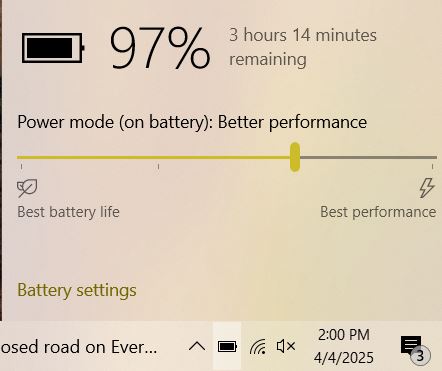
If you use a laptop, there’s an even better and easier way to fine-tune performance versus power saving. Click the power icon on the right side of the taskbar, and a screen appears with a slider between “Best battery life” on the left and “Best performance” on the right. Move the slider to a spot between them to tell the laptop to balance the two.
On a laptop, Windows 10 lets you choose the precise balance between battery life and performance.
Preston Gralla / Foundry
2. Disable programs that run on startup
One reason your Windows 10 PC may feel sluggish is that you’ve got too many programs running in the background — programs that you rarely or never use. Stop them from running, and your PC will run more smoothly.
Start by launching the Task Manager: Press Ctrl-Shift-Esc, right-click the lower-right corner of your screen and select Task Manager, or type task manager into the Windows 10 search box and press Enter. If the Task Manager launches as a compact app with no tabs, click More details at the bottom of your screen. The Task Manager will then appear in its full-tabbed glory. There’s plenty you can do with it, but we’re going to focus only on killing unnecessary programs that run at startup.
Click the Startup tab. You’ll see a list of the programs and services that launch when you start Windows. Included on the list is each program’s name as well as its publisher, whether it’s enabled to run on startup, and its “Startup impact,” which is how much it slows down Windows 10 when the system starts up.
To stop a program or service from launching at startup, right-click it and select Disable. This doesn’t disable the program entirely; it only prevents it from launching at startup — you can always run the application after launch. Also, if you later decide you want it to launch at startup, you can just return to this area of the Task Manager, right-click the application and select Enable.
loading="lazy" width="400px">
You can use the Task Manager to help get information about programs that launch at startup and disable any you don’t need.
Preston Gralla / Foundry
Many of the programs and services that run on startup may be familiar to you, like OneDrive or Evernote Clipper. But you may not recognize many of them. (Anyone who immediately knows what “bzbui.exe” is, please raise your hand. No fair Googling it first.)
The Task Manager helps you get information about unfamiliar programs. Right-click an item and select Properties for more information about it, including its location on your hard disk, whether it has a digital signature, and other information such as the version number, the file size and the last time it was modified.
You can also right-click the item and select Open file location. That opens File Explorer and takes it to the folder where the file is located, which may give you another clue about the program’s purpose.
Finally, and most helpfully, you can select Search online after you right-click. Bing will then launch with links to sites with information about the program or service.
If you’re really nervous about one of the listed applications, you can go to a site run by Reason Software called Should I Block It? and search for the file name. You’ll usually find very solid information about the program or service.
Now that you’ve selected all the programs that you want to disable at startup, the next time you restart your computer, the system will be a lot less concerned with unnecessary programs.
3. Go to a previous restore point
As you use Windows 10, it automatically creates restore points that are essentially snapshots of your system at specific moments in time, including installed software, drivers, and updates. Restore points are a kind of safety net so if something goes wrong, you can always restore your PC to a previous state.
They can also be used to speed up your PC if you notice — for no reason you can fathom — it’s started to slow down. Recently installed problematic drivers, software, or updates could be to blame, so going back to a previous restore point could speed things up again because the system will be returned to the state it was in before the problems started. Keep in mind, though, that you’ll only be able to restore your system to the state it was in during the last seven to 10 days.
To go to a previous restore point:
Save any open files and close all your programs.
In the search box, type advanced system and then click View advanced system settings. You’ll be sent to the Advanced tab of System Properties in the Control Panel.
Click the System Protection tab, and in the System Restore area, click System Restore.
On the screen that pops up, the Recommended restore option will be chosen for you. Click Next if you want to go that restore point. To see others, click Choose a different restore point. Highlight the one you want to use and click Next.
Click Finish from the screen that appears. Your system will restore to the restore point you chose and shut down.
Restart your PC. Note that when you do this, your documents, pictures or personal data won’t be deleted.
loading="lazy" width="400px">
Going to a restore point can help speed up your PC if you’ve recently installed drivers, software, or updates that have slowed down your system.
Preston Gralla / Foundry
It’s possible that System Restore hasn’t been turned on. If that’s the case, you can’t revert to a previous restore point. To turn it on, go to the System Protection screen as outlined above, and click Configure. Select Turn on system protection and click OK. From then on, your PC will regularly create restore points. If you want to create one right away, back on the System Protection screen, click Create.
4. Use ReadyBoost to speed up disk caching
Windows 10 regularly stores cached data on your hard disk, and then when it needs the data, fetches it from there. The time it takes to fetch cached data depends on the speed of your hard disk. If you have a traditional hard disk instead of an SSD, there’s a trick that can help speed up your cache: use Windows’ ReadyBoost feature. It tells Windows to cache data to a USB flash drive, which is faster than a hard disk. Fetching data from that speedier cache should speed up Windows.
First, plug a USB flash drive into one of your PC’s USB ports. The flash drive needs to support at least USB 2.0, and preferably USB 3 or faster. The faster your flash drive, the more of a speed boost you should see. Also, look for a flash drive that is at least double the size of your PC’s RAM for maximum performance.
After you plug in in the drive, open File Explorer and click This PC. Look for the flash drive. It may have an odd name, like UDISK 28X, or something even less obvious. Right-click it, choose Properties, and click the ReadyBoost tab.
Turn on ReadyBoost from this screen to speed up your PC.
Preston Gralla / Foundry
You’ll come to a screen that asks whether you want to use the flash drive as a cache and recommends a cache size. Leave the cache size as is or change it if you like. Then select Dedicate this device to ReadyBoost and click Apply and then OK.
(Note that if you see the message “This device cannot be used for ReadyBoost” when you click the ReadyBoost tab, it means your flash drive doesn’t meet ReadyBoost’s minimum performance standards, so you’ll have to insert a new one.)
As you use your computer, ReadyBoost will start filling the cache with files, so you may notice an increase in disk activity. Depending on how much you use your PC, it can take a few days for your cache to fill and offer maximum improved performance. If you don’t see an increase in performance, try a flash disk with more capacity.
Note: If you have an SSD, you won’t get any extra speed from ReadyBoost, and it might even hurt performance. So don’t use this on a system with an SSD.
5. Shut off Windows tips and tricks
As you use your Windows 10 PC, Windows keeps an eye on what you’re doing and offers tips about things you might want to do with the operating system. In my experience, I’ve rarely if ever found these “tips” helpful. I also don’t like the privacy implications of Windows constantly taking a virtual look over my shoulder.
Windows watching what you’re doing and offering advice can also make your PC run more sluggishly. So if you want to speed things up, tell Windows to stop giving you advice. To do so, click the Start button, select the Settings icon and then go to System > Notifications & actions. Scroll down to the Notifications section and uncheck the box marked “Get tips, tricks, and suggestions as you use Windows.”
loading="lazy" width="400px">
Turning off Windows’ suggestions for you should help things run more smoothly (and give you back a measure of privacy).
Preston Gralla / Foundry
That’ll do the trick.
6. Stop OneDrive from syncing
Microsoft’s cloud-based OneDrive file storage, built into Windows 10, keeps files synced and up to date on all of your PCs. It’s also a useful backup tool so that if your PC or its hard disk dies, you still have all your files intact, waiting for you to restore them.
It does this by constantly syncing files between your PC and cloud storage — something that can also slow down your PC. That’s why one way to speed up your PC is to stop the syncing. Before you turn it off permanently, though, you’ll want to check whether it is actually slowing down your PC.
To do so, right-click the OneDrive icon (it looks like a cloud) in the notification area on the right side of the taskbar. (In order to see the OneDrive icon, you may need to click an upward facing arrow.) From the pop-up screen that appears, click Pause syncing, and select either 2 hours, 8 hours, or 24 hours, depending upon how long you want it paused. During that time, gauge whether you’re seeing a noticeable speed boost.
Here’s how to turn off OneDrive syncing temporarily, to see if that boosts system performance.
Preston Gralla / Foundry
If so, and you decide you do indeed want to turn off syncing, right-click the OneDrive icon, and from the pop-up, select Settings > Account. Click Unlink this PC, and then from the screen that appears, click Unlink this PC. When you do that, you’ll still be able to save your files to your local OneDrive folder, but it won’t sync with the cloud.
If you find that OneDrive slows down your PC but prefer to keep using it, you can try to troubleshoot OneDrive problems. For info on how to do that, check out Microsoft’s “Fix OneDrive sync problems” page.
7. Use OneDrive Files On-Demand
Some users may not want to stop OneDrive from syncing; doing so defeats its purpose of making sure you have the latest files on whatever device you use. And it would also mean you won’t be able to use OneDrive as a way to safely back up files.
But there’s a way to get the best of both worlds: You can keep syncing to an absolute minimum and only do it when absolutely necessary. You’ll speed up performance and still get the best of what OneDrive has to offer.
To do this, you use Windows’ OneDrive Files On-Demand feature. With it, you can choose to keep only certain files on your PC, but still have access to all your other OneDrive files in the cloud. When you want to use one of those online files, you open it directly from the cloud. With fewer files on your PC syncing, you should see a performance boost.
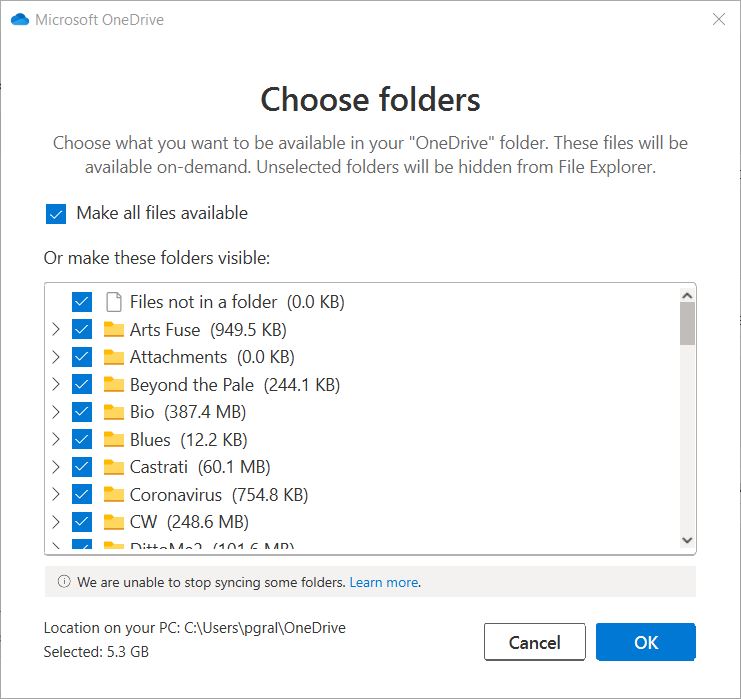
Right-click the OneDrive icon on the right side of the taskbar and select Settings > Account > Choose folders. From the screen that appears, uncheck the folders that you want stored online rather than on your PC, to save space, then click OK.
Use this dialog box to choose which folders will be saved on your PC.
Preston Gralla / Foundry
When you do that, all the files in the folders you unchecked will be set to online-only, which means they’re only available from OneDrive in the cloud, not on your PC. From now on, when want to open one of those files, you’ll have to be online.
Go back to this screen if you want to change which files are kept locally on your PC, and which in the cloud only.
8. Turn off search indexing
Windows 10 indexes your hard disk in the background, allowing you — in theory — to search your PC more quickly than if no indexing were being done. But slower PCs that use indexing can see a performance hit, and you can give them a speed boost by turning off indexing. Even if you have an SSD disk, turning off indexing can improve your speed, because the constant writing to disk that indexing does can eventually slow down SSDs.
To get the maximum benefit in Windows 10, you need to turn indexing off completely. To do so, type services.msc in the Windows search box and press Enter. The Services app appears. Scroll down to either Indexing Service or Windows Search in the list of services. Double-click it, and from the screen that appears, click Stop. Then reboot your machine. Your searches may be slightly slower, although you may not notice the difference. But you should get an overall performance boost.
loading="lazy" width="400px">
Here’s how to turn off Windows 10 indexing.
Preston Gralla / Foundry
If you’d like, you can turn off indexing only for files in certain locations. To do this, type index in the Windows search box and click the Indexing Options result that appears. The Indexing Options page of the Control Panel appears.
Click the Modify button, and you’ll see a list of locations that are being indexed, including Microsoft Outlook, Internet Explorer History, and your hard drive or drives. Uncheck the box next to any location, and it will no longer be indexed. If you’d like to customize what gets indexed and what doesn’t on individual drives, click the down arrow next to any drive and check the box next to what you want indexed and uncheck the box of what you don’t.
9. Clean out your hard disk
If you’ve got a bloated hard disk filled with files you don’t need, you could be slowing down your PC. Cleaning it out can give you a speed boost. Windows 10 has a surprisingly useful built-in tool for doing this called Storage Sense. Go to Settings > System > Storage and at the top of the screen, move the toggle from Off to On. When you do this, Windows constantly monitors your PC and deletes old junk files you no longer need — temporary files, files in the Downloads folder that haven’t been changed in a month, and old Recycle Bin files.
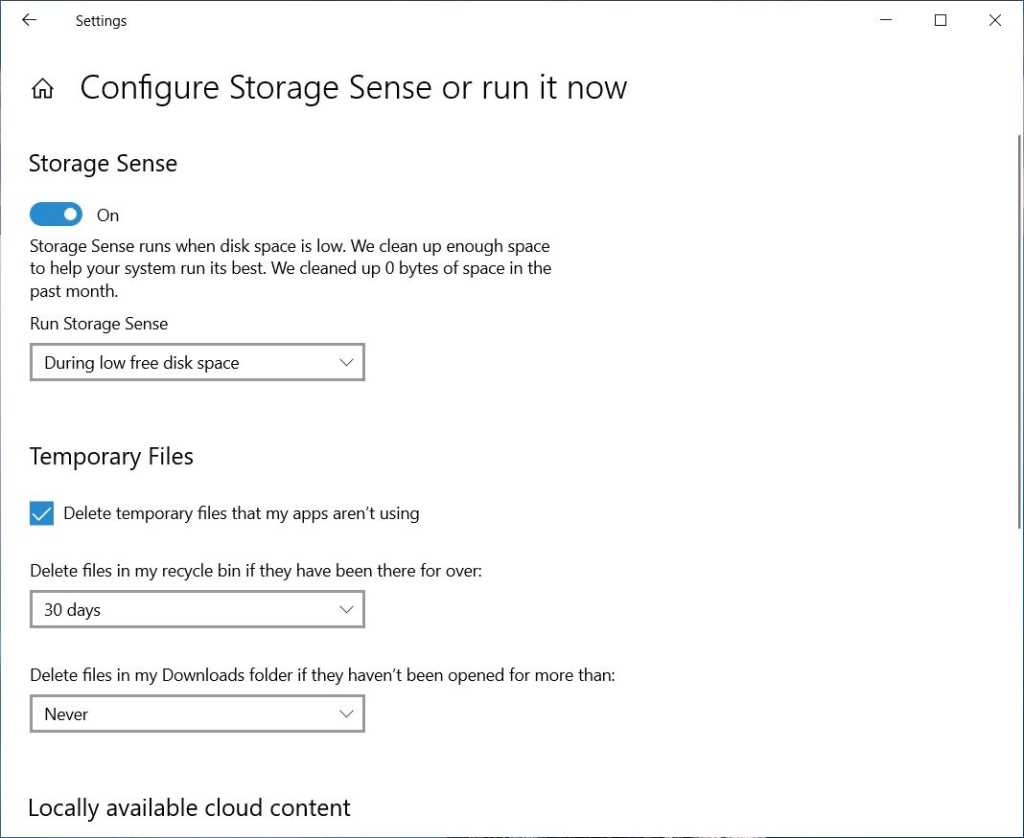
You can customize how Storage Sense works and also use it to free up even more space than it normally would. Underneath Storage Sense, click Configure Storage Sense or run it now. From the screen that appears, you can change how often Storage Sense deletes files (every day, every week, every month or when your storage space gets low).
You can also tell Storage Sense to delete files in your Downloads folder, depending on how long they’ve been there, and set how long to wait to delete files in the Recycle Bin automatically. You can also have Storage Sense move files from your PC to OneDrive cloud storage if they’re not opened for a certain amount of time (every day, or every 14 days, 30 days, or 60 days).
Here’s how to customize the way Storage Sense works.
Under the hood, the Windows Registry tracks and controls nearly everything about the way Windows works and looks. That includes information about where your programs are stored, which DLLs they use and share, what file types should be opened by which program, and just about everything else.
But the Registry is a very messy thing. When you uninstall a program, for example, that program’s settings don’t always get cleaned up in the Registry. So over time, it can get filled with countless outdated settings of all types. And that can lead to system slowdowns.
Don’t even think of trying to clean any of this out yourself. It’s impossible. To do it, you need a Registry Cleaner. There are plenty available, some free and some paid. But there’s really no need to outright buy one, because the free Auslogics Registry Cleaner does a solid job.
Before using Auslogics or any other Registry cleaner, you should back up your Registry so you can restore it if anything goes wrong. (Auslogics Registry Cleaner does this for you as well, but it can’t hurt to have it backed up twice.) To do your own Registry backup:
Type regedit.exe in the search box, then press Enter. That runs the Registry editor.
From the File menu, select Export.
From the screen that appears, make sure to choose the All option in the “Export range” section at the bottom of the screen. Then choose a file location and file name and click Save.
To restore the Registry, open the Registry editor, select Import from the File menu, then open the file you saved.
Now download, install, and run Auslogics Registry Cleaner. On the left-hand side of the screen you can select the kinds of Registry issues you want to clean up — for example, File Associations, Internet, or Fonts. I generally select them all.
loading="lazy" width="400px">
Auslogics Registry Cleaner scans for and fixes problems in your Windows Registry.
Preston Gralla / Foundry
Next, tell it to scan the Registry for problems. To do that, click Scan Now, and from the drop-down menu that appears, select Scan. That lets you first examine the Registry problems it finds. (If you instead choose Scan and Resolve, it makes the fixes without you checking them.)
It now scans your Registry for errors, then shows you what it found. Uncheck the boxes next to any you don’t want it to fix. Click Resolve when you’ve made your decision, and make sure that Back Up Changes is checked, so you can restore the Registry easily if something goes wrong. If you want to see details about what it’s done, click View detailed report at the bottom of the screen.
11. Disable shadows, animations, and visual effects
Windows 10 has some nice eye candy — shadows, animations, and visual effects. On fast, newer PCs, these don’t usually affect system performance. But on slower and older PCs, they can exact a performance hit.
It’s easy to turn them off. In the Windows 10 search box, type sysdm.cpl and press Enter. That launches the System Properties dialog box. Click the Advanced tab and click Settings in the Performance section. That brings you to the Performance Options dialog box. You’ll see a varied list of animations and special effects.
loading="lazy" width="400px">
The Performance Options dialog box lets you turn off effects that might be slowing down Windows 10.
Preston Gralla / Foundry
If you have time on your hands and love to tweak, you can turn individual options on and off. These are the animations and special effects you’ll probably want to turn off, because they have the greatest effect on system performance:
Animate controls and elements inside windows
Animate windows when minimizing and maximizing
Animations in the taskbar
Fade or slide menus into view
Fade or slide ToolTips into view
Fade out menu items after clicking
Show shadows under windows
However, it’s probably a lot easier to just select Adjust for best performance at the top of the screen and then click OK. Windows 10 will then turn off the effects that slow down your system.
12. Disable transparency
In addition to turning off shadows, animations, and visual effects, you should also disable the transparency effects that Windows 10 uses for the Start menu, the taskbar, and the Action Center. It takes a surprising amount of work for Windows to create these transparency effects, and turning them off can make a difference in system performance.
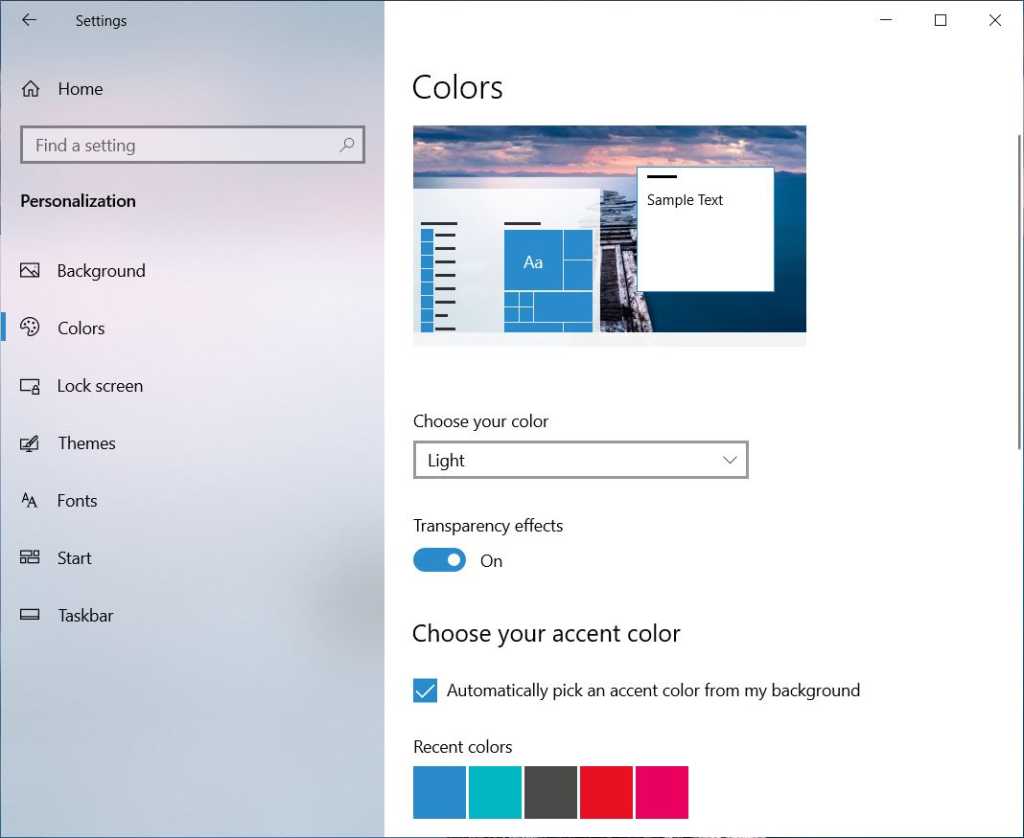
To do it, from Settings, choose Personalization > Colors, scroll down to “Transparency effects” and move the slider to Off.
Turning off Windows 10’s transparency effects can help speed up performance.
Preston Gralla / Foundry
13. Update your device drivers
Windows 10 can take a big performance hit if it’s using outdated drivers. Installing the latest ones can go a long way towards speeding it up. Particularly problematic are graphics drivers, so those are the ones you should make sure to update. To do it:
Type devmgmt.msc into the Search box and click the Device Manager icon that appears in the right pane.
Scroll to the Display Adapters entry and click the side-facing arrow to expand it.
Right-click the driver that appears.
From the context menu that appears, select Update driver.
You’ll be asked whether to have Windows search for an updated driver or if you want to find one and install it manually. Your best bet is to let Windows do the work. Follow the on-screen instructions to install the driver.
loading="lazy" width="400px">
Updating your device driver with the Device Manager can give Windows 10 a speed boost.
Every day, behind the scenes, Windows 10 performs maintenance on your PC. It does things like security scanning and performing system diagnostics to make sure everything is up to snuff — and automatically fixes problems if it finds them. That makes sure your PC runs at peak performance. By default, this automatic maintenance runs every day at 2:00 a.m., as long as your device is plugged into a power source and is asleep.
There’s a chance, though, that the feature has been accidentally turned off or you haven’t had your PC plugged in for a while, so the maintenance hasn’t been done. You can make sure it’s turned on and runs every day, and run it manually if you’d like.
Run the Control Panel app and select System and Security > Security and Maintenance. Click the down arrow in the Maintenance section, and under Automatic Maintenance, click Start maintenance if you want it to run now. To make sure that it runs every day, click Change maintenance settings, and from the screen that appears, select the time you’d like maintenance to run and check the box next to Allow scheduled maintenance to wake up my computer at the scheduled time. Then click OK.
loading="lazy" width="400px">
You can designate a time each day for Windows to run its maintenance tasks.
Preston Gralla / Foundry
15. Kill bloatware
Sometimes the biggest factor slowing down your PC isn’t Windows 10 itself, but bloatware or adware that takes up CPU and system resources. Adware and bloatware are particularly insidious because they may have been installed by your computer’s manufacturer. You’d be amazed at how much more quickly your Windows 10 PC can run if you get rid of it.
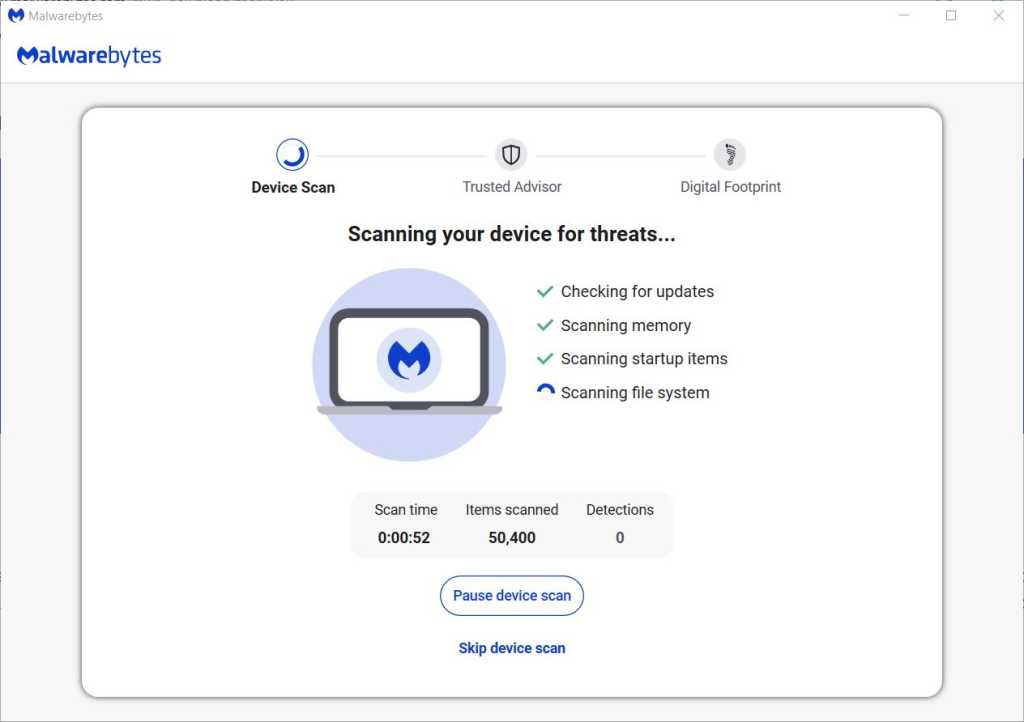
First, run a system scan to find adware and malware. If you’ve already installed a security suite such as Norton Security or McAfee LiveSafe, you can use that. You can also use Windows 10’s built in anti-malware app — just type windows security in the search box, press Enter, and then select Virus & threat protection > Quick Scan. Windows Defender will look for malware and remove any it finds.
It’s a good idea to get a second opinion, though, so consider a free tool like Malwarebytes. The free version scans for malware and removes what it finds; the paid version offers always-on protection to stop infections in the first place.
Malwarebytes is a useful application that will scan for and remove malware.
Preston Gralla / Foundry
Now you can check for bloatware and get rid of it. A good program to do that is PC Decrapifier. And Should I Remove It? is a website that offers advice on what files may be malware or bloatware.
The more you use your hard disk, the more it can become fragmented, which can slow down your PC. When a disk gets fragmented, it stores files willy-nilly across it, and it takes a while for Windows to put them together before running them.
Windows 10, though, has a built-in defragmenter you can use to defragment your hard disk. You can even tell it to run automatically so it stays constantly defragmented.
To do it, type defrag into the search box and press Enter. From the screen that appears, select the drive you want you want to defragment. Click the Optimize button to defragment it. Select multiple disks by holding down the Ctrl key and clicking each one you want to defragment.
If you want to have your disk or disks defragmented automatically, click the Change settings button, then check the box next to Run on a schedule. Now select the frequency at which you want the disk(s) defragmented by clicking the drop-down next to Frequency and selecting Daily, Weekly, or Monthly. (Weekly will be your best bet.) From this screen you can also choose multiple drives to defragment.
loading="lazy" width="400px">
You can set Windows 10’s built-in disk defragmenter to run automatically on a schedule.
Preston Gralla / Foundry
Note: If you have an SSD, defragging won’t offer any noticeable performance boost, and it could cause wear on the disk. So it’s not worth your while to defrag SSDs.
17. Disable Game Mode
If you’re a serious gamer, you probably know all about Game Mode, which optimizes your PC for playing games. That’s great for when you’re doing just that, but it can slow down your system when you’re not playing because it keeps some system resources in reserve in case you start playing a game and has occasionally been linked to stability issues. So turning off Game Mode can give your PC a quick boost. (You can always turn it back on again when you want to play a game.)
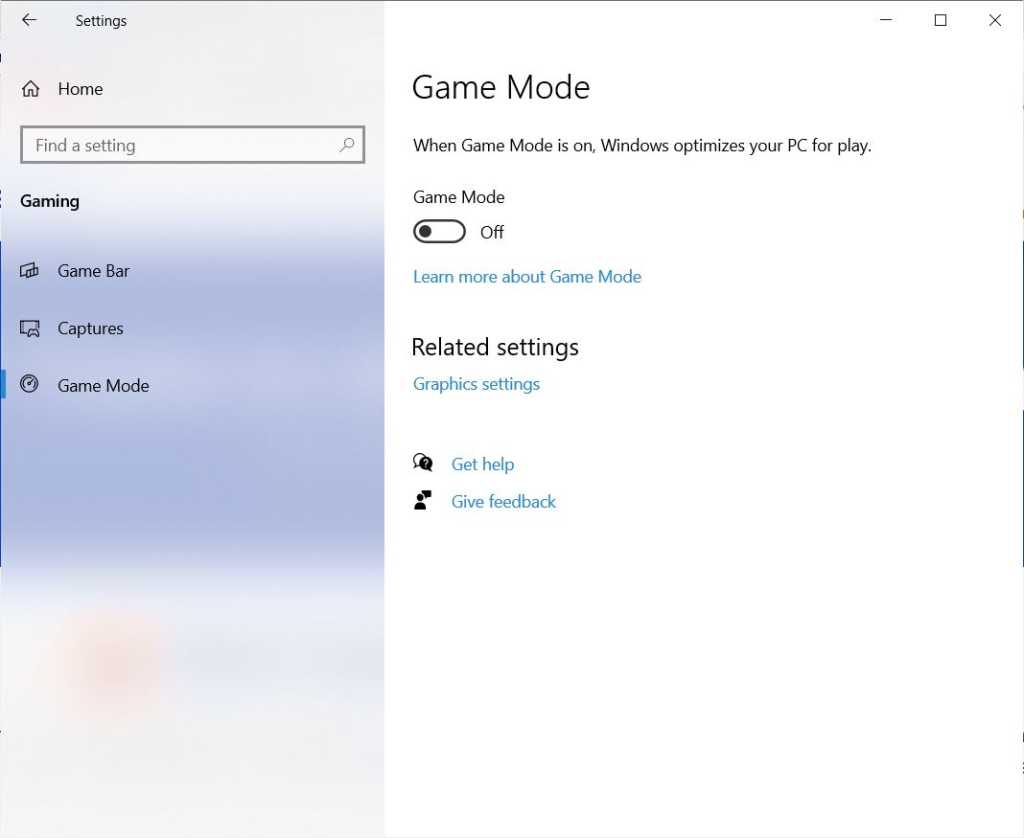
Game Mode is turned on by default, so even if you’ve never played a game on your PC, it’s probably enabled. To turn it off, go to Settings > Gaming > Game Mode and move the Game Mode slider to Off.
Turning off Game Mode can give your PC an instant boost.
Preston Gralla / Foundry
18. Run Windows troubleshooters
Windows 10 has a useful built-in troubleshooting tool that make sure your PC runs as quickly as possible without you having to do a thing. To turn it on, type troubleshoot into the search box and click Troubleshoot settings. The Troubleshoot screen appears.
In the “Recommended troubleshooting” section, click the down arrow and choose whether to have Windows ask you before running a troubleshooter, run a troubleshooter and then notify you, or run a troubleshooter without notifying you. At the bottom of the section, see if there are any recommended troubleshooters to run, and if so, run them.
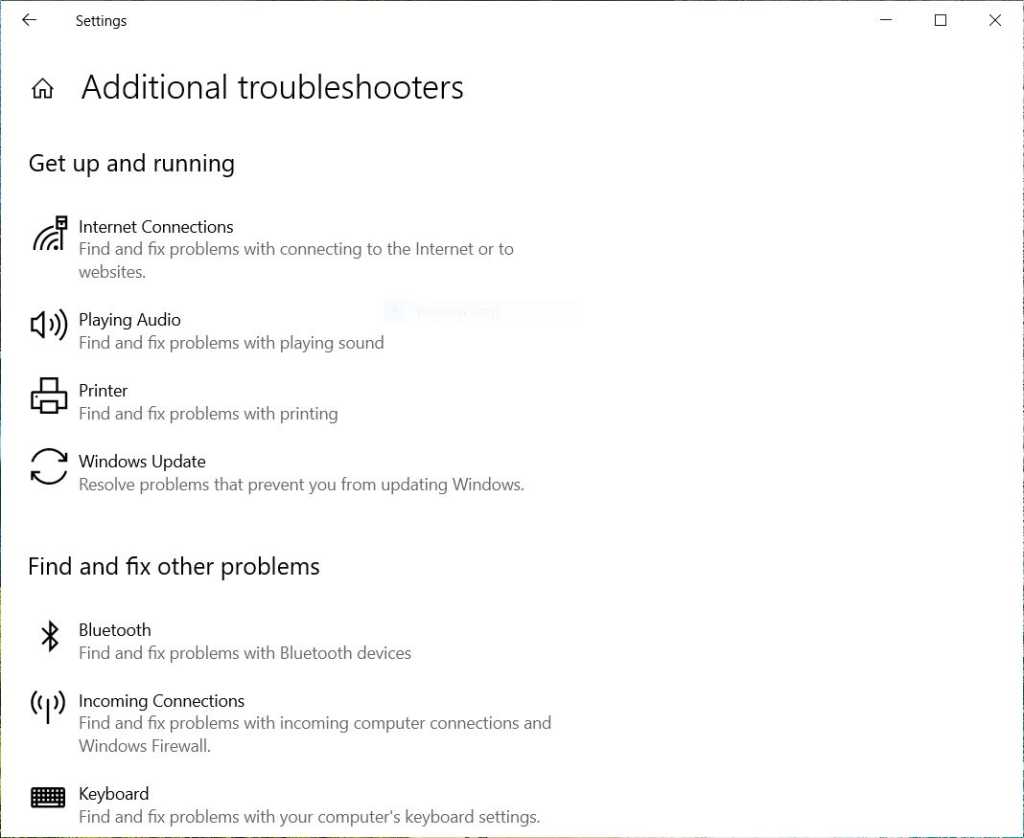
You can also go to this page if you’re running into a problem on your PC — for example, a flaky internet connection or a problem with Bluetooth. On the page, click Additional troubleshooters and from the page that appears, run the troubleshooter designed to fix your problem.
Windows 10’s built-in troubleshooters can speed up your PC or fix computer issues.
Preston Gralla / Foundry
19. Shut down and restart Windows
Here’s one of IT’s not-quite-secret weapons for troubleshooting and speeding up a PC: Shut it down and restart it. Doing that clears out any excess use of RAM that otherwise can’t be cleared. It also kills processes that you might have set in motion and are no longer needed, but that continue running and slow your system. If your Windows 10 PC has turned sluggish over time for no apparent reason, you may be surprised at how much more quickly it will run when you do this.
Try just some of these tricks, and you’ll find that you’ve got a faster Windows 10 PC — and one that is less likely to have any reliability problems.
This article was originally published in February 2016 and most recently updated in May 2025.
Enterprise IT leaders are becoming uncomfortably aware that generative AI (genAI) technology is still a work in progress and buying into it is like spending several billion dollars to participate in an alpha test— not even a beta test, but an early alpha, where coders can barely keep up with bug reports.
For people who remember the first three seasons of Saturday Night Live, genAI is the ultimate Not-Ready-for-Primetime algorithm.
One of the latest pieces of evidence for this comes from OpenAI, which had to sheepishly pull back a recent version of ChatGPT (GPT-4o) when it — among other things — delivered wildly inaccurate translations.
Lost in translation
Why? In the words of a CTO who discovered the issue, “ChatGPT didn’t actually translate the document. It guessed what I wanted to hear, blending it with past conversations to make it feel legitimate. It didn’t just predict words. It predicted my expectations. That’s absolutely terrifying, as I truly believed it.”
OpenAI said ChatGPT was just being too nice.
“We have rolled back last week’s GPT‑4o update in ChatGPT so people are now using an earlier version with more balanced behavior. The update we removed was overly flattering or agreeable — often described as sycophantic,” OpenAI explained, adding that in that “GPT‑4o update, we made adjustments aimed at improving the model’s default personality to make it feel more intuitive and effective across a variety of tasks. We focused too much on short-term feedback and did not fully account for how users’ interactions with ChatGPT evolve over time. As a result, GPT‑4o skewed towards responses that were overly supportive but disingenuous.
“…Each of these desirable qualities, like attempting to be useful or supportive, can have unintended side effects. And with 500 million people using ChatGPT each week, across every culture and context, a single default can’t capture every preference.”
OpenAI was being deliberately obtuse. The problem was not that the app was being too polite and well-mannered. This wasn’t an issue of it emulating Miss Manners.
I am not being nice if you ask me to translate a document and I tell you what I think you want to hear. This is akin to Excel taking your financial figures and making the net income much larger because it thinks that will make you happy.
In the same way that IT decision-makers expect Excel to calculate numbers accurately regardless of how it may impact our mood, they expect that the translation of a Chinese document doesn’t make stuff up.
OpenAI can’t paper over this mess by saying that “desirable qualities like attempting to be useful or supportive can have unintended side effects.” Let’s be clear: giving people wrong answers will have the precisely expected effect — bad decisions.
Yale: LLMs need data labeled as wrong
Alas, OpenAI’s happiness efforts weren’t the only bizarre genAI news of late. Researchers at Yale University explored a fascinating theory: If an LLM is only trained on information that is labeled as being correct — whether or not the data is actually correct is not material — it has no chance of identifying flawed or highly unreliable data because it doesn’t know what it looks like.
In short, if it’s never been trained on data labeled as false, how could it possibly recognize it? (The full study from Yale is here.)
Even the US government is finding genAI claims going too far. And when the feds say a lie is going too far, that is quite a statement.
Customers “trusted Workado’s AI Content Detector to help them decipher whether AI was behind a piece of writing, but the product did no better than a coin toss,” said Chris Mufarrige, director of the FTC’s Bureau of Consumer Protection. “Misleading claims about AI undermine competition by making it harder for legitimate providers of AI-related products to reach consumers.
“…The order settles allegations that Workado promoted its AI Content Detector as ‘98 percent’ accurate in detecting whether text was written by AI or human. But independent testing showed the accuracy rate on general-purpose content was just 53 percent,” according to the FTC’s administrative complaint.
“The FTC alleges that Workado violated the FTC Act because the ‘98 percent’ claim was false, misleading, or non-substantiated.”
There is a critical lesson here for enterprise IT. GenAI vendors are making major claims for their products without meaningful documentation. You think genAI makes stuff up? Imagine what comes out of their vendors’ marketing departments.
Called the Vulcan robot, the two-armed beast is already working in Amazon fulfillment centers in Spokane, WA, and Hamburg, Germany, where it’s handled more than half a million orders.
The Vulcan’s sense of touch comes from force-sensitive grippers and sensors on its joints, which provide data to its AI about the edges, contours, and resistance of the items it picks up, moves, and places in a new location. With this faculty, Vulcan can grip a soft bag of candy gently, but a heavy coffee table book more firmly without crushing the candy or dropping the book.
One way to look at the benefit of a robot that can detect what it’s gripping is that it provides flexibility, enabling a wider range of products to be handled. According to Amazon, Vulcan can handle about 75% of the million or so products in a typical Amazon warehouse.
Aaron Parness and his roughly 250-person robotics team at Amazon created the Vulcan robot. The company revealed it to the world on May 7 at its “Delivering the Future” event in Dortmund, Germany.
Mixed feelings about tactile robots
Vulcan is the first Amazon robot with what the company calls a “genuine sense of touch,” thanks to force feedback sensors and AI-powered software that lets it “feel” items, not just see them (cameras are the main sensors on most Amazon robots).
If you’re familiar with my views on anthropomorphization (i.e., “humanizing”) of robots and AI, you might guess what I’m about to say. Amazon says its Vulcan robot can feel (without quotation marks). This isn’t true.
When a robot like Vulcan “feels” something, it uses sensors that measure force, pressure, and sometimes texture or shape, turning these signals into data that AI can interpret. Vulcan’s sensors are built into its gripper and joints, so when it touches or grasps an object, it detects how much force it’s applying and the contours it’s encountering. Machine learning algorithms then help Vulcan decide how to adjust its grip or movement based on this feedback.
By contrast, a person feels with a network of millions of nerve endings in the skin, especially in the fingertips. These nerves send detailed, real-time information to the brain about pressure, temperature, texture, pain, and even the direction of force. The human sense of touch is deeply connected to memory, emotion, judgment, and consciousness.
Robots like Vulcan can now match or even exceed humans in detecting pressure or identifying textures, but their “feeling” is purely mechanical and digital. They don’t experience sensation or emotion, and they only know what their sensors can measure and their software can interpret. Humans, on the other hand, feel in a way that’s physical, emotional, and conscious.
With that caveat out of the way, it has to be said that Vulcan is pretty amazing.
Giving warehouse workers a hand
Parness says Vulcan’s sense of touch is a breakthrough because it brings “physical intelligence” to robots, and that’s the categorical breakthrough here. The main advance robots will undergo over the next decade or two will involve sensors increasingly being able to detect and adapt to real conditions in the real world and being trained in virtual physical AI environments.
Despite the advanced state of Vulcan’s technology, its main job is actually limited: to pick products from bulk storage and pack them into movable shelves, a task that used to require human dexterity.
Vulcan’s “hand” combines a conveyor belt gripper with a spatula-like tool, both of which are fitted with sensors that constantly measure pressure and torque. A ruler-like tool attached between the paddles acts as a spatial guide, nudging existing items in storage bins to create space for the new items it is laying into place.
The robot’s AI, trained on thousands of hours of physical interaction data, calculates the right amount of force for each object in real time. Vulcan can work up to 20 hours a day without ever taking a coffee break or using the bathroom, moving at speeds comparable to a human worker, but always behind a safety fence in case it suddenly goes bananas like that Chinese robot in the TikTok video people have been talking about and misinterpreting. (It just malfunctioned. It didn’t try to “attack” people.)
The Vulcan robot has real limitations. For example, it’s too weak to lift anything heavier than 8 pounds and can only move products from one place to another. If the robot encounters an unfamiliar item or something that exceeds its 8-pound weight limit, it flags a human worker for help.
Grasping the importance of tactile robots
Vulcan isn’t the only robot with a sense of touch. RoboTact and RoboTouch sensors, developed over decades and now used in everything from humanoid robots to service bots, give machines the ability to sense contact, pressure, and even the shape of objects, allowing for delicate and precise handling.
Sanctuary AI enhanced its Phoenix robot with tactile sensors that let it handle complex, touch-driven jobs. Their technology means Phoenix can detect things like slippage or excessive force, even when it can’t see what it’s doing.
Meta created its Digit 360 sensor, a fingertip-shaped device that can register forces as tiny as one millinewton and pick up details down to seven microns. The sensor is still in the lab, but Meta’s partnership with GelSight and Wonik Robotics is helping to eventually bring these sensors into real-world use.