Printers and scanners are increasingly becoming ways for cyber crooks to deliver phishing attacks, thanks to a flaw in the Microsoft 365 Direct Send feature.
The Varonis forensics team has uncovered an exploit which allows internal devices such as printers to send emails without authentication. The vulnerability has been used to target more than 70 organizations, predominantly in the US, with threat actors spoofing internal users and delivering phishing emails without needing to compromise any accounts whatsoever.
The campaign has been successful because emails sent from within Microsoft 365 (M365) undergo less scrutiny than standard inbound email.
There may be trouble in the industry’s biggest AI alliance, with a contract dispute about AGI threatening to topple the partnership between OpenAI and Microsoft.
The dispute, according to a report from The Information, involves a line in their contract that allows for the alliance to die once AGI (artificial general intelligence), the ability for genAI to replicate the capabilities of human thought, is achieved.
The problem is not with the lack of a precise AGI definition. It is that the concept is impossible to prove. OpenAI could deliver 100 proofs that show that they have achieved AGI and Microsoft could counter with 100 proofs that it hasn’t. Sentience is impossible to prove — or to disprove — with examples.
“They’re never going to settle on a definition of AGI that is intuitively satisfying to all. Any attempt to define AGI by looking at the internals of how the mind works often gets muddied by things like qualia and consciousness, which are notoriously difficult to pin down using an externally verifiable measure,” said John Licato, an associate professor at the University of South Florida’s Bellini College of Artificial Intelligence. “Instead, I expect they’re going to need to pick a somewhat arbitrary dividing line, purely tied to tests of performance. One example might be based on some consensus-based variant of the Turing Test in which a group of laypeople are asked to interact [blindly] with either humans or the AI, and they are then asked which they interacted with. If a large enough percentage of people are fooled, then the test is passed.”
Both sides want to exit the deal
Setting aside any AGI test, what is likely behind the argument is the desire by both parties to end the agreement, given how much has changed since the deal was struck in 2019.
The contractual AGI trigger appears to end any additional code-sharing, but there are no indications that Microsoft would have to surrender, or even stop using OpenAI code it had received before AGI was declared.
And analysts and enterprise IT executives agree that Microsoft is well-positioned to aggressively continue its genAI efforts without continuing to receive code from OpenAI.
Microsoft no longer needs OpenAI
Justin St-Maurice, a technical counselor at Info-Tech Research Group, said he doubts that ending the partnership would set Microsoft back in any serious way.
“Microsoft has its own models, a strong Azure ecosystem, and access to increasingly capable open-source LLMs. They don’t actually need OpenAI to deliver a successful product. Right now, the real bottleneck with Copilot isn’t the underlying model, but the rigid, rules-based implementation layered on top,” St-Maurice said. “Swapping out OpenAI with a different LLM won’t break an already weak user experience …. As LLMs are becoming commoditized, the magic lies in the integration, not the engine.”
St-Maurice had a strong reaction to one reference in The Information‘s story about the stated reason for the AGI deal killer clause during the original contract negotiations.
It said: “The idea behind the AGI contract provision is that Microsoft, as one of the world’s most powerful for-profit firms, shouldn’t get access to technology that might eventually help people colonize other planets or develop nuclear fusion. Doing so would go against OpenAI’s founding principle in 2015 to develop technology for the benefit of all of humanity, an idea that has roots in the beliefs of OpenAI founders, including CEO Sam Altman and Tesla CEO Elon Musk, who wanted to ensure the most powerful technologies didn’t end up in the hands of for-profit firms.”
OpenAI’s principles have changed since 2019
St-Maurice said that claim is rather absurd, given how OpenAI has not been acting at all like a non-profit.
“Sorry, how exactly is OpenAI sticking to its founding principles in 2025?” St-Maurice asked. “It’s hard not to wonder if OpenAI doesn’t want the world’s most powerful for-profit firms to have AGI technology because it would rather be the world’s most powerful for-profit firm with AGI technology.”
St-Maurice added: “They’re not doing this for humanity, and OpenAI has a lot of work to do to convince me otherwise. The rhetoric about ‘benefiting all of humanity’ rings a little hollow when Sam Altman is openly forecasting mass job displacement and a future where society becomes dependent on the technology class. It’s hard to see altruism when it also appears to conveniently consolidate control.”
Execs see little impact
Enterprise IT executives appeared to agree that even if the partnership dissolves, they will feel little to no impact.
Vinod Goje, the VP engineering manager at Bank of America, said Microsoft is well-positioned for a post-OpenAI model future. It has the cloud infrastructure, the enterprise relationships, and the financial firepower to pivot faster than most realize, he pointed out, stressing that he was speaking personally and not representing his employer. While losing exclusive access to OpenAI’s latest models would sting, they’ve got partnerships with Meta, their own research teams, and enough resources to acquire or develop alternatives.
“The real disruption isn’t whether Microsoft can survive without OpenAI. It’s that we’re essentially flying blind on the most consequential technology decisions of our lifetime,” he noted. “When you can’t even agree on what AGI looks like, how do you write contracts? How do you regulate it? How do you prevent it from being controlled by whoever gets there first? It’s a preview of the governance chaos coming if we don’t get serious about how AGI is defined, verified and shared. What this really reveals is the structural weakness in how we govern foundational technologies.”
Goje argued that the MS-OpenAI situation shows how unprepared the industry is for the implications of GenAI.
“The Microsoft-OpenAI standoff is a canary in the coal mine for the entire AI industry. We’re watching a $10 billion partnership potentially unravel over something as fundamental as ‘What is intelligence?’” Goje said. “This dispute is forcing the industry to confront an uncomfortable truth: we’re building the future without a roadmap. The companies that figure out governance frameworks first, not just the technology, will be the ones that actually shape what comes next.”
Another enterprise IT executive agreed.
“I don’t think there will be any material impact [if Microsoft and OpenAI split],” said Brian Phillips, VP of Macy’s technology, “especially if they can keep the code they have been using.”
OpenAI’s planned productivity suite could dismantle traditional habits of how users create and consume documents in the same the way the company changed browsing and search habits.
“OpenAI is increasingly seeing itself as a productivity tool, and that would include the need to address actual creation tools like Office does,” said Jack Gold, principal analyst at J. Gold Associates.
OpenAI hasn’t officially announced a product, but The Information reported (subscription required) that the generative AI (genAI) company has already designed a rival to the dominant productivity tools.
But good luck getting customers to move from Microsoft 365 or Google Workspace, analysts said, noting that the top two productivity suites are well entrenched among users and organizations.
OpenAI is already including certain elements of a productivity suite in its offerings, such as multiple export format support, said Wayne Kurtzman, research vice president of collaboration and communities at IDC. The feature is available in ChatGPT features such as Canvas, which “is a new interface for working with ChatGPT on writing and coding projects that require editing and revisions,” according to OpenAI’s website.
“That can be construed, correctly or not, as starting to build a productivity suite,” Kurtzman said.
IDC sees the market favoring newer digital experiences in creating and consuming content, he said. “Whether OpenAI sees this as an opportunity they would like to pursue in new ways is yet to be seen,” Kurtzman said.
The future of productivity and collaboration suites lies in user interface simplification via genAI, said J.P. Gownder, vice president and principal analyst on Forrester’s Future of Work team. He described it as “a lot less pulling down menus or drawing and a lot more prompt engineering and providing sources to the AI so it can compose the asset.”
Document creation could look something like this: GenAI would take a first swing at creating a business document that the user then edits, iterates, and finalizes. That approach will become much more common.
Users will go “over the top,” asking Microsoft’s Copilot to create PowerPoint presentations, specifying the documents such as meeting notes or oral instructions that it should use to create the deck.
“I predict that, by 2029, Microsoft PowerPoint will hide or remove 80% of the elements on the Ribbon, the set of navigation controllers. Why? Because you won’t need them anymore; you will go ‘over the top,'” Gownder said.
OpenAI trying to innovate in this area makes sense; companies like Zoom and beautiful.ai already do this, though not to the level of sophistication users will see in the future with Microsoft’s suite, Gownder said. “…Entering this space, for OpenAI, is a lot riskier, because of its partial ownership by Microsoft and because Copilot uses OpenAI’s models,” he said.
Microsoft is already heading in the direction of making Copilot its main interface to create documents, spreadsheets and presentations, the company’s chief product officer of experiences and devices, Aparna Chennapragada, told Computerworld in a recent interview.
Google has already integrated genAI capabilities into Workspace, but hasn’t managed to capture much market share from Microsoft, Gold said. “But like so many other companies have found when they try to compete with Office, it’s very hard to have much impact,” he said.
Gold floated the idea of OpenAI possibly leveraging open-source tools such as OpenOffice or LibreOffice, which could help from a time-to-market and cost perspective. “Let the open ecosystem provide the necessary capabilities, which already results in a pretty rich productivity suite, and just have OpenAI do the integration of AI tools,” he said.
There remain a lot of open questions about OpenAI’s ability to deliver a productivity suite, which isn’t easy, said Jeff Kagan, an independent analyst.
OpenAI needs the talent, product groups, and market share to carve out a sizable niche, Kagan said. “I don’t expect Microsoft to sit back. I expect they will quickly intensify their offerings to hang onto their market share,” he said.
Also, if OpenAI CEO Sam Altman decides to implement competing features, he will need to think hard about the relationship with Microsoft CEO Satya Nadella.
“It’s still way too early to have any idea what the next step will be. Stay tuned,” Kagan said.
A frisson of Trump-related news fizzled out in the last week. No, not a temporary outbreak of peace in the Middle East, but news of a smartphone originally announced as being made in America. Except, since making that claim, the Trump organization has changed to somewhat more ambiguous claims.
Which raises the question, why can’t you make a mass market phone in the US?
To get into this, it’s important to think about what is required when making a phone.
First, you need a design; secondly, you need components; third, you need an operating system; fourth, you require highly skilled labor to build the devices; and finally, you need a factory and distribution network big enough to handle manufacturing, logistics, and supply. Assembling the logistics of smartphone supply takes a lot of time and a lot of money. Pulling all these pieces together is a lot more complex than making a pencil — and that’s complicated enough, as the classic text by Leonard E. Read explains.
To be honest, it’s complicated
That’s not to say it’s completely impossible. There is one device — Purism’s Liberty smartphone — that claims to be made in the US. The hangup is that the device costs $2,000, has limited specifications, and can only be produced in small quantities. It’s not completely made in the USA, either, since many of its components are made outside the US.
That’s unlikely to change without major investment in component manufacturing plants, the cost of which could be prohibitive when you look at the fast pace with which those components might need to be upgraded or replaced as technology advances.
This is even before you consider the risk of entering markets already populated by incumbents and the low margins shared by those already-established manufacturers. It means that the entities most likely to bring component manufacturing in the US are probably going to be the same people who already make those components. And as they have the economy of scale behind them, it’s going to be next to impossible for US firms to compete.
That makes that part of the supply chain a huge risk, which means it makes a lot more sense for US manufacturers and the US government to think about what components mobile devices will need in the future and begin to invest in the patents, raw materials, and manufacturing capabilities to make those things. But that’s going to take time, require long-term investment, and has its own set of risks — as everyone who invested in Betamax found out when VHS won the video format wars.
To some extent, this inherent risk is part of what US firms have outsourced internationally in the past, because lower-cost economies meant that the cost of building factories for components that never shipped was lower, which also reduced the risk. The US got the benefit of other people’s risk and didn’t pay the consequences when risks went wrong.
Mysterious materials
Of course, components are made of something, and that raises the other reason it’s pretty difficult to make a smartphone entirely in the US: raw materials. So many of the raw materials used in various components packed inside smartphones are incredibly rare and found only in specific geographies.
This alone makes it inevitable that at least some raw material will need to be imported. But the cost of the materials and the cost of importing them sometimes makes it cheaper to manufacture components closer to the raw material source of supply. After all, if you use one ton of rare materials to manufacture 10 pounds of considerably more valuable components then it makes sense (because it is cheaper) to ship the component, not the material.
So now we have an inevitability in which at least some key smartphone components are unlikely ever to be made in the US. Perhaps those technologies can be replaced down the road, but that is limited by the laws of physics — which is to say it isn’t guaranteed. And to develop new things, you also need access to trained staff.
The alternative is to make smartphones that use components harvested from recycled devices, though doing so immediately means the devices might be dated, not as powerful, and potentially exposed to component-based security risks.
Magical people
Scientists, engineers, researchers, electronics experts, metallurgists, all of these skills are essential to the smartphone value chain. America just doesn’t have enough trained people to occupy all these roles. Sure, it’s possible you could replace some of the lower value skills with robots (made where?), but meeting that skill shortage is going to take a big commitment to education and training, or a focused approach to immigration, or both. And it will take years.
That’s going to cost, and because there is presently a shortage of these skills, you’ll find that salaries will be far higher in the US than elsewhere. The cost increases the magnitude of risk for manufacturers/suppliers, meaning they will raise prices for the components or assembly services they provide. I’m not sure, but I imagine that these costs, including assembly costs, are why the Liberty phone costs $2,000.
Magical places
Once you have raw materials and components logistics sorted, and you’ve hired enough good staff to make the devices, you’re hit the next problem — location. Where will you put the factories? If you choose to centralize production in a low-cost, perhaps less-popular part of the US, you might have difficulty recruiting staff who won’t want to abandon their existing lives to move. That means for a serious manufacturing deployment you’ll put your factories in places where people with the skills you need might actually want to live.
This further increases costs, but also means access to factory space becomes another competitive challenge. It’s one you can solve with money, of course, but that’s yet another level of risk and investment that needs to be met in order to make phones in the good old US of A.
Then, once you’ve got the materials, components, people, and factories — you need to bring it all together. Even assuming it has become possible through some triumph of magical thinking to make most of the components in the US, it is unlikely all these parts will be made in the same place, or even the same state.
Being where?
That means you’ll need to spend time putting together an effective and affordable logistics system for just-in-time delivery of components sourced from wherever they come from to the central assembly location. There are problems to this, but the impact once those are resolved is likely to be more traffic on local roads, more housing demands in local communities, and more demand for water, energy, and other infrastructure.
What this usually means is that local property prices increase, usually at a rate that exceeds local wages. In most other places, what happens then is that people born and brought up in those areas can no longer afford to continue to live there and are priced out of the property market, increasing resentment, frustration, and poverty.
All of these changes damage local cohesion, even as local authorities need to somehow find the money to invest in roads, airports and all the other infrastructure the new people and factories are suddenly making much more excessive use of.
Think of the scale here.
iPhone factories in China and India employ tens of thousands of people — whole cities are dedicated to the task. And while it is somehow a little tempting to imagine the creation of an “iPhone City” somewhere in America, achieving that already looks a lot harder than first thought.
The future will be better tomorrow
Fundamentally, what I’m saying is that shifting manufacturing ecosystems is a vastly complex task that demands huge investments of time and money — and even if the will is there, (and the US did actually vote for this), it makes more sense to invest gradually than to expect change overnight. Those investments have not yet been made, which is why the iPhone, Trump phone, or any other phone, is really not likely to be made in mass market quantities in the US before 2030 at the earliest, and probably not until later than that, if at all.
Will we even need smartphones by then? Who knows?
Think about the complexity of the above and it’s hard not to think that it makes more sense to focus investment on the big technologies the world will need tomorrow, rather than reinventing supply chains for the things we already have today. Because future tech innovation is where the money — and the jobs — will be.
WhatsApp is adding a privacy feature to WhatsApp just days after reports emerged that Meta’s messaging app had been banned on government devices used by staffers at the US House of Representatives.
The feature can generate quick summaries of the latest messages WhatsApp users receive on their devices. The company added a unique twist — the summaries will be private and not visible to Meta or unauthorized users.
“You can get an idea of what is happening before reading the details in your unread messages,” Meta explained in a blog entry Wednesday.
The summaries are generated using Meta’s generative AI (genAI) technology, which is making its way into more applications. The company has already added it into the interfaces for WhatsApp, Facebook, and Instagram and is hiring engineers from rival genAI companies. It recently acquired Scale AI for $14.3 billion.
Privacy is a critical aspect of the feature, Meta stressed. “No one else in the chat can see that you summarized unread messages either. This means your privacy is protected at all times,” the company said.
But apparently Meta is looking to reverse that trend by creating secure AI environments that lock down the data from which the summaries are generated. It does so using a technology called “Private Processing” where “no one except you and the people you’re talking to can access or share your personal messages, not even Meta or WhatsApp,” Meta wrote in a briefing about the technology.)
Users can request a private computing environment, which is built on an emerging technology called confidential computing. The technology creates a secure enclave in which data is stored, AI summaries are generated and then served to users who can unlock the information.
A number of chipmakers are implementing confidential computing technology into their components. Intel chips can create a secure room in which data is accessible only to people with the right keys. Nvidia offers similar confidential computing technology in its GPUs. And Google Cloud’s Gemini uses the technology so companies can deploy the AI model in private infrastructure. And Apple has Private Cloud Compute, where much of the customer data and AI queries are kept private to customers and not visible to Apple.
Using genAI processing to summarize personal messages marks the first time Meta has applied Private Processing, Meta said. “We expect there will be others where the same or similar infrastructure might be beneficial in processing user requests,” the company explained.
Meta last week added secure keys to Facebook messaging, which provides an extra authentication layer for users to access messages.
There have been concerns about genAI companies using customer data to train models. Data privacy and genAI has also been a topic in sovereign AI, where individual nations have their own privacy and data residency regulations.
Google Docs is a powerful word processor that you use through your web browser. It’s integrated with Google Drive to store your documents in the cloud. In addition to the Docs web app, there are mobile apps for Android and iOS.
Anyone with a Google account can use Google Docs for free. It’s also available with Google Workspace — Google’s subscription-based online collection of office apps that also includes Gmail, Google Slides, Google Sheets, and more — with more advanced features.
This guide will get you started with the Google Docs web app and show you how to share and collaborate on your documents with other people.
To start a new document or open one you’ve already saved in Google Drive, you’ll need to sign in to your Google or Google Workspace account. If you haven’t signed in yet, you’ll be prompted to do so when you click either link below.
Create a new document
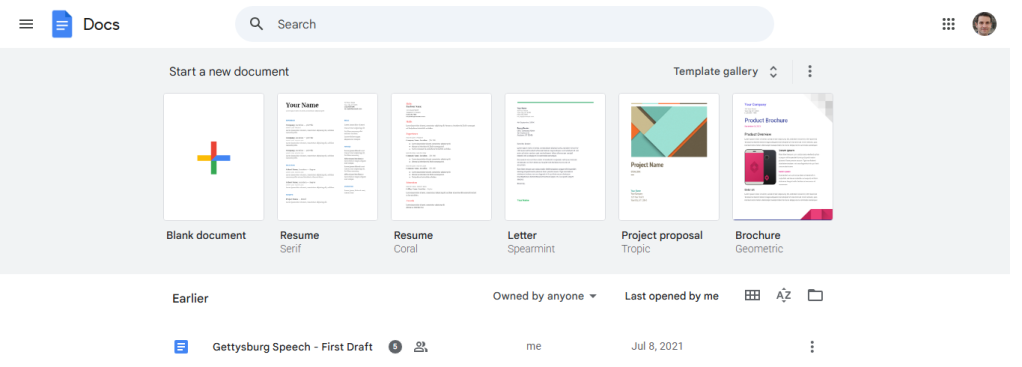
From theGoogle Docs home screen: To start a new document, click the Blank thumbnail or select a template to the right. To see more templates that you can insert into your document and customize to your needs, click the Template gallery button in the upper-right corner of the screen; click any thumbnail to start a new document in that template.
The top of the Google Docs home screen, with templates across the top and stored documents listed below.
Howard Wen / Foundry
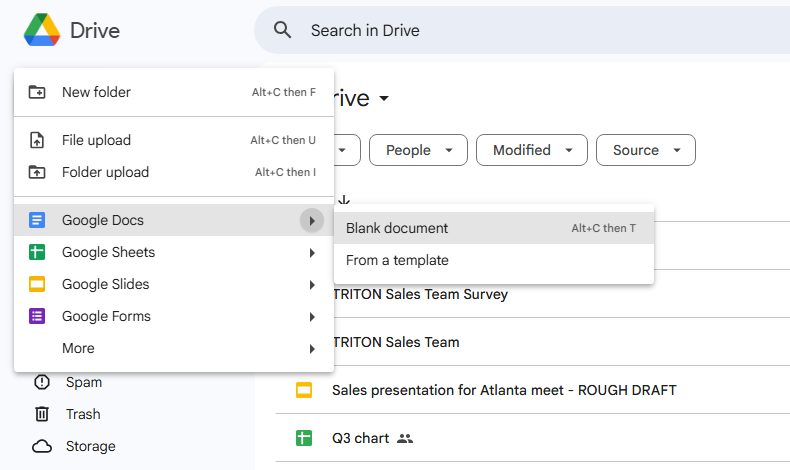
From the Google Drive home screen: To start a new blank document, click the New button at the upper-left of the screen and then click Google Docs. If you want to select a template to start a new document, click the New button, then move the cursor over the > to the right of “Google Docs” and select From a template. The Google Docs home screen will open, showing its full template gallery.
Creating a new Docs document from Google Drive.
Howard Wen / Foundry
From your browser’s address bar: You can immediately launch Google Docs with a new blank document by simply typing docs.new in the address bar of your web browser. (This works if you’re already signed in to your Google or Google Workspace account on the browser.)
Open a document
Documents that are already in your Google Drive storage appear on the Google Docs and Google Drive home screens. Double-click a document, and it will open in Google Docs.
You can use the search box at the top of either home screen to search for your document’s file name or text that is in it. On the Google Docs home screen, you can also click the folder icon on the right above the documents list. This opens a simplified version of your Google Drive inside a panel.
To open a document that someone else has shared with you via Google Drive: On the Google Drive home screen, click Shared with me in the left column, and then double-click the document to open it in Google Docs.
Upload a document for editing in Google Docs
If you have a document on your PC that you want to edit in Google Docs, you have to first upload it. Google Docs supports common text formats such as Microsoft Word (.docx), OpenDocument Format (.odt), Plain Text (.txt), and Rich Text Format (.rtf).
To upload via the Google Docs home screen: Click the folder icon on the right above the documents list, then click the Upload tab on the panel that opens. You can drag-and-drop the document onto this panel or browse your PC’s storage drive to find and select the document. The file is saved to your Google Drive in Docs format and opens immediately in the Docs web app.
To upload via the Google Drive home screen: Click New > File upload and select the document from your PC’s drive. The document retains its original formatting.
Working with Microsoft Word documents in Docs
Google Docs supports the ability to edit Word .docx files in their native format. You can edit and collaborate on a Word file right in Docs, with all changes made by you or your collaborators saved directly to the Word file.
To retain the Word format, though, you must upload the file through Google Drive. When you upload a Microsoft Word document through the Google Docs home screen, it is automatically converted to the Docs file format.
When you upload a Word through the Google Drive home screen, on the other hand, it is not automatically converted to Docs file format. So a Word document will retain its format and .docx file extension. In the documents list, Word docs are designated with a W icon instead of the usual Docs icon.
The top document shown here is in Word format.
Howard Wen / Foundry
If you would rather have Word (and other document format) files automatically converted to Docs format when you upload them via Google Drive, click the gear icon in the upper-right corner of the Google Drive home screen and select Settings from the drop-down menu. On the Settings page, scroll down to “Uploads” and check the checkbox marked Convert uploads to Google Docs editor format.
Converting PDF and image files to Docs format
Through Google Drive, you can upload a PDF or image file of a scanned document, then convert it so that you can edit it in Google Docs. The accuracy of this conversion depends on how readable the text is in the PDF or source image.
From the Google Drive home screen, click New > File upload and select the PDF or image file on your PC.
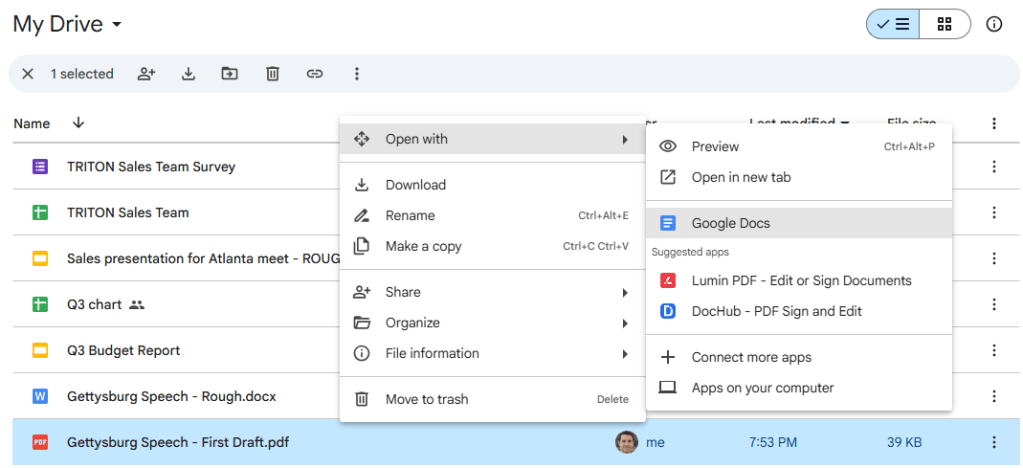
After the file is uploaded, right-click its filename on the Google Drive home screen and select Open with > Google Docs.
Converting a PDF to Google Docs format for editing.
Howard Wen / Foundry
Drive converts the PDF or extracts the text from the image file and opens the result in Google Docs for you to view and edit. This converted version appears listed on your Google Docs and Google Drive home screen as a new Docs document. Note that only the text from the source file is converted; if your PDF has images, those will not appear in the new document.
Work in a document
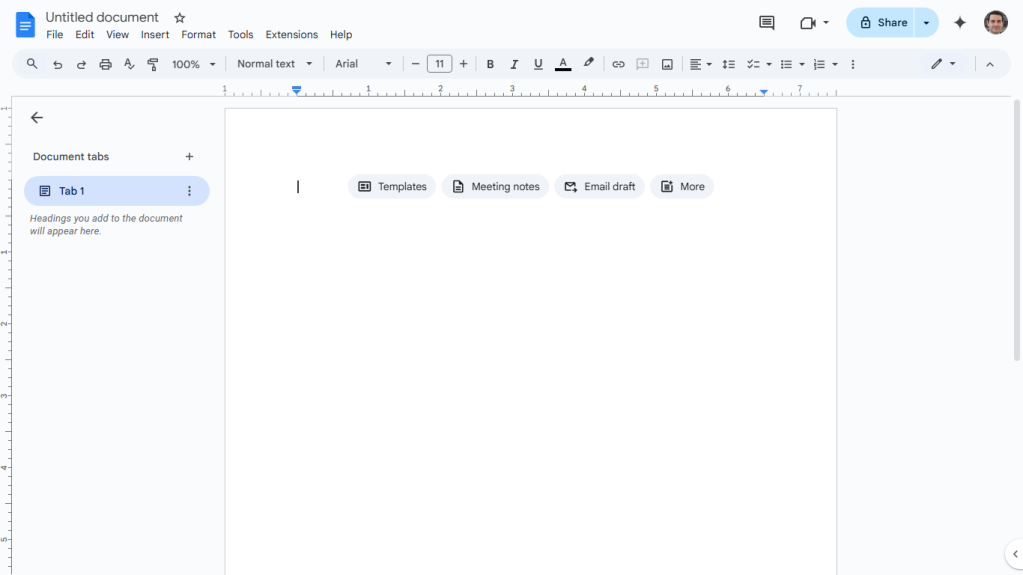
When you open a new or existing document, the document’s title appears at the top left. To change the title, place the cursor in the title and start typing.
The Google Docs compose/edit screen with a new, blank document.
Howard Wen / Foundry
The menu bar below the document’s title includes the following drop-down menus:
File: commands for taking action on the whole document, such as Make a copy, Share, Rename, Page setup, and Print
Edit: copy, paste, undo, redo, find and replace, and similar
View: lets you change your view of the document and how you interact with it (more on that in a moment)
Insert: insert items into your document, such as an image, table, special character, header or footer, or watermark
Format: format text, paragraphs, and some other elements in your document such as tables
Tools: extras such as getting a word count and translating your document into another language
Extensions: find third-party apps that integrate with Docs and other Workspace apps
Help: search for commands or get help for specific tasks
The toolbar below the menu bar has buttons for the most common word processing functions, such as formatting text and paragraphs, inserting links and pictures, running spell check, and printing.
Note that there is no Save command; Docs automatically saves any changes as soon as you make them.
Tools to help you start writing
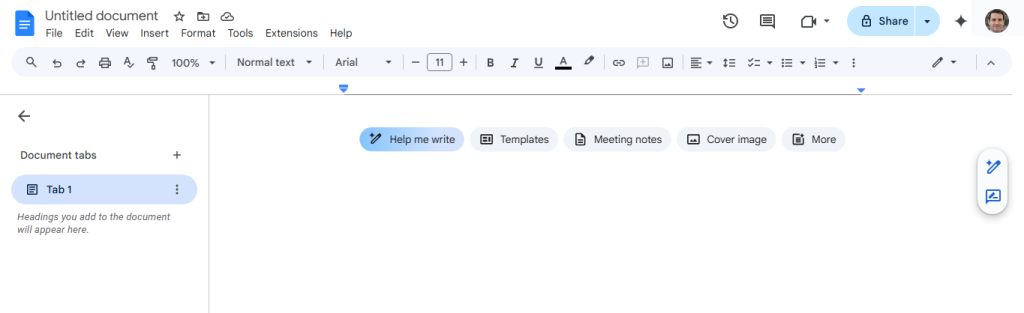
When you start a new, blank document, buttons appear along the top of the document area, as shown in the previous screenshot; they’re shortcuts to tools to help you write. (They don’t appear when you load a document that already has content on it.) You can ignore these shortcuts if you want; just start typing and they’ll disappear.
If you’re using Google Docs under a free Google account or Business Starter Workspace plan, you’ll see these shortcuts at the top of a blank document:
Templates: This button opens a pane listing a subset of popular templates from the template gallery you can call up when creating a new document, as covered earlier in the story. To access this pane elsewhere in Google Docs: On the top menu bar, click File > New > From a template.
Meeting notes, Email draft, and More: These buttons all lead to “building blocks,” which are table templates that you can insert into your document. Some also have interactive elements, called “smart chips,” in them. See “How to use smart chips in Google Docs and Sheets” for in-depth information about smart chips and building blocks.
Clicking Meeting notes lets you extract information from an event scheduled on your Google calendar and set it in your document as a table.
The Email draft building block appears as a basic email composition window in your document. Inside each capsule to the right of “To,” “Cc,” and “Bcc,” you enter or select the email address or name of someone in your Google Contacts to insert as a People chip.
Clicking the More button opens the “Building blocks” panel along the right that lists several other building blocks you can insert into your document. There are building blocks for meetings, project management, contact management, and more.
To access building blocks elsewhere in Google Docs: On the top menu bar, click Insert > Building blocks and from the menu that opens, select the building block that you want to insert into your document. Or select View more on this menu to open the “Building blocks” side panel.
If you’re using Google Docs with a paid Workspace plan that includes Gemini, such as Business Standard, then you’ll see these buttons at the top of a blank document:
With a paid Workspace plan, the quick-start buttons for a blank document include the AI-powered “Help me write.”
To access Help Me Write elsewhere in Google Docs: Look for the vertical mini-toolbar along the right of your document. Clicking the Help me write icon at the top of this toolbar will open the “Help me write” pane over your document.
Templates and Meeting notes: These buttons work the same as described above under a free or Business Starter plan.
Cover image: You can embed an image, such as your business logo, that runs along the top of your document as a banner. Clicking this button opens a menu that lets you insert an image file stored on your PC, Google Drive, or Google Photos account, or you can search a stock image repository or enter a link to an image file online. You can also use Gemini to create an image: Select Generate an image and describe what you want it to create.
To access this tool elsewhere in Google Docs: On the top menu bar, click Insert > Cover image.
More: This button works the same as described above under a free or Business Starter plan, opening the “Building blocks” side panel.
The Gemini sidebar
There’s another way to interact with Gemini in Docs: Click the nova star icon at the upper-right corner (next to your Google account profile headshot) to open a Gemini side panel along the right. (If you’re using a free or Business Starter plan, this side panel will show an ad for Gemini and a button you can click to start a trial.)
You can use the Gemini sidebar for a variety of tasks, including brainstorming ideas, generating text, summarizing documents, creating lists, and more. See “Google Workspace: 7 great ways to use the Gemini AI sidebar” for detailed instructions and use cases for the Gemini side panel.
Editing, Suggesting, and Viewing modes
When you create or open a document, it is presented in Editing mode, in which you compose or edit your document normally. You can switch to two other modes:
Suggesting mode: Changes to your document appear as colored “suggestions” that can be accepted or rejected. This mode mostly comes into play when you’re collaborating with others; more on that later in this guide.
Viewing mode: You can’t edit the document, only scroll through and read it. Viewing mode can help you focus on reading through a document without being tempted to stop and edit it. You can also share a document with others in a way that limits them to Viewing mode; we’ll cover that in the sharing section of this guide.
To switch among these modes: Click the Editing mode pencil icon at the far right of the toolbar and make your selection. Alternatively, you can select View > Mode from the top menu bar.
Switching to Suggesting mode.
Howard Wen / Foundry
Document tabs
Along the left is the “Document tabs” side panel. (If you don’t see it, click the Show tabs & outlines button at the top left.) It’s a unique feature that lets you build interactive documents in two ways.
Heading links
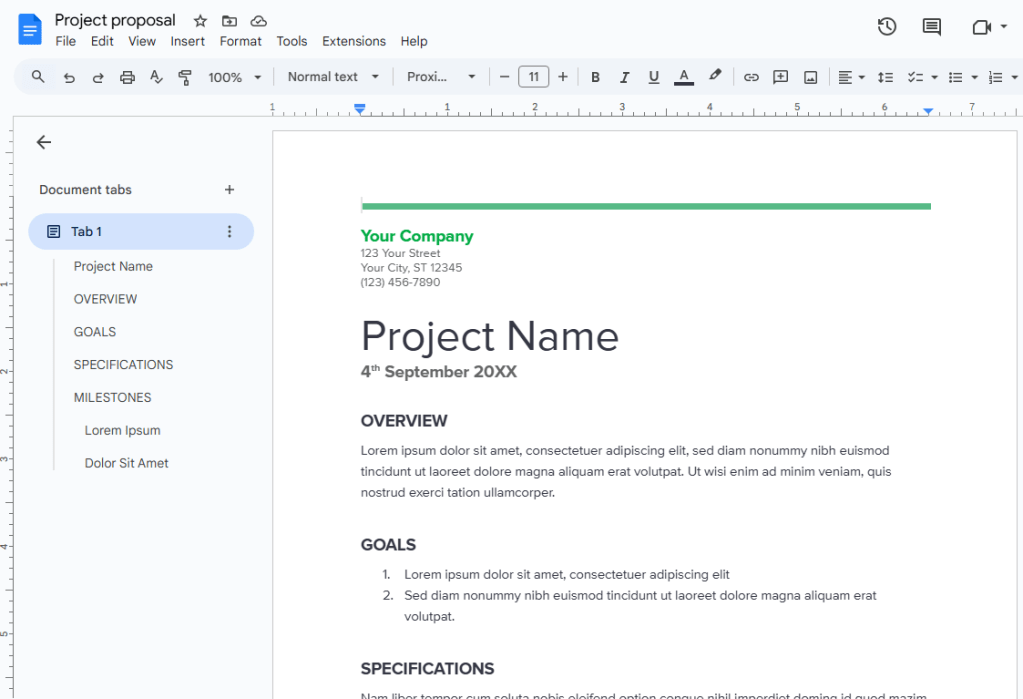
Your document (whether it’s blank or already has content) is listed in this side panel as “Tab 1.” Click Tab 1 and it will expand down to list any headings that are in your document. When you click a heading in this side panel, your view in the main window will jump to that heading in your document.
You’ll find shortcuts to each heading in your document in the “Document tabs” side panel.
Howard Wen / Foundry
To add a heading to your document: On the toolbar above your document, click Normal text and from the drop-down menu, select a heading level (Heading 1, Heading 2, etc.) and type in your heading.
In the “Document tabs” side panel, you can rename “Tab 1” by clicking the three-dot icon to its right.
Multiple tab links
You can also add more tabs, where each tab represents a separate section of the document that has its own content and formatting, and switch among them.
For instance, you could have a project management document where one tab shows the project overview and goals, a second tab lists team members and their responsibilities for the project, a third tab is a timeline table, and so on. You could create a separate document for each of those items, but the tabbed setup keeps them more tightly tied together while allowing each section to retain its own unique purpose and formatting.
A document starts with just one tab, called “Tab 1” by default. To add a new tab (“Tab 2”), click the + next to “Document tabs” in the side panel. Your view in the main window switches to a new blank document area that you can put content on.
When you create a new tab, it feels like you’re starting a whole new document, but it’s still part of the same larger document. When you look at the top of the screen, you’ll see that the document title remains the same.
You can click back and forth between these two tabbed sections of the document using the tab links in the “Document tabs” navigation. You can add and navigate to additional tabs the same way.
You can switch between tabs in your document using the left navigation panel.
Howard Wen / Foundry
You can also add a subtab underneath another tab. In the “Document tabs” side panel, hover your cursor over the tab you want to attach a subtab to, click the three-dot icon that appears to its right, and from the menu that opens, select Add subtab.
You’ll quickly realize as you add tabs and subtabs that using the default names (Tab 1, Tab 2, etc.) isn’t very helpful. To rename any tab to something more meaningful, click its three-dot icon, select Rename, and type in a new name.
Links to headings across tabs
You can insert a link in one tab that goes to a heading that’s in another tab in your document. For example, a link in Tab 1 takes you to a specific heading in Tab 3.
To create this type of link: Select a tab in the “Document tabs” side panel. In the main window showing the document, right-click on a heading. From the menu that opens, select Copy heading link.
Now select another tab in the “Document tabs” side panel. In the main window, paste the link somewhere in the document. A long URL appears with a bar next to it that contains the title of your document. Click this bar or press the Tab key on your keyboard to insert the link in your document; it will appear as a capsule with your document’s title in it.
When you (or anyone you’ve shared your document with) click the capsule you inserted, a small bar opens showing the heading. Click it, and the view in the main window will jump to this heading in this other tabbed document.
Click the MILESTONES link in the main document window to go to that heading on Tab 1.
Howard Wen / Foundry
Share your document
Through Google Docs or Google Drive, you can share a document for others to view or edit.
From the Google Docs screen where you’re editing your document: Click the Share button at the upper right. Or, from the Google Drive home screen: Right-click the filename of your document and select Share > Share from the menu that opens. Either way, the Share pane opens.
Sharing a document in Google Docs.
Howard Wen / Foundry
Google lets you share your document privately by inviting specific people to access it, or publicly, which means anyone with the link to it can open it. In most cases, business users will want to share their documents privately with specific colleagues. But there may be a few times when you need to share it publicly, such as when you’re seeking public comments on a document.
Note: In managed business environments, your administrators may limit your sharing options. For example, you might not be allowed to share a document link publicly — or even share it privately with people outside your organization.
Share your document privately (only certain people can access it)
On the Share pane, type in the names or email addresses of the people you want to collaborate with on the document. The Share pane changes to a new view where you can add more people and change their access permissions for the doc. You can also type in a brief message to them.
Setting permissions for a file being shared privately.
Howard Wen / Foundry
By default, every person you add is given Editor access to your document. You can change this by clicking Editor at the right of the invitees’ names and selecting another option from the dropdown that opens.
Editor means they can change your document, add comments to it, and reshare it with other people.
Commenter means they can view your document and add comments to it, but they cannot change it.
Viewer means they can view your document, but they cannot change it or add comments to it.
Keep in mind that this setting applies to everyone you’re currently inviting to the document.
When you’re done, click Send. Everyone you’ve added will receive an email with a link they can click to access the document.
Change, limit, or revoke permissions
You can change anyone’s permissions for a document at any time by reopening the Share pane for the document. It will list everyone who has access to the document. Click the dropdown next to their name to change their permission level or remove their access entirely, then click Save.
You can also limit the overall permissions for a document somewhat by clicking the gear icon in the upper right of the Share pane:
Unchecking the first box prevents others at the Editor level from resharing the document or changing other collaborators’ permission level.
Unchecking the second box prevents anyone with Viewer or Commenter status from downloading, printing, or copying the document.
Unchecking these boxes curbs some of the default permissions for editors, viewers, and commenters.
Howard Wen / Foundry
Set an expiration date
Under a Google Workspace plan, you can also deny access to a person you’ve shared your document with on a specified date.
Click the down arrow to the right of a collaborator’s name and select Add expiration. Then, to the right of “Access expires…,” click the pencil icon and select an expiration date (and time if you want) on the pop-up calendar. It can be within one year of the current date.
Setting an expiration date for a person’s access to a document.
Howard Wen / Foundry
Share your document publicly (anyone can access it)
At the bottom of the Share pane is a Copy link button that you can click to copy the link to your document. By default, this link is restricted to those you invite to the document.
To change it to a public link: Click Restricted and select Anyone with the link from the dropdown menu.
Changing permissions for a public link to a document.
Howard Wen / Foundry
By default, this link has Viewer access assigned to it. To allow anyone with the link to comment on or edit your document: Click the Viewer dropdown to the right and then select Commenter or Editor.
After you’ve made your above selections, click the Copy link button. You can now paste this link to your document into an email, direct message, or document, or post it on a public forum or social media. Remember that anyone who sees and clicks this link will be able to access your document.
To turn off the public link to your document, reopen the Share pane and click Anyone with the link. From the dropdown that opens, select Restricted. Then click the Done button.
Status of your shared documents
On your Google Drive or Google Docs home screen, your documents that are being shared either privately with others or as public links are marked by an icon of two silhouetted heads. (If you have the home screen of Google Drive set to “Grid layout,” this icon won’t appear with the thumbnail or filename of a shared document.)
The double silhouette icon to the right indicates that this is a shared document.
Howard Wen / Foundry
Collaborate on your document
The people you’ve shared your document with can collaborate with you on it if they’ve been designated as an Editor or Commenter. See “How to collaborate on a document” in our Google Drive collaboration guide for step-by-step instructions on how to add and review comments, edit a document, and collaborate on a document in real time.
One thing that can’t be stressed enough is how helpful it is if you and your collaborators use Suggesting mode. (Commenters will automatically be in Suggesting mode when they open the document, but Editors need to turn it on by clicking the pencil icon at the upper right and selecting Suggesting.)
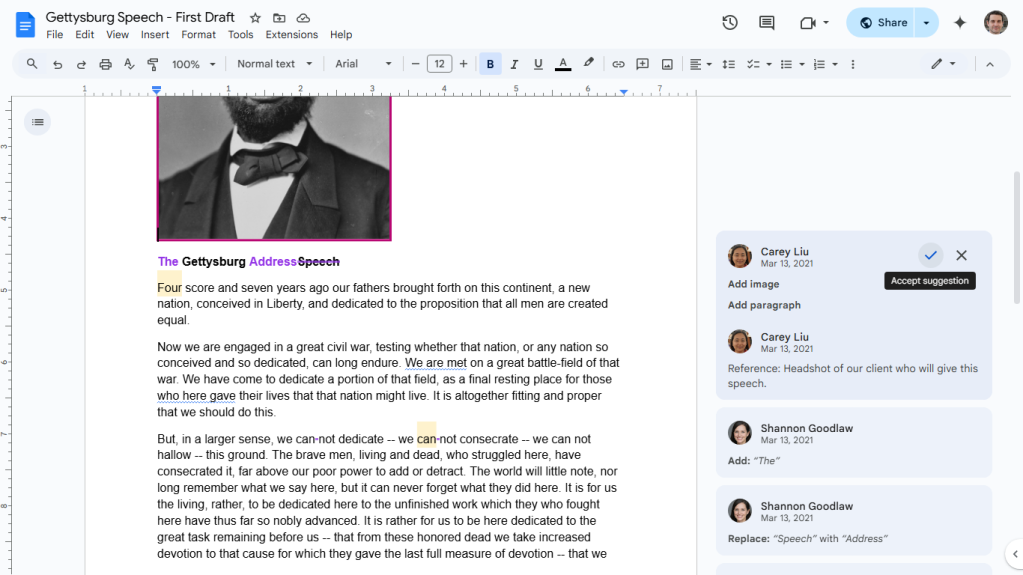
If multiple people make changes to your document in Editing mode, it can become difficult to keep track of who did what. Under Suggesting mode, though, each collaborator’s text additions appear in a different color. So if they add an image, the border of that image will be the same color as their text color. Anything they delete will have a strikethrough in their assigned color.
Suggesting mode makes it easy to see who made each change to a shared document.
Howard Wen / Foundry
Note cards will appear to the right of your document; each shows a suggested change made to your document (and by whom and when the change happened). To accept the suggestion on a card, click the checkmark; to reject it, click the X.
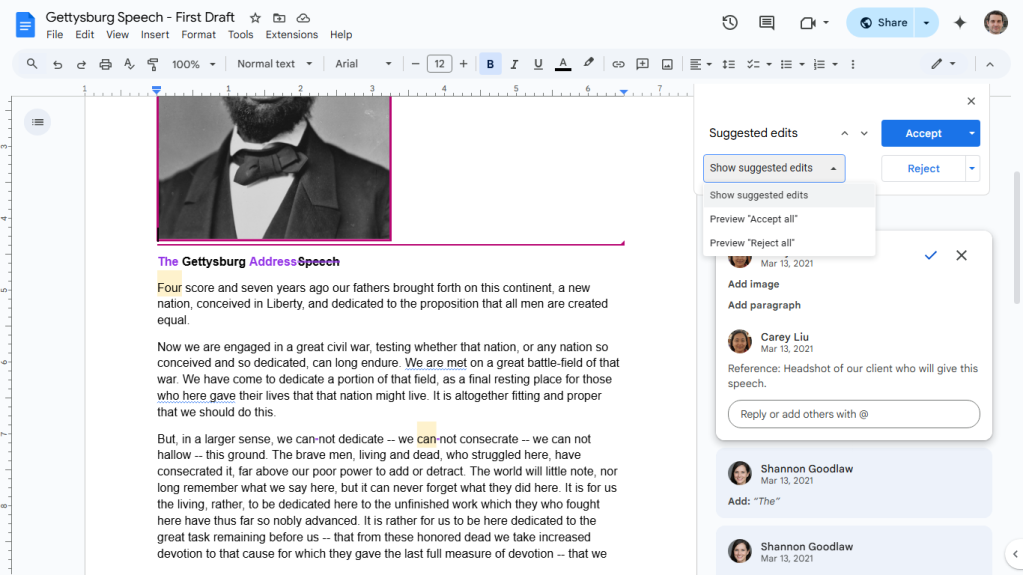
To view your document with or without all the edits suggested by your collaborators: Click Tools > Review suggested edits from the top menu bar. A box will open at the upper-right corner. To view your document with the suggested edits merged in, click the Show suggested edits dropdown and select Preview “Accept all.” To view without the suggested edits, select Preview “Reject all.”
Reviewing suggested changes.
Howard Wen / Foundry
If you want to accept or reject all suggestions at once without going through them one by one, you can click the Accept All or Reject All buttons on this pane.
Whenever your document gets a suggested edit by a collaborator, an updated tally appears next to its filename, or on the upper-right of its thumbnail, on your Google Docs or Google Drive home screen.
Recover older versions of a document
Mistakes happen, and you may want to undo changes you or others have made to a document. To look up older versions of an open document, click File > Version history > See version history.
A panel opens on the right that shows a list of older versions of your document, organized by date and time. To see what an earlier version of the doc looks like, click its date or version name in the list. That version will appear in the main window.
Viewing an earlier version of a document.
Howard Wen / Foundry
If you want to use this older version to replace the current version of your document, click the blue Restore this version button at the upper-left of the screen. This restored version will then appear at the top of the version history list.
If you want to give an older version a unique name, click its date. You’ll be prompted to type in words to replace the date. The version’s date and time will then appear in smaller type underneath its new name.
Download and export your document to Word or PDF
You can download a document and convert it to PDF, .docx (if it’s not already a Word document), or another text format such as OpenDocument Format (.odt), Plain Text (.txt) or Rich Text Format (.rtf).
With the document open, select File > Download from the top menu bar and choose a file format. The document will be saved to your PC’s storage drive in that format.
Downloading and converting a document to Word format.
Howard Wen / Foundry
Alternatively, you can select File > Email and then pick either Email this file or Email collaborators. This action will open a panel that lets you email your document as an attachment. PDF is the default, but you can click the PDF dropdown and choose Word or another format.
A third option under File > Email is Email draft. This inserts the Email draft building block discussed earlier in the story.
Use the Google Docs mobile app
The Docs mobile apps for Android, iPhone, and iPad have a simplified interface to accommodate small touchscreens. Except for version history, the same features described in this guide are in the mobile apps.
For example, through the Docs mobile apps, you can share documents (see “How to use Google Drive for collaboration” for instructions) and work on them with other people. This includes doing so under Suggesting mode.
Toolbars along the top and bottom of the app let you take actions such as formatting text and inserting images or tables. Clicking the three-dot icon at the far right of the top toolbar opens more options including turning on Suggesting mode, running spell check, and sharing your document.
It can be tedious to work on a document on a small phone screen, but the Docs mobile app is handy for making quick edits or keeping up to date on changes to your document made by other people. Any changes you make to a document through the mobile app are automatically saved to your Google Drive. They will show up the next time you open the document from the Google Docs or Google Drive home screen in your PC’s web browser.
Use keyboard shortcuts
Save time in Google Docs by using keyboard shortcuts to execute tasks. Below are some of the most useful shortcuts. For more, select Help > Keyboard shortcuts from the top menu bar in Google Docs, or see Google’s extensive list of Google Docs keyboard shortcuts.
Handy Google Docs keyboard shortcuts
BASICS
Action
Chrome OS / Windows shortcut
macOS shortcut
Copy
Ctrl-C
⌘-C
Cut
Ctrl-X
⌘-X
Paste
Ctrl-V
⌘-V
Undo
Ctrl-Z
⌘-Z
Redo
Ctrl-Y
⌘-Y
Insert or edit link
Ctrl-K
⌘-K
Open link
Alt-Enter
Option-Enter
Find
Ctrl-F
⌘-F
Find and replace
Ctrl-H
⌘-Shift-H
Select all
Ctrl-A
⌘-A
Insert comment
Ctrl-Alt-M
⌘-Option-M
Check spelling and grammar
Ctrl-Alt-X
⌘-Option-X
Open dictionary
Ctrl-Shift-Y
⌘-Shift-Y
Print
Ctrl-P
⌘-P
TEXT AND PARAGRAPH FORMATTING
Action
Chrome OS / Windows shortcut
macOS shortcut
Bold
Ctrl-B
⌘-B
Italicize
Ctrl-I
⌘-I
Underline
Ctrl-U
⌘-U
Numbered list
Ctrl-Shift-7
⌘-Shift-7
Bulleted list
Ctrl-Shift-8
⌘-Shift-8
Align text left
Ctrl-Shift-L
⌘-Shift-L
Align text right
Ctrl-Shift-R
⌘-Shift-R
Copy text formatting
Ctrl-Alt-C
⌘-Option-C
Paste text formatting
Ctrl-Alt-V
⌘-Option-V
Source: Google
This article was originally published in May 2019 and most recently updated in June 2025.
When MS-DOS 5.0 was released in 1991, one of the big innovations was the MS-DOS Editor, a classic text editor that quickly became popular with users. Now, Microsoft has developed a new version of MS-DOS Editor called Edit, according to Ars Technica.
Compared to the original, Edit offers a number of improvements, including support for Unicode. In addition, the 300-kilobyte limit has been removed, meaning users can work with gigabyte-sized files if they want.
Edit was written in the Rust programming language and is based on open-source code. And it doesn’t require Windows to run; the text editor works just as well on macOS or Linux.
Google subsidiary Deepmind has unveiled Gemini Robotics On-Device, a new version of the Gemini AI model meant to be used in robots and work without an internet connection. The new model reportedly supports natural language, making it easy to control the robot’s movements.
In terms of performance, Gemini Robotics On-Device performs almost as well as the connected Gemini Robotics, Techcrunch reports.
“Stay on the right side of risk.” That’s what a new advertisement from Microsoft says, urging businesses and consumers to upgrade their Windows 10 PCs in the coming months. After all, Windows 10 will stop getting security updates in October. That’s now only four months away.
Microsoft has spent a lot of time talking about how wonderfully fast Windows 11 PCs are — especially its Copilot+ PCs, which are the focus of a major marketing campaign. However, as the clock ticks down to October, Microsoft is starting to shift from talking about the carrot (those performance improvements) to the stick (the security threats Windows 10 PCs will face).
But Microsoft has a weird history here — the company even patched major Windows XP threats years after officially ending support for that platform, repeatedly breaking its own update policy. That’s why it was no surprise when Microsoft announced a grand compromise a few weeks after I wrote the original version of this article: Consumers will be able to get that extra year of security updates for free (without the $30 fee).
To do so, they’ll just have to use Windows Backup to sync their settings to the cloud — or redeem 1,000 Microsoft Rewards points. That settings sync method is particularly easy, and it means all you have to do is sign into your personal Windows 10 PC with a Microsoft account and set up the syncing. The new options will be presented via an “enrollment wizard” in the Settings window. Businesses, however, will still have to pay.
So let’s look at what to expect, whether you’re managing a fleet of business PCs or you have a Windows 10 PC at home.
First, a quick refresher: Microsoft will officially end support for Windows 10 on Oct. 14, 2025. After that date, Microsoft will stop issuing security updates for Windows 10 (at least, based on its current statements and guidance in that area).
Existing Windows 10 PCs will keep working, but they won’t get security updates. For a business, this is obviously a problem — just as it’s a big problem for home PC users.
Microsoft does have a solution for people who don’t want to upgrade immediately. It’s called Windows 10’s Extended Security Updates (ESU) program. You can pay a fee for up to three years of extra security updates. Individuals can only purchase one year’s worth of updates, however. Businesses will have to pay $61 per device for the first year, $122 device for the second year, and $244 device for the third year. Consumers can only get one year, and it’ll cost $30 — but Microsoft has now announced some easy ways to do that for free as a compromise, as mentioned a moment ago.
It’s worth noting that this applies only to typical editions of Windows 10. Microsoft also offers a Long-Term Service Channel (LTSC) of Windows to enterprises, which has a different software lifecycle. (In other words, the LTSC version of Windows 10 won’t stop getting security updates in October 2025.)
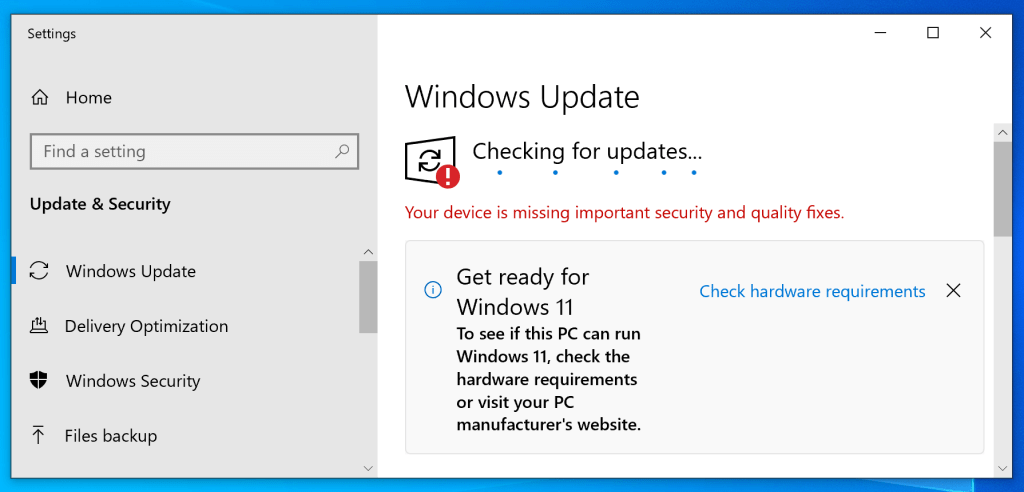
Windows 10 PCs are ramping up the messages about Windows 11 — and security warnings around sticking with Windows 10.
Chris Hoffman, Foundry
Will Microsoft change its mind?
While Microsoft has mostly plowed forward with its plans to ax Windows 10, the situation is a mess. We’ve never seen any version of Windows that was this popular right before it was exiting support. Microsoft doesn’t release information about Windows version usage, but third-party estimates put Windows 10 use at 53% of Windows PCs worldwide and 43% of Windows PCs in the US, specifically.
Microsoft initially said that it would immediately stop issuing security updates for Microsoft 365 subscription apps such as Word, Excel, and PowerPoint on Windows 10 after October 14, 2025. However, the company recently backpedaled: it now says Microsoft 365 apps will be supported with security updates through Oct. 10, 2028.
Additionally, Microsoft’s offer to sell an extra year of security updates to home PC users for $30 is new. It has never done this before. Previously, ESUs have only been for businesses. Microsoft can now shrug and say that people who want to keep using Windows 10 in a secure way have a way to pay for that security — at least for the first year. And they can even get it for free if they’re individual consumers!
I doubt we’ll see Microsoft cancel the big October deadline. In fact, Microsoft watered it down, offering a way to get on the ESU update path for free to consumers. I wouldn’t be shocked to see Microsoft offer a second year of ESUs as an option to home users if Windows 10 use remains high come October 2026, too.
This also helps Microsoft cover itself. Let’s say there’s a huge Windows 10 security problem and Microsoft executives are dragged in front of Congress to answer for it. They can say that they do offer security updates to consumers, but consumers have to sign up for it like any other service. That’s a better answer than, “We sell extended updates to businesses but not to consumers.”
The Windows XP lesson
If there is a huge security problem for Windows 10 PCs down the line, I would expect Microsoft to patch Windows 10, anyway. The company did this for Windows XP several times.
While Windows XP support ended in 2014, Microsoft released patches for Windows XP in 2017 (to patch WannaCry) and even in 2019 to prevent worms from exploiting a vulnerability. That was five years after Windows XP’s official end-of-life marker.
That doesn’t mean Windows XP machines were secure, exactly — but that Microsoft at least had an eye on blocking the worst threats that could take root on Windows XP systems and cause problems for the rest of the internet.
Don’t want to pay? You have options
Microsoft would prefer to nudge you into buying a new PC. That’s what that fee is all about: Microsoft wants people to see the $30 fee and decide it’s time to buy a new Windows 11 laptop after all. Or, at the very least, by signing in with a Microsoft account and syncing your settings, Microsoft wants you to start thinking about how easy a hardware upgrade would be. Microsoft’s marketing is performing a pincer move here: talking not just about the security risks of sticking with Windows 10 but the upgraded performance, battery life, and AI features of getting a new Windows 11 laptop. Microsoft wants businesses to see the steeply increasing fee and make plans to buy new hardware.
But you certainly don’t have to go down that road. If you have a Windows 10 PC you want to keep using, but with truly secure software at its core, you could keep it, ditch Windows and install a Linux distribution on it. You could also install Google’s ChromeOS Flex, a version of ChromeOS Google offers for existing PCs. Both are free.
There are also ways to upgrade some existing Windows 10 PCs to Windows 11, even if Microsoft says the upgrade isn’t “officially supported.” For a home PC, this is one way to keep getting security updates for an old Windows 10 PC — by bumping it up to Windows 11. Some PCs that are just below the hardware cutoff for Windows 11 will work great, while older PCs might not perform as well.
Additionally, you could instead consider 0Patch. That’s a company that creates security software designed to run in the background and use “micropatches” that block known security vulnerabilities from running. The service wouldn’t be free for Windows 10, but it is less expensive than most other options. And, for home users, it looks like it’ll be a way to keep getting a sort of security protection for Windows 10 after that first year.
I’ve spoken to the company, and they seemed eager to keep supporting Windows 10 for as long as it’s a good investment — they’re not eager to move on from Windows 10.
The Windows 10 PCs getting left behind
Let’s consider things from Microsoft’s perspective: Windows 10 was released on July 29, 2015, which means the operating system has had just over a decade of support. That same year, Google released the Nexus 6P with Android 6.0 Marshmallow. Google stopped supporting both the Nexus 6P and that version of Android back in 2018.
Windows 11 was released in October 2021, but most PCs released in 2019 to 2020 could upgrade to it — even many of those released in 2018 to 2019 might be able to do so, too.
The most realistic worst-case scenario here is that if you bought an older Windows 10 PC in 2019 and it can’t upgrade to Windows 11, you still got roughly six years of use from it. Also, if it’s that close to the cutoff, you likely can upgrade it to Windows 11, just through an “unofficial” upgrade method that Microsoft leaves open with a wink and a nudge.
Still, your Windows 10 PC’s long life is no consolation if you’re happy with your hardware and you feel like you’re having your arm twisted into upgrading when you’d rather not.
PCs are becoming so good that, assuming they boot and run well, it’s easy to treat them as an appliance. If you don’t feel like upgrading, why should you? After all, aren’t we supposed to be avoiding unnecessary e-waste? By avoiding the upgrade, you’re arguably helping Microsoft achieve its sustainability goals. Microsoft should thank you!
If your PC is so old that it can’t realistically be upgraded, though, Microsoft is right: Newer PCs are a lot faster, and even a budget-tier Windows 11 PC will deliver a much nicer experience. And between the “unofficial” way to upgrade to Windows 11, switching to desktop Linux, and Google’s ChromeOS Flex software, there are lots of paths forward for Windows 10 hardware that still has useful life left in it.
SAP’s open-source energy management app, Power Monitor, shows how you could manage energy costs for your devices — and your Mac could help you do so.
Designed for business users managing large fleets, the app should also benefit consumers concerned about energy use. It’s a great example of a tool that does one useful thing well, which is track Mac energy use and calculate cost.
Who doesn’t worry about energy costs? They’ve risen steeply since 2020. That concerns people using Macs at home, but price is a major worry for larger enterprises managing hundreds of Macs in a challenging business environment. Managing energy also matters to larger enterprises struggling to adopt ISO 50001 energy management systems, and we know Apple understands energy use.
What is SAP’s Power Monitor?
Available via GitHub, Power Monitor is designed to help enterprise users get a handle on sustainability efforts. If you are someone who continues to cling to the faith that human impact on the environment is minimal, then Power Monitor does do something else useful, too – it calculates your energy costs.
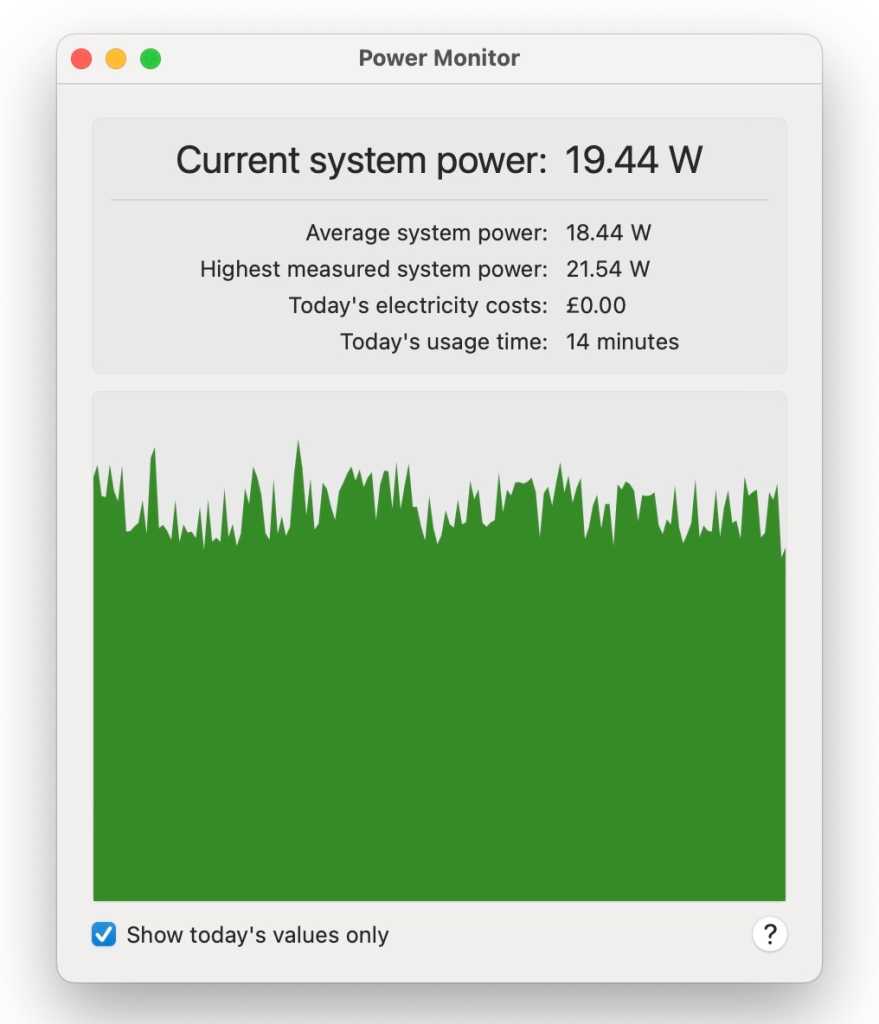
What’s neat about the app is that it provides you with this information in a very Apple-like way. Open it up and at a glance you’ll see your current system power in Watts, along with average power, highest peak power, and energy costs that day. You can also see how much CO2 has been emitted by the energy use of your Mac. You can access this information in the app or via the Menu bar.
The application requires you to enter your energy costs and can let you activate flexible energy tariffs for those with suppliers that charge different rates at different times of day. You gain a good, in-depth overview of the costs and consequences of Mac use.
When it comes to managed fleets, IT can poll this data from across their devices to gain excellent oversights into energy use. If you’re running a business that uses dozens, hundreds, or thousands of Macs, you’ll already know that this information can tangibly help manage costs. It’s the kind of information any graduate of the Apple-supported Clean Energy Procurement Academy needs sometimes.
What alternatives exist?
I’m sure there are other apps that deliver similar insights, but they seem hard to find. Those I did find either track use on a per-app basis (like Activity Monitor), or are tied to specific energy suppliers, which SAP’s app is not. The Home app will track electricity use across compatible HomeKit devices, but doesn’t track the cost of running your Mac or, weirdly, any other Apple device on the network.
I find it strange that, at a time of rapidly accelerating energy costs, finding an off-the-shelf solution to help manage those costs appears challenging. That should change, which is why I think Apple should Sherlock SAP’s Power Monitor app and provide this simple but useful tool within macOS.
Why isn’t this a Mac feature already?
Why isn’t a feature like this already inside Macs?
Perhaps because people haven’t said they need it. Or maybe Apple just doesn’t want to remind people that using their Mac costs money? Potentially, it is because the most popular Macs work on battery power. There may be perfectly good reasons not to include a tool of this kind, but one more major reason Apple should do so is for bragging rights.
You see, we already know Macs deliver more performance per watt than other systems, thanks to the five-year-old move to Apple Silicon. What better way to show how that low energy promise translates into real economic benefit than by making it possible to track accurate performance/energy costs against the estimated costs per hour when using other platforms?
Would you use Power Monitor?
Enterprises attempting to tally their carbon emissions to achieve compliance with national climate targets will eventually demand access to data of that kind. Why not make this information an operating system feature? And why not make this available across all Apple’s products, rather than only Macs? Do you think Apple should integrate a tool like this to help you manage your fleets?