
Keeping personal data private in an online world can feel like a Sisyphean task, but that doesn’t mean you shouldn’t try. While Microsoft has gradually backed off some of the Windows data collection practices that alarmed privacy advocates when they were introduced about a decade ago, some remain to this day in Windows 11.
Whether you think Windows 11 crosses the privacy line or just want to safeguard as much of your personal life as possible, we’re here to help. Here’s how to protect your privacy in just a few minutes.
Note: This story covers Windows 11 version 25H2. If you have an earlier release of Windows 11, some things may be different. If you have Windows 10, see “How to protect your privacy in Windows 10.”
Turn off ad tracking
At the top of many people’s privacy concerns is what data is being gathered about them as they browse the web. That information creates a profile of a person’s interests that is used by a variety of companies to target ads.
Windows 11 does this with the use of an advertising ID. The ID doesn’t just gather information about you when you browse the web, but also when you use Windows 11 apps. Your advertising ID isn’t synced to other computers, and it operates independently of your Microsoft account, if you’re using one.
You can turn that advertising ID off if you want.
- Launch the Windows 11 Settings app (by searching for settings and then clicking the Settings icon, which looks like a gear) and go to Privacy & security > Recommendations & offers.
- On the screen that appears, move the slider to Off for “Advertising ID” near the bottom of the screen.
You’ll still get ads delivered to you, but they’ll be generic ones rather than targeted ones, and your interests won’t be tracked.

You can turn off Windows 11’s advertising ID if you want.
Preston Gralla / Foundry
While you’re here, find “Personalized offers” at the top of the same list. This setting allows Microsoft to present you with “ads and recommendations for Microsoft and third-party products and services, features, apps, and hardware to enhance your Windows experiences” based on your Windows usage and account info. If it’s not off already, move the slider to Off.
To make absolutely sure you’re not tracked online when you use Windows 11, and to turn off any other ways Microsoft will use information about you to target ads:
- In a browser, head to the “Personalized ads & offers” section of Microsoft’s Privacy Dashboard. Sign into your Microsoft account at the top right of the page.
- Then go to the “See ads that interest you” section at the top of the page and move the slider from On to Off.
- While you’re there, move the slider to Off in the “Share my data with third parties for personalized ads” section below it.
Turn off location tracking
Wherever you go, Windows 11 knows you’re there. Some people don’t mind this, because it helps the operating system give you relevant information, such as your local weather. But if you don’t want Windows 11 to track your location, you can tell it to stop.
- Launch the Settings app and go to Privacy & security > Location.
- In the main pane next to Location services, move the slider from On to Off. Doing that turns off all location tracking for every user on the PC.
This doesn’t have to be all-or-nothing affair — you can turn off location tracking on an app-by-app basis. If you want your location to be used only for some apps and not others:
- Make sure location tracking is turned on, then look at the “Let apps access your location” section. You’ll see a list of every Windows 11 app that can use your location.
- Move the slider to On for the apps you want to allow to use your location — for example, Weather — and to Off for the apps you don’t.
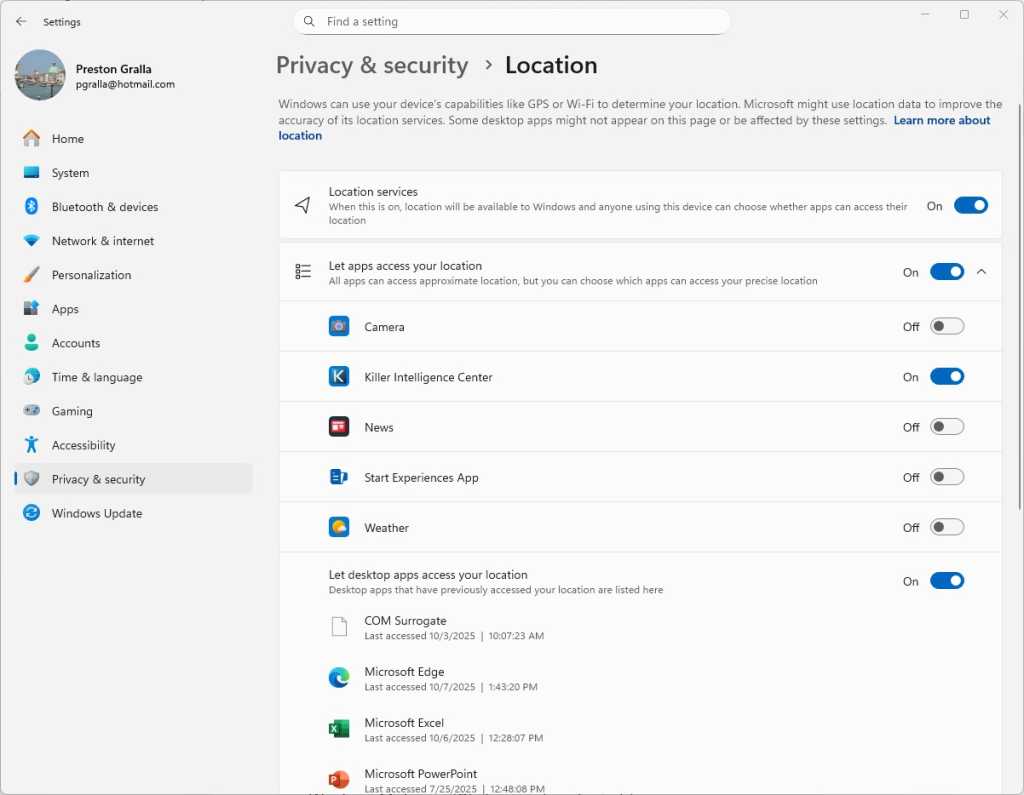
You can turn off location tracking altogether or set permissions on an app-by-app basis.
Preston Gralla / Foundry
That doesn’t cover desktop apps, though. So after you turn on location tracking:
- Go to “Let desktop apps access your location” and turn the slider to On. When you do that, a list of desktop apps that use location tracking appears.
- Move the slider to On for each of the apps you want to use your location and Off for each app you don’t.
Turn off Shared Experiences
Windows 11’s Shared Experiences feature syncs your app activity on all the PCs you’re signed into. In that way, when you move from one device to another, you can immediately start working where you left on another device.
If you don’t like the idea of letting Microsoft gather that data, you can turn it off. Go to Settings > Apps > Advanced app settings, and in the “Share across devices” area, select the Off button.
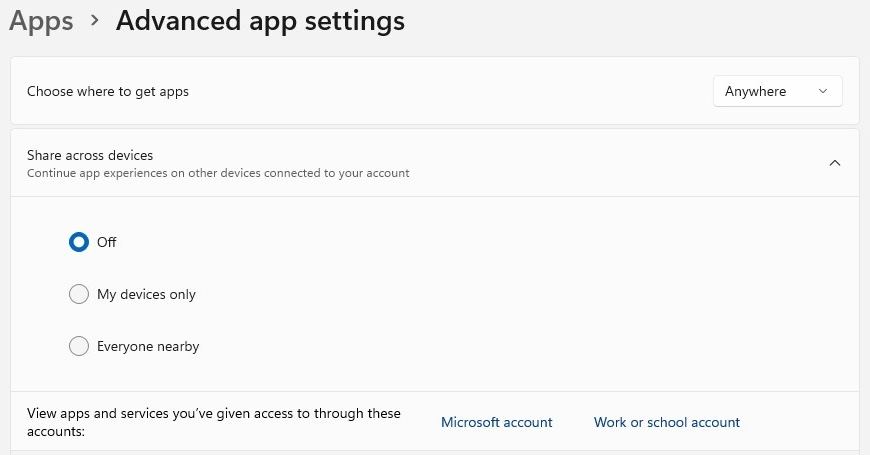
Turning off Windows 11’s Shared Experiences.
Preston Gralla / Foundry
Change your app permissions
Windows apps have the potential to invade your privacy — they can have access to your camera, microphone, location, pictures, and videos.
But you can decide, in a very granular way, what kind of access each app can have:
- Go to Settings > Apps > Installed apps. You’ll see a list of your installed apps.
- Click the three-dot icon to the right of the app whose permissions you want to control, then select Advanced options and set the app’s permissions individually by toggling them on or off. For example, you can turn off location permissions for an app but leave microphone access on.
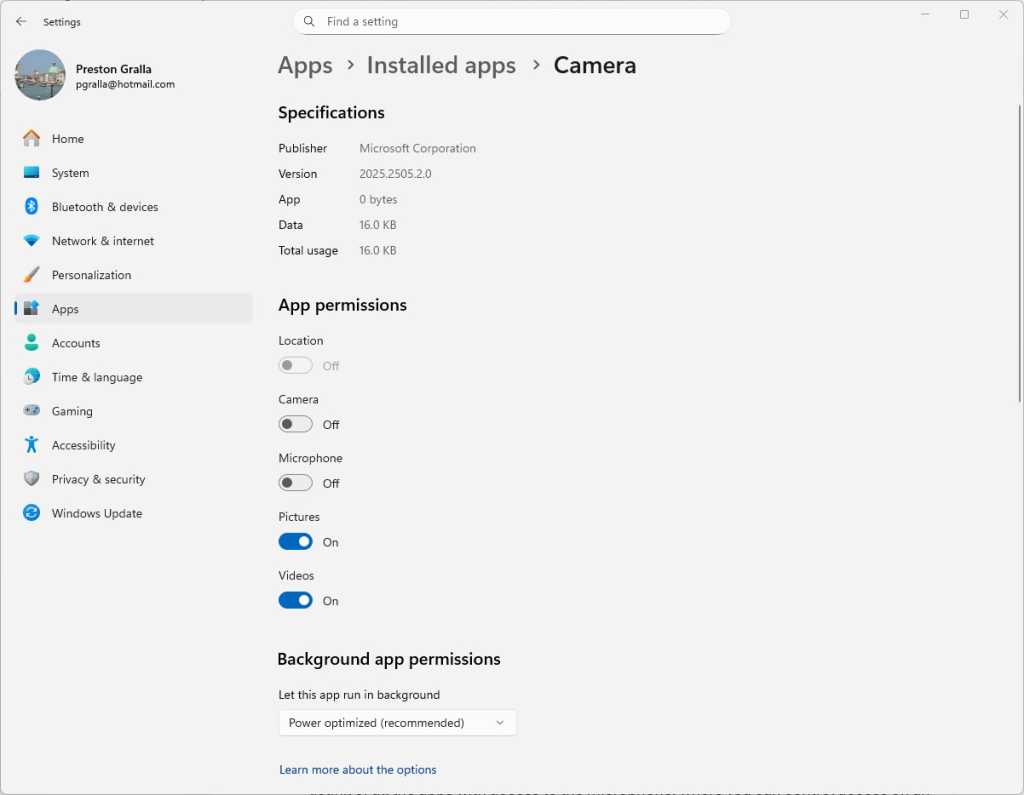
Setting permissions for Microsoft’s Camera app.
Preston Gralla / Foundry
Note, though, that not all apps have an “Advanced options” menu choice. And of those that do, not all let you customize your app permissions.
However, there’s another way to change app permissions:
- Go to Settings > Privacy & Security and scroll down to the “App permissions” section. You’ll see a list of all of Windows’ hardware, capabilities, and features that apps can access if they’re given permission — location, camera, microphone, notifications, account info, contacts, and so on.
- Click any of the listed items — for example, Microphone. At the top of the page that appears, you can turn off access to the microphone for all apps. Below that you’ll see a listing of all the apps with access to the microphone, where you can control access on an app-by-app basis. Any app with access has a slider that is set to On. To stop any app from having access, move the slider to Off.
Control and delete diagnostic data
As you use Windows 11, data is gathered about your hardware and what you do when you use Windows. Microsoft says that it collects this data as a way to continually improve Windows and to offer you customized advice on how to best use Windows.
That makes plenty of people uncomfortable. If you’re one of them, you can to a certain extent control what kind of diagnostic data is gathered about you. To do it, head to Settings > Privacy & security > Diagnostics & feedback. In the “Diagnostic data” section, you can customize the diagnostic data to be gathered. Note that there’s no way to stop Microsoft from gathering diagnostic data entirely.
When you use Windows 11, information is sent to Microsoft about your device, its settings and capabilities, and whether it is performing properly. That’s the information referred to near the top of the screen in the section “You’re sending required diagnostic data.” There’s nothing you can do about that.
Just below that is another setting, “Send optional diagnostic data.” If that’s turned on, you’re sending the whole nine yards to Microsoft: info about the websites you browse and how you use apps and features, plus additional info about device health, device usage, and enhanced error reporting. If you’re worried about your privacy, turn this slider to Off.
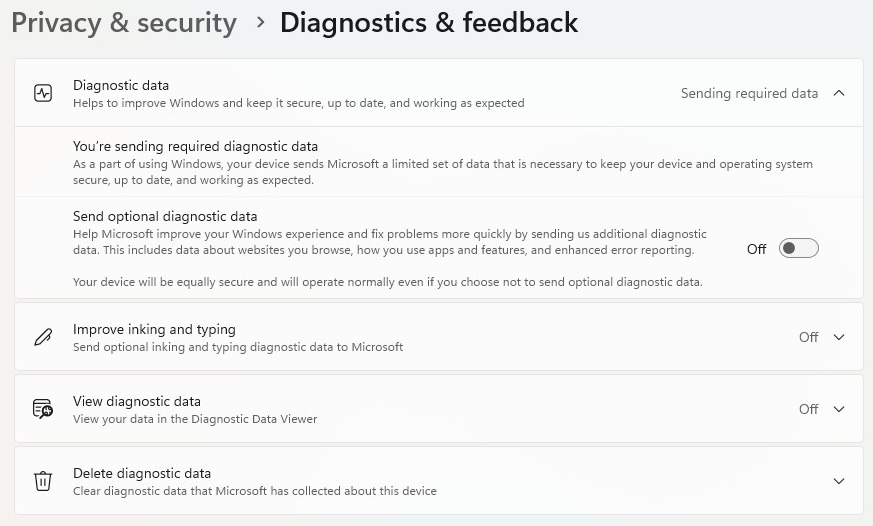
Go here to control what diagnostic data Windows 11 gathers.
Preston Gralla / Foundry
(Note that if you’re a Windows Insider and get preview builds, you are required to send this data. If you turn it off, you won’t be able to participate in the Insider program.)
Now scroll a bit further down and in the “Delete diagnostic data” section, click the down arrow and then Delete. That will delete all the diagnostic data Microsoft has gathered about you. However, after you delete it, Microsoft will start gathering the data again.
Finally on this screen, consider scrolling up to the “Improve inking and typing” section, clicking the down arrow, and moving the slider to Off. That will stop Windows 11 from sending to Microsoft the words you input using the keyboard and inking.
One final note about diagnostic data: You may have heard about a tool Microsoft has been hyping, called the Diagnostic Data Viewer, which you can download from the Microsoft Store. Microsoft claims it lets you see exactly what kind of diagnostic data Microsoft gathers about you. Don’t believe it. It’s something only a programmer could love — or understand.
You won’t be able to use it to clearly see the diagnostic data Microsoft collects. Instead, you’ll scroll or search through incomprehensible headings such as “TelClientSynthetic.PdcNetworkActivation_4” and “Microsoft.Windows.App.Browser.IEFrameProcessAttached” with no explanation of what it means. Click any heading, and you’ll find even more incomprehensible data.
Use Microsoft’s Privacy Dashboard
Microsoft has built an excellent, little-known web tool called the Privacy Dashboard that lets you track and delete a lot of information Microsoft gathers about you. As covered earlier in this story, here you can turn off ad targeting. You can also view and delete your browsing history, search history, location activity, voice activity, media activity, and more.
(Note that for your browsing and search history, it only tracks your activity when you use Microsoft Edge. It doesn’t track data when you use other browsers, like Chrome or Firefox. And it only tracks your location history when you’re using a Windows device.)
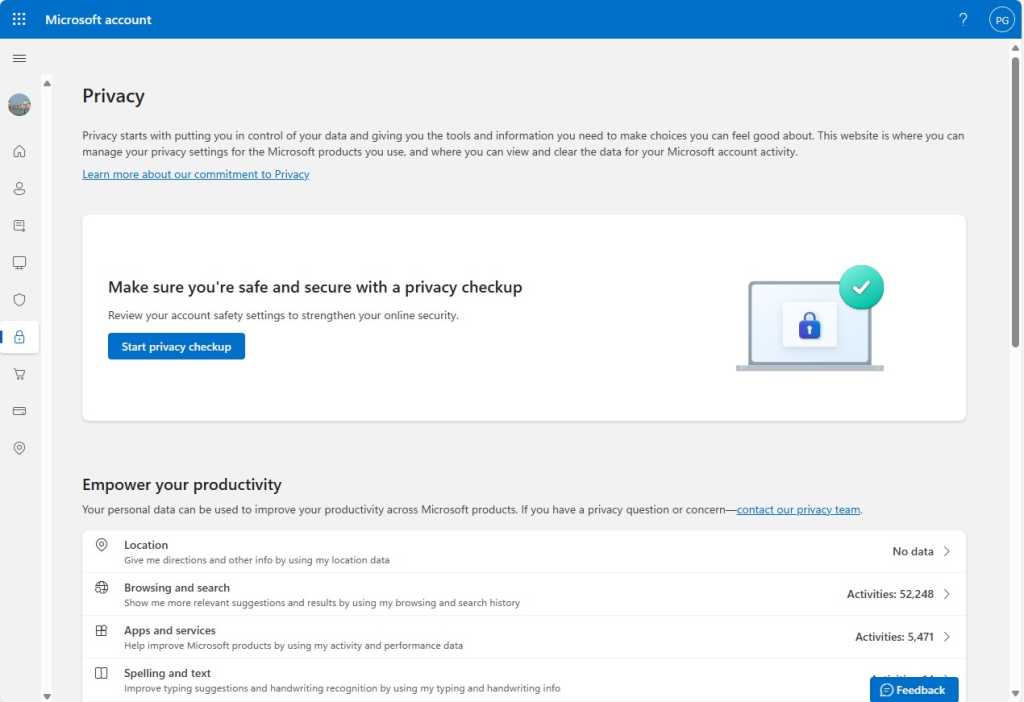
Microsoft’s Privacy Dashboard is a great place to delete much of the information Microsoft gathers about you.
Preston Gralla / Foundry
To use it, head to the information you want to view and clear, then click the appropriate link — for example, Browsing and search. You’ll see a list of recent activities. You can delete items individually by clicking the trash can icon next to each one or, to delete them all, click the Clear all activities link at the lower right of the list, then click Clear on the screen that appears. Note that in some instances, you won’t have full control over deleting and managing data.
In the dashboard you can also customize privacy settings for other Microsoft products, including Xbox, Microsoft 365, Edge, and Microsoft Teams. Scroll down to the “Find privacy settings in Microsoft products” section and click the product you’re interested in.
Get granular in the Settings app
All this shouldn’t take that long and will do a great deal to protect your privacy. If you want to dig even deeper into privacy protections, launch the Settings app and click Privacy & security > Recommendations & offers.
Above the switch to turn off your advertising ID are more privacy settings you can disable:
- Allow websites to access my language list. The list of languages you have enabled on your machine is your own business.
- Improve Start and search results. This is used to build the “Most used” list on the Start menu and influences search result order — likely not a must-have for the privacy minded.
- Recommendations and offers in Settings. This is used, in Microsoft’s words, to “suggest new content and apps you might find interesting.” Trust me, it’s unlikely you’ll find them interesting.
And there’s a lot more beyond the “Recommendations & offers” pane. On the main “Privacy & security” screen you’ll see additional areas where you can get even more granular about privacy — for example, in the Search section you can do such things as tell Windows not to store your search history. And here’s where you’ll get access to all app permissions, as outlined earlier in this article.

The “Privacy & security” page in the Settings app offers myriad options for tweaking your privacy settings.
Preston Gralla / Foundry
Ditch a Microsoft account for a local account
When you use your Microsoft account to log into Windows 11, you’re able to sync your settings with all Windows devices. So, for example, when you make changes to your settings on a desktop PC, those changes will also be made on your laptop the next time you log in.
But maybe you don’t want Microsoft to store that information about you. And maybe you want to cut your ties as much as possible to anything Microsoft stores about you. If that’s the case, your best bet is to stop using your Microsoft account and instead use a local account.
Microsoft doesn’t want you to do this, so they’ve made it more difficult in Windows 11 than it was in Windows 10. But you can still do it, in this way:
- Press the Windows key + R to open the Run dialog box.
- Type netplwiz and press enter.
- Click the Add button on the screen that appears.
- On the screen that appears, type in your email address and click Sign in without a Microsoft account (not recommended) way down at the bottom of the screen. Click Next.
- On the next screen, you’ll see your email address. Click Finish.
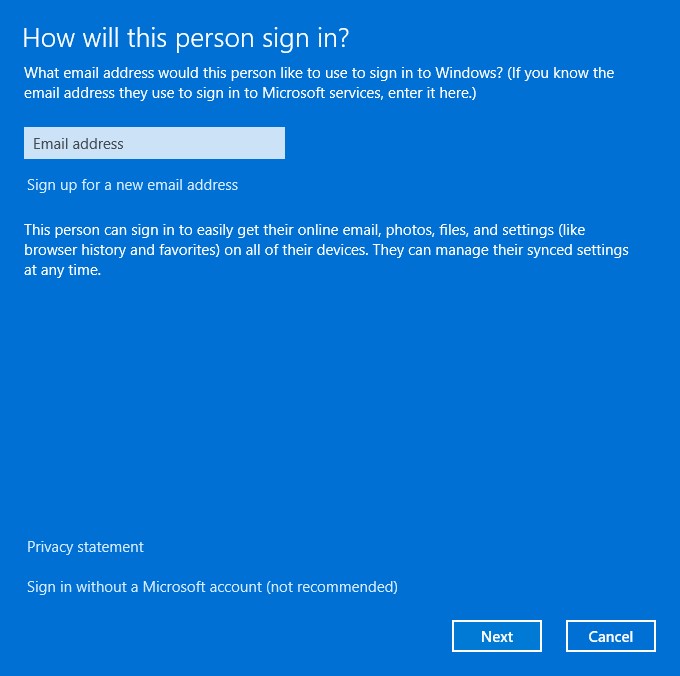
Setting up a local account on Windows 11.
Preston Gralla / Foundry
Keep in mind that when you do this, you won’t be able to use Microsoft’s OneDrive storage or download and install for-pay apps from the Microsoft Store. You can, however, download and install free apps from the Microsoft Store.
Sign out of Copilot
Microsoft’s generative AI chatbot can be a privacy-invader because it collects so much information about you as you use it, especially when you’ve signed into it with your Microsoft account. If you want to increase your privacy, you can sign out. Keep in mind, though, that when you do sign out, there’s a lot you give up, including the ability to share your conversations with it across your devices, the ability to generate and edit images, and more.
If you want to sign off:
- Click your profile icon in the lower-left corner of the Copilot screen and click Sign out.
- To sign back in, click the icon again and click Sign in.
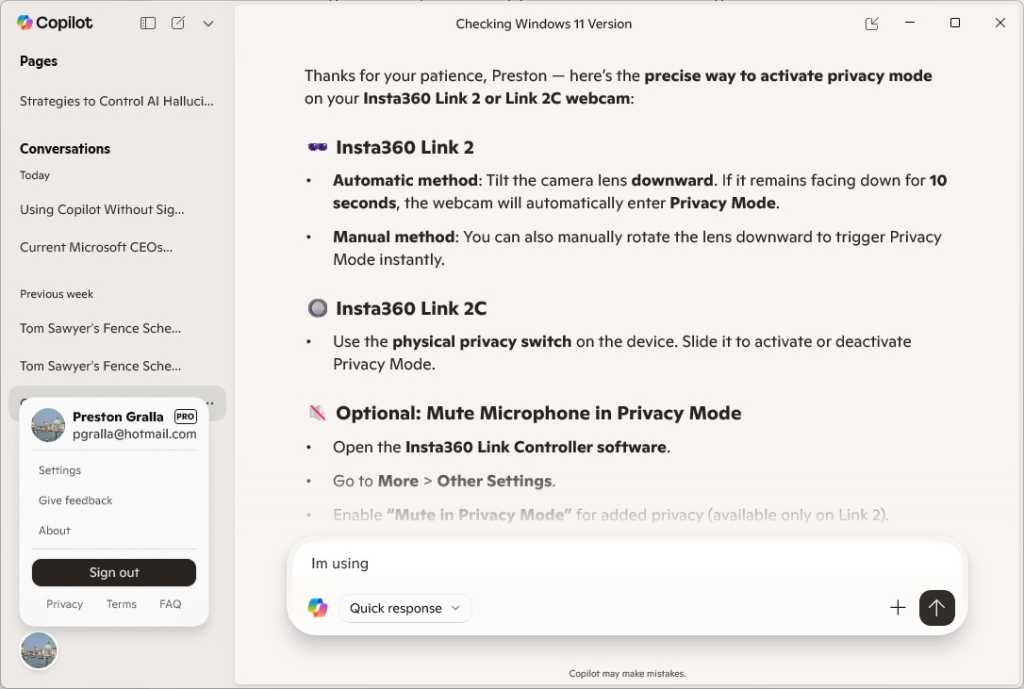
Sign out of Copilot to increase your privacy.
Preston Gralla / Foundry
Note that if your profile icon doesn’t appear, you’re probably using Copilot in a mode that doesn’t include its left pane. To display the pane, look at the upper left of the Copilot screen, then click the icon just to the right of the Copilot icon — it’s a small box with a right-facing arrow in it. That will display the left pane, where you can sign out of or into your Microsoft account at the bottom left.
Turn off Windows Recall on Copilot+ PCs
If you have a Copilot+ PC and you’re worried about privacy, make sure its Recall feature is turned off. This feature takes a screenshot of your screen every few seconds, performs optical character recognition on it, and saves it on your computer in a searchable database.
This makes it easy to find what you’ve been doing some time in the past, but could also be a privacy nightmare. Microsoft says Recall’s snapshots are encrypted, and there are filters to remove sensitive data such as banking information from snapshots. In tests, however, those protections have fallen short or been easily circumvented.
Recall is turned off by default, but it’s worth checking to make sure you didn’t opt in to it during the initial Windows 11 setup process. To turn off Recall and delete all the screenshots it’s taken:
- Go to Settings > Privacy & security > Recall & snapshots and move the toggle for “Save snapshots” to Off.
- Then click Delete to delete all your existing snapshots.
To uninstall Recall from your system completely:
- Type turn windows features on or off in Windows search. You’ll see a list of optional Windows features.
- If the Recall box is checked, uncheck it. Recall will be uninstalled, its stored snapshots will be deleted, and your PC will reboot.
Tips for the truly paranoid
If you want to take privacy even further, there are a few more things you can do.
Stop using OneDrive
If you don’t like the idea of syncing your data to Microsoft’s OneDrive cloud storage service, you can stop using it. (There’s no way to uninstall it.)
- Right-click the OneDrive icon on the notification tray at the bottom right of the Windows desktop and select Settings from the menu that pops open.
- In the OneDrive Settings window, go to the Account tab, then click the Unlink this PC link.
- Next, go to Settings > Apps > Startup, scroll to the Microsoft OneDrive setting and move the slider to Off.

Turn off the OneDrive toggle to prevent it from launching at startup.
Preston Gralla / Foundry
Don’t sync Windows settings across devices
In addition, you can say no to syncing your Windows settings among different devices. When you sync your settings, the way you’ve customized and set up Windows 11 will be synced to Microsoft’s servers. If you want to turn it off, go to Settings > Accounts > Windows backup and turn the slider from On to Off next to “Remember my preferences.”
Don’t share Windows updates
Finally, you can change the way Windows updates. In Settings > Windows Updates > Advanced options > Delivery optimization, move the slider from On to Off next to “Allow downloads from other devices.” When turned on, this function lets your Windows 11 system share its update files with other Windows devices on the internet and your own network through peer-to-peer distribution.
These steps can take you a long way towards making sure that Windows 11 doesn’t cross the line into gathering data you’d prefer remain private.
This article was originally published in February 2023 and most recently updated in November 2025.