As Europe seeks to assert its technological independence from the US vendors Aleph Alpha, once seen as Germany’s sovereign AI hope, is the target of a transatlantic takeover.
Aleph Alpha is set to merge with Canada’s Cohere in a deal that will bring together Cohere’s global AI clout and Aleph Alpha’s background in research. The two companies hope they will be able to develop an AI powerhouse, with backing from their Canadian and German ecosystems
“Organizations globally are demanding uncompromising control over their AI stack. This transatlantic partnership unlocks the massive scale, robust infrastructure, and world-class R&D talent required to meet that demand,” said ” said Cohere CEO Aidan Gomez in a news release that artfully presents the deal as a merger of equals but that, according to a footnote, only requires the approval of the German company’s shareholders, a sure sign of a one-sided takeover.
The combined companies will be looking to offer customized AI in highly-regulated sectors including finance, defense and healthcare. By pooling their talents and offerings, theu hope to offer AI solutions to organizations according to local laws, cultural contexts, and institutional requirements.
The move comes at a time when businesses across the word are looking at non-US options as a reaction to the Trump administration’s policy on tariffs and the uncertainty caused by the war with Iran.
There have been several initiatives within Europe to counteract the US dominance. The EU’s Eurostack plan looked to make sure that major projects had a European option. Aleph Alpha was one of the companies highlighted within the scheme. The EU also launched Open Euro LLM, an attempt to slow down the US and China’s lead in AI.
Microsoft has beefed up Copilot’s capabilities in Word, Excel and PowerPoint, claiming its Agent Mode will help speed up workers’ output.
The new features, announced last year, mean that Copilot can work more efficiently with Office applications, for example, understanding the richness of a pivot table in Excel or the use of animations in PowerPoint.
In tests with customers and researchers, Microsoft has learned a few things about how to improve the way Copilot is deployed, and laid out some of them in a post to a company blog. Now, it said, Copilot takes action rather than just suggesting steps — although ensuring that users maintain control. Other improvements include the ability to work with different models and better integration of Work IQ to deliver higher quality output.
Further developments are in the pipeline, Microsoft said, including improved editing for complex workflows such as finance spreadsheets and legal documents, more visibility on changes, and a more seamless integration of Copilot into the software, so that the experience for users is the same for Word, Excel, and PowerPoint.
The updates are available now and are the default experience for customers with Microsoft 365 Copilot and Microsoft 365 Premium subscriptions, the company said.
The US Cybersecurity and Infrastructure Security Agency (CISA) does not yet have access to Anthropic’s bug-hunting AI model, Claude Mythos, even though other government agencies do, Axios reported earlier this week.
As if that weren’t a big enough slap in the face for the national cyber-defense agency, the list of those who do have access to Mythos includes several unauthorized users, according to Bloomberg News. Members of a private Discord channel specializing in seeking information about unreleased AI models, have gained access to Mythos, according to one unnamed member of the group, Bloomberg reported. “The group has been using Mythos regularly since then, though not for cybersecurity purposes,” the person told Bloomberg, supplying screenshots to back up their claim.
As a result of its fear that the powerful model could be used to identify and exploit flaws in software and online services, Anthropic has limited access to a preview of Mythos to an exclusive group of government agencies, industry groups, and software providers through an initiative it calls Project Glasswing.
Even if CISA is shut out, some government agencies do have access to Mythos, including the US Department of Commerce’s Center for AI Standards and Innovation and the US National Security Agency, which Axios said are already assessing Mythos.
Tencent has updated its Hunyuan AI model, its first major release since it recruited Yao Shunyu, a leading AI scientist from OpenAI. Tencent’s Hy3 model, currently available in preview, offers improvements in areas from complex reasoning to coding.
The Chinese technology conglomerate is playing catch-up with other Chinese AI developers including ByteDance, Alibaba and DeepSeek. China is betting big on open-source AI to offer alternatives to major US players. Back in 2023, Tencent claimed its then-new Hunyuan LLM was a more powerful and intelligent option than the versions of ChatGPT and Llama available at the time.
Tencent has backed AI start-ups including Moonshot AI and StepFun, hoping that they will boost its cloud computing division. The company has also restructured its research team to improve the quality of training data. It aims to double its investment in AI to more than $5 billion this year.
Not to be outdone, DeepSeek announced its V4 Flash and V4 Pro Series, the newest versions of its LLM model. DeepSeek became an overnight hit in January 2025 with the launch of its R1 AI model and has gone on to develop other models since. It said the V4 model upgrades will offer users advances in reasoning and agentic tasks, while a new feature called Hybrid Attention Architecture improves the ability of the AI platform to remember queries across long conversations.
Adobe is rolling out autonomous agents to orchestrate work across its applications, a move that will reinforce its position at the core of content and marketing workflows as AI disrupts the software landscape, analysts say.
“We’re living at true inflection point; a moment where creativity and marketing are being reshaped by AI, unlocking incredible new opportunities and raising the bar for speed, personalization, as well as scale,” said Shantanu Narayen, Adobe CEO, during his keynote presentation at Adobe Summit on Monday.
Liz Miller, vice president and principal analyst at Constellation Research, described the various agent-focused product updates at Adobe’s Summit conference this week as “an evolution of vision that brings the right AI capability into the right application.”
“The goal … is to continue evolving where and how AI is incorporated into the work of engagement,” she said.
Adobe’s recent launches indicate a “clear shift” to prioritize agentic AI investment, said Maria Bell, senior analyst at CCS Insight.
“Rather than focusing on standalone AI features, the emphasis is on building systems that can coordinate and execute work across workflows and functions,” said Bell. “Capabilities such as CX Enterprise, workflow agents and Firefly integrations point to an ambition to move from AI that supports decisions to systems that can act on them.”
Adobe kicked off its agent-related announcements ahead of the customer experience conference, unveiling its Firefly AI Assistant last week.
Using natural language prompts, the agent can autonomously carry out multi-step workflows across Adobe Creative Cloud apps such as Photoshop, Premiere, Express, and others. Aimed at both novice and expert users, Firefly AI Assistant can also guide users through tasks spanning image, video, audio, and design. A public beta is “coming soon,” according to Adobe.
The launch of Firefly AI Assistant signals Adobe’s intent to “lead in agentic AI for creative professionals, [by] directly addressing workflow friction, usability, and the demand for multi-model flexibility,” said Keith Kirkpatrick, research director at Futurum, in a blog post last week.
“Adobe’s Firefly Assistant is a signal that agentic AI is moving from experimental pilots to production-grade tools capable of handling real creative complexity,” he said, with enterprise buyers “no longer content with simple copilots or one-off automation.”
“The ability to automate multi-step tasks and orchestrate between image and video modalities is quickly becoming table stakes for creative AI platforms,” he said.
Adobe’s main announcement during the Summit event this week was CX Enterprise Coworker; an AI agent that coordinates multi-step workflows and tasks across Adobe’s customer experience applications.
“Adobe is moving to occupy the role of an automated operating system for marketing,” said Jim Lundy, CEO of Aragon Research, in a blog post on Wednesday. “While previous AI tools acted as individual assistants for specific tasks, the CX Enterprise Coworker acts as a supervisor that connects disparate silos of information.”
Lundy said that CX Enterprise Coworker represents a “significant evolution” in the way enterprises will manage the customer lifecycle, replacing manual hand-offs with automated orchestration across customer engagement apps.
“By anchoring this tool in its robust experience platform, Adobe is making a strong case for being the primary intelligence layer in the modern marketing stack,” said Lundy.
There were also updates to GenStudio with Brand Intelligence, a data layer that connects information across Adobe tools to provide context for agents to act upon, alongside a new agent capability in Adobe’s Workfront work management app.
While agents present an opportunity for Adobe, it also faces potential disruption from both design software vendors that build AI into their products and general-purpose AI assistants.
This risk has raised concerns in financial markets, and Adobe announced a $25 billion share buyback scheme this week — a move that can be seen as an attempt to shore up investor confidence amid a period of significant change, both across the industry as AI reshapes the software landscape, and within Adobe itself, with CEO Shantanu Narayen set to step down after 18 years in charge.
Ahead of the event, popular online design platform Canva unveiled its own agentic capabilities, with users able to access various Canva tools via a conversational interface that can complete multi-step processes, such as creating “a multi-channel campaign launch.”
“Canva is focused on accessibility, using AI to simplify and automate design for a broader audience,” said CCS Insight’s Bell. “This lowers barriers to entry and puts pressure on Adobe in lighter-weight and non-professional use cases.”
And, last week, Anthropic announced Claude Design, which lets users create design prototypes and marketing assets such as “landing pages, social media assets, and campaign visuals.”
In addition, Anthropic and Canva announced an integration that brings Claude Design outputs into Canva’s app.
Miller from Constellation Research said that tools such as Claude Design are “powerful additions” to the design ecosystem, enabling non-designers to quickly prototype and test ideas using text prompts. At the same time, these should be seen as more of a starting point. Professional-level design and editing tools are still required to create enterprise-ready prototypes.
“A creator may start in OpenAI, use that output in Claude to further build out the concept, but end in Firefly to ensure enterprise safety and brand controls in a more refined, finely tuned toolset,” Miller said.
Adobe is also working with a range of AI providers to make its software available where customers prefer. This includes the ability to interact with Adobe’s Firefly creative assistant directly from Claude, for instance.
“Our strategy is to meet where the users are,” said Varun Parmar, general manager of Adobe GenStudio and Firefly for Enterprise. A user might invoke an Adobe creative agent via Claude in the morning, he said, “and then later in the afternoon decide to do deeper precision and control work that requires a professional sort of interface, which is where Adobe’s product is world class.”
“We believe that these things will coexist; depending on the use case, you’ll go in and out [of different apps],” said Parmar.
As AI model providers expand into workplace software tools, it makes most sense for Adobe to focus on its core strength of serving creative and marketing professionals, Miller said.
“The risk to Adobe is more of an ongoing challenge to stay focused on customer demand and need, and not veer off course in a never-ending horse race with models proving what can be done, as opposed to commercially safe models that deliver what must be done,” she said.
And despite some media negativity around Adobe’s ability to transition into a new era of agentic AI, Miller said, Adobe’s strategy of embedding data, assets, and workflows into the tools marketers and creatives use remains sound.
Bell sees agentic systems as a “longer-term structural shift, while the more immediate pressure comes from accessibility-focused platforms like Canva.”
Yet Adobe’s access to data and expertise serving large customers provide it with an edge. “Adobe remains strong in professional and enterprise environments, where depth, control and integration still matter,” Bell said.
Microsoft will offer voluntary retirement buyouts to about 7% of its US workforce, or roughly 8,750 employees, in the first such program in the company’s 51-year history, as the technology industry restructures under the cost pressure of AI investment.
The program, available to US-based employees at the senior director level and below, comes as large technology companies, including Microsoft, increase capital spending on AI infrastructure such as data centers and compute capacity while reviewing workforce structures to align with those investments. The initiative marks the first time Microsoft has implemented a voluntary exit scheme of this kind, CNBC reported, citing an internal memo.
Microsoft employed 228,000 people worldwide as of June 30, 2025, including 125,000 in the US, according to its latest annual filing with the US Securities and Exchange Commission, putting the eligible pool at about 8,750 people.
“Our hope is that this program gives those eligible the choice to take that next step on their own terms, with generous company support,” Amy Coleman, Microsoft’s executive vice president and chief people officer, wrote in the memo.
The program offers financial incentives for eligible employees to leave voluntarily, providing an alternative to layoffs. Microsoft has not said whether roles vacated through the program will be backfilled, the report added, leaving open how responsibilities may be redistributed.
Microsoft did not immediately respond to a request for comment.
A controlled workforce reset
The retirement offer follows two earlier rounds of cuts at the company. Microsoft laid off about 6,000 employees in May 2025 and a further 9,000 in July, both rounds framed around efficiency and AI-driven productivity.
“Microsoft’s move towards voluntary buyouts is best understood not as a softer alternative to layoffs, but as a more controlled instrument of structural change,” said Sanchit Vir Gogia, chief analyst and CEO at Greyhound Research. “This is not about compassion. It is about precision. Large technology firms are entering a phase where workforce design is being actively recalibrated to align with a very different economic model — one defined by sustained, capital-intensive investment in artificial intelligence infrastructure.”
Capital-intensive AI investments
The buyout program comes as Microsoft increases spending on artificial intelligence infrastructure and services. The company said earlier this year it expects to spend about $80 billion in fiscal 2025 on capital expenditures, primarily to build AI-enabled data centers and support cloud-based AI workloads.
The scale of this investment has implications for operating costs and workforce allocation, as companies balance capital-intensive infrastructure spending with headcount and other expenses, analysts say.
“Enterprises are reallocating from labour-heavy coordination models towards compute-heavy execution models,” Gogia pointed out, referring to investments in data centers, AI accelerators, and platform infrastructure.
Microsoft has not directly linked the buyout program to specific AI initiatives, but the timing aligns with a broader shift in how resources are being deployed across the business.
Knowledge loss and execution risks
Gogia said the quieter risk for enterprises is what walks out of the building with the employees who accept the offer.
“The most significant and least understood risk in AI-driven workforce transitions is not job displacement. It is the erosion of institutional knowledge,” he said. “This knowledge is rarely documented in a way that can be easily transferred or automated. It resides in experience, in exception handling, in the unwritten rules that govern how processes actually work under real-world conditions. When experienced employees exit through voluntary programmes, they take with them not just skills, but context.”
He added that this can affect execution, especially as organizations adopt new AI systems at the same time. “Teams are expected to adopt new technologies while compensating for knowledge gaps, which can slow execution and increase reliance on oversight,” he said
Broader tech layoffs
The Microsoft announcement landed on the same day Meta told employees it would eliminate about 8,000 jobs, roughly 10% of its global workforce, and leave another 6,000 open roles unfilled. The Meta cuts take effect May 20 and come as the company prepares to roughly double its 2025 capital spending on AI infrastructure.
Three weeks earlier, Oracle announced up to 30,000 job cuts, roughly 18% of its 162,000-person global workforce, through termination emails on March 31. The company disclosed a $2.1 billion restructuring charge in its SEC filings. Investment bank TD Cowen had warned in January that the reductions would free up $8 billion to $10 billion in cash flow to fund Oracle’s AI data center expansion.
Google Keep lets you create notes and to-do lists that sync across your computer and phone or tablet. It’s handy in a variety of ways: You can record voice memos, and Keep will transcribe them as text notes. You can include images in your notes, and if an image includes text, it shows up in search results. You can create time-triggered reminder notifications based on your notes. You can share your notes with other people and collaborate on them.
Keep is free for individual users and included with a subscription to Google Workspace. You use it through a web browser on your computer, and it’s also available as an app for your Android or iOS device. You’ll get the most mileage from Keep if you use both the desktop browser version and the mobile app in your daily workflow, so that you can take notes and access them wherever you are. Your Keep notes will sync to the cloud through Google Drive.
This guide walks you through how to quickly start using Keep. We’re focusing on the web version here, but most of the same features are also in the Keep mobile app, just laid out differently.
Start by going to keep.google.com. If you’re not already signed in with your Google account (for Gmail or Google Workspace), you’ll be prompted to do so.
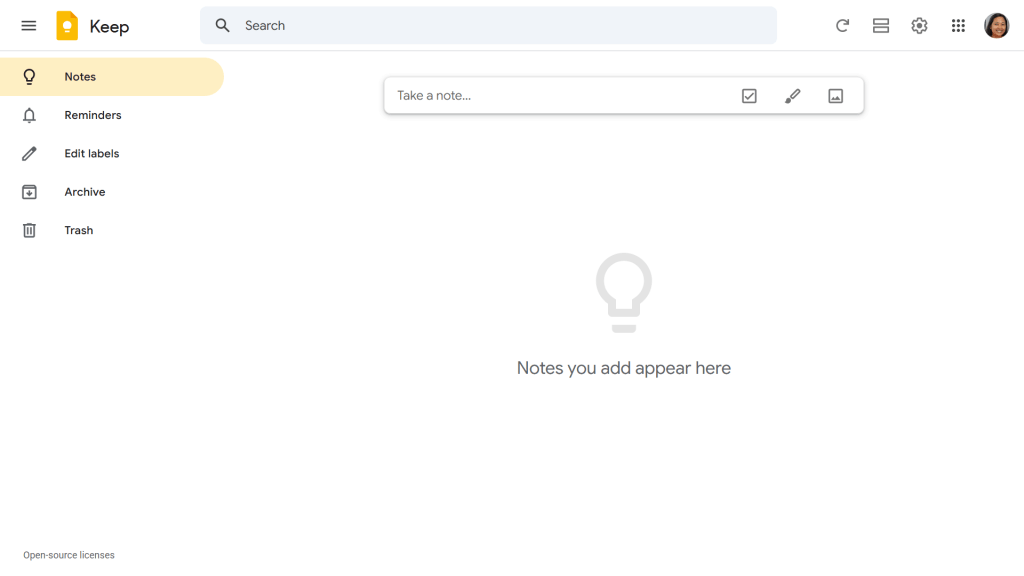
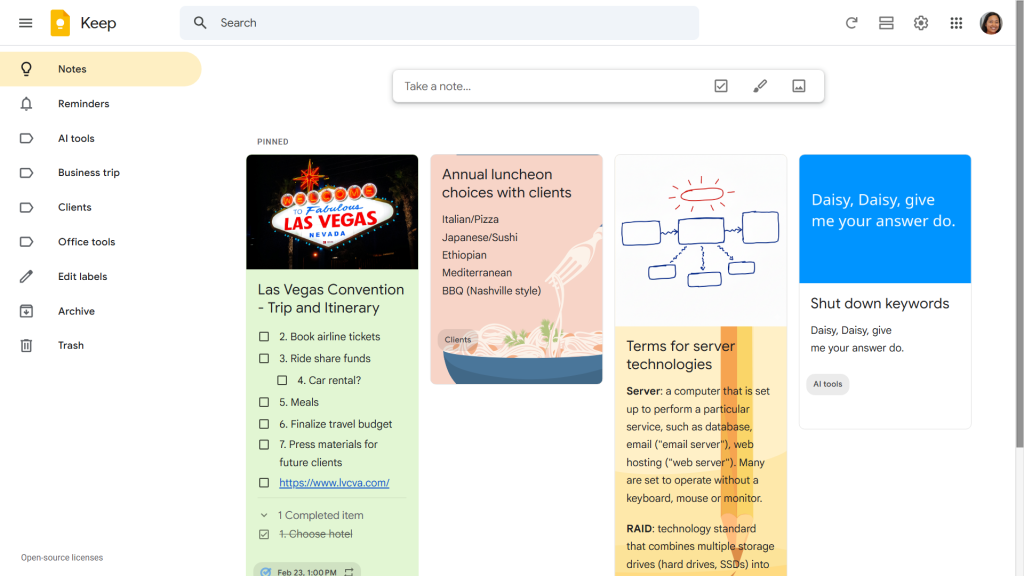
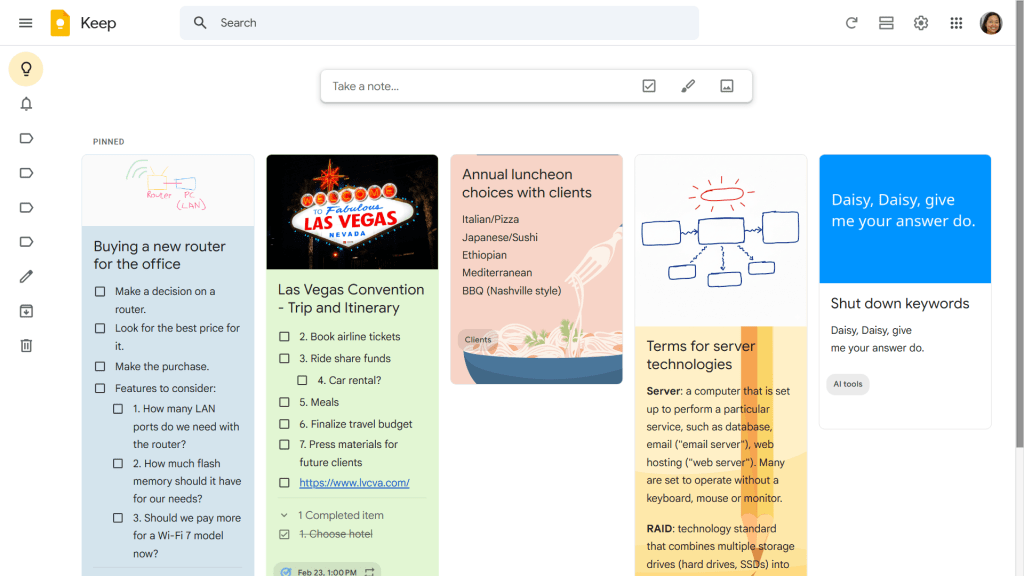
Keep’s home page comprises a main board in the center and a sidebar along the left. The first time you use Keep, this main board will be empty; once you start adding notes, they’ll appear here. The white bar in the center of the main board (with “Take a note…” inside it) is what you use to create notes.
Your first view of the Google Keep home page.
Howard Wen / Foundry
Create a new note
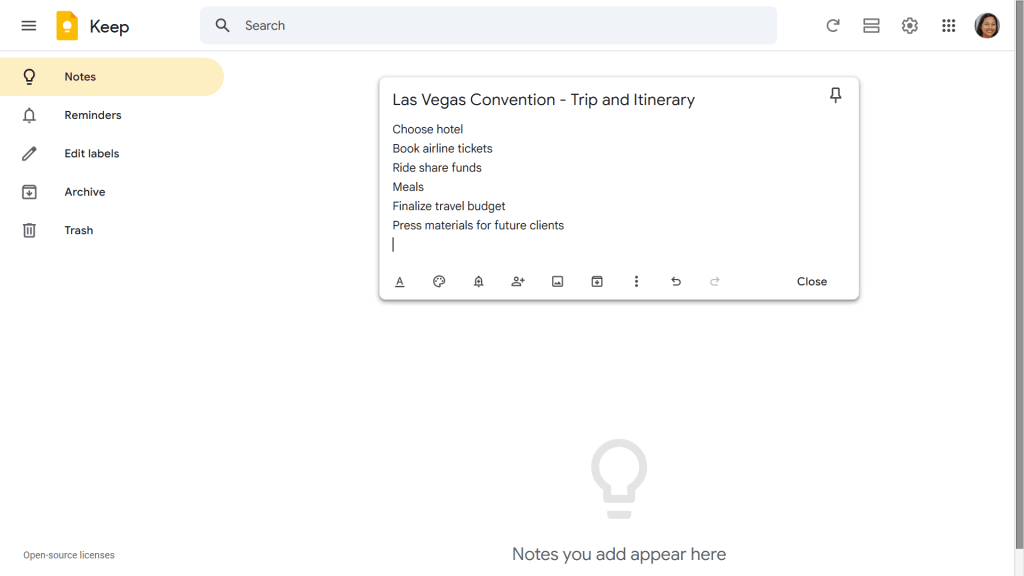
Start typing inside the “Take a note” text box. As you type, the white bar expands down and becomes a new note. You can type in whatever text you want or paste in text that you’ve copied from another source.
Along the top of the note, you can type in a title for the note. To the right of this title line is a pushpin icon. Clicking it prioritizes the note by pinning it toward the top of the main board. (You’ll find more details about how pinned notes work later in this guide.)
Click the pushpin icon to pin the note near the top of your notes board.
Howard Wen / Foundry
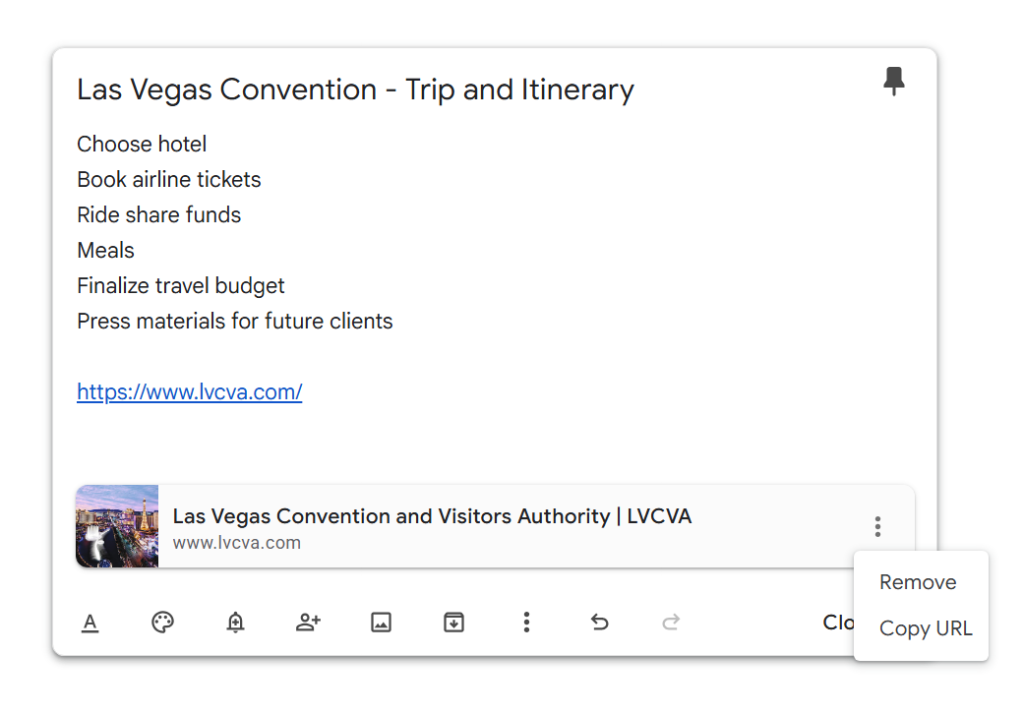
If you paste in a web link, a preview of the linked page appears along the bottom of the note as a thumbnail with sample text from the page. Clicking the preview opens the link in a new browser tab. To remove the preview, click the three-dot icon that appears at its right and select Remove.
Link previews appear on notes by default but can be removed.
Howard Wen / Foundry
For each additional link you add, a preview for it is added to the bottom of the note, below the preview for the previously added link. This link preview feature may not work for every link you paste into your note, though. (It can also be turned off under Keep’s settings, described later in this guide.)
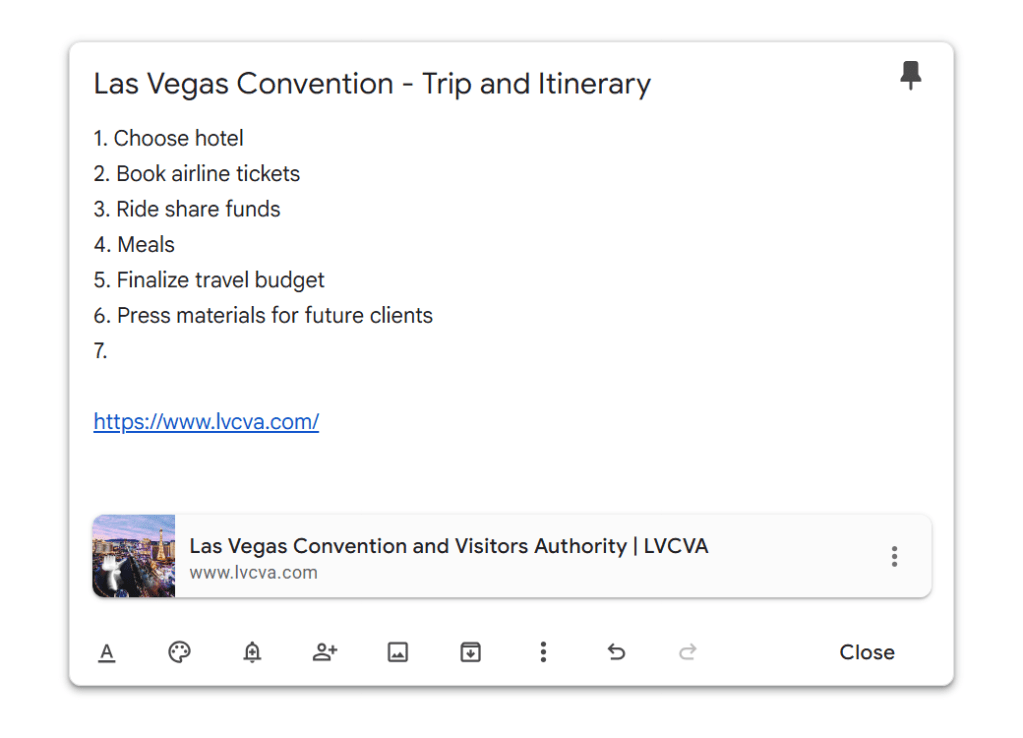
If you want to create a list of numbered items in your note, start a line by typing 1. Then type your text and press the Enter key; the next line automatically begins with “2.” You can delete this subsequent number by pressing the Backspace key. Similarly, typing an asterisk (*), typing text, and hitting Enter creates a bulleted list.
If you start a numbered list, Keep automatically numbers subsequent lines.
Howard Wen / Foundry
5 more ways to create Keep notes
Here are other ways to create a new note in Keep:
Start a to-do list by clicking the checkbox icon on the right side of the “Take a note” bar. Then follow the steps in “Turn a note into a to-do list” below.
Draw a doodle to put into the note by clicking the paintbrush icon on the right side of the “Take a note” bar. Then follow the steps in “Add a drawing” below. Note that this tool is available only when you use Keep in Chrome, Microsoft Edge, or another browser that’s based on Chromium, as well as the mobile app. It does not appear in Firefox.
Upload an image to put in the new note by clicking the picture icon at the end of the “Take a note” bar. Then follow the steps in “Add or remove images” below. If you’re using the mobile app, you can take a photo with your phone or tablet.
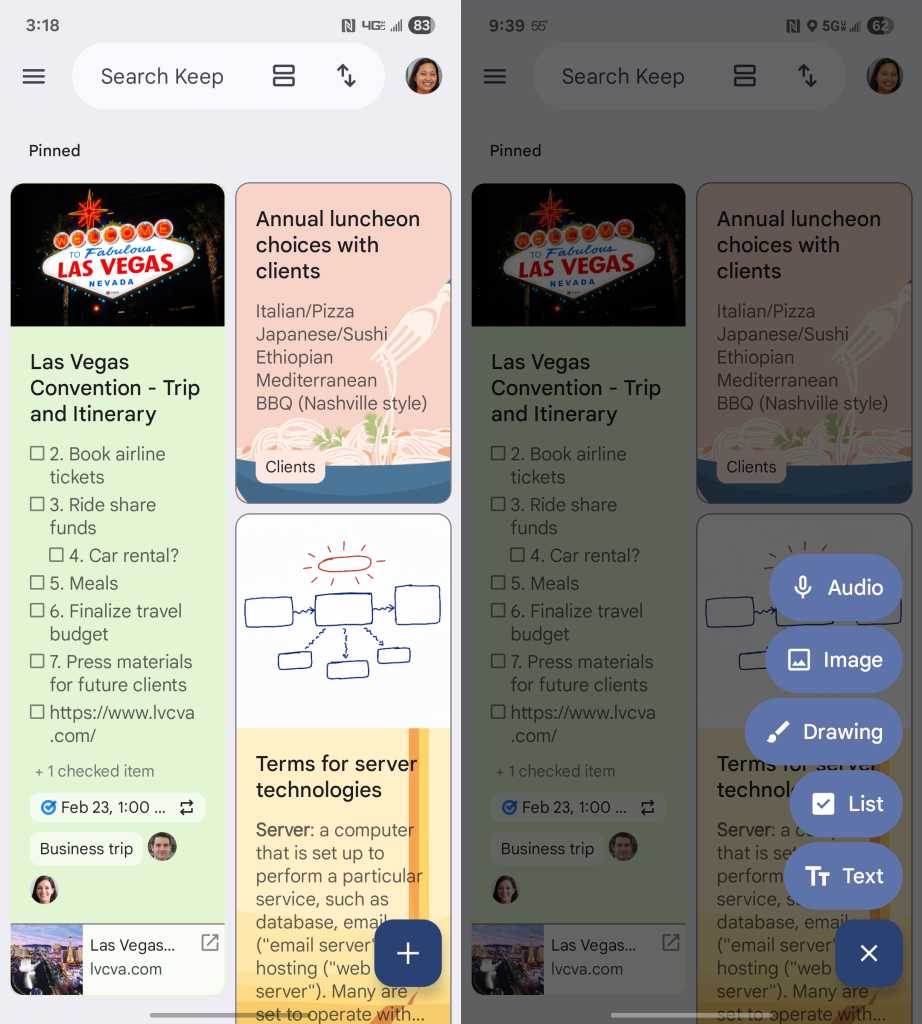
In the mobile app, record a voice memo. In the Android app, press the + icon and then the microphone icon that appears. On iOS, press the microphone icon at the bottom of the home screen. Start speaking, and Keep will transcribe your spoken words into text in real time.
In the Keep Android app, press the + button and then the microphone icon to record a voice memo.
Howard Wen / Foundry
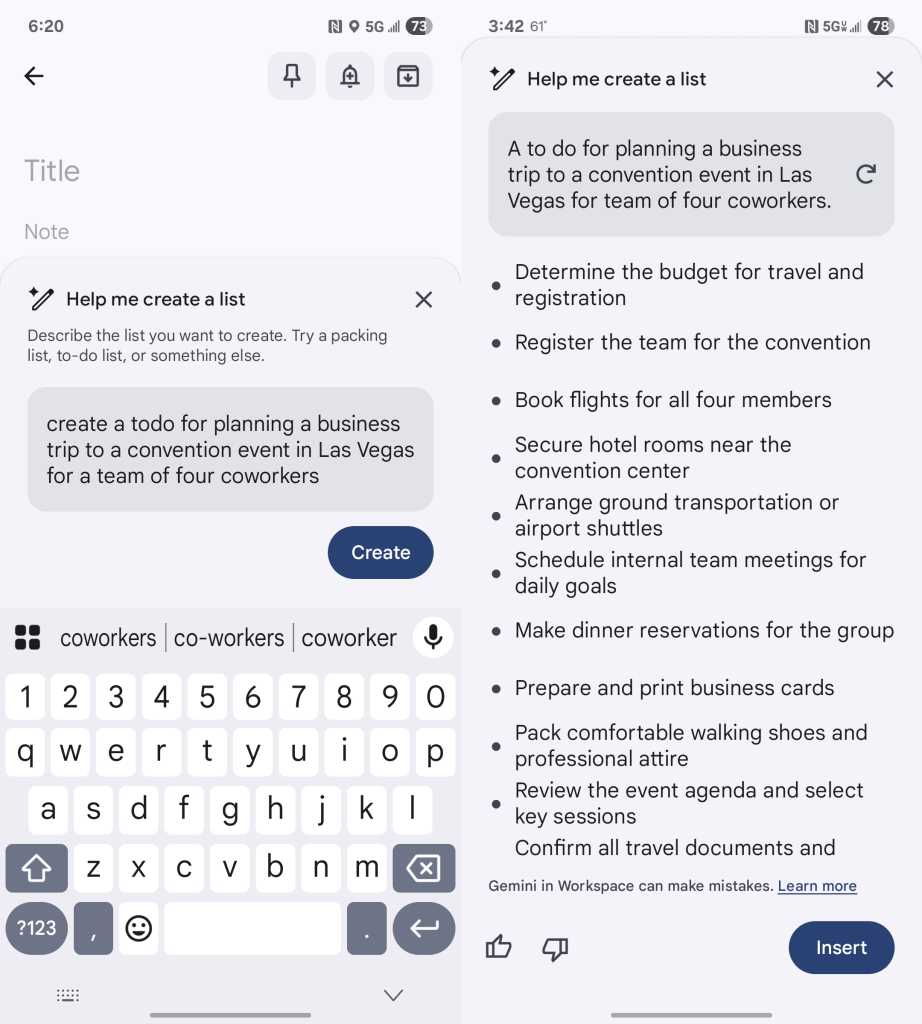
Have Google’s AI tool, Gemini, generate a list: In the Keep app for Android, tap the + icon, select Help me create a list, and enter a prompt. This feature is available only if you have a Pixel phone or a Google AI Pro, Google AI Ultra, or Workspace Labs account.
Some Android users can enlist Gemini to generate task lists.
Howard Wen / Foundry
Use the Keep Chrome extension to create notes
Google offers a Keep extension for Chrome that lets you quickly create notes based on web pages as you browse. After you’ve installed it, pin the Keep icon to Chrome’s address bar so that stays visible: Click the Extensions icon, and on the panel that opens, click the pin icon to the right of Google Keep Chrome Extension.
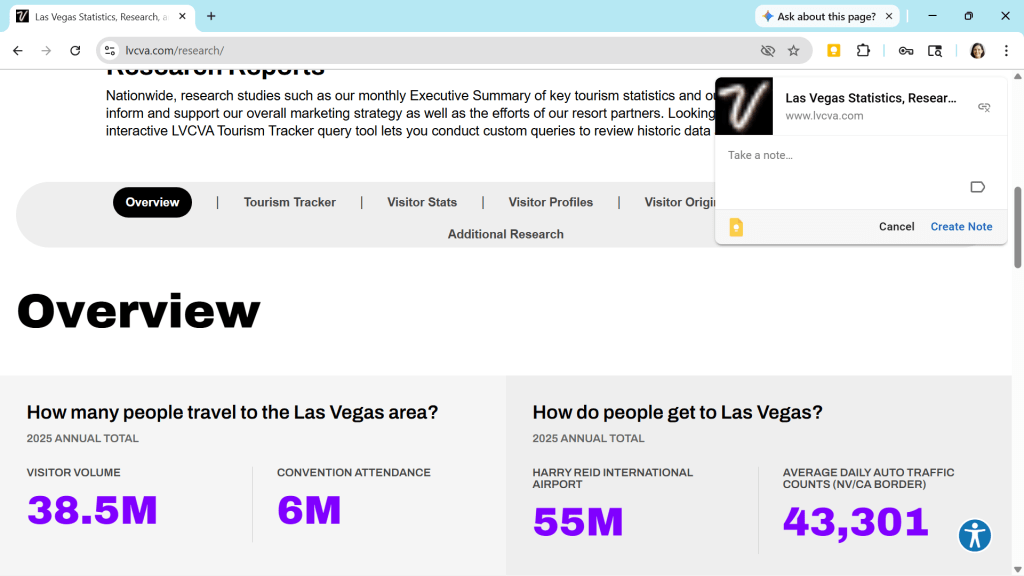
Now open a web page and click the Keep icon to the right of the address bar. A new blank note will appear at the upper right. When you’re finished filling it out, click Create Note, and this new note will appear on your Keep notes list. The link to the web page will be set at the top of the new note.
The Keep extension for Chrome lets you create a note without having to open the Keep web app.
Howard Wen / Foundry
You can also use text on a web page to create a note: Highlight the text, right-click on it, and select Save selection to Keep.
And you can save an image on a web page to a new note: Right-click the image, select Google Keep Chrome Extension > Save image to Keep. A new blank note will appear at the upper right for you to fill out, as described above, with the image embedded on it.
The Keep extension lets you create a new note from selected text or an image on a web page.
Howard Wen / Foundry
Enhance your note
At the bottom of a note is a toolbar that lets you take various actions on a note. Starting from the left…
Format text in a note
Click the icon of the underlined “A” to open a toolbar that lets you format text that you’ve selected in your note. There are three size options (heading 1, heading 2, normal) and three styles (bold, italic, underline). If you haven’t selected any text, new text that you start typing in your note will appear in the size and style that you’ve selected on this toolbar.
Change the background
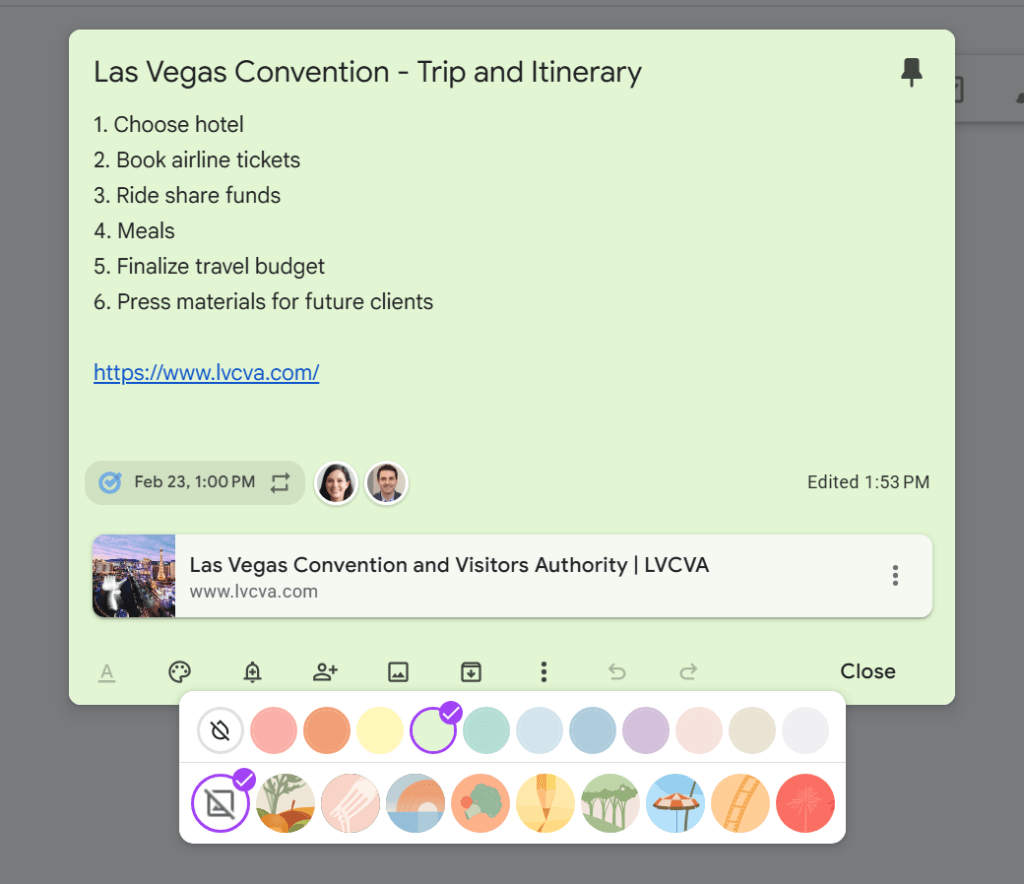
The palette icon lets you change the background color of the note. You can choose from eleven colors and nine background images.
A background color can help a note stand out on your board.
Howard Wen / Foundry
You may find it helpful to change a note’s background color to make it easy to spot on the main board, or to designate notes under a similar category with the same color. Or you could come up with a color-coded system — for example, red notes have the highest priority, while yellow notes get lower priority.
Set a reminder for your note
Click the bell icon to pick a day and time when you want a notification to be sent to your PC, phone, or tablet about this note. Select one of Keep’s suggested three reminder times or Pick date & time to set a custom time for the alert to appear. You can use this function to remind you of an appointment or other important event.
Remember important items or events by creating a note and adding a reminder.
Howard Wen / Foundry
A reminder appears along the bottom of an opened note or a note on the main page of Keep. You can remove a reminder from a note by hovering over it and clicking the X by the reminder. To change the reminder’s date, time, or interval: Click the reminder itself, which will open a panel that lets you change these attributes.
Note: Reminders for your Keep notes are saved and can also be managed in Google Tasks, which you can access through its web app or mobile app for Android or iOS.
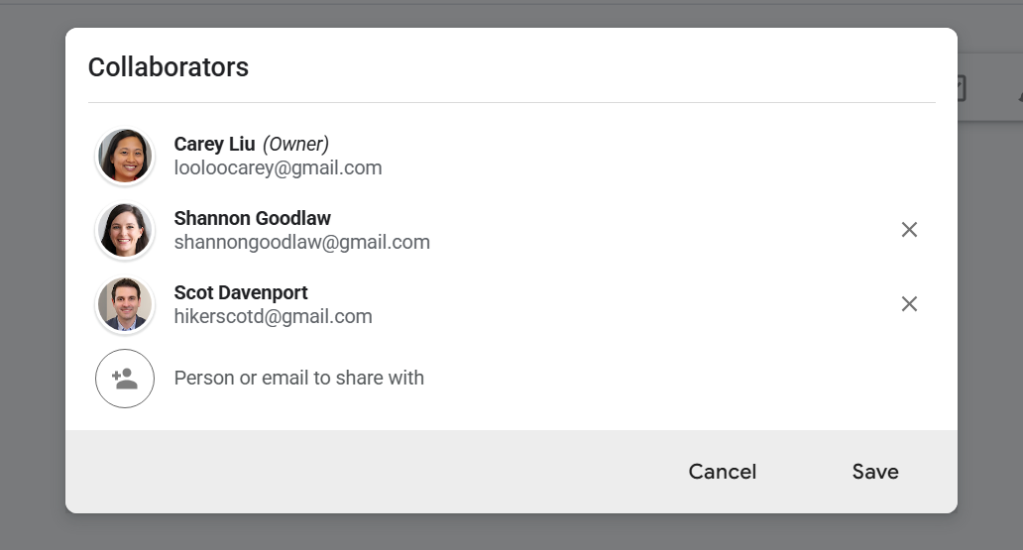
Invite collaborators
The headshot icon lets you share the note with others so that you can work on it together. These people can be from your list of contacts saved under your Google account (or your corporate directory under a Google Workspace account), or you can invite people by entering their email addresses. They’ll get an email inviting them to collaborate on your note; they will need to sign in with a Google account to do so.
Need help with a note? Invite collaborators.
Howard Wen / Foundry
The people you invite to collaborate can change all aspects of your note, as described throughout this guide, except for deleting the note.
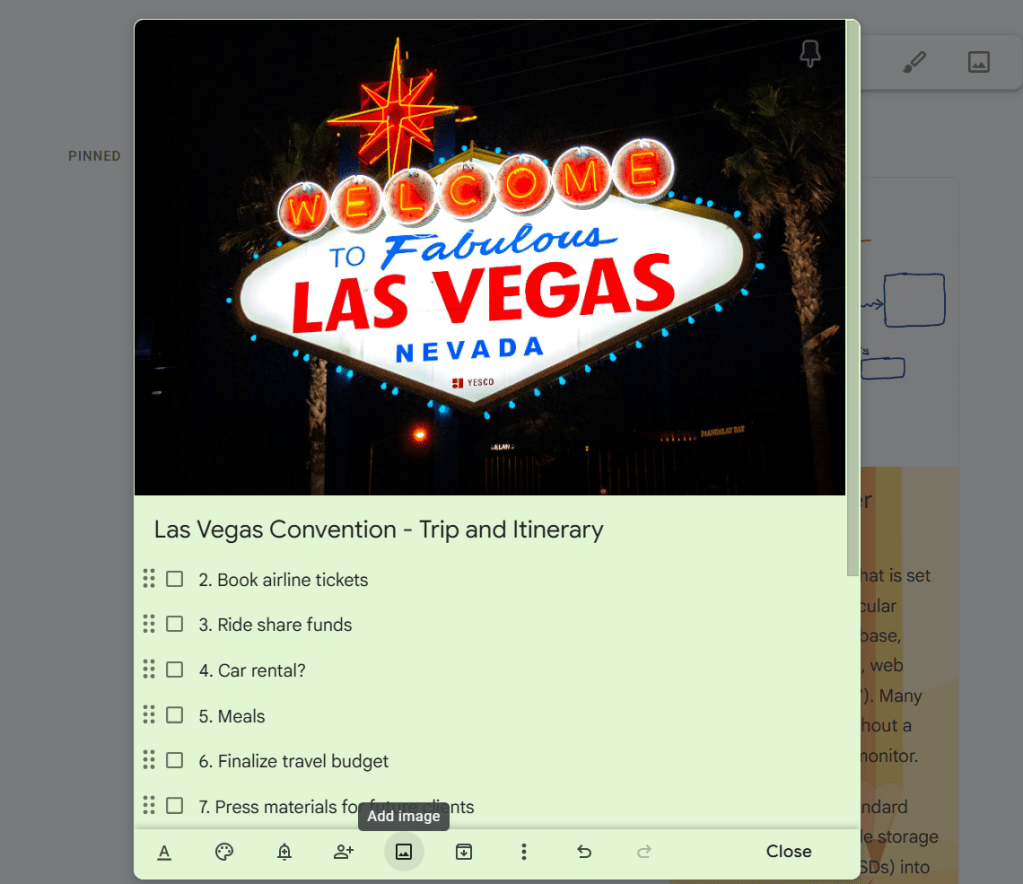
Add or remove images
To add images to your note, click the picture icon and select an image file stored on your PC. (In the mobile app, you can take a photo or choose an image stored on your phone or tablet.) It will appear at the top of your note.
Images you add to notes appear at the top.
Howard Wen / Foundry
You can keep adding images; each subsequent image you add to a note appears to the right of the first image you added. When you click an image in a note, a viewer tool shows you the image in a larger size.
To remove an image: Move the mouse pointer over it and click the trash can icon that appears on the lower-right of the image.
Archive a note
Clicking the “down arrow in a box” icon removes the note from the main board and stows it in your Keep account’s archive. This is a good place to put notes for safekeeping when you’re no longer using them but don’t want to delete them.
Tag a note with a label
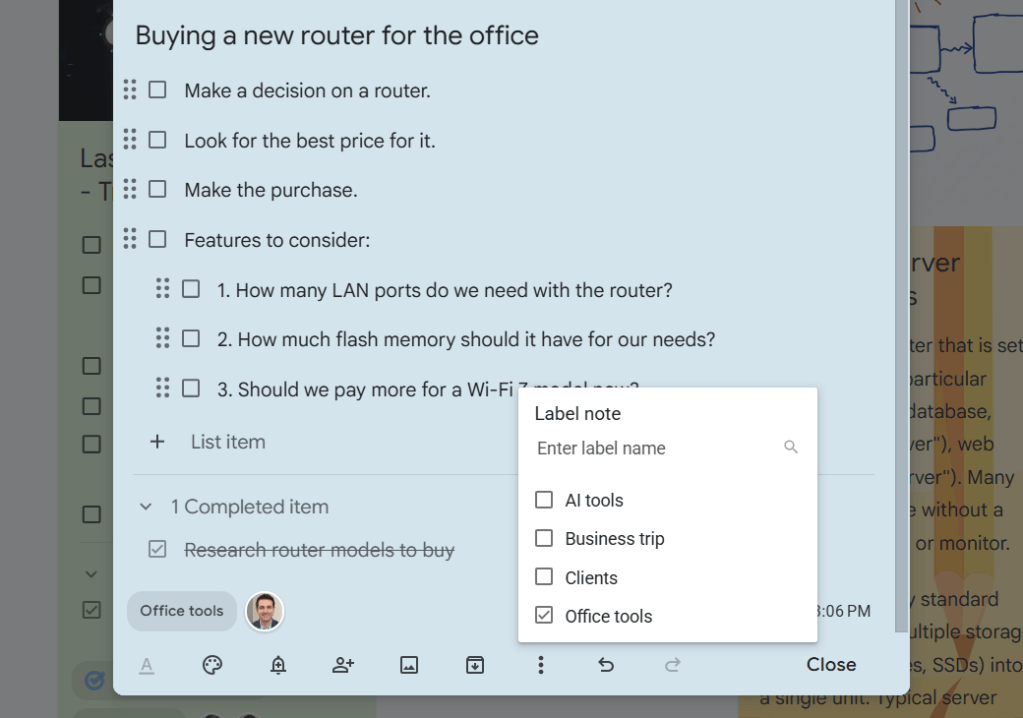
Tagging a note with one or more labels enables you to find them quickly later. For example, you can choose to see only the notes that you’ve tagged with the “Work” label on the main board. (Later in this guide we’ll discuss how to filter notes by label.)
To add a label to a note: Click the three-dot icon on the note’s toolbar and select Add label from the pop-up menu. (If your note already has a label, select Change labels from the pop-up menu.) You can type a new label inside the “Enter label name” box and press the Enter key, or select the checkbox for a label that you’ve previously created on the list below. When you’re done adding labels to your note, just click anywhere outside of the “Label note” pop-up panel.
You can select from existing labels or create new ones on the fly.
Howard Wen / Foundry
Label tags appear along the bottom of an opened note or a note on the main page of Keep. You can remove a label from a note by hovering over it and clicking the X by the label.
Add a drawing
Remember, this option is available only if you’re using Keep in Chrome or a Chromium-based browser, or the Keep mobile app.
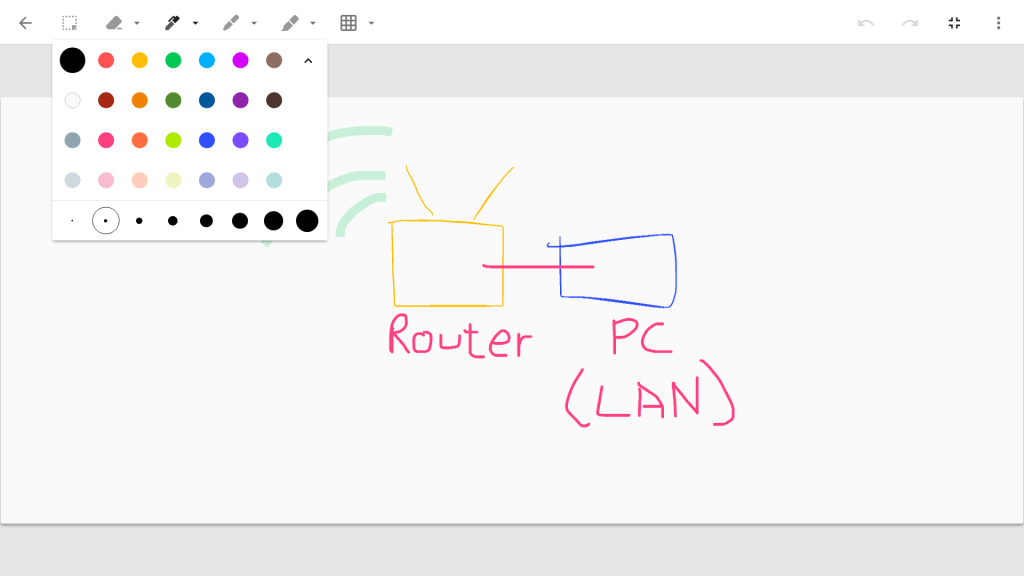
Click the three-dot icon on the note’s toolbar and select Add drawing from the pop-up menu. A simple drawing tool opens; you can use it to quickly sketch a doodle using a mouse, touchpad, or the touchscreen of your phone or tablet.
Add a quick sketch to illustrate a point in your note.
Howard Wen / Foundry
When you’re finished, click the left-pointing arrow in the upper-left corner to return to your note. The drawing you sketched appears at the top of your note, and you can manage it like any other image.
Note: You can edit a drawing that you’ve made or draw over an image that you’ve added to a note. Simply open the note and click on the drawing or image. A drawing you’ve created will open immediately in the drawing tool. To open other images in the drawing tool, click the pen icon at the upper-right corner.
Turn a note into a to-do list
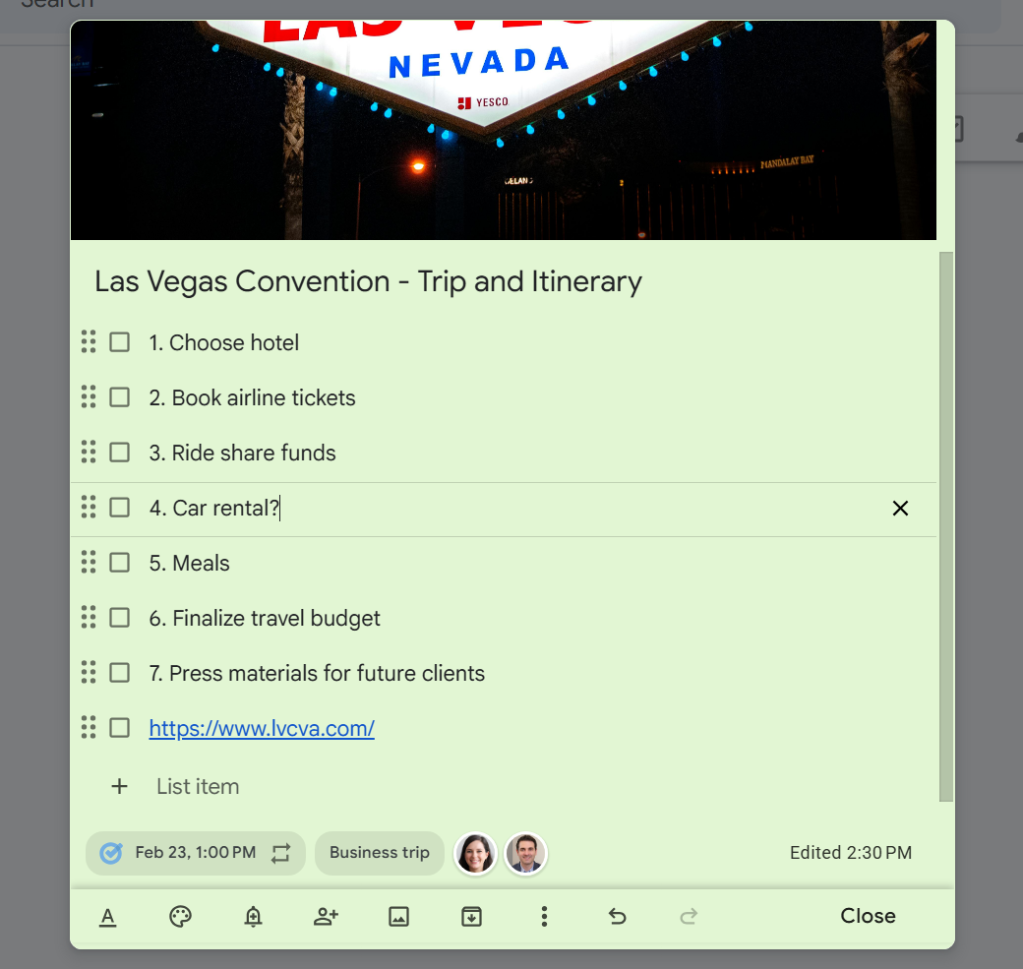
Click the three-dot icon on the toolbar and select Show checkboxes from the pop-up menu. Checkboxes will be set at the beginning of each line of text in the main body of your note.
(If you turn this function on for a blank note by clicking the checkbox icon at the right end of the “Take a note” bar, each new line of text that you type will start with a checkbox.)
Give yourself a feeling of accomplishment by turning your note into a to-do list and checking items off as you complete them.
Howard Wen / Foundry
When you have a note with a checklist open, a six-dot icon appears to the left of each checkbox. You can rearrange the order of the items in the list by clicking and holding a six-dot icon, then dragging and dropping the item into another spot in the list. (In the mobile app, press and hold a six-dot icon, then drag and drop the item.)
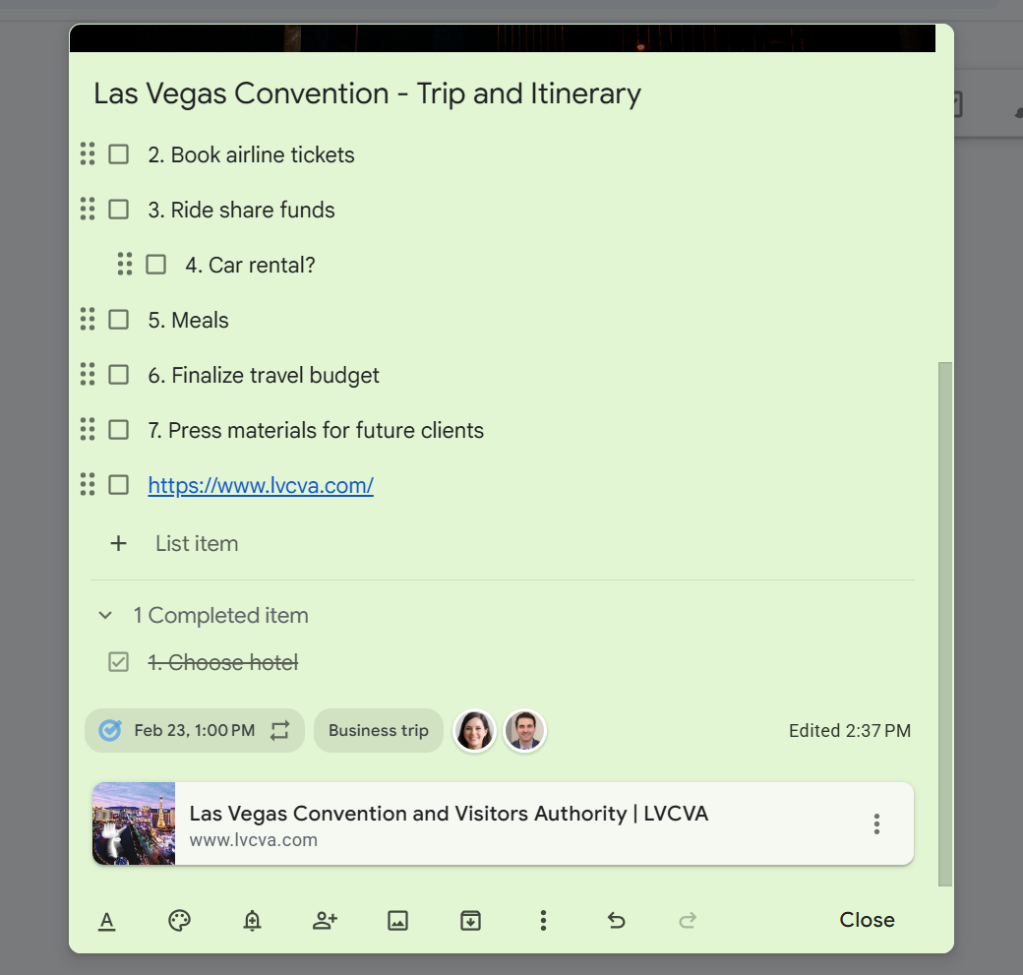
You can use the same technique to indent items in the checklist: Grab the six-dot icon next to an item, then drag it to the right and release. This allows you to make a checkbox item appear as a subsection below the item above it.
Indent checklist items to make them subsections of your main list.
Howard Wen / Foundry
Clicking an item’s checkbox crosses out its text and sends it to the bottom of the note. If you click the checkbox again to remove the checkmark, this sends the checkbox line of text back to the list of unchecked items. Its text will no longer be crossed out.
Checking off completed items moves them to the bottom of the note.
Howard Wen / Foundry
You can delete a checkbox item (rather than marking it complete) by hovering the mouse pointer over it and clicking the X that appears over its right end.
To uncheck or delete all items you’ve checked, or to hide the checkboxes: Click the three-dot icon in the toolbar at the bottom of the note and select Uncheck all items, Delete checked items, or Hide checkboxes.
Extract text from images
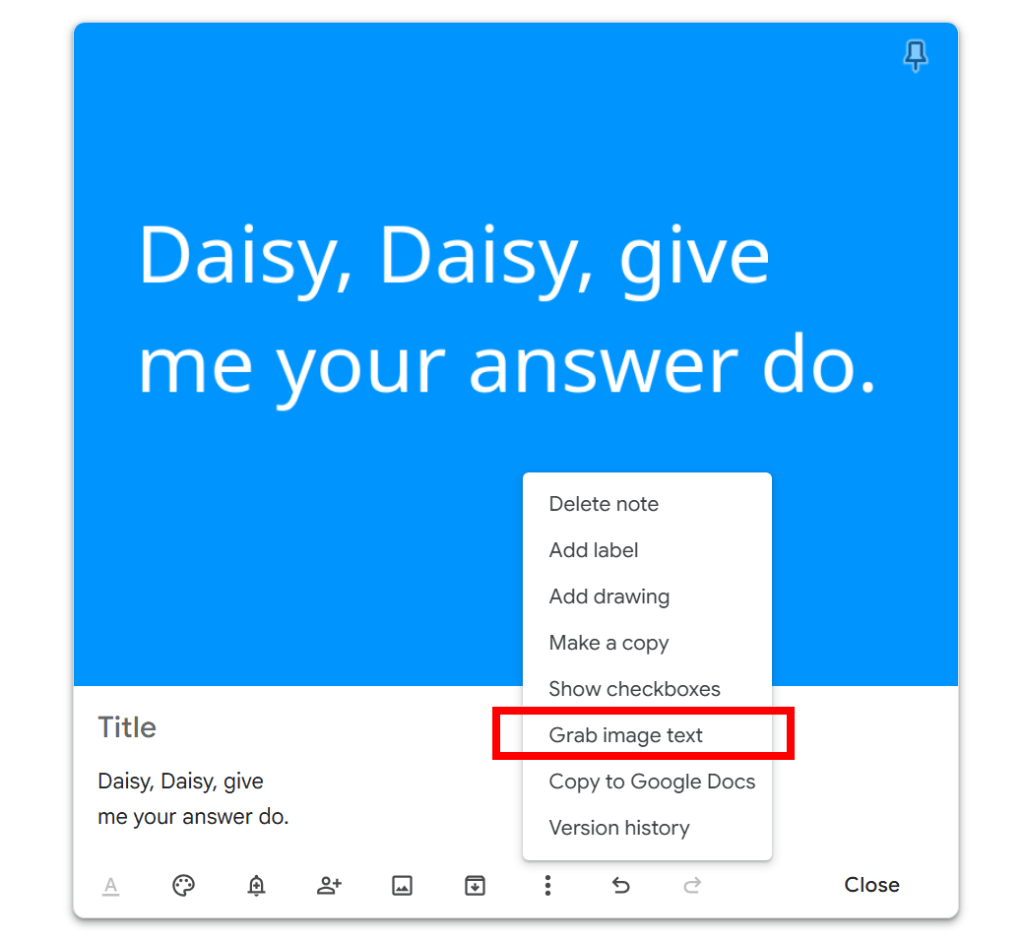
If an image attached to your note depicts text, Keep can try to extract it. Click the three-dot icon, then select Grab image text to insert that text into your note.
Keep can detect text in images and insert it into a note.
Howard Wen / Foundry
Send your note to Google Docs
When a note starts to turn into a missive, you can send it to Google Docs for more advanced editing options. Click the three-dot icon and select Copy to Google Docs. A copy of the note will be sent to your Google Drive, where you can further work on it in Docs as a normal document.
Finish your note
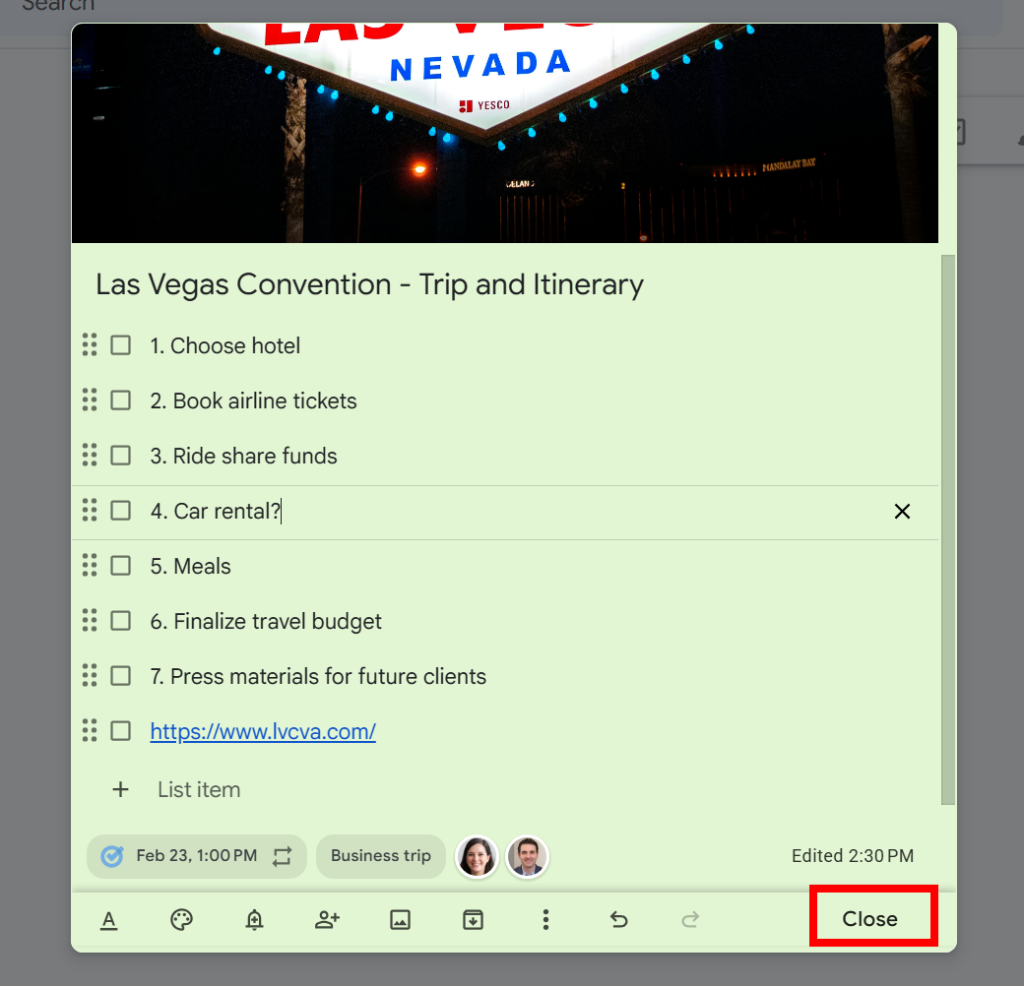
When you’re done tweaking your note, click Close. This shrinks down the note and sends it to the main board of your Keep home page. You can reopen a note by clicking it, make further changes to it, and click Close again.
Click Close to save your note and send it to the main board.
Howard Wen / Foundry
Manage your notes
The main board of your Keep home page is where your notes appear. Imagine it as a big cork board that your notes are pinned to as cards.
Once you’ve created several notes, it can be difficult to find the one you want. But never fear: Keep has a number of ways to make them easier to find.
Arrange your notes
Notes that you’ve pinned (by clicking the pushpin icon to the right of a note’s title line) are set toward the top of the main board. More recently pinned notes appear first. Unpinned notes are pushed down toward the bottom.
Pinned notes appear at the top of your main board.
Howard Wen / Foundry
To rearrange your notes, just drag and drop one note to another spot on the main board. The other notes will rearrange themselves to accommodate the note in its new spot.
If you want to see a certain note at the top of your main board, pin it and then, after newer pinned notes displace it, drag and drop it at the top. Or open the note, unpin it, and immediately re-pin it. This will set the note as the first one at the upper left of the board.
Search for notes
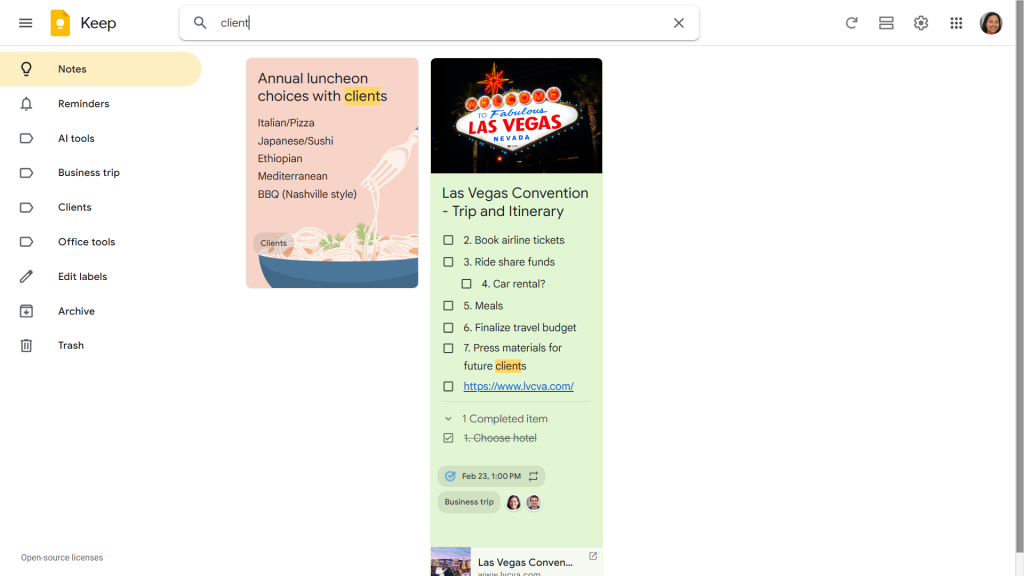
Along the top of your Keep home page is a search box you can use to search for text in your notes. Notes that contain your search query will appear on the main board.
Find notes quickly by using the search box up top.
Howard Wen / Foundry
You can also narrow down the search to certain types of notes (for example, those that contain drawings or voice memos), notes that have certain labels, or notes that you’ve shared with certain contacts. Keep provides handy shortcuts below the search box that you can click to look for notes containing these and other criteria.
Keep has some search tricks up its sleeve, too: Remember how it transcribes voice memos to text? That text is searchable. What’s more, if text appears in an image in a note, Keep can search that text as well.
Choose List view or Grid view
To the right of the search box are three icons:
Refresh (a circular arrow — click this to reload your Keep home page)
List view/Grid view (two horizontal bars or four small squares)
Settings (a gear)
By default, your Keep home page is set to Grid view, which arranges your notes in a grid layout.
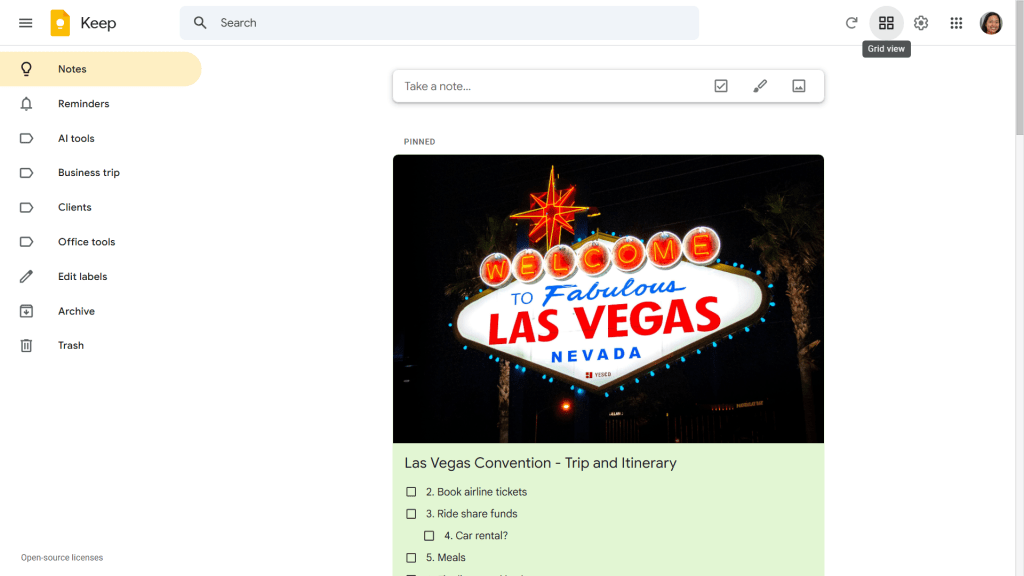
Clicking the horizontal bars icon puts your main board into List view, which makes your notes wider and shows them in one long, single column. This can be better for scrolling through them on a phone screen, or if you’d rather see more information on individual notes at a glance.
When you’re in List view, the icon changes to four small squares. Click it to return to Grid view.
Click the List view icon to see more of each note at once. If you prefer the default compact view, click the Grid view icon.
Howard Wen / Foundry
Navigate the left sidebar
Keep’s left sidebar helps you filter which notes are shown on the main board.
Click Reminders to see only notes that you set with reminder notifications.
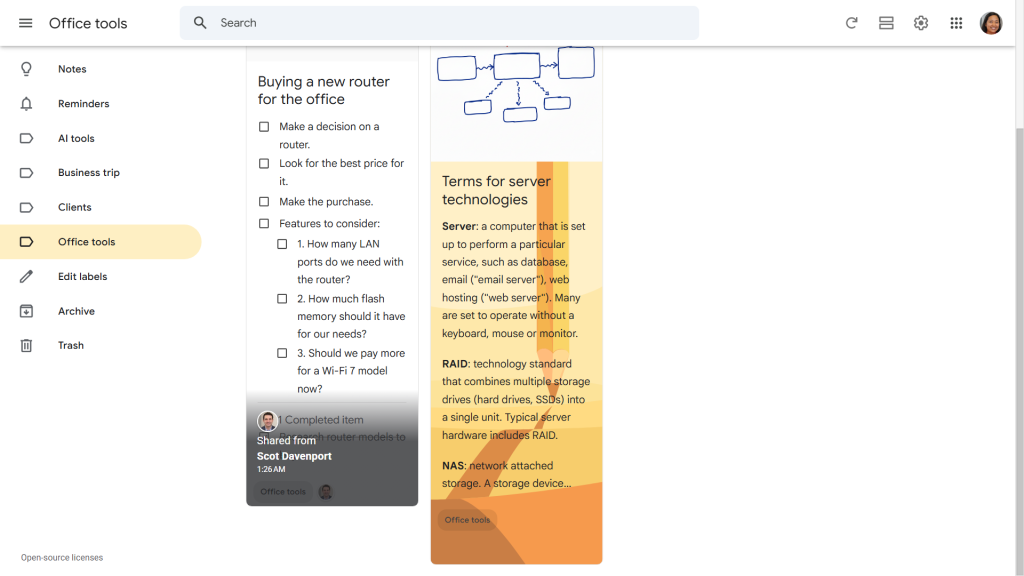
Click one of the labels to see only notes that you’ve tagged with that label.
The left sidebar lets you filter notes by label.
Howard Wen / Foundry
Click Edit labels to create a new label, change the name of a label, or delete a label.
Click Archive to see only notes that you’ve archived.
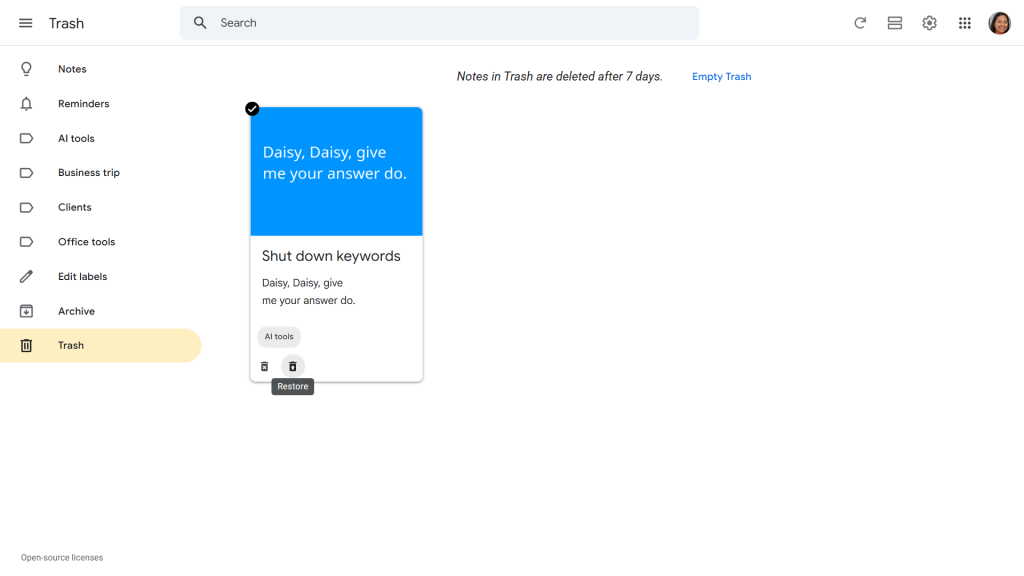
Click Trash to see notes that you’ve recently deleted. From here you can restore a note to the main board. Otherwise, a deleted note stays in Trash for 7 days before it’s removed forever from your Keep account.
Select a note in Trash, then click the Restore icon on the toolbar along the bottom of the note to restore it to the main board.
Howard Wen / Foundry
Click the triple-bar icon at the upper-left corner to narrow or widen the left sidebar. When narrowed, the sidebar shows only the icons of these note labels. This may enable another column of notes to be shown on the main board, but it depends on your screen resolution, the size of your browser window, and your browser’s zoom level. You can try zooming your browser view in or out by pressing Ctrl + – (minus key) or Ctrl + + (plus key) to see how that affects the notes shown in the main window.
Click the three-line icon at the upper left to narrow the left sidebar and allow for another column of notes to be shown on the main board.
Howard Wen / Foundry
Adjust settings
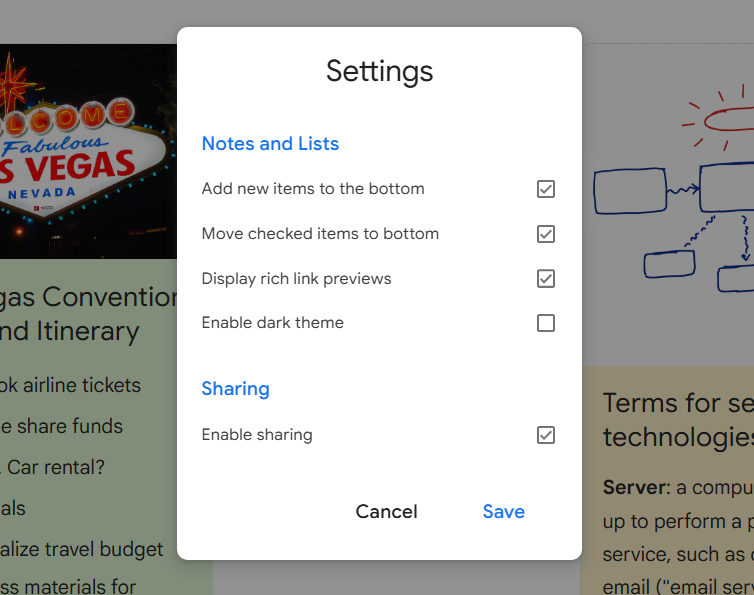
To the right of the List view/Grid view icon, click the gear icon and select Settings from the pop-up menu. A panel opens where you can disable note sharing, turn off thumbnail previews for links in your notes, and more.
Settings lets you tweak some of Keep’s default behaviors.
Howard Wen / Foundry
Use keyboard shortcuts
You can save time in Google Keep by using keyboard shortcuts to trigger some actions. Below are some of the most useful shortcuts. To see more, click the gear icon at the upper right of the Keep home page and select Keyboard shortcuts, or just type ? when you’re on the Keep home page.
Handy Google Keep keyboard shortcuts
Action
Windows shortcut
macOS shortcut
ON THE KEEP HOME PAGE
Start a new note
c
c
Start a new checklist note
l
l
Search notes
/
/
Move highlight to next note
j
j
Move highlight to previous note
k
k
Select highlighted note
x
x
Archive selected note(s)
e
e
Move selected note(s) to Trash
#
#
Pin or unpin selected note(s)
f
f
Toggle between List view and Grid view
Ctrl-g
⌘-g
IN A NOTE
Copy
Ctrl-c
⌘-c
Cut
Ctrl-x
⌘-x
Paste
Ctrl-v
⌘-v
Undo
Ctrl-z
⌘-z
Redo
Ctrl-y
⌘-y
Finish editing note
Esc
Esc
This article was originally published in January 2019 and most recently updated in April 2026.
Workers are facing a conundrum: They worry about the potential for their displacement by AI even as it dramatically speeds up their own productivity.
According to a new survey from Anthropic, workers in roles most likely to be taken over by AI (developers or IT workers, for instance) recognize their precarious position. Yet, perhaps naturally, they readily adopt the tools that could take their jobs, and see first-hand how well they work.
This measurement is fundamentally different from the way others are gauging AI job displacement, noted Thomas Randall, research director at Info-Tech Research Group.
While macro reports, such as those from Goldman Sachs, the International Monetary Fund (IMF), or the World Economic Forum (WEF), are asking what share of existing job tasks AI could theoretically perform in the future, “Anthropic is measuring qualitative experiences of workers in the present,” he pointed out. This “tells us how people are navigating this landscape in real time.”
The paradox of AI in the workforce
Anthropic’s survey of 81,000 Claude users gauged peoples’ “visions and fears” around advances in AI, and weighed these findings against the company’s own measurement of jobs most vulnerable to AI displacement. This was based on Claude usage data; jobs are identified as more exposed when associated tasks are significantly performed on the platform, in work-related contexts, and take up a larger share of a role.
Some occupations at risk include computer programmers, data entry keyers, market researchers, software quality assurance analysts and testers, information security analysts, and computer user support specialists.
Overall, one-fifth of respondents expressed concern about displacement, noting that their job, or at least aspects of it, is being taken over by automation. Those in jobs identified as most exposed readily recognized that fact, voicing worry three times as often as those in less at-risk positions. One software engineer remarked: “like anyone who has a white collar job these days, I’m 100% concerned, pretty much 24/7 concerned, about losing my job eventually to AI.”
Early-career respondents were also more nervous than others.
At the same time, those in the highest-paid occupations reported the largest productivity gains when using AI. This is most notably in terms of their ability to perform new tasks, which was cited by 48% of users. In addition, 40% of workers said the technology helped speed up their work, and a little more than 10% said it improved the quality of their work.
In general, enterprise usage of AI is “actually quite consistent,” said Sanchit Vir Gogia, chief analyst at Greyhound Research. Teams are using the technology “where information is abundant and time is limited,” such as in drafting documents and code, summarizing content, responding to customer queries, navigating internal systems.
Is AI actually creating more work?
Still, not everyone thinks AI makes their jobs easier or faster. In some cases, people felt it made their work harder; for instance, project managers are assigning tickets for issues that are much more difficult to solve, Anthropic noted.
Gogia agreed that, even when tasks become easier, scope and responsibilities expand, and roles can absorb adjacent tasks. This results in a “redistribution of effort,” rather than a reduction of effort.
“Faster generation means higher expectations on quality,” he said. More output feeds into decision pipelines that are already constrained. “In some cases, the system becomes heavier, not lighter.”
Delayed impact on enterprises
The market is rewarding those who can integrate AI into complex workflows to do more, faster, and often with better outcomes, Gogia noted. However, the most exposed tasks, including documentation, basic coding, routine analysis, and structured support work, often “sit at the base of the experience ladder.”
These very tasks traditionally have given entry-level workers a way in, and the automation of them reduces the urgency for companies to hire them. “What you begin to lose is not the job,” said Gogia. “It is the path into the job.”
This can have a delayed impact; enterprises may not realize until years later that they do not have enough mid-level experts because they didn’t bring enough people in at lower levels. As AI plays a greater role in the workplace, there must be a “conscious effort” to rethink how people enter and grow, Gogia said. “New pathways need to be created, and they need to be deliberate.”
How enterprise leaders should adjust
As is often the case, sentiment moves faster than structural change, Gogia pointed out. Workers feel the shift almost immediately, but organizations take longer to adjust hiring, redesign roles, and rethink workforce structures.
“This is why expectations can become misaligned,” he noted. The reality is that most enterprises have introduced AI into existing ways of working without fundamentally changing them. Acceleration occurs in unchanged systems that still carry the same dependencies, approval chains, and coordination challenges.
Ultimately, Gogia advised, leaders must approach the shift with “intentional design.” This requires clarity, he emphasized; people need to understand how their work is expected to change. What will be enhanced? What will reduce? Where should they focus their development?
Baselines are moving: Roles may begin to look “oversized” as what used to be considered a full day’s work begins to look like half a day’s work, or what used to be considered efficient begins to look average. “AI is changing how work is done, but more importantly, it is changing what work expects from people,” said Gogia.
As well, Info-Tech’s Randall pointed out that workers who experience AI expanding what they can do by performing tasks previously outside their competence appear to relate to AI more positively than those who experience it as doing their existing job faster. So, he advised, “tech leaders should design AI deployment around capability extensions.”
Along with goal setting, managers must have support, Gogia emphasized. They set expectations and interpret strategy, and when they’re not properly equipped, “even the best tools will fall short,” he said. Measurement must also evolve; enterprises need to look at quality, sustainability, and capability development over time.
“What we are witnessing right now is not a sudden disruption,” said Gogia. “It is a gradual shift that is becoming impossible to ignore.”
The AI agent introduction frenzy continued at a torrid pace this week, with OpenAI launching what it called workspace agents in ChatGPT and Microsoft adding hosted agents to its Foundry Agent Service.
Both launched on the same day that Google both updated its Gemini Enterprise app to provide new ways for office workers to build, manage, and interact with AI agents, and launched the Gemini Enterprise Agent Platform, which the company said is designed to build, scale, govern, and optimize agents.
This trio of offerings follows Anthropic’s early April introduction of Claude Managed Agents, a suite of composable APIs for building and hosting cloud-hosted agents, which is now in public beta.
In its announcement, OpenAI said, “workspace agents are an evolution of GPTs. Powered by Codex, they can take on many of the tasks people already do at work—from preparing reports, to writing code, to responding to messages. They run in the cloud, so they can keep working even when you’re not. They’re also designed to be shared within an organization, so teams can build an agent once, use it together in ChatGPT or Slack, and improve it over time.”
Microsoft, meanwhile, stated in a blog that its latest move “brings agent-optimized compute and services designed for production-grade enterprise agents.” After its preview of hosted agents last year at Microsoft Ignite, the company said, “this refresh is a fundamentally different experience: secure per-session sandboxes with filesystem persistence, integrated identity, and scale-to-zero economics.”
Announcements are connected
Jason Andersen, principal analyst at Moor Insights & Strategy, said, “these four announcements are connected, as the frenzy around agents continues. What OpenAI is announcing is the native ability to support the creation and sharing of agents.”
This is new functionality for OpenAI, which is a bit late to the game; Google, Microsoft, Anthropic and others have had this capability for some time, and are in fact moving farther ahead with these other announcements, he said.
“What we are seeing with Anthropic and Microsoft is that, as agents become more powerful, they will go to great lengths to solve the problem they are posed with, and sometimes that includes the agent writing code and doing other tasks,” he pointed out. “This increases complexity and concerns about agents and models being well managed while running. The hosting options both of these vendors provide are a more advanced infrastructure for agents to run.”
Right now, he added, “many agents are being treated as simply a more advanced front end. These newer options provide the ability for an agent to do things like spin up a dedicated container, and they can support semi-autonomous and, in some cases, autonomous operations. These two announcements are more infrastructure-related, whereas OpenAI is more about agent building.”
He described the Google launch as being “something in between.”
He noted, “OpenAI’s announcement is very similar to last year’s announcement of Gemini Enterprise from Google. This year, Google took steps forward to enable a management control plane for agents called Gemini Enterprise Agent Platform, which enables a much richer sharing experience and a number of management and governance capabilities.”
On the whole, Andersen said, “the agent space is getting very hot, and some who have been later to the party are getting on board, and those who have been investing are evolving to provide end customers more scale, operations, and security capabilities.”
Brian Jackson, principal research director at Info-Tech Research Group, said that with the flurry of announcements “we’re seeing a race to gain critical mass as the agentic platform becomes the daily work interface for the enterprise. Anthropic and OpenAI are coming at it from their AI startup positioning, while Google, Microsoft, and Amazon are leveraging their entrenched hyperscaler and enterprise platform positions.”
Jackson pointed out that the differentiation in what these tech firms offer is most clear in who they are targeting and their delivery model.
He noted that OpenAI’s Workspace Agents are designed for non-technical business teams. They provide templates for agents that can automate tasks from lead scoring to vendor research reports. Users can “prompt” their way to work automation without worrying about the behind-the-scenes mechanics – what model is being used, what APIs are being called, how data is retrieved and written, or how permissions are granted.
Anthropic is taking a different approach, he said. Rather than going directly to business users, it is providing tools to enterprise development teams to build their own agents and provide a custom interface to their users. Anthropic’s Managed Agents are a group of composable APIs that developers can use. The approach is more flexible, but it requires more effort to produce value.
Microsoft and Google, on the other hand, are both vertically integrated platforms providing an agentic layer on top of an extensive stack. Microsoft’s Foundry is similar to Anthropic’s offering, but offers even more flexibility by remaining model-agnostic and allowing developers to choose their preferred agentic framework.
New problems as the market develops
As the agentic platform market develops, Jackson observed, “we are seeing new problems crop up regarding observability. Detecting and observing agents will be rooted in the identity system used to provision them. However, since each platform uses its own identity system, it will be difficult for any one platform to see all agents created in an enterprise, or worse, those created by a rogue user (‘Shadow AI’).”
Furthermore, he added, “agentic workflows imply significantly higher AI token consumption to complete work. We are already seeing AI capacity constraints and price increases due to high demand. Because agents require multiple ‘reasoning’ steps to complete a single task, it is very hard to predict what a workflow you automate today might cost to run one year from now.”
This means that IT leaders need to decide where they will build the agentic layer of their stack. “You don’t want to get it wrong, because becoming entrenched in one platform means significant vendor lock-in,” he said. “We already worry about lock-in with systems and data, but when you add an intelligence layer, you are essentially building a brain with neuronal pathways to your workflows. It is not going to be easy to do a ‘brain transplant’ to another platform later.”
Global IT spending is expected to rise this year to $6.31 trillion, according to a new forecast from Gartner, a 13.5% increase compared to 2025.
According to the research firm, AI is the single most important driver behind the growth, with investments in AI infrastructure, in particular, driving the trend. The data center systems segment is expected to grow by a whopping 55.8% during the year, by far the fastest growing of all categories.
At the same time, IT services continue to account for the largest share of total spending and are expected to exceed $1.87 trillion this year. Software is also showing strong growth, particularly in generative AI.
Growth is also expected in the device market, though at a significantly slower pace. Overall, the market is expected to reach approximately $856 billion, though Gartner says this growth is being slowed by rising memory prices.