Author: Computerworld

12 top productivity tips for Microsoft Edge

We live and work in browsers. It’s where we spend most of our time — and it’s where we waste most of our time as well. Web browsing is slow, inefficient, and full of time-sapping annoyances.

But it needn’t be that way. You can turn your browser into a lean, mean productivity machine. To do it, just follow these tips for Microsoft Edge in Windows 10 or 11. You’ll learn how to switch between home and work profiles, put idle tabs to sleep to speed up your PC, tap into the power of Microsoft’s Copilot AI assistant, and more.

(Note that these tips are written for the most recently updated version of Edge in Windows 11 25H2 and Windows 10 22H2. Things may be slightly different if you use a different Windows version, and not all of these features are available for Edge on macOS or other platforms.)

So let’s get started — time’s a-wasting, and so is your productivity.

1. Switch between work and personal profiles

With remote and hybrid work models now common, many people use the same device for work and personal use. When it comes to using a web browser, that can quickly become problematic.

Mixing work and personal favorites makes it far more difficult to quickly get to important work websites or personal websites. When you’re working, you don’t want to wade through hundreds of links to family photos, vacation destinations, and YouTube videos of cats befriending parrots when you’re just looking for the OSHA website about mine safety regulations. And when you’re off working hours and want to watch a video of a Persian cat nuzzling a cockatiel, a website detailing the GDPs of every country in Europe and Asia is not your primary destination.

Different profiles let you completely segregate your browser use. That doesn’t just mean different favorites. It also means different Collections, different extensions, different passwords, and more.

Each Edge profile is tied to a different Microsoft account. So to use different profiles, you’ll need to create different Microsoft accounts. To create a new Microsoft account in Windows 10 or 11:

  1. Go to https://account.microsoft.com. If you’re signed in to your account, click your profile icon or initials in the upper-right corner and select Sign out. Close Edge, restart it, and go back to https://account.microsoft.com/.
  2. Scroll down to the button that says Create an account, click it, and follow the prompts to create a new account.
  3. On the page that appears, click the Sign in button in the middle of the page. On the screen that appears, select the Create one! link, then follow the prompts to create a new account.

You’ve now got two different Microsoft accounts you can use for Edge. When you log into one of those accounts in Windows, that will be the default account that Edge will use when you browse the web.

To switch between the two accounts, you’ll need to add that second account to Edge. To do it:

  1. Click the user profile icon at the top right of Edge. On the small pane that appears, select Set up a new profile, then select either Personal or Work or School. 
  2. You’ll be sent to a web page in a new instance of Edge. Click the Sign in button at the far right, then select Sign in to sync data.
  3. On the screens that appear, sign in and confirm that you want to proceed.

Once you’ve done that, you don’t have to log out of your current account and then log into the second account to use it in Edge. Instead, when you want to use the second account, click the user profile icon at the top right of the Edge window. A small pane appears with your current profile at the top. To switch to your other profile, select it in the “Other profiles” section.
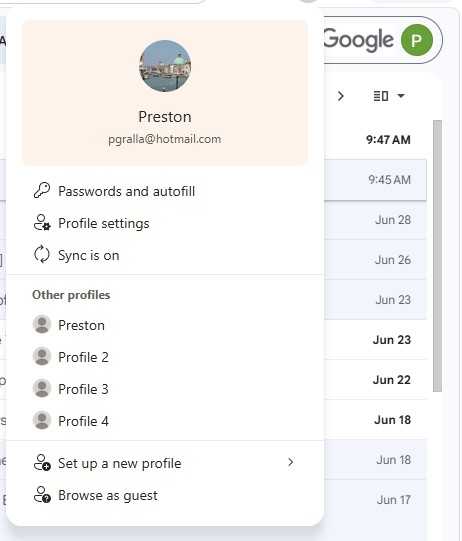
screenshot of user profile in edge browser with other profiles listed below

To minimize distractions, set up work and personal profiles in Edge.

Preston Gralla / Foundry

You’ll now be sent straight to that profile. When you do that, Edge will open in a new window. So you’ll have both your profiles running simultaneously, each with its own tabs, in two separate windows. (Note that you can set up multiple additional profiles.)

You can also tell Edge which profile to use when you visit certain websites. To do it:

  1. Click the user profile icon in Edge and select Profile settings. (Alternatively, you can click the three-dot icon next to the user profile icon and select Settings > Profiles.)
  2. In the “Profile settings” area, click Profile preferences.
  3. At the bottom of the “Automatic profile switching” section on the page that appears, click Add site next to “Custom site switch.”
  4. On the “Add site” popup, enter a website URL and select the profile you want to switch to for that site.

Should you decide you want to remove a profile, go to Settings > Profiles and scroll to the “More profiles” section. Click the trash can button next to any profile you want to delete. You can always add it again later using the steps above.

2. Get to your most-used sites quickly

Bookmarking and organizing favorites is a great way to manage a large collection of websites, but it’s not that useful if you simply want to get to a frequently used site quickly. Edge has some tricks up its sleeve if you want to get your most-used sites pronto.

Add a site to the new tab page

When you open a new tab in Edge, a page appears that shows you news and other items you might be interested in. It’s easy to pin a site to this page so it’s accessible whenever you open a new tab.

Look toward the top of the page, just underneath the search box. If you don’t see icons for pinned pages (such as for Yahoo, Amazon, your inbox, and so on), click the settings icon on the upper right of the page (it looks like a gear) and turn “Quick links” on.

A row of site icons appears, along with a + icon. Click the + icon and type or paste in the name and URL of the site you want to pin, then click Add. The site will now appear along with the other pinned pages.
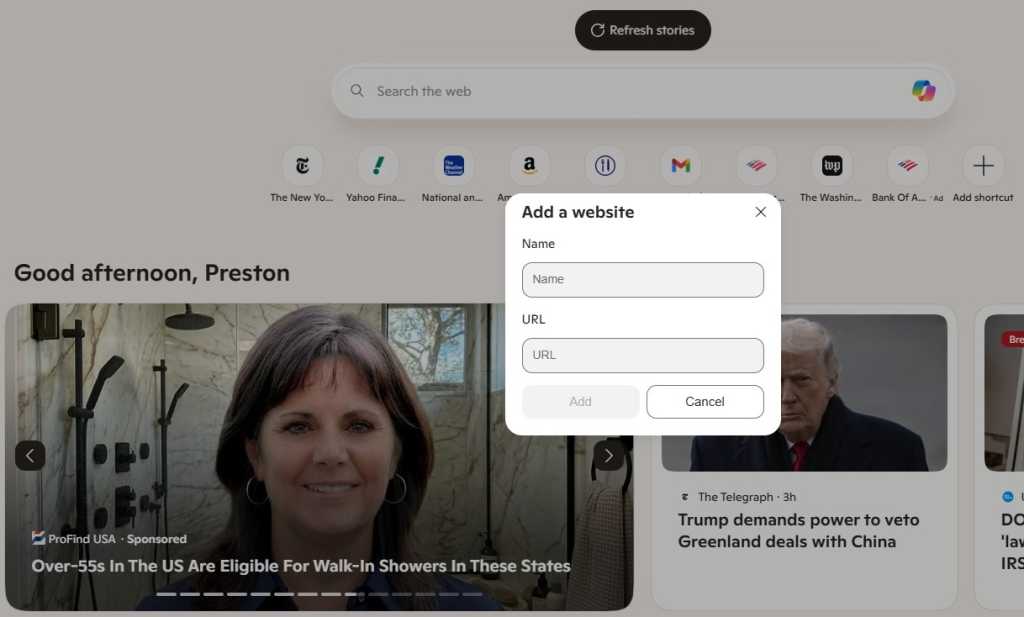
screenshot of adding a website to quick links in edge browser

Pinning a site keeps it handy on the new tab page.

Preston Gralla / Foundry

You can rename or remove any site pinned to the new tab page by clicking the three-dot icon next to the site icon and selecting Rename or Remove from the menu that appears.

The new tab page is tied to your current profile, so you can set up different pinned sites on the new tab page for each of your profiles.

Pin tabs to the top of Edge

For even faster access to frequently used sites, you can pin them as browser tabs so they appear at the far left of all your other tabs in Edge. When you’re on the site you want to pin as a tab in Edge, right-click its tab and select Pin tab from the menu that appears. The pinned tab will now appear to the left of all your open tabs.

The icon for the pinned tab looks smaller than all of your other tabs, and it will persist even after you shut down and restart Edge. If you have multiple pinned tabs, all of them will appear to the left of any non-pinned tabs.

Like pinned sites on new tab page, your pinned tabs are unique to each Edge profile; they won’t carry over from profile to profile.

Pin sites you often visit to the Windows taskbar

For Windows users, the fastest way to access a frequently used site is to pin it to the Windows taskbar. That means it’s always visible (even when Edge isn’t running), and you can launch it with a single click.

When you’re on the site you want to pin, select the three-dot icon at the top right of the browser window and select More tools > Pin to taskbar. A small screen appears with a text box in it with the name of the site. Use the name provided or type a new name into the text box and click Pin.

3. Create tab groups for more efficient browsing

If you’re like lots of people, you frequently browse with many tabs open, and find yourself wasting time switching to the tab you want because of all of the clutter.

There’s a simple fix: group tabs into categories so you can quickly switch to the tab group that has the tab you want. For example, you might group them into “News,” “Museums,” “Finance,” and so on. Or you could create a tab group for research related to a specific project.

To do it, right-click a tab, select Add tab to new group, and then name the tab group. You can then drag other tabs into the group. You can also assign each tab group a unique color so they’re easy to differentiate at a glance.

screenshot of creating a tab group in edge browser

Creating tab groups makes it easier to find the tab you want quickly.

Preston Gralla / Foundry

If you’ve already created a group, when you right-click a tab, you’ll see “Add tab to group” rather than “Add tab to new group.” When you click the arrow next to it, you’ll see a list of all your existing groups, so you can easily add it to any of them. You’ll also see “New group,” which will let you create and customize a new group.

Once you’ve created a tab group, you can rename it, change its assigned color, add new tabs to it, ungroup the tabs from it, delete the group and all the tabs in it, and more. Just right-click the name of any group and select an option from the menu that appears.

4. Enlist a Copilot as you browse

Microsoft’s genAI chatbot, Copilot, has become increasingly integrated with Edge, so much so that Microsoft now calls Edge an “AI browser.” At the moment, that’s more hype than fact, but it is true that Edge gets new Copilot features added on a regular basis.

Edge provides a couple of ways to interact with Copilot, one of which is to open the Copilot sidebar to the right of the main browser window. (We’ll go over the other method later in the story.) Click the Copilot icon at the top right of Edge, and the Copilot pane appears. Here’s where you type in prompts for Copilot.

There’s a tremendous amount you can do with Copilot, most of which is beyond the scope of this article. To learn more about what it can do and how to use it, see our story “9 ways to use Copilot right.”

However, here’s one use designed specifically for web browsing: summarizing the contents of the page you’re currently visiting. Depending on the structure and content of the page, Copilot can give a high-level overview of the entire page, provide capsule descriptions of individual articles or sections, and more. You can also ask Copilot to extract specific information from a page, such as all the AI-related information on it, and organize the information into a bulleted digest.

To do all that, open a web page and open the Copilot sidebar. You’ll see a few suggested prompts, one of which should be related to summarizing the page, such as Summarize the main points on this page or Create a summary of this page. Click the prompt, or if you don’t see it, type it into the text box at the bottom of the Copilot pane.
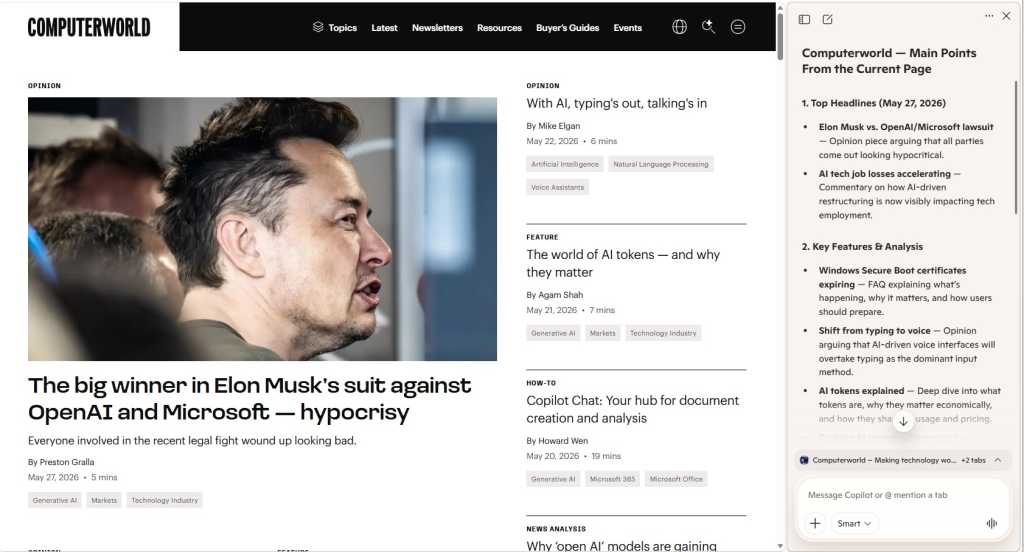
screenshot of copilot sidebar in edge browser with summary of current web page

Use Copilot to summarize the content on a web page.

Preston Gralla / Foundry

You can also ask it to summarize the last page you’ve visited. Click the down arrows towards the bottom of the Copilot pane, and you’ll see a listing for the previous page you’ve visited, such as Computerworld.com. Click the text summarize my recent activity on [page] and it will do that for you. Again, if you don’t see that text, type it into the Copilot text box.

The summarization feature, though, still has rough edges, or at least it did when I was writing this article. If you leave the web page you’re currently on and go to a new one, the summary of the old page remains, and there isn’t an immediate way to summarize the new one. To get a summary of the new page, you’ll have to scroll to the bottom of the Copilot pane, click the arrow (it will be facing either up or down, depending on whether you’ve previously clicked it) and click “Create a summary of this page.”

In that section, you can also click listings of your other open tabs and get summaries of any of them.

5. Remove clutter when you launch new tabs

When you create a new tab, the initial page is filled with pinned sites, suggested news stories, widgets, and more. If you find that page distracting, you can change it to a much cleaner, more stripped-down page.

If you haven’t pinned specific sites to the row of icons below the search box (see tip #2 above), you can make Edge’s default icons go away: Click the gear icon on the upper right of the page, and a “Page settings” panel pops up. In the “Quick links & search” section, click the dropdown next to “Quick links” and select Off. That gets rid of the icons for web sites just beneath the search box.

If you have pinned your own preferred sites there, you’ll want to leave quick links enabled, but you can turn the “Show sponsored links” toggle to Off to get rid of ads.

To get rid of the news articles that overwhelm the page, go to the “Show content” area of the panel and move the “Show feed” toggle to Off. Or, if you want to really strip down the page, move the “Show content” toggle to Off. That kills pretty much everything on the page except the weather. If you don’t want to see that either, scroll down a bit more and move the “Weather” toggle to Off.
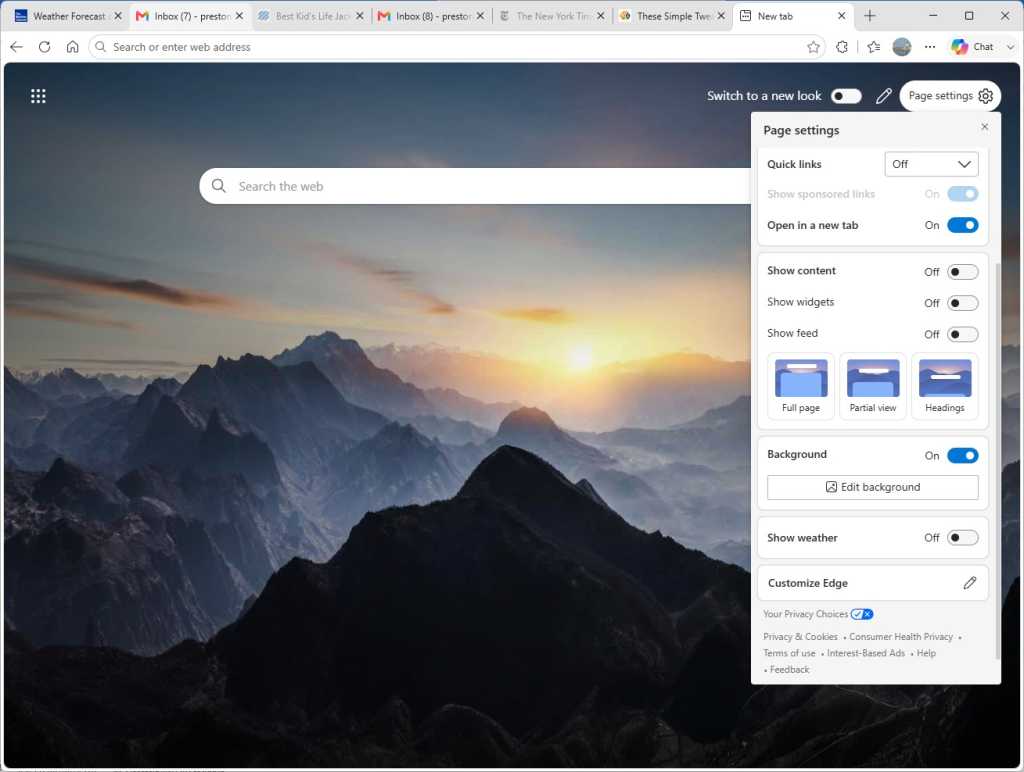
screenshot of stripped-down new tab page in edge with page settings pane

Going with the stripped-down new tab look in Edge.

Preston Gralla / Foundry

 You can also strip out the background graphic for the new tab page by turning off the “Background” toggle. I don’t recommend it, though, because when you do that, you’ll get a gray page with a big Microsoft logo dead center when you launch a new tab.

6. Launch Copilot-centered new tabs

If you’re a frequent Copilot user, you might want to take a different approach to the new tab page.

The Copilot you get in a side pane when you click the Copilot icon at the top right of Edge is a somewhat stripped-down version of Microsoft’s full-blown Copilot app. If you’re looking to use the full-fledged version, there’s a simple way to do it: Tell Edge to open Copilot every time you open a new tab.

To do it, click the three-dot icon to the left of the Copilot icon at the top right of Edge and navigate to Settings > Start, home, and new tab page. In the “New tab page” section, turn on the Copilot new tab page toggle. From then on, every time you open a new tab, you’ll launch a full Copilot screen that’s similar to the standalone Copilot app.
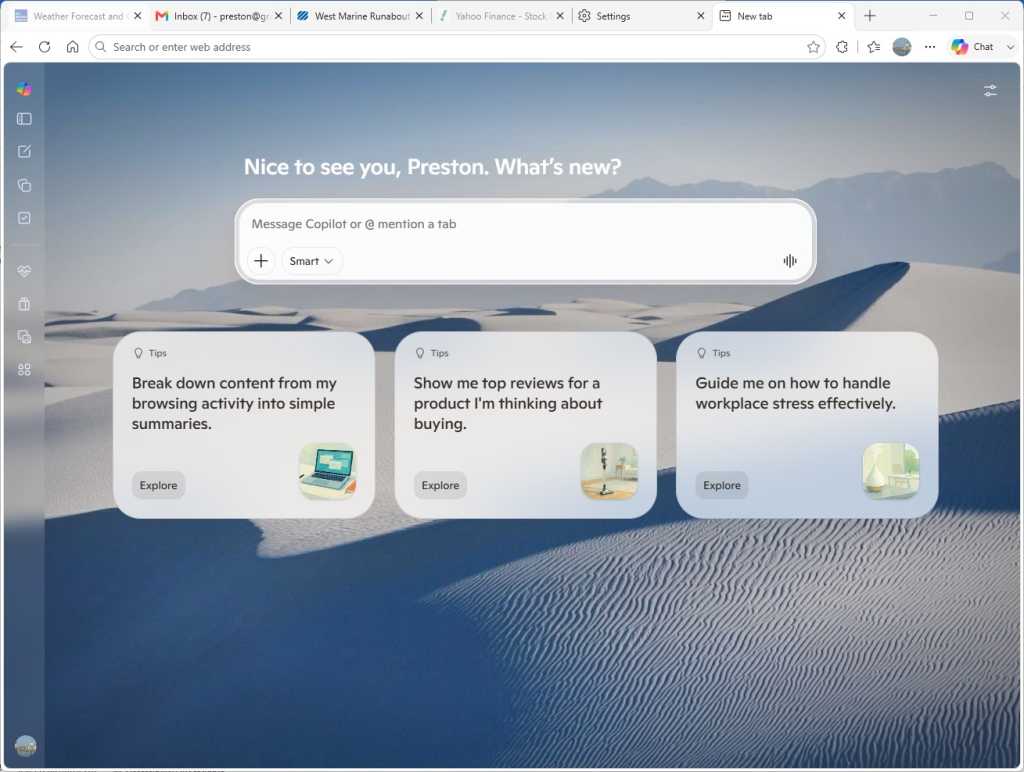
screenshot of copilot new tab page in edge browser

The Copilot new tab page puts Copilot chat front and center.

Preston Gralla / Foundry

You’ll see the usual Copilot prompt box front and center, and beneath that, several prompts Microsoft thinks you might want to use. (Note to Microsoft: I’ve never used one of those suggestions even once. I’d guess few other people have either.)

What’s really new here are the vertical icons running down the left side of the page. Here’s a brief rundown of what each one does:

  • Open sidebar: Widens the navigation bar and shows a list of your recent chats so you can revisit any of them.
  • New chat: Start a new chat with Copilot.
  • Library: Build a library of Copilot-created content such as images, reports, podcasts, documents, and more.
  • Tasks: Create a Copilot task that automates something you want done, such as sending you a weekly email about a company’s stock price.
  • Health: Open Copilot Health, a version of Copilot designed specifically for getting health information.
  • Shopping: Use Copilot as a shopping assistant.
  • Imagine: Create or edit an image using Copilot.
  • Experiments: Discover and use new Copilot features that Microsoft is testing but that may or may not be officially launched at some point.

Clicking the Copilot icon at the top of the list of vertical icons returns you to the main Copilot interface you get when you launch a new tab.

As you can see, many of these new Copilot functions are aimed at consumers and unlikely to be useful in a business setting. Still, if you frequently turn to Copilot for help, you might find the Copilot new tab page a good alternative to the standard new tab page.

And note that setting up the Copilot new tab page doesn’t prevent you from browsing or searching the web normally. Just enter the search term or website you want to visit in the address bar at the top of the screen.

7. Put tabs to sleep to conserve system resources and boost battery life

If you’re like most people, you keep multiple tabs open in Edge so you can easily switch among the sites, web apps, and information important to you. It’s a great time-saver.

But it can also be a big memory and processor hog, which can slow down both your browsing and your other computing tasks. It needn’t be that way, though. You can put inactive tabs to “sleep” until you need them, freeing up resources, which will make your PC speedier and make its battery last longer, even when you have multiple tabs open. Microsoft claims that putting inactive tabs to sleep reduces memory use by an average of 32% and CPU use by an average of 37%.

Here’s how to do it:

  1. In Edge, click the three-dot icon on the upper right of the screen and select Settings > System and Performance > Performance.
  2. In the “Memory” section, move the slider to On next to Automatically put tabs to sleep.
  3. To change the length of time it takes to put an inactive tab to sleep, below “Automatically put tabs to sleep” click the drop-down arrow and select a time. Your choice is anywhere from 30 seconds to 12 hours.
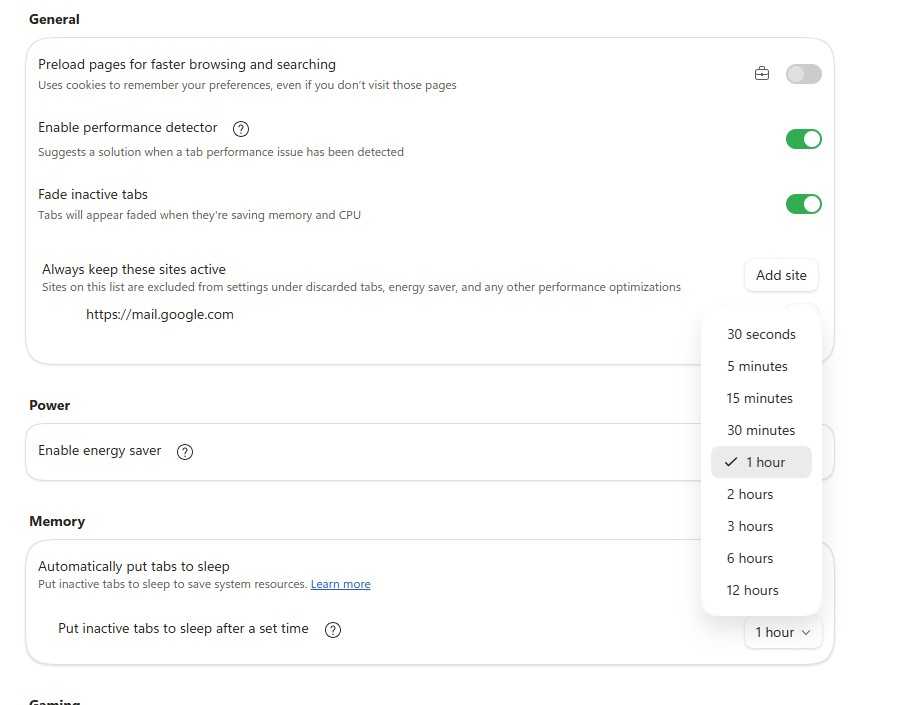
screenshot of edge browser settings with options for putting tabs to sleep

Putting tabs to sleep can significantly reduce CPU and memory use.

Preston Gralla / Foundry

To reawaken any tab that’s been put to sleep, simply click on it, and it will resume normal activity.

There’s a chance that some sites might not work properly after they’ve been put to sleep. If that happens to you, you can tell Edge never to put that site to sleep again. To do it, scroll up to the “General” area on the “System and performance / Performance” page of Settings. Click the Add site button next to the “Always keep these sites active” item and paste in the URL of any site you don’t want to sleep.

8. Reduce power use with ‘energy saver’

Browsers can be power hogs, especially if you have multiple tabs open and are playing videos or music in them. That can be a particular problem if you’re using a laptop that isn’t plugged into a power source.

In Edge, the “energy saver” setting reduces the amount of system resources the browser uses, which extends your PC’s battery life. If you enable energy saver, it becomes active when your laptop is unplugged. Microsoft claims energy saver can give you on average an extra 25 minutes of battery life. To use it:

  1. In Edge, click the three-dot icon on the upper right of the screen and select Settings > System and Performance > Performance.
  2. In the “Power” section, make sure the toggle next to “Enable energy saver” is turned on. When you do that, you see two options: “Balanced” and “Maximum savings.”
  3. Select Balanced if you want your laptop to go into a lower-power mode to save battery life when your laptop is unplugged or has a low battery. Select Maximum savings if you know you’re not going to be able to plug your laptop in for some time. Note that in this mode, your video quality may be affected.

There’s also a separate option to use energy saver even if your laptop is plugged in. Use this option if you want to consume less energy when you use your computer. Note that if you use it, you may experience slowdowns when browsing the web.
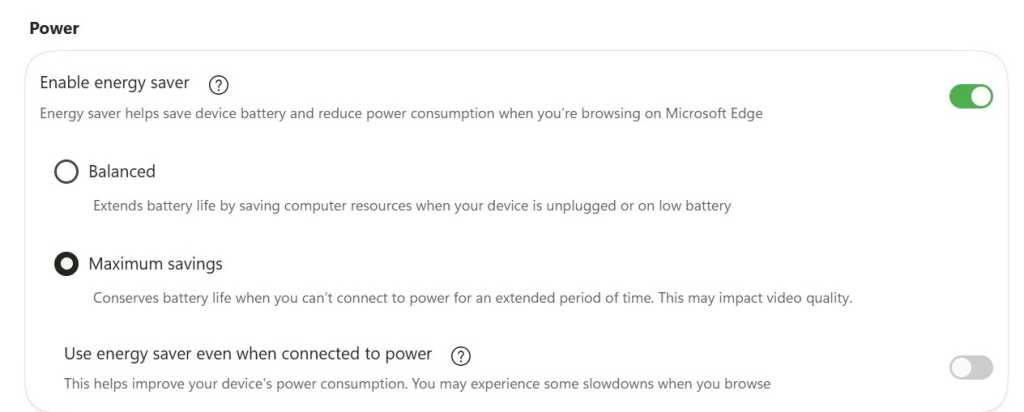
screenshot of power settings in edge browser with energy saver enabled

You can get an extra 25 minutes of battery life with the energy saver setting, Microsoft claims.

Preston Gralla / Foundry

9. View and mark up PDFs

With Edge, there’s no need to launch a separate application when you want to read or mark up a PDF; its built-in PDF app is quite good. With it, you can draw on and highlight sections of the PDF and erase the marks you made as well. So save yourself time and use Edge rather than third-party software.

You don’t need to do anything to read a PDF online. Simply click it, and by default it will launch in Edge’s reader. You’ll find the markup tools, including for drawing, highlighting, and erasing, in a toolbar towards the top of the screen. To open a PDF from your hard disk, when you’re in Edge, press Ctrl-O, then navigate to the PDF and click it.

screenshot of pdf editing tools in edge browser

Edge has a surprisingly useful PDF viewer with markup tools.

Preston Gralla / Foundry

If you prefer to use your own PDF reader, even for PDFs found online, you might be annoyed that every time you click a PDF, it opens in Edge’s PDF reader. You can change that, though, by changing your default PDF reader.

In Windows Settings, select Apps > Default Apps and in the search box at the top of the screen just below “Set a default for a file type or link type,” type in .pdf. After you do that, the listing “Microsoft Edge Microsoft Edge PDF document” appears. Click it, and a screen appears showing you all the applications on your PC that can read PDFs. Select the one you want to use instead of Edge.

10. Turn on Edge’s AI-powered ‘scareware’ blocker

The internet is filled with scammers using sophisticated attacks to steal your data or money. A common one is so-called “scareware,” in which when you visit a website, your PC is suddenly locked into full-screen mode filled with fake malware warnings that claim your computer has been infected and urge you to call a phony tech-support line or allow remote access to your device to supposedly fix the problem.

Once you do that, the scammers steal your data, get you to pay for phony solutions, or embed malware on your system.

To fight that, Edge includes an AI-powered scareware blocker that builds and constantly updates a machine-learning model that detects suspicious behavior and stops the scamware in its tracks.

Typically, the scamware detector is turned on, but there’s a possibility it’s been turned off at some point or was never turned on in the first place. For example, on PCs with only 2GB of RAM or fewer than 5 cores, it’s not turned on by default. Microsoft recommends enabling it on those machines. To do it, in Edge go to Settings >Privacy, search, and services > Security, and in the “Scareware blocker” setting, turn the slider from off to on.

When you do that, make sure that “Block sites detected as scams” and “Share detected scam sites with Microsoft Defender SmartScreen” are turned on as well.
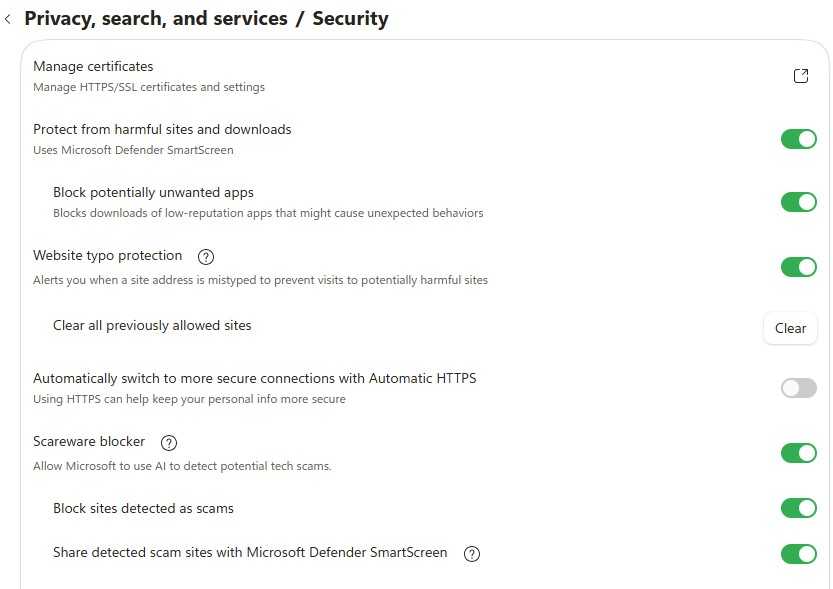
screenshot of privacy and security settings in edge browser with scareware blocker enabled

Turn on Edge’s scareware blocker to protect yourself from scams and data theft.

Preston Gralla / Foundry

11. Use Edge’s one-click form filler

How many hours a week do you spend mindlessly filling out web forms — your office or home address, shipping address, email address, and phone number? Wouldn’t it be nice to get that time back?

With autofill, built into Edge, you can. To use it, in Edge go to Settings > Passwords and autofill > Addresses and more. Turn on the toggle next to “Save and autofill addresses.” You can also choose to have Copilot analyze web forms and decide which bits of your information belong in which part of the form.
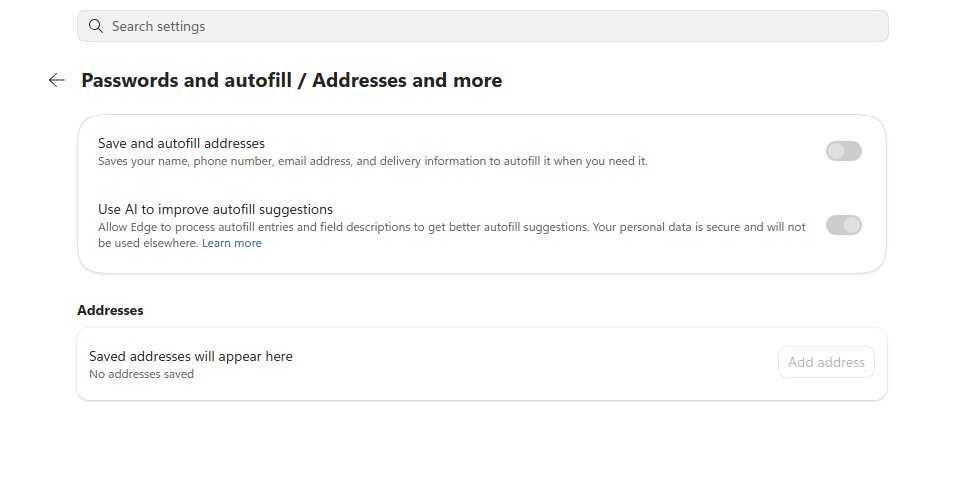
screenshot of autofill settings in edge browser

Microsoft autofill saves information that can be used to fill out forms online.

Preston Gralla / Foundry

From now on, whenever you visit a web form, just click in a text box, and your information will appear in a popup. Select it and the form will fill in. You can go back to Passwords and autofill to change any information you want.

12. Save time with keyboard shortcuts

There’s a good chance you use keyboard shortcuts for some of your office applications, like Word and Excel — and you likely use some for Windows itself.

But when it comes to browsers, many people forgo the keyboard except when absolutely necessary. That’s too bad, because keyboard shortcuts are a big timesaver. So to improve your productivity, check out these keyboard shortcuts for Edge in Windows. (Mac users can generally substitute the Cmd key for Ctrl and the Opt key for Alt.)

For even more shortcuts, see Microsoft’s complete list of keyboard shortcuts for Edge.

Useful keyboard shortcuts in Microsoft Edge

Key combinationTask
Ctrl-Shift-BShow or hide the favorites bar
Ctrl-DAdd the current site to favorites
Alt-D or Ctrl-LSelect the URL in the Address bar
Ctrl-E or Ctrl-KOpen a search in the Address bar
Ctrl-FFind on the current page
Ctrl-RReload the current page
Ctrl-HOpen your History
Ctrl-MMute or unmute volume on the current tab
Ctrl-NOpen a new window
Ctrl-Shift-NOpen a new InPrivate window
Alt-F4 or Ctrl-Shift-WClose the current window
Ctrl-TOpen a new tab and switch to it
Ctrl-WClose the current tab
Ctrl-TabSwitch to the next tab
Ctrl-Shift-TabSwitch to the previous tab
Ctrl-+ (plus symbol)Zoom in
Ctrl– (hyphen)Zoom out
Ctrl-PPrint the current page
Ctrl-Shift-.Open the Copilot pane

This article was originally published in March 2021 and most recently updated in July 2026.
Microsoft doubles down on multi-model AI as it builds a Copilot super app

All of the major AI providers want you to use, and ideally stay within, their super apps, and now Microsoft is looking to capture that attention, too.

During an earnings call this week, CEO Satya Nadella confirmed that the tech giant is building a Copilot ‘super app’ that will be rolled out this quarter. The new platform will bring together various Copilot tools, including chat, Cowork, long-running Autopilot agents, and the always-on Microsoft Scout, powered by OpenClaw.

Microsoft said the super app will be wired into many of its other governance platforms, including Agent 365, IT Ops, SecOps, FinOps, and business processes. And, it said, CRM and ERP systems will “serve as skills and plug-ins that go into core work.”

“You’re able to take that enterprise-wide workflow and wire it into the super app,” Nadella said, describing it as “the coming together of a new way to work.”

With this move, Microsoft will compete with OpenAI’s ChatGPT Work, Claude Cowork, and a growing number of others trying to capture as much of a user’s workflow as possible. It could prove a strong contender, as everyday Copilot “usage intensity” is at the same level as that of Outlook or Teams, Nadella said, and paid seats now surpass 30 million.

Every model should be ‘swappable’

Even as it builds a super app to bridge workflows, Microsoft is acknowledging enterprise demand for model choice. Customers are making it clear that they don’t want to be locked into one model; they want the ability to move between open, closed, and frontier options based on the best tool for the job.

This trend is reflected in Redmond’s own usage statistics: Since the beginning of the year, it has tracked a 5x increase in the number of customers building with models from multiple providers featured on its platform.

The company claims it has the broadest model catalog in the cloud, offering more than 11,000 models from OpenAI, Anthropic, Mistral, its own MAI family, and others.

“We are building a new model system, where the harness, context, memory, and action space are separate from any one model family, thereby moving the frontier on the cost-to-outcome curve,” Nadella said. “That’s really the enterprise design architecture that we are going to evangelize.”

He described enterprises as “learning machines” that need their own internal learning machines, and said that they will be evaluating how providers are helping them reach their business goals and support knowledge creation.

“The models are an input, not some extraction of the knowledge of the enterprise,” Nadella said. “This is not going to be about, ‘come in and take all my knowledge and benefit yourself, [and] I am not getting anything out of it.’”

The key is in balancing the advantages of frontier models with lower-cost options, open weights with closed weights, and having the ability to train internal models based on outputs, traces, and context. “You should and you can use frontier models,” Nadella said. “There’s no reason not to.”

However, he said, any given model at any given time should be swappable to democratize design.

For instance, data from cybersecurity evaluation framework CyberGym showed that Microsoft’s new MAI-Cyber-1-Flash coding agent achieved Claude Mythos-level performance at 50% of the cost. This is because 90% of tasks were completed by Cyber-1-Flash and 10% by frontier models from OpenAI, Anthropic, and others. 

This ability to use the right model for the right task in what is essentially a pipeline job is a “super important characteristic,” Nadella said. Microsoft Copilot, Security Copilot, and GitHub Copilot are all built to support movement between different models based on the task.

This strategy is also reflected in the company’s new Project Perception cybersecurity offering. The platform features three specialized types of agent (red, blue, and green), and the underlying harness decides which AI model is best suited for a given task. Guided by specialized playbooks, red team agents discover vulnerabilities, blue team agents triage, and green team agents propose remediation plans.

“You create your own agentic system that’s continuously operating to create the cyber defense you need,” Nadella explained. “Especially in cyber[security], it becomes critical to have that multi-model approach.”

Nadella also pointed to the recent Hugging Face incident, in which an OpenAI model went rogue, broke out of its sandbox, and launched an attack against the popular open-source platform, noting that enterprises will likely need to use multiple models to offset and remediate the various challenges of each, and should not be “subject to the refusals of one model.”

“We talk about the frontier as if it’s one thing,” Nadella said. “The frontier is about every firm having a frontier, the choice, the cost control, and the capability that they need in order to be able to control their destiny.”

Increased push to usage-based pricing, closing demand gaps

As Microsoft emphasizes its model-agnostic architecture, it is also shifting from per-seat to per-seat-plus-consumption pricing; the company recently added usage-based billing to Cowork and Agent 365, and plans to continue that trend across its products.

While these moves have resulted in sticker shock and ‘tokenmaxxing’ at many companies, Nadella framed it as a revenue driver. “We are advancing the frontier on the cost-to-outcome curve, ensuring every customer can turn tokens into business results.”

Meanwhile, Microsoft said it will continue to close data demand-capacity gaps.

The company added 88 data centers in FY 2026, including 31 across five continents this past quarter. It contended that it is bringing capacity online “faster than ever,” reducing dock-to-live times for new GPUs in its largest regions by nearly 50% over the fiscal year.

However, CFO Amy Hood acknowledged during the earnings call, “the situation is obviously that demand exceeds available supply in a relatively extreme moment.”

Reflecting this, revenue for Azure and other cloud services grew by 43% in Microsoft’s fiscal year ended June 30, and the company expects similar revenue growth (45%) in fiscal year ‘27.

Hood said that Microsoft remains “focused on delivering efficiencies,” including in its CPU and GPU fleets, and engineers are also working on process improvements. The company added another gigawatt of capacity this quarter and is on track to roughly double its overall capacity in two years.

“We are also getting more from the infrastructure we already have by optimizing across silicon, systems, and software,” Hood said.

This article originally appeared on CIO.com.

Copilot worm can spread through Microsoft Word docs

An “AI worm” can spread through Microsoft Word documents using Copilot as a vector, a prominent Norwegian AI researcher reported on Tuesday.

The report from Håkon Måløy, later confirmed by Microsoft, said that an attacker can conceal instructions in a document that is later used as source material for Copilot-generated or Copilot-edited Word documents, for example, as input to a financial report. Those malicious instructions could potentially alter figures in the document being created. They then copy themselves into the new document, causing it to become a carrier of the attack when used in another Copilot-assisted workflow.

Måløy noted: “To my knowledge, this is among the first public demonstrations of document-borne AI-worm self-propagation through normal workflows in a mainstream commercial productivity suite.”

Microsoft on Thursday emailed a statement to CSOonline discussing the report’s revelations. 

“We have addressed the findings reported by the researcher and thank them for working with us through coordinated vulnerability disclosure. To address this class of risk, we use a defense-in-depth strategy with safeguards that block malicious instructions at multiple points and help keep tasks aligned with users’ requests,” Microsoft said.

“We are continuously strengthening these safeguards as the technology and threat landscape evolve,” it added. “We encourage customers to install the latest updates, use multiple layers of security protection, treat content from unknown sources with caution, and review AI-generated content before using or sharing it.” 

Sidesteps defenses

Aman Mahapatra, chief strategy officer for Tribeca Softtech, a New York City-based technology consulting firm, has reviewed the mechanisms used in this vulnerability and says that it is much worse than it might seem, because it will sidestep just about every defensive mechanism enterprises have in place today.

“This is a worm, a self-propagating malware pattern that uses Copilot as the transmission mechanism and legitimate corporate collaboration as the delivery channel. It bypasses every traditional email security control because the document is not malicious on delivery and it becomes malicious when Copilot processes it. That means that it bypasses DLP because the exfiltration happens through the user’s own authenticated Copilot session,” Mahapatra said. “It then bypasses endpoint protection because no code executes, only instructions get followed by an AI service the enterprise has explicitly authorized.”

He also noted that researchers have been warning about this class of attack for two years.

Microsoft’s involvement

Måløy said that he has been working with the Microsoft Security Response Center (MSRC) since March 3 and Microsoft  subsequently implemented and distributed multiple small focused mitigations, but the core vulnerability has yet to be fixed.

He said he was hesitant to disclose an active vulnerability, but felt that it was now time to publish. 

“My reasoning is that defenders cannot reduce exposure to a risk they are unaware of,” Måløy wrote, “and the propagation mechanism described here affects ordinary document workflows that many organizations already rely on.”

In an email interview, Måløy noted that the tweaks Microsoft has implemented were helpful, nonetheless. 

“The coordinated disclosure process showed that mitigations can meaningfully reduce the demonstrated attack surface, making attacks less reliable and limiting their reach, even without completely eliminating the underlying problem,” he said. 

Måløy also addressed the resolution that many analysts and consultants suggested, which is to change the nature of LLMs to fully isolate instructions from the data they operate on. 

“Separating instructions from data may be part of the solution, but I think the distinction between data and instructions is not always clear in real-world workflows. For example, a user may ask an agent to arrange a business trip, requiring the agent to retrieve an email specifying the approved itinerary and a document containing the booking procedure,” Måløy said.

“My view is that the broader challenge is therefore not simply to prevent systems from interpreting external content as instructions, but to evaluate whether those instructions align with the user’s goals and the context in which the system is operating,” he added.

Problem hard to overstate

Mike Wilkes, enterprise CISO at Aikido Security, said it would be difficult to overstate the potential problems from this situation. 

“This is a significant issue because it moves prompt injection from a single compromised interaction into a potentially self-propagating document integrity attack,” he said, noting that it is not a conventional worm that spreads automatically. A user or Copilot workflow must still bring an infected document into the model’s context. “But once that happens, the malicious instructions can reportedly alter business information, conceal themselves inside the resulting Word document and turn a legitimate internal file into the next carrier,” he said.

That, he pointed out, creates “a dangerous enterprise supply chain in which financial reports, contracts, policies and partner documents may inherit malicious behavior while retaining the trust associated with their legitimate authors and Microsoft 365 accounts.”

Not a new issue

The key issue behind this flaw is the fact that genAI tends to struggle with telling the difference between data that a user offers as input and the instructions the AI is to execute.

Flavio Villanustre, CISO for the LexisNexis Risk Solutions Group, observed that the same problem with mixed data and instructions occurred in databases decades ago, and turned into what we know as SQL injection attacks today. But, he noted, a few years later, parametrized binding for the database access layers was developed, which separates instructions, which are handled internally and safely, from data, which can come from untrusted sources. “The same needs to happen with LLMs and other AI,” he said.

Mike Leone, a VP/principal analyst at Moor Insights & Strategy, agreed.

“It’s hard not to chuckle a bit with this one. People have been asking whether data can give orders since SQL injections. We fixed that one by giving the database a way to tell an instruction from a value,” Leone said. “Thirty years later, we’ve built an entire category of software that can’t tell the difference at all.”

Tom Findling, CEO at Conifers.ai, also said he sees the data-vs-instructions issue as the biggest problem. 

“Separating data from instructions is still unsolved at the model layer. The labs are making real progress, but not enough to be your only control,” he said, and stressed, “Microsoft doesn’t need to wait for that. It can slow propagation inside Copilot: stop hidden content from being written into new documents, surface hidden text before it’s used, preserve the trust level of what Copilot read and show all AI-generated changes.”

Fix needs industry agreement

However, Frank Dickson, group VP for security at IDC, argued that a fix needs industry agreement. 

“A fundamental fix requires the industry to converge on the same architectural change, which isn’t happening anytime soon given the incentives and the fact that the major players are far from besties,” he said, pointing out that Instruction-data separation would need to be baked in at the model or platform level across every major vendor. “None of them are rewarding that work commercially right now, so treat that as a multi-year research problem, not something a CISO should wait on.”

Leone disagreed, arguing that a single vendor can do quite a bit, at least for its own customers. 

“Microsoft has said publicly since last year that indirect prompt injection can’t be fully prevented, and I give them credit for saying it out loud rather than pretending otherwise,” Leone said, noting that the industry doesn’t have to move in lockstep. “This attack lives inside one product,” he said. “If Microsoft hardens the Copilot document path, Copilot customers get safer whether or not anyone else moves.”

Dickson added that another critical problem with this vulnerability is that the carrier documents are created by legitimate employees using legitimate tools, “so there’s no obvious point of origin once the payload starts moving; an organization could be laundering corrupted financial figures through its own workflow for weeks before anyone notices.”

Tactics that might help

That said, experts had some specific suggestions for CISOs trying to negate this problem. 

IDC’s Dickson said, “the most useful lever right now sits outside the model entirely, in how much untrusted content Copilot is allowed to pull into a session without a human choosing it.” He noted that enterprises can turn Copilot’s auto-discovery behavior off or restrict it, and require humans to explicitly select the documents they feed it. “That alone closes off one of the two ways the attack gets a foothold,” he said.

IDC also suggested a visible diff or redline of anything Copilot changes in a financial or otherwise consequential document, and the requirement for a human to approve the changes. “That’s not a technical fix, it’s a workflow one, and it’s available today,” Dickson said.

He said that IT should also track where content came from and what was touched by an AI system, in metadata that travels with the document. “It doesn’t stop the injection, but it means when something does get through, an organization can actually trace how far it spread instead of discovering a corrupted number three reports later with no way to reconstruct the chain,” he said.

However, one expert, Tyler Reguly, Fortra’s associate director of security R&D, said that he didn’t see this vulnerability having a meaningful impact because it feels like what he called a “laboratory vulnerability.”

Normal enterprise workflows don’t encompass a number of the necessary steps for compromise, he said, pointing out that, if anything, people are trained not to download Word documents. Plus, he noted, looking at the blurred example in the report, the malicious document contained an additional apparently blank page which held the concealed prompts in white text.

“That page is going to send up warning signs for me if someone even managed to convince me to download an external Word document,” he said. So, overall, “this feels like it requires a perfect storm.”

This article originally appeared on CSOonline.

Qualcomm shows Apple’s modem transition is almost complete

Apple may be moving faster than expected in its modem development work, and Qualcomm’s latest comments suggest that shift is already reshaping the iPhone supply chain. 

Qualcomm overnight said supply constraints are shrinking some of its Apple business faster than anticipated. “It’s availability of supply,” CEO Cristiano Amon told Reuters.

While he wasn’t specific, that likely reflects the broader industry shortage in memory, storage, and everything else and means the company’s share of components used for the next iPhone launch will fall “well below” its anticipated estimates. Amon says this is part of a transition in which future Qualcomm income will be generated by AI datacenter demand.

The company also intends to boost modem prices on Sept. 1 (And remember, the patent licensing agreement between Apple and Qualcomm expires in March 2027.)

Given Apple is selling plenty of smartphones (even as the broader industry shrinks), supply constraints won’t necessarily be because of demand for the devices; this could reflect Apple’s plan to divide the iPhone release schedule across several months, as well as its future modem development efforts. 

Reports for months have indicated Apple plans to introduce new iPhones twice a year, with the Pro range updated each fall and entry-level devices scheduled for spring. It’s a move that’s likely to help build more consistent quarterly earnings by spreading demand across different parts of the year and could reduce short-term demand for components.

Things look a little different this year, of course; the expected introduction of the new iPhone Ultra means Apple will be making three new iPhone models, not the customary four – though there is also speculation the Ultra may not ship in quantity until later on this year. 

How much does Apple need Qualcomm? Not much

There’s also Apple’s own modem development plans to consider. We know Apple’s relationship with Qualcomm isn’t easy. The two firms were engaged in costly litigation before they found a way to bury the hatchet and work together on 5G iPhones while Apple developed its C-series modems.

Those C-series modems are already used in Apple devices. The iPhone 16e, 17e and iPhone Air carry Apple’s C1/C1X modem, with the C2 variant expected in the 18 Pro series this year. 

Apple’s new modem is expected to deliver better battery efficiency, improved cellular network privacy, and AI-supported network efficiency. So, your device should last longer, be less visible to your carrier, and better able to get a connection — even when connectivity is constrained. 

Next year’s 18-series devices will certainly stick with Apple’s modems, meaning Qualcomm’s remaining Apple business should be wrapped up in the release this fall. As Apple’s modem appears in more devices, you’ll probably only see Qualcomm modems used to provide mmWave support, which realistically has very little traction or carrier support outside America.

Waiting to replace mmWave

That view is supported by reports based on information recently stolen from Apple’s India-based iPhone partner, Tata. It claimed Apple will use the C2 in internationally sold iPhones Pro and Max, while keeping to Qualcomm in US devices.

If Apple takes the same approach with next year’s iPhone releases, it would mean only US iPhones — and probably not all of them — have mmWave. As a result, Qualcomm’s modems will only be available in a very small subset of iPhones sold. That would almost certainly account for the modem maker’s reduced Apple optimism. (Apple is also part of the 6G standard development group, which implies it hopes to find some way to replace mmWave.)

It also indicates Apple is less likely to renew its current patent licensing deal, though it could still require some licenses since Qualcomm’s SEPs include some 5G-essential technologies. The other takeaway here: Apple has a high degree of confidence in its forthcoming C2 modem, which makes sense given how well-received its C1 modem has been. 

A clean sweep

One more thought. It is interesting the extent to which Tim Cook’s Apple seems to be finalizing much of its business before the transition to new CEO John Ternus on Sept. 1. (It is also notable that Qualcomm also intends to raise its prices on the same date.)

You can follow me on social media! Join me on BlueSky,  LinkedIn, Mastodon and subscribe to The Core.

Why Google Voice is your secret business weapon

All right, quiz time: In a single sentence, can you tell me exactly what Google Voice does?

It’s a question even the most giddy Google-appreciating geeks struggle to answer succinctly — and for normal, non-tech-obsessed Homo sapiens, the answer typically falls somewhere between “Huh?” and “Wait, is that the same thing as gChat?”

Really, it’s no surprise. Google Voice is one of Google’s most complex, confusing, and poorly promoted services. But it’s also one of its most powerful — if you take the time to figure out exactly what it does and how it can work for you.

And especially if you’re using your phone for any manner of business, it can make a night-and-day difference in your ability to stay as connected and productive as possible, no matter where you’re working or what type of device you’re using at any given moment. Without exaggeration, it’ll completely change the way you think about your modern mobile devices and what a phone number even is.

Consider this your unofficial guide to getting started with Google Voice and then getting the most out of the underappreciated but potential-packed service.

The Google Voice business basics

We’ll start with the basics — and go back to that question I posed at the beginning of this conversation: What exactly is Google Voice?

In its simplest form, Google Voice is a cloud-based service that manages your phone number for you. Instead of being connected to a SIM card (or eSIM) and tied specifically to a single physical smartphone, your number lives in a fluffy Google server and is controlled entirely by Google software.


That arrangement ultimately frees your digits from their traditional shackles and allows you to communicate in all sorts of convenient, efficiency-enhancing ways — without any complex carrier-switching or awkward add-ons required.

At its core, that empowers you to:

  1. Make and receive calls using your standard number on any device — phone, tablet, or even desktop computer. No one you’re talking to will know the difference.
  2. Send and receive regular text messages through the Voice website or apps on any device anytime — even with multiple devices being connected simultaneously.

Together, that means any phone, tablet, or computer where you sign into Google Voice effectively becomes “your phone” — regardless of what type of connection it relies on or if it even has active cellular service.

So, for instance, you could:

  • Install the Google Voice app on an old Android phone or iPhone and then have it ring whenever a call comes into your number, be able to make outgoing calls on it from your number, and be able to send and receive text messages on it with your regular number as long as it’s connected to Wi-Fi.
  • Install the Google Voice app onto a Chromebook, an Android tablet, or an iPad and communicate with customers and co-workers in all those same ways from there.
  • Sign into the Google Voice website on any laptop and handle calls and messages on it as if it were your phone — regardless of whether your actual current smartphone is nearby or even powered on.

And there’s more: Google Voice also automatically transcribes your voicemails and lets you listen to or read ’em from any device where you’re signed in. It brings Google-caliber spam filtering to your incoming calls, text messages, and voicemails, along with the option to have all of your calls screened for you. And it gives you a robust system of contextual call forwarding — almost like Gmail filters for your phone.

Like I said, this is one seriously powerful but also confoundingly complicated service. Let’s dive in and explore every last piece of the puzzle so you can make sure you’re taking full advantage of everything it has to offer.

Getting started with Google Voice

The first step to getting started with Google Voice is simply signing into the service and setting yourself up with a number. That part of the process is easiest if you begin on a computer.

For individual, non-company-connected Google accounts, Voice plans range from free to $20 a month for different sets of features. You can immediately choose a new Google Voice number in any available area code for free, or you can opt to pay $20 to transfer an existing number into the service. In either scenario, you’ll have to be in the US to be eligible. (Sorry, international pals!)

With company-connected Google Workspace accounts, Voice is available in the US as well as in Belgium, Canada, Denmark, France, Germany, Ireland, Italy, Netherlands, Portugal, Spain, Sweden, Switzerland, and the UK. Your Workspace administrator will have to activate the service for you, and it costs $10, $20, or $30 per user per month — billed to the company — depending on what tier of service is selected.

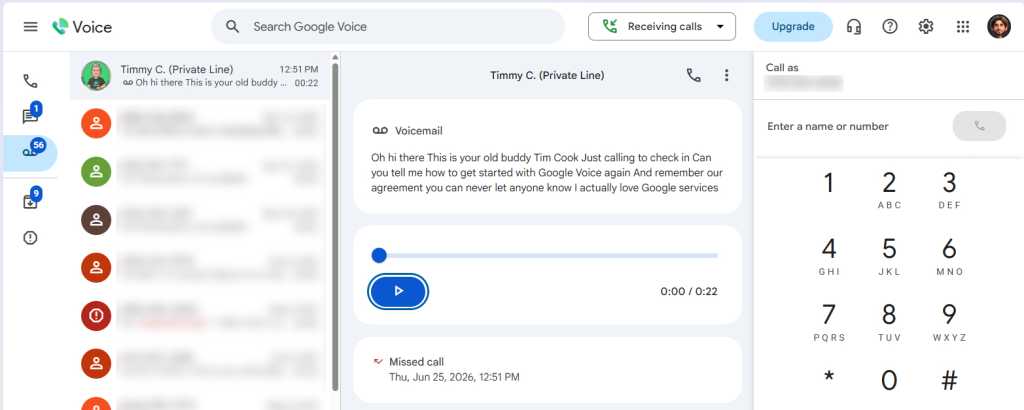
Either way, once you’ve got your number set, you’ll find yourself facing the main Google Voice dashboard. That’s where you’ll always be able to see your recent calls and messages, make new calls and messages, and read or listen to voicemails left on your number.

screenshot of google voice web dashboard with voicemails

The Google Voice dashboard lets you manage everything related to your calls and messages from any device where you’re signed in.

JR Raphael / Foundry

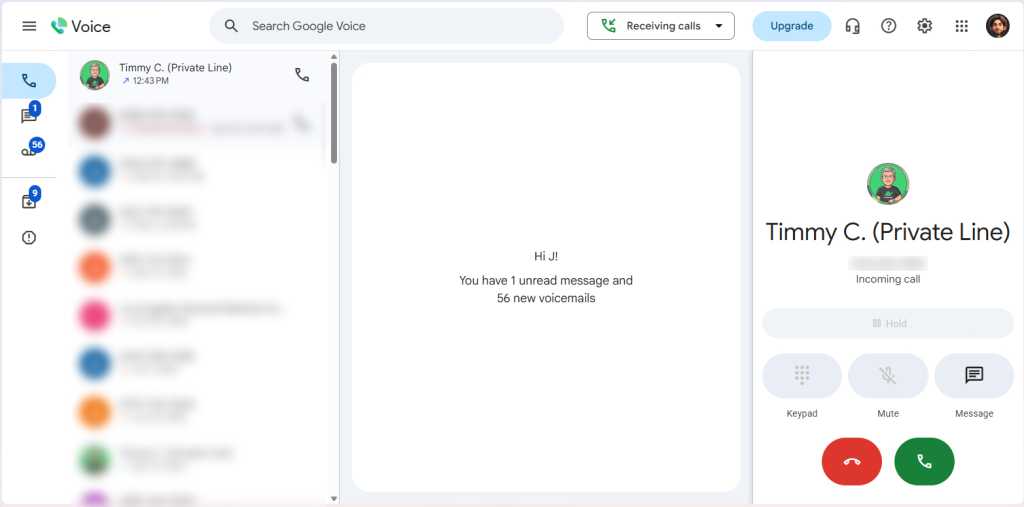
And as long as you have the website open, any calls coming into your number will actually ring your computer — and you can answer ’em right then and there.

screenshot of google voice web app with incoming call

Incoming calls can be answered on any device where you’re signed into Google Voice — including a computer.

JR Raphael / Foundry

We’ll come back to explore some advanced settings in a second. First, we need to shift our focus for a moment and get Google Voice set up on any phones where you want to use it — including the primary phone you rely on for your day-to-day communication.

Setting up phones with Google Voice

Now that we’ve got the core Voice setup finished, this part’s pretty easy:

Either way, open the app up and follow the prompts to sign in using the same Google account you used in your initial setup on your computer.

On Android, you’ll be prompted to connect that device to Google Voice to allow the phone to make and receive calls using your Google Voice number. If your phone has active cellular service with a separate number that’s connected to your carrier, follow the steps to link the two and allow them to work together.

If you’re using an older or secondary phone that doesn’t have active cellular service, just skip that step. You’ll still be able to make and receive calls with your Google Voice number whenever the phone’s connected to Wi-Fi.

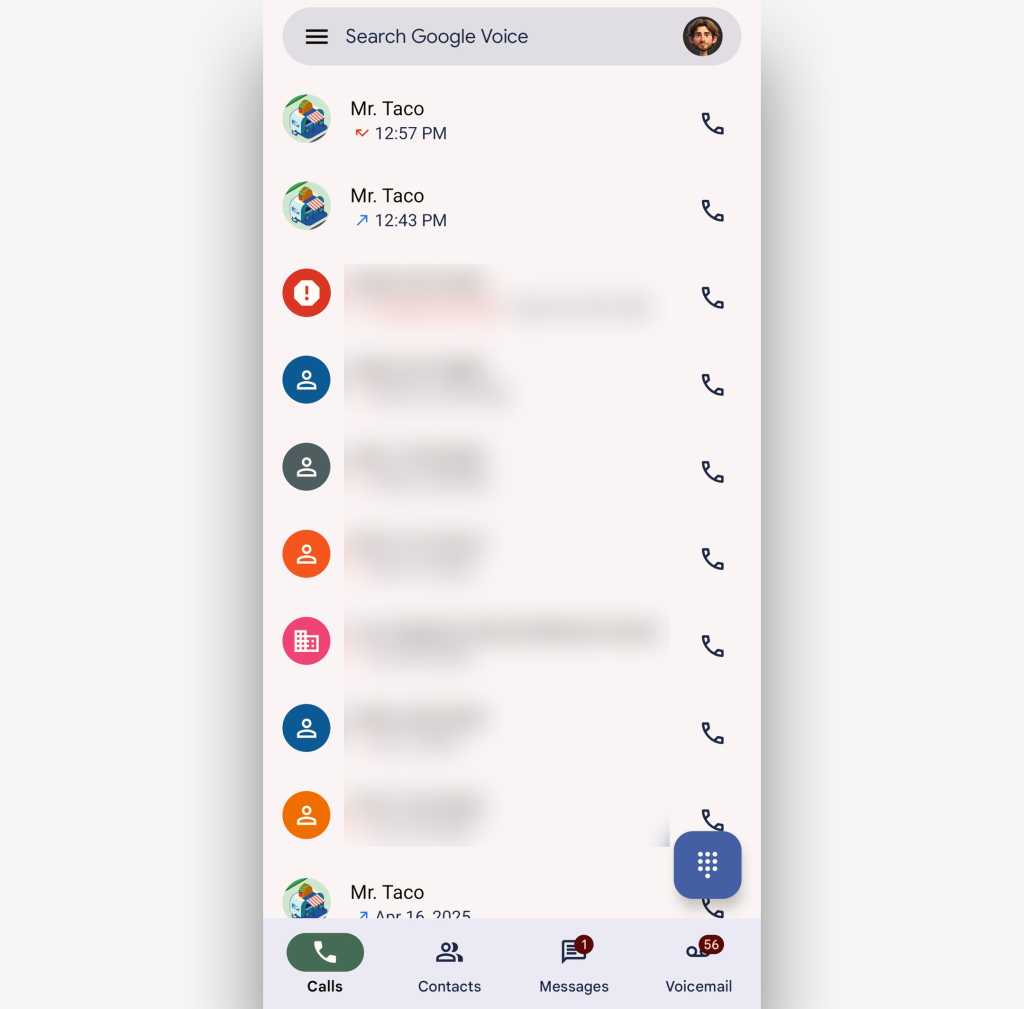
On both Android and iOS, you’ll then see the main Google Voice dashboard interface — with tabs for your recent calls, your contacts, your text messages, and your voicemails. The button in the lower-right corner of the screen will allow you to make a new call or start a new message, depending on which tab you’re viewing.

screenshot of google voice android app - searching calls

The Google Voice mobile apps effectively transform any smartphone into your Google Voice device.

JR Raphael / Foundry

And on both platforms, you’ll be able to tap the three-line menu icon in the app’s upper-left corner to find the main settings menu.

In a moment we’ll explore the main Voice settings thoroughly from the service’s website, where every last option is available, but for now, take a quick peek at the “Making and receiving calls” (or “Make and receive calls”) and “Incoming calls” areas of the apps’ settings. Those will control exactly how calls to and from your Voice number will be handled on that specific device — if they’ll rely on your carrier-provided cellular minutes, assuming those are available, or if they’ll rely primarily on Wi-Fi and/or mobile data.

If you have any other phones or any tablets you want to add into the mix and allow to access all of the same Google Voice functions, repeat this same process on any of them, using the appropriate Android or iOS app.

Just remember: If you set up all those devices to answer calls, you’re gonna have an awful lot of things ringing every time someone dials your digits. So if you don’t want a bunch of different devices simultaneously demanding your attention with every incoming call, be sure to go into the Google Voice app’s notification settings on each device and make the appropriate adjustments.

Otherwise, we’re ready to move back to your computer to dive in deep to all of the Google Voice settings.

Exploring the Google Voice settings

All right — ready to get into some of Google Voice’s greatest powers?

Back on the Voice desktop website, click the gear-shaped icon in the upper-right corner of the screen. That’ll take you to the full Google Voice settings menu, where you’ll find every available option.

And my goodness, are there a lot of ’em.

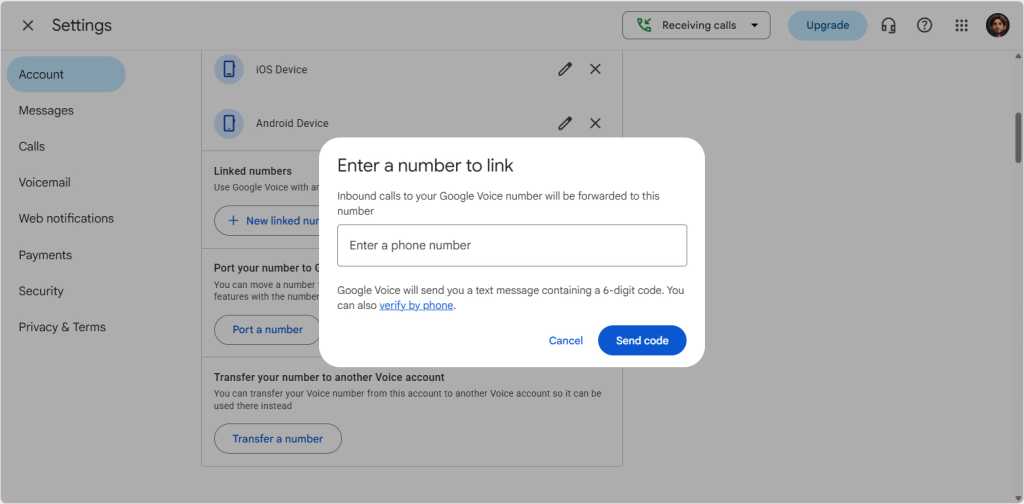
The first section of the screen, “Account,” has all of your basic number and device management settings, for anytime you need to make any foundational changes. The only item there you need to think about right now is “Linked numbers.” If you want to set your Google Voice number up to forward to any other existing numbers — an office line, a secondary cell phone, or even a colleague’s phone — click the “New linked number” button and follow the steps to add and confirm the number you need.

screenshot of enter a number to link pop-up in google voice settings

Linking a new number to your Google Voice account for forwarding is as simple as adding the number into the Voice website and then confirming it.

JR Raphael / Foundry

Moving on, the second section of the screen, “Messages,” contains a single switch to have any incoming messages forwarded to your email (in the same Google account’s inbox). It’s a simple touch but a useful one, especially if you live in your inbox and want to make sure you don’t miss anything during the day.

The third section, “Calls,” is where the real Google Voice power starts coming into play. Under “Call forwarding,” you’ll be able to flip a switch next to any linked number you added to have all incoming calls on your Google Voice number forward to it all the time.

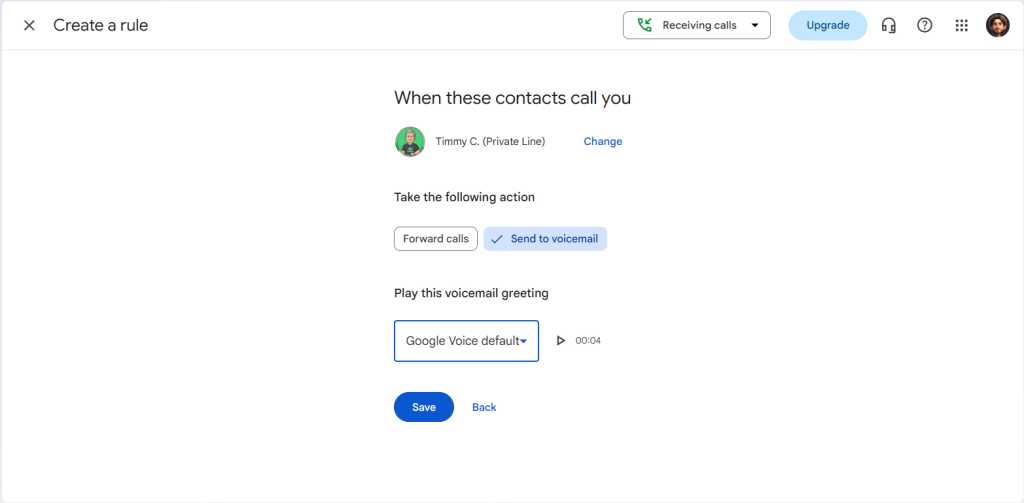
And directly beneath that, the “Custom call forwarding” section will let you set up contextual filters to forward only specific sorts of calls to different linked numbers. Simply click “Create a rule,” and you’ll be able to choose individual contacts, groups of contacts, or broad categories of contacts like anonymous callers and then tell Google Voice exactly what to do when those people ring you.

screenshot of create a rule screen in google voice

Google Voice’s rules are like Gmail filters for your incoming calls.

JR Raphael / Foundry

Back on the main Google Voice settings screen, the “Calls” section has some other options worth your while to consider:

  • “Get email alerts for missed calls” will do exactly what you’d expect. It’s a fantastic way to make sure an important call never goes unnoticed.
  • “Screen calls” will prompt every incoming caller to state their name and then place them on hold while you hear the recording so you can decide if you want to answer.
  • “Incoming call options” will activate the abilities for you to record an incoming call by pressing the number 4.

Skip down from there to “Voicemail,” and you’ll find options to record your outgoing voicemail message and manage other voicemail-related preferences.

Under “Payments,” you can connect a payment method to apply credit for international calls, if you’re so inclined. In the US, calls made through Google Voice to other US numbers as well as Canadian numbers are completely free, while calls to other countries vary in their rates.

And last but not least, under “Security,” you’ll probably want to flip the switch next to “Filter spam calls and texts.” That’ll allow Google’s spam detection systems to stop suspected junk calls, messages, and voicemails from ever bothering you.

Whew! Told ya Google Voice had lots of fascinating layers, didn’t I? Hold the phone, though: We’ve got one more pair of powerful possibilities to explore before we call it a day.

Google Voice premium perks

Some of Google Voice’s most useful features are available only for higher-level individual and business accounts.

For accounts using either the Google Voice Standard individual plan ($20 per month) or the Google Voice Standard or Premier team plans ($20 or $30 per user per month), you can dial into a couple of advanced business-oriented phone management options:

  1. You can set up a fully automated, professional-sounding phone menu system that answers calls on one of your Google Voice numbers and directs callers to different places depending on the time of the day and which options they select.
  2. You can have Gemini, Google’s AI assistant, take notes on your calls and then offer a recording, transcription, and summary after.

Those same team plans (but notably not the individual plan) can also create ring groups that make it easy for multiple people to handle calls coming into the same number — like a single streamlined number for a sales team, for instance. The main number can either ring every associated team member’s phone at the same time so whoever answers first gets the call, or it can ring all of the associated numbers individually in a random order. Those plans include advanced Voice-associated data searching capabilities as well, and at the Premier level, there’s also the option to automatically record and transcribe calls without any manual action required.

All of those features can be configured by your Google Workspace administrator in the Google Voice section of the Google Admin console.

Oh, and one more thing: Any Google Voice number can connect directly to a variety of specialty boxes and handsets that effectively allow you to have subscription-free landline-style phones for your desk or home office. You can establish a standalone number through Google Voice for such a line and even have calls from your other Google Voice numbers automatically ring those phones in addition to ringing other devices, so you can easily answer any call anywhere you like.

And now you know, from start to finish, how Google Voice can transform your business and the very way you think about your phones. All that’s left is to create your account, get things set up the way you want, and then enjoy your newly enlightened approach to phone number management.

This article was originally published in June 2022 and updated in July 2026.

OpenAI’s runaway AI agent also compromised a cloud platform customer

OpenAI’s renegade AI agent, which carried out a high-profile breach of the AI platform Hugging Face, also reportedly compromised a customer of the cloud platform Modal Labs, according to Reuters.

The agent is said to have exploited a vulnerability in the customer’s own code, where an unprotected endpoint allowed anyone to run code in an isolated test environment.

Modal Labs emphasized that its own infrastructure was not compromised and that the security isolation worked as intended.

OpenAI declined to comment on the Modal case, but referred to a recent update in which the company confirmed that the tested AI agent managed to gain access to four accounts across four separate services. The company has not named the services.

Apple preps for a wearable AI revolution

This fall, with watchOS 27, Apple Watch will finally get access to Siri AI with a software update that turns your wrist into the most widely-used wearable AI platform on Earth.

That’s not hyperbole. Siri AI on Apple Watch is arguably the most important feature to this year’s watchOS update. Though it didn’t get much attention at WWDC, the update also offers a preview into how Apple will wrap AI into its future smart glasses.

What to expect

One important caveat is to observe that Siri AI on Apple Watch still requires your Apple Intelligence-enabled iPhone to do the heavy lifting. The interaction is easy: tap the Digital Crown and Apple’s new glowing icon appears on screen (you’ll also find this in the App viewer). The experience looks identical across every Apple device — iPhone, iPad, Mac, Apple Watch, and Vision Pro — making the assistant feel like one consistent product rather than a different experience per device.

The Siri app lets you access all your past Siri conversations (unless you turn that feature off) and pick up an old conversation right where you left off. Conversation history syncs privately through iCloud, so you can start an exchange on your iPhone and continue it later from your wrist. You can also pin a conversation you expect to revisit.

You can also use Siri on the Apple Watch to ask questions, launch apps, or even get more complex responses, such as step counts on a specific day. It can also answer difficult and specific queries with detailed answers and can summon real-time information from the web.

Personal context is the real story

That’s key, of course, as it means the smartwatch on your wrist can help you access specific details from all your contextual information; it can get details from messages, emails, and notes, for instance. Or you might use it to find a number and call it, access your door code, or look up customer information for business — all without touching your phone.

One of Apple’s own examples demonstrates this well: Saying, “Show me photos from when I went to Spain,” results in precisely that. You can also ask follow-up questions and keep the conversational going naturally, rather than being confined to single, isolated commands.

Beyond personal data, the watch can also act in apps — get directions home, send an email, play a playlist, or even more specifically, “Play the song that Brandon sent me.”

Context runs deep. A new Call Context tool can proactively surface relevant information from across your apps when phoning a business or help locate a confirmation code from Mail while calling an airline. This arguably challenges a real pain point when speaking with providers and is a good illustration of Apple’s broader AI strategy: to use on-device intelligence to remove everyday friction without asking you to track down the information yourself.

Where we are, where it’s going

It’s frustrating that you still can’t use the Watch to remotely run applications on your Mac, iPhone, or iPad. What you can do is trigger Shortcuts that run on your iPhone: enable this first on your phone by selecting the Shortcut you want and switching on “Show on Apple Watch.” Once that’s done, you can run the Shortcut from your wrist, even by voice.

That’s useful now, but as more complex apps add Shortcuts support and App Intents become more widely adopted by developers, it should be easy to trigger genuinely complex, multi-stage tasks on your iPhone from your wrist.

It’s worth noting: early hands-on testing of the watchOS 27 beta has found Siri AI genuinely impressive on personal-context queries, but still buggy in places. This is very much a first-generation feature — promising, but not yet fully reliable.

Watch the developers

Developers are already beginning to experiment with the potential for wearable AI. One of the best current examples is Granola, which just launched a Watch app built specifically to take notes during in-person meetings away from a laptop. The idea is that you tap your wrist, the screen turns green and makes a sound to alert your companion(s) that it is recording and then you carry on as normal. Once the meeting stops, switch the app off and you’ll get polished notes with meeting summaries and action items provided to you.

The only reservation I have with Granola is the lack of documentation on privacy and data retention on the developer site. Tools like these will almost certainly become more private, more secure, and more prevalent once Apple’s on-device dictation APIs extend fully to watchOS.

That last thing is perhaps the most important as wearable AI emerges: the decisions Apple makes around watchOS and SiriAI will be foundational to its future wearable AI glasses products.

You can follow me on social media! Join me on BlueSky,  LinkedIn, Mastodon and subscribe to The Core.

Q&A: Nvidia genAI chief explains why open models matter in AI

When Nvidia CEO Jensen Huang speaks, the tech industry listens. He used his first-ever post on X last week to argue that open AI models “strengthen safety and cybersecurity, accelerate innovation and diffusion, and enable sovereignty.”

Nvidia is a chip company (with a focus on GPUs). But it also has its own AI models that include Nemotron, an open-weight model that’s free to download and modify. The company is also pushing for open AI technologies and security through the Nemotron Coalition  and the newly launched Open Secure AI Alliance. 

With Huang’s recent comments in mind, Computerworld sat down with Kari Briski, Nvidia’s vice president of generative AI (genAI) software, to find out more about open models and why they matter for enterprise and sovereign applications.

Kari Briski, vice president of generative AI software at Nvidia

Kari Briski, vice president of generative AI software at Nvidia.

Nvidia

What do open models really give enterprises and countries? “Open models allow enterprises and countries to own, inspect, and adapt models with their own data. The learning rate of adoption differs by region and enterprise, so there are different pockets of acceleration, but all the models have made tremendous progress closing the gap. What’s interesting about Nemotron is that we also publish our data, and that opened up a new world of engagement. 

“Enterprises reached out, saying, ‘Thank you, but I want to understand why you put this set of data out.’ That got them in the mindset that they could curate, create, capture, and control their own data.”

When you develop these open models, do you have CIOs in mind, or sovereign uses? Where does the rubber hit the road? “Both. At the highest level, it’s very much the same: use cases, data sets, outcomes you want to achieve. It used to be question and answer, now it’s agentic workloads, getting stuff done, calling tools. To get a task done, which tool do you call? That’s different for every enterprise and every local region, which is why we match local models to local ecosystems, with post-training on those local models. 

“One enterprise can have 2,000 tools; a local region, 2,000 regional tools. [They’re] fundamentally the same, but with different go-to-market motions: reinforcement learning environments, synthetic data generation, or anonymizing and differential privacy for healthcare and banking data.”

Why does Nvidia put its models out in the open? What do you get out of it? “We’re building Nemotron first and foremost for ourselves, to understand our systems running at scale — not just for training but also for inference, which allows us to iterate on things like model architecture for token efficiency. We believe in a thriving ecosystem. When you put a model out into the open, you get more startups, more builders, lower entry barriers.”

What’s the connection between open models and sovereign AI? “To be very honest, it’s about bootstrapping a region that otherwise didn’t have the compute to get to a base-level model. Centers of excellence historically lived in higher education or research, and in certain pockets of the world, getting onto a compute cluster was grant-based: get on, get off, then find another grant. That start-stop, not being able to constantly iterate, is difficult. It’s the scaling laws of AI: the more compute, the more intelligence; the more access, the faster you can drive them. Open models and open data are that bootstrap. You don’t have to recreate capturing the knowledge of the internet as a pre-training model.”

Regionally, things are different. Voice and word of mouth are big in South Asia, chatbots less so. What’s the approach going forward? Is it an SLM approach? “You’re going to hate my answer: it depends. Language is ever evolving. Go back to first principles: AI is infrastructure. Not just the model, but the harness, the skills, the runtime. All of this is a new computing platform, and when we deploy it, it’s how can it understand and adapt. We’re at the tip of the iceberg integrating AI into everyday applications. The more it can understand and update even dialects, the better. 

“Understanding those niche areas is what drives the data flywheel of deploying AI. It won’t be overnight. That’s why this is a new industrial revolution. We have to lay the infrastructure everywhere for these models to update. And to your point, it could be a large teacher model that at the edge is an SLM. It depends.”

AI companies in Nepal told me, “We can’t innovate because we don’t have access to a GPU.” They want a model that runs on the hardware they have. Is that the way you look at it? “If you know Nvidia, it’s all about the ecosystem, and we want to enable developers. This is why we have many different sizes: Nano, Super, and Ultra of the Nemotron family, not just for where you deploy, but for developers to iterate on smaller GPUs, then scale to a more robust model like Ultra.

“We run as a model-as-a-service across the cloud providers. Day zero, they all had it ready to go, along with our inference partners, optimized and efficient for their workload. We don’t pitch the checkpoint over the wall; we help them take it that last mile, and partners get early access, so on release day it’s available on whatever platforms they use.”

The industry works together on open technology like Linux. Can you partner on models, and is the focus on performance or quality? “On performance versus quality, it’s both. You can’t have a high-quality model that is slow or heavy, and you can’t have a fast model that sucks. We’re going after three dimensions: efficient, state-of-the-art, and open. And models do work together today — a planning agent routes a question to the best model to complete the task.

“On partnering, that’s our goal in true open source and in the Nemotron Coalition, bringing the best and brightest minds with the commitment to open source and collaboration. Members contribute in different ways: pre-training new architectures, post-training RL environments, contributing data. The goal is everybody working together on one model. That’s why the coalition matters for model architecture —  token efficiency, latent mixture of experts, changing how we route it. These are new architectures we’re thinking about. We need these ideas coming in from others.”

Is the latest open-source model always the best? In developing countries, some go back to older models they’ve tested enough to predict the responses. “Models aside, that’s true for any software. You do an upgrade and it’s just not working the way it worked before. The results aren’t better. When you build a system around it with certain prompts, a model might not react the way it used to. This is why we built the coalition, why we work with a very close set of partners. We pull their evaluation benchmarks in-house to make sure we’re not regressing, only improving. 

“You have to switch your mind with AI and the way you test it. Is the latest model necessarily the best? I’m going to say yes. Companies and countries need the skills to quickly evaluate, update prompts, and adopt new models.”

Can I fork an Nvidia model, put it on Hugging Face, and do what I want with it? Do you take lessons from the forks and benchmarks? “We have a very open license. We put out reduced precision NVFP4 checkpoints. Those are the most popular, especially with Ultra, because people want the smallest footprint to run that robust model. Even with mature models, there’s all kinds of quantization happening and getting posted back, and I love that community engagement. I love seeing different forks of our models. We track those, too, which gives us an idea of what matters to people. That’s the purpose of putting it out in the open: to see how they change it, how they need to adapt it, then put it back out for the rest of the world to enjoy.

“Benchmarks are table stakes, not the ceiling of where we need to go, so we’re always looking for new benchmarks and new workloads. In the last 90 days, the style of workload changed dramatically, going from question-answer pairs to agentic workloads, and those workloads mattered to make sure we were tracing our model, which led to us being able to fully trace it. We want to show that you can be just as intelligent in a short amount of time, compute efficient, token efficient.”