
Download the November 2025 issue of the Enterprise Spotlight from the editors of CIO, Computerworld, CSO, InfoWorld, and Network World.
aria-label="Embed of NOVEMBER SPOTLIGHT 02.">NOVEMBER SPOTLIGHT 02Download
When you really stop and think about it, a new Android version is kinda like a cake: It’s filled with all sorts of different layers, textures, and toppings — and when it’s especially well-made, you find yourself encountering pleasant new nuances with every next bite.
Plus, you can really only digest a certain amount in any one sitting. It takes time to get through the whole thing and appreciate its finer flavors.
Oh — and no matter what, a little more chocolate is never a bad thing.
All right, so that last part of my analogy didn’t quite hold up — but you get the idea. When Google gives us a new Android update, we’ve really gotta dive deep to learn what it’s all about. That’s even more true when each Android version ends up arriving in multiple pieces over numerous months, as is often the case with all the post-launch feature drops and quarterly updates we see around the main launches these days.
With Android 16, specifically, the cake is particularly complex. You’ve got the core components of the sponge itself, of course, along with the fun frosting of features on top. You’ve also got the less obvious but critically important ingredients that make the cake a treat to remember. And then you’ve got the rainbow of sprinkles — the unexpected extras that don’t change the flavor but do give you a nice little surprise whenever you encounter ’em.
Those metaphorical sprinkles are the subject of our focus today. Rounding out our ongoing Android 16 exploration, these easily overlooked enhancements add a pinch of extra zest into your smartphone experience and make your life just a teensy bit easier.
[Get even more advanced Android knowledge (and mildly amusing dessert analogies) with my free Android Shortcut Supercourse. Tons of time-saving tricks await!]
“Refresh rate” is one of those terms we nerds love to throw around as if it has any real meaning for 99% of normies in the world.
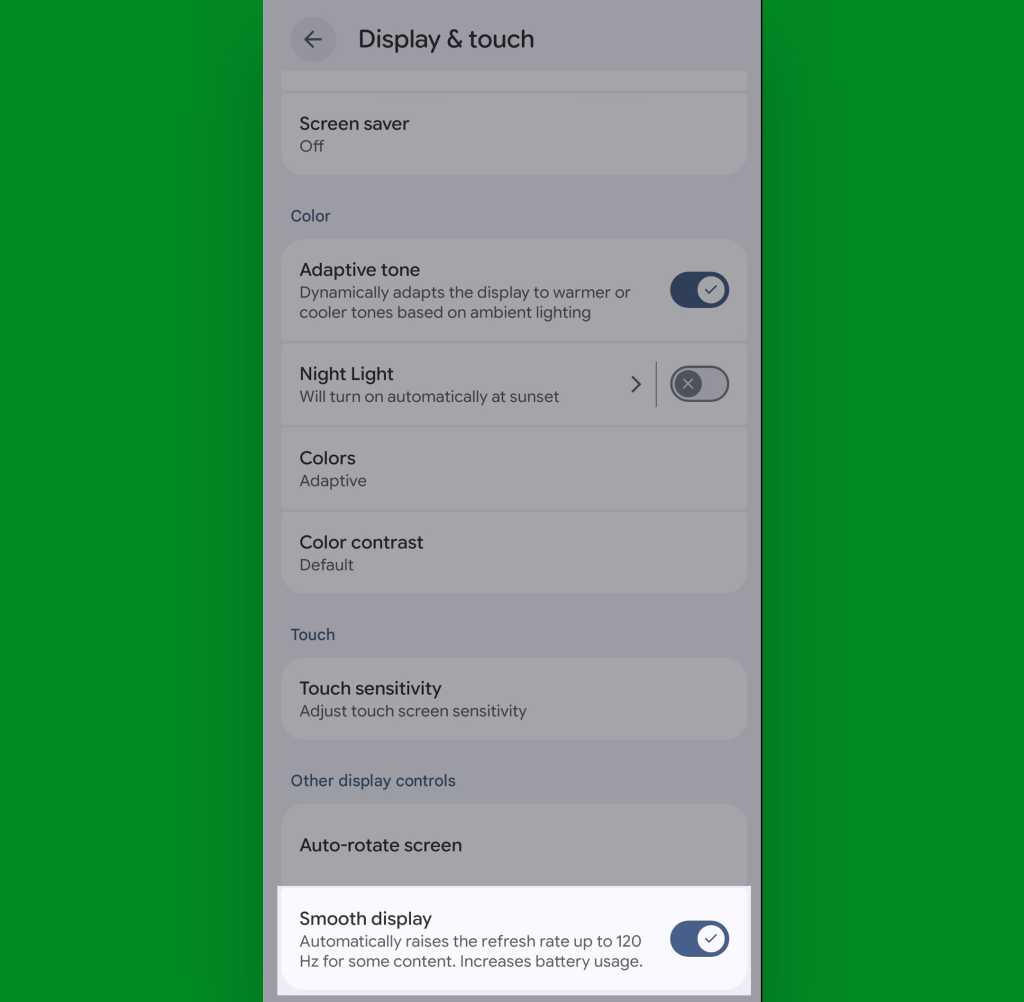
The reality is that hardly any phone owners understand what refresh rate even is — let alone bother to think about how to best take advantage of the options that exist around it. But Android 16 introduces an intelligent new option that addresses that disconnect and makes it easy for anyone to enjoy the best possible screen experience without any ongoing thought, effort, or meaningful compromise.
That’s thanks to a new setting that automatically adjusts your device’s refresh rate to give you the most sensible setting for whatever you’re doing at any given moment. It works to balance the most optimal viewing experience with reasonably solid battery life in a setup that shifts on its own from one moment to the next.
JR Raphael, Foundry
If your phone supports the system, you’ll find the associated option within the Display section of your system settings — as a toggle alongside “Smooth display,” in the standard Google version of Android, or as the “Adaptive” setting under “Motion smoothness,” with Samsung.
Speaking of things going from geek to mainstream, screenshots have evolved from existing mostly as a tool for folks in the know to being a regular way for ordinary phone owners to capture and share moments all throughout the day.
And with Android 16, screenshots are getting a built-in boost — with native support for capturing high-resolution HDR content.
There’s nothing for you to do on this one other than bask in the knowledge that if you snag a screenshot on any Android-16-running device — using any Android screenshot-saving method you like — it’ll include all the full-quality HDR material shown within it, without any of the loss in quality that previously took place.
Lookin’ good, my friend. Lookin’ good.
When it comes to calculators, I tend to direct most of my energy toward the Google Android Calculator app — which comes preinstalled on Pixels but can be downloaded onto any Android device, no matter who made it.
If you’re using a Samsung phone, though, you’ve got Samsung’s number-crunching equivalent in your workspace and in your shiny face by default. And even if it’s limited to running only on Samsung-made gizmos, it’s there and ready for you — for the moment, at least, as long as you’re using this specific device — and now, it’s got a nifty new trick to notice.
With Android 16, the Samsung Calculator app gains a useful new always-available button to shift from the standard calculator setup into an advanced scientific calculation mode — something that used to be possible only when you rotated your phone into its horizontal landscape orientation.
JR Raphael, Foundry
Hey, we’ll take it.
While we’ve got Samsung on the brain, the Galaxy-connected Camera app has a handy new option with Android 16 in the mix.
By default, the Samsung Camera has long let you swipe up or down anywhere in the viewfinder to switch between your phone’s front-facing and rear camera. But if you aren’t so into selfies and would rather give yourself a quick way to get into your camera’s settings, you can now switch that swipe to serve that purpose instead.
Just tap the four-dot menu icon in the Samsung Camera app’s lower-right corner, then tap the gear-shaped settings icon and look for the new “Swipe preview up/down to” option. Change it from “Switch cameras” to “Open quick controls,” and your camera settings will never be more than a single flick away.
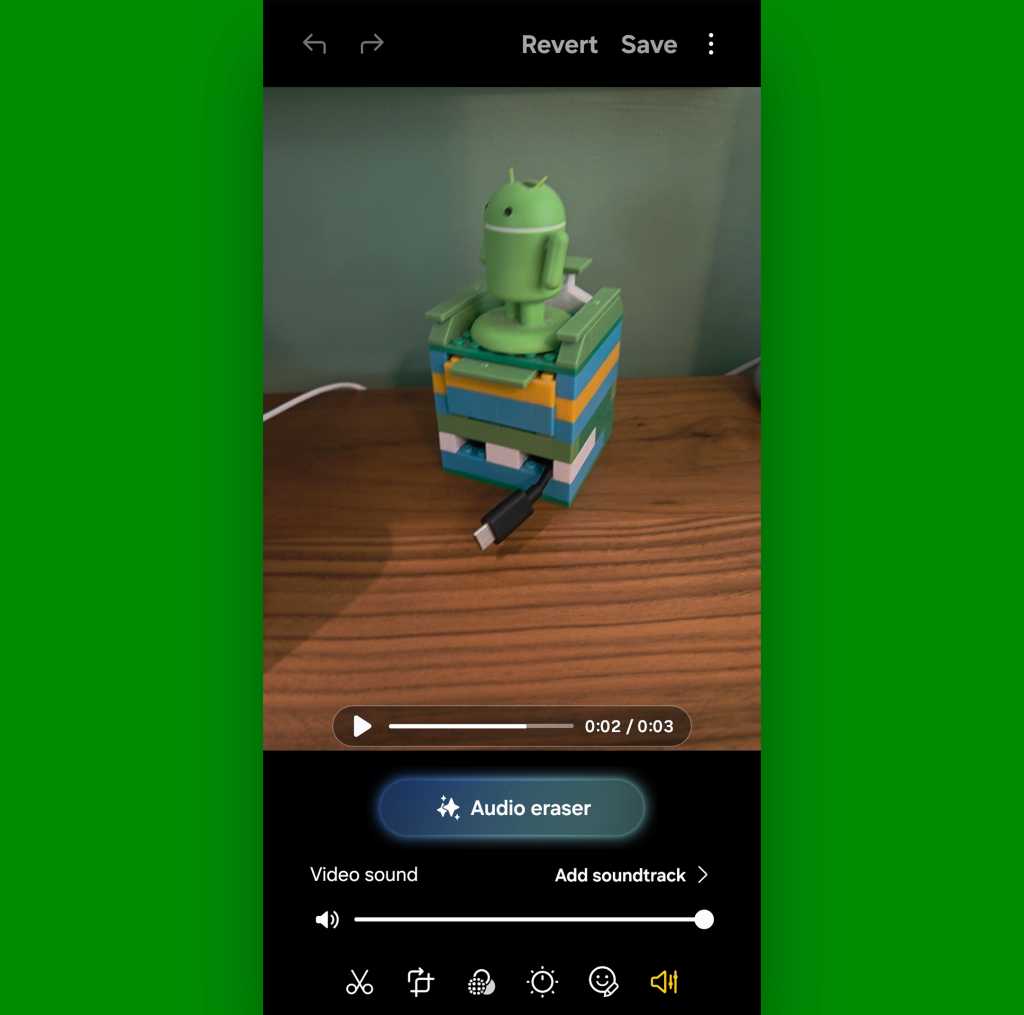
One more Samsung-specific Android 16 addition to observe: With this latest Android update, Samsung’s Gallery app catches up (somewhat) to its Pixel equivalent and gives you the ability to easily erase background noise in any video you’ve captured — so it’s especially easy to hear whatever it is you were actually trying to record.
After you’ve captured a video, tap the preview icon in the Camera app and then tap the pencil-shaped editing icon in the video’s Gallery view. Look for the newly present Audio Eraser icon — a speaker symbol with lines alongside it — and tap that to get started.
JR Raphael, Foundry
Ahh — nothing quite like the sound of silence, is there?
Last but not least: The act of moving back a step is one of Android’s most common actions, whether you’re using the current Android navigation gestures or still stickin’ with the old three-button nav setup. And as of Android 16, that universal back action gets a nice universal upgrade.
It’s a subtle li’l somethin’ called “predictive back.” In short, it lets you get a quick glimpse at what exact screen you’re heading back toward before you fully commit to going there.
With gestures, this possibility has been present for a while: When you start swiping in from the left or right side of your screen to go back, you simply see a sliver of the screen you’re returning to — and can then complete the gesture or stop, depending on what you find.
JR Raphael, Foundry
Now, with Android 16, the same possibility is present even if you’re still rockin’ that legacy three-button nav bar — y’know, the Back, Home, and Overview icons that sit permanently alongside the bottom of your screen. With that approach and Android 16, you can now press and hold the Back button to see that same sort of preview before you charge forward.
JR Raphael, Foundry
Just note that it’s up to individual app-developers (and also device-makers) to support this setup, so the long-pressing action might not work everywhere. You’ll see it all throughout the main system interface — settings screens and so forth — in the core Google version of Android, though, and you’ll also see it in lots of Google-made Android apps, like Gmail.
Now, I don’t know about you, but all this intense exploring has me hankering for pastry. Anyone else up for some cake?
Get even more advanced shortcut knowledge and shameless confection affection with my free Android Shortcut Supercourse — six days of time-saving tricks for your favorite Android gadget.
A Silicon Valley company called 1X this week announced a humanoid robot that does all your housework.
The robot is called NEO. The company says NEO is the world’s first consumer-ready humanoid robot for the home. It is designed to automate routine chores and offer personal help so you can spend time on other things.
The company’s odd, 70’s style demonstration video shows NEO doing a long list of tasks, such as folding laundry, organizing shelves, taking out the trash, and cleaning up rooms. It also performs basic functions such as opening doors, fetching items, and turning off lights, and is shown dancing and hanging out — acting as a kind of friend.
NEO operates by navigating homes autonomously and learning new skills through updates and continued use. It can be set up with just a button press or a simple voice command, according to the company. If the robot can’t do something, the owner can schedule a session with a 1X expert, who will remotely guide the robot through the task, letting NEO learn and get the job done at the same time.
NEO’s AI enables users to interact with it in natural conversation without relying on screens. It can listen and respond only when spoken to directly. Visual intelligence lets NEO recognize objects and context, like reading ingredients laid out on a counter and suggesting recipes. It remembers past conversations and user preferences so it can adapt over time, manage reminders, help with scheduling, keep grocery lists, and track the user’s learning progress.
The robot’s AI is trained on real-world data to allow it to adapt to the variety of home environments it will encounter.
Its hardware is based on a tendon-driven design using high torque motors for smooth, safe movements, allowing it to operate safely among people. NEO features hands with 22 degrees of freedom, a soft body made from 3D lattice polymer, and weighs 66 pounds. It can lift up to 154 pounds and carry up to 55 pounds, while producing just 22 decibels of noise, which is less than a modern refrigerator. NEO comes equipped with Wi-Fi, Bluetooth, 5G connectivity, and speakers built into its pelvis and chest, designed so it can even be used as a mobile entertainment system.
NEO’s design is meant to blend in with typical home interiors, with neutral colors and a fabric “suit” and shoes. It comes in tan, gray, or dark brown and is now available for pre-order through 1X’s online store. The first units are slated to ship for US-based customers in 2026, with 1X planning to expand to other markets in 2027. The reserved price: $20,000 for early access with priority delivery next year. (There’s also a $499-per-month subscription model.)
The company’s CEO and founder, Bernt Børnich, said in a press release that NEO marks the moment when humanoid robots, once only seen in science fiction and research, become real consumer products that any person can own.
Wow! So, the era of home humanoid housekeeper robots is finally here! The Rosey the Robot dream from the Jetsons has finally been realized.
Except it hasn’t.
The announcement and slick video showing NEO is smoke and mirrors. The robot can autonomously perform almost none of the feats shown in the video. (In fairness, the company doesn’t claim that it does, but wildly downplays the amount of improvement needed in the future to enable autonomous action.)
The video was created almost entirely through teleoperation. That means somebody wearing a VR headset and special equipment was actually folding laundry, putting away the dishes and carrying trash, and the robot was acting as a puppet, aping the movements of the person remotely controlling it.
If that scenario sounds familiar, then you may recall the “We, Robot” event held by Tesla a year ago to showcase cars at Warner Bros. Discovery’s studio lot. At the event, Tesla Optimus robots mingled, poured drinks, danced, and even sang “Happy Birthday” to attendees. The robots seemed to take orders, answer questions, and hand out beverages capably.
In reality, the robots were teleoperated by Tesla employees who were stationed out of sight. When people were impressed by a robot’s ability to converse, they didn’t know they were chatting with some employee.
Some technology CEOs, including Elon Musk and Bernt Børnich, practice what you might call “faith-based innovation.” They hype AI and robot capabilities that do not exist.
In the case of the NEO, 1X is already accepting money based on the promise that researchers will invent capabilities very quickly.
And in the case of Tesla, they’re not yet accepting money for Optimus robots. But they are definitely accepting money for cars that the CEO promises will get self-driving capabilities very soon.
At the Nvidia GPU conference in San Jose on March 17, 2015, Musk said full autonomy was a “solved problem” and would arrive by 2018. In late 2016, he said Teslas could drive coast-to-coast without human input by the end of 2017 and that every Tesla made from then on would be capable of “level 5 autonomy” within two years. During 2018 and 2019 earnings calls and events, he promised “full self-driving features” would be enabled via software in “three to six months” — and said a million Tesla robotaxis would be operating autonomously by mid-2020.
At Tesla’s Autonomy Day on April 22, 2019, Musk claimed that by the end of 2020, Teslas would be able to drive themselves safely enough that users “could fall asleep” and that regulatory approval would follow within a few years. And in interviews throughout 2020 and 2023, including tweets and earnings calls, Musk continued to say that full autonomy was “very close” and he expected completion within the year.
All these promises were wrong.
In fact, the technology for full self-driving using only cameras and AI has not been invented yet, and it’s completely unknown how many months, years or decades that invention could take. (Waymo cars, as well as most other self-driving cars, use cameras, lidar, and radar together to build a more detailed and redundant 3D map of the environment.)
As self-driving abilities, the humanoid robot game is rife with smoke-and-mirror demonstrations that create the illusion of autonomy, but in fact are mainly remote controlled:
Full autonomy in perceiving, planning, and manipulating like a human is a massive technology challenge. Robots have to be meticulously and painstakingly trained on every single movement, learn to recognize every object, and “understand” — for lack of a better word — how things move, how easily they break, what goes where, and what constitute appropriate actions.
One major way humanoid robots are trained is with teleoperation. A person wearing special equipment remotely controls prototype robots, training them for many hours on how to, say, fold a shirt. Many hours more are required to train the robot how to fold a smaller child’s shirt. Every variable, from the height of the folding table to the flexibility of the fabrics has to be trained separately.
While these robots are being trained, it’s all very impressive if you can’t see the person controlling the robot.
The temptation to use impressive videos of remotely controlled robots where you can’t see the person controlling them to raise investment money, inspire stock purchases and outright sell robot products, appears to be too strong to resist. Realistically, the technology for a home robot that operates autonomously the way the NEO appears to do in the videos in arbitrary homes under real-world conditions is many years in the future, possibly decades.
But that doesn’t stop some companies from selling you products now on capabilities that haven’t yet been invented.
OpenAI’s decision to train its models on the everyday outputs of consultants and bankers is more than just a technical experiment, it’s a signal that AI is being repositioned from a generic tool to a domain-capable resource, Sanchit Vir Gogia, the chief analyst, founder and CEO of Greyhound Research said Thursday.
He was responding to reports of a project from OpenAI that is being developed for the management consulting sector. According to Bloomberg, upwards of 150 former consultants from McKinsey & Co., Bain & Co., and Boston Consulting have been contracted by a third-party to train the models on “how to do the industry’s entry-level tasks,” in a project code-named Argentum.
Last week, it also reported that OpenAI has more than 100 ex-investment bankers from organizations such as JP Morgan Chase, Morgan Stanley, and Goldman Sachs “helping train its artificial intelligence on how to build financial models as it looks to replace the hours of grunt work performed by junior bankers across the industry,” in a project code-named Mercury.
Enterprises, said Gogia, “are no longer content with wide but shallow capability. They want depth. Real outputs. Structured thinking. Work that they can plug into core processes. Our CIO Pulse 2025 shows this shift in action, with 68% of global decision-makers seeing AI as a co-worker rather than a cost-cutter.”
“What OpenAI is doing is meeting that expectation head-on by learning from those who’ve done the work at scale,” he pointed out. “The aim isn’t to mimic language, but to internalize practice. And for enterprise buyers, that matters. What’s being offered now is not an AI that chats, but one that contributes.”
Forrester VP Principal Analyst Craig Le Clair, whose coverage areas include AI, automation, and the future of work, said, “too many AI agent implementations today are struggling to return investment. The problem stems from poor integration of agent models with business workflows. Forrester estimates that 60% of enterprises fall into a PoC [proof of concept] purgatory, with only 15% of firms generating positive and material impact.”
For example, he said, “a company could launch 30 pilots and fail to generate any ROI because all the agents just produce dense reports or insights that few act on. Forrester calls this the ‘Action Gap’ [and it] is the measurable distance between an AI-driven insight (a prediction, recommendation, or analysis) and the resulting value-driving business action.”
A large gap, he said, “means your agents are generating insights but not a return on investment. OpenAI’s announcement is a clear attempt to reduce this.”
According to Le Clair, author of the book Random Acts of Automation, the workplace is set to be disrupted by model-driven AI agents. “They are intellectual peers that are (at least in their defined domains) just as smart as us, with intelligence evolving at a faster clip. This transition to a hybrid workforce is not well understood and expensive,” he said.
He added, “if you think the biggest hurdle in deploying an AI agent is development, the API calls, or cloud consumption costs, you’d be wrong. Service companies tell us that for every dollar spent on AI agent licensing, organizations are spending nearly five dollars on services to get it running at scale, and those dollars are going to organizational changes [to enable a] shift in skills.”
Forrester, said Le Clair, “has defined an Agent Experience (AX) program that focuses on five skill categories reflecting these changes: knowledge curation; change management; critical thinking; interaction skills; and agent oversight.”
Greyhound’s Gogia pointed out that even apparently smoothly running AI projects could be problematic. He said that one of his firm’s banking clients recently ran a generative AI trial to streamline its credit memo process. “The results were promising: draft documents that once took days now appeared in hours,” he noted. “But when compliance teams reviewed the outputs, they found gaps, statements made without clear source validation.”
Consequently, the project “didn’t fail, but it didn’t launch either. Instead, the institution added a review framework and put legal, risk, and tech leaders in the same room to manage AI output holistically,” he said.
He cited another case in which a consulting firm integrated AI into its analyst workflow for market sizing. “The early gains in productivity were tangible, but so were the cultural growing pains,” he noted. “[Junior staff] weren’t sure where their role ended and the machine’s began.” The firm’s response was to adapt its training model to focus not on how to use AI, but on how to supervise it.
“Across these cases, the lesson was clear: the success of AI has less to do with capability and everything to do with structure,”Gogia said.
He added that Greyhound views OpenAI’s latest moves “as the clearest signal yet that the company is anchoring itself inside the workflows that underpin real business delivery. By sourcing training inputs directly from former consultants and investment bankers, it’s doing more than chasing accuracy. It’s absorbing judgment.”
Canva has built its own foundational AI model that generates layered designs users can edit more easily. It’s one of several generative AI-related features Canva announced Thursday, alongside expanded access to its AI assistant and content generation capabilities across its app.
To date, Canva has partnered with a variety of AI model providers for content generation — Black Forest Labs, Google, and OpenAI among them — and it acquired Leonardo AI last year.
While these models are adept at image, text or video generation, they lack the ability to produce layered design files that users can then edit themselves, said Jen Thompson, head of product marketing at Canva. “Design is a space that actually hasn’t had a fit-for-purpose model yet,” Thompson said in an interview with Computerworld ahead of Canva’s World Tour event this week.
Instead, they generate flat, JPEG-style outputs in which text, backgrounds, and other elements cannot be separated. With Canva’s design model, it’s possible to generate “layered design files that look amazing, but then then allow for AI and human editing to happen in parallel,” said Thompson.
Once a design is generated, it can be tweaked as with any template in the Canva editor.
The model enables an “array of functionality, both today and especially in the future,” said Gabe Knuth, principal analyst at Omdia, part of Informa TechTarget. “Using their own model will allow [Canva] to have more control over the functionality and output than they’d have leaning on different foundational models for different tasks.”
The resulting outputs “should be better, more consistent, and more integrated into the Canva experience than what a mixture of general-purpose models can provide,” Knuth said.
Canva didn’t respond to Computerworld’s questions about the use of customer data to train the new design foundational model, including whether the company requires customers to actively consent for their data to be so used.
Canva is also making its various AI tools available more widely across its application. Now, users can now generate content within the editor page, putting AI tools into the flow of work, said Thompson.The assistant can produce templates, photos or shapes, and even 3D objects, for instance, and “style-match” existing content.
“People are often already in the editor when they realize that they need something specific, whether it’s a design file or a specific element. So, now we’ve brought this ability to generate with AI designs right into the actual design tab in the editor,” she said.
It’s also possible to interact with Canva’s AI assistant in comments by tagging @Canva.
The AI assistant, announced earlier this year, was previously accessible only via a search bar on the Canva home screen. That meant a lot of switching back and forth to use the assistant.
The Ask @Canva feature provides another way to get feedback, suggestions, and edits.
“It means that you lead the way, but AI is there to support — not just at the beginning, but all the way through, to make sure you’ve got an amazing design at the end of the day,” said Thompson.
Canva’s announcements come as rival Adobe also outlined its plans this week to add AI assistant tools to apps such as Express and Photoshop.
Canva’s AI strategy stands it in good stead as it seeks to attract users, said Wayne Kurtzman, research vice president for Social, Communities and Collaboration at IDC.
“These announcements are designed to grow and expand paid seats for professional, organizational and individual creators alike, while retaining the ease of use across devices,” he said. “Having refined the UI without creating user shock reinforces that they are definitely on the right track.”
He said \ Canva has “leaned into the multimodal, multimedia content that organizations need to communicate internally and externally. User-facing AI features from a single interface is a huge part of that strategy.”
The word that Jamf will go private in a $2.2 billion acquisition by Francisco Partners has surprised many in the Apple admin community. Jamf sasy the plan will accelerate growth, bolster its expansion and strengthen its market leadership.
The move might also reflect a new chapter in the Apple enterprise-growth story, because as Macs, iPads, and iPhones become more embedded across the sector, many in IT management are searching for unified device management platforms capable of handling Apple, Microsoft, and Android products.
That’s a big change from where we used to be, when Apple wasn’t as prevalent in business. It was perhaps better practice to have Apple-focused device management and security solutions in place, with something else to handle Windows fleets. InTune’s move to support Jamf helped this along, at least, conceptually.
These days, you’ll just as easily find Macs in use beside Windows, Android devices, and iPhones in the office, so both IT and purchasing recognize it sometimes makes sense to source management tools that provide support across all of those platforms. There’s two reasons for that: it reduces overhead (more systems = more cost) and it boosts productivity (one console to rule them all).
That’s not going to suit everyone, of course. Some businesses are already all-in on Apple, and want best-in-class services ready to support all that’s new in that ecosystem. Others prefer specific tools for specific platforms, pretty much for the same reason — platform-focused tools tend to be updated faster, handle new features more swiftly, and deliver tighter integration with their chosen platform. All these reasons matter to different extents in different businesses, and each argument has its own weight. There’s no single answer; every business is different, with its own unique needs. Apple recently showed it understands that with the introduction of support to make it easier to migrate between device management vendors.
All the same, as Apple’s enterprise marketshare increases, the number of vendors in the enterprise space is also increasing. And while Jamf very much enjoys first-mover advantage as the uber-MDM for Apple in the workplace, it is arguably being flanked by competitors who already offer multi-platform support or speak more traditional languages familiar to IT. In my view, a company like Fleet has some advantage there — and it’s clear that Kandji/Iru hopes to play in that pool, too.
It’s possible the rapid expansion of Apple in business hasn’t been fast enough for Jamf’s shareholders. The current deal sees Francisco Partners pay $13.05 per share in the all-cash transaction, which has been approved by the Jamf board — including by former CEO Dean Hager. That’s just over half the value those shares went out for on the initial public offer in July 2020.
Since Jamf went public, it has engaged in two punishing rounds of staff cuts, including the recent layoff of 6.4% of its workforce. I believe these have deeply unsettled staffers across the company, as such cuts always do. Such events make people anxious, dent productivity, damage trust, and change corporate culture.
While it is possible Francisco Partners will choose to invest in the award-winning, business supporting, deeply positive culture that has emerged at Jamf, it does have some track record for tearing some of the companies it acquires apart. The company “has relied on carve-out M&A to maximize the value of its investments,” InfoRisk said today.
It also seems to have a keen interest in building its security services offering. It purchased Forcepoint in 2021, Sumo Logic in 2023, and more recently seized slices of NewRelic and Integrity Group.
Francisco Partners also owns SonicWall and BeyondTrust, which with Jamf and Jamf’s own security products gives the company a strong position in the security market. Now that’s augmented by Apple-focused security services, including some which other platforms really don’t possess.
“We continue to see tremendous opportunity for Jamf given its enviable position in the market, and we look forward to working with the leadership team to support Jamf’s next phase of growth and deliver an even broader suite of secure and effective products to its customers,” said Cherry Zou, vice president at Francisco Partners.
“We believe transitioning to a private company will provide greater financial flexibility and strategic alignment to accelerate growth, expand through innovation and M&A, and strengthen our market leadership,” said Jamf CEO John Strosahl, who once called Jamf’s internal culture its “secret sauce.”
“Of all the companies I’ve worked for, the Jamf culture is really unique and reflects our two values — selflessness, to think of others, to be helpful, and relentless self-improvement,” he said in 2024. “Those values have really gotten us here, and if I have one task during my tenure it will be to maintain that.”
You can follow me on social media! Join me on BlueSky, LinkedIn, and Mastodon.
Questions may linger about whether generative AI (genAI) is taking away jobs, but tools such as OpenAI’s ChatGPT, Google Gemini and Microsoft Copilot are apparently making employees more productive.
That was the conclusion of a recent study by the London School of Economics and consulting firm Protiviti; The researchers concluded that genAI tools save workers close to 7.5 hours every week.
That amounts to savings of $18,000 per employee per year, the study said.
Of about 3,000 employees and executives surveyed, 70% were using AI — with younger workers quick to turn to the technology for work.
About 71% of Gen Z users (those born between 1997-2012) had the largest ratio of AI users, followed by 73% for millennials (born between 1981 and 1996), 60% for Gen X workers (1965-1980) and 52% for Baby Boomers (1946-1964).
“The top use, (43% of employees) is writing and content creation tasks, 34% [for] communication and collaboration, 27% [for] data analysis and visualization,” Daniel Jolles, research officer at LSE’s The Inclusion Initiative, said via email.
The report doesn’t distinguish between ChatGPT, Copilot or external or internal AI tools and systems. But for people not using AI, productivity improvements or cost savings could be as simple as firing up ChatGPT or other genAI tools.
“This will vary from role to role, but yes…, this report shows that using training and guardrails can give employees the autonomy and confidence to use freely available tools to significantly increase their productivity,” Jolles said.
About 60% of those surveyed did not receive any AI-specific training. But employees will be more productive with the technology if given the right boost in skills.
“Interactive hands-on workshops tailored to their roles are the most effective for AI adoption,” Jolles said.
GenAI is a priority in enterprises to help employees be more productive, said Melanie Freeze, research director at Gartner. “I believe that’s…time savings, and to some degree being able to focus on those higher value tasks,” Freeze said.
GenAI also helps fill labor gaps and take over jobs so employees can focus on more productive tasks, Kari Briski, vice president for generative AI software for enterprise at Nvidia, said earlier this week.
For example, robots with AI will take on mundane office-work and dangerous work in factories, which helps employees focus on other tasks, Briski said.
The value of Nvidia’s stock has increased significantly in recent years, largely due to the high demand for its AI chips.
According to Reuters, another milestone was passed during Wednesday’s trading on the Nasdaq stock exchange, as Nvidia became the first company to be valued at $5 trillion.
The previous milestone, $4 trillion, was passed as recently as July.
Nvidia’s surge means that the company now has a substantial lead over Microsoft ($4,025 billion), Apple ($4,002 billion), Alphabet ($3,324 billion), Amazon ($2,456 billion) and Meta ($1,888 billion).
More Nvidia news:
Adobe is developing new generative AI (genAI) assistants that let users edit images in Adobe Express and Photoshop with written prompts.
Having embedded AI-based content-generation tools across its apps in recent years, Adobe is rolling out AI assistants and agents. That effort began last year with Acrobat Reader, with Adobe this week outlining further plans to bring AI assistance to its creative. The announcements were pegged to the Adobe MAX conference.
For Adobe Express, Adobe introduced a conversational assistant that lets casual users create and edit designs by describing what they want via natural language. The assistant can make edits to individual layers of a design, such as fonts, images, and backgrounds on user’s behalf, and provide recommendations for changes.
“Enterprise capabilities” are also in development for the Express AI assistant, Adobe said in a statement; they will allow a non-design staff to “self-serve on-brand content creation and collaboration,” with “template locking, batch creation and more.”
The Express AI Assistant beta is available on desktop to Adobe Express Premium customers. At full launch, the AI Assistant will be available to all Express customers through the Firefly generative credit system, the company said.
An AI assistant is also in the works for the Photoshop web application (currently in a private beta). Again, it users advice on how to enhance images — detecting and highlighting potential problems with text contrast, for instance — as well make changes such as decreasing brightness and increasing saturation.
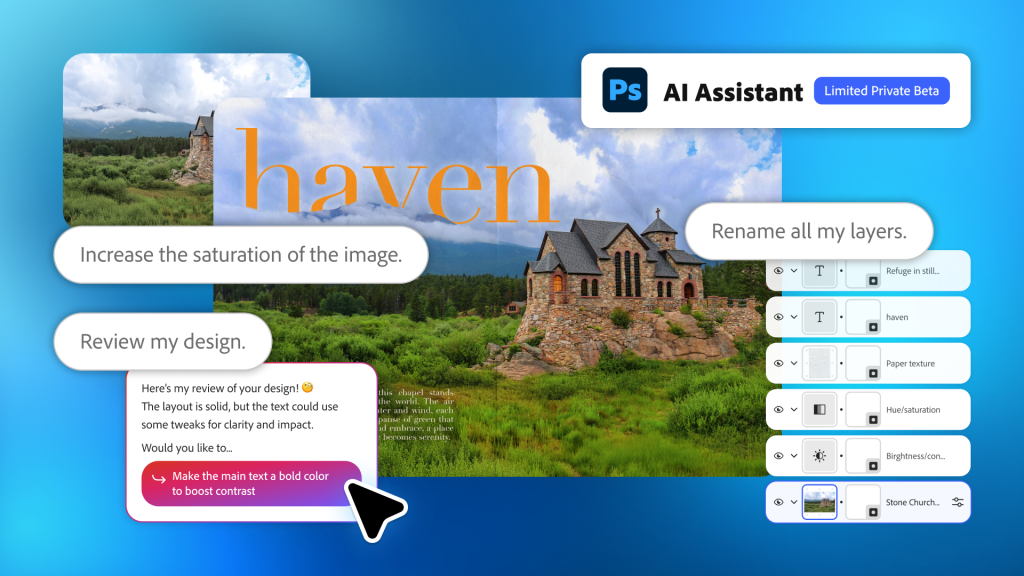
Adobe Photoshop AI Assistant can offer users advice on how to enhance images.
Adobe
“You can tell it to do things for you, and it will understand what tools to use: select subject, create masks, do all of the layer masks for you and keep it completely editable,” Alexandru Costin, vice president for Generative AI and Sensei at Adobe, said in a press briefing.
It’s also possible to ask the AI assistant, which appears in the right-hand sidebar, to generate names for layers in the Photoshop “layers panel” based on content. Users will be able to make manual edits as usual in the main screen.
The assistants should help users “free up time, add to their creative output and get the design in their mind’s eye onto a blank page,” said Liz Miller, vice president and principal analyst at Constellation Research.
At the moment, the AI assistants are “aligned with the casual user,” said Sheryl Kingstone, research director at 451 Research, part of S&P Global Market Intelligence, and can reduce complexity of using certain Adobe tools. But she also sees potential to support more advanced creative users “with scale of production capabilities.”
“For the professional, these AI assistants don’t just ramp up their creativity, [but] give spaces and places to collaborate and ideate and create at will.… These are quality-of-life updates,” said Miller.
While there’s little direct evidence of demand for AI assistance in creative tools such as Photoshop currently, said Andrew Frank, distinguished vice president analyst in the Gartner Marketing Practice, the new tools could help users as Adobe adds new features at a fast clip across its software suite.
“…The pace of product innovation at Adobe can often outpace users’ capacity to absorb advanced features, which is where I think AI assistance could really help — accelerating the realization of benefits from the power of AI in content creation,” Frank said.
The announcements at Adobe MAX this week are likely just the start of Adobe’s plans here. The company wants to embed AI assistants more broadly going forward across its creative product suite, said Kingstone, “with a connective tissue on services.”
One feature under development is Project Moonlight. Adobe describes this as a “personal orchestartion assistant” that can coordinate across multiple apps. By connecting to Creative Cloud libraries and social media accounts, the AI assistant generates personalized ideas and content for users. This includes images, videos, and social posts, Adobe said.
“Project Moonlight is very interesting, as it removes the friction across tools with a more workflow-oriented canvas that uses services at scale,” said Kingstone.
While agent architectures promise easier integration across different vendors’ applications, said Frank, users are “likely to find single-source integrations faster and more reliable than multisource compositions. That’s what makes Project Moonlight strategic — it helps turn Creative Cloud into a control center for social marketing.
“It’s clear that an AI agent strategy is now table stakes for anyone in the software business,” he said. “But for end-to-end marketing platform providers like Adobe, it represents a new way to unify and enhance the foundational value of their offering rather than compete on the application level.”
Project Moonlight is currently in private beta and will be available in the “coming months,” according to Adobe.
Microsoft Forms is a web app that allows users to create various types of forms that gather information from people online and store that data in the cloud for review.
Why is this useful? Surveys, questionnaires, and other interactive forms are a vital part of doing business. They provide a great way to interact with employees, teammates, customers, and potential business partners. You can use online forms to collect customer feedback or business requirements, conduct market research, gauge employee satisfaction, register attendees for an upcoming event, test learners’ knowledge after a training course, and more.
Forms is included with Microsoft 365 subscriptions for individuals and businesses, and a limited version is available for free to anyone with a Microsoft account. In this cheat sheet, we will cover how to use this program to create questionnaires, add specific types of questions, and view and analyze the responses.
Microsoft offers a variety of form templates you can adapt for your own purposes, and we will discuss how to use them — but first we’ll take you through the steps of building a form from scratch so you’ll know how all the parts and pieces work. We’ll also cover how to use Copilot, Microsoft’s generative AI assistant, to draft forms for you.
To start using the Microsoft Forms app, navigate to your Microsoft 365 home page, sign in if you haven’t already, and click on the Apps icon in the left panel. (If you don’t see a navigation panel on the left, click the Expand Navigation icon in the upper left corner.)
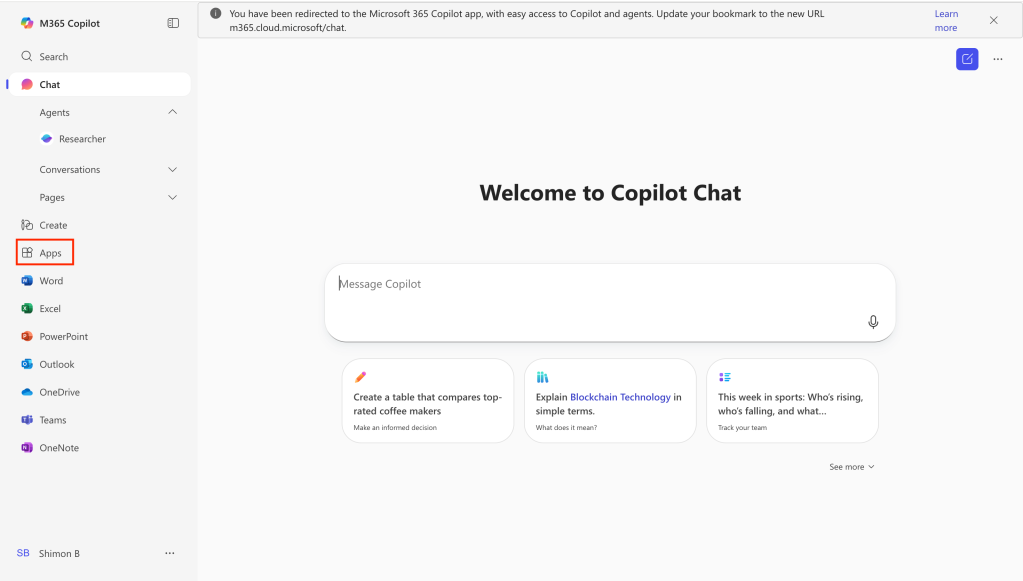
On the Microsoft 365 home page, click Apps.
Shimon Brathwaite / Foundry
The Forms app should appear on the main part of your screen near the bottom. If it isn’t there, use the search option at the top of the left panel to search for forms and launch the app.
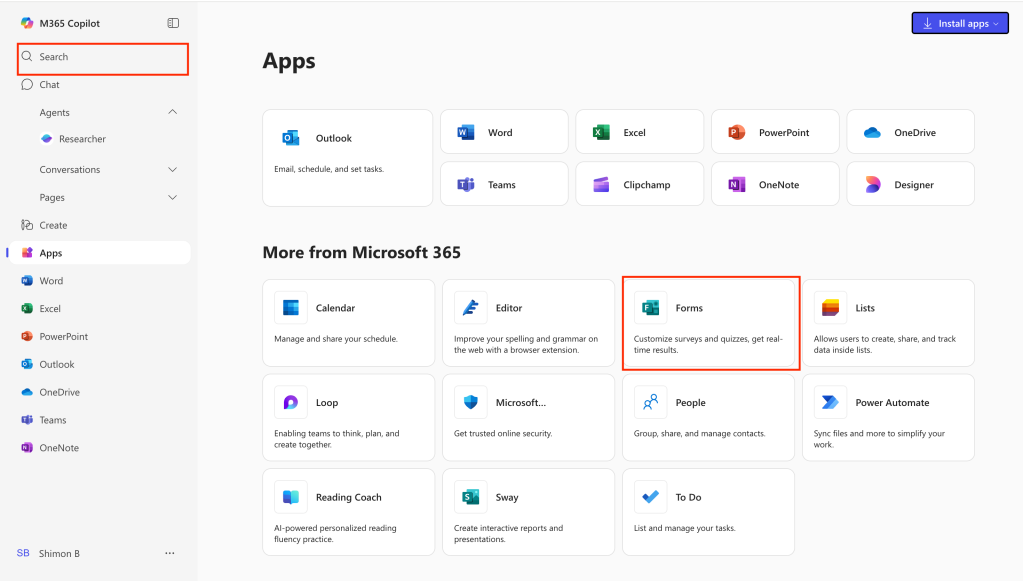
If you don’t see Forms on the main M365 Apps screen, use the Search function to find it.
Shimon Brathwaite / Foundry
If this is your first time using Microsoft Forms, you will be presented with the welcome screen shown below, which offers templates for various types of forms. From here, select Survey to start your form.
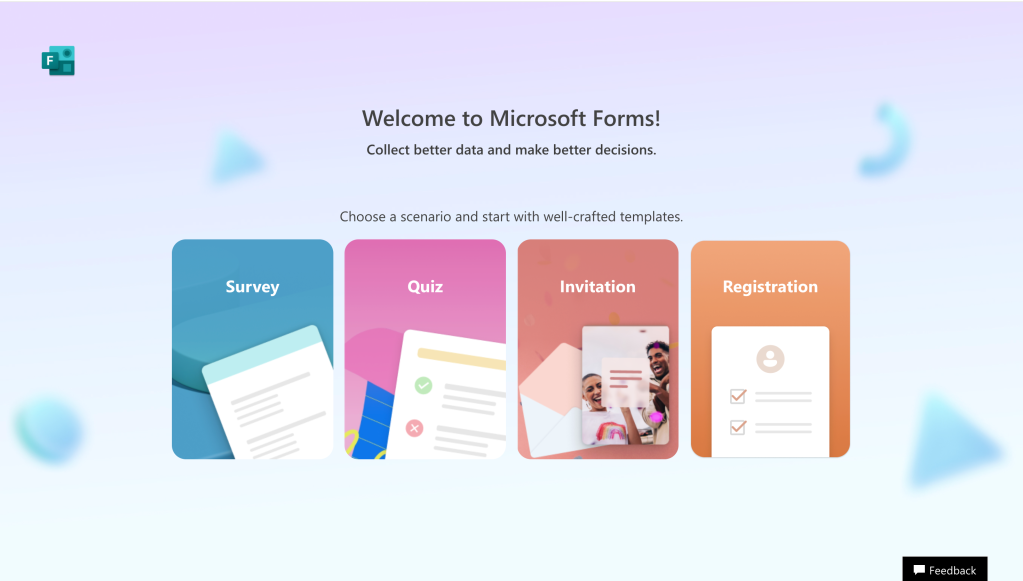
The Forms welcome page shows templates for various types of forms to help you get started.
Shimon Brathwaite / Foundry
If you’ve used Forms before, you’ll instead see a home page with a few templates plus any forms you’ve created or that have been shared with you. Click the New Form button at the top of the page.
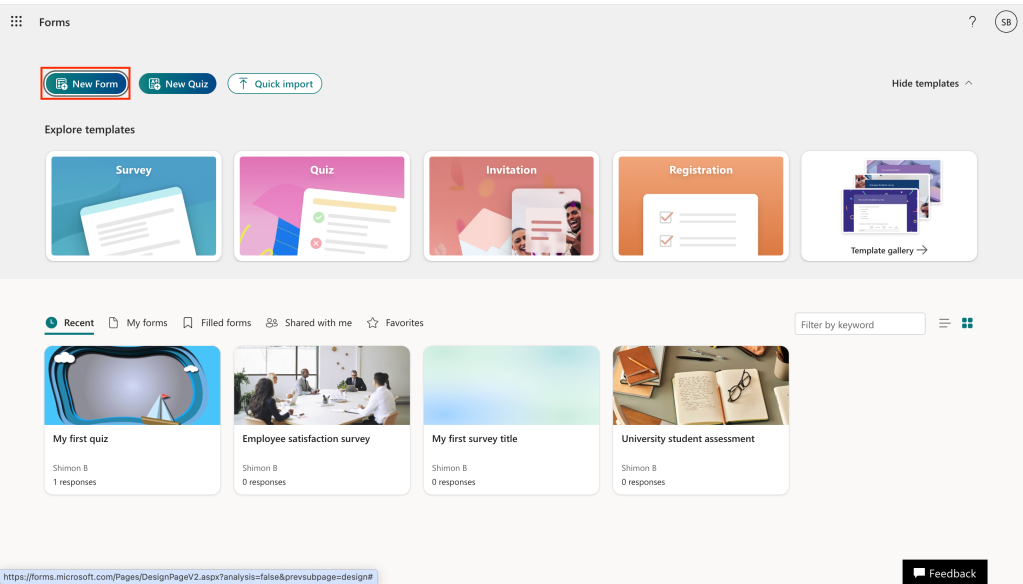
The Forms home page shows templates on top and your forms below.
Shimon Brathwaite / Foundry
Either way, you’ll start a new, blank form. If you see a panel listing suggested templates on the left side of the screen, click on the X at the top of the panel to remove it; you’ll learn how to use templates later on.
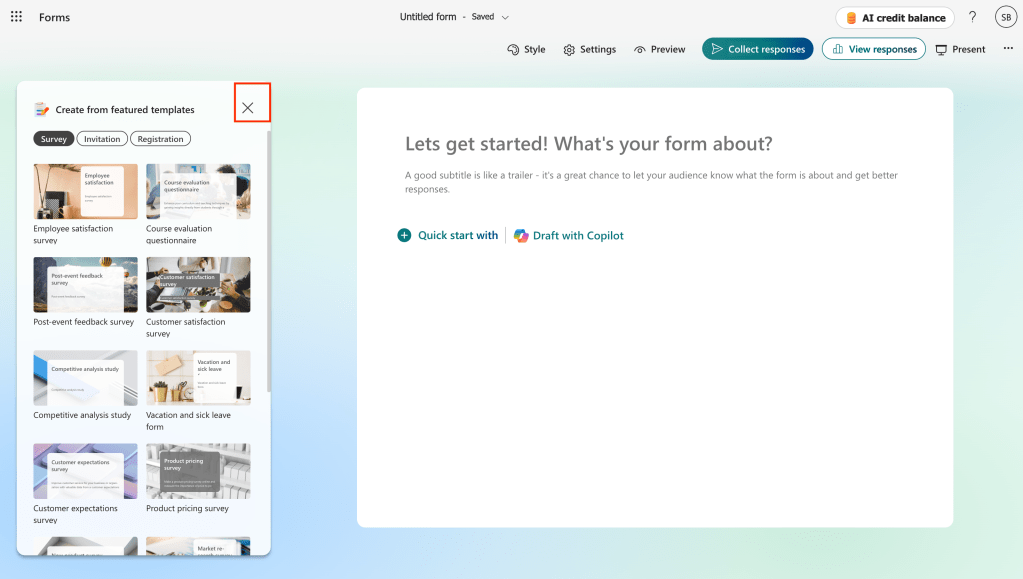
Close the templates panel on the left so your new form can take up the whole screen.
Shimon Brathwaite / Foundry
First, change the title of your form and add a description. This is the first thing anyone will see when they open your questionnaire, so make sure the title is easy to understand and explains what you’re trying to do.
To add a title, click on the title field (which might say something like “Let’s get started! What’s your form about?” or simply “Untitled form”), and you will be able to edit the title and add a description.
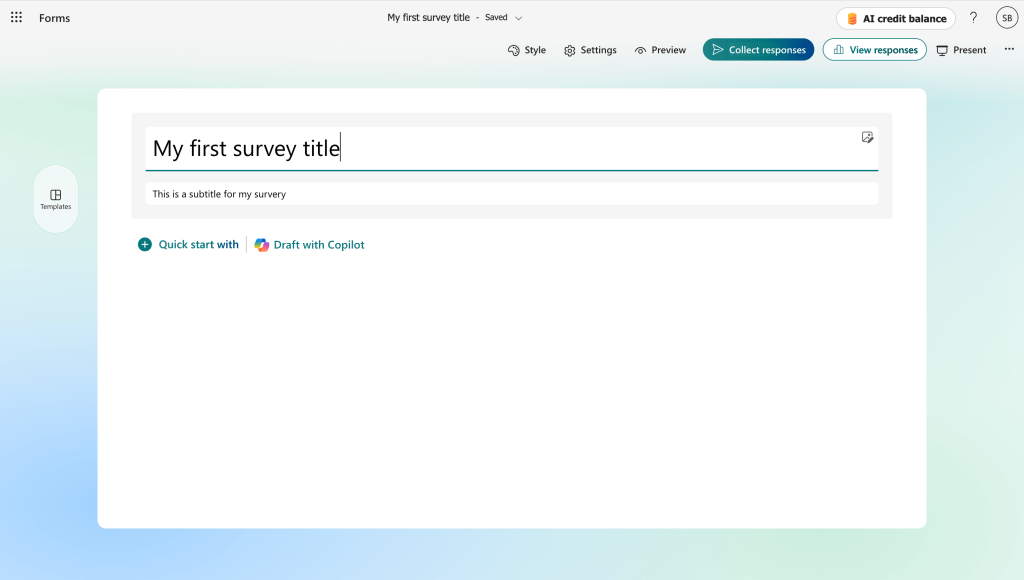
Change the title and add a description for your form.
Shimon Brathwaite / Foundry
Below the description is a “Quick start with” link. If you have access to Microsoft 365 Copilot, you’ll also see a “Draft with Copilot” option. You can ignore that for now; we’ll cover using Copilot to create forms later in the article.
To add a new question, click the Quick start with text. A menu appears showing multiple types of questions you can add to your form.
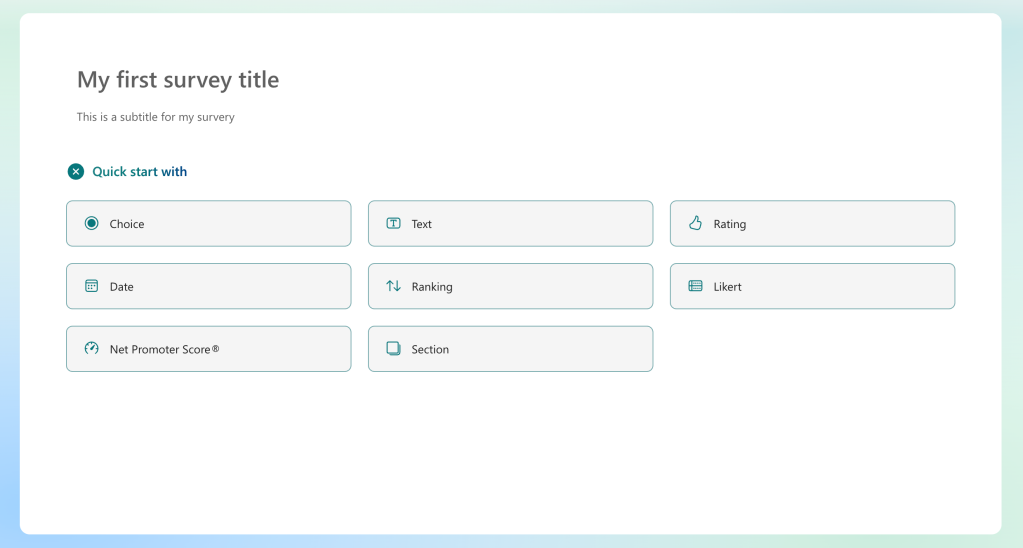
Choose which kind of question you want to add.
Shimon Brathwaite / Foundry
Choice: Multiple-choice questions allow you to designate a set of answers from which the user can choose. You can also add an Other option, where users can type in a unique response.
By default, a multiple-choice question allows the user to select just one answer. To change this, click the Multiple answers slider at the lower right to toggle it on. The radio buttons next to the answers change to checkboxes, and users can choose more than one.
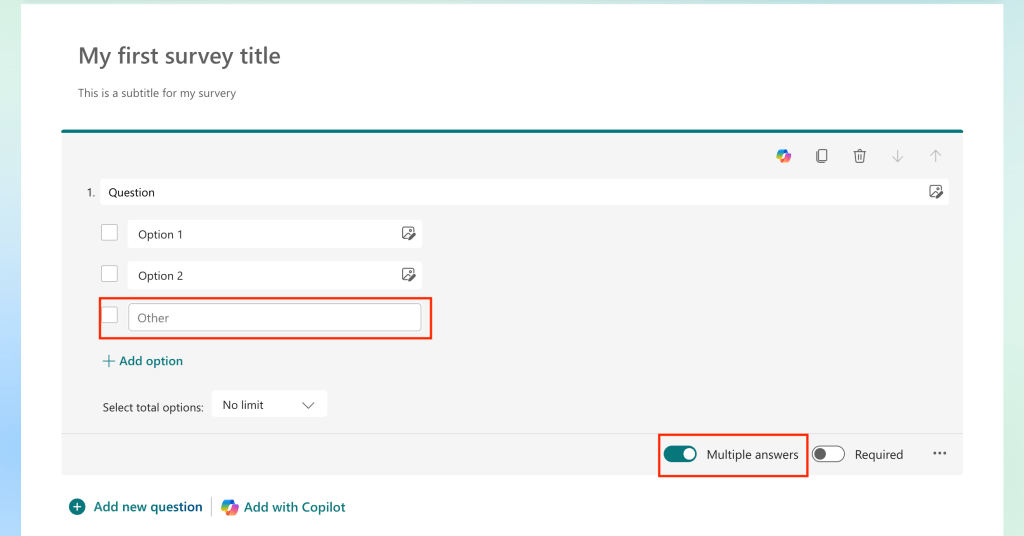
This multiple-choice question lets respondents choose more than one answer and includes an “Other” option.
Shimon Brathwaite / Foundry
To rearrange the answers in a multiple-choice question, hover your cursor over the answer you want to move until you see six dots appear to the left of the item. Click and hold the six dots, then drag and drop the answer to its new location.
Text: This is an open-ended question where you allow the user to type in an answer — good when you want to collect individual information such as an email address or hear detailed thoughts from respondents. Text responses can be up to 4,000 characters. By default, text response boxes are designed for short answers, but if you turn on the Long answer toggle, the response box will expand as the user types.
To restrict responses to a particular format, such as a number, an email address, or a web URL, click the three-dot icon in the lower-right corner of the question box and select Restrictions. The Number format is selected by default. To specify that the number be within a certain range, such as between 10 and 500, click the Is number dropdown, select Between, and type the appropriate numbers in the boxes to the right.
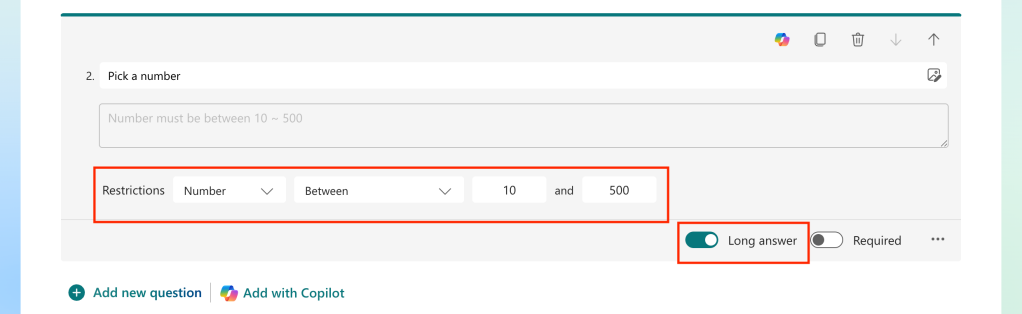
Restricting the responses for a text question to numbers between 10 and 500.
Shimon Brathwaite / Foundry
To change to a different format restriction, click the Number dropdown on the left, choose the format you want to restrict, and specify additional parameters.
Rating: Allows respondents to rate performance, typically on a scale of 1 to 5 (bad to excellent). This can give you an idea of how employees feel about their manager, for instance, or how customers view your product or service. You can adjust the number of levels provided (up to 10) or change the rating symbols from stars to numbers, hearts, smiley faces, checkmarks, or others.
Date: Displays a calendar and asks respondents to select a specific date, such as the date an item is requested.
Ranking: Lets respondents rank items in order of preference or importance to them.
Likert: Displays a list of items, each with its own rating scale. A common scenario for this type of question would be to find out how satisfied employees are with various company benefits.
Net Promoter Score: Asks respondents how likely they are to recommend your product or service, on a scale from 0 (not at all likely) to 10 (extremely likely).
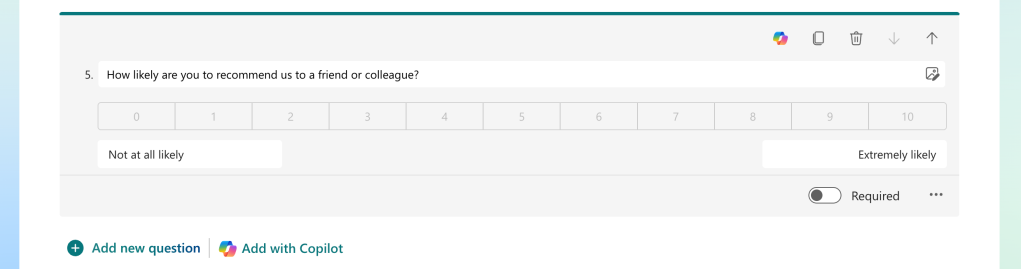
A typical Net Promoter Score question.
Shimon Brathwaite / Foundry
Section: This is not a question type but instead lets you create a new section within your survey, as covered below under “Building out your form.”
Once you’ve selected the question type, enter the question and responses you want respondents to see, then make any adjustments or restrictions, such as the “multiple answers” option for multiple-choice questions.
Here are a few additional tasks you’ll likely use when adding questions to your form:
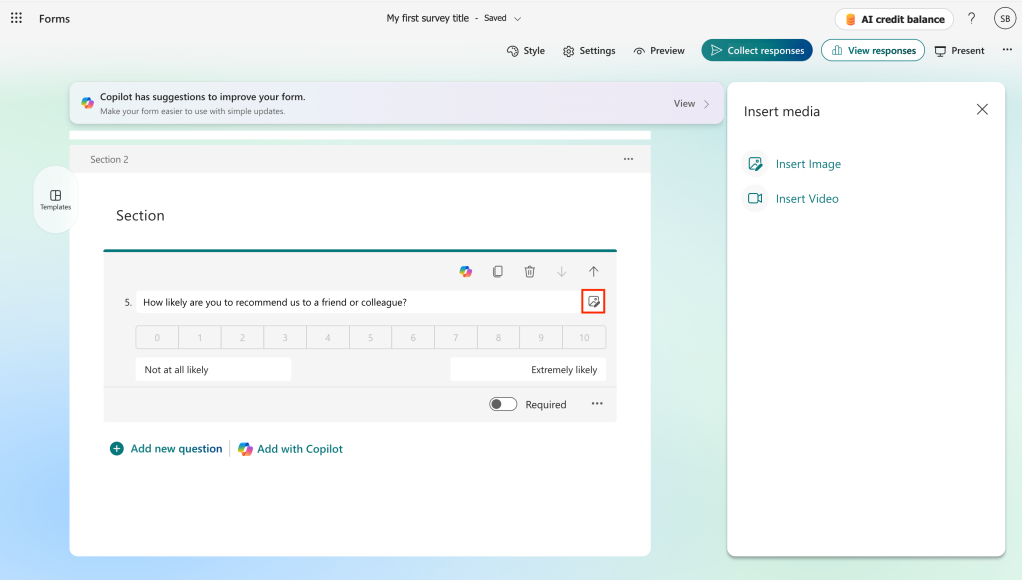
You can add an image or video to a question.
Shimon Brathwaite / Foundry
To add more questions to your form, just keep clicking the Add new question button that appears below the previous question and repeating the steps above. Here are a few more things that are useful to know how to do:
To edit a question: simply select the question and make your changes.
To duplicate a question: select the question and click the Copy question button at the upper right of the question box. A copy of the question appears immediately below it. This is handy if you have more than one question with similar formatting: you can save time by duplicating the question and editing it rather than starting from scratch each time.
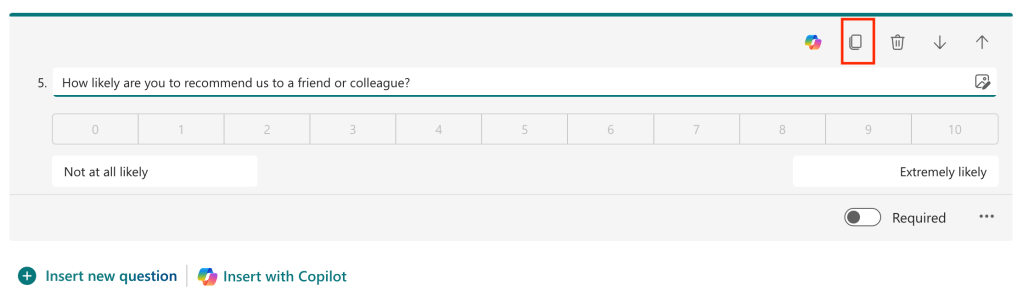
Using the Copy question button can save you time.
Shimon Brathwaite / Foundry
To delete a question: select the question and click the trash can icon at the upper right of the question box.
To move a question up or down: select the question and use the up or down arrow icons at the upper right of the question box.
To insert a question in between existing questions: select the question above the place where you want to insert the new question. Click the Insert new question button (which appears in place of “Add new question”) and proceed as usual.
To add a new section to the survey: select the question above the place where you want the new section to appear. Select Add new question or Insert new question and then click on Section. Enter a title for the new section. You can optionally add a subtitle and image or video as well.
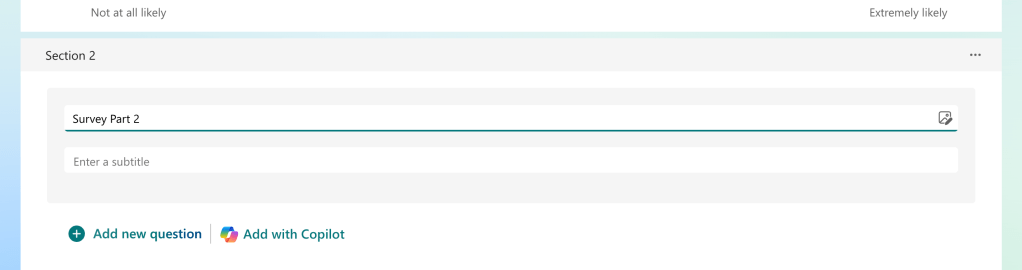
It can be helpful to break a form into sections.
Shimon Brathwaite / Foundry
This feature is optional, but it’s powerful: You may have one or more questions in your form that you want to branch — that is, if the respondent answers the question one way, you can send them to a different follow-up question than if they answer the question another way. Thus, branching makes the most sense for multiple-choice questions.
It’s best to wait until you’ve added all your questions to the survey before you add branching. Once you’ve done so, select the question you want to branch, click the three-dot icon at its lower right, and select Add branching.
In a multiple-choice question, a “Go to” menu will appear to the right of each option. You can click Next in any of these boxes and choose a specific question to send the survey taker to.
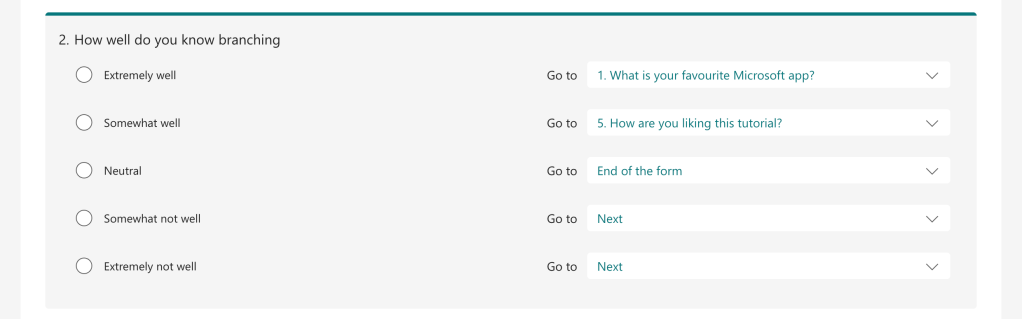
Adding branching to a question lets you set different follow-up actions for different responses.
Shimon Brathwaite / Foundry
Rather than starting a new form from scratch every time, you can get a head start by using one of the templates Microsoft provides. Go directly to Microsoft’s Forms template gallery or navigate there from the Forms home page by clicking Template gallery at the right side of the “Explore templates” area near the top.
Here you can choose from a variety of templates including a market research survey, manager feedback survey, office facility request form, and more. Click on the Employee satisfaction survey to open it in your browser.
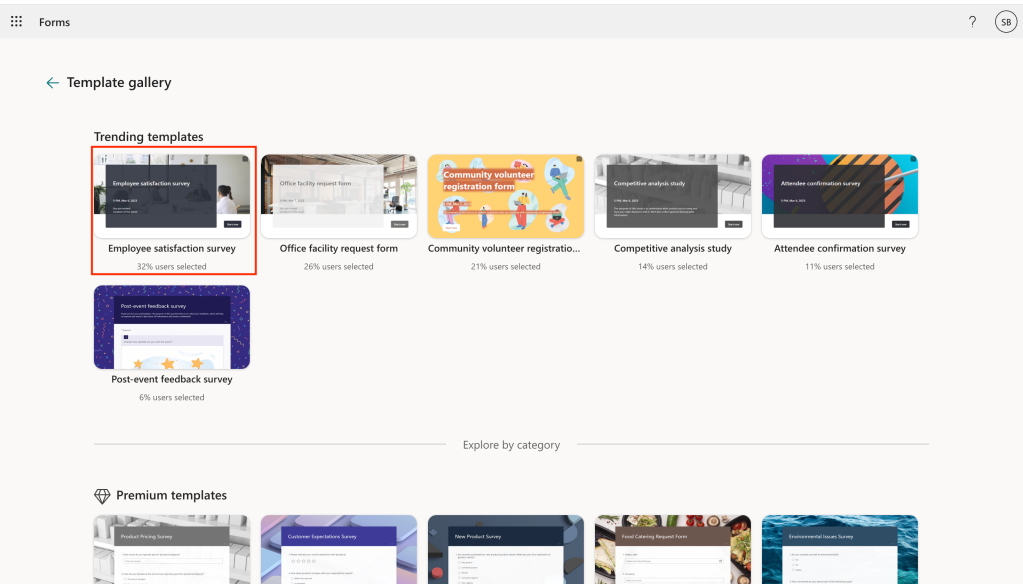
The Forms template gallery has more than a dozen templates to choose from.
Shimon Brathwaite / Foundry
You’ll see a form that’s prepopulated with questions and answers. You can edit any of the existing questions, delete those you don’t want, and add your own questions into the mix.
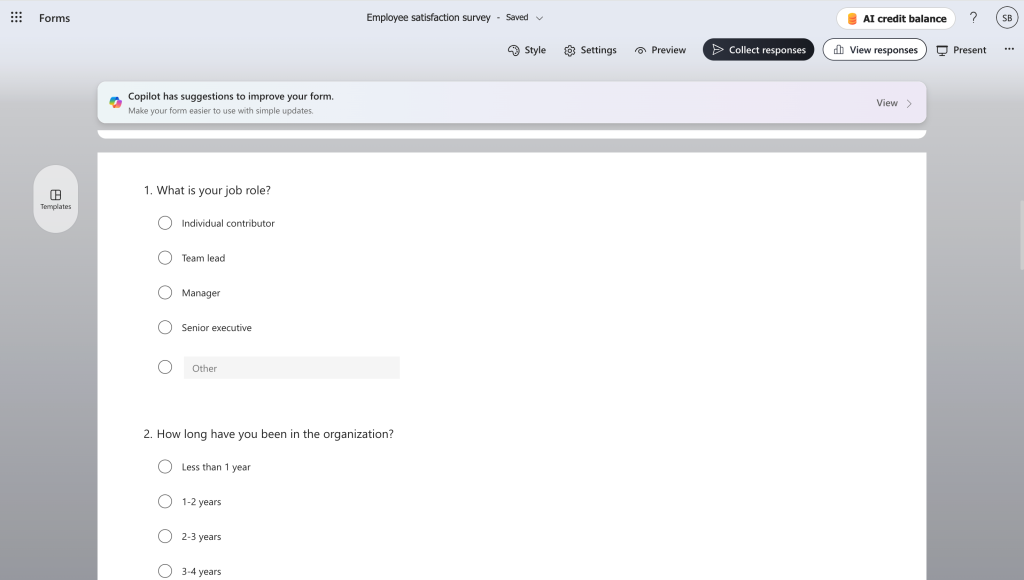
Using templates gives you a head start on many standard business forms.
Shimon Brathwaite / Foundry
Starting from a template not only saves you from having to enter all your questions manually, it may also provide valuable questions you wouldn’t think of on your own.
Microsoft 365 Copilot is the AI assistant that’s integrated with Forms and other Microsoft 365 apps. Access to Copilot in Forms is included with Microsoft 365 Individual and Family subscriptions, while M365 Business and Enterprise users need a separate M365 Copilot subscription. (Copilot isn’t available in Forms with a free Microsoft account.)
If you’ve worked with tools like ChatGPT or Claude, you understand that AI assistants can help you quickly perform actions that could be time consuming to do manually. In this section, you’ll see how to quickly create a survey using M365 Copilot.
First, go to the Forms home page and click on New Form. After you’ve given the new form a title and description, click the Draft with Copilot link to the right of “Quick start with.” Type in a prompt outlining the survey you want Copilot to create, such as the following:
Please create a survey that asks readers how they enjoyed the “Microsoft Forms cheat sheet 2025” article. It should be five questions long and all questions should be required. Also, give it a modern green style layout.
Then click Generate, and Copilot will create a survey draft.
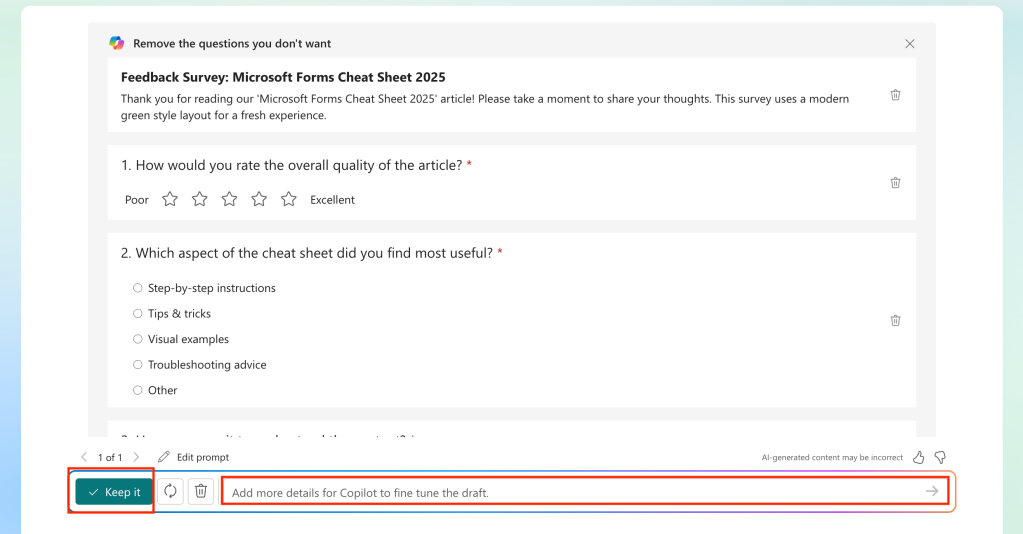
A feedback survey generated by Copilot.
Shimon Brathwaite / Foundry
If you like the survey draft, you can select Keep it. If you don’t, you can click the circular arrows icon to have Copilot try again or the trash can icon to delete it. A final option is to add more details to the prompt to refine Copilot’s output.
If you decide to keep the survey Copilot drafted, you should review it carefully and edit it. All generative AI tools make mistakes, Copilot included. In the example survey it created in response to the prompt above, for example, it included the text “This survey uses a modern green style layout for a fresh experience” in the description — not something you’d want in the final survey.
Also note that Copilot may not be able to do everything you request. For instance, it wasn’t able to style the form with a theme/layout in my testing (even though it said it did) — a limitation that may change with time. But it’s still a great starting point and a major timesaver.
In addition to drafting entire new forms with Copilot, you can ask it to create individual questions as you’re building out a form. Just click Add with Copilot or Insert with Copilot and enter your prompt.
You can also ask Copilot for ideas to enhance any form. When you’re working on a form, you’ll see a banner across the top that says, “Copilot has suggestions to improve your form.” Clicking this will generate some suggestions, such as choosing a fresh design.
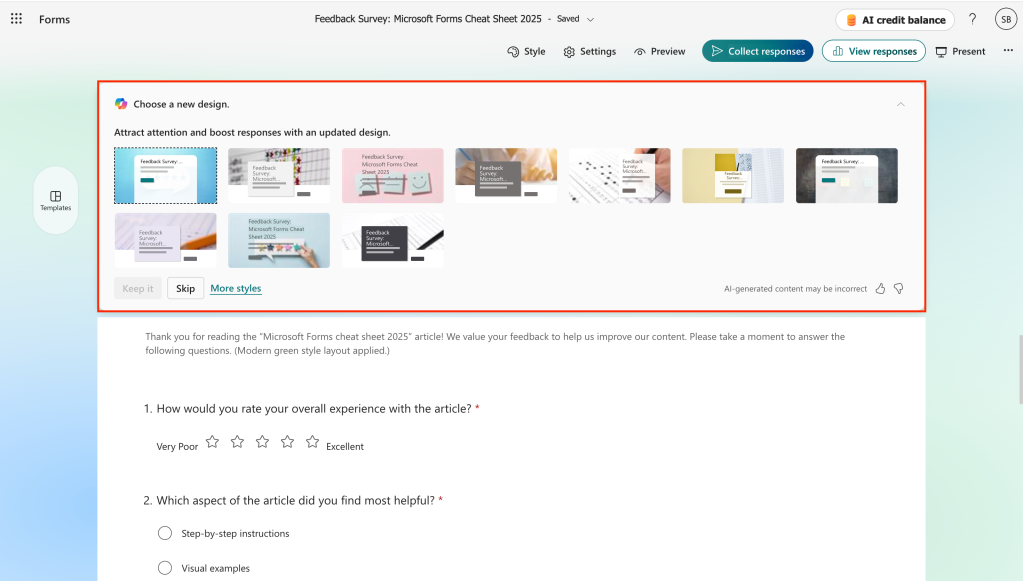
Copilot can suggest ways to improve an existing form.
Shimon Brathwaite / Foundry
Finally, you can use Copilot to improve individual questions. If you select a question in a form, you’ll see a Copilot button alongside the copy, delete, and move down / up buttons in the upper right of the question box. Click it to open up a prompt where you can describe the changes you’d like Copilot to make to the question.
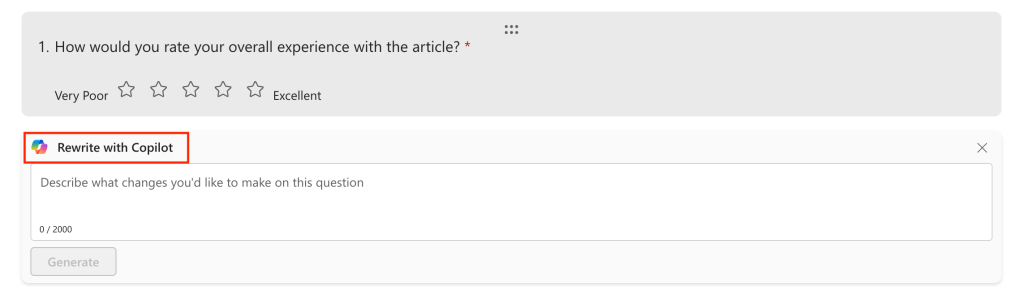
Asking Copilot to rewrite a question.
Shimon Brathwaite / Foundry
Quizzes are similar to surveys and other questionnaires, but with correct and incorrect responses. You can assign points to each question, report respondents’ scores, and explain why certain responses are right or wrong. A quiz is a good way to assess how well attendees of a training course have learned the subject matter and coach them in areas they don’t fully understand.
To create a new quiz, go to the Forms home page and click the New Quiz button at the top of the page.
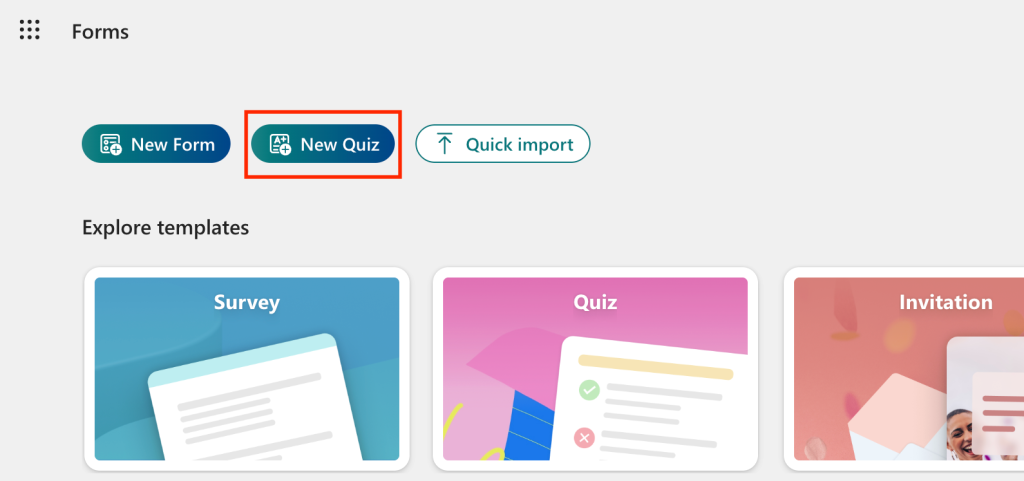
Starting a new quiz.
Shimon Brathwaite / Foundry
If you have access to Copilot in Forms, you will be presented with a Copilot prompt window. You could enter a prompt (including source material to base the quiz on) to have Copilot generate a quiz instantly. But for the purposes of this tutorial, click the X at the upper right to close out the prompt window.
The new quiz page looks just like the new form page. Indeed, creating a quiz is just like creating a form — you add questions the same way, except that you designate the correct answer and assign a point score to each question.
When you enter the answers for a question, you’ll see a circled checkmark to the left of each answer. Click one of the checkmarks to mark it as the correct answer. Then go to the Points box at the bottom of the question box and type the number of points the question is worth.
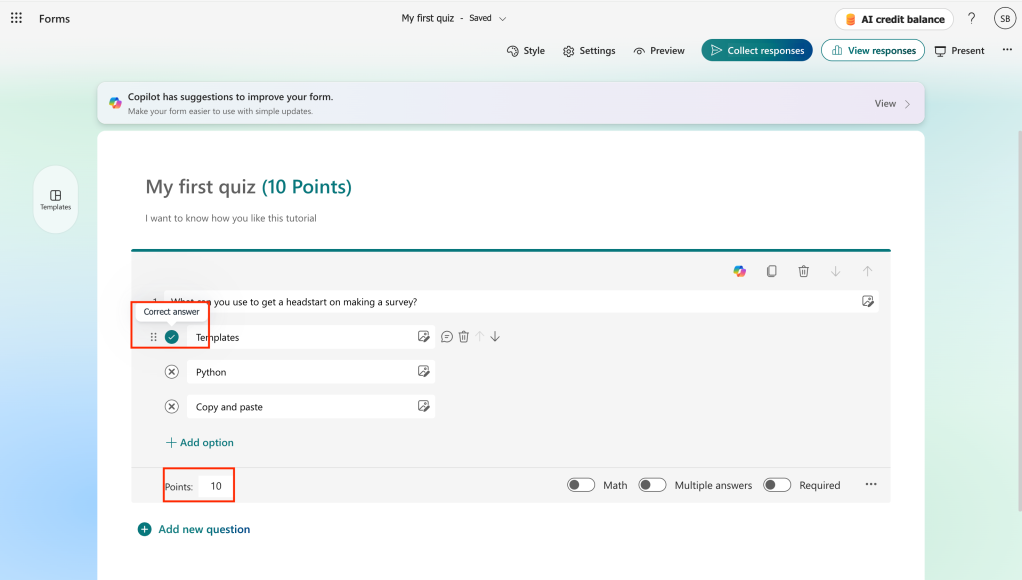
Quizzes let you test respondents’ knowledge.
Shimon Brathwaite / Foundry
Now that we’ve covered the functional aspects of Microsoft Forms, let’s look at how you can change the look and feel of your questionnaire. Above your form to the right, click the Style button to open a panel with various layouts and themes. Look around and select a theme that you like to represent your company.
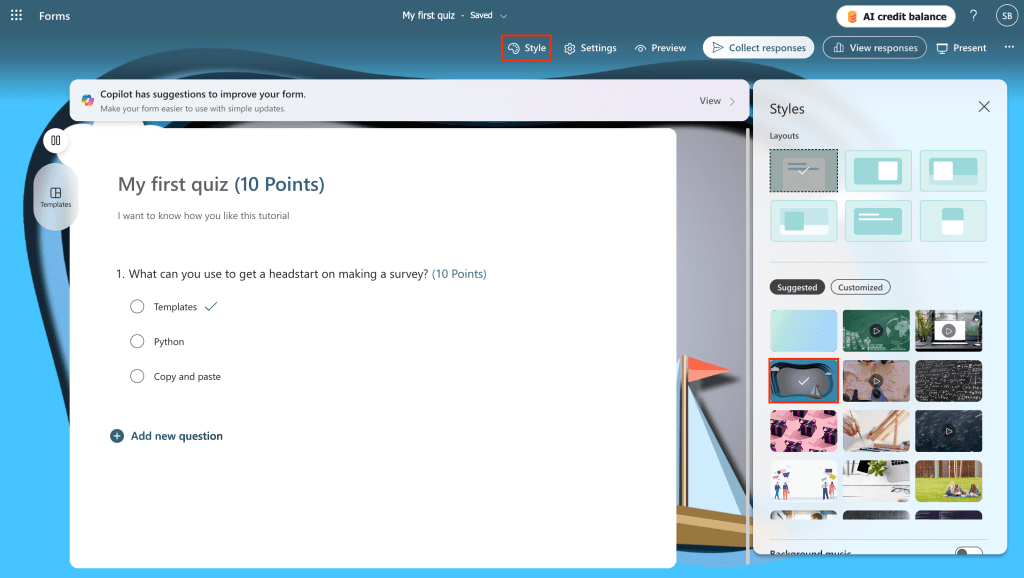
Choose a theme that suits your company and the form itself.
Shimon Brathwaite / Foundry
To preview how your form will look to respondents as they’re filling it out, click the Preview button at the top right of the page. You can toggle between Computer view and Mobile view by clicking the buttons at the top right of the preview page.
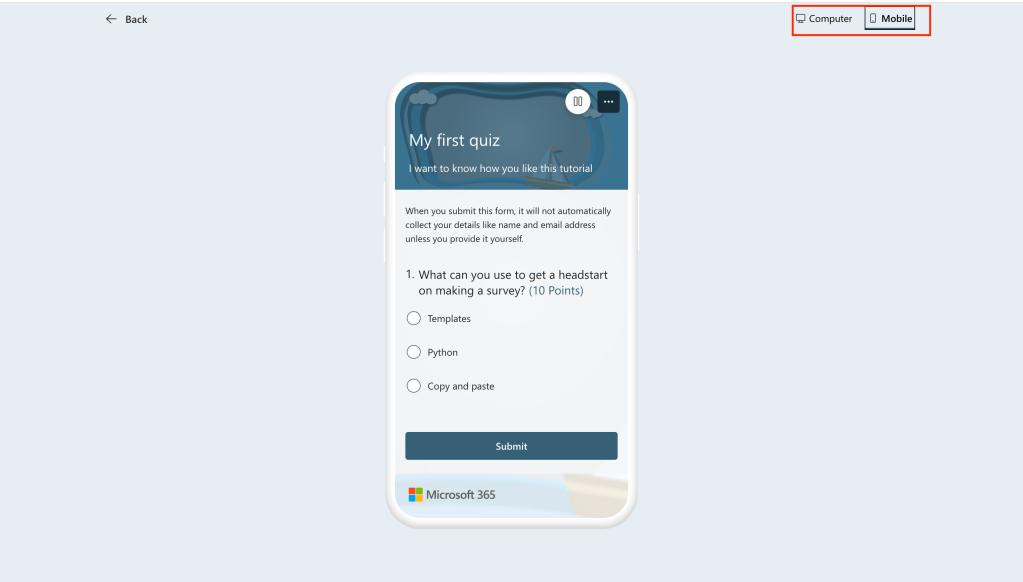
You can see how your form will look to both desktop and mobile users.
Shimon Brathwaite / Foundry
Once your form is finalized and you’re ready to start sending it to clients, employees, or other respondents, select the Collect responses button at the top right. On the pane that appears, you can create and customize the link that you will use to share your questionnaire with others.
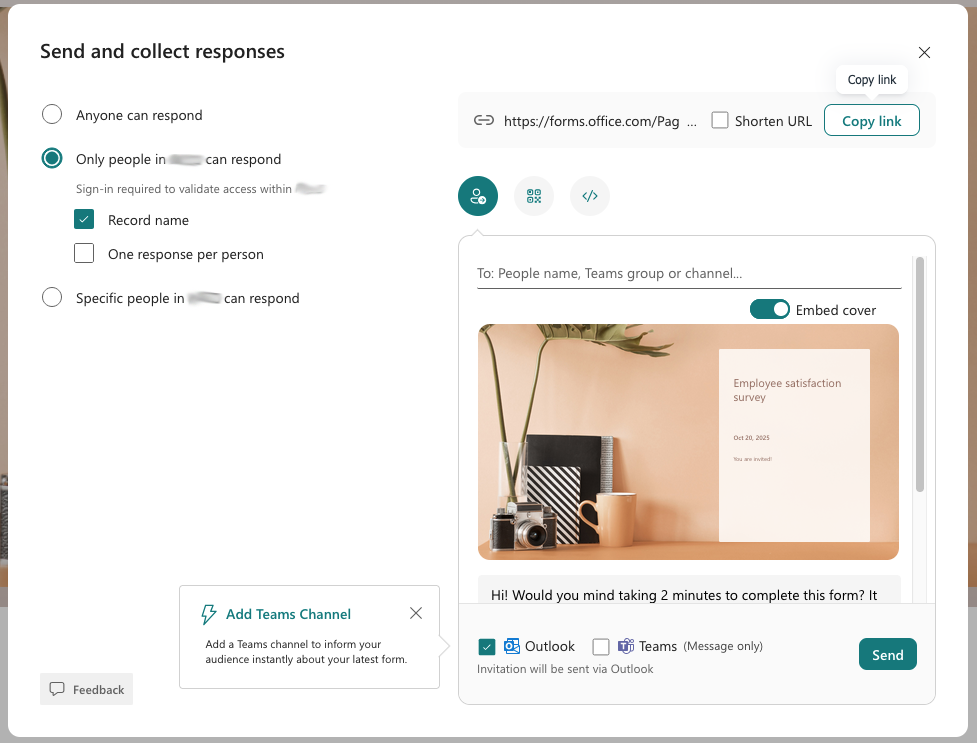
Business users can send out a survey link publicly or privately.
Shimon Brathwaite / Foundry
If you have a business account and this survey is meant for people outside your company, click the first option, which allows anyone to respond. If it’s meant for employees in your company, choose the second option. And if you’re looking for feedback only from specific people in your organization, choose the third option and enter the names or email addresses of those people.
If you have a personal account, you will only have the option to allow anyone to respond.
Next, select the option to shorten your URL so that it’s less spammy and easier to share with other people in a text, email, or instant message. You can send the link out by clicking the Copy link button and pasting it into an email or other message. Alternatively, you can fill out the form on the right to send an email or Teams message with an embedded link.
Microsoft automatically keeps track of all responses to your form and provides you with a summary of that information in a visual dashboard. Click the View responses button at the top right to see your summary.
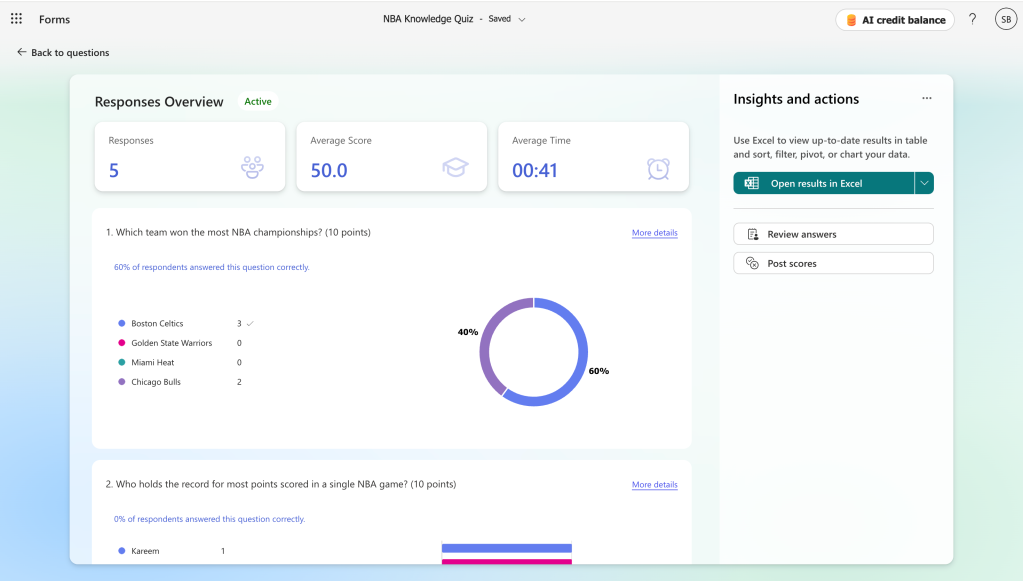
Forms collects and summarizes your survey’s responses.
Shimon Brathwaite / Foundry
To view responses individually, click the more details button on the right-hand side of your initial summary of responses. On this page, you can scroll through all of the responses that you’ve received to your form.
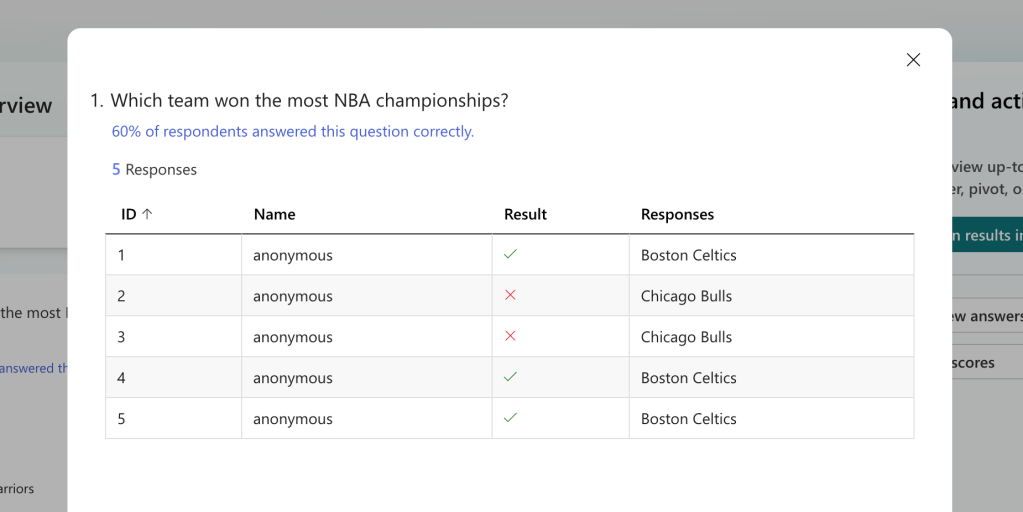
Viewing the answers from an individual respondent.
Shimon Brathwaite / Foundry
You can also export your results to Excel for offline viewing. Click Open results in Excel to the right of the initial summary.
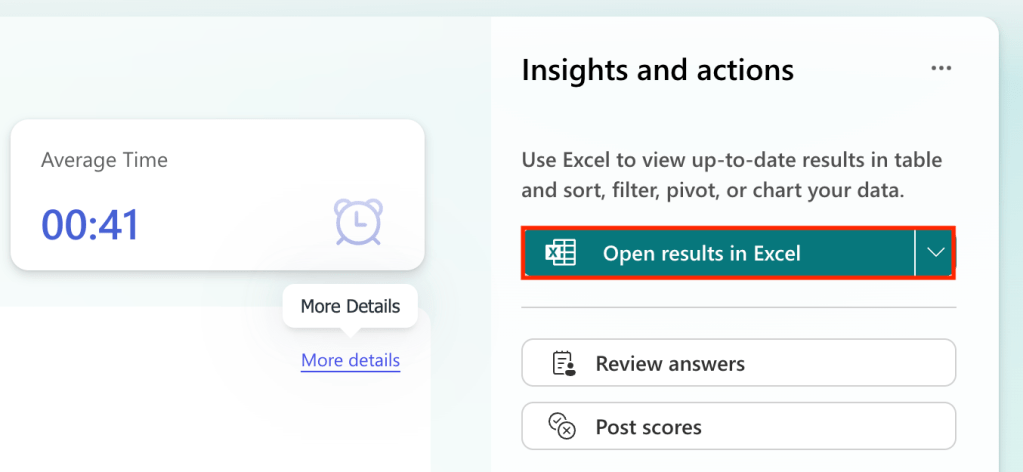
Click this button to export your results to Excel.
Shimon Brathwaite / Foundry
Lastly, you can share this results page with anyone you want via a link provided by Microsoft. Click on the three-dot icon to the right of the “Insights and actions” title on the right and choose Share a summary link from the pop-up menu. Forms will generate a link that you can copy and share.
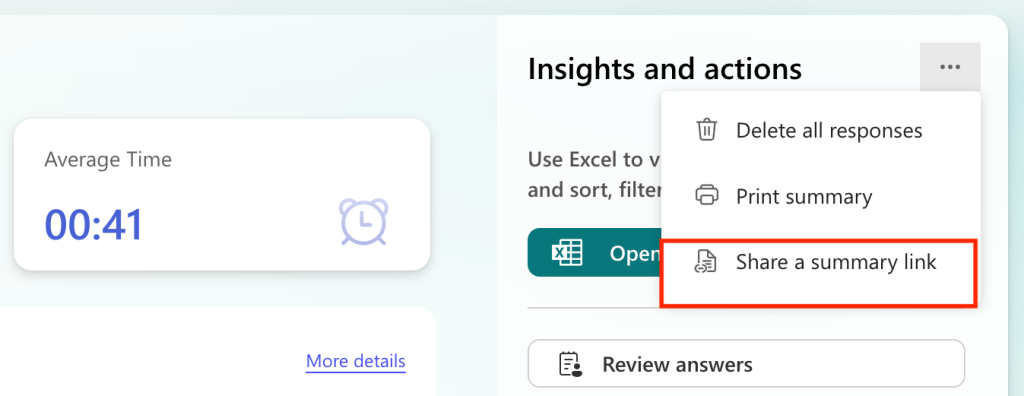
Sharing a summary link.
Shimon Brathwaite / Foundry
This article was originally published in November 2023 and updated in October 2025.