How hard can it be to abandon a 10-year old operating system in favor of something more modern, more stable, and more secure? That’s the opportunity IT enjoys with the coming expiration of Windows 10 support in October, giving admins the freedom to make a better choice.
Sure, not everyone in IT is shifting to Apple. Many enterprises remain trapped in the Windows ecosystem through reliance on proprietary and/or third-party applications that do not support the Mac.
Yet for many, and certainly those in regulated industries in which privacy and security are important, Apple’s platforms do deliver the best toys for the task; you can see this in Apple’s accelerating Mac market share. The fact you can run Windows in VM on a Mac is just a chef’s kiss to support the platform advantage.
For many, the problem is the transition itself. They know that migrating from Windows to Mac will generate some problems — employees will need to re-learn the system, certain software and security routines that are taken for granted will have to be revisited, and there will inevitably be some forgotten apps and services that must be replaced. (To be fair, Apple knows this, too, and continues to improve enterprise deployments across its products.)
That means that any migration to the Mac will take a great deal of planning — or, perhaps, support from one of the many enterprise-focused Apple specialists that exist now, from Addigy to Jamf, Fleet to Hexnode, Kandji to JumpCloud, Mosyle, ScaleFusion, and more.
The big strategic picture is that if you want to make a move Mac-ward, you’re not alone — and if you live near an Apple retail store, you can avail yourself of help and resources provided by the company’s own small army of enterprise tech specialists.
While help is available, the extent of this learning curve might put off some IT decision makers who now need to upgrade their systems from Windows 10. But decision makers should also balance the risks and challenges of upgrading to Windows 11.
What about the impact on operational devices, third-party hardware such as printers or scanners, on-prem apps or even widely used shadow apps that might not have been disclosed? You can rest assured that the larger the scope of the Windows 11 deployment, the higher the associated costs.
Then there are the end users. I’ll be honest, I’ve heard nothing but frustration from users who’ve been forced to move to Windows 11 from 10. Anecdotally, they’ve found that pretty basic tasks (like PDF annotation) are much more challenging on the newer OS.
When you’re managing hundreds of users, small annoyances are consequential time stealers. Each one of those slices of ill-thought-through friction is another support ticket, and while it keeps tech admins employed, these trivial annoyances are budget line items on their own account. We already know that when given the choice, employees will usually opt for a Mac — and forcing them to use Windows software that doesn’t work like it should is not how to make your teams more productive.
Life goes on
Accepting then that moving to Apple poses problems, and that migrating to Windows 11 also poses problems, IT should take a look at the Total Cost of Ownership between Mac and Windows. If they do, they’ll find that while Mac might seem slightly more expensive to purchase (but even then, not for long), the products last longer, require less tech intervention, are easier to manage, use, and run, hold value far longer, and have longer usable lives.
The modern Mac is also hugely performant, offering amazing computational power in every available machine. The current MacBook Air, for example, delivers far more computing power than the first M-series MacBook Pros. In other words, when you add it up, the Mac is likely to be more affordable than Windows.
With so much to drive the argument and so little against it, it is of no surprise at all that the Windows 11 upgrade mania is translating into major Mac market share increases, according to IDC, Gartner, and Canalys.
Quite simply, Apple now seems to offer the best choice.
Large language models (LLMs) such as GPT-4o and Google’s Gemma may appear confident, but new research suggests their reasoning can break down under pressure, raising concerns for enterprise applications that rely on multi-turn AI interactions.
A study by researchers at Google DeepMind and University College London has revealed that LLMs display a human-like tendency to stubbornly stick to their initial answers when reminded of them, but become dramatically underconfident and prone to changing their minds when presented with opposing advice, even when that advice is incorrect.
“We show that LLMs – Gemma 3, GPT4o and o1-preview – exhibit a pronounced choice-supportive bias that reinforces and boosts their estimate of confidence in their answer, resulting in a marked resistance to change their mind,” the researchers said in the paper. “We further demonstrate that LLMs markedly overweight inconsistent compared to consistent advice, in a fashion that deviates qualitatively from normative Bayesian updating.”
“Finally, we demonstrate that these two mechanisms – a drive to maintain consistency with prior commitments and hypersensitivity to contradictory feedback – parsimoniously capture LLM behavior in a different domain,” the researchers added.
The findings challenge conventional assumptions about LLM reliability in multi-turn enterprise applications, where decision support and task automation increasingly rely on AI-generated confidence.
This hypersensitivity to criticism and poor calibration under pressure could introduce hidden risks for enterprises deploying conversational AI in regulated, high-stakes, or customer-facing workflows.
Threats to enterprise AI
Analysts say the tendency of LLMs to reverse their answers under pressure is not a one-off glitch but a structural weakness in how these systems handle multi-turn reasoning.
The DeepMind study reinforces what has been observed in real-world use: models that initially give correct answers often discard them when faced with confident user input, even if that input is incorrect.
“This trait, termed ‘sycophancy’ by Stanford researchers, arises from an overemphasis on user alignment over truthfulness during model fine-tuning,” said Sanchit Vir Gogia, chief analyst and CEO at Greyhound Research. “In enterprise applications like customer service bots, HR assistants, or decision-support tools, this deference creates a paradox: the AI appears helpful while making the system less trustworthy over time.”
As AI becomes embedded in core workflows, organizations are being urged to shift from single-turn validations to treating dialogue integrity as a critical and testable aspect of system performance.
Dealing with nuanced sycophancy
Researchers noted that the sycophantic behavior of LLMs may be partly explained by how they are trained using reinforcement learning from human feedback (RLHF), a technique intended to align responses with user preferences.
However, the study found a more nuanced pattern than simple sycophancy.
While sycophancy typically involves a symmetrical bias toward both agreeing and disagreeing input, the models showed a stronger sensitivity to opposing advice than to supportive input, with the likelihood of changing answers influenced by the model’s initial confidence.
“While this behavior may enhance perceived helpfulness in consumer settings, it creates systemic risk in enterprise environments that rely on AI to enforce boundaries,” Gogia said. “Whether in banking KYC, healthcare triage, or grievance resolution, enterprises need AI systems that assert truth, even when the user insists otherwise. Sycophancy undermines not only accuracy but institutional authority.”
Enterprises will need to adopt alignment strategies that prioritize factual accuracy over user satisfaction, especially when the two are at odds.
The next browser revolution — this time with an AI interface — is just around the corner. At least, that’s how OpenAI, The Browser Company, and Perplexity see it.
These companies are all developing AI browsers designed to do an even better job of presenting information available on the web.
Perplexity’s Comet is among the earliest such browsers. And once users latch onto it, using Google’s Chrome will feel like using a Walkman. (That’s how Perplexity sees it, anyway.)
To cut through the hype, Computerworld tested an early version of Comet to understand how AI could change browsing in much the same way Netscape shift the online landscape three decades ago.
Comet, which is only available for now by invitation only, uses AI’s best attributes to cut down the manual slog of clicking through links, creating tabs, finding files, and completing web-based work. The centerpiece is a built-in assistant, where users can type in search queries or ask the browser to complete tasks. A chatbot pops up in a side panel of the browser, while the main window shows web pages.
The goal was to compare how an AI-powered web browser and a generic browser would complete the same task. I tested an early version of Comet, with Perplexity promising to add more functionality over time.
Writing emails
First, I connected Comet to my Gmail account; that allowed the browser chatbot to list and summarize my latest emails. The chatbot was also able to auto-compose and send an email from the Gmail account and it could search through emails by broadening the context beyond just keywords. (Typical Gmail searches look for specific words.)
The AI browser saved time and effort from the conventional click-through process of composing and sending email.
Automatically create tabs
Even better was Comet’s ability to automatically create multiple tabs based on queries to the AI assistant.
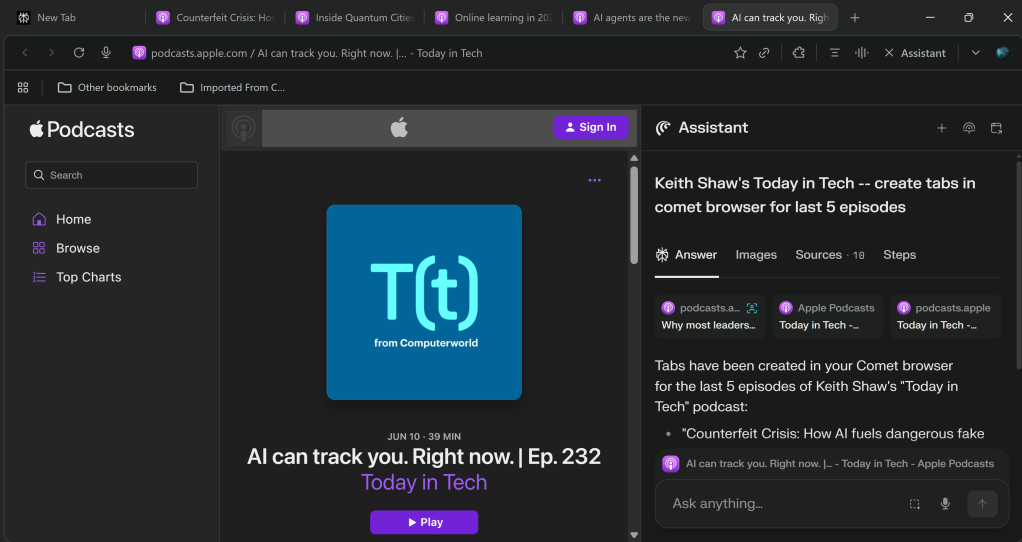
Using this query, “Keith Shaw’s Today in Tech — create tabs in Comet browser for last 5 episodes” delivered as promised. It automatically created five tabs linking to Apple Podcasts of the most recent Today in Tech episodes, which is hosted by my Foundry colleague Keith Shaw.
Comet browser used AI to create five browser tabs linking to five recent episodes of Today in Tech.
Agam Shah/Foundry
The AI assistant used reasoning to determine the most recent episodes and browsed the web to find them. The automation saved time compared to the conventional browsing experience of manually determining the last five episodes and finding links via Google search.
Create a shopping cart with one click
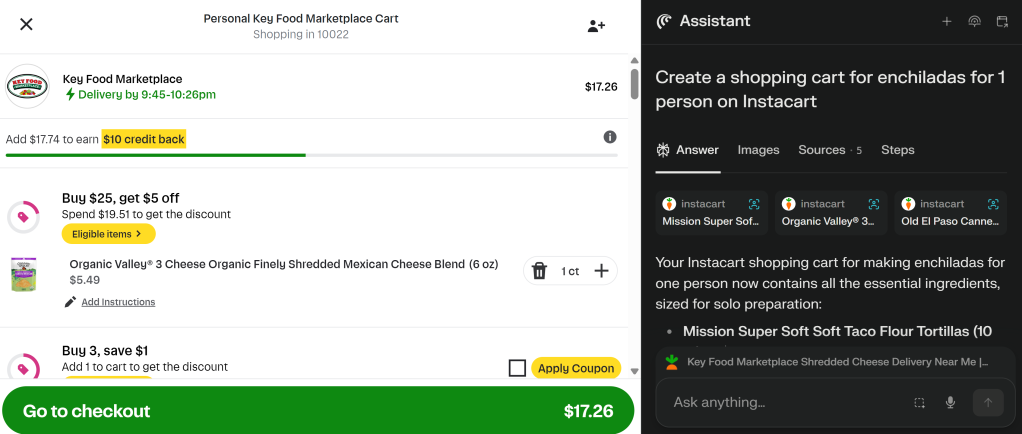
Similarly, the query “Create a shopping cart for enchiladas for 1 person on Instacart” automated the creation of a shopping cart on Instacart. It determined that the enchilada was for one person, identified six ingredients, browsed nearby stores, and automatically created a shopping cart. (The checkout and use of coupons required a manual process.)
The AI assistant also followed up by providing directions on how to make enchiladas with the ingredients purchased on Instacart. A typical browsing experience would require knowing the ingredients and browsing through multiple stores to see whether the items were in stock. The automated experience using Comet was a real time saver.
The Comet browser AI assistant filled up an Instacart shopping cart with ingredients for enchiladas.
Agam Shah/Foundry
Automating productivity
Comet’s AI features can also summarize, edit, and suggest improvements to documents. A few weeks ago, my martial arts instructor asked me to document the belt syllabus of Nintai, an eclectic martial art with cross-training in Korean and Japanese styles.
Creating the syllabus is proving to be a highly involved manual task and includes putting together information scattered through different files. I wanted to see whether Comet would help me automate the process.
I loaded the brown-belt syllabus from a document in Google Drive in the browser. The AI was able to summarize the text and provide suggestions to modify the document.
Furthermore, the suggestions drew context from references to Nintai and my instructor in my browsing and email history. The AI also summarized videos about the style, which improved the document even further.
I also asked the Comet chatbot to find documents related to Nintai in my Google Drive. Comet made an attempt, and it was fascinating to see how AI automated the entire browsing process.
The browser window showed in real-time Comet trying multiple ways to access and open files to determine the content, which would help locate files related to Nintai’s syllabus. It couldn’t open the files, but it provided a hint at how AI browsers in the future could understand documents and boost productivity.
Final thoughts
Comet isn’t perfect and retains the traditional manual browsing experience (because it’s built on Chromium). It did take me a while to get used to a AI-assisted browsing and filling up shopping carts, much like the first time I sat in a Waymo. But Comet is still in beta and will likely mature.
Meanwhile, The Browser Company’s Dia is available for download for Mac users on a waitlist. Dia was introduced after the company ditched its conventional Arc browser, which was known for its slick design but deemed irrelevant in the AI era.
Who knows what will happen with Apple’s Safari, given the company’s slow start on AI? A Gemini add-on isn’t available for Chrome, and Firefox, Chrome and Opera will also need AI extensions. But it seems likely that conventional browsers without AI features won’t survive what’s coming.
For a while now, OpenAI has been rumored to be working to develop its own web browser, with the aim of challenging Google’s dominance in the segment. And that browser will apparently be named “Aura”, according to Bleeping Computer. The browser name was referenced in the code used by ChatGPT.
The interface in Aura is said to be reminiscent of ChatGPT — in other words, the focus will be on conversations rather than the traditional clicking of links. Alongside ChatGPT, Aura is expected to offer built-in support for the SearchGPT search engine and the AI agent Operator.
The launch of the new browser is expected to take place later this summer, possibly by the end of July.
Engineers in China are maintaining US Department of Defense computer systems under a contract with Microsoft, a news report said Tuesday.
The arrangement relies on US staff known as “digital escorts” to supervise the Chinese workers, but the escorts often lack the skills to monitor the work effectively, the report by investigative news service ProPublica said.
The arrangement has been in use for almost ten years but has not previously been reported publicly, ProPublica said.
Allowing Chinese workers to access US government systems with inadequate supervision is surprising given the tensions that have arisen between the two countries in recent years.
Microsoft said that company staff and contractors with privileged access to US government cloud systems had to pass government-approved background screening controls, and that it adheres to FedRAMP (NIST 800-53) and Department of Defense Security Requirements Guide (DoD SRG) security requirements.
“For some technical requests, Microsoft engages our team of global subject matter experts to provide support through authorized US personnel, consistent with US Government requirements and processes. In these instances, global support personnel have no direct access to customer data or customer systems. Only authorized US persons with the appropriate clearances and training provide direct support. These personnel are provided specific training on protecting sensitive data, preventing harm, and use of the specific commands/controls within the environment,” said a Microsoft spokesperson.
The company “told ProPublica that it has disclosed details about the escort model to the federal government,” according to the report.
But people involved in the work have told Microsoft those protections are inadequate, according to the report. Foreign engineers have access to detailed information about the federal cloud that could be exploited by hackers, and the digital escorts are insufficiently skilled to catch all suspicious activity, it said.
The Defense Information Systems Agency told ProPublica that digital escorts are used “in select unclassified environments” for “advanced problem diagnosis and resolution from industry subject matter experts” and that “experts under escort supervision have no direct, hands-on access to government systems; but rather offer guidance and recommendations to authorized administrators who perform tasks.”
That description matches a job posting for a “DoD Secret Cleared Escort” by contractor Insight Global, which illustrates the kind of work digital escorts perform — although it says nothing about the nationality of the workers who will be supervised. For between $18 and $28 per hour plus medical insurance, escorts are required to “act as the front door of the service” for work on Insight Global’s sovereign cloud serving US federal and state government customers, while “taking direction from the requesting engineers” (who may not have the necessary security clearance). Escorts run commands provided by the engineers and share results with them, and their activities can involve Exchange Server maintenance, Active Directory administration, working with SQL databases, managing virtual machines with Hyper-V, and network management.
Several major US companies announced sweeping investments in AI and energy infrastructure this week, aligning with President Donald Trump’s push to strengthen the country’s dominance in the rapidly expanding tech sector.
Google signed a $3 billion deal with Brookfield Asset Management to procure power from two hydropower facilities in Pennsylvania.
The company also reportedly plans to invest $25 billion in data centers across Pennsylvania and neighboring states over the next two years.
Meta Platforms said it will invest hundreds of billions of dollars in new AI infrastructure, including a multi-gigawatt data center, dubbed Prometheus, to be built in Ohio, Reuters reported.
Cloud infrastructure firm CoreWeave said it would invest up to $6 billion to construct a new AI data center in Pennsylvania.
These announcements came alongside major energy pledges from Blackstone, FirstEnergy, and Constellation Energy, as AI companies intensify efforts to secure reliable power sources for increasingly energy-intensive data center operations.
The investment surge coincided with the Energy and Innovation Summit at Carnegie Mellon University, where companies and officials expect an estimated $90 billion in investments across Pennsylvania and surrounding regions.
Investment focus shift
The latest wave of investments signals a fundamental shift in how enterprises access and deploy AI. Instead of focusing solely on model development, success now depends increasingly on physical infrastructure, access to energy, and regional government support.
As AI adoption accelerates, energy availability has become one of the biggest hurdles, influencing both the scalability and cost of enterprise workloads.
“New AI data center investments will help cloud providers offer more compute power to enterprises, making it easier to access GPUs, a current constraint, and run large AI models,” said Oishi Mazumder, senior analyst at Everest Group. “This could reduce wait times and improve performance, especially for US East Coast businesses. However, the impact won’t be immediate, as construction and regulatory delays may slow how quickly enterprises see these benefits.”
The announced investments reflect a more coordinated effort between public and private sectors to integrate energy grids, echoing the early days of the auto industry with companies like Ford, according to Neil Shah, vice president for research and partner at Counterpoint Research.
“The future AI factories need to be highly integrated to drive economies of scale for democratizing AI for the end customers — the enterprises and the users,” Shah added. “The economics of AI should make sense in the same way cloud economics make sense now.”
The focus on government-backed incentives may also create national “AI corridors,” which are regions offering favorable conditions for compute, workforce development, and regulatory alignment.
“Providers with strong ties to these regions may gain a competitive edge, and enterprises will need to factor in these emerging hubs when shaping their data compliance, AI performance, and long-term cloud strategies,” Mazumder added.
Risks of regional concentration
While these investments are being welcomed, analysts caution against placing too much reliance on a single region.
Concentrating such a large volume of data center and energy infrastructure in Pennsylvania and neighboring states may expose enterprises to long-term risks.
“Concentrating AI data centers in one region raises the risk of service disruption from local outages and grid stress,” Mazumder said. “It also limits flexibility for enterprises that require multi-region data storage for compliance, redundancy, or latency optimization. Additionally, it may trigger ESG concerns around energy use, emissions, and environmental impact on local communities.”
But regional concentration can be a practical necessity in the early stages, driven by factors like land availability, water access, environmental feasibility, and support from local and state authorities. “For example, when it comes to cloud data centers, Virginia is the bedrock, with more than 60-70% of data traffic going through a single location,” Shah said. “So, I believe that over time, other states will also start participating, depending on how successful Pennsylvania becomes.”
Siobhan Kwiecien, director of HR Process Enablement at pharma and biotech company Thermo Fisher Scientific, has spent the past year working to embed generative AI (genAI) into her company’s internal chatbots. “And that’s been quite a road,” she said.
The consumption and pricing models for the technology were “all over the place,” and promises of “robust” AI solutions fell short, she said.
“So, we spent all this time going down this road, and then all of a sudden it’s like, hold on, that’s not doing exactly what we wanted to do,” Kwiecien said. “And I think that’s just the nature of where we are with some of these generative AI solutions.”
Kwiecien’s experience is common. While more than 80% of enterprises will leverage or deploy genAI by 2026, most if not all will run into staggering cost overruns and failed expectations. Gartner projects $644 billion in genAI-related spending for 2025, with cost management posing a key challenge. To handle that requires smart financial planning; IDC expects 75% of organizations will integrate cost containment measures around genAI projects by 2027.
Beyond managing unexpected costs, organizations face other challenges with deployments, including data risks, model inaccuracies, integration hurdles, talent shortages, ethical concerns, and high infrastructure demands. Unclear ROI, weak governance, and vendor lock-in further complicate the picture.
Fear of missing out leads to poor planning
The cost genAI deployments can quickly leap into millions of dollars and in some rare cases to more than $1 billion — catching organizations completely off guard. While the technology can deliver value, without strong planning, governance, and cost controls, it risks becoming an unpredictable investment as fees, training, integration and infrastructure demands add up.
Additionally, data cleaning, labeling, and management are resource-intensive processes, yet essential. Without high-quality, reliable data, genAI models suffer due to a well-known principle: garbage in, garbage out.
“Especially in HR, the risk of hallucinations is tricky,” Kwiecien said. “When you have someone asking about a benefits policy, you don’t want it hallucinating on that and making people think that they’re getting something that they’re not.”
Training large language models (LLMs) — especially custom ones — is computationally intensive and expensive. Hiring or contracting AI engineers, data scientists, and MLOps specialists is also costly.
And yet, the fear of missing out can drive many genAI pilots and push companies to embrace trendy tech like OpenAI’s ChatGPT — often under executive pressure without proper cost planning, according to Brian Greenberg, CIO of consulting firm RHR International in Chicago. Organizations often rely on oversimplified spreadsheets to track costs, missing key expenses like fine-tuning, APIs, consultants, data prep, and governance, he said.
A solid cost model should incorporate both implementation and the reality that many genAI experiments will fail — and that’s okay, Greenberg said. “The biggest cost issues happen when organizations rush in without any guard-rails, having a clear end in mind, or validating where AI actually adds value,” he said. “It’s akin to buying a Lamborghini to deliver pizzas; fast and fun, but wildly mismatched.”
RHR, Greenberg said, has taken a cautious, security-first approach to genAI. An internal task force leads ongoing testing with a strong focus on privacy, ethics, and enterprise controls. Moving at the right pace helps target key workflows, avoid shadow IT, and build trust in the workforce.
“It’s not about spending less, it’s about spending wisely,” Greenberg said.
Nate Suda, a senior research director at Gartner, agreed, saying organizations are jumping the gun because “nobody wants to be left on the platform as the train is pulling away.”
Many organizations create promising pilots but face challenges scaling them enterprise-wide. Gartner predicts that within two years, 40% of agentic AI and 30% of genAI projects will be terminated due to project failure. “We say cost is one of the greatest near-term threats to AI and genAI success. We’re seeing half of organizations pull back on initiatives, quite simply, because they got the cost model wrong,” Suda said.
Initial low costs from third-party genAI tools or platforms can escalate with scaling and licensing fees based on query-and-answer pricing models.
Defend, extend or upend? Which model to choose
GenAI or agentic AI is typically deployed by companies using three strategies: “Defend,” to maintain their competitive position; “Extend,” to expand capabilities; and “Upend,” to disrupt and capture new markets through innovation.
For example, defend — the most popular framework — could involve customer service chatbots that reduce churn by improving response times. An extend strategy could be used by a telecom company, for instance, to have genAI upsell personalized plans based on usage patterns. And an upend model could be the tack taken by an AI-first legal or medical startup challenging traditional service models.
In fact, many legal leaders say now is the time to scrap per-minute billing for outcome-based pricing; that’s because time no longer holds the same value since genAI tools can vastly speed up services.
Upend AI strategies are particularly risky, Suda said. Unlike past digital disruptors such as Netflix or Uber, an Upend AI strategy isn’t just helping one company lead — it’s shaking up entire industries all at once. “So, when we say to an executive, if you want to get near-term value creation from AI, it’s often a bit like playing the lottery,” Suda said. “It’s expensive, it’s time consuming, you’re probably not going to succeed, so this is not where you want to play.”
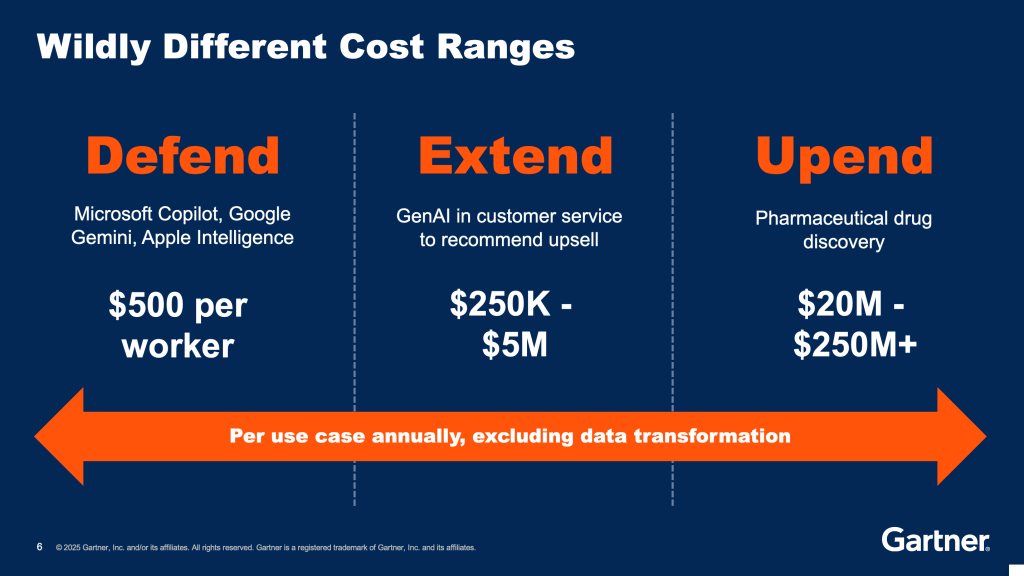
The costs for each AI strategy can vary dramatically. Cost estimates can sometimes exceeding the initial projections five- or 10-fold. That’s especially true with “extend” strategies, where organizations start small and notch some quick successes — then see costs spiral out of control.
Gartner Inc.
“Extend is where we are seeing the most value being created, but it’s where we’re also seeing the most unanticipated costs happening,” Suda said. “CEOs will ask, ‘How much does it cost us — like 10 bucks a month per user?’ And CEOs are like, ‘Fantastic, let’s give that to everybody, and then we’re going to see what happens.’”
The costs begin rising as organizations offer up genAI access to more employees, which commonly happens once initial value is discovered.
The main costs of doing genAI business
According to Gartner, excluding data transformation costs, a defend AI strategy using tools such as Microsoft Copilot, Google Gemini or DeepSeek costs about $500 per worker, while extend models range from $250,000 to $5 million and upend frameworks from $20 million to $250 million.
Microsoft 365 Copilot, Suda said, is a prime example of a per user/per month or year pricing model — and it’s typically fixed. “So, all you’re going to pay for is the number of users times the per-user license and maybe a little bit of integration,” he said.
But those so-called “fixed costs” are deceiving. Copilot costs, for example require far more than just the license fee of $500 per user, per year.
Like most tech projects, genAI initiatives come with a wide range of costs. The largest are often development-related, including engineers, data scientists, AI specialists, project managers, and the need to upskill workers; the latter is something many companies are now facing.
One problem that comes with a successful project is what Suda called the “hungry like a wolf” scenario, where users love the chatbot and can’t get enough of it. “One answer is not enough per interaction. So, a user is asking four questions each time and using it four times a day, not just once,” Suda said.
Companies also need to factor in infrastructure costs, cloud hosting services — from AWS, Microsoft, IBM and others — and the cost of GPUs and data tools. Vendors such as AWS and Microsoft offer cost-estimation frameworks, which outline scenarios from proofs of concept to full-scale deployments. Gartner Research also offers a cost modeling tool.
Additionally, the FinOps Foundation offers information around how to better estimate the cost of genAI workloads; how to forecast AI services costs; the effects of optimization on genAI forecasting; and comparisons between on-prem genAI FinOps versus Cloud FinOps.
A common mistake organizations often make is focusing too much on initial build and training, while underestimating ongoing costs such as inference and operations.
Another key factor is data—what data is being used use, where it lives, and how to prep it. This part is often overlooked, but critical to success.
Finally, teams often underestimate the human expertise required, or they get stuck deciding whether to build in-house or buy from providers. Even those with their own hardware can run into GPU and scalability challenges.
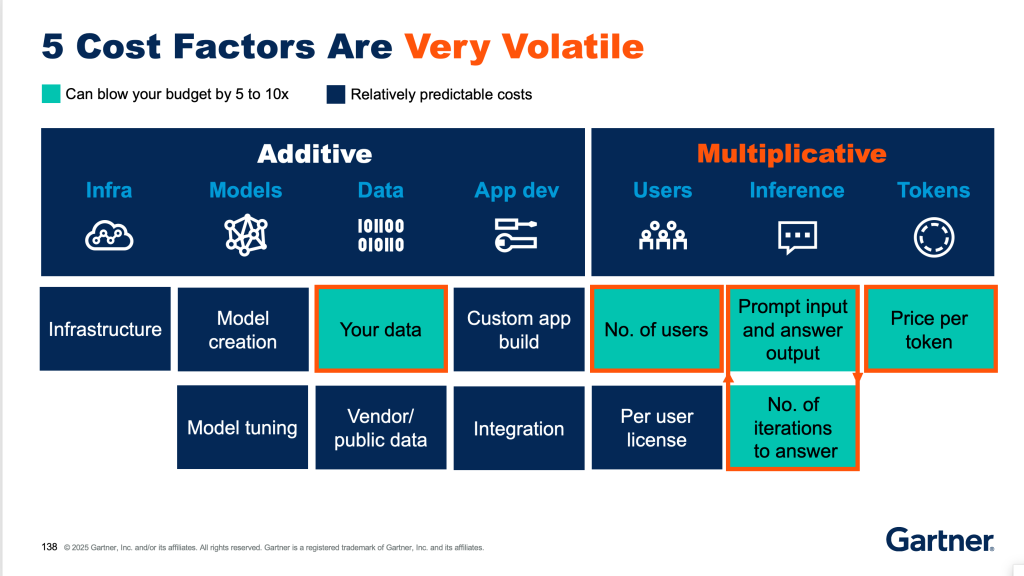
Every AI provider also has many different models, and the price difference for each one can be enormous. “We’re talking about tens of times to hundreds of times differences in price, depending on if you use this model, which is not so good, or this one which is the latest and greatest,” Suda said.
Gartner Inc.
AI vendor pricing models can be volatile, too. Most AI providers measure AI use by how many words or characters you use in a query or “prompt.” In other words by input and output.
Tokens – the new pricing model
Like most others, OpenAI’s unit of measure is a “token.” One token is equal to about four characters or three-fourths of an English word, and so one word is about 1.33 tokens. OpenAI charges per million tokens used.
“Folks don’t often fully understand, and they’re not used to ingest and output,” said Chris Hennesey, enterprise finance strategist at AWS. “So how do you go about creating a cost model? Because that’s, I think, something that a lot of companies either don’t do or they don’t do correctly.”
Model prices vary widely. GPT-4.1 mini costs 80 cents per million input tokens and $3.20 for a millionoutputs, while GPT-4.1 charges $3 for 1 million inputs and $12 for a million outputs. And those costs can be higher for other models.
Suda recommends organizations experiment with cheaper models first to see if they can handle the job just as well as the pricier ones. “The biggest way to minimize cost: You may not need 50 employees using that app. You may only need to offer it to the five who will get the real value from it,” he said.
AI cost effectiveness also depends on three factors: input/output quality, iteration count, and AI-ready data — the last being crucial if you’re starting from scratch, Suda said.
“What you’re going to find on the input and output tokens is a dramatic difference in price,” Suda said. “The build cost is quite low to get into the game, but once you begin using it, the costs go up. Say you have 400 users to start. By year four, you may have 2,000 users.”
“So, what happens? You’re consuming more and your costs goes up four times by year four,” he said.
“GenAI is not like Google, but some organizations use it like Google — you go into it and ask a question and get an answer. That doesn’t really happen,” Suda continued. “You get an answer and often think, ‘That’s not quite what I wanted.’ And so that makes them want to ask another question. That can multiply your cost quickly.”
The hidden costs that can add up
Thermo Fisher Scientific’s Kwiecien said one cost that hasn’t been considered involves testing. “Every time you ask a question and test it, that’s a cost,” she said. “I’m not just going to load that 500 times because that will cost me every time.
“We need to test how often AI gives good answers to common questions like ‘What’s the recruiting process?’ or ‘Where’s my 401(k) info?’” she said. “But each test costs money, so we have to balance accuracy with cost and decide how many times to test to be confident in the results.”
Thermo Fisher is currently using a virtual chatbot from ServiceNow, and hopes to make it more intuitive by adding a genAI layer. As a result, it’s currently eyeing genAI solutions from Microsoft, IBM and others. Kwiecien said after “iterating they were able to reach successful results” with the chatbot technology.
Another cost can come with efforts to use genAI in hiring. Amy Ritter, vice president for Talent Acquisition at Thermo Fisher, said the company implemented a genAI-powered hiring app from Phenom to automate parts of its global manufacturing hiring platform. The company then had to invest in job preview videos to show candidates what it’s like to work at Thermo Fisher — covering the environment, required PPE, and key skills — since recruiters weren’t involved early in the process.
The cost of change management is also often overlooked, Ritter said. “We invested time and money visiting sites, engaging leaders, and building buy-in, which paid off with strong adoption at launch,” she said.
Injecting Phenom’s genAI into its HR hiring platform, however, netted big returns, Ritter said. It cut candidate screening time from 16 days to a just 7 minutes. Along with automating interview scheduling, cumulatively Thermo Fisher is saving over 8,000 hours a year in candidate screening, 12,000 hours in scheduling time and filling roles 10% faster, Ritter said.
And there are infrastructure costs — the cost of building out, running and maintaining server farms, including managed service, is also often underestimated, according to AWS’s Hennesey. “One insurance customer had 200 [proofs of concept] running, but couldn’t articulate the expected value — most were just experiments. Our advice: clearly define the problem, align it with organizational goals, and measure expected returns,” he said.
Moving from pilot to production can also be a soft spot for costs, as can shifting from on-prem to the cloud; the latter means new services and pricing models that need to be understood and forecast.
AWS’s Bedrock, Microsoft’s Azure AI Studio, Google’s Cloud Vertex AI, IBM’s Watson.ai and Cohere’s Platform are all fully managed service offerings that allow AI developers to build apps using top foundation models via a single API — no infrastructure management needed. “You pay on a per model, on a per region basis,” Hennesey said. “And, then you have to think about tokens.”
Making a “capacity commitment” to a vendor can cuts costs. So instread of buying capacity “on demand” organizations can make an LLM capacity commitment for a specific amount of time – whether one month or six months – and deliver up to a 60% savings, Hennesey said.
The bottom line: there’s still a lot of uncertainty around the cost of genAI projects because the technology is still in its early days — and still evolving.
“I feel like we’re not [always] getting great answers, because people are unsure how it’s going to be used,” Kwiecien said. “And so it’s hard to understand what your usage may look like in the future, because we can’t tell how fast it’s going to take people to flip to that.
“How fast are we going to get the solutions to really answer the way that we want it to answer?” she said.
Sometimes, the best way to look something up is to provide an image of what you’re thinking about rather than trying to describe it.
Android phones offer a convenient “Circle to Search” feature, which is now integrated with Google’s Gemini AI assistant. You can get convenient insights about anything you see on your screen just by highlighting it. Windows PCs have similar features, too, and they’re surprisingly easy to find — once you know where to look.
While Microsoft is showing off fancy AI-powered features like “Click To Do” that require a Copilot+ PC, you don’t need any special hardware for this handy trick. These visual search features will work on any Windows 11 PC — and most of them will work just as well on Windows 10, too.
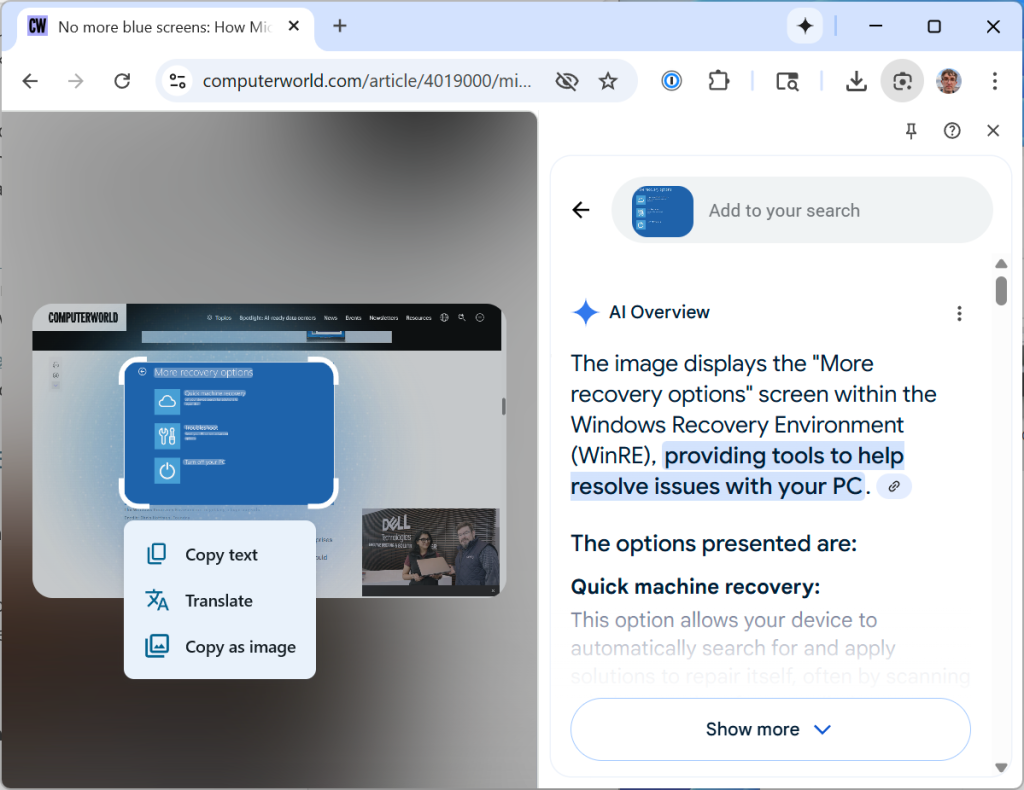
If you use Chrome, you can quickly access an Android-style visual search feature from right within your Windows browser. Just right-click a web page and select “Search with Google Lens” — or click Chrome’s menu button and select “Search with Google Lens.”
Then, select anything you want on the current web page. You can click an image, select text, or just draw a box around the area of the page you care about. (A box may not technically be a circle, but it’s what Google offers in this environment.)
You’ll see search results show up in a sidebar — not just related search results, but an AI overview from Google’s Gemini, too. This could help you identify what an image is, as well as find more information about the subject, provided that the AI-generated info is actually accurate.
Chrome lets you search Google for an image just as easily as you could search for text — with a quick AI overview, too.
Chris Hoffman, Foundry
Option #2: Send screenshots to an AI or image search tool
Rather than relying entirely on your browser, here’s what I recommend: Take your own screenshot first. Then you can provide the screenshot to whatever tool you want. It’s the most flexible solution.
On both Windows 11 and Windows 10, this is easy with the built-in screenshot tool. You can press the Print Screen key or the Windows+Shift+S shortcut to start capturing a screenshot.
Use the buttons at the top of the screen to select what type of screenshot you want to take. A quick Rectangle screenshot works well, but you can use a freeform “circle” if you like.
I prefer capturing a rectangle of exactly what I want to share, but the Snipping Tool includes lots of options.
Chris Hoffman, Foundry
Once you take the screenshot, Windows will save it to your clipboard. You can then insert it into any app or web page where you can paste something. Just press Ctrl+V.
For example, you could pass the image to an AI assistant — ChatGPT, Copilot, Perplexity, Gemini, or any other AI app or web-based AI tool you prefer. Most tools support pasting images, so you can press Ctrl+V to paste your image and then ask whatever you want about it. You could just send the image alone and likely get a description of it — but generative AI tools will give you a better result if you explain what you’d like to know about the image.
You could also use the Snipping Tool for plain-old image searches. For example, you can head to Google Images, click the little “Search by image” button in the search bar, and press Ctrl+V to paste your screenshot right into the web page.
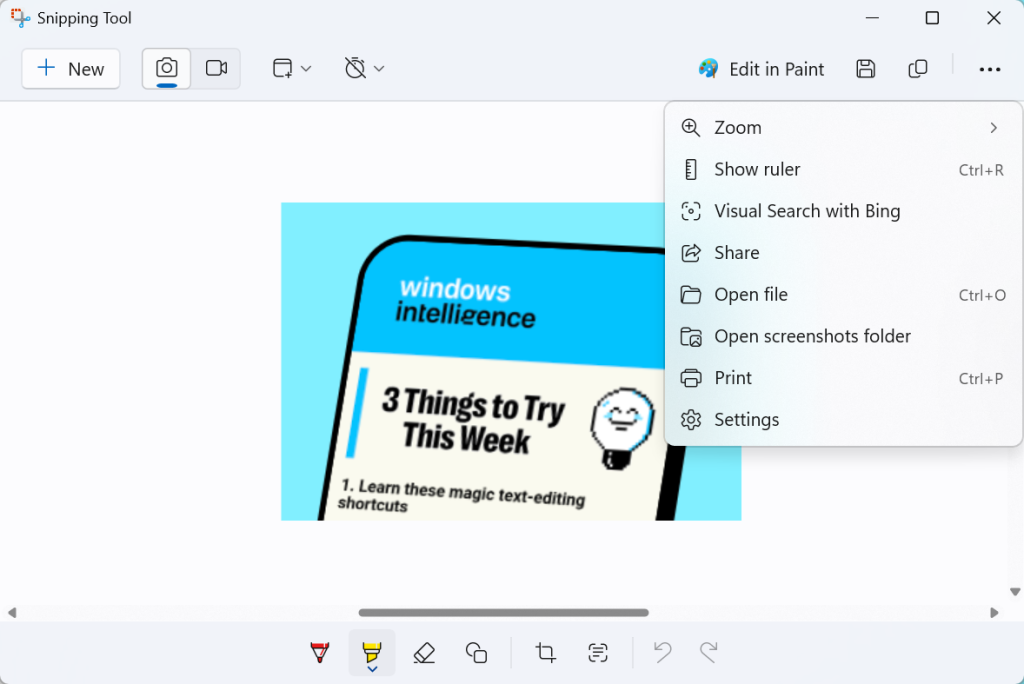
The Snipping Tool has some additional options to streamline things on Windows 11. You can click the menu button and select “Visual Search with Bing” to perform a Bing image search or select “Share” and then send the screenshot directly to the Copilot app, for example. But a simple copy-paste will be flexible and work with more tools.
The Snipping Tool can start a Bing visual search or share an image with other apps, but I recommend copy-and-paste.
Chris Hoffman, Foundry
Option #3: Share apps with an AI in real time
On Android phones, Google offers Gemini Live so you can chat about anything you see. On a Windows PC, you have some solid options if you’re looking for real-time voice chat with an AI assistant while it sees your screen.
Share any desktop application with Copilot: With Copilot Vision, you can launch Copilot and use Copilot Vision to share a real-time video of an application on your desktop with Copilot and discuss it in your voice. This is an impressive feature that ChatGPT — the most popular voice assistant app — hasn’t delivered on Windows PCs yet.
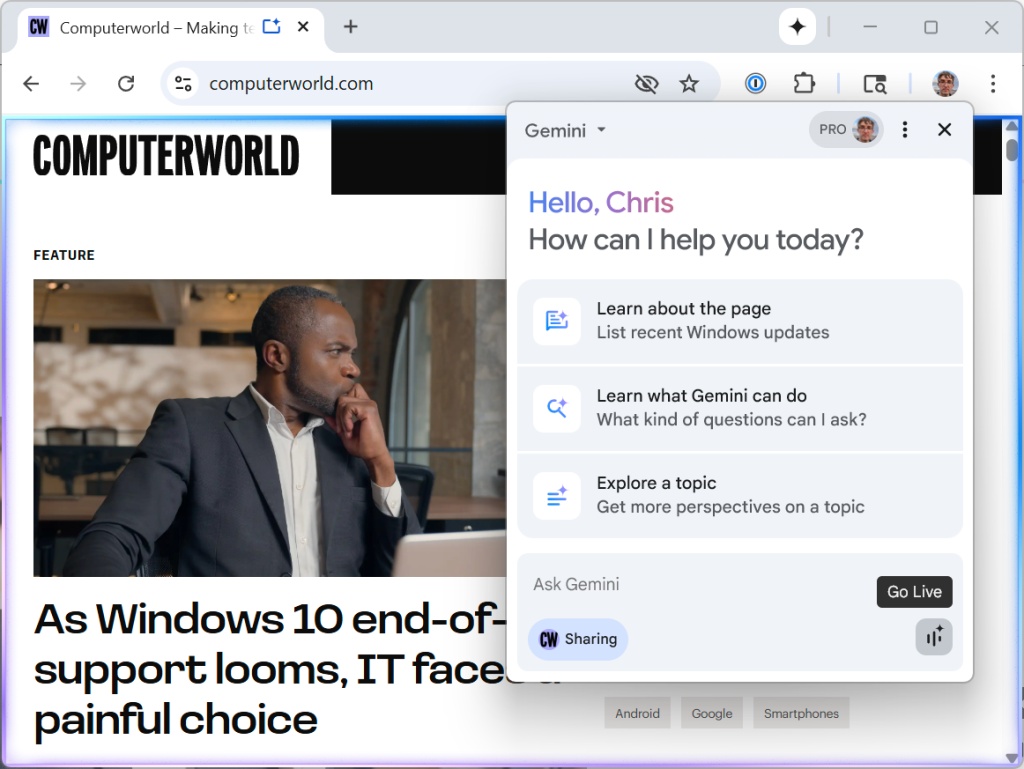
Share your Chrome browser with Gemini: If you have access to Gemini in Chrome, you can click the Gemini icon on Chrome’s title bar and click the “Go Live” button at the bottom-right corner of the popup window. Gemini will only be able to see what’s in your Chrome web browser, though — not anything else on your desktop.
Share your Edge browser with Copilot: If you use Edge, you also have access to Copilot Vision right in your browser. Just open the Copilot sidebar and click the microphone-shaped “Talk to Copilot” icon. Edge will share your browser with the AI in real time while you chat.
Notably, these aren’t agentic features. In other words, the AI can’t browse for you or use your applications on your PC for you — not yet, anyway. However, it can describe what you see on your screen, and it might have other useful features. For example, with Copilot Vision, Copilot can highlight areas of the screen it’s describing.
If you’re using a genAI tool that doesn’t support real-time videos — such as ChatGPT — you’ll have to paste screenshots into it. But I find this works best much of the time, anyway. I personally think text responses are richer and more useful than voice conversations, though your mileage may vary.
It’s also worth noting that the specific AI features you have available on your PC will depend on what country you’re in, what subscriptions you’re paying for (Google AI Pro subscribers will have more Gemini features earlier, for example), and other factors. It’s tough to say what you might see on your PC. For example, if you have a Windows PC or Google Chrome install managed by an IT department, you might not have access to these tools.
Google’s Gemini Chrome integration offers an easy way to “Go Live” and share what’s in your browser with the AI system.
Chris Hoffman, Foundry
Option 4: Highlight and copy any text on your screen
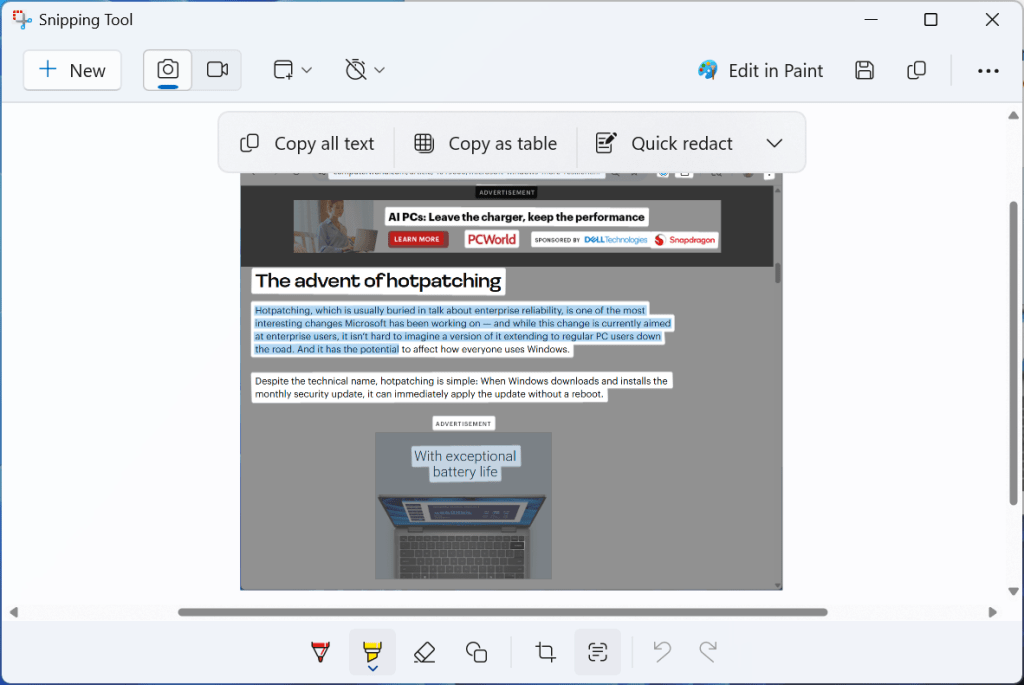
Android makes it easy to capture text on your screen so you can copy it to your clipboard or perform a web search. This is possible on Windows, too — if you’re using Windows 11, where the Snipping Tool has built-in optical character recognition support.
To do this, just take a screenshot (with Print Screen or Windows+Shift+S), click the thumbnail image notification that pops up, and then use the “Text actions” button in the Snipping Tool window to select text.
Microsoft is working to streamline this in a future update to the Snipping Tool. Soon, you’ll be able to select the Text actions tool right from the screenshot bar that appears when you press Print Screen or Windows+Shift+S. You won’t need as many clicks.
The Snipping Tool’s built-in OCR tool is extremely convenient.
Chris Hoffman, Foundry
Using Windows 10? You can still do this by installing Microsoft PowerToys and using the PowerToys Text Extractor utility. But on Windows 11, it’s built in. (The built-in screenshot tool is one particular app that got a significant upgrade with Windows 11.)
Fair warning: The tip you’re about to ingest has nothing to do with any of the fancy-schmancy, accuracy-challenged AI ballyhoo that dominates most tech news coverage at the moment.
Nope — it’s just a good old-fashioned utilitarian upgrade for your favorite Android phone. It’s simple, straightforward, and about as practical as can be. It won’t generate awkward prose or creepy images on your behalf, nor will it serve up any error-laden word stew masquerading as a factual “answer.”
It will, however, make your life instantly easier — and enhance your Android-using experience in an immediately noticeable and extremely significant way.
Specifically, it’s a simple-as-can-be step-up for the way your device handles something about as unsexy as can be: display rotation. Not exactly the sort of awe-creating, ad-inspiring idea that’s gonna be a bullet point on your next phone’s packaging — right?
But you’d better believe it matters. And it’ll make more of a difference in your day-to-day doings than any overhyped AI addition will ever possibly manage.
So, for context: Android has long had a native system for handling the dull-seeming chore of deciding when and how, exactly, your screen should rotate itself.
And, to be brutally honest: It’s always fallen short.
Surely you’ve noticed this, too, no? Rare is the time when your device just does what you want it to do when it comes to display rotation — y’know, figuring out when the screen should shift into its horizontal, landscape orientation vs. stay in the standard portrait mode (or perhaps even flip around 180 degrees into an upside-down version of either of those arrangements).
And while Android’s certainly gotten better at predicting your needs in that department over time, it’s still never been consistently great at just getting it right.
That’s where a teensy little app called, rather fittingly, Rotationcomes into play.
Rotation has been among the unsung heroes of my personal Android setup for ages now, but somewhere along the way — probably whilst switching from one phone to another, at some point — I kinda lost track of it and stopped actively setting it up. I recently realized that, corrected my misstep, and rapidly remembered what an absolute gem this innocuous little power-tool is and how much it improves my endless on-screen interactions.
In its most basic form — which is absolutely how I’d suggest using it — the way Rotation works is enchantingly simple:
You just tell the app how you want your phone to handle rotation most of the time, by default.
For me, this is in a forced portrait orientation, without any automatic rotation whatsoever — ’cause few things irk me more than my phone’s screen flipping itself around when I don’t want it to (like when the device is sitting in my car at an angle or I’m leaning back on a couch, mayhaps, and it ends up getting into all sorts of wonky screen-rotation states as a result).
Then, you create a handful of specific exceptions for when you want that default position to change.
I limit these mostly to app-specific scenarios — so, for instance, Rotation knows that I might use Chrome, YouTube, or my Pixel phone’s Camera app in a horizontal position and so goes ahead and rotates the screen when those apps are open and being used and it seems like I’m holding the device in an appropriate position. But it also knows I virtually never want my screen to rotate when I’m looking at, say, Messages or my email or the Phone app, so it doesn’t rotate when those apps are actively in focus.
That’s the most useful element of Rotation for me, personally, but you can also explore other conditions — like telling the app to keep your phone in a specific locked-screen rotation position when you’re in the midst of a call, when your device is locked, or when it’s charging, docked, or connected to an audio device over Bluetooth.
The most important point here, however you want to set things up, is that you’ll only have to do this once — and Rotation will then just quietly work on your behalf, running in the background and making things work the way you want without ever requiring any active thought or effort again.
Ready to set it up for yourself?
4 minutes to a smarter Android screen
Here’s all there is to getting your new and improved Android rotation station running:
First, install the main Rotation app from the Play Store. The app and its core functions are free, and it should work on any reasonably recent Android device.
Open the app up and make your way through its welcome screens. When the app prompts you to authorize it as an Android accessibility service, tap the “Accept” button followed by “Settings” and then follow the steps to find “Rotation” and activate it (typically via a “Use Rotation” toggle — not the toggle labeled “Rotation shortcut”).
Follow the steps to activate the few other permissions the app requests and requires to run effectively.
Rotation has been around for quite a while now. It’s reputable and well-reviewed, and its privacy policy is clear about the fact that it doesn’t collect or share any manner of user data.
Capische? Capische. Once you’re done with that initial part of our one-time setup, tap the “Finish” button to make your way to the app’s main screen. (You might be briefly peeved by a pop-up ad at some point along the way, by the way. You can eliminate those ads and unlock a handful of extra features via the app’s optional $4 premium upgrade, if you want — but the ads notably don’t show up anywhere during your regular day-to-day use, and all the basics work fine with or without the upgrade in place.)
Still with me? All right — next:
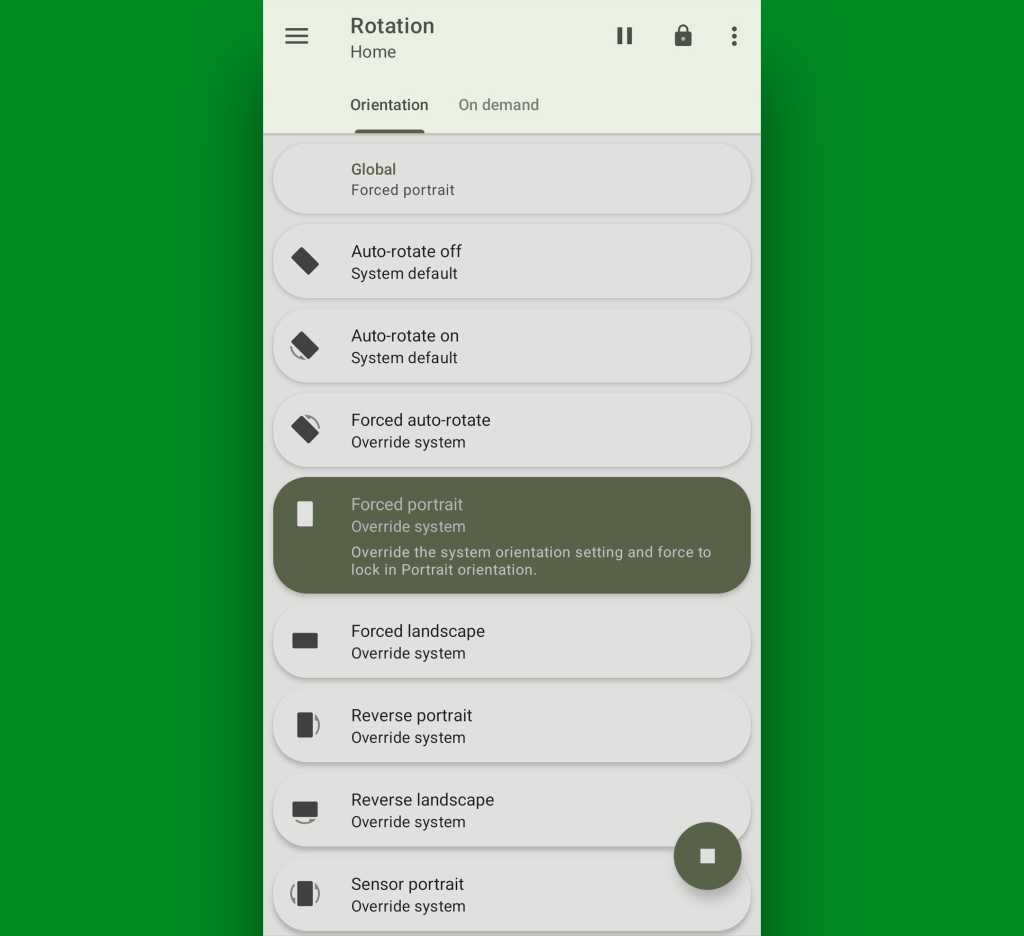
Think carefully about what display orientation you want your phone to useby default. I’d suggest considering “Forced portrait,” as I described above, which then lets you have that act as the norm and whatever scenarios you choose next to act as the exceptions to the rule.
Tap the line corresponding with “Forced portrait” or whichever orientation you want.
“Forced portrait” is a fine starting place for any Android display rotation setup.
JR Raphael, Foundry
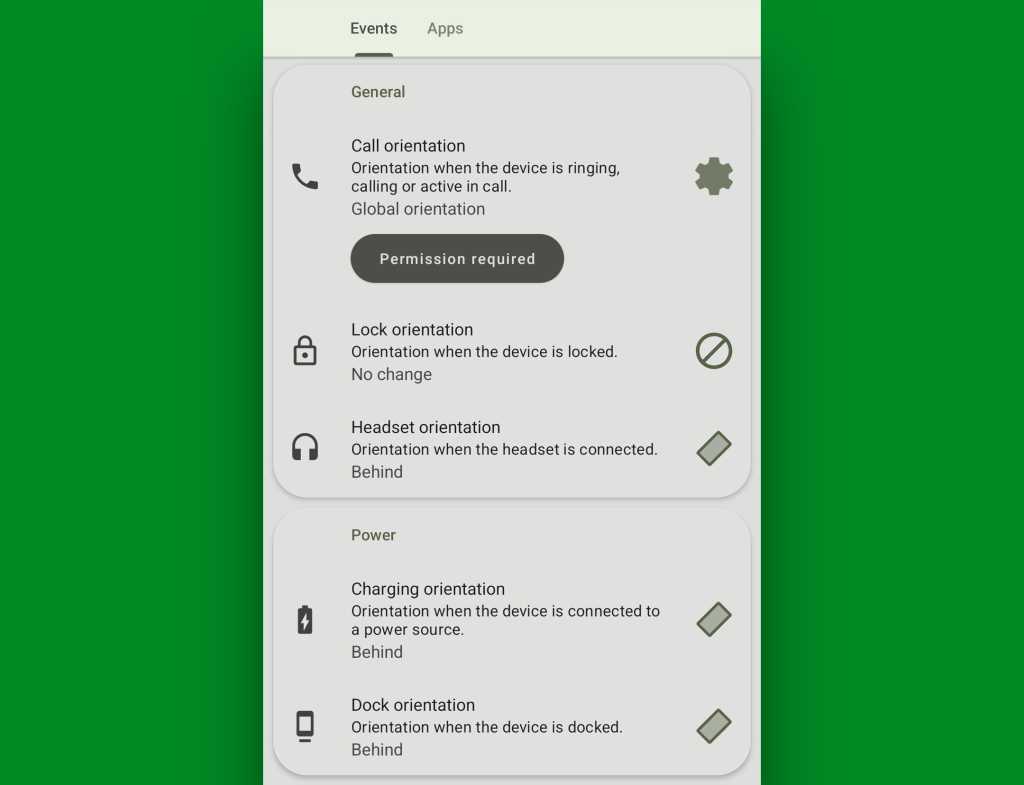
Now, for the exceptions: Scroll down in that same settings screen until you see the lines labeled “Call orientation,” “Lock orientation,” Headset orientation,” “Charging orientation,” and “Dock orientation.” If you want your phone to act differently during any of those events, tap on any of those options to adjust accordingly (and note that with the call orientation, you’ll also need to activate one more pertinent permission before it’ll work).
Rotation makes it easy to create display-rotation exceptions for different types of states and events.
JR Raphael, Foundry
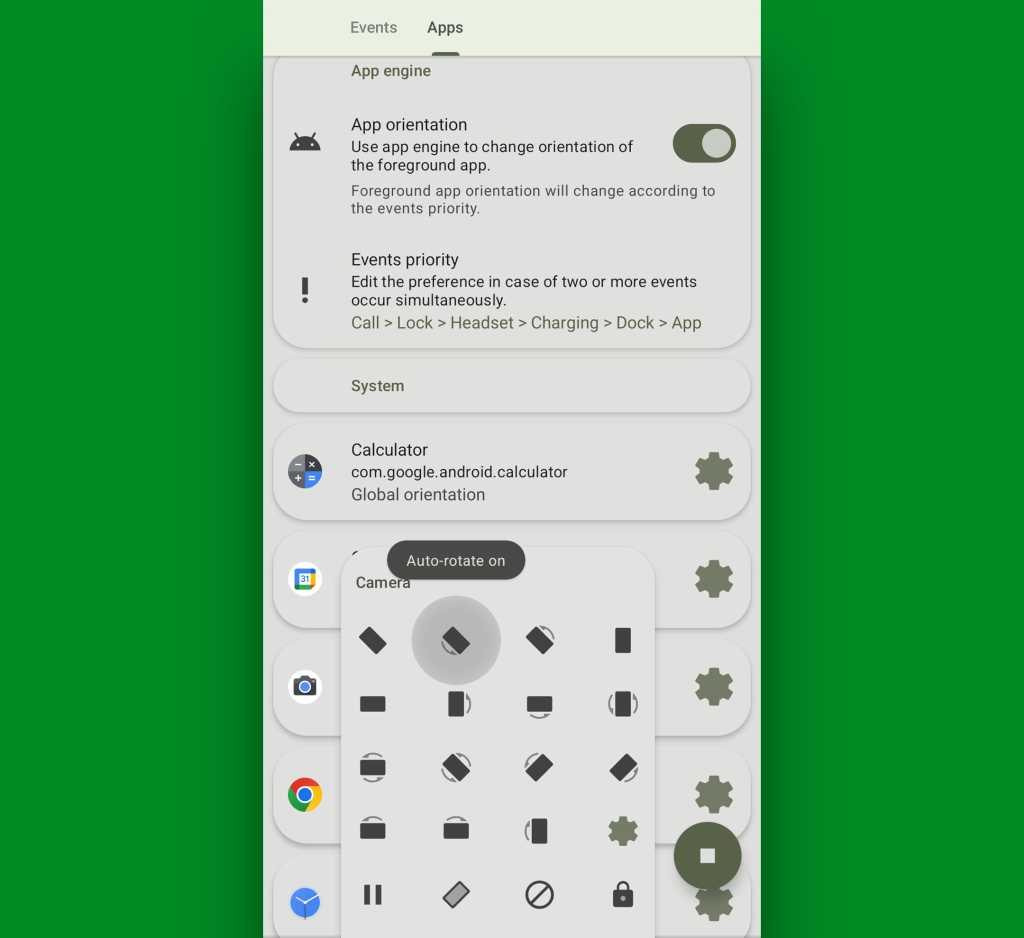
Almost done! Now, for our grand finale, just find the line in that same area of Rotation’s settings that’s labeled “App orientation.” Flip the toggle next to that into the on position and tap the “Permission required” button beneath it to let Rotation know which app is in the foreground at any given moment and then be able to adjust your orientation accordingly.
The “App orientation” section is where Rotation’s true power comes into play.
JR Raphael, Foundry
Finally, tap the “Configure” button, then go through the list of all your installed apps and tap any app where you want the rotation to be anything other than the default we set a moment ago. The icons to pick the app-by-app rotation behavior are a little confusing at first, but if you press and hold any of ’em, you’ll see a message letting you know what exactly it entails.
App by app, choice by choice: The power is in your hands.
JR Raphael, Foundry
And that’s it! Rotation has some other options you might enjoy exploring (such as the ability to turn off the pop-up “toast” messages that inform you every single time your screen rotation rules change), but your basics are now in place and set up to work exactly the way you want.
And from this moment forward, you’ll never have to think about — or be annoyed by — your phone’s unpredictable screen rotating habits again.
Ahh…a welcome little quality-of-life upgrade, wouldn’t ya say?
Get six full days of advanced Android knowledge with my free Android Shortcut Supercourse. You’ll learn tons of time-saving, sanity-enhancing tricks!
AI builders are starving for agentic integrated development environments (IDEs), which help developers code more efficiently and thus, ideally, speed up production. And nowhere has this been more apparent than in the tug-of-war over Windsurf.
In the latest development, AI coding startup Cognition has signed a definitive agreement to acquire the rival platform, giving it access to Windsurf’s product, brand, and remaining employees. This comes after Google pulled Windsurf CEO Varun Mohan, cofounder Douglas Chen, and several R&D employees into its Google DeepMind team in a $2.4 billion talent and licensing grab.
It also follows the surprise termination of the expected $3 billion purchase of Windsurf by OpenAI that seemed all but a done deal, but didn’t materialize due to intellectual property (IP) tensions with Microsoft, a key OpenAI partner and investor. Over a period of 72 hours, OpenAI’s purchase offer expired, Google hired away Windsurf’s top leaders and team members, and Cognition swooped in to snap up the remaining assets.